Klientens mobile app
Lad dine kunder downloade din egen personlige klient-app. Med appen på deres mobil kan de nemt booke, ombooke, købe pakker, medlemskaber og gavekort samt få adgang til din virksomhed direkte fra deres telefoner.

Klient-appen er tilgængelig for alle betalende SimplyBook.me-brugere, der bruger Klient-login, og hvis du har et premium-abonnement, kan du personliggøre den med dit eget logo og brand-farve. Bed dine kunder om at gå til dit bookingwebsted på en mobil enhed, og derfra vil de blive inviteret til at downloade appen på deres mobil.
Så enkelt er det!
Client Mobile App fungerer som en Progressive Web App (PWA), hvilket betyder, at den ikke kan downloades fra traditionelle app-butikker som App Store eller Play Market. I stedet kan dine kunder få adgang til appens funktioner direkte via en webbrowser på deres mobile enheder. Denne tilgang giver fleksibilitet, nemme opdateringer og kompatibilitet på tværs af forskellige enheder.
- Please note!
- When you turn this feature on Client Login custom feature will be enabled as well;
- It currently works with weekly classes, modern and flexible calendar layouts only;
- The following functionality is not currently present in the client application: News, Photo gallery,, Reviews, Custom page, Google translate, main page mode change, end time display, hiding images on booking steps, RTL orientation, Contact widget, busy and available slots color adjustments.
- Video tutorials available
- How to set up the Client mobile app

- How to use the Client mobile app
- How to set up the Client mobile app
- How to use
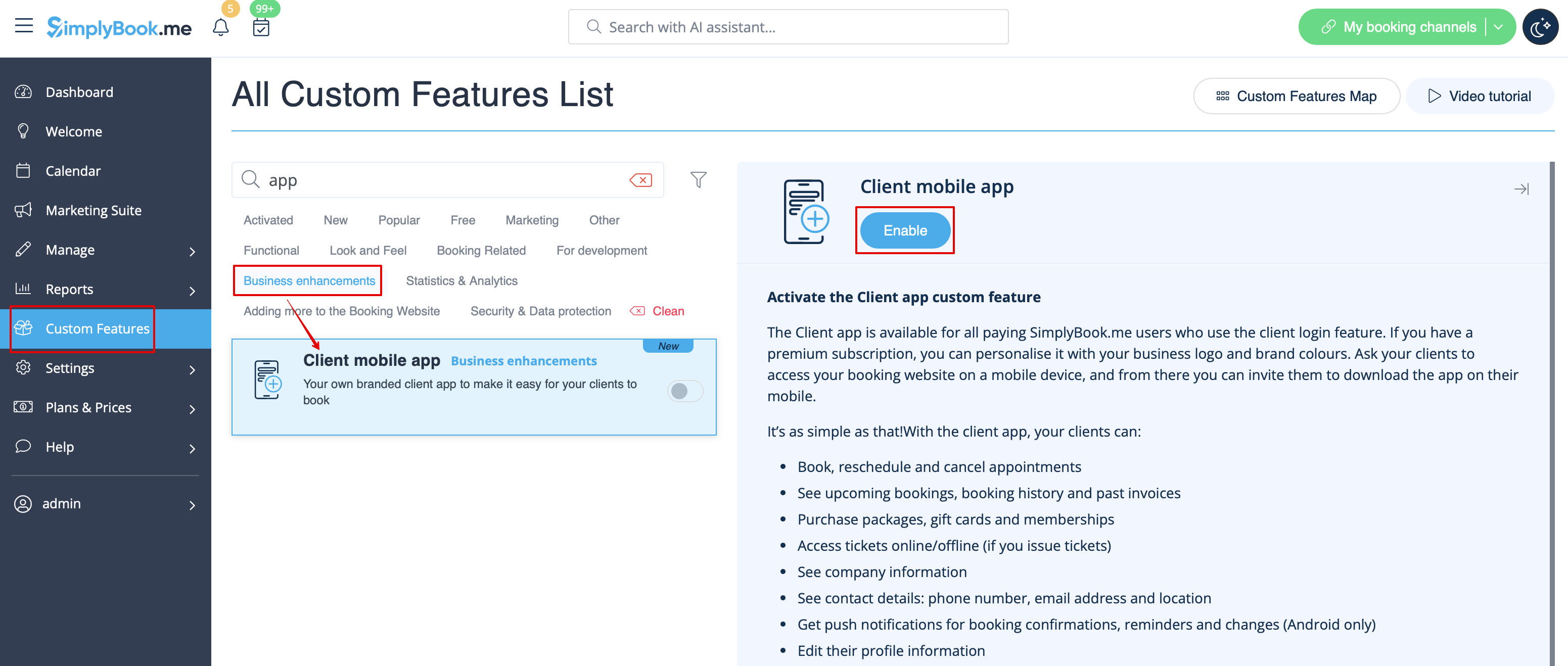
- 1. Enable Client mobile app feature on your Custom features page in Business enhancements section.
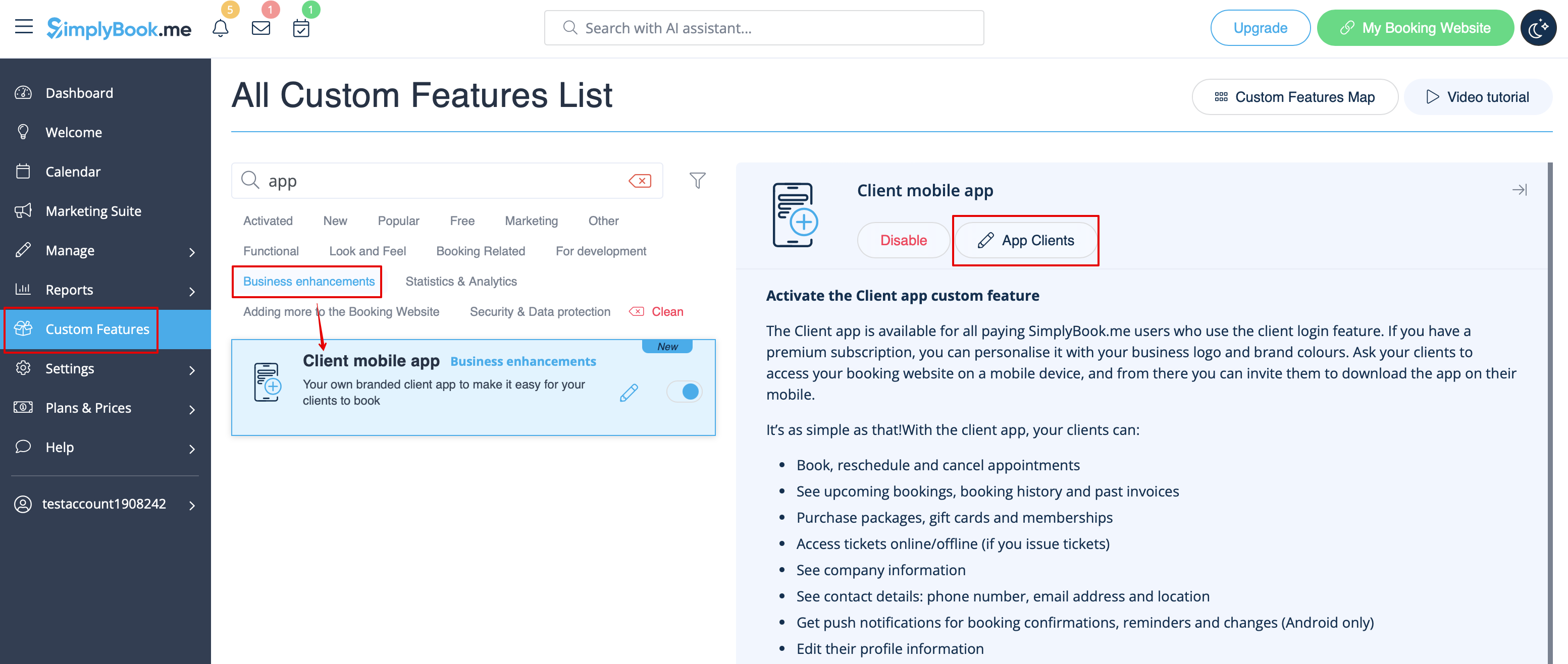
- 2. And it is ready to use. Some reports options become available to you.
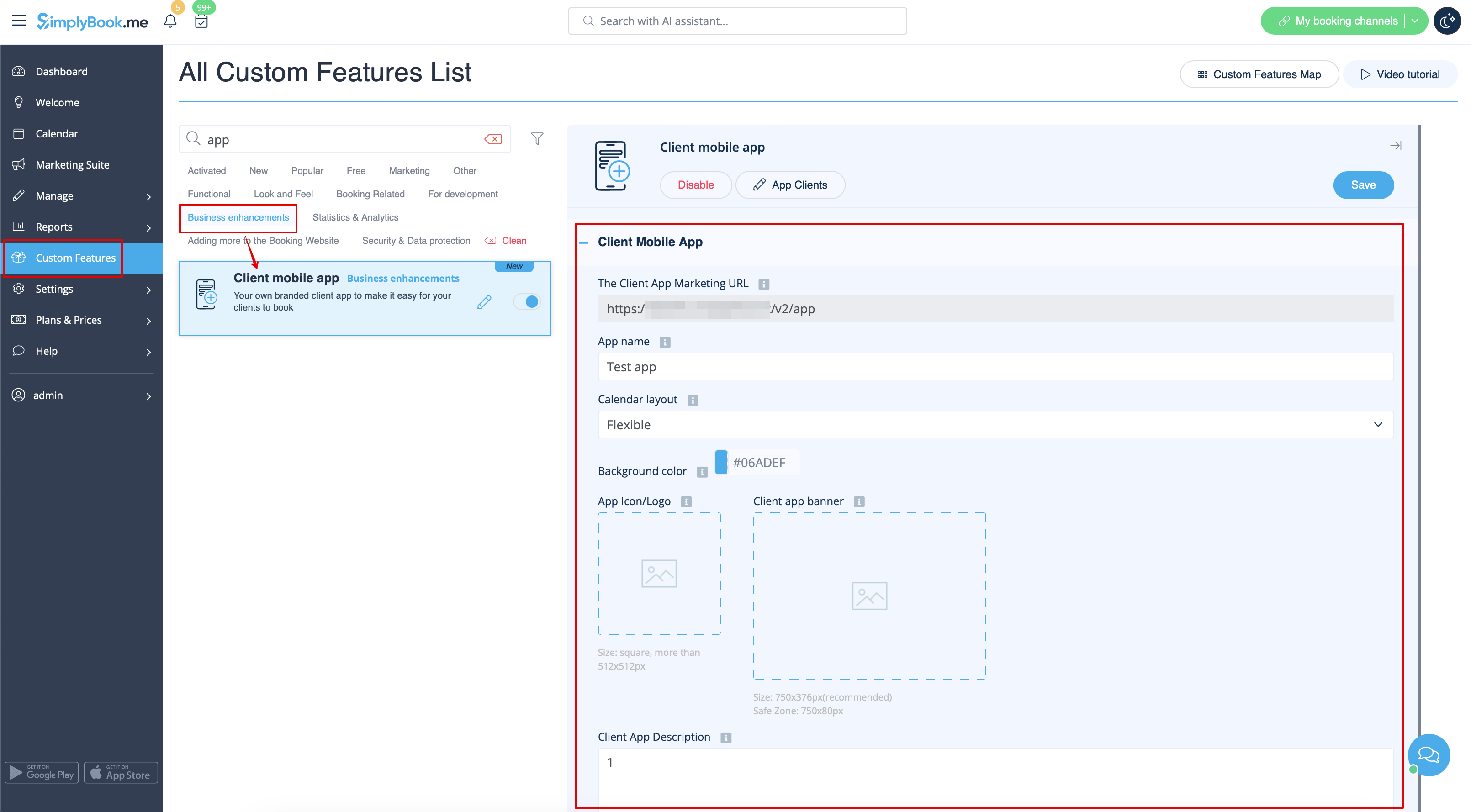
- 3.(available for Premium subscriptions only) Add own application name, set brand color, select the preferable calendar layout, upload the logo and banner images.
- It is important to use square image for the logo, different dimensions will not be saved.
- As well we recommend using brighter and/or darker colors for background for better customer experience.
- 4. Send your booking website URL(banner is not shown on widgets) to your clients so that they will be able to install the application on their phones by clicking on the corresponding banner.
- (Invitation installation banner may not be displayed in built-in mobile browsers, it is recommended to use Chrome instead)
- Please note! IOS devices users will need to open your booking website in full Safari version to have the installation invitation banner and then simply use Add to home screen option.

- 5. As the result they will be able to book online, see their appointments(this option is available even in offline mode), reschedule or cancel them, buy gift cards, memberships and packages, view invoices and update own details if necessary.

- Push notifications
- Users can also get push notifications about new bookings or cancellations on their devices.
- For that it will only be necessary to enable notifications in the application after sign up/sign in and in a standard system dialogue.

- In case the notifications are turned on, but the push messages do not come it is necessary to check if Chrome system notifications(Android) or Safari(IOS) are enabled inside the device settings.

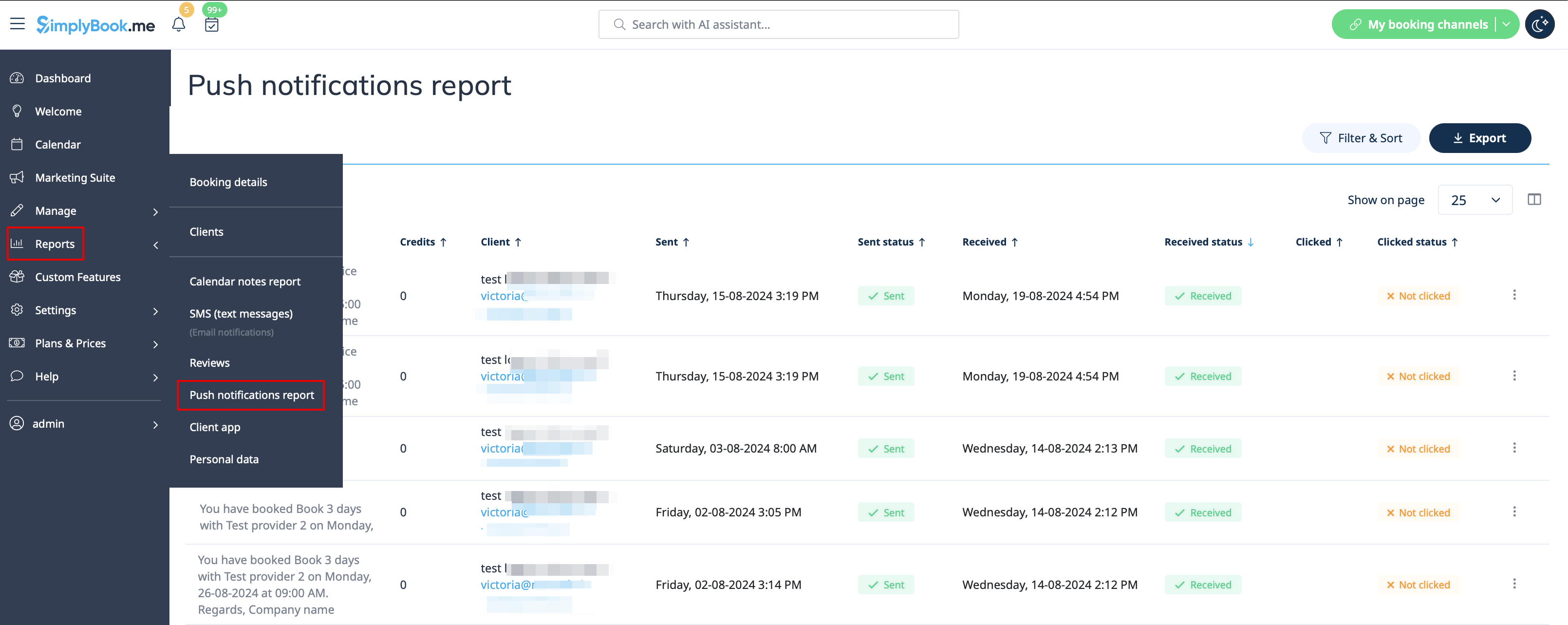
- From admin side it is possible to see all push notifications sent to customers in Reports -> Push notifications as well as whether they were received and clicked by client.