Додати елементи на сторінку бронювання
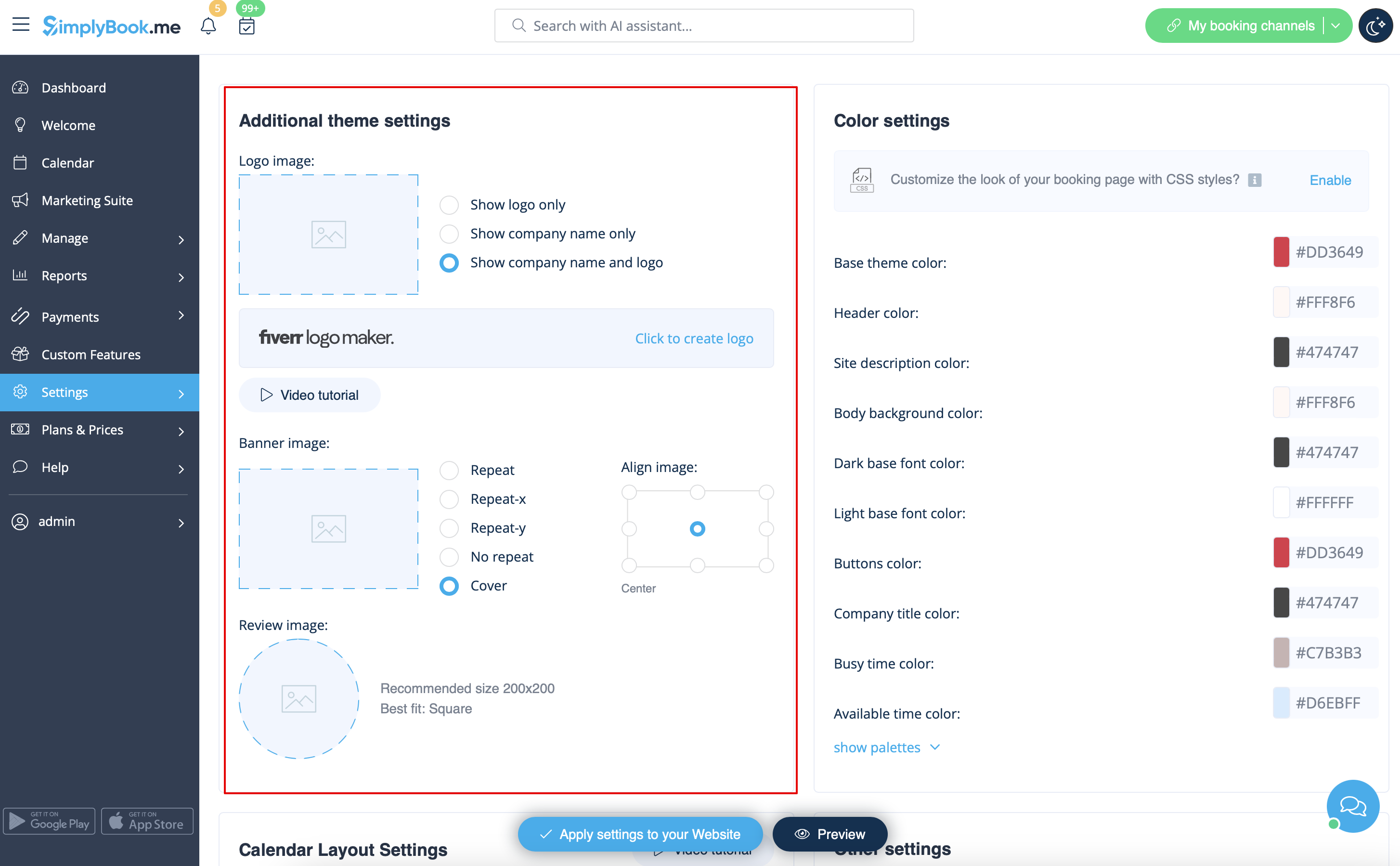
Логотип і фон
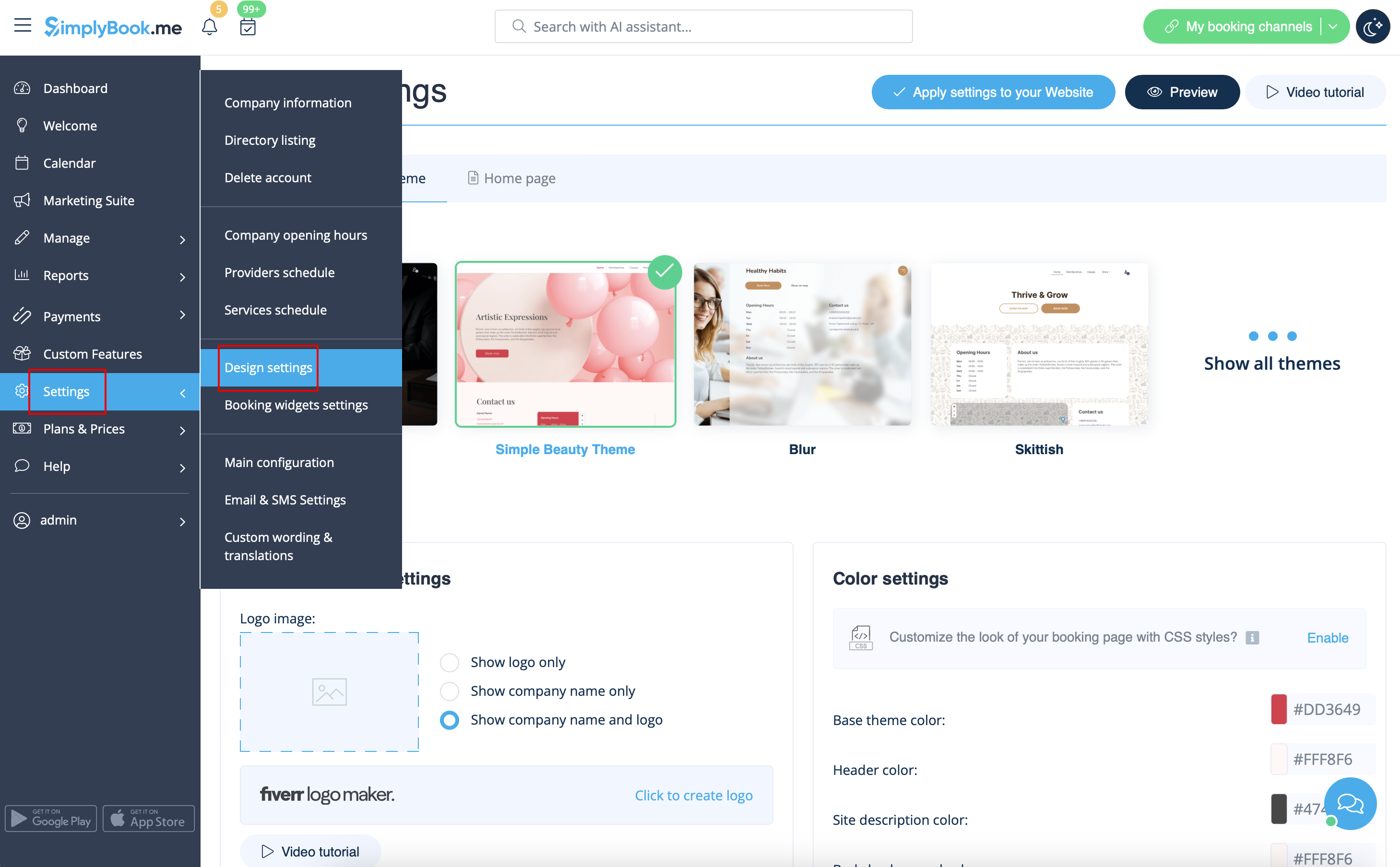
Ви можете додати логотип вашої компанії та красивий банер, а також окремий логотип для сторінки "Відгуки" в
Налаштування
->
Налаштування дизайну
->
Додаткові налаштування теми
Зображення
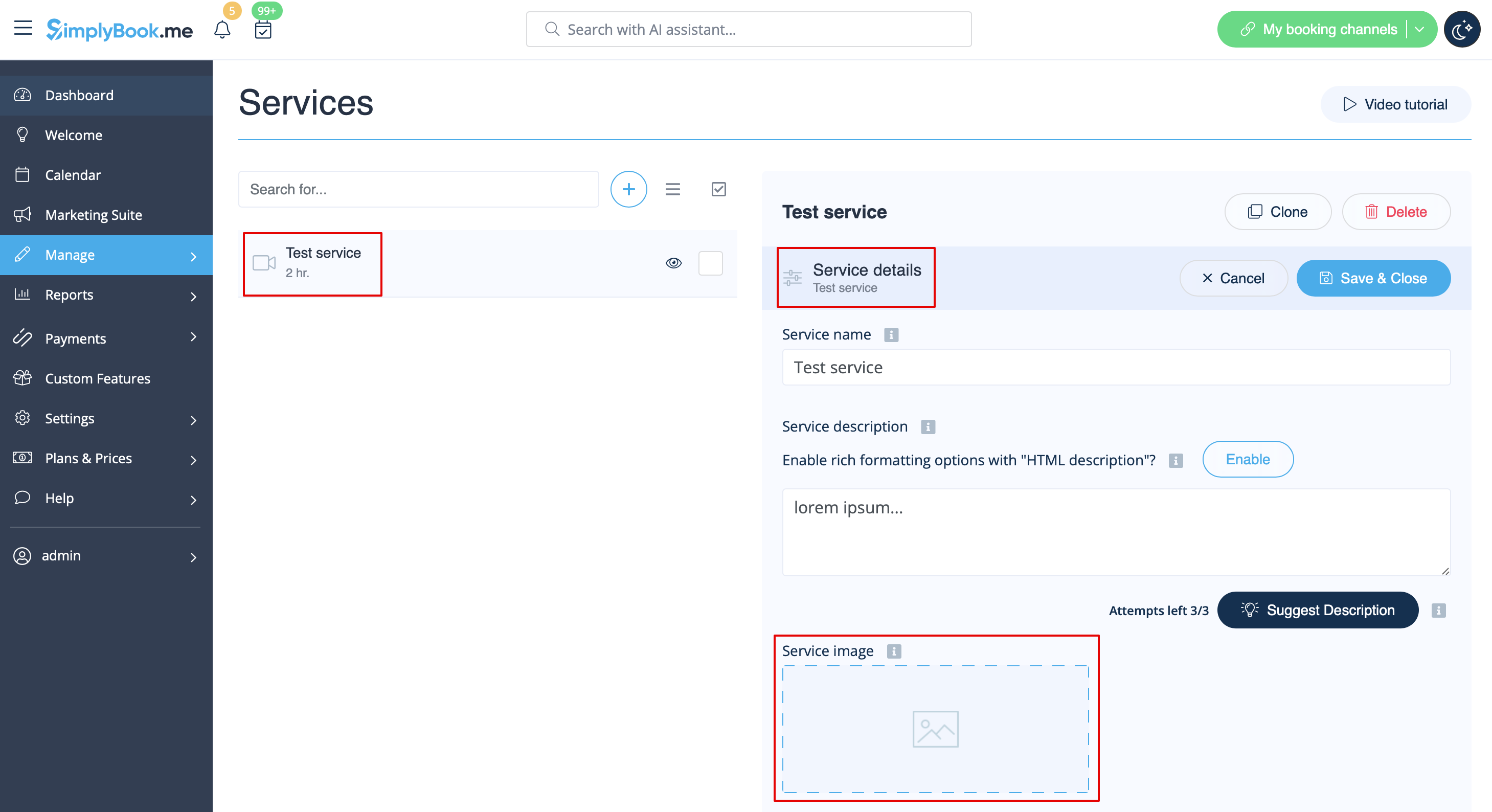
Ви можете додавати зображення до ваших послуг, провайдерів, категорій, місцезнаходжень тощо у розділі Керування -> Послуги/Провайдери послуг -> вкладка Інформація про послугу або Інформація про провайдера послуг -> натисніть на іконку зображення послуги або провайдера послуг та перегляньте зображення.
Descriptions
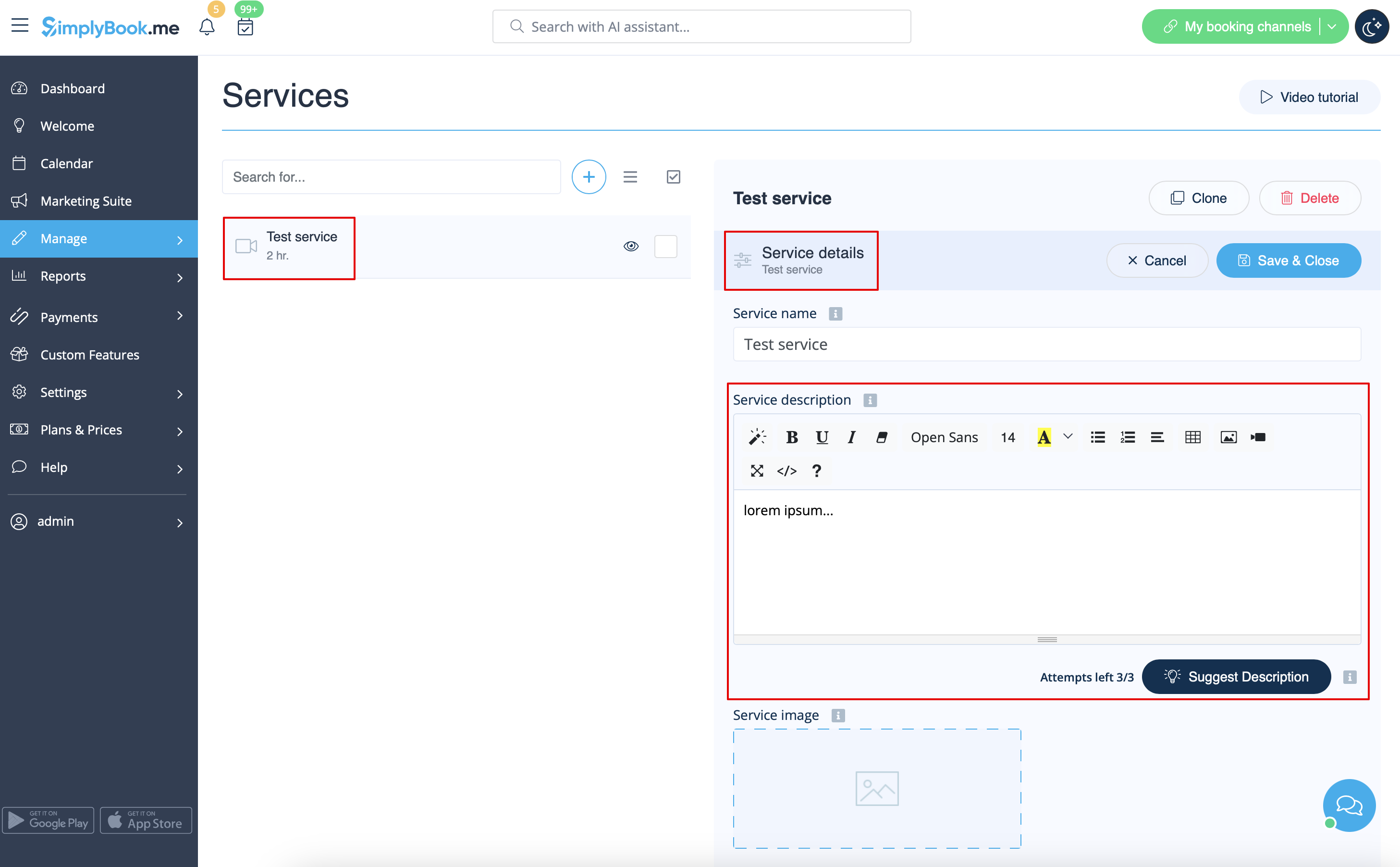
Need to provide more information regarding your services and/or employees?
You can set this in Manage -> Services/Service Providers -> Service details or Service provider details tab -> Service description or Service provider description
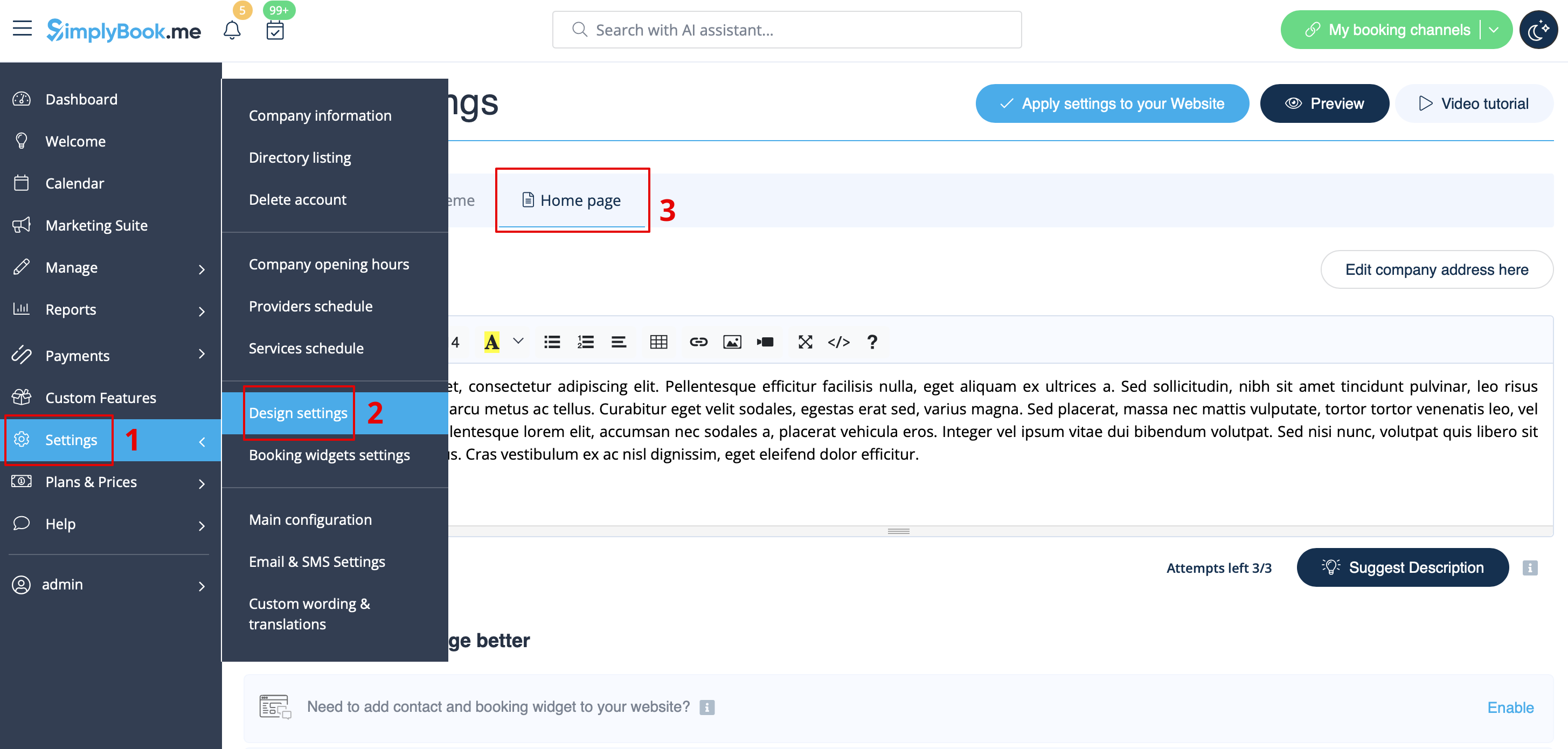
About section
In Settings -> Design settings -> Home page you can add some company description and other important information that you wish to be displayed on your home page.
Contacts
Need to show your clients some contact details? Please add them in Settings -> Company information
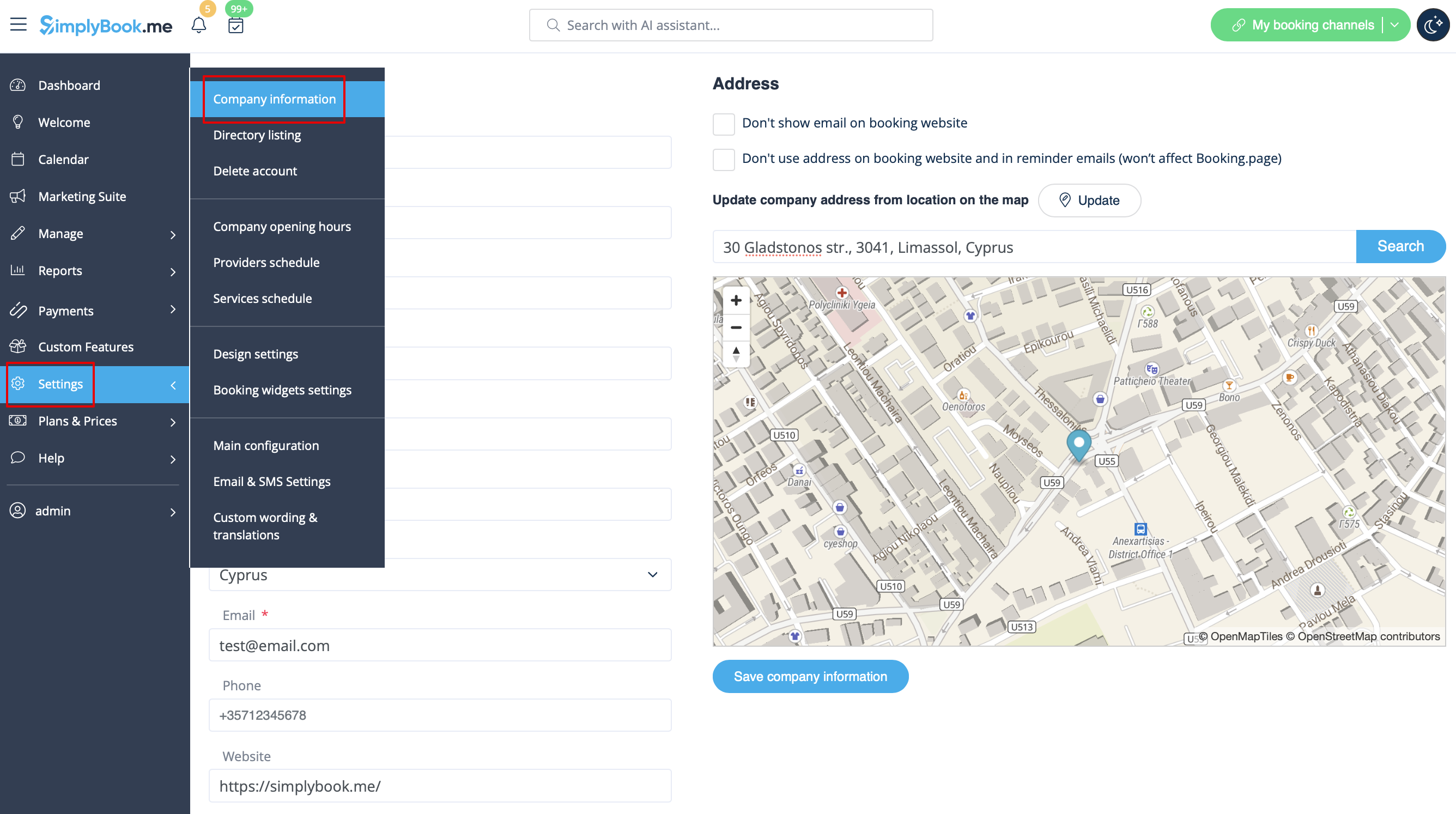
You can add the following details there:
- Email address
- Phone number
- Website address
- WhatsApp phone
- Facebook profile url
- X.com (Twitter) page link
- Instagram page url
- LinkedIn page
An example of the client side look.
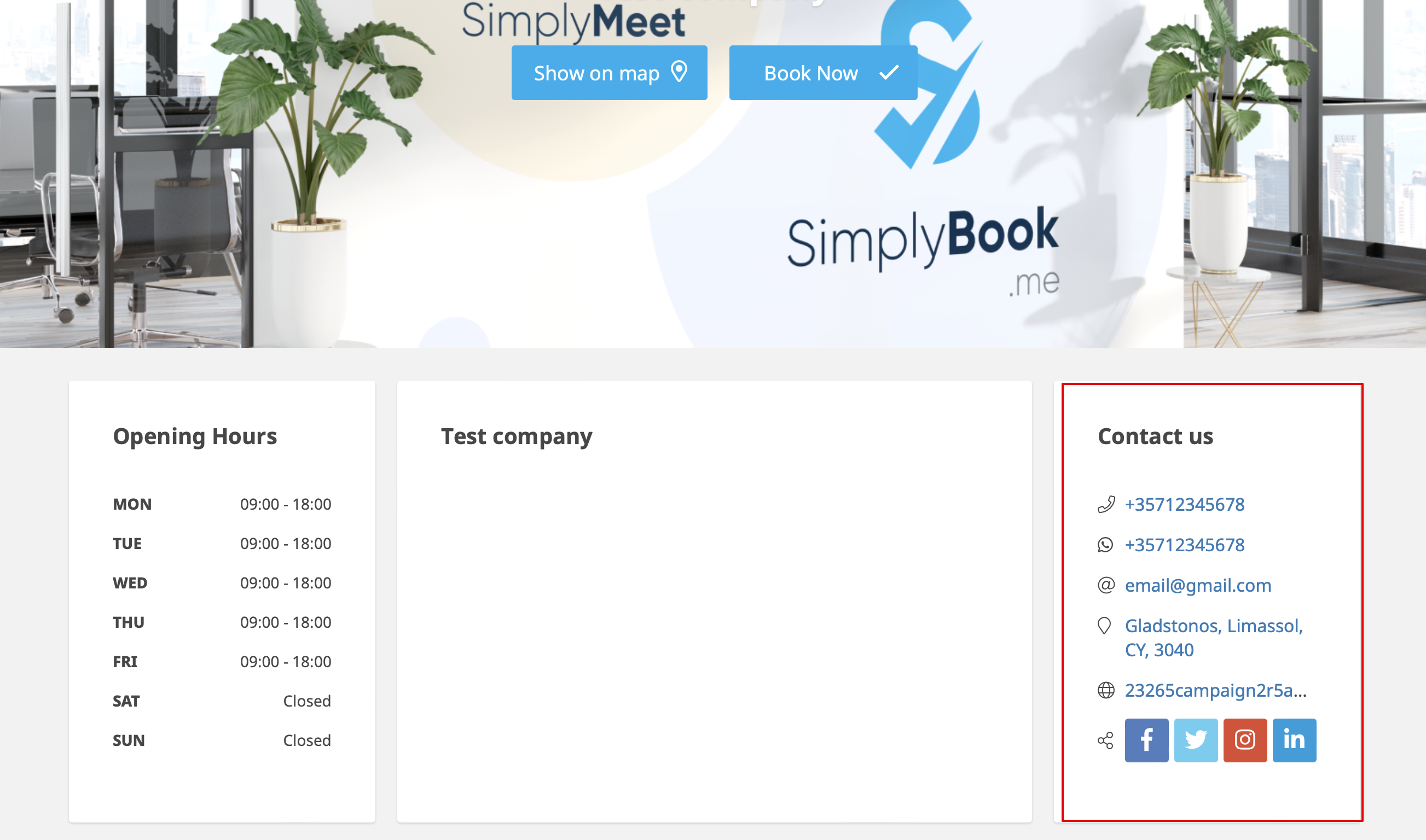
The clients will be able to, for example, click on WhatsApp number and be redirected to the WhatsApp messenger to easily contact you there.
Gallery
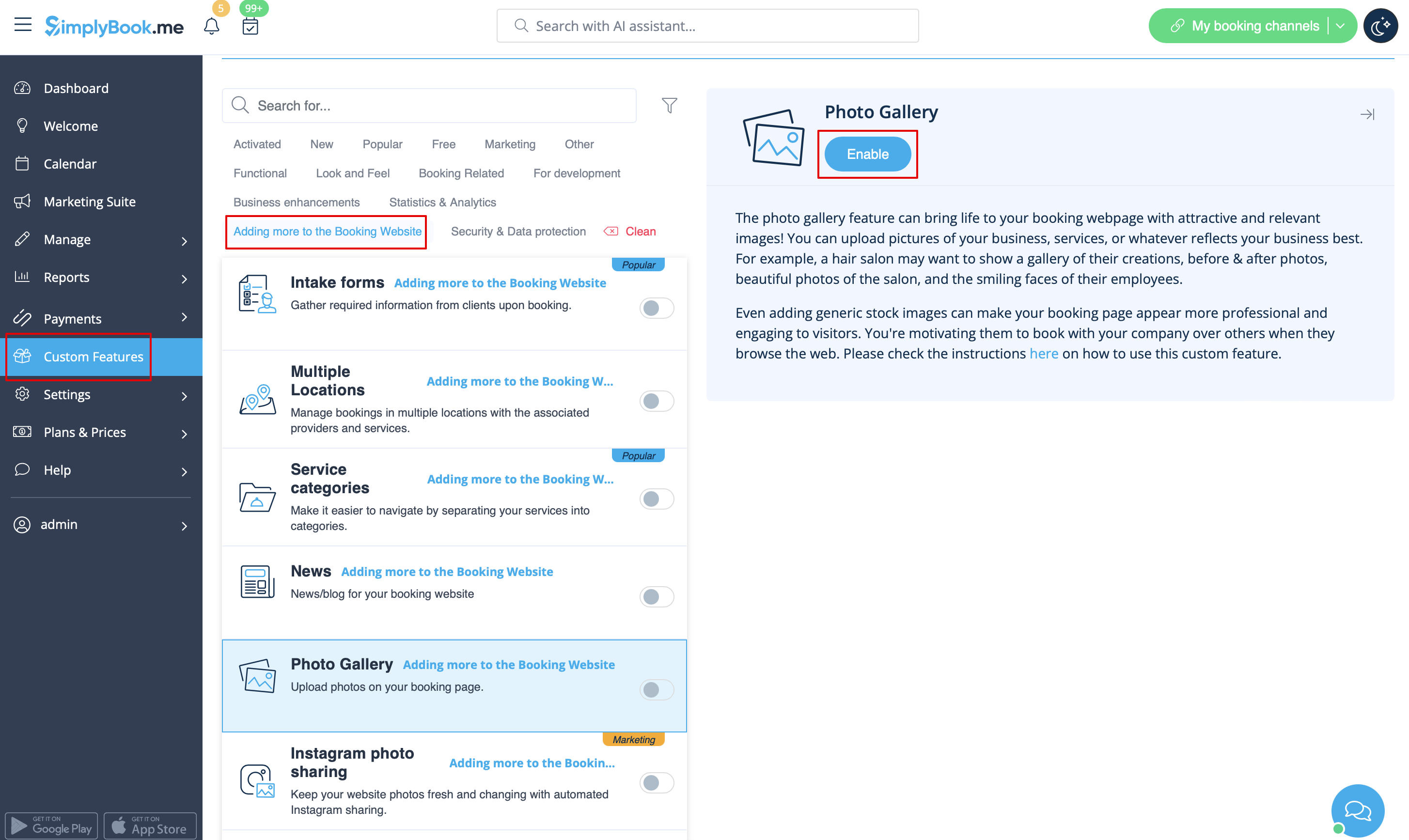
Make your booking page more attractive showing the photos of your services with Photo Gallery custom feature.
To enable it please go to Custom Features -> Adding more to the booking website -> Photo Gallery -> Enable
News
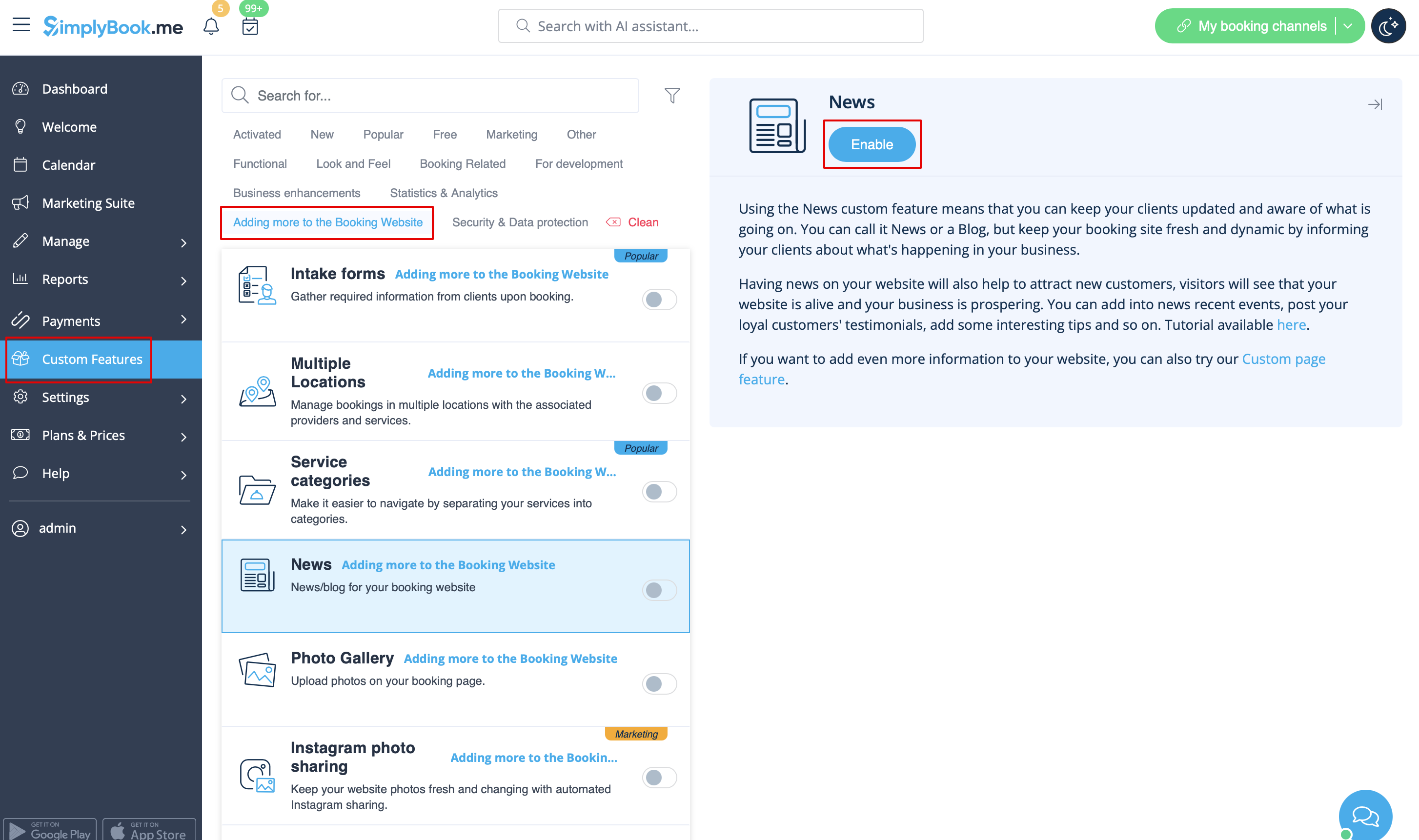
This option allows to add fresh news to your booking website.
To activate it please go to Custom Features -> Adding more to the booking website -> News -> Enable
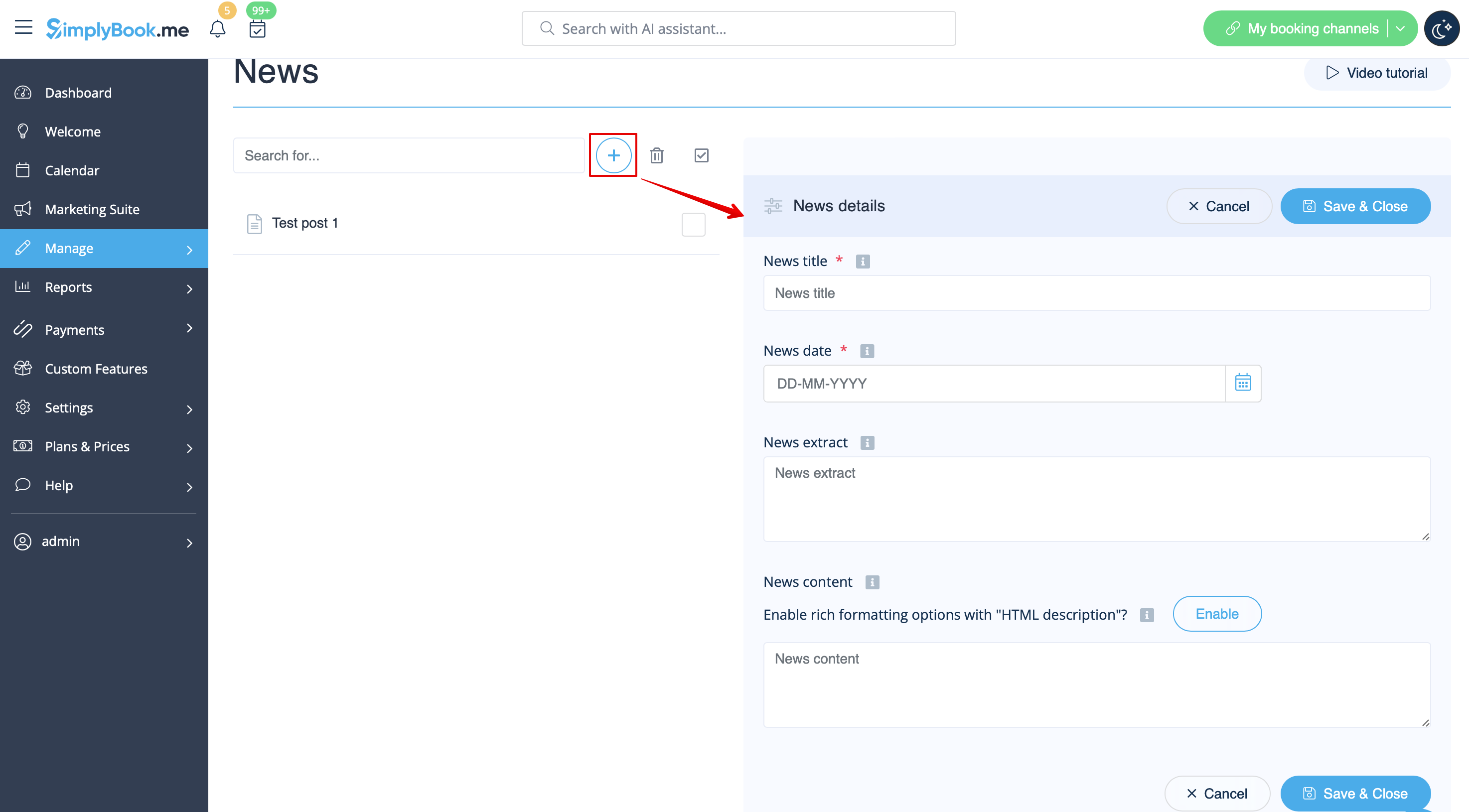
After it is enabled in Custom Features -> News -> Settings you can create news posts and they will be shown in the separate tab on your booking site.
Terms and Conditions
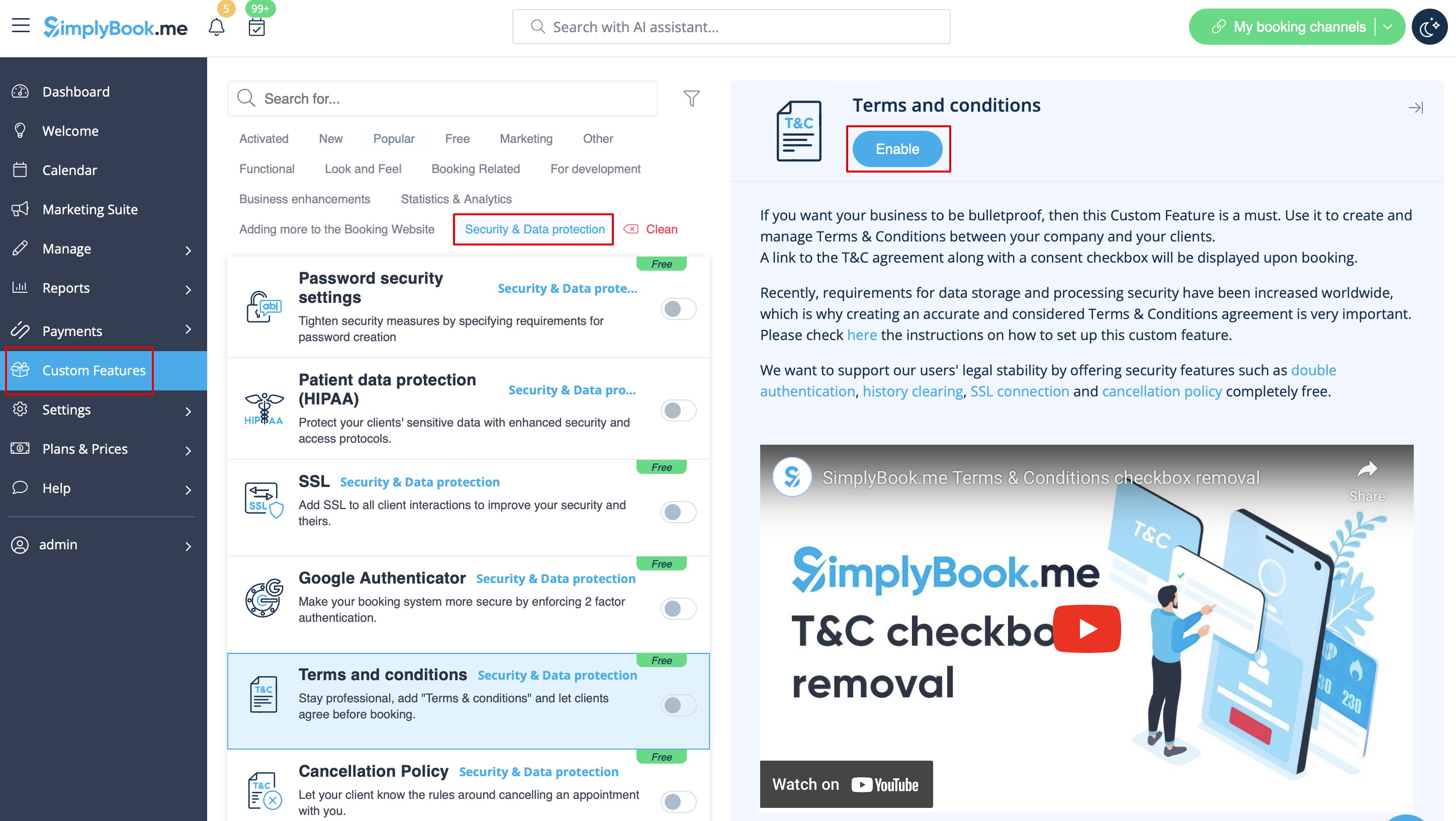
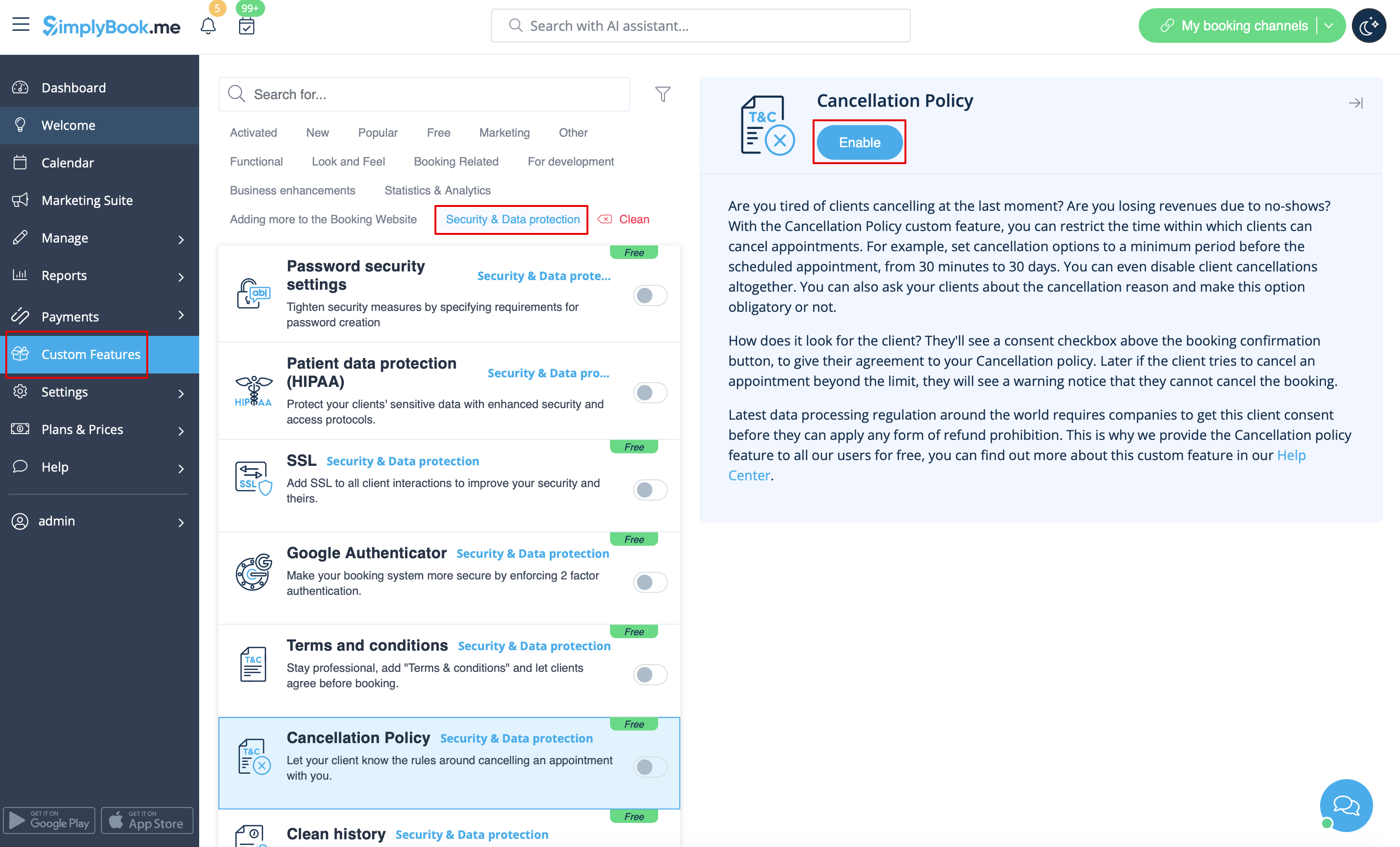
Need your business to be bulletproof? You can add your own Terms and Conditions by enabling the corresponding custom feature in Custom Features -> Security & Data protection and adding the text of your T&C in its settings.
Cancellation Policy
Need to restrict the period when bookings can be canceled by clients? Please go to Custom Features -> Data protection -> Cancellation Policy -> Enable and set it to your needs.
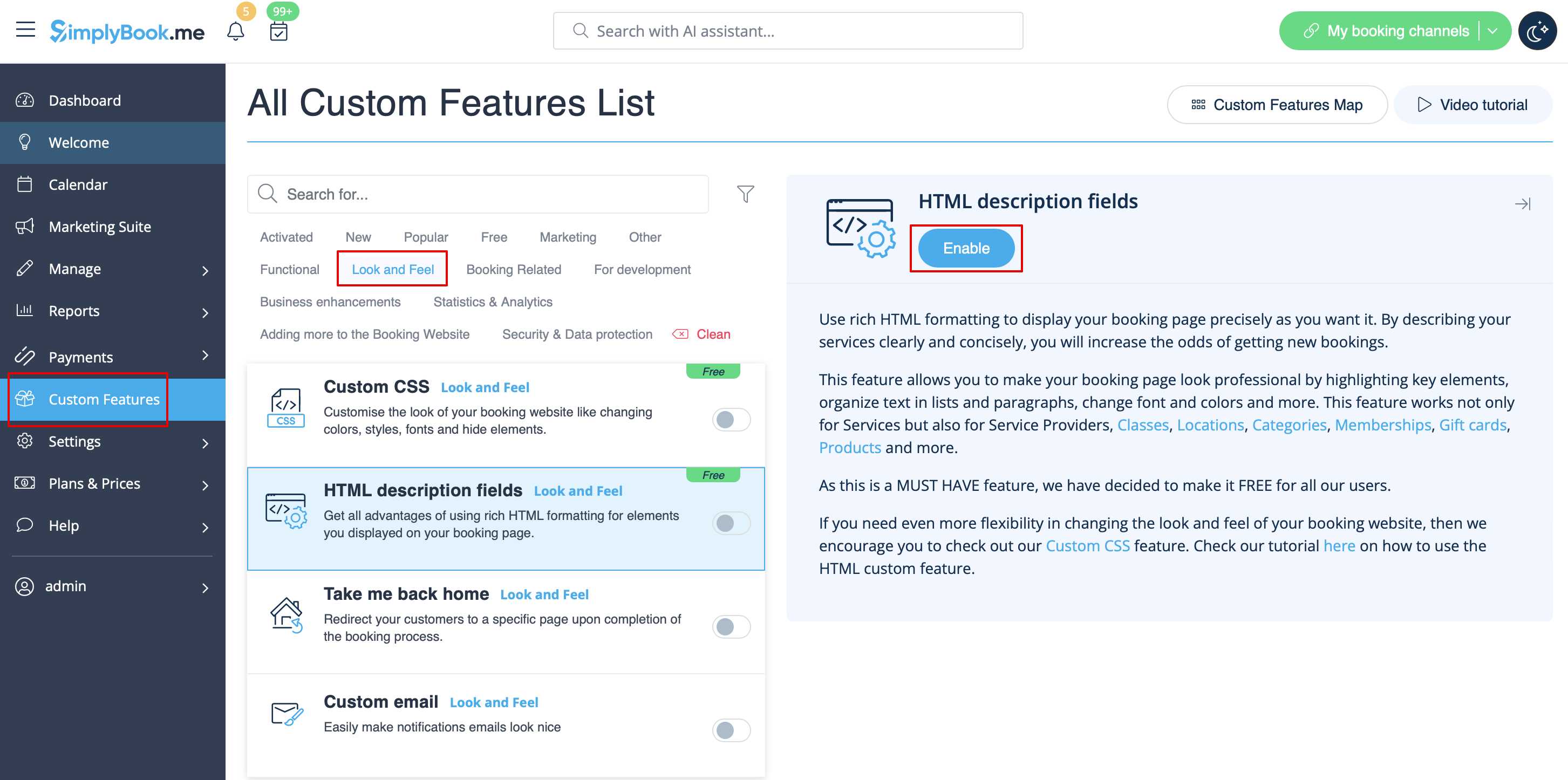
Html formatting for description fields
This feature allows making descriptions more eye-catching with the use of HTML formatting.
Please go to Custom Features -> Look and Feel -> HTML description fields -> Enable and edit descriptions for services, providers, locations and categories in the corresponding Manage section.