Короткий огляд системи
Спочатку ви можете переглянути 2 відео нижче. Вони допоможуть вам швидко ознайомитися з системою.
- Коротке відео про деякі можливості системи SimplyBook.me
- А ось ще одне коротке відео про те, як розпочати роботу
Після реєстрації облікового запису в SimplyBook.me наступним кроком є організація робочого графіка, налаштування постачальників, послуг та багато іншого.
Рекомендуємо переглянути наш відеоканал, де ви знайдете безліч відеороликів, які допоможуть вам розпочати роботу. https://www.youtube.com/@SimplyBook-me
Коли ви створюєте обліковий запис, система автоматично створює для вас 2 сторінки: інтерфейс адміністратора та сторінку бронювання.
Адміністративний інтерфейс — це місце, де ви входите в систему та керуєте своїми замовленнями, налаштуваннями, дизайном тощо. Клієнти не мають доступу до цієї сторінки. (Приклад)
Сторінка бронювання — це інтерфейс для ваших клієнтів. Там вони можуть замовити ваші послуги та залишити контактну інформацію. Ви завжди можете перейти на сторінку бронювання, натиснувши кнопку «Мій веб-сайт бронювання» у верхньому правому куті адміністративної сторінки. Ви будете перенаправлені на сторінку бронювання, а також зможете надіслати URL-адресу своїм клієнтам, щоб вони могли легко знайти вашу компанію. (Приклади)

Макет і меню
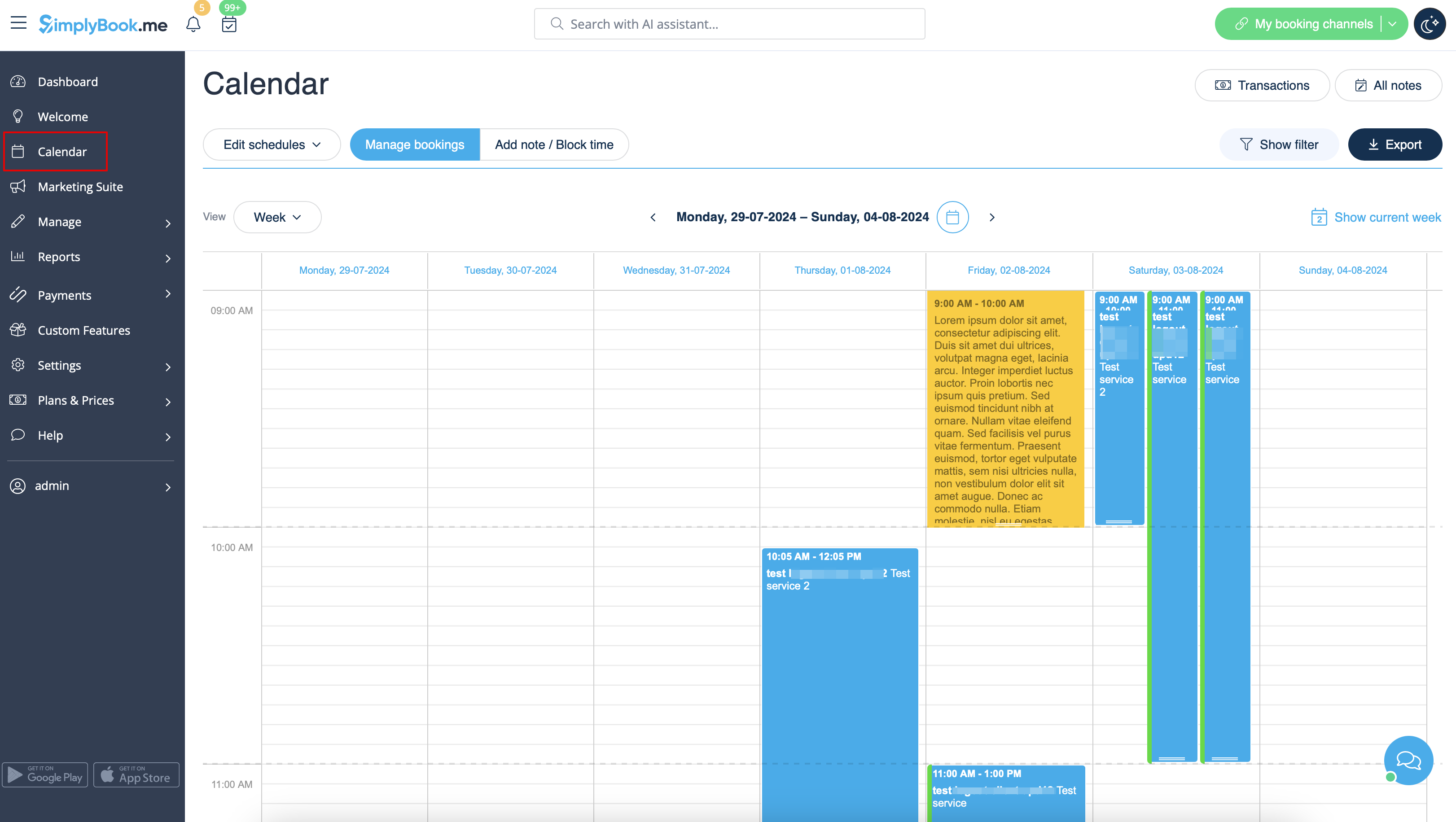
- 1. Верхня панель. Трирядкова кнопка показує/приховує повне меню зліва. Останні новини позначені жовтими повідомленнями. Повідомлення позначені червоним кольором, а сповіщення — зеленим.
- 2. Перша вкладка, яку ви бачите, — це «Панель інструментів». Вона містить статистику про вашу ефективність, поточний пакет передплати, бронювання, виконавців, активність клієнтів тощо. Аналізуючи інформацію, ви можете зробити висновки про свій бізнес і з'ясувати, що можна зробити для його поліпшення. Якщо вам потрібно дізнатися більше про кожну секцію, просто натисніть знак «i».
- 3. На сторінці «Welcome» ви можете перевірити загальну інформацію про ваш обліковий запис, таку як посилання на сторінки адміністратора та клієнтів, поточний пакет передплати та баланс. Ви також можете знайти кілька корисних відеоуроків про те, як налаштувати систему.
- 4. Calendar is a section where you can add, edit and delete your bookings and quickly add break times.
- 5. Marketing Suite tab contains various tools that allow to develop your business and increase its visibility for the customers.
- 6. Manage tab contains several sections:
- Services - add, delete and edit services + create events
- Service Providers - add, delete and edit providers
- Clients - add, edit and delete clients
- Users - add, edit and delete users.
- Classes option appears when you enable Classes custom feature and allows to create classes. You can use classes option only or combine them with services. They will be displayed together on the booking site.
- Packages section appears if the corresponding custom feature is enabled and allows to sell packages containing different services, products and add-ons.
- Membership tab appears if you use Membership custom feature and allows you to create different kinds of memberships for your clients.
- Service add-ons tab will appear if you enable Service Add-Ons feature. It is one more up-selling option to enhance your business.
- Products for sale can be accessed when Products for Sale custom feature is switched on. This functionality allows you to create additional items to sell to the customers when they book.
- Coupons and gift cards section appears if you are using Coupons and Gift cards custom feature for issuing gift cards and allowing your clients to have some discounts.
- Related resources tab appears when Related Resources custom feature is enabled and allows to manage appointment related equipment.
- Intake forms tab can be seen when Intake forms custom feature is enabled. Here you can create additional questions you wish to ask your clients during the booking process.
- Client fields tab is present when the corresponding custom feature is on and allows to manage the fields for the registration form on the booking website.
- News tab appears when News custom feature is enabled and allows to create and edit the posts for the booking website.
- Status is available when the corresponding custom feature is enabled and gives access to managing the bookings statuses.
- Flexible notifications option is there when Flexible notifications is on and allows to create service and/or provider specific booking notifications.
- Book soon notification system tab s there when you have the corresponding custom feature enabled. Here you can create reminders to book your services again.
- Calendar note types submenu allows to create various color-coded notes types to be afterwards used on the Calendar page.
- Calendar sync tab appears when Calendar sync custom feature is on and allows to manage the connected Google/Outlook calendars sync options.
- Online video meetings submenu is present when the corresponding feature is enabled and allows to edit the video tool connections per system providers.
- Taxes tab appears if you are using Accept payments custom feature and allows to create different tax options.
- Custom page option is present when you have Custom page feature enabled and gives the possibility to create additional pages and links for the booking website.
- 7. Reports tab contains different kinds of statistics you may wish to analyze and reviews from your clients
- 8. Custom Features. Custom Features are used to enhance the system and customize it in line with your needs. Please see the list of all Custom Features and their functions here.
- 9. Settings section allows to set schedules for the whole company, as well as the separate services/classes and providers. It also contains various general options for your account starting from date format and notifications templates to website widgets creation.
- 10. Plans&Prices.
- Subscriptions. Here you can view different tariffs available for you and purchase or upgrade subscriptions.
- Additional items. Here you can purchase SMS credits, additional bookings and other items.