Importing the list of clients/sv
From SimplyBook.me
Hur man importerar kunder
Gratis anpassningsbar funktion!
- Observera! Det är förbjudet att importera en kundlista med e-postadresser och kundinformation om kunderna inte uttryckligen har gett dig rätt att göra det.
- Observera att denna funktion endast är tillgänglig med Standard- och Premium-abonnemang (tidigare Advanced, Gold och Platinum).
- Som standard är det endast möjligt att importera 500 kunder. Om du behöver importera fler, kontakta supporten för mer information.
Så här använder du det här alternativet:
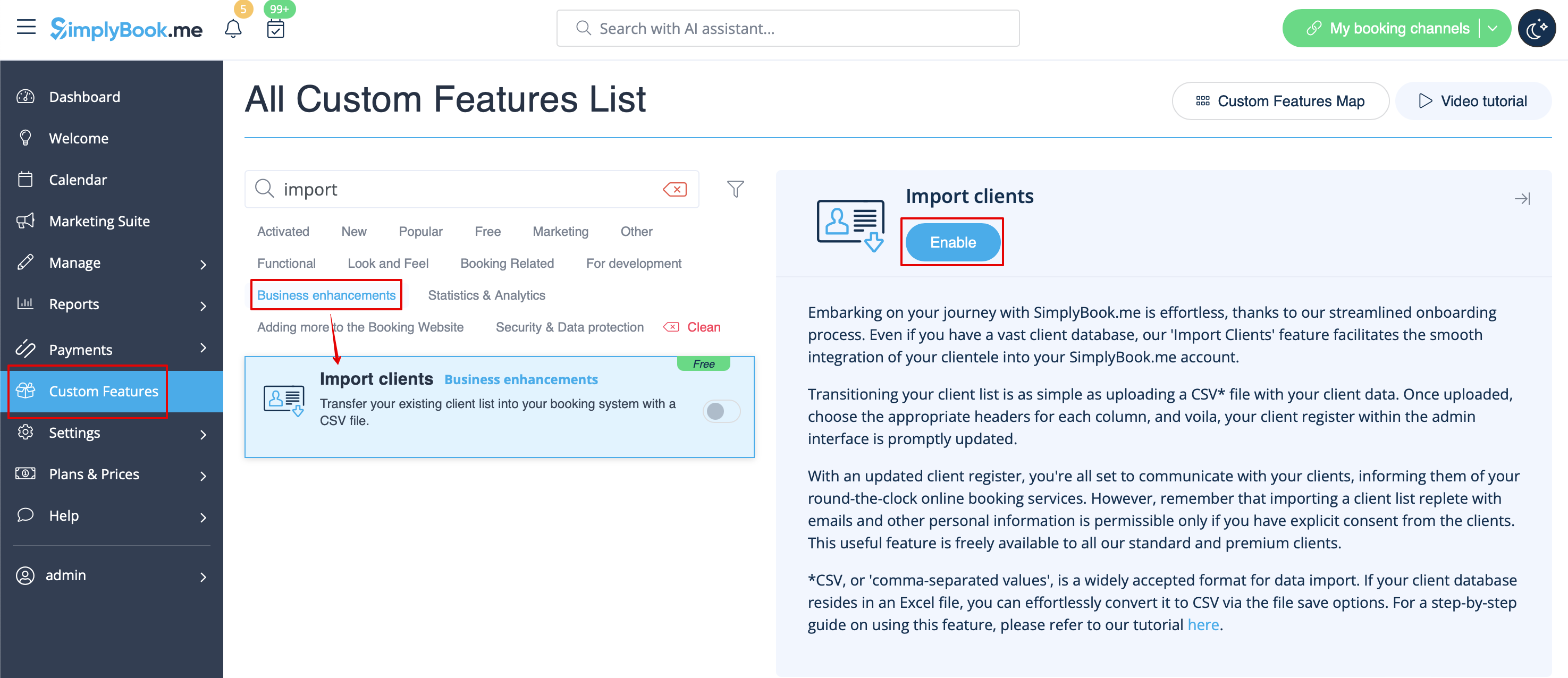
- 1. Aktivera den anpassade funktionen "Importera kunder" på sidan Anpassade funktioner:
- 2. Prepare your Excel file.
- - No text above the list of clients should be written
- - Make sure all cells are correctly displayed
- - Save file in .csv format with comma separation.
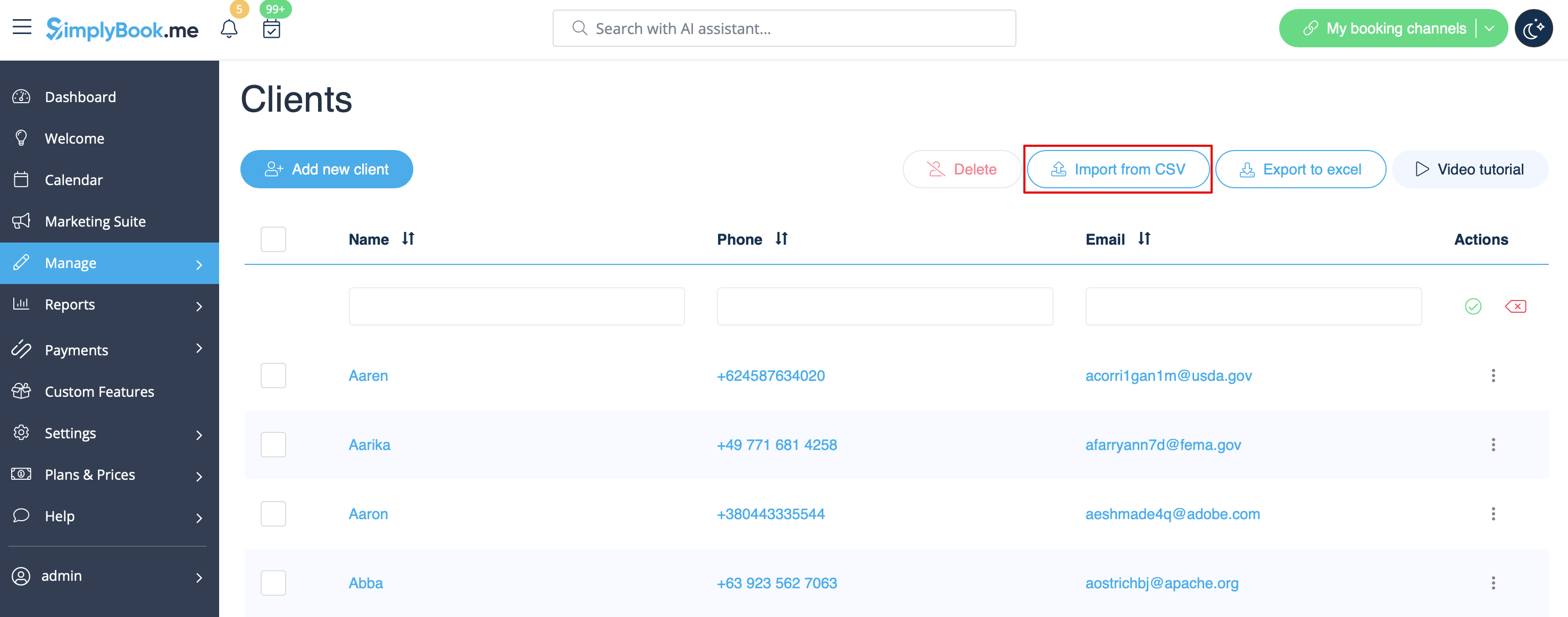
- 3. Go to Manage//Clients//Import from CSV or simply click on "Settings" near this custom feature.
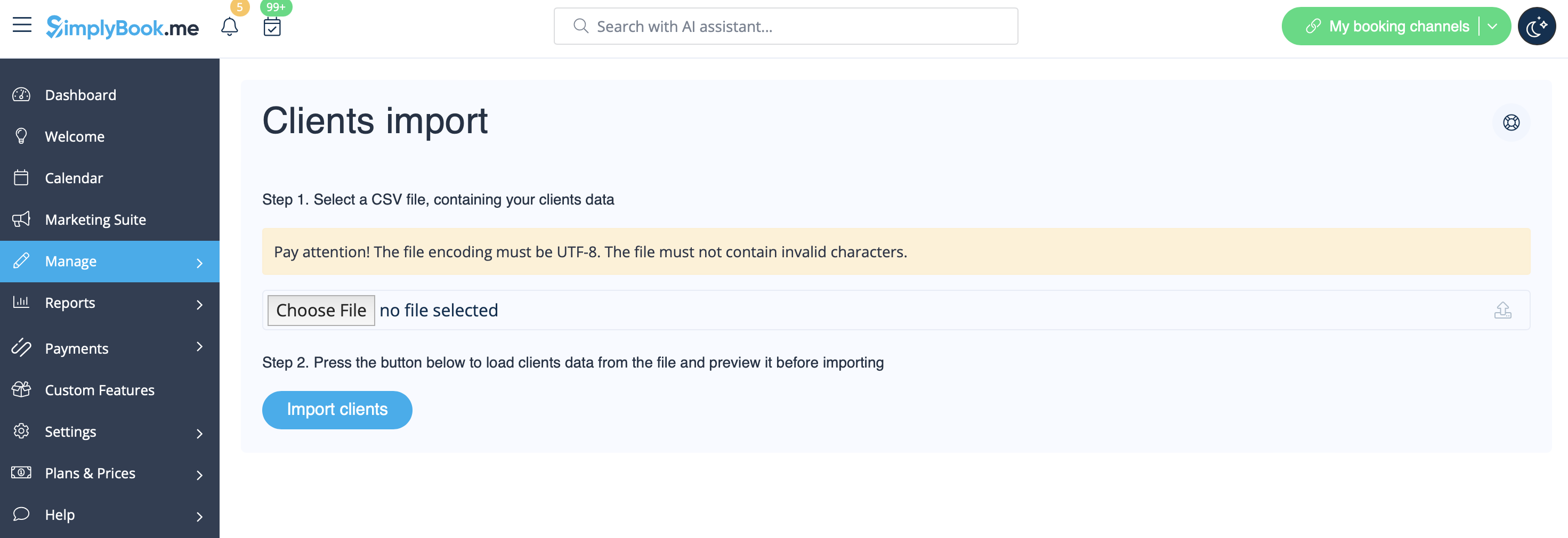
- 4. Press "Choose file" and select the prepared file.
- 5. Assign values to the columns from drop-down lists in the upper bar (above each column, marked with black arrows). Assign "name", "email" and "phone".
- (if you are using Client Fields Custom Feature you can also import some of the forms values)
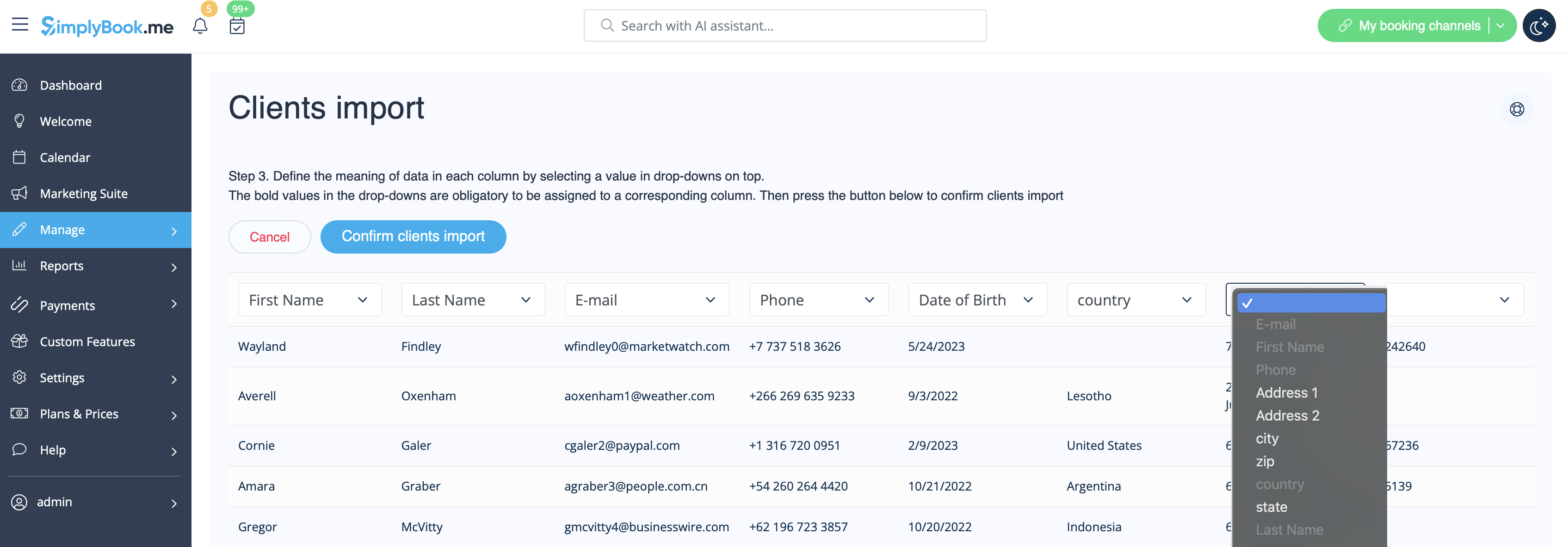
- 6. Press "Confirm clients import".
- Please note that only 10 clients will be shown in preview, but after you import, all clients will be shown.
- If you can't import clients, please check the possible reasons
- 1. Format of .csv file is incorrect. It should be saved in .csv with comma or tab separation.
- 2. There is some text above the data or unnecessary columns that prevent successful import. Please delete the text.
- 3. Values are not assigned. Use drop-down menus above the columns to assign values "name", "email", "phone", etc.

