Bookingsrapporter

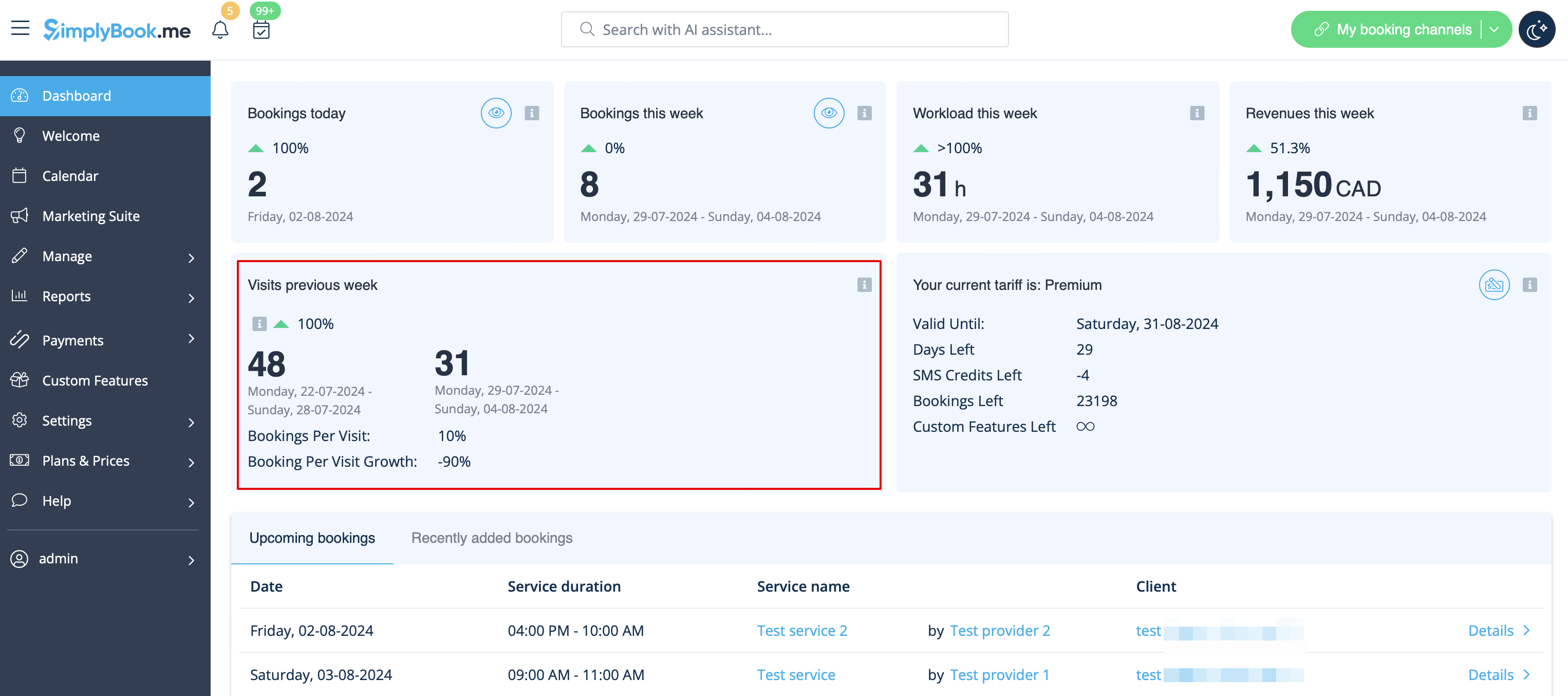
Besøgstæller
Resultaterne vises på Dashboard-siden i din admin-grænseflade, hvis den tilsvarende brugerdefinerede funktion er aktiveret.
Det giver mulighed for at spore besøg på din reservationsside.
Daglig rapport
giver mulighed for at modtage en liste over bookinger til din virksomheds e-mailadresse hver dag.
Du skal aktivere tilføjelsesfunktionen Daglig rapport for at modtage sådanne oplysninger.
Du kan f.eks. indstille den til at blive sendt om morgenen, så du kan forberede dig på dagen.
Det er også muligt at vælge at modtage oplysninger om:
- nye bookinger;
- aflyste bookinger;
- kommende bookinger.

Bookingoplysninger
Video-vejledning 
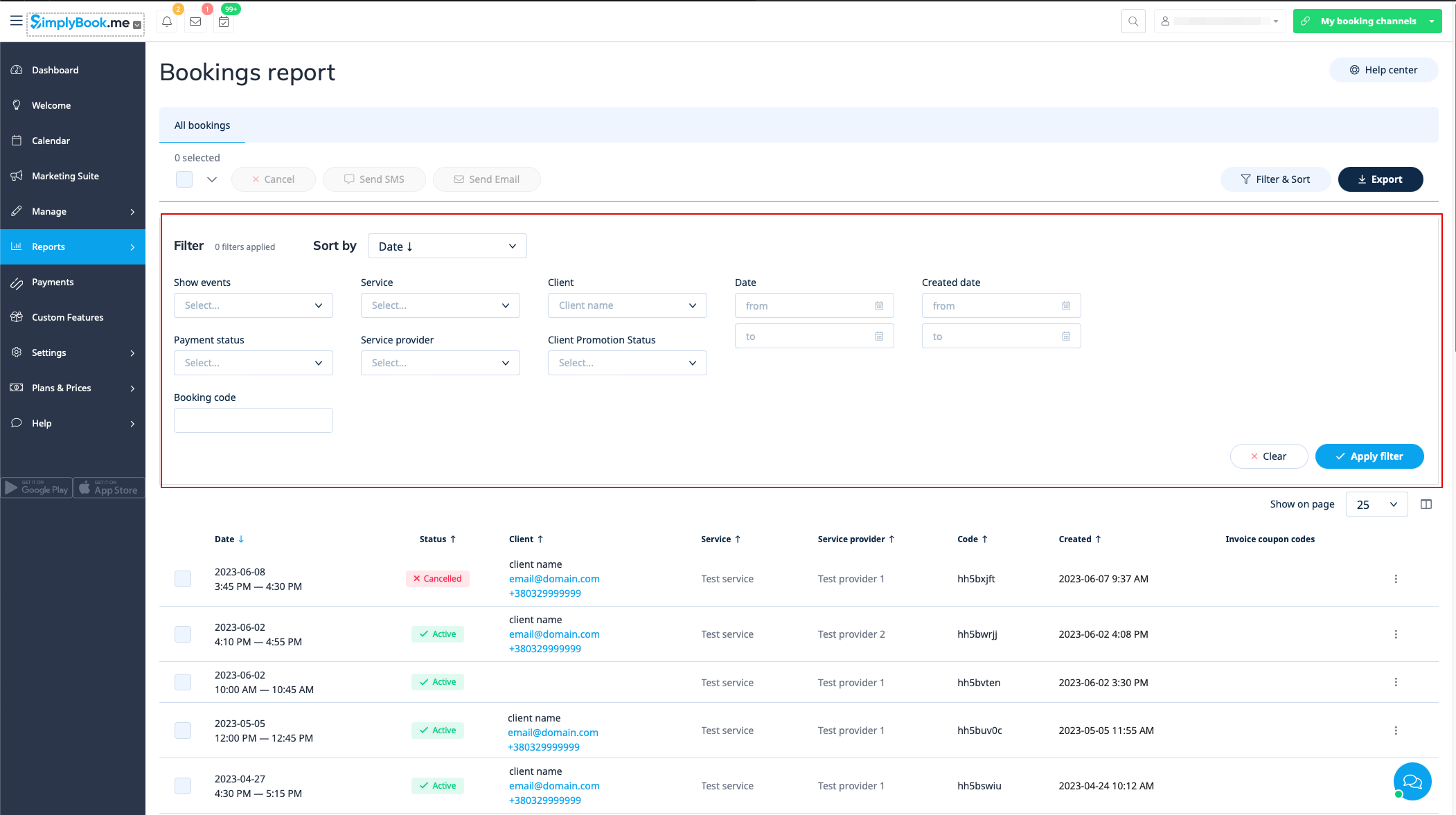
Du kan finde en liste over alle dine bookinger i Rapporter // Bookingsdetaljer.
I denne rapport kan du:
- e på "se booking" i handlingsmenuen for hver række for at se de specifikke bookingoplysninger;
- e e-mail/sms til din(e) kunde(r) (du kan endda bruge nogle af de variabler, der er nævnt der);
- e til den specifikke kunderapport ved at vælge "Vis kundens rapport" i hver række;
- e bookinger efter:
- bookingdato;
- datoen, hvor bookingen blev foretaget;
- service;
- tjenesteudbyder;
- kunde;
- unik reservationskode
- status (alle bookinger, annullerede bookinger, ikke-annullerede bookinger);
- betalingsstatus (hvis betalingsfunktionen er aktiveret);
- kundepromoveringsstatus (for kun at se tilmeldte eller afmeldte kunder).
- eksportér bookinger til Excel eller .csv (brug filtrene til kun at eksportere bookinger inden for et bestemt datointerval eller relateret til en bestemt udbyder, vælg hvilke kolonner der skal eksporteres osv. hvis nødvendigt).
Kunderapport
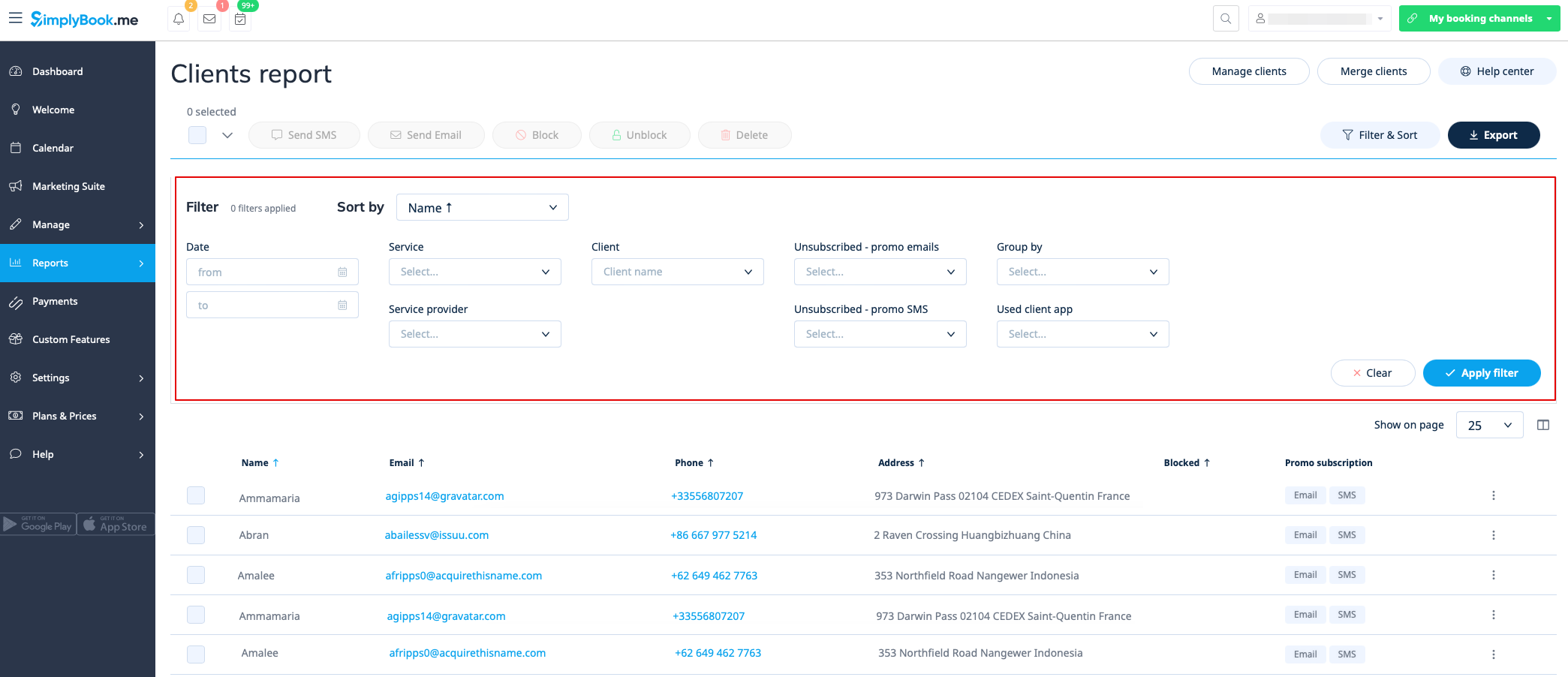
Du kan finde en liste over alle dine kunder og deres bookinger under Rapporter // Kunderapport.
I denne rapport kan du:
- klikke på "Vis detaljer" for hver række for at se detaljer om den pågældende klient;
- klikke på "Vis historik" for at få en liste over bookinger foretaget af den pågældende klient (med mulighed for eksport til Excel);
- sende e-mail/sms til dine klienter;
- blokere, ophæve blokering eller slette nogle klienter, hvis det er nødvendigt;
- navigere til siden for sammenlægning af klientoplysninger (hvis funktionen Klientlogin er aktiveret)
- filtrere bookinger efter:
- bookingdato;
- service;
- serviceudbyder;
- klient;
- klientens status for kampagneabonnement;
- om klienten/klienterne har brugt klientappen (hvis funktionen klientmobilapp er aktiveret).
- export bookings to Excel or .csv (use filters to export bookings for particular date range or for particular provider, select what columns to export).
You can also decide how to group your clients (to avoid duplicating clients) by email, by phone or by email and phone.
Report per specific client
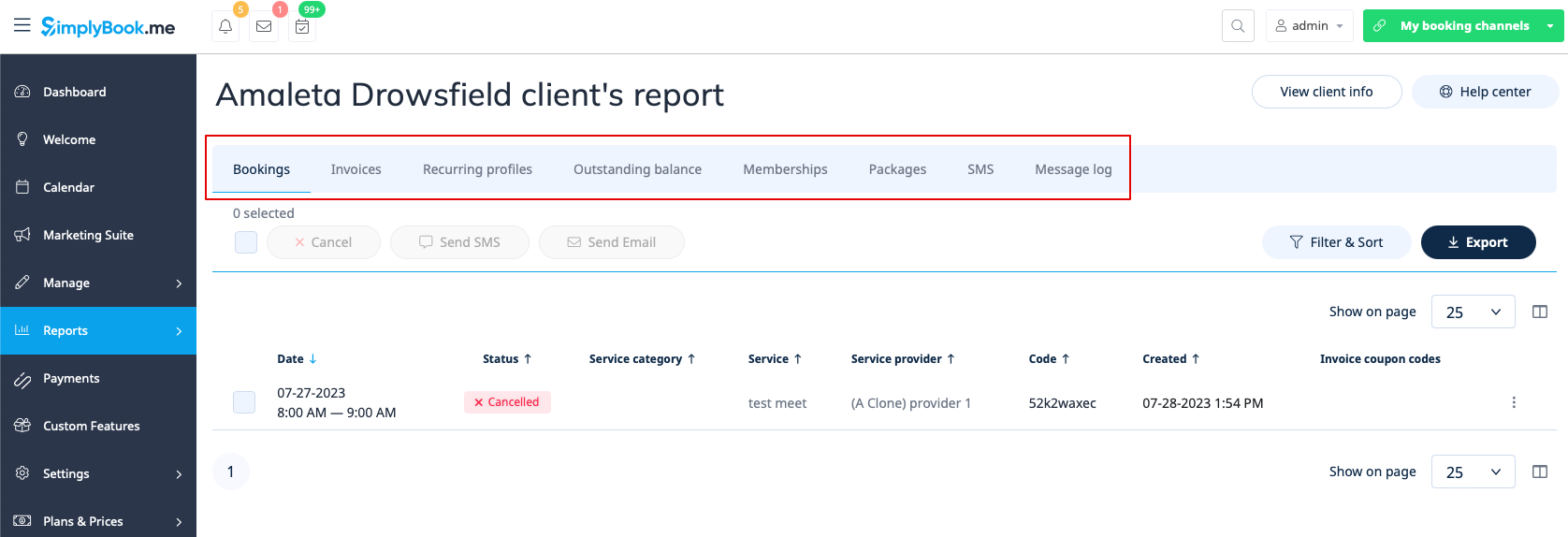
This report allows you to view different reports that exist in the system, but filtered per one specific client in one convenient place.
The following reports are available:
- Booking details
- Payment transactions
- Recurring profiles
- Outstanding balance
- Memberships
- Packages
- SMS
- Message log
- Tickets
- Loyalty points
You can apply various filters per tab, view details or export to xls/csv formats.
Message report
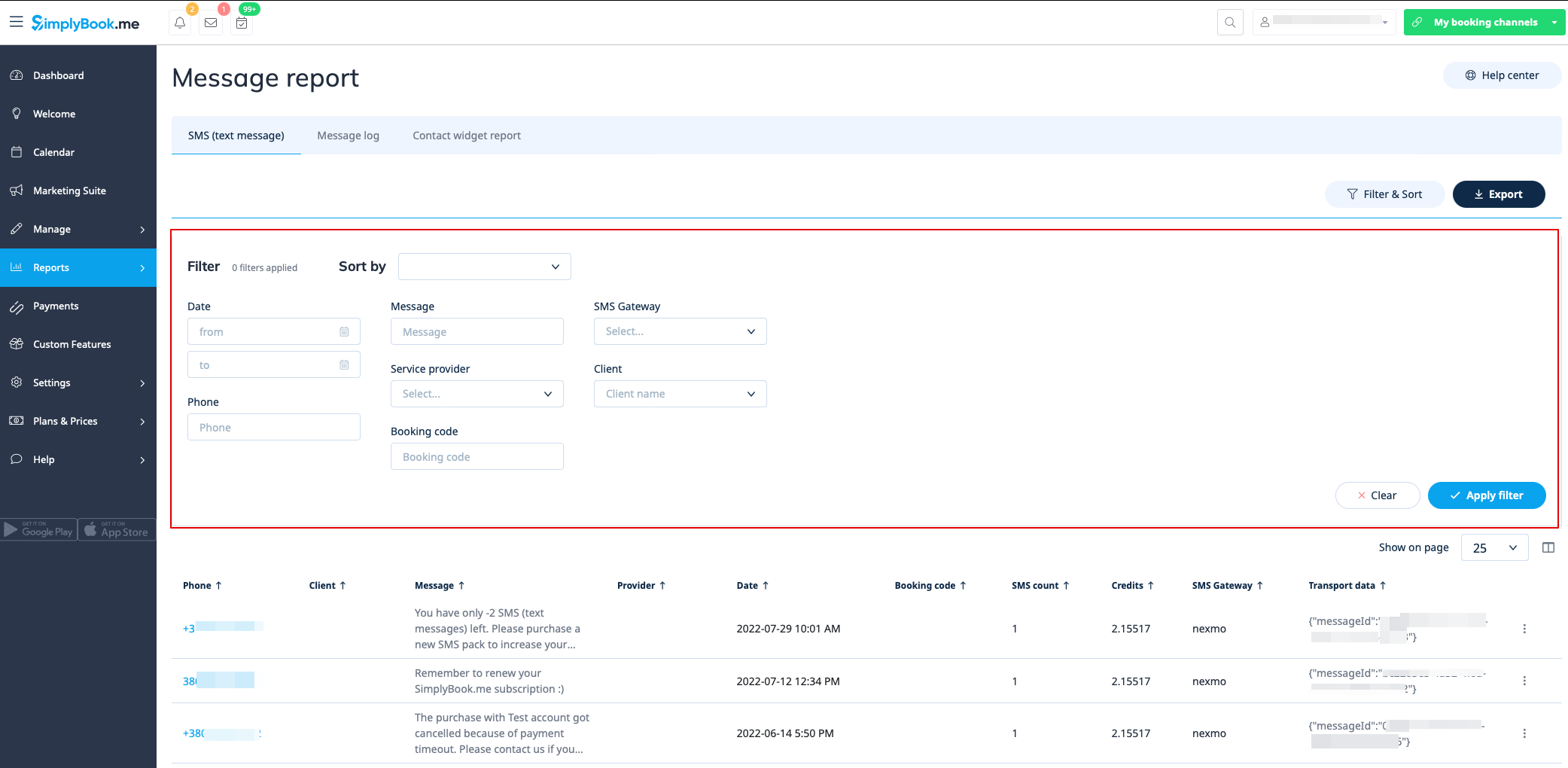
You can find the list of all your sms messages that were sent from the system in Reports//SMS (text messages) report in the first tab.
In this report you can:
- filter messages by:
- date the message was sent;
- phone number;
- client name;
- provider name;
- booking code;
- SMS gateway;
- message text.
- export messages to Excel or .csv (use the filters if necessary and choose which columns to export);
- see how many credits were used for sending a particular message;
- see how many sms did the message take(if special symbols and/or long texts were used).
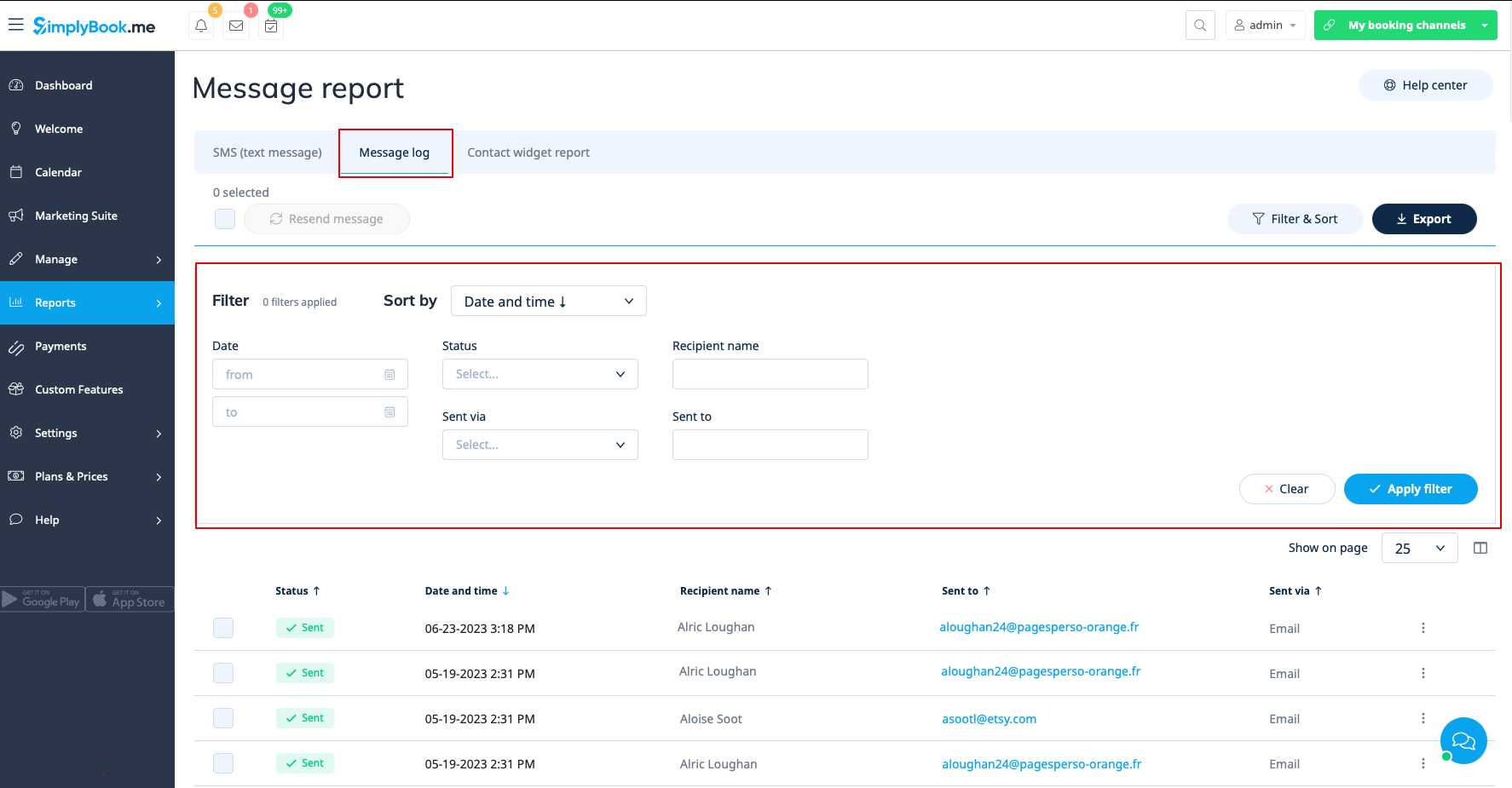
In the second tab, Message log you can:
- view promotional message log and messages statuses(sent, retry, new, sending, error);
- filter messages by:
- date range;
- status;
- recipient name;
- sent via email or sms;
- email address or phone number depending on the gateway.
- retry sending the messages to customers;
- export data to Excel or .csv (using the filters if needed).
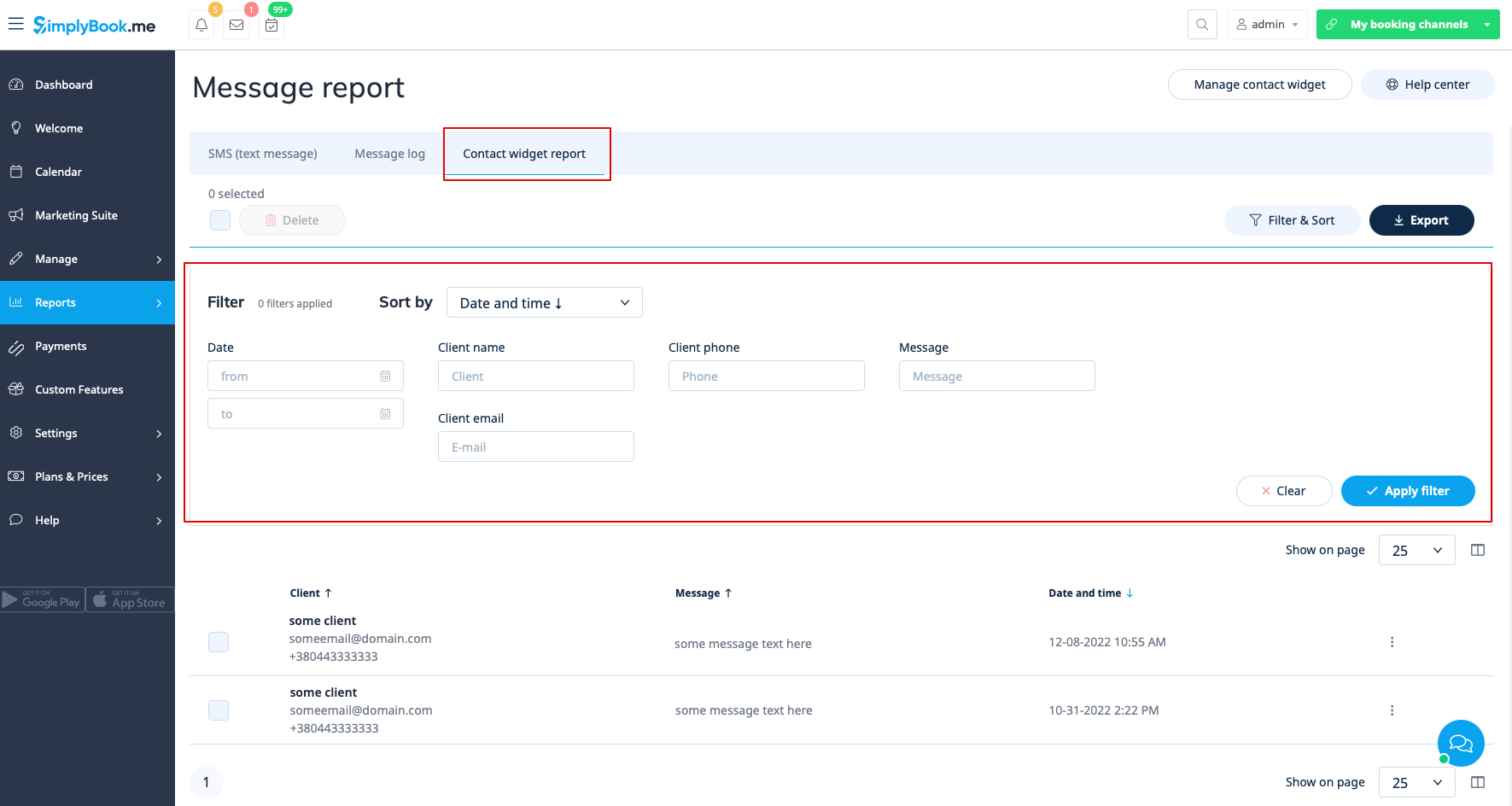
The third tab, Contact widget report can be used when contact widget custom feature is enabled and allows to:
- view the list of messages left by clients or potential clients on the booking website and respond to them;
- filter messages by:
- date range;
- client name;
- client phone;
- client email;
- message text.
- export data to Excel or .csv (using the filters if needed).
Reviews list
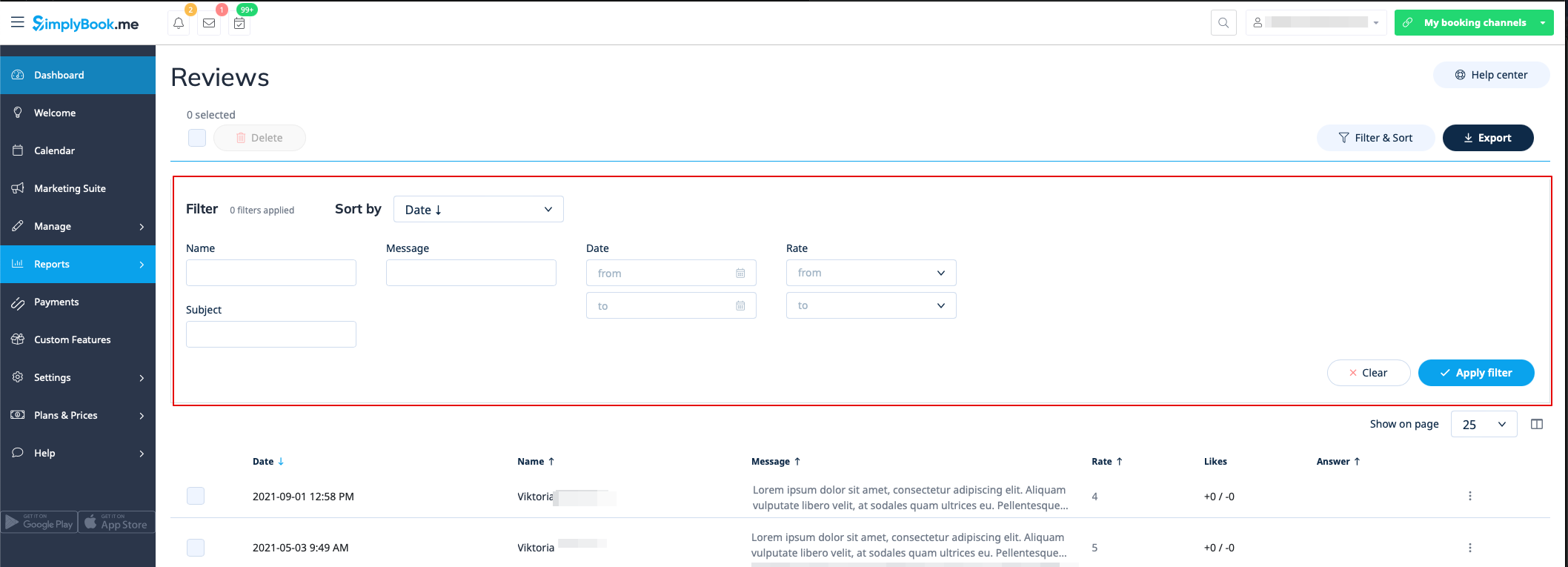
You can find a list of all feedback posts your clients left in Reports//Reviews.
In this report you can:
- filter reviews by:
- client name;
- subject;
- message;
- date range when the review was added;
- rate.
- export the reviews to Excel or .csv(use the filters if necessary and choose which columns to export);
- reply to your customers’ reviews (the replies will be visible to clients);
- delete reviews if necessary.
Payment transactions report
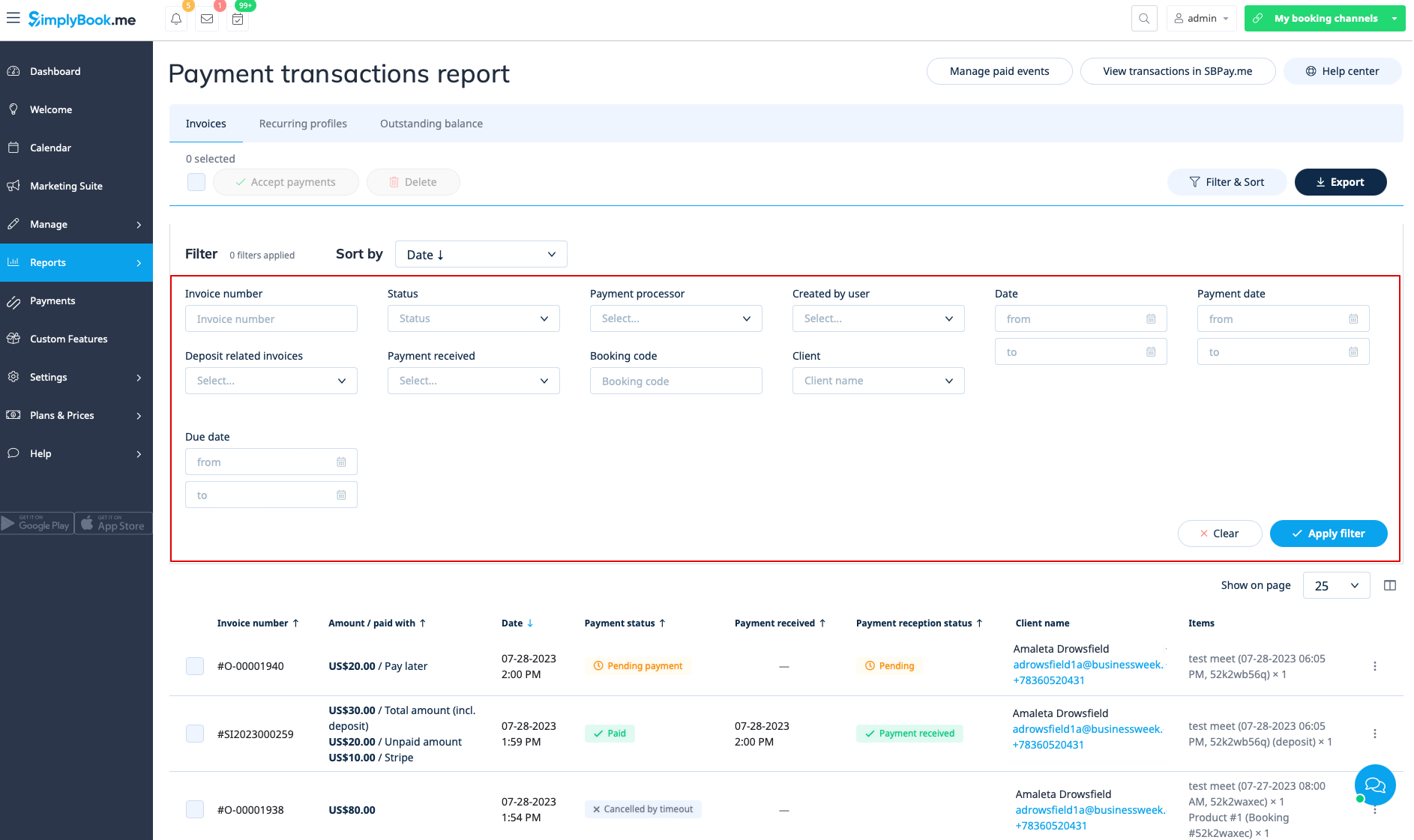
You can access it in Reports//Payment transactions. It allows you to see all payments related information in your system.
In this report you can use three tabs: Invoices, Recurring profiles, Outstanding balance.
In the first Invoices tab you can:
- see all invoices created when the clients were booking the service or purchasing packages, memberships, products for sale and/or gift cards;
- apply coupons or gift cards to pending orders (if you are using Coupons &Gift cards custom feature);
- approve pending payments(for example, if the clients selected “Pay later” on the booking site) using either default payment methods or, with SBPay.me Pro integration, use vaulted cards, send payment links or show QR code to pay;
- see payment processor used;
- process refunds (if SBPay.me Pro integration is enabled);
- view invoices details on SBPay.me side (if SBPay.me integration is enabled);
- print invoices;
- delete invoices;
- filter invoices by:
- invoice/order creation date range;
- invoice number;
- payment date range;
- payment due date range;
- client name;
- unique booking code;
- status(new, pending, paid, cancelled, error);
- payment processor;
- user who has created the record;
- payment received or not.
- export payment information to Excel or .csv (using the filters if needed).
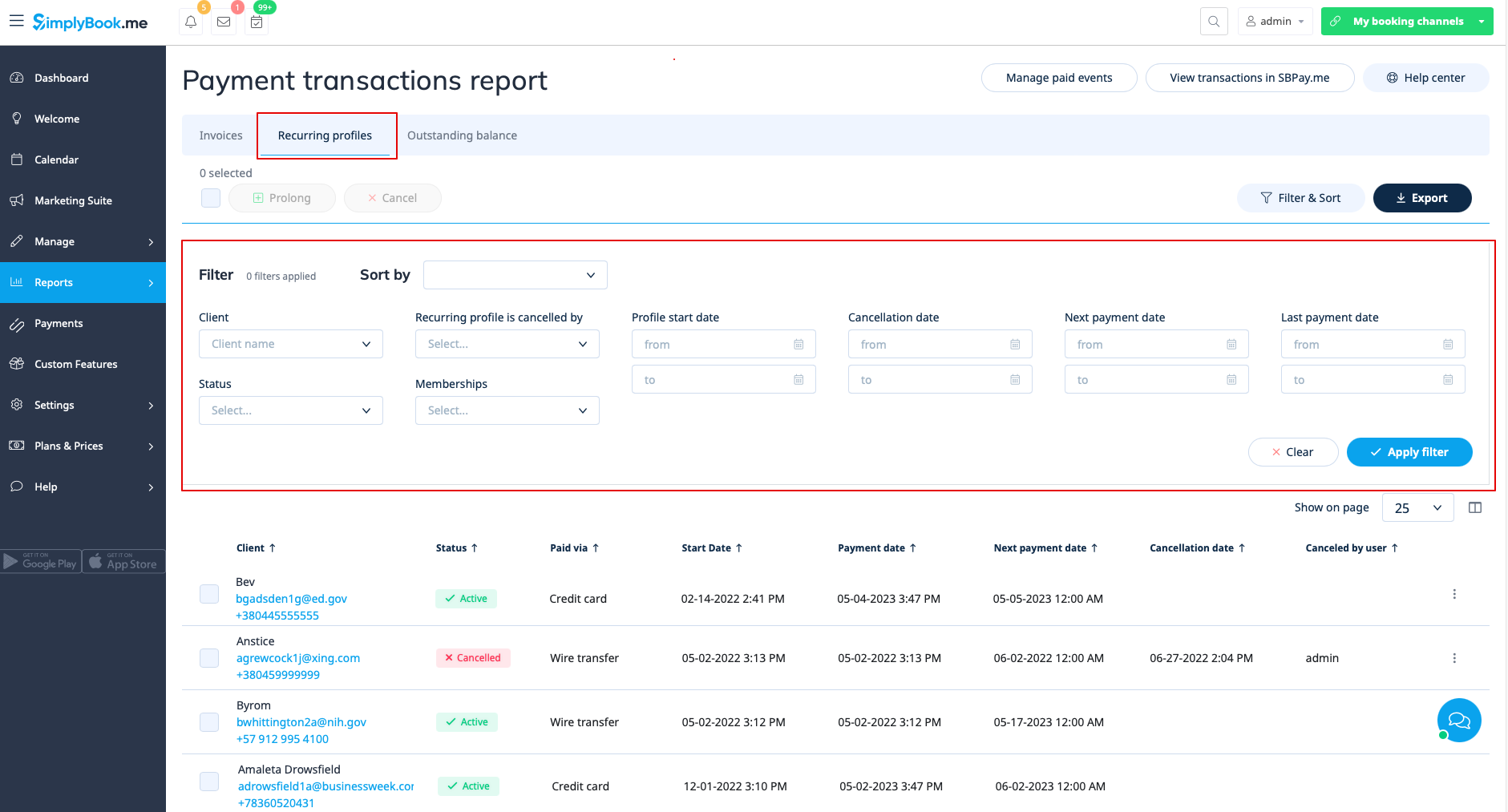
Recurring profiles tab allows to:
- view/cancel membership recurring profiles;
- prolong recurring profiles issued from admin side;
- filter membership profiles by:
- membership name;
- start date range;
- cancellation date range;
- next payment date range;
- last payment date range;
- client record;
- status(active, pending, cancelled, suspended, error);
- user who cancelled the profile.
- export membership profiles data to Excel or .csv (using the filters if needed).
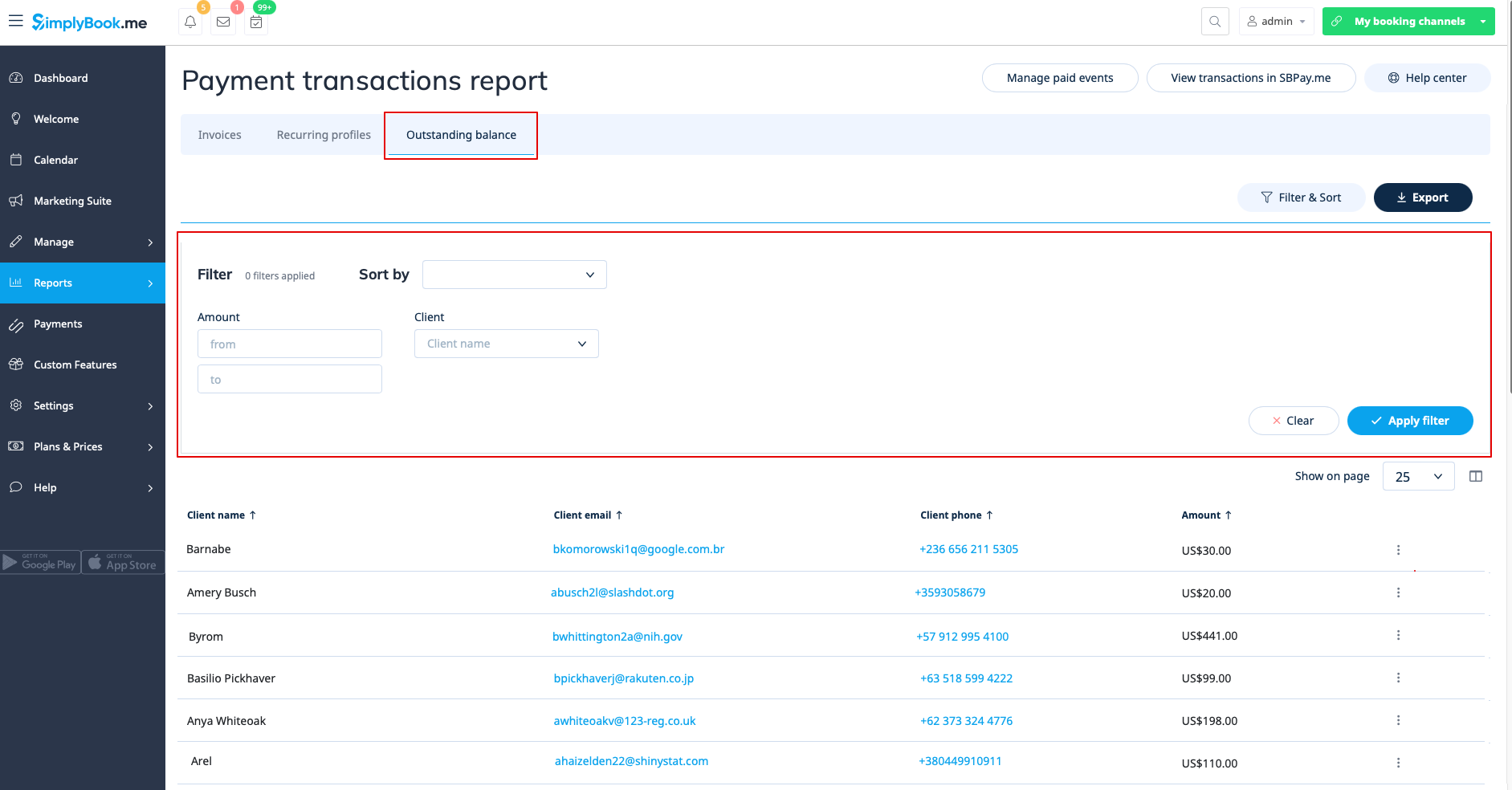
The third, Outstanding balance, tab allows to:
- see outstanding balance per client;
- filter outstanding balance by amount and/or client;
- export outstanding balance data to Excel or .csv (using the filters if needed).
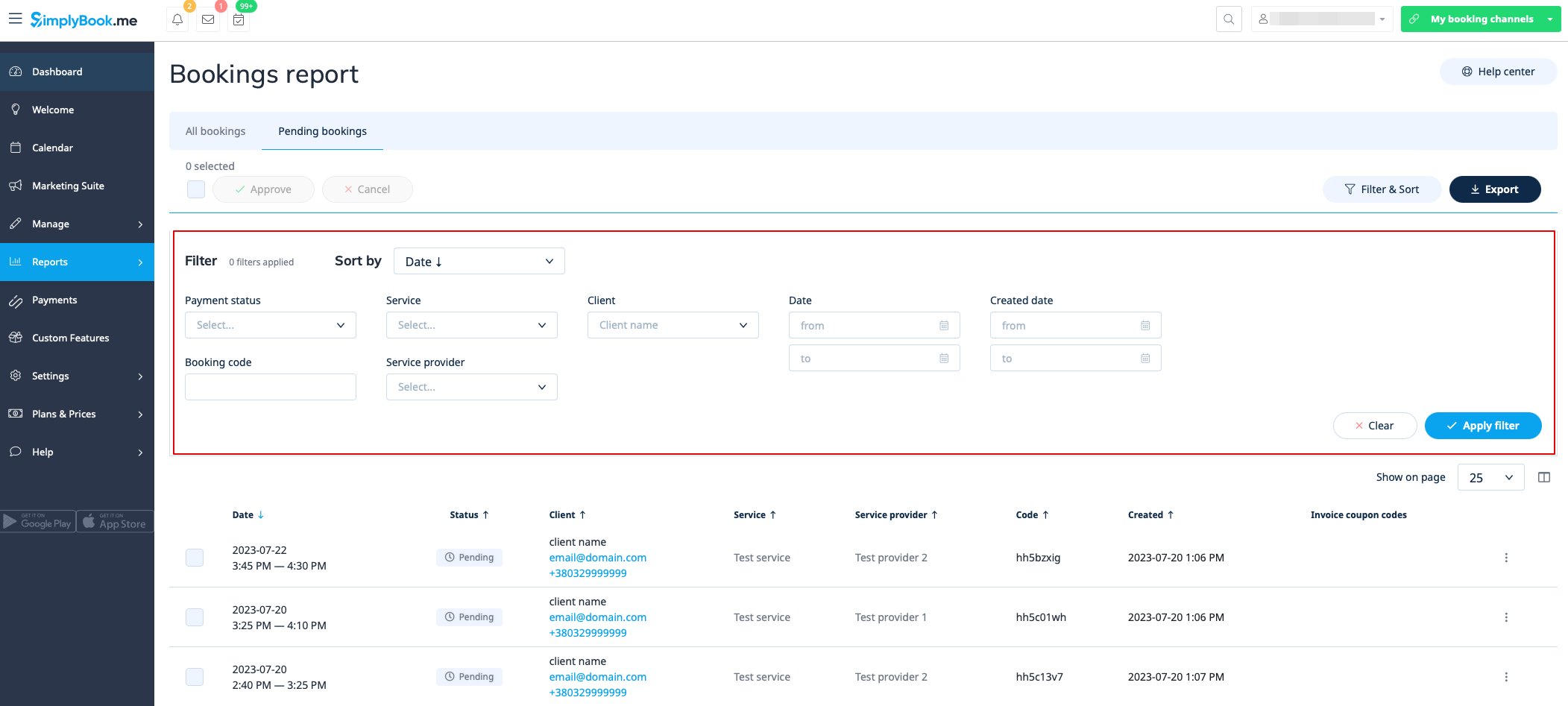
Pending bookings list
You can access it from calendar page if Approve bookings custom feature is on.
In this report you can:
- see/approve/decline pending bookings;
- filter them by:
- booking date;
- client name;
- provider name;
- service name;
- unique booking code.
- export data to Excel(using the filters if needed).
Sales report
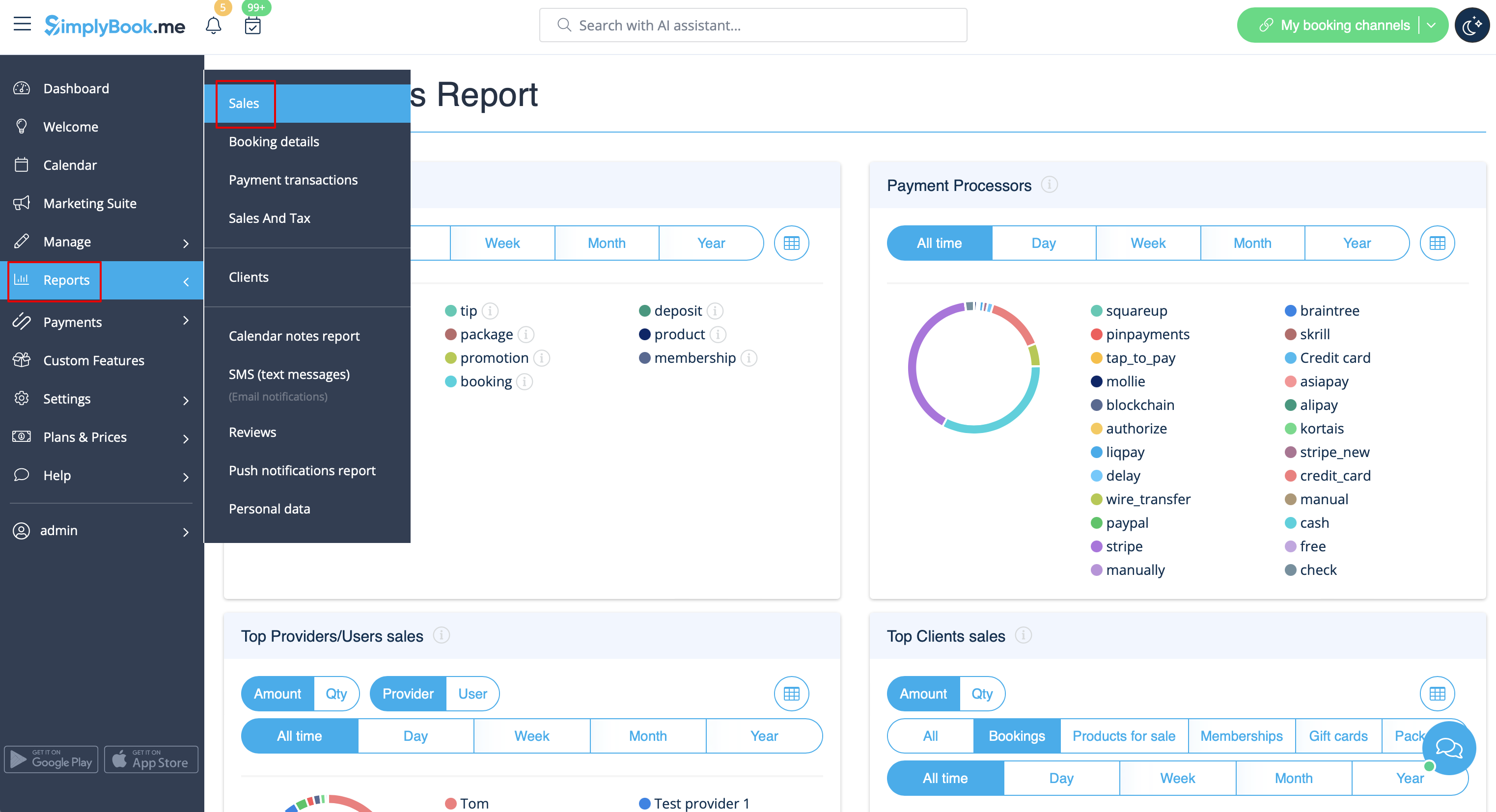
Can be accessed in Reports//Sales report section. It can give you various charts, tables and diagrams on sales statistics.
This report can help you to analyze:
- popular income sources;
- payment processors mostly used by your clients(if you have several);
- top providers;
- clients who paid more;
- income amount.
You can filter the results by:
- time(day, week, month, year, all time);
- items(bookings, packages, service add-ons, products, memberships, gift cards);
- amount/quantity.
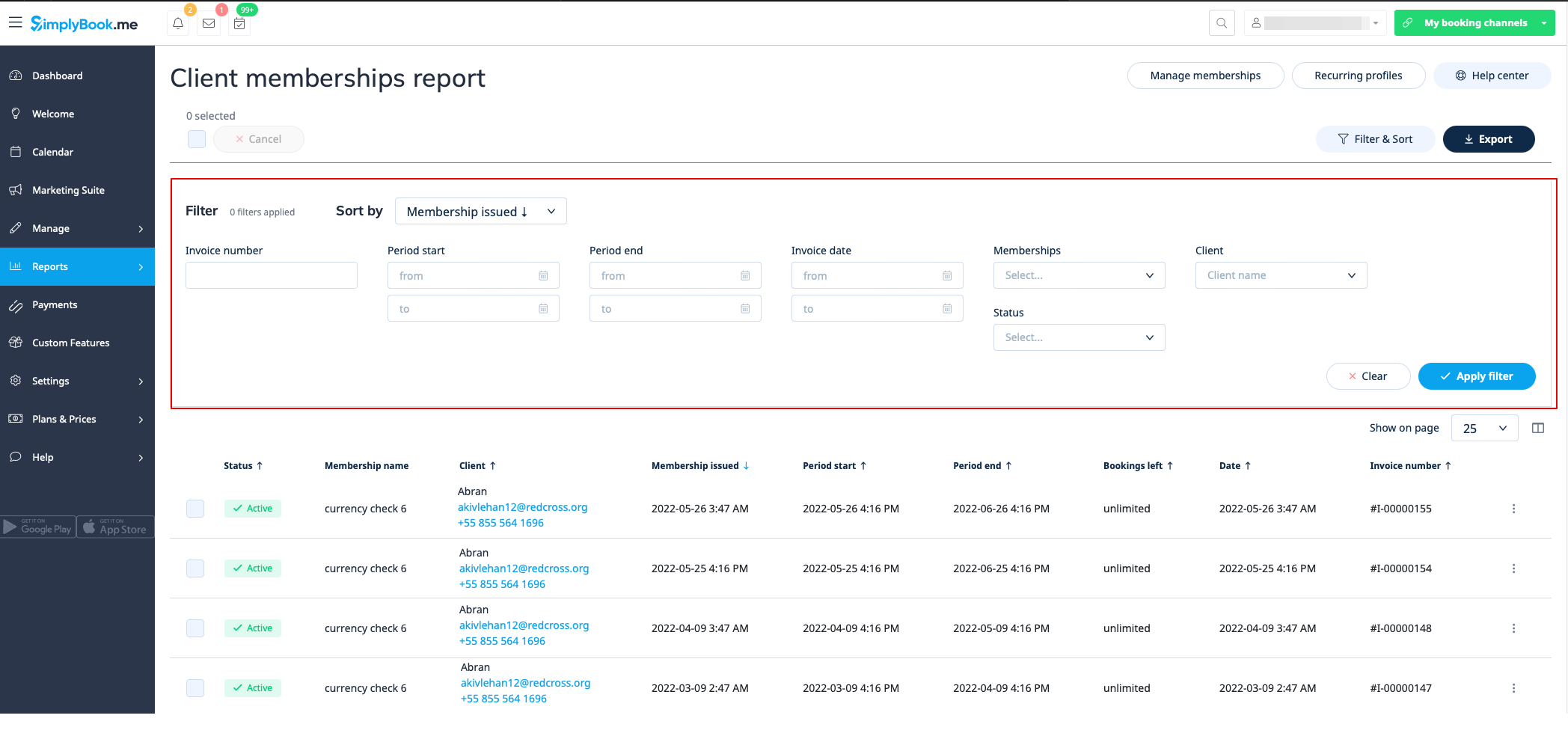
Membership payments
You can see it in Reports//Membership payments. Can be accessed if Membership custom feature is on.
This report can allow you to:
- see memberships purchased by your clients;
- cancel memberships;
- approve pending memberships;
- view invoices related;
- filter memberships by:
- start date range;
- end date range;
- invoice date range;
- invoice number;
- membership name;
- client name;
- status(active, cancelled, error).
- export data to Excel(using the filters if needed).
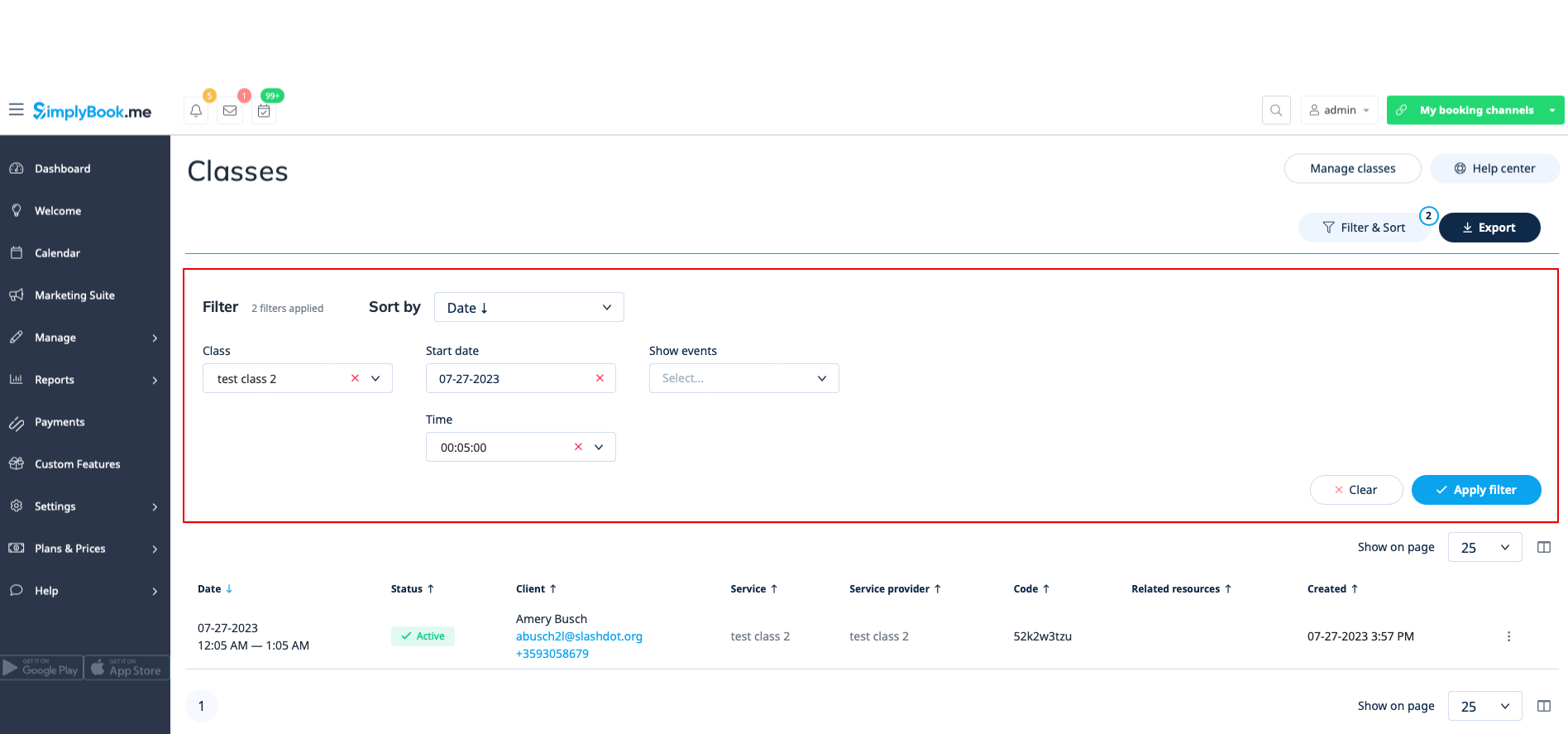
Classes report
Can be accessed in Reports//Classes report if you are using Classes custom feature.
This report can give you the information on every class participants.
Please filter the report by:
- class name;
- class date;
- class start time;
- canceled/non-cancelled bookings.
You will be able to see who has applied to take part in the particular class, their names, emails, phone numbers, as well as who has created bookings for them(the client himself or it was added by some system user) and if the client has booked your services/classes before.
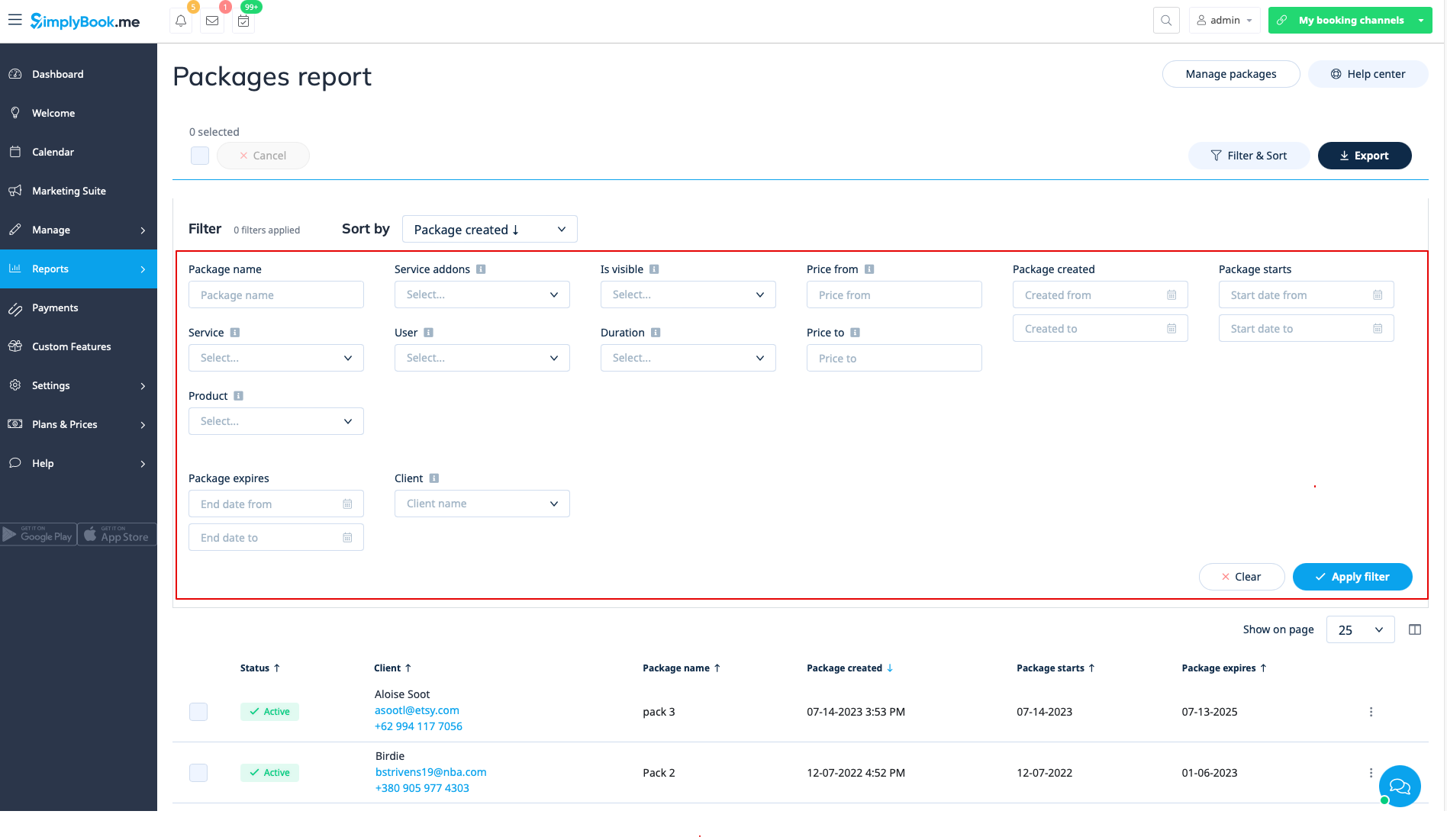
Issued packages
You can see it in Reports//Issued packages if you are using Packages custom feature.
In this report you can:
- see which packages were purchased/issued;
- packages statuses;
- filter the packages by:
- client name;
- user name who has issued the package;
- service/product/service add-on included in the package;
- package duration;
- price range;
- is the package visible on the booking site or not;
- status(Active, cancelled, error).
- export the data to Excel(using the filters if needed).
Issued coupons
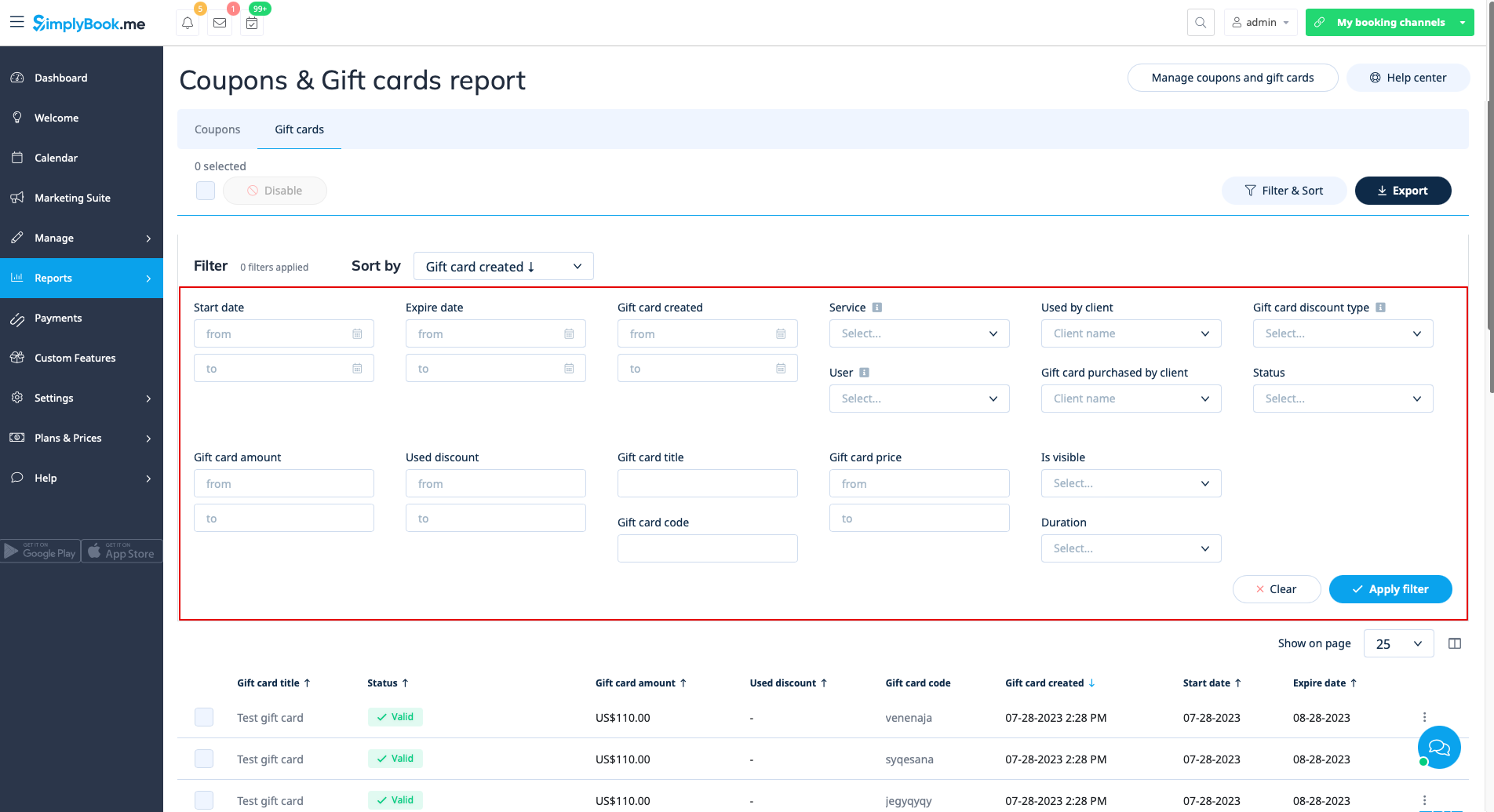
Can be accessed if you are using Coupons & Gift cards custom feature.
In this report you can:
- see which coupons were issued;
- see coupons statuses(Valid or not valid, used, outdated);
- filter the coupons by:
- client name;
- user who has issued the coupon;
- discount type;
- coupon visible on the booking site or not ;
- service the coupon is related to.
- see gift cards issued;
- filter the results by:
- client name who used the card;
- client name who purchased the card;
- gift card discount type;
- user who issued the card;
- service the gift card is related to;
- price range;
- gift card duration;
- gift card visible on the booking site or not;
- gift card status(valid, outdated, used).
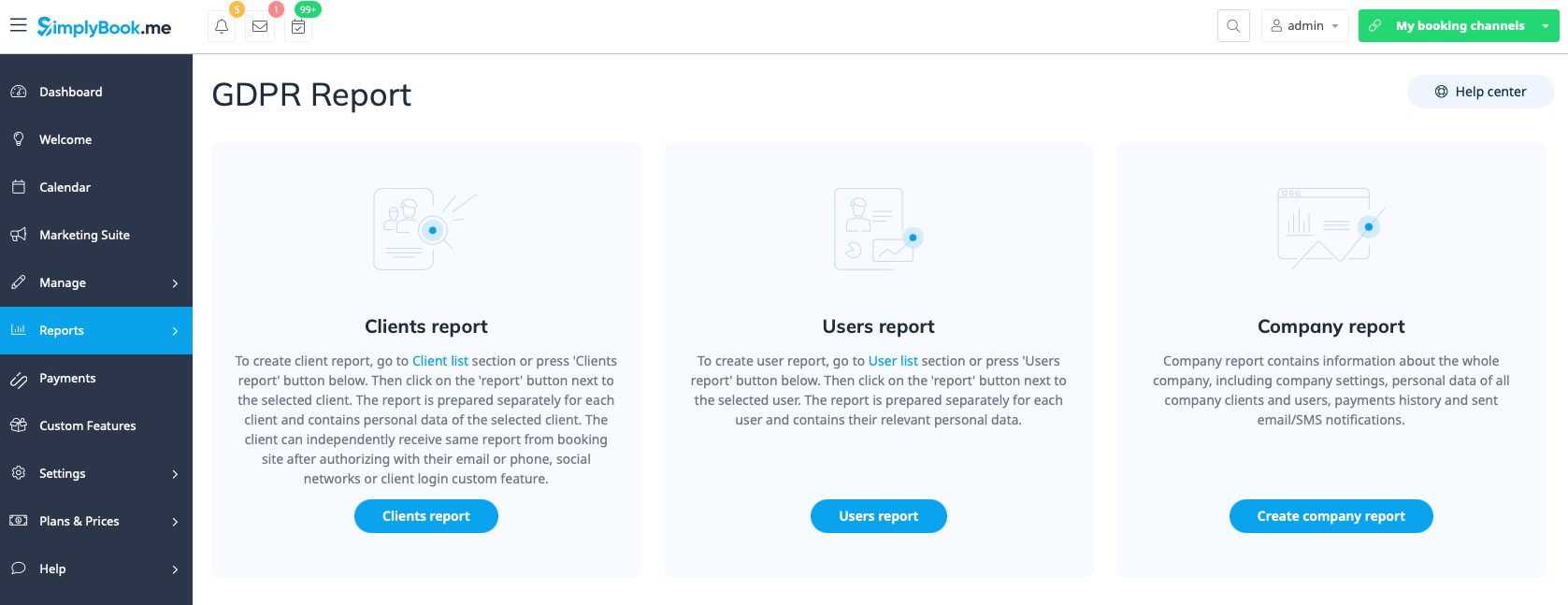
Personal data reports
Can be accessed in Reports//Personal data reports after you retype your password.
It is divided in three sections:
- Client report;
- Users report;
- Company report.
Each section can give you all the details about the data that is stored in the system on the corresponding entity.
For example, you can create a report on some customer or an employee who has requested the information and then provide these details to him/her.