Поради для конкретних підприємств
- Доступні відеоуроки
- 1.

- 2.
- 3.
Simplybook — це ідеальна система онлайн-бронювання для квест-кімнат та квест-квестів різних типів. Вона дозволяє клієнтам вибрати кімнату та забронювати конкретний час, коли відбудеться гра. Клієнти можуть залишити відгук на сторінці бронювання компанії після отримання електронного листа з нагадуванням.
Для ефективного використання Simplybook.me ми рекомендуємо наступні налаштування:
- 1. Створіть послугу як гру з відповідною тривалістю в «Управління» // «Послуги» // «+». Використовуйте «Управління» // «Послуги» // «Деталі часу», щоб редагувати тривалість послуги.
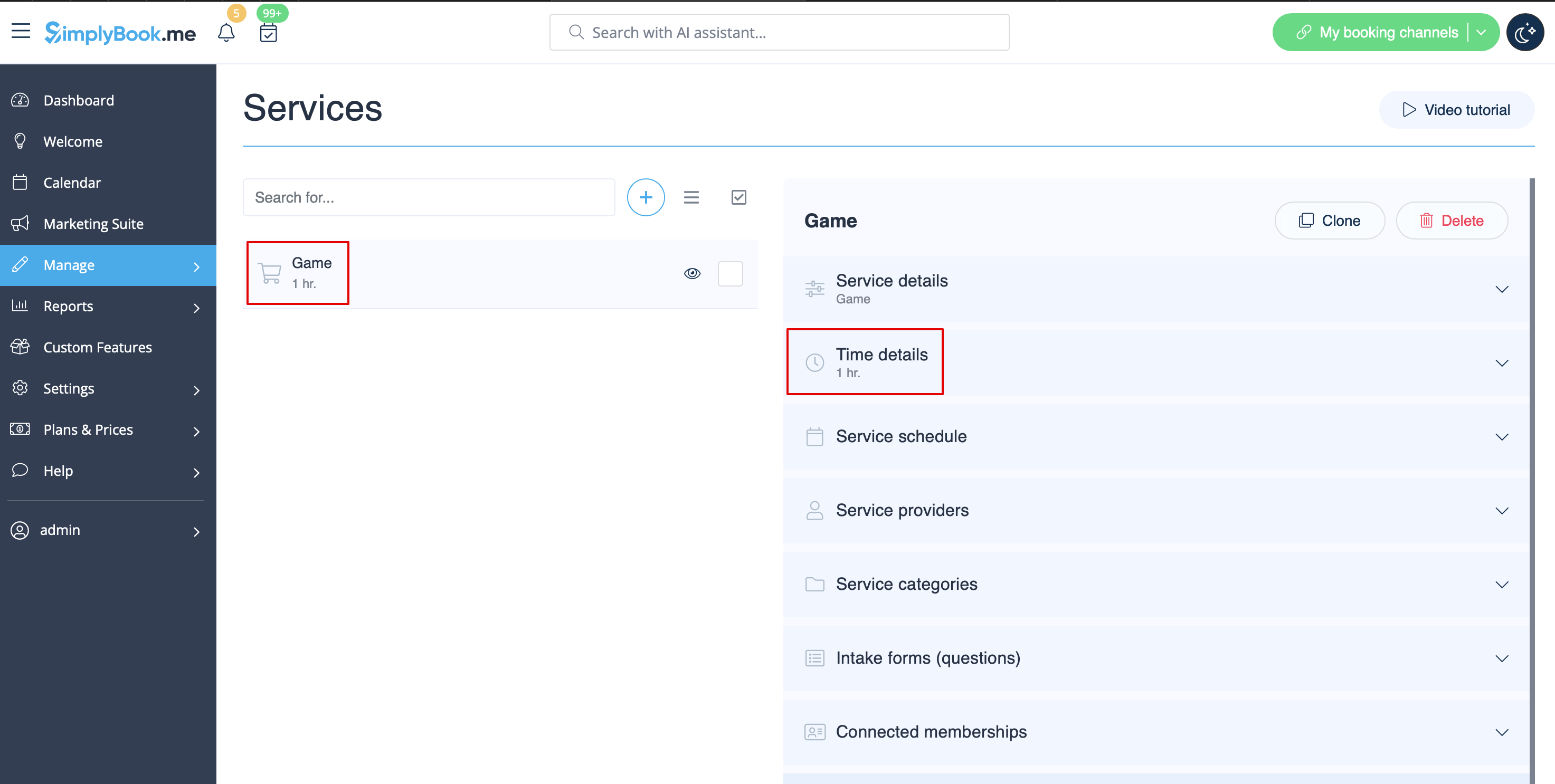
- 2. Створіть постачальників як кімнати. У «Управління // Постачальники послуг // «+» додайте нового постачальника послуг — створіть кількість постачальників, рівну кількості кімнат, які ви маєте.
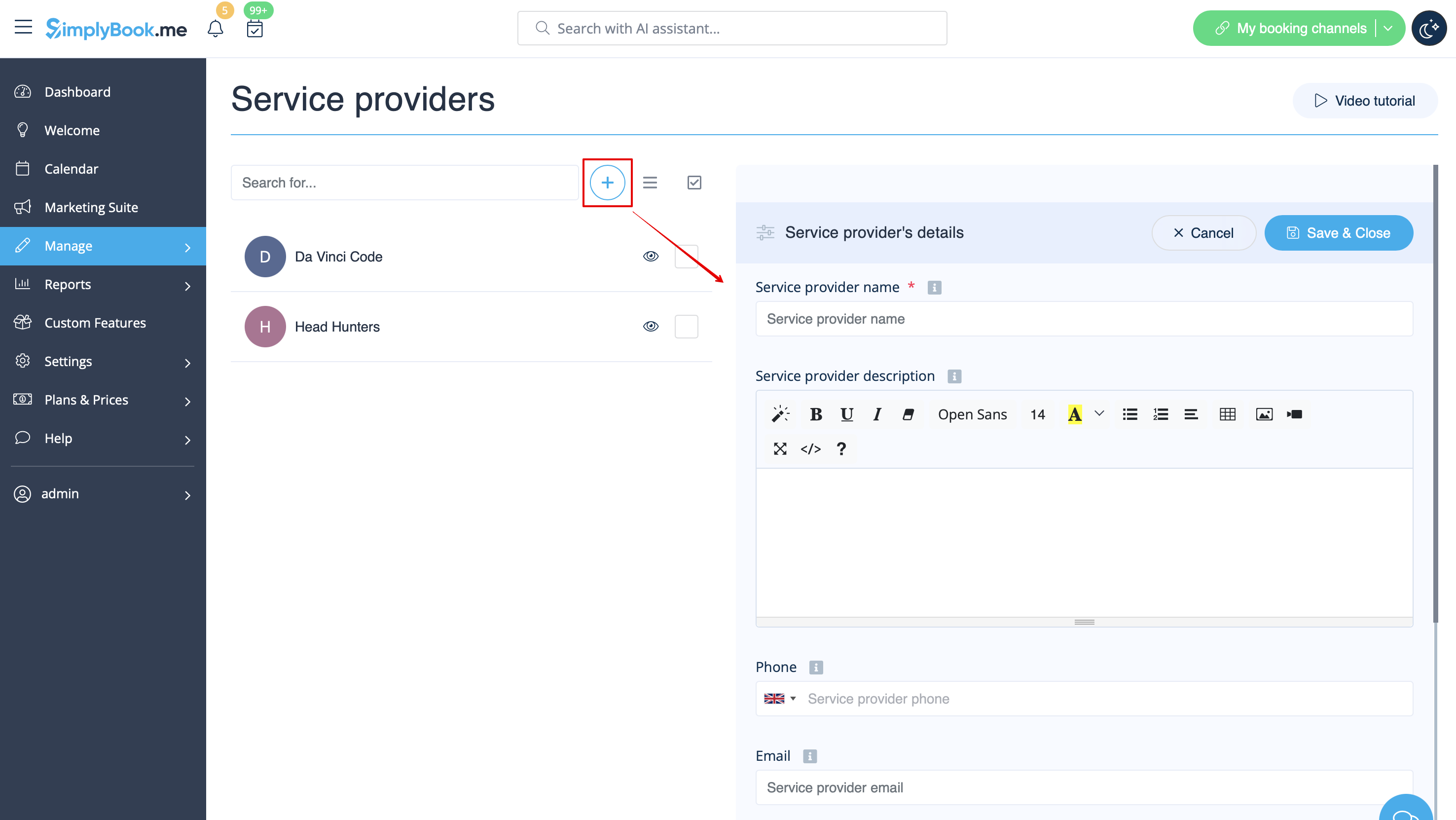
- 3. Переконайтеся, що кожен постачальник може обслуговувати 1 клієнта одночасно.
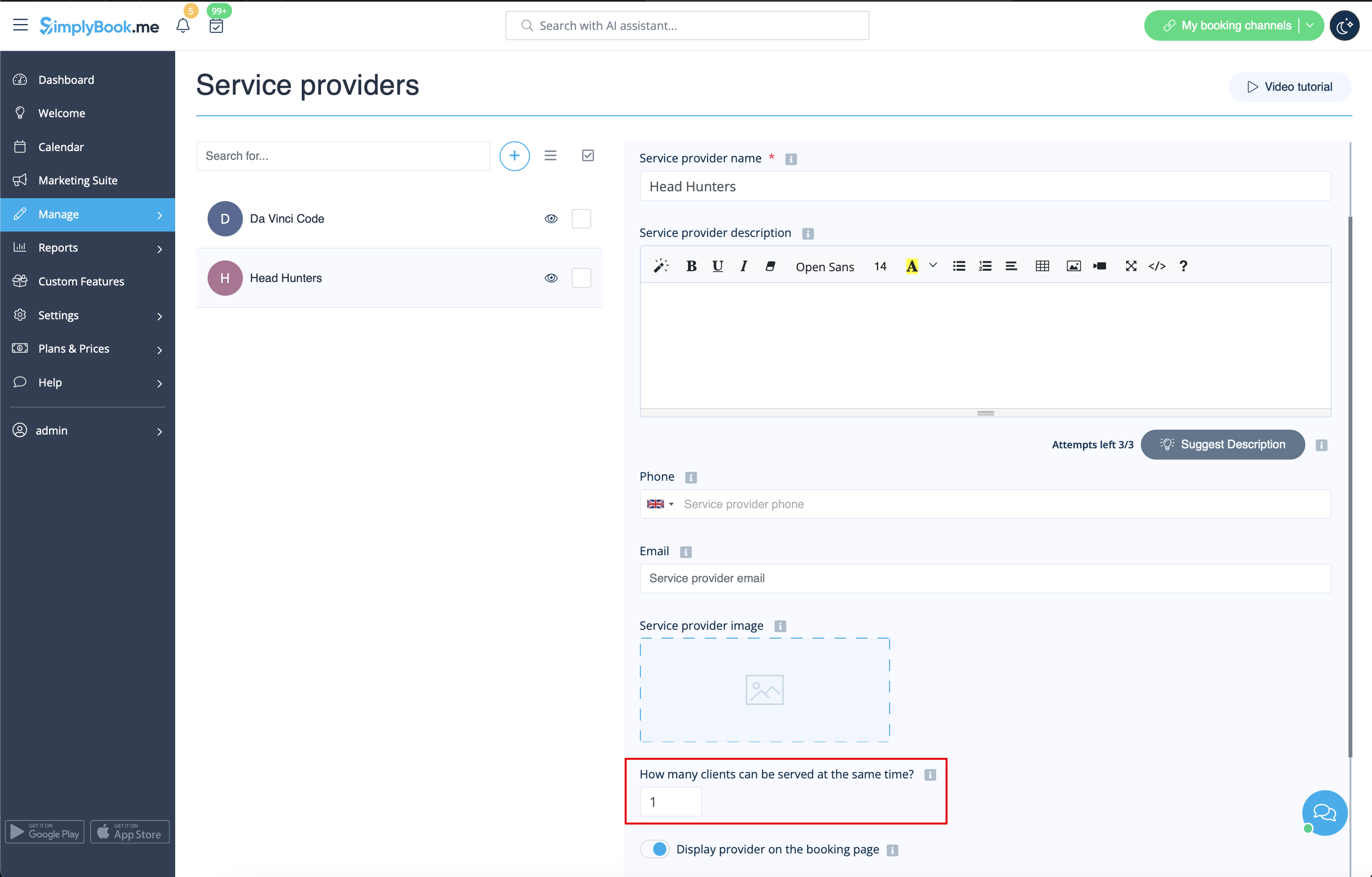
- 4. Ви також можете встановити конкретну доступність для цієї кімнати, натиснувши «Налаштувати параметри часу для цього постачальника» на вкладці «Розклад постачальника послуг» в розділі «Керування // Постачальники послуг».
- 5. Перейменуйте слово «Співробітник» на сторінці бронювання на «Кімната» або «Гра» в Налаштування // Налаштування слів та переклади.

- 6. Якщо кожна кімната має різну ціну і ви плануєте приймати онлайн-платежі за допомогою нашої спеціальної функції «Приймати платежі», створіть більше послуг в розділі «Управління» // «Послуги» // «Додати послугу», встановіть ціну для цих послуг і пов'яжіть їх з кімнатами, встановивши відповідні прапорці на вкладці «Постачальники послуг».
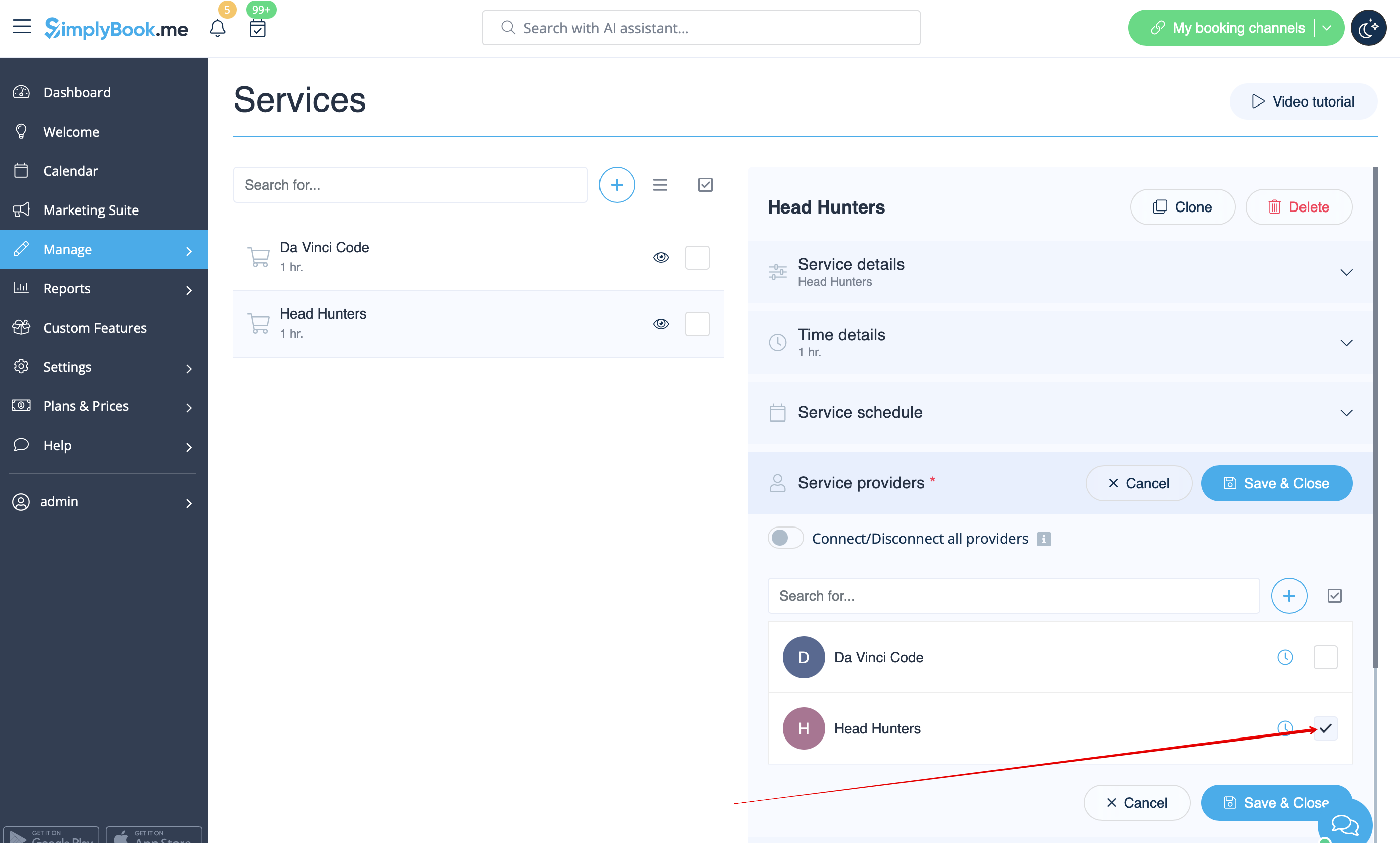
- 7. If morning game prices are different from evening/weekend game prices - add Morning games and Evening/Weekend games services in Manage // Services, and set corresponding price for each service. Then in Manage // Service Providers create 2 providers for each game and set available hours for providers in "Service provider schedule" tab.
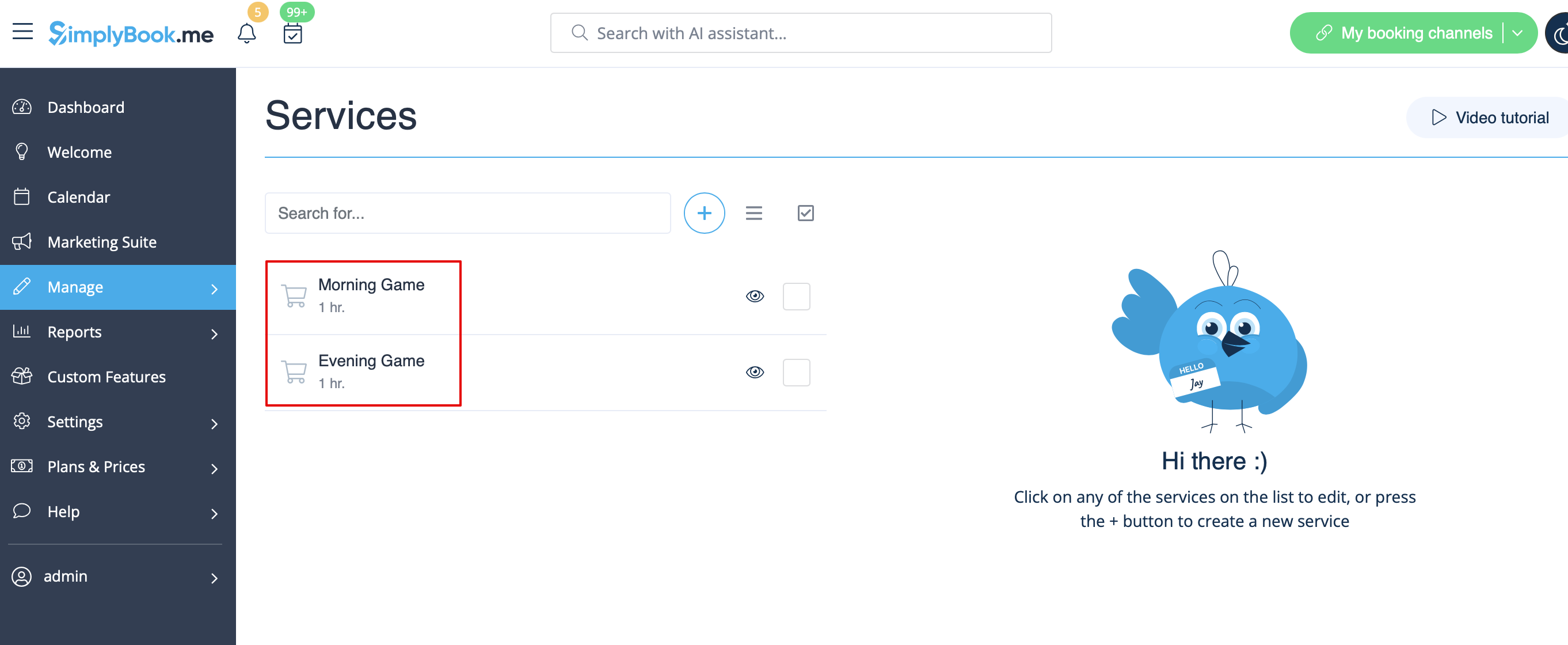
- 8. Connect providers to corresponding services
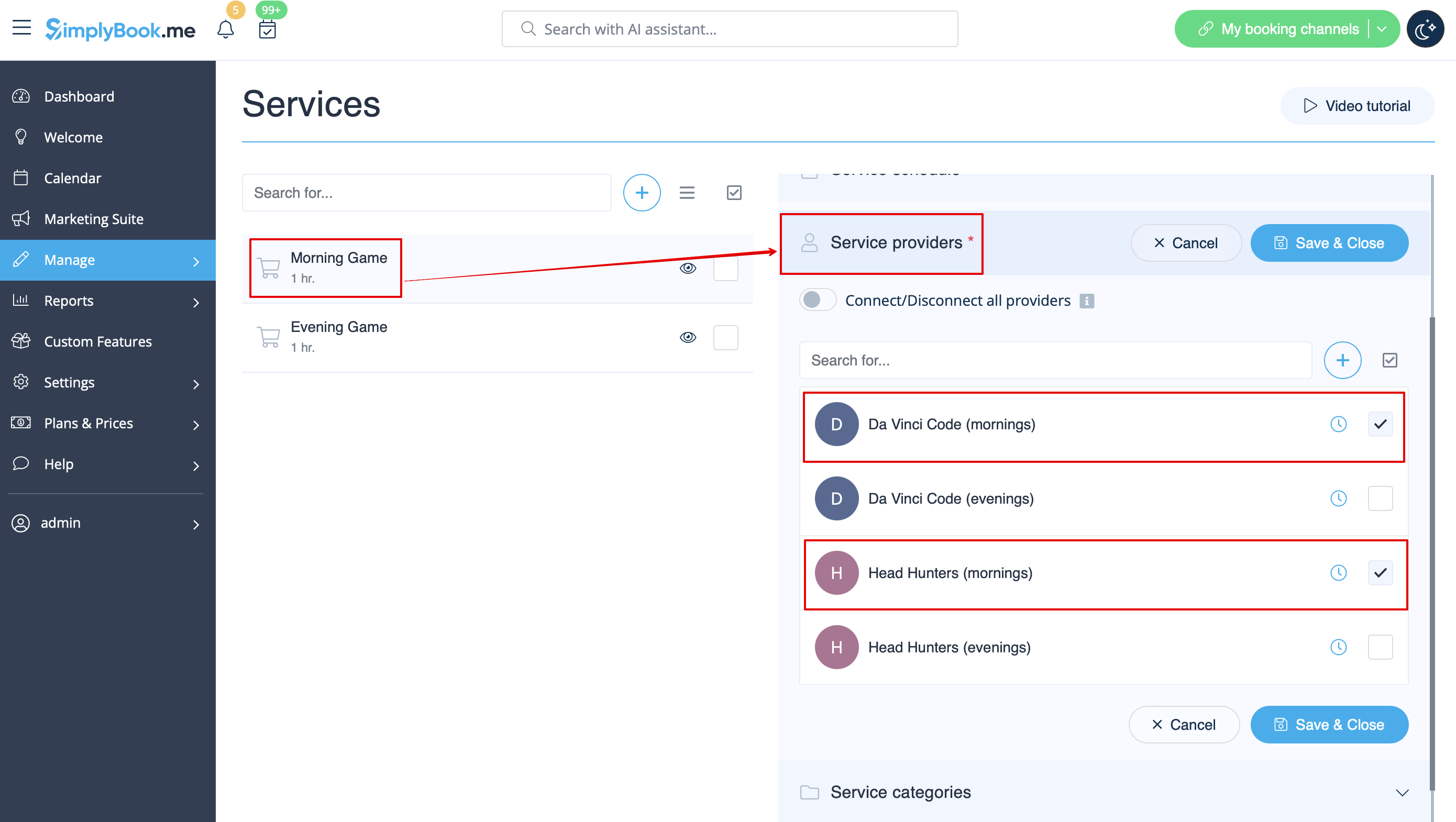
- 9. On the booking page clients will choose morning/weekend hours, select game - and then will see available slots.

- 10. If you have fixed schedule, you may need Appointment at fixed time custom feature where you can set specific start times for each of your services.
- 11. With the help of Intake Forms custom feature you can request additional info from clients such as how many clients will be in a group.
- Video tutorial available
- Video tutorial available
- Video tutorial available
- Video tutorial available
- Video tutorial available
- Video tutorial available
- If you rent items for hours
- Make your items as providers. For example if you rent musical instruments, create providers Flute, Bass, Violin, etc.
- If you rent for different duration you will need to create multiple services with different duration. For example: Renting 1 hour, Renting 2 hours, Renting 6 hours, etc.
- If you rent items for days
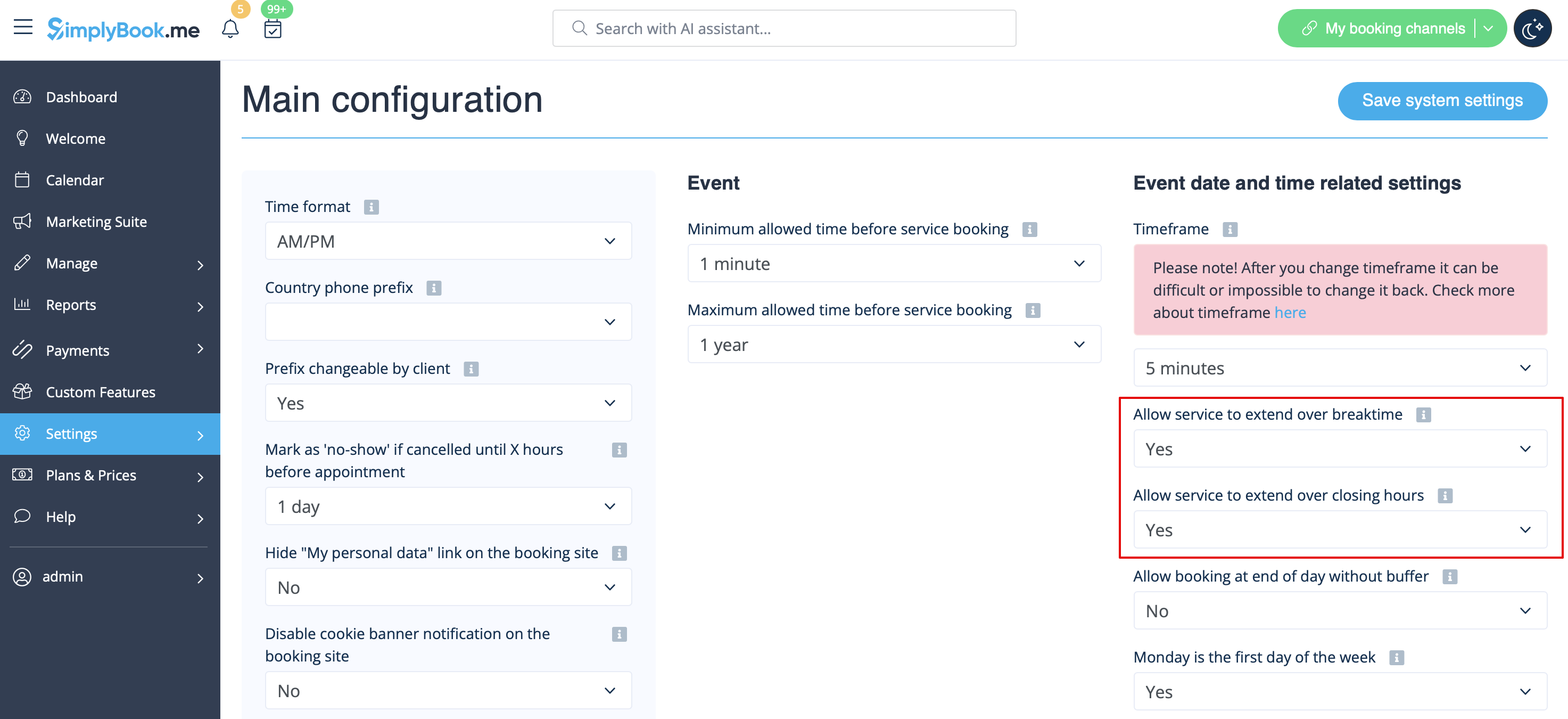
- 1. In Settings // Main configuration set both "Allow service to extend over breaktime" and "Allow service to extend over closing hours" to "Yes".
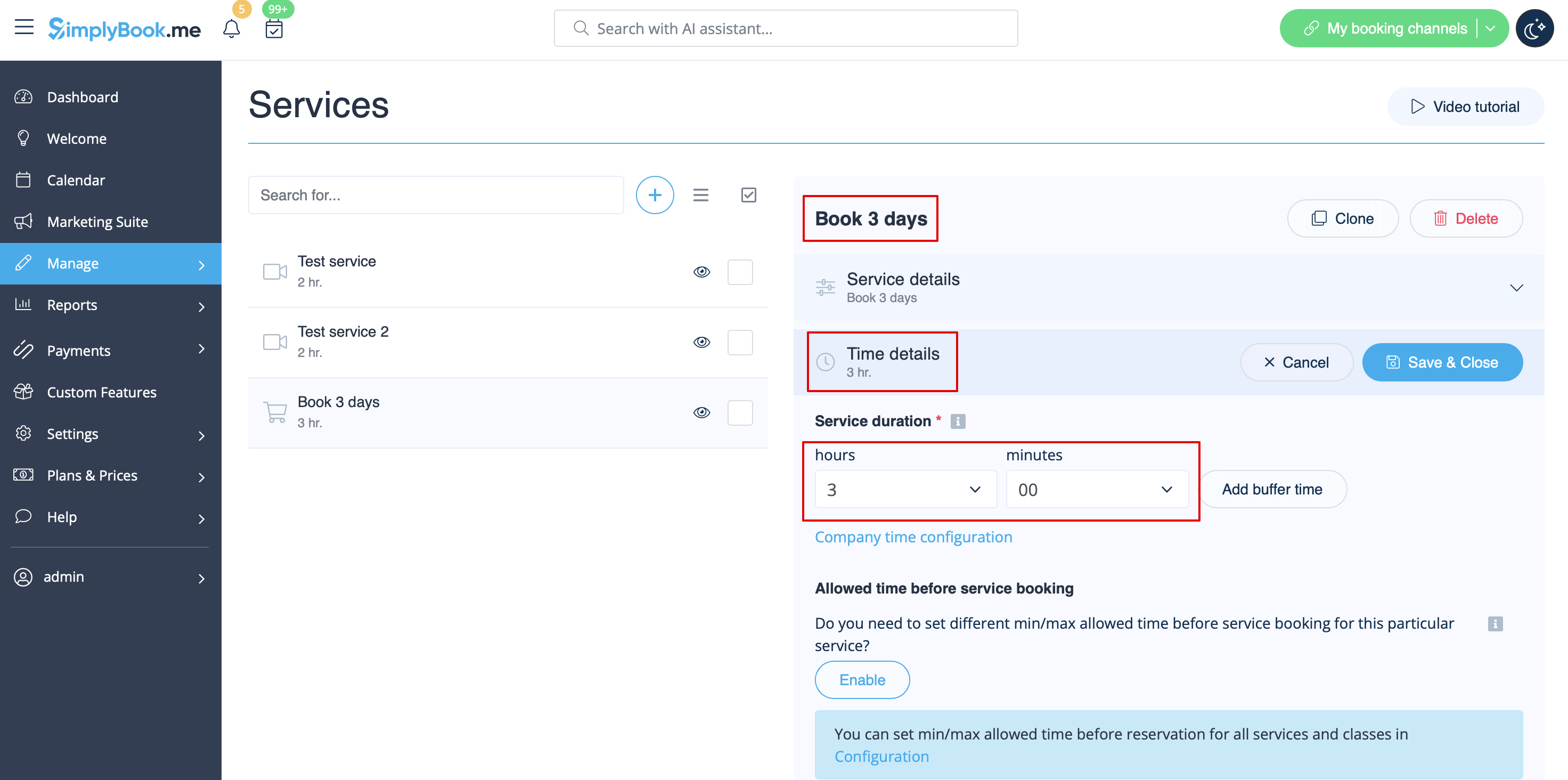
- 2. In Manage // Services // "+" create service with the duration corresponding to the amount of days your service will be offered for (3 days=3 hours, 7 days=7 hours).
- 3. In the Settings // Company opening hours (when you have only 1 service) or in the working hours of the service (Manage // Services // Service schedule) open only 1 hour each day.
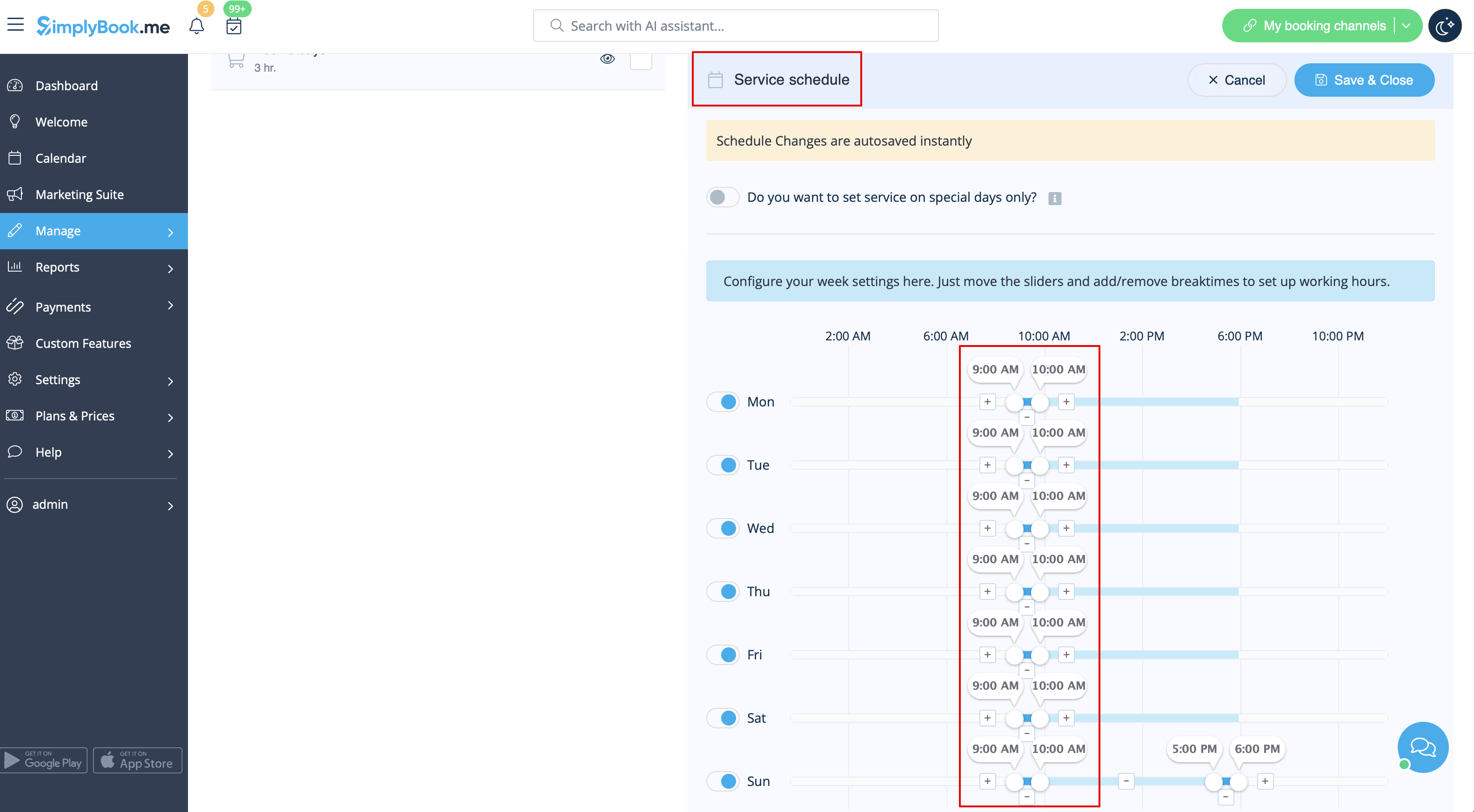
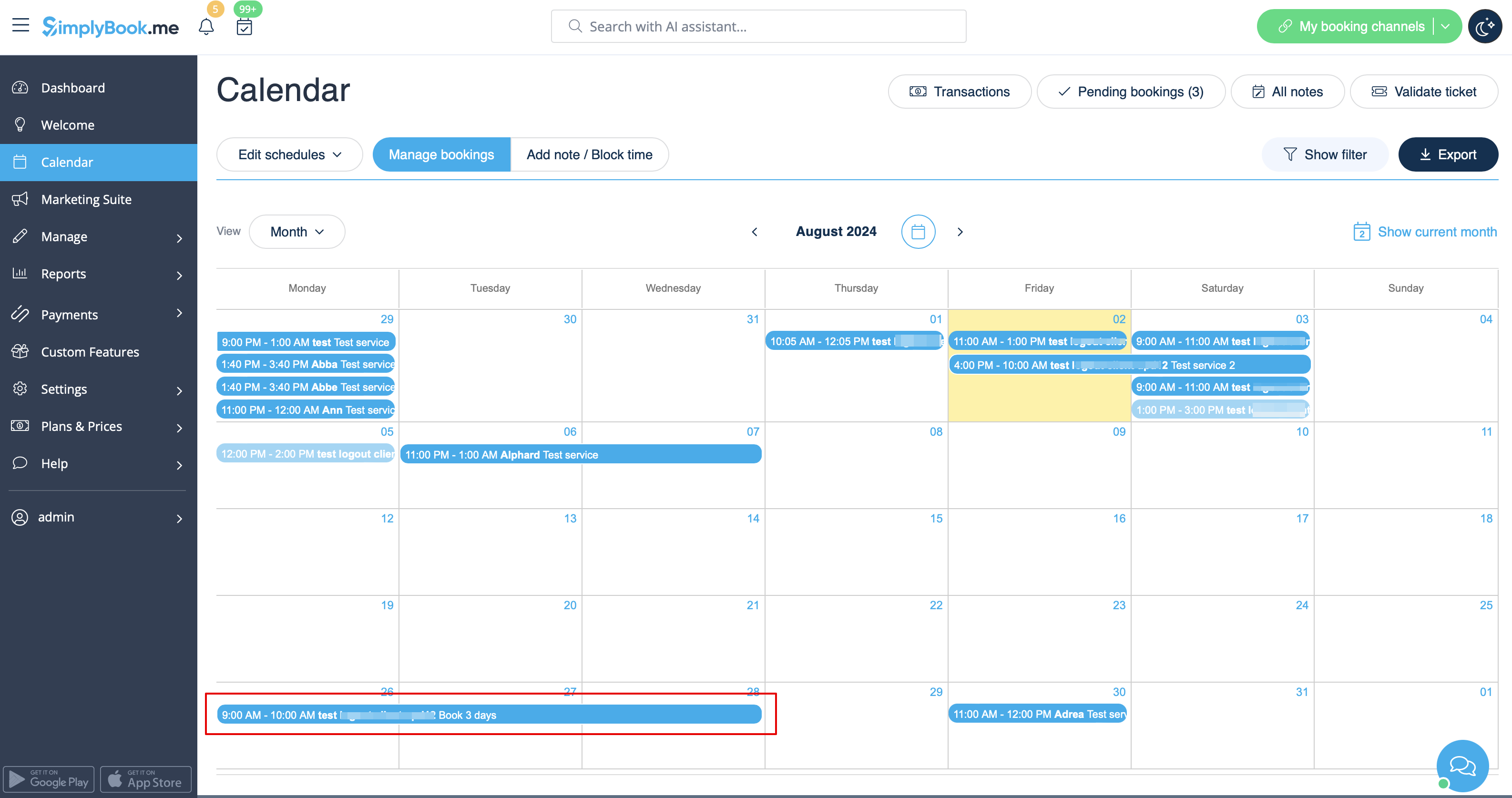
- 4. The system will then book the number of hours indicated in service duration as the number of days.
See extended tutorial about classes online scheduling here
And video tutorial how to sell membership related classes 
- Video tutorial available
Video available
If you plan to have 1 event or several events without regular services you should do the following:
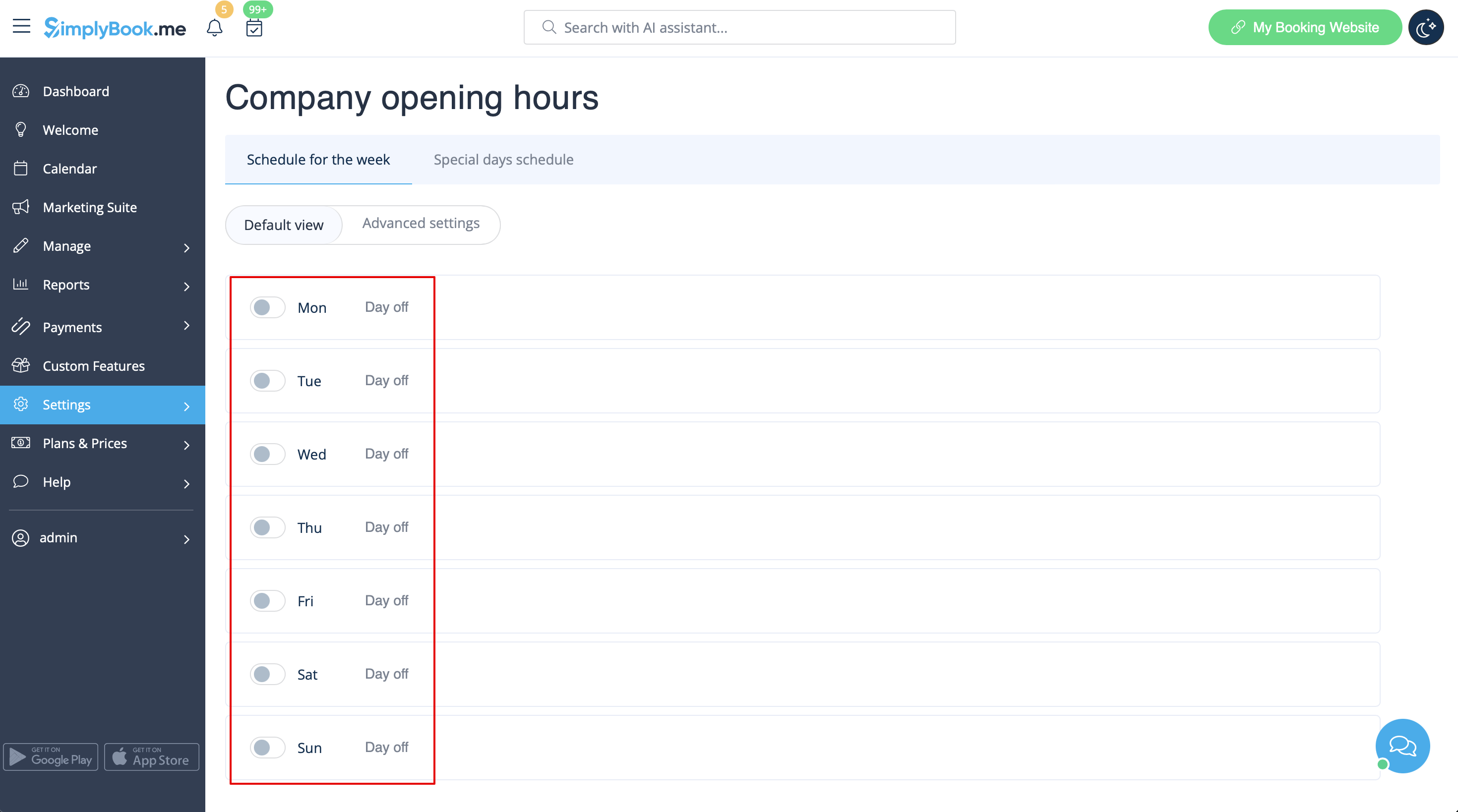
- 1. Close all company opening hours in Settings // Company opening hours - put the switchers near weekday names to "off" position.
- 2. Create events you need in Manage // Services // "+". See detailed tutorial about events here.
If your services will cross midnight, after you set up your availability make sure to set "Allow service to extend over closing hours" to "Yes" in Settings//Main configuration.
Different clinics/salons under one account
If you have several clinics/salons/gyms/etc you can use Locations Custom Feature and make each clinic or salon a location. You can assign providers who work on that location and while booking your services, clients will first choose location and then service and provider.
Services limited to the amount of rooms or items
For those companies that are restricted to amount of rooms or items we recommend to check Limit Bookings Custom Feature.
This Custom Feature allows you to restrict booking quantity which can be booked at the same time. This Custom Feature is useful when your services require additional things like dental chair or room in the studio etc. When the booking limit is reached the corresponding time interval will look like breaktime on the booking page (and in the admin interface if you haven't set to skip these restrictions for admin). It is possible to limit booking number at the same time generally, and also you can set certain limit for each service separately.
Or as another option you can use Related Resources custom feature as it allows to connect equipment, rooms or anything else that is limited in quantity to a service. Different resources can be connected to the same service when needed. You can create all the necessary equipment, define the number of items required for each appointment per service/class and the resources will be automatically attached during the booking process.
