LINE LIFF Custom Feature
Інтеграція LINE LIFF з SimplyBook.me надає підприємствам потужну можливість покращити процес бронювання зустрічей та взаємодію з клієнтами. Запропонувавши безперебійний та ефективний сервіс безпосередньо в месенджері Line, підприємства можуть залучити та утримати клієнтів, оптимізувати свою діяльність та залишатися лідерами на конкурентному ринку.

Зверніть увагу! Функція налаштування полів клієнта несумісна з функцією LINE LIFF.
- Як користуватися
- 1. Щоб увімкнути цю функцію, перейдіть до розділу «Налаштування» за допомогою меню зліва в адміністративному інтерфейсі, знайдіть LINE LIFF і натисніть кнопку «Увімкнути» або скористайтеся перемикачем.
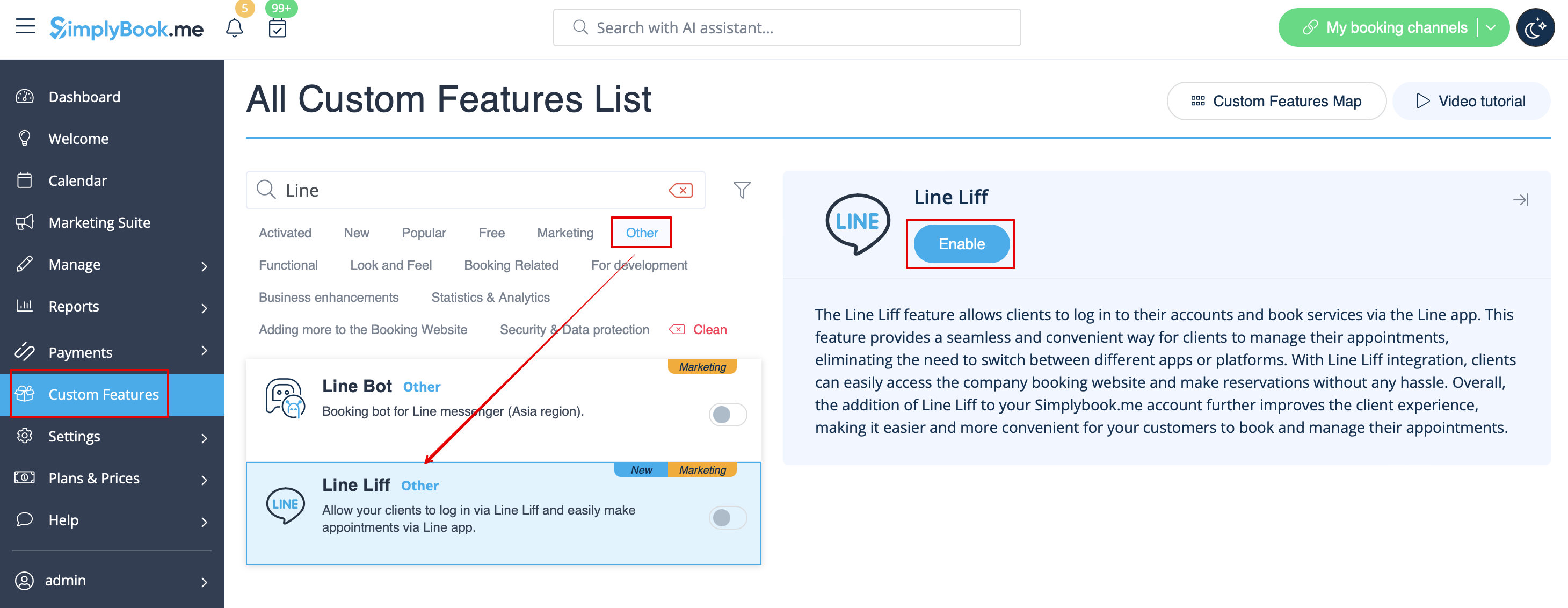
- 2. Щоб інтегрувати додаток LIFF, потрібно створити постачальника та канал у консолі LINE Developers Console.
- 3. Після реєстрації перейдіть до створення екземпляра постачальника.
- (постачальником може бути фізична особа, компанія або організація, яка надає послуги через платформу LINE)
- Введіть бажане ім'я або назву компанії як ім'я постачальника у відповідну форму.
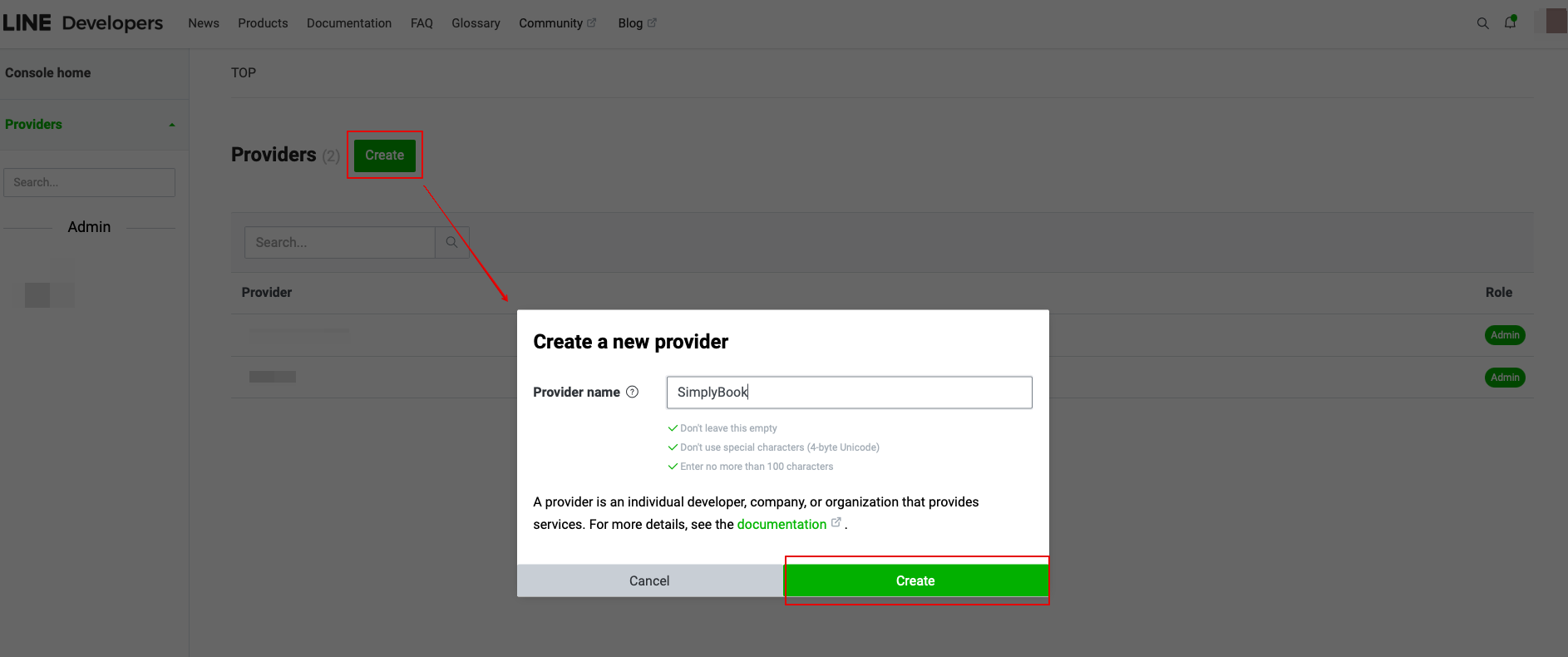
- 4. Потім перейдіть до створення каналу LINE Login.
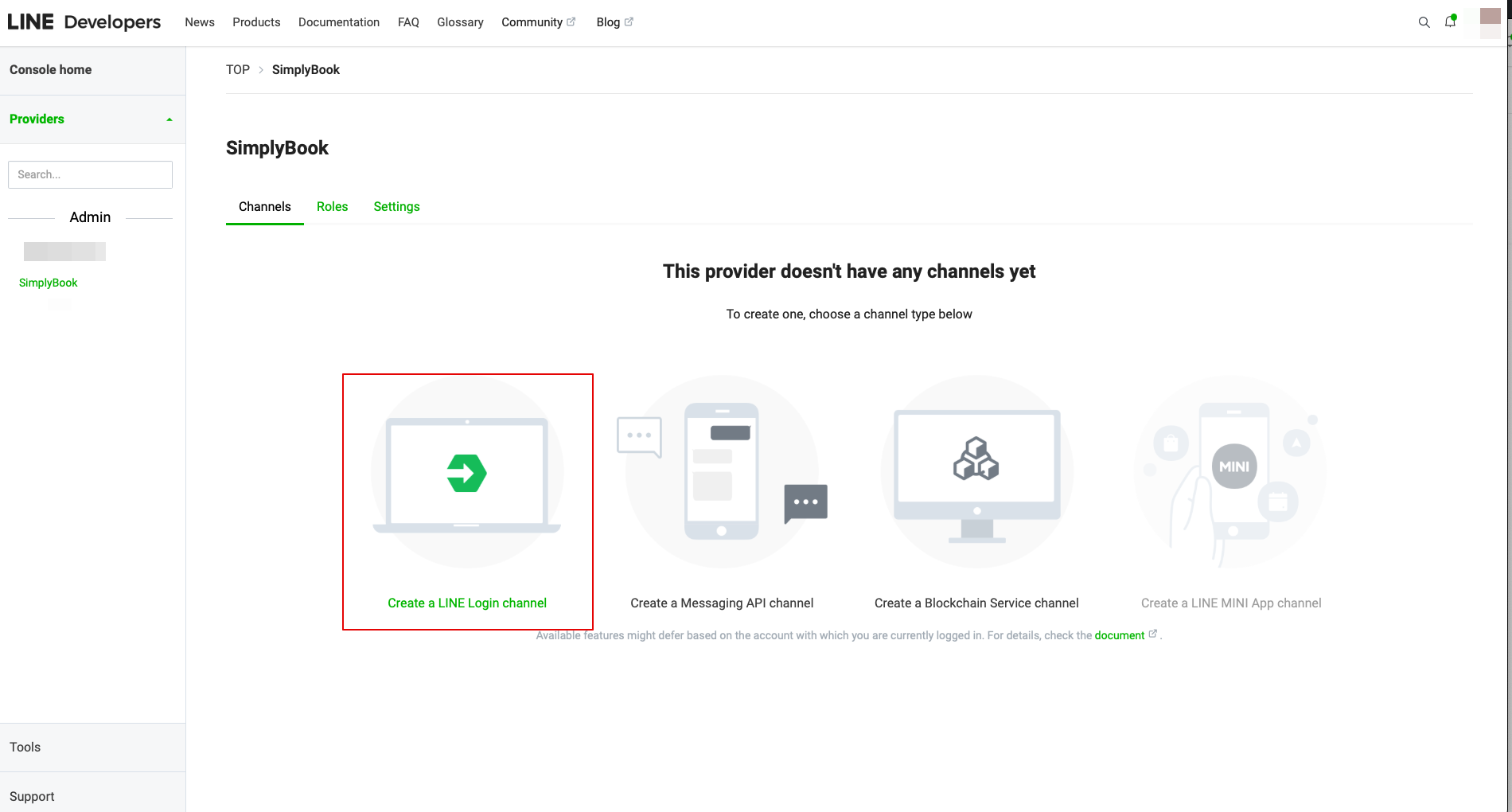
- 5. Додайте інформацію в необхідні поля.
- Обов'язково виберіть «Веб-додаток» у розділі «Типи додатків» та введіть адресу електронної пошти.
- Після прийняття «Угоди розробників LINE» натисніть кнопку «Створити», щоб завершити цей крок.
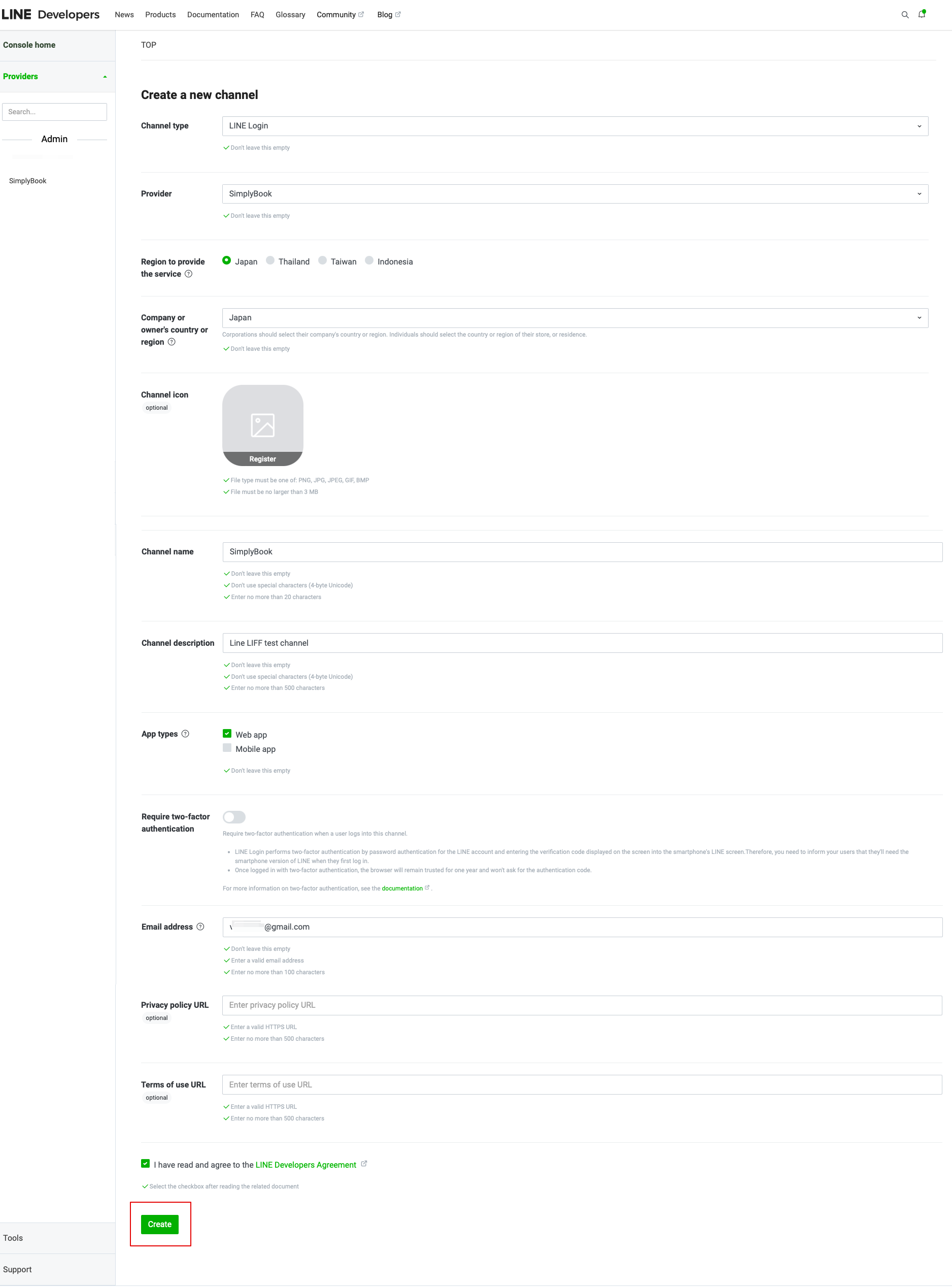
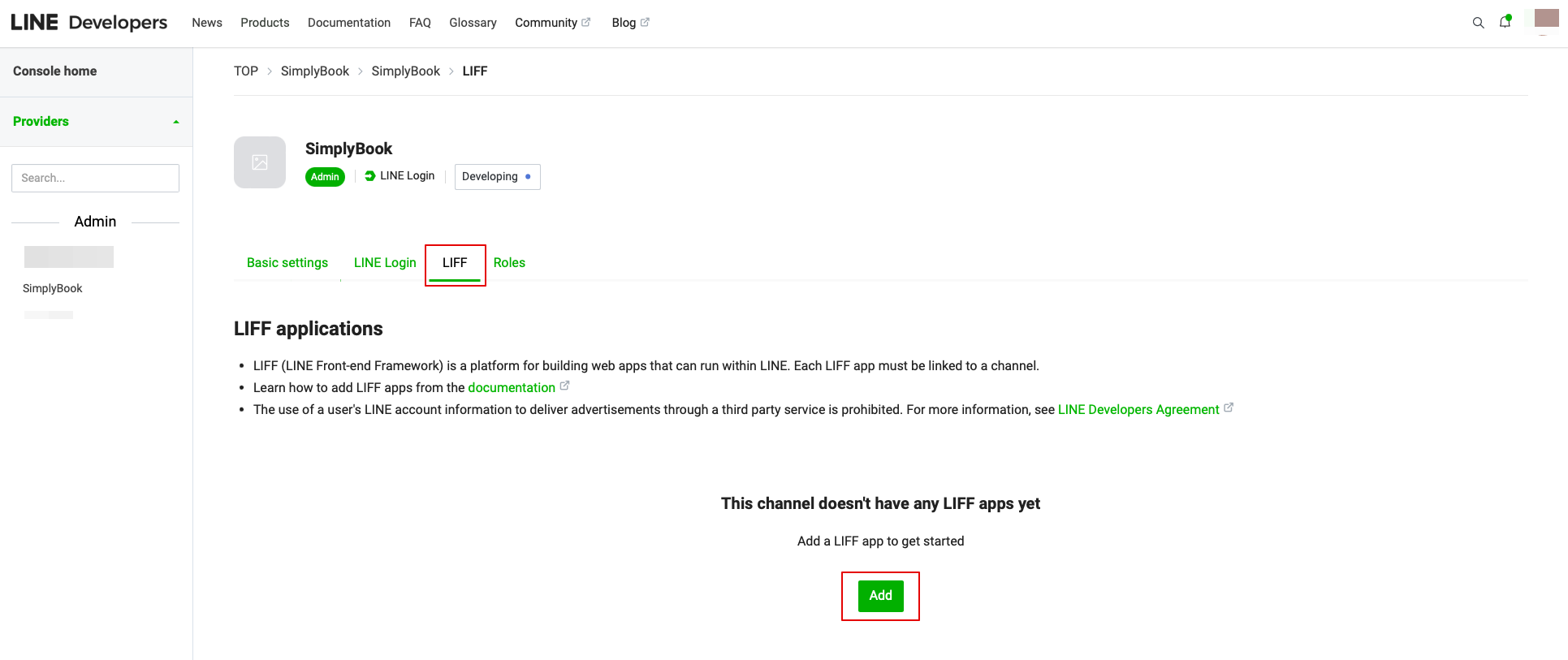
- 6. Після створення LINE Login натисніть на вкладку LIFF і додайте туди додаток LIFF.
Вам потрібно ввести наступні дані:
- Назва додатка LIFF: назва вашого бренду/компанії;
- Виберіть розмір додатка;
- URL-адреса кінцевої точки: слід скопіювати з URL-адреси LIFF (налаштування функції LIFF у Simplybook.me);
- (обов'язково) Виберіть наступні області: openid та profile, інакше інтеграція може не працювати або працювати неправильно;
- Функція Bot Link повинна бути увімкнена.
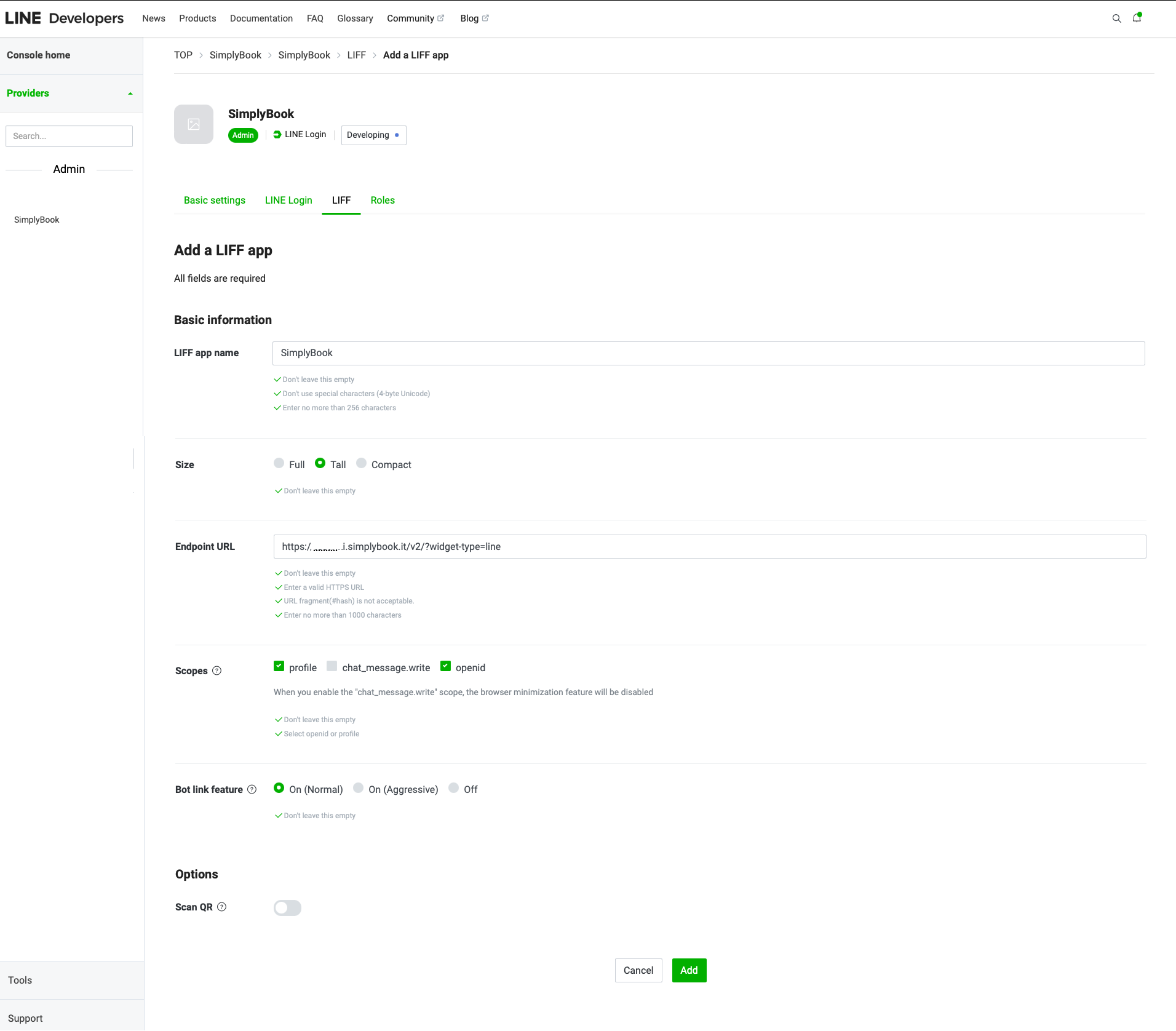
- After all the above settings are completed, click the green Add button to add LINE LIFF.
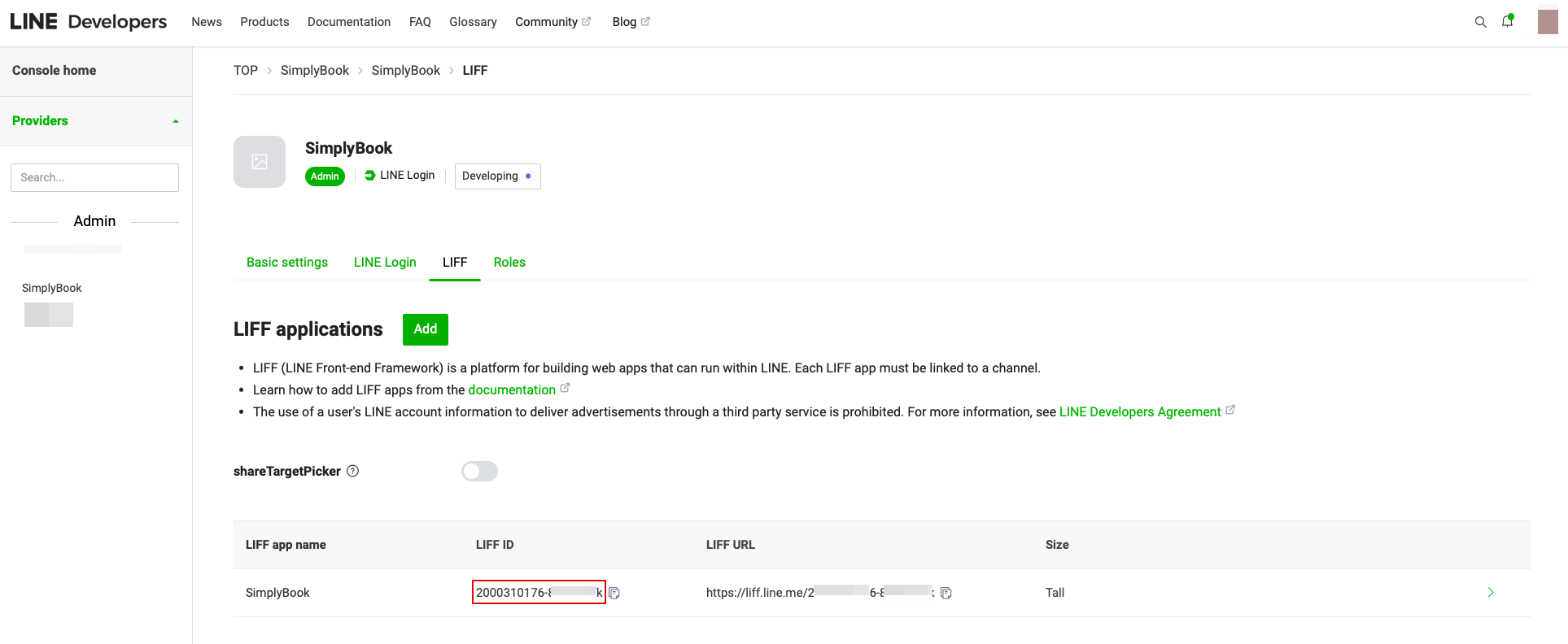
- 7. Then you will be directed to the page where you can see your LIFF ID.
- Please copy the LIFF ID and input it to the corresponding field on the Simplybook side.
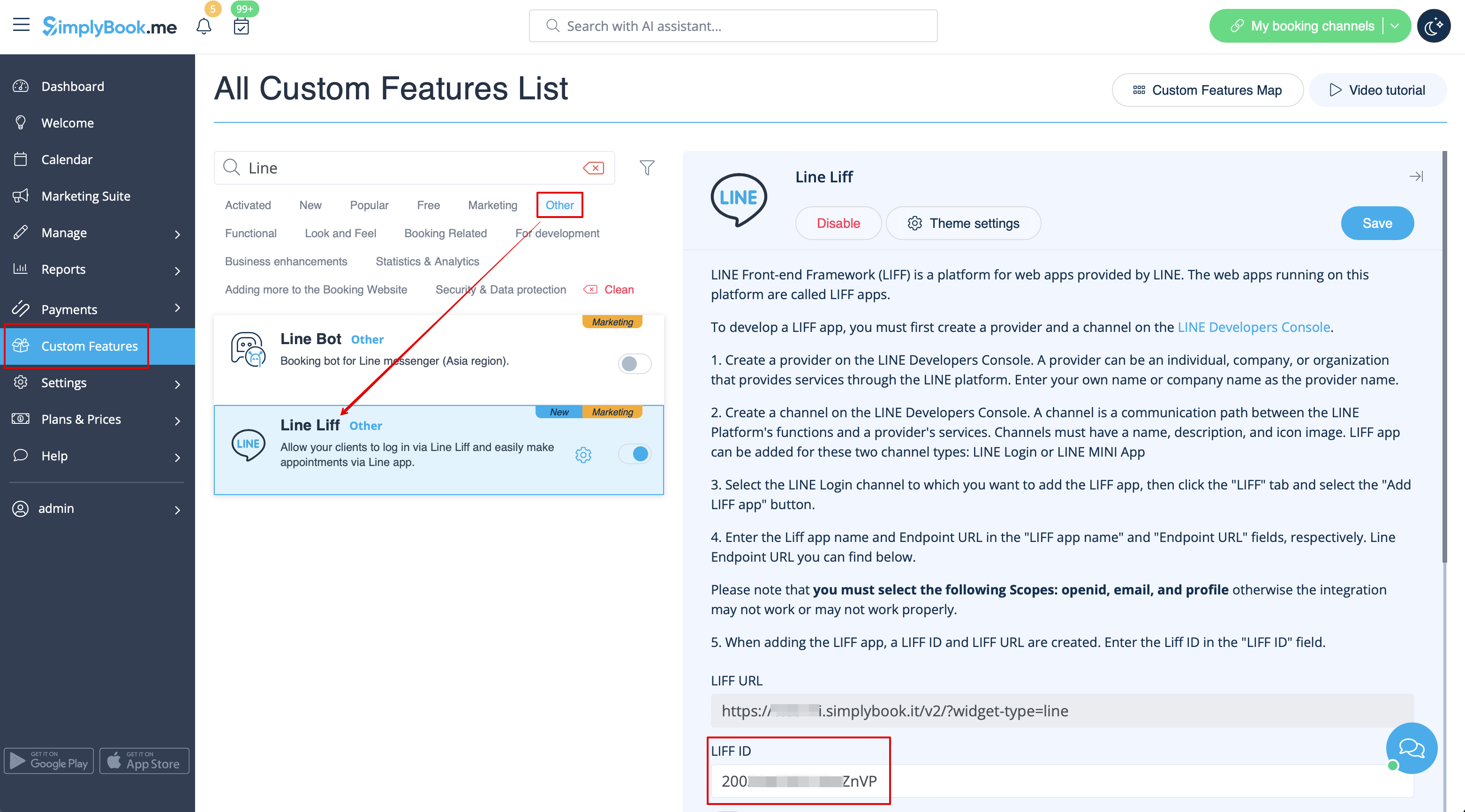
- 8. If you want your clients to receive push notifications about their booking status or other reminders (similar to SMS), you can turn on the "Enable friend request with your LINE channel" option in Simplybook LINE LIFF Custom Feature and insert the "Channel access token".
- (the information on how to obtain the Channel access token will be presented further in the guide)
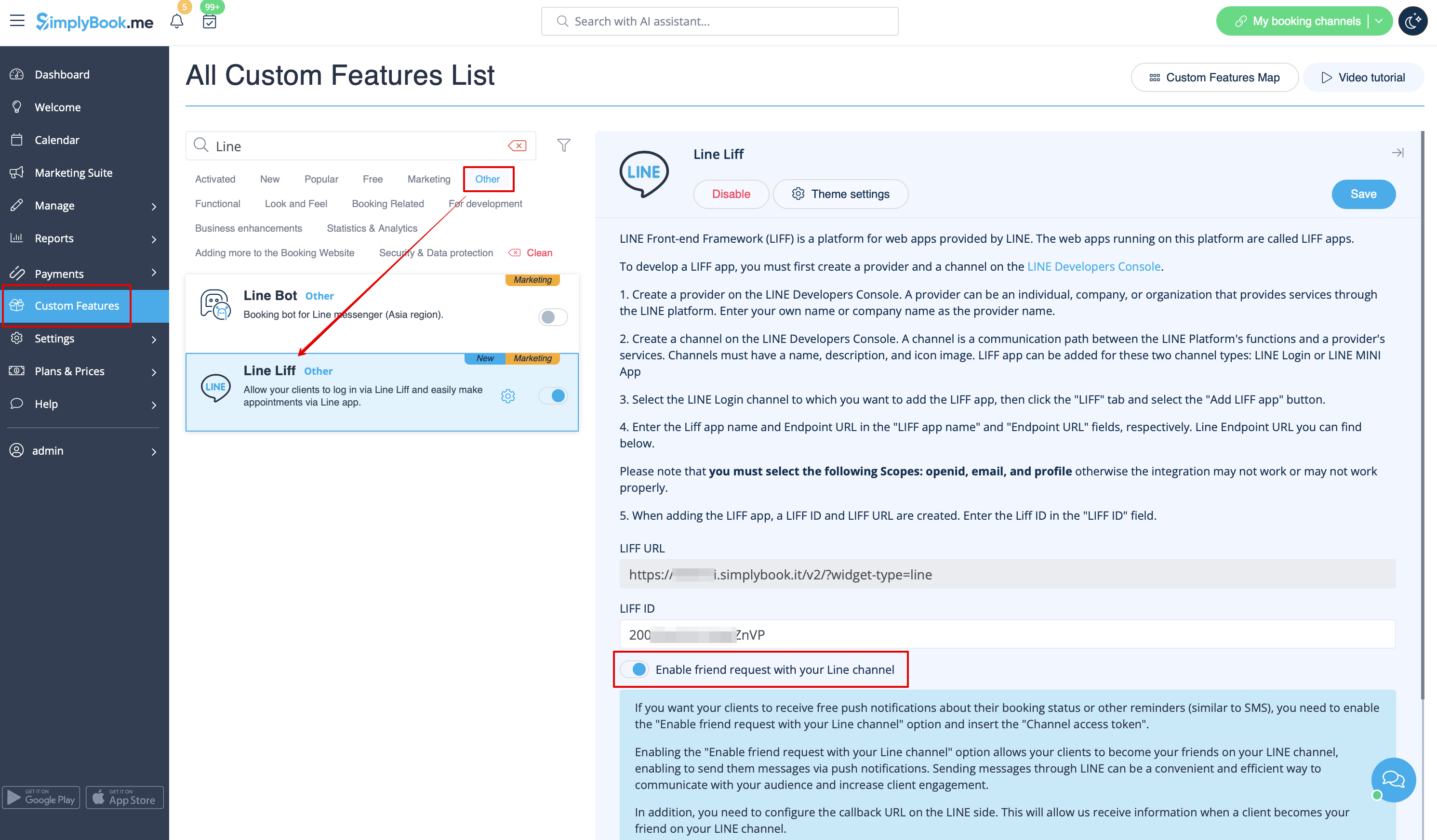
- In addition, you need to configure the Callback URL on the LINE side. This will allow us to receive information when a client becomes your friend on your LINE channel.
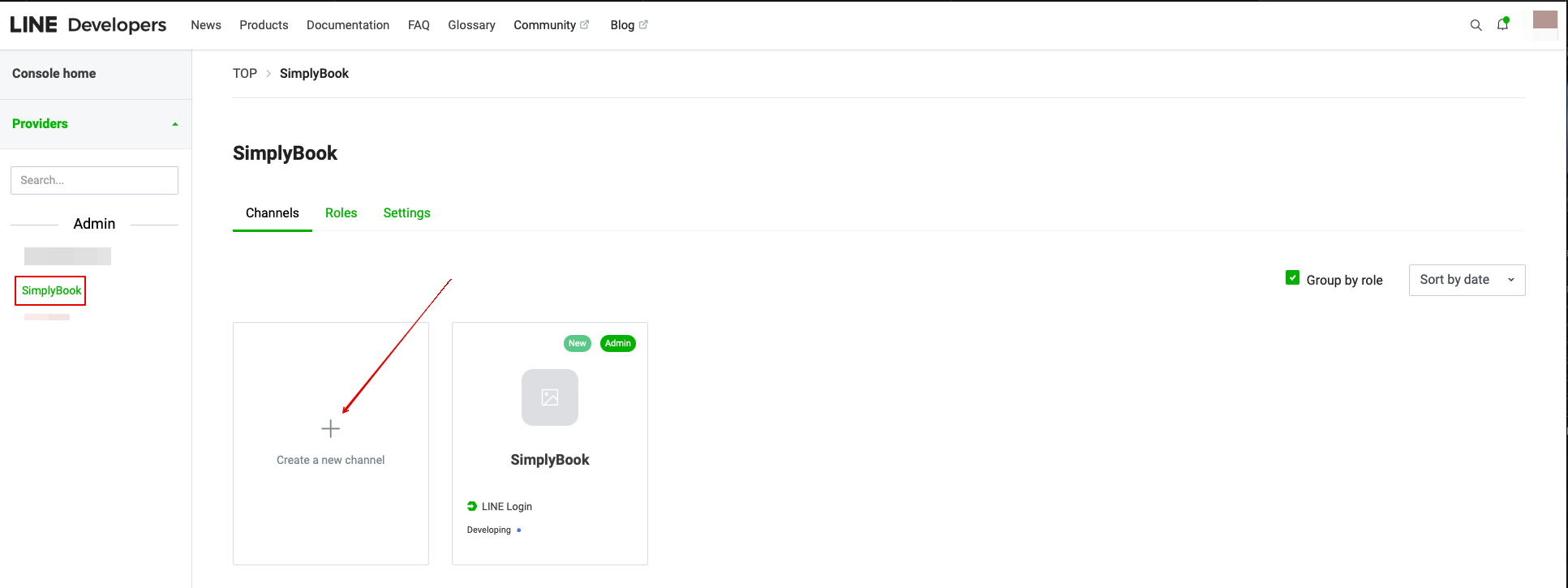
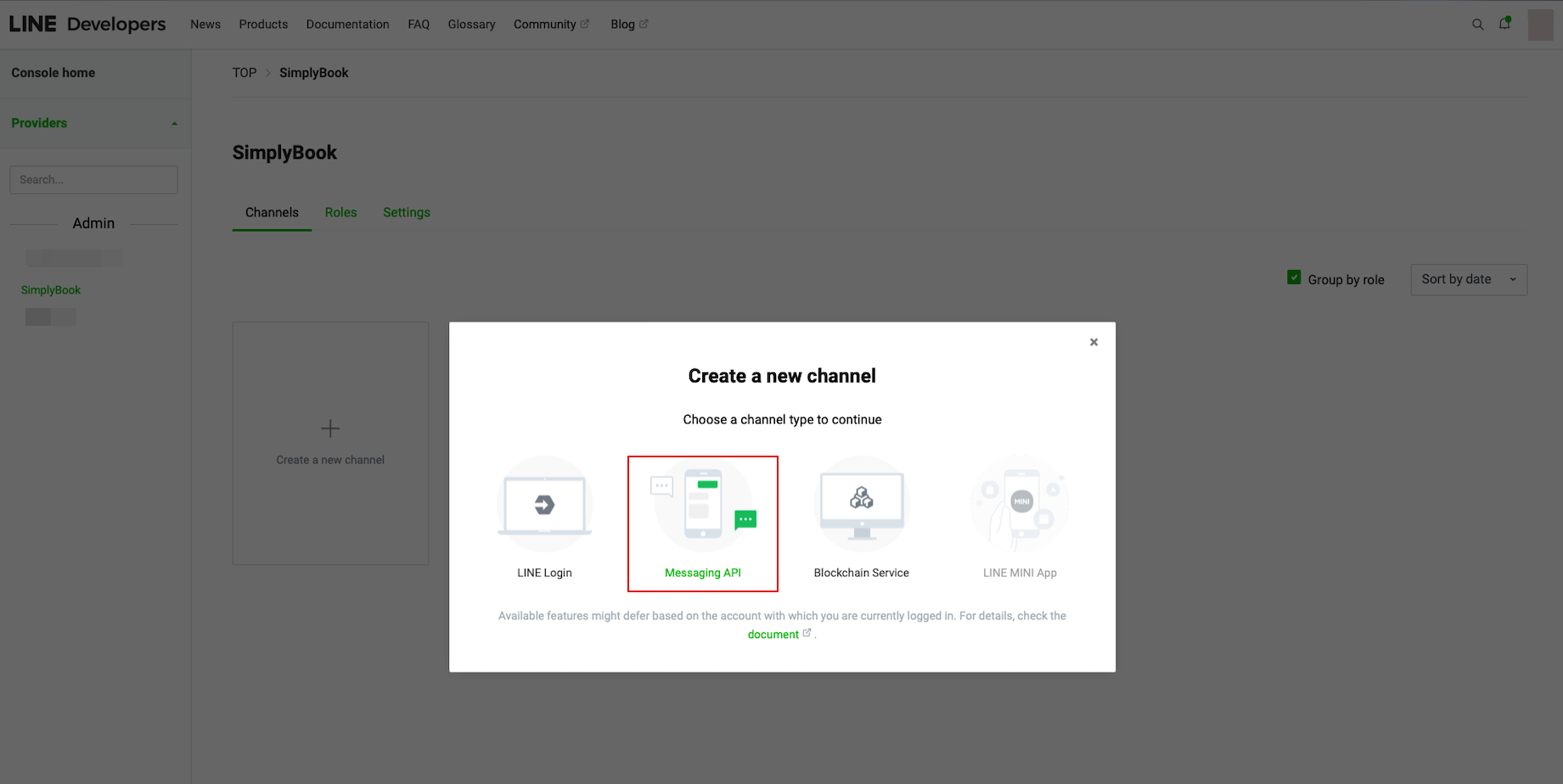
- To do that please go to your LINE LIFF Developers console, select the previously added provider account and create new channel called “Messaging API”
- (both channels must be under the same provider for all the connections to work)
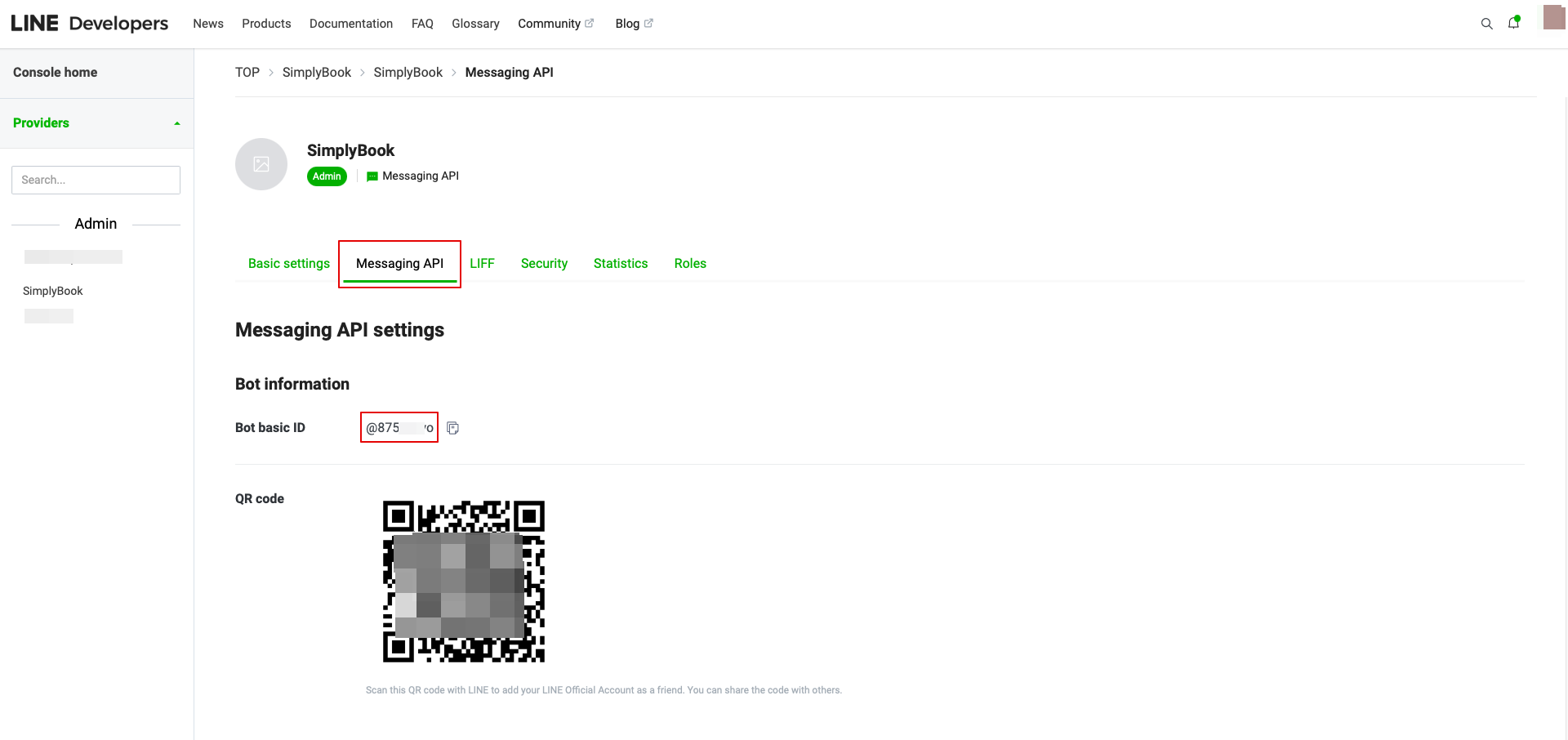
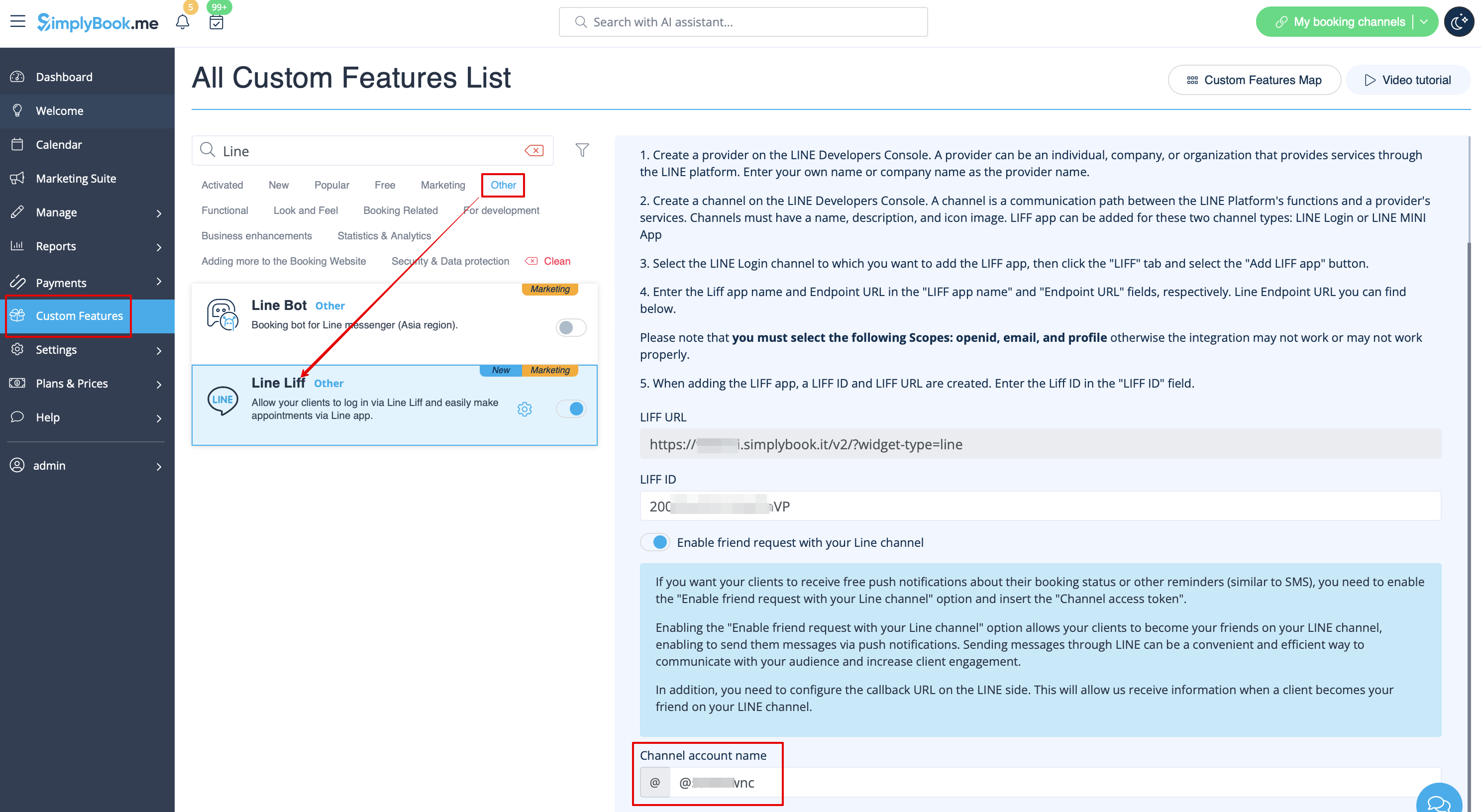
- 9. After completing these settings, select the Message API tab to get the Bot Basic ID. Copy and paste the Bot ID to the Channel account name field of SimplyBook.me LINE LIFF Custom Feature.
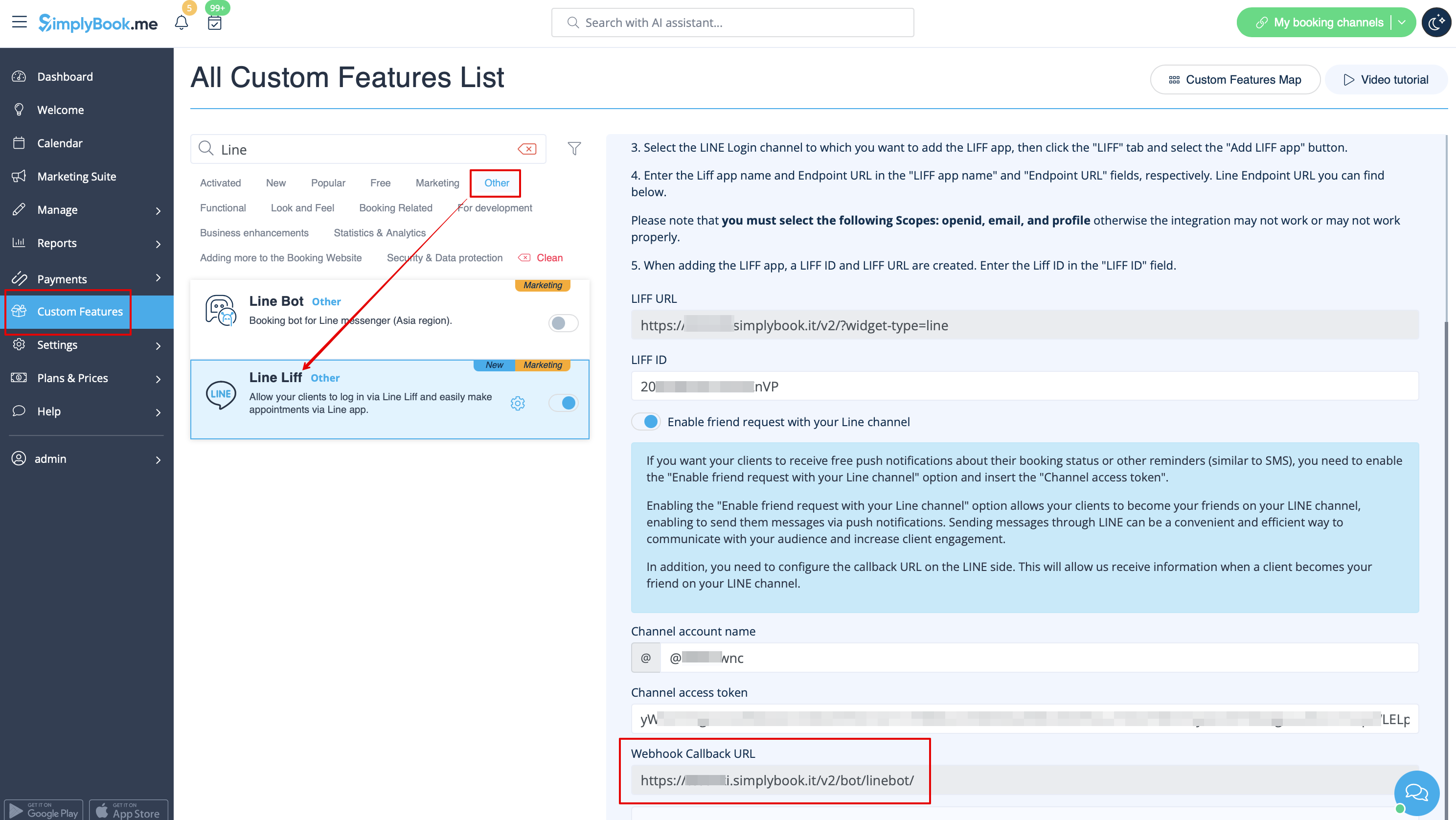
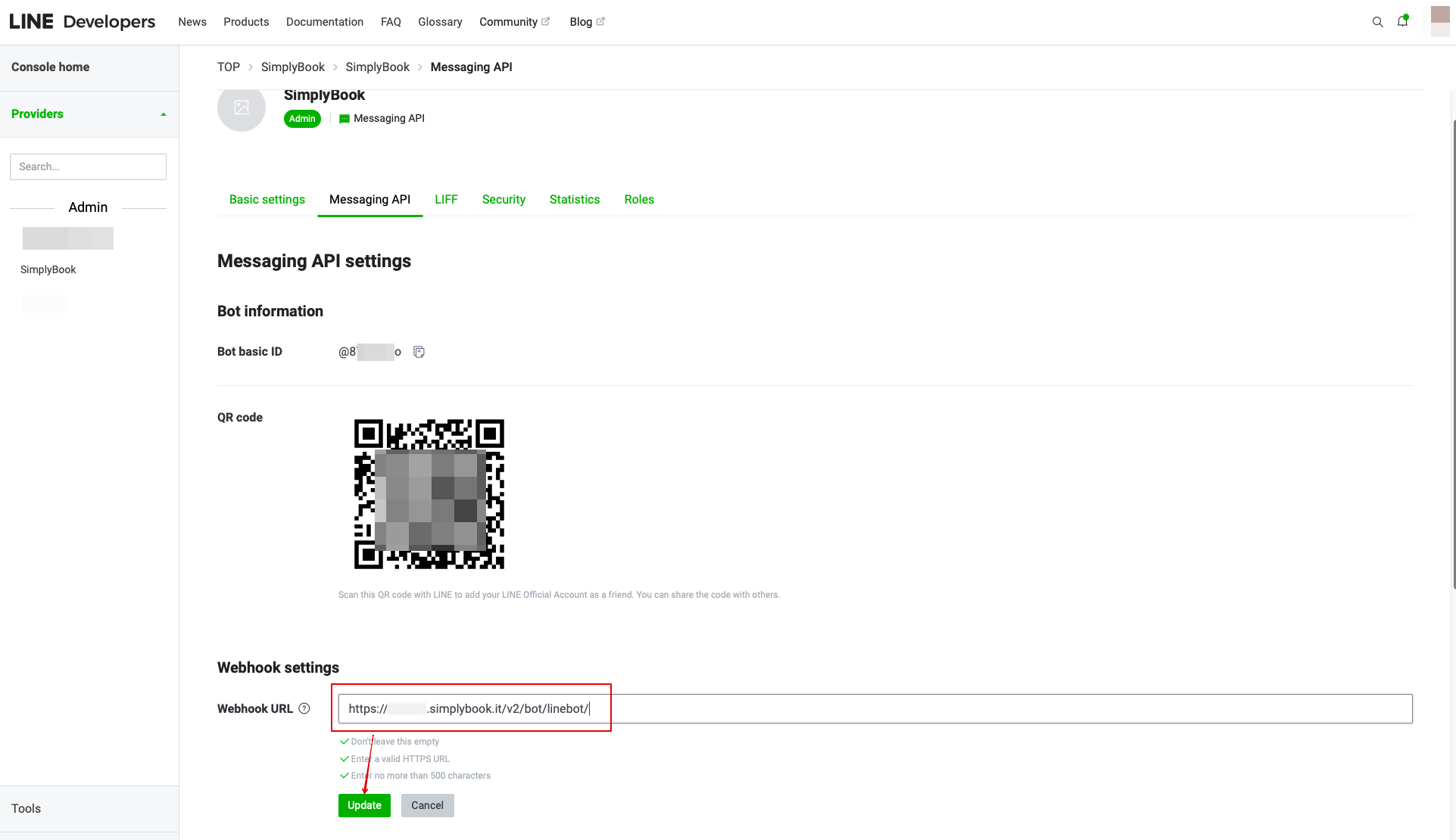
- In the Custom Feature setting you can also see the Webhook Callback URL. Please copy it and paste it to the Webhook URL field on the Line//Messaging API side.
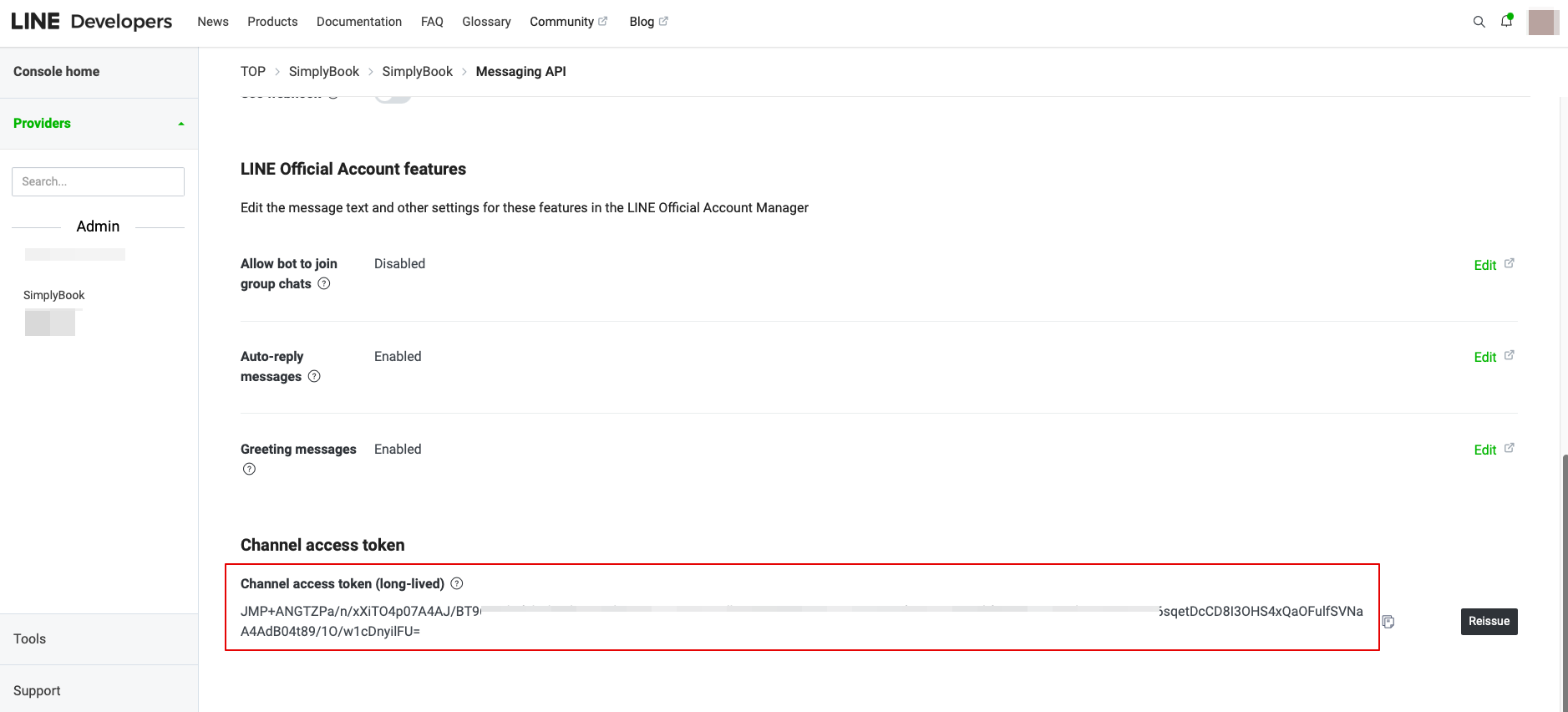
- 10. In the Messaging API on the LINE side you need to scroll down to the Channel access token, issue it, copy the result value and insert it to the Simplybook.me LINE LIFF settings.
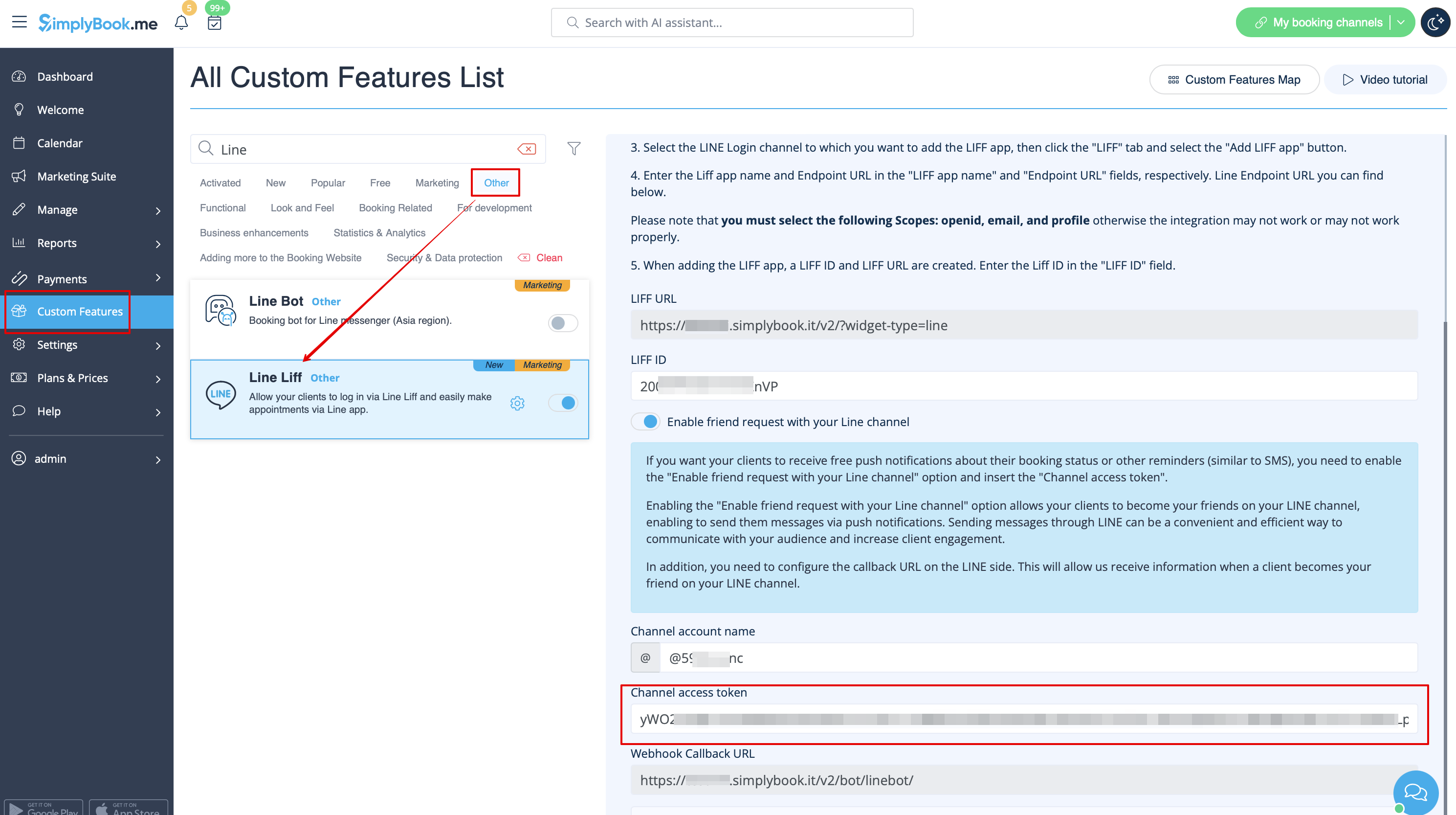
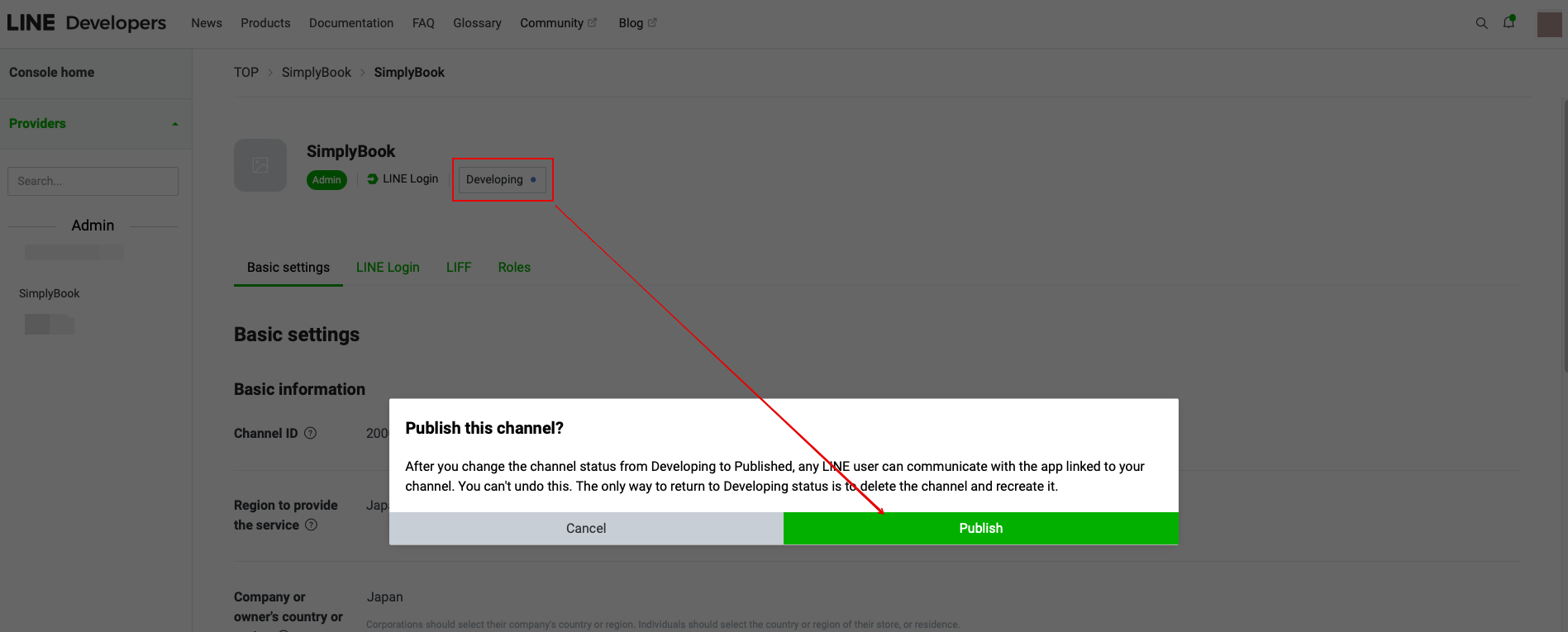
11. Please go back to the LINE Login channel, click the Developing status under the channel name, and change it to Publish.
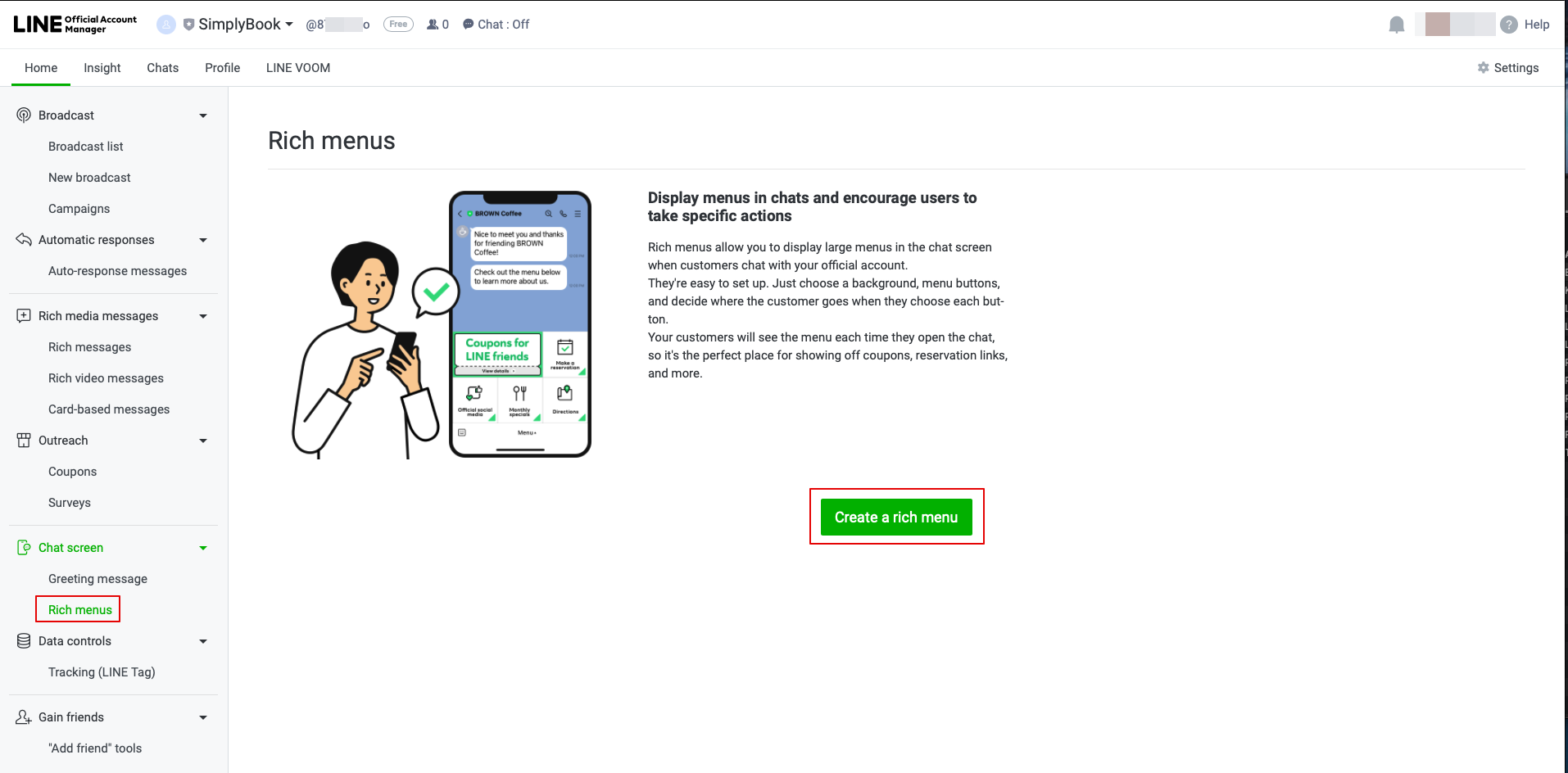
- 12. Once published, you need to log into the Line Official Account under the same LINE account as the Developers Console.
- When you access it, please click on Rich Menu option in the navigation and Create a Rich Menu there.
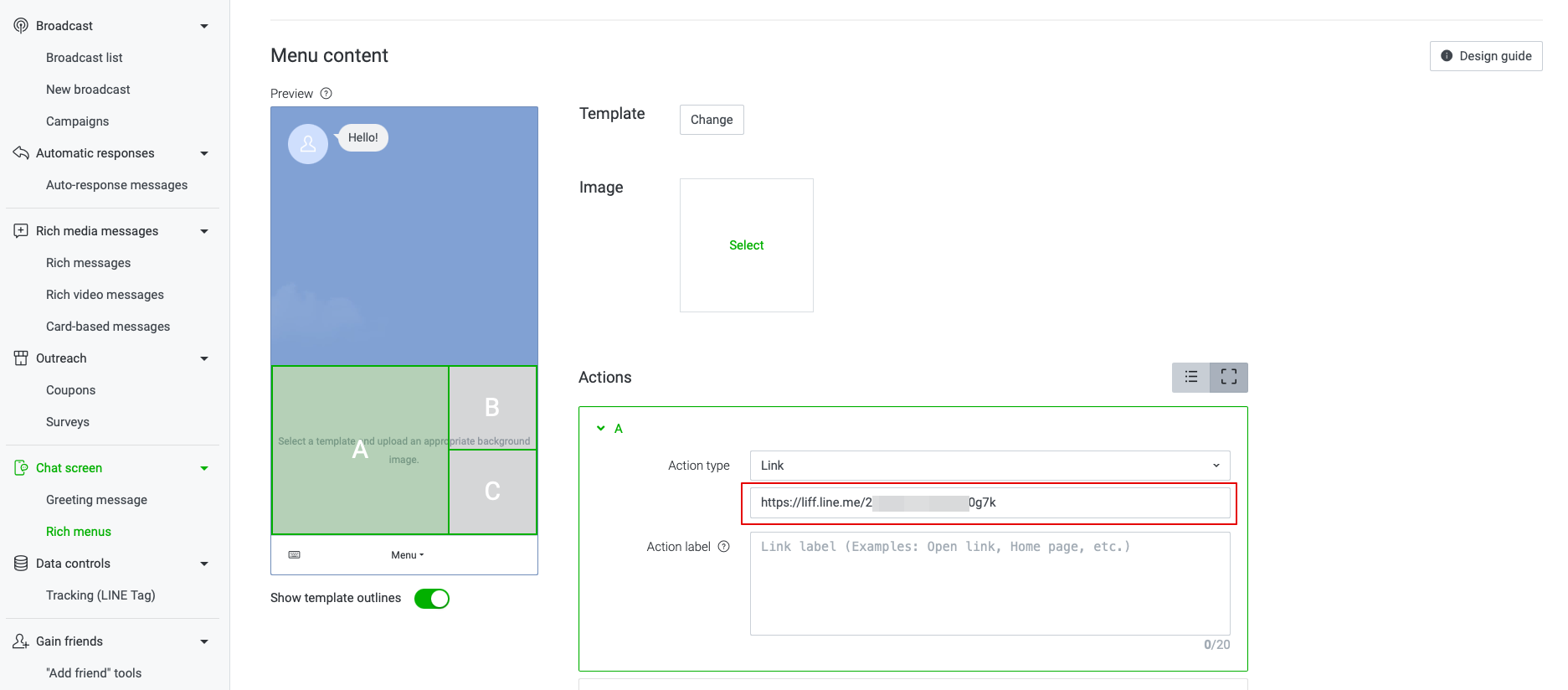
- 13. Fill in the required fields.
- In menu Content please select the template and add the image.
- Choose “Link” type in Actions block and add the LIFF url from the Developer Console//LINE Login channel.
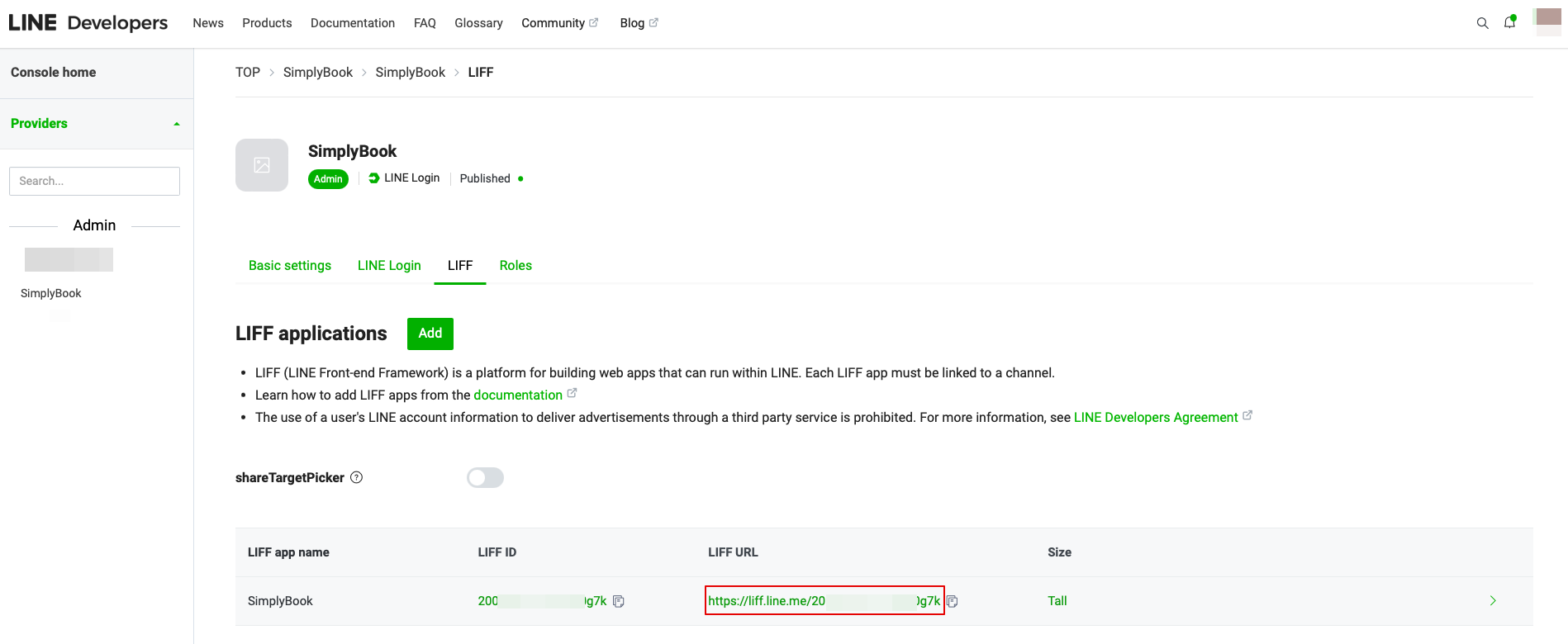
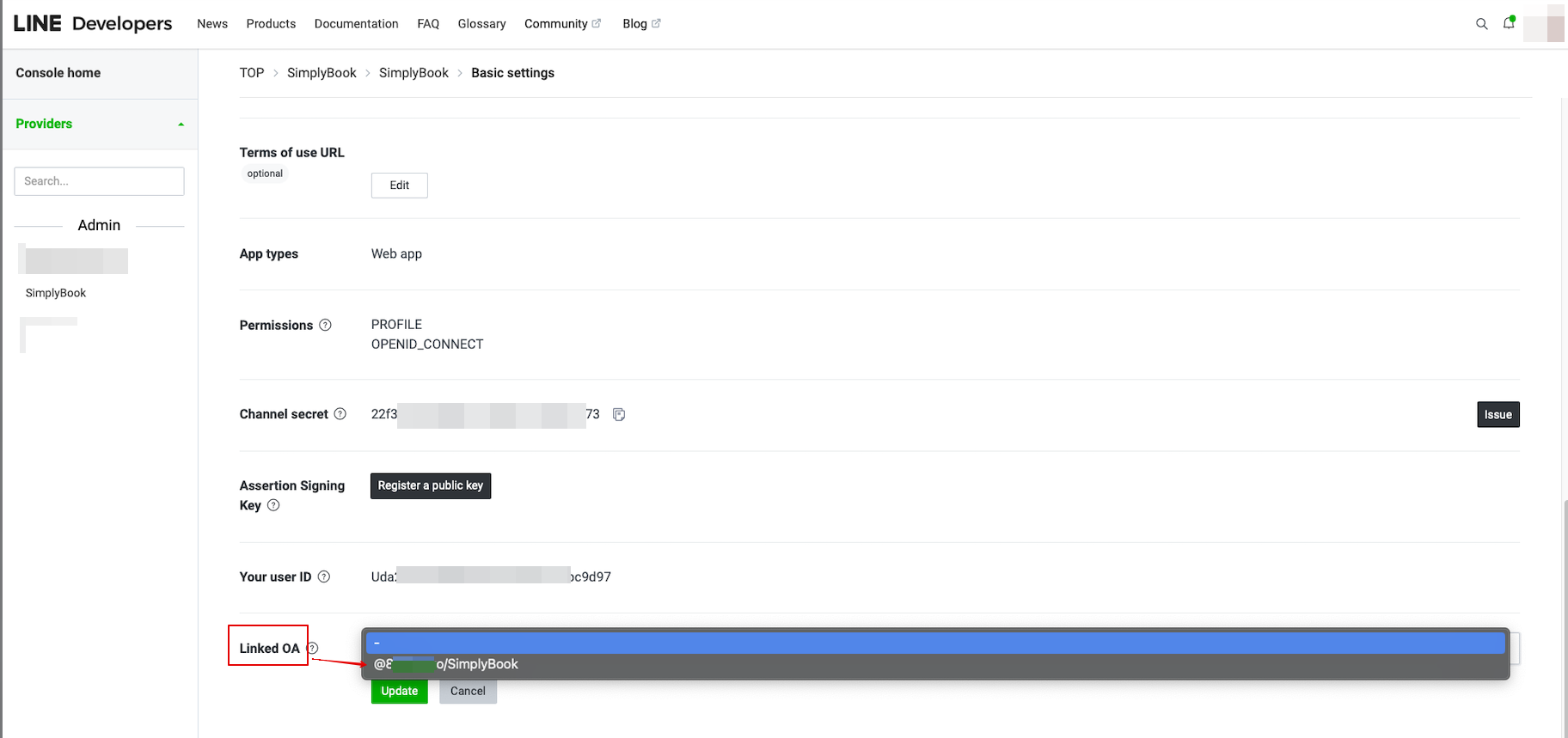
- 14. To link LINE Official account with the LINE Developers account please to to the Developer Console and click on the LINE Login channel. In the Linked OA you need select the Official account to make both parts connected.
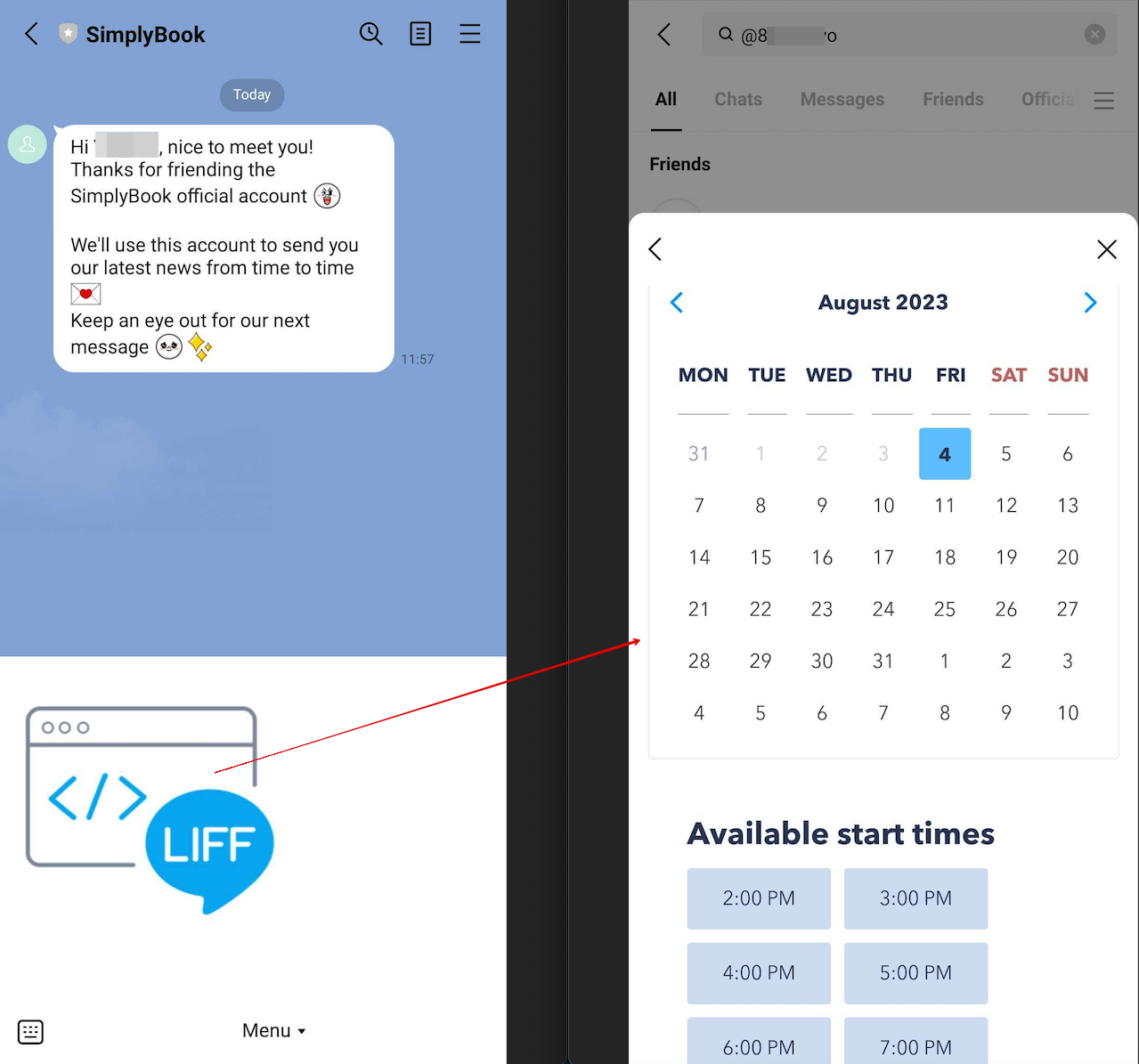
- 15. After opening the Official LINE account page in the LINE app, customers can click on the menu to start the booking process. During the process they can select the services, date and time they want to reserve, login with their LINE account and confirm the reservation.
- The integration also allows the clients to easily see their bookings within this in-app widget.
How to customize LINE Official Account notifications?
Go to the SimplyBook.me admin panel, select Settings → Email and SMS Settings. The LINE booking notifications texts will be consistent with the SMS notification content. If you want to adjust the information included, you can edit the corresponding templates there.
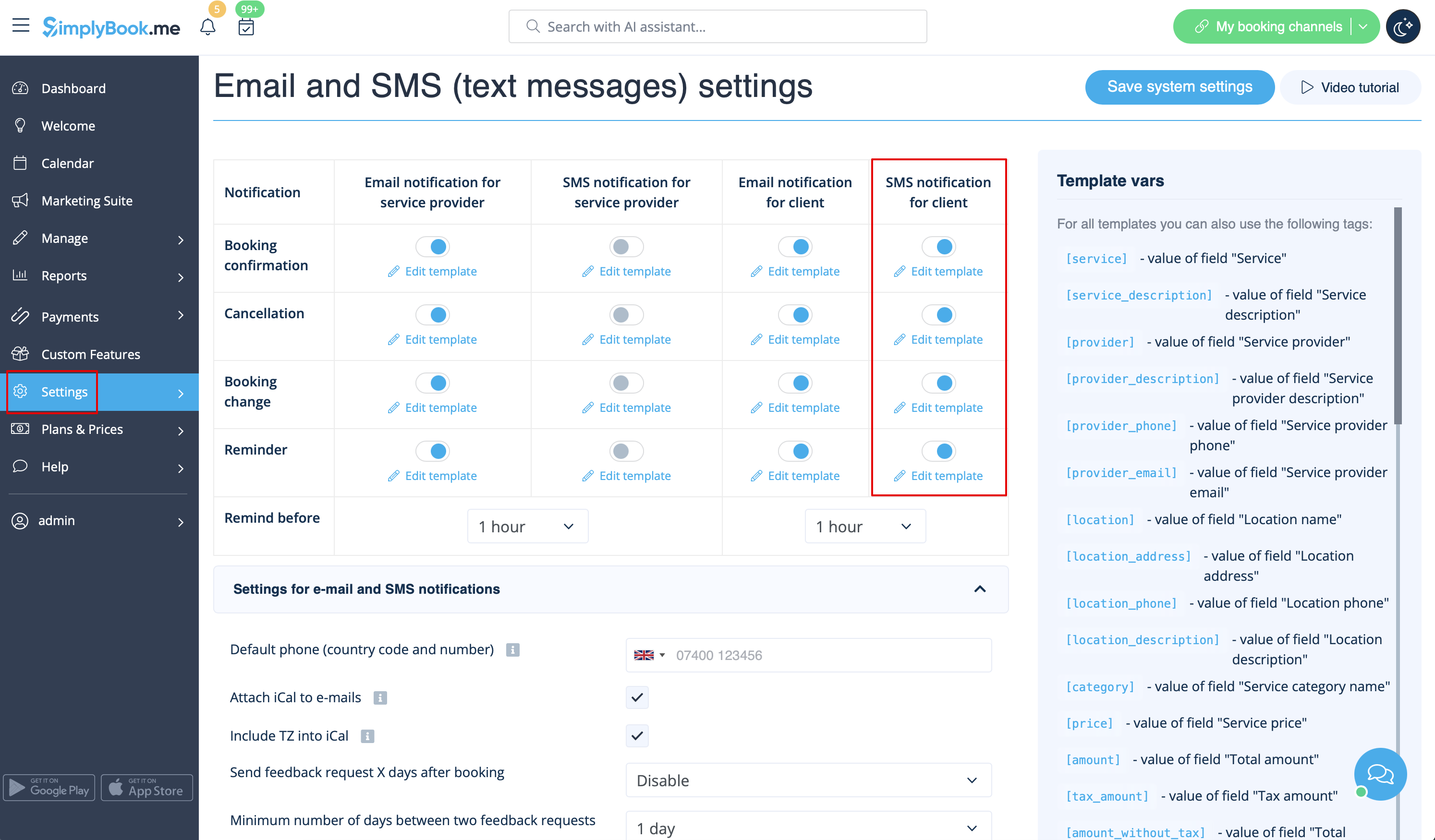
Remark: If you do not check the boxes for client SMS notifications in Settings → Email and SMS Settings, the system will still automatically send appointment reminders and other appointments notifications through LINE.