LINE LIFF-tilføjelsesfunktion

Integrationen af LINE LIFF med SimplyBook.me giver virksomheder en fantastisk mulighed for at forbedre deres aftalebookingsproces og kundeengagement. Ved at tilbyde en problemfri og effektiv oplevelse direkte i Line-messagingappen kan virksomheder tiltrække og fastholde kunder, strømline deres drift og forblive konkurrencedygtige på markedet.
Bemærk! Den tilpassede funktion "Kundefelter" er ikke kompatibel med LINE LIFF-funktionen.
- Sådan bruges
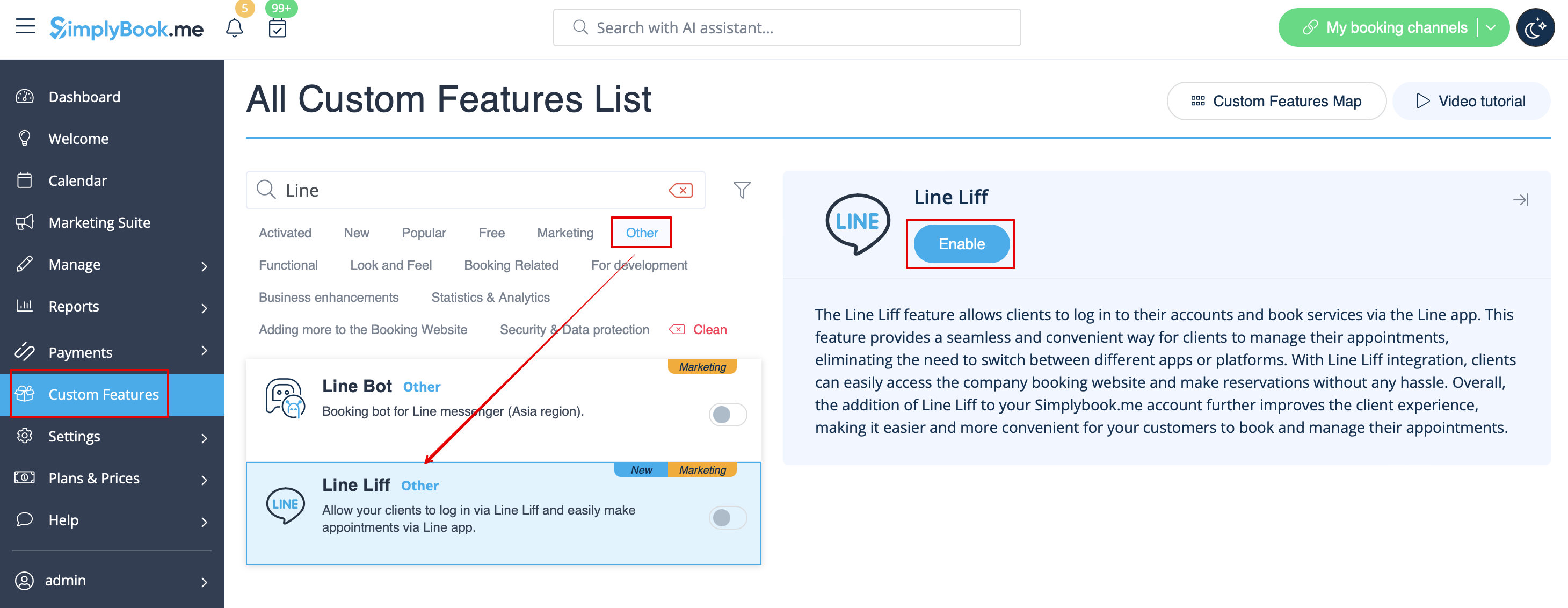
- 1. For at aktivere denne funktion skal du gå til afsnittet Brugerdefinerede funktioner i menuen til venstre i din admin-grænseflade, finde LINE LIFF og klikke på knappen Aktivér eller bruge kontakten.
- 2. For at integrere en LIFF-app skal du oprette en udbyder og en kanal på LINE Developers Console.
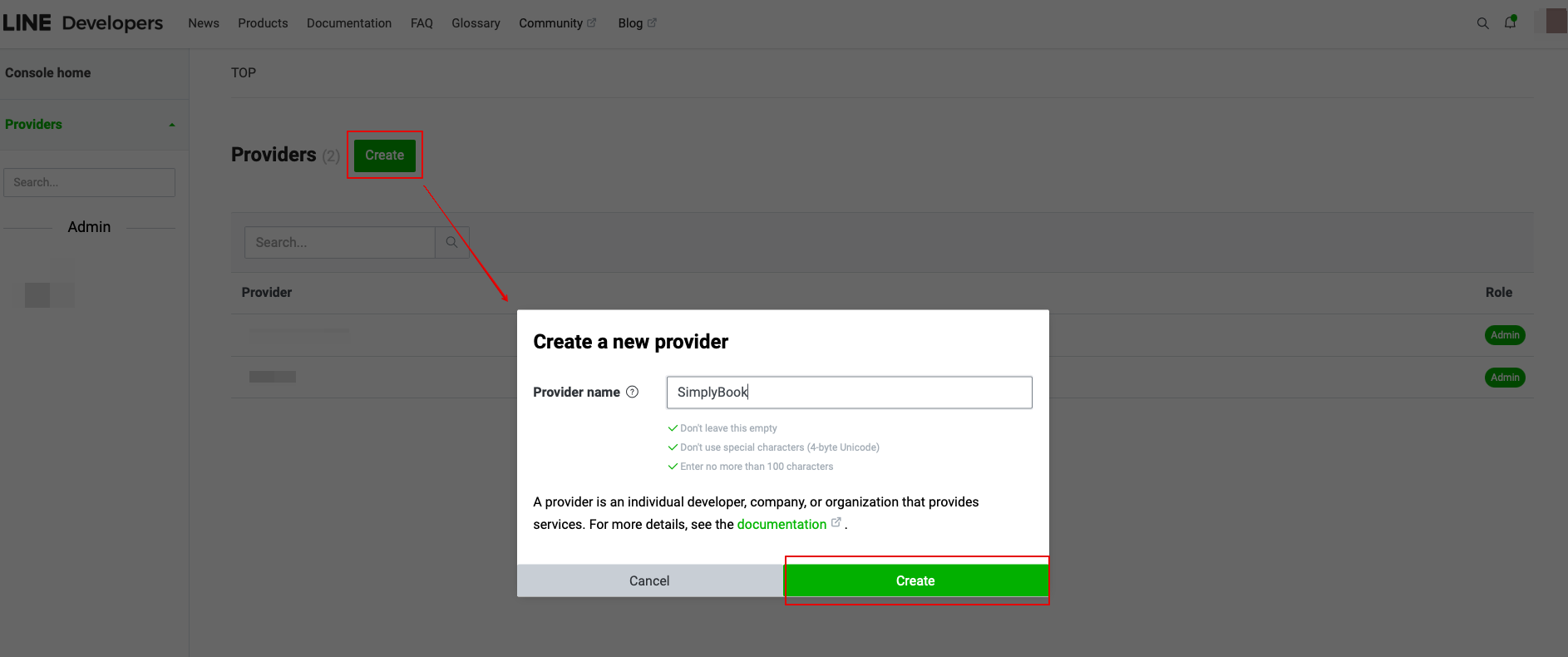
- 3. Når du har tilmeldt dig, skal du fortsætte med at oprette en udbyderinstans.
- (udbyderen kan være en person, et firma eller en organisation, der leverer tjenester via LINE-platformen)
- Indtast det ønskede navn eller firmanavn som udbydernavn i det relevante felt.
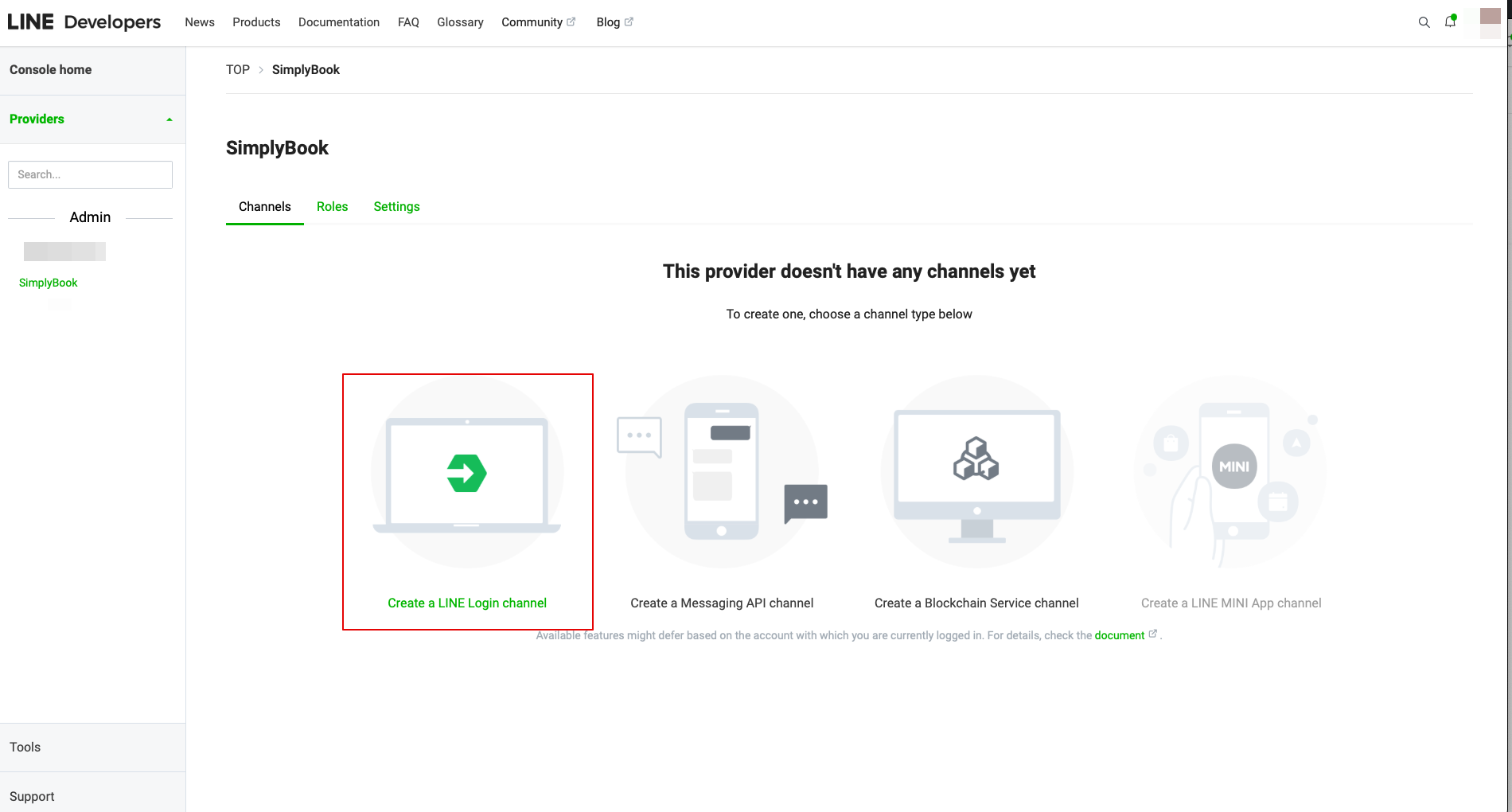
- 4. Gå derefter til Opret en LINE Login-kanal.
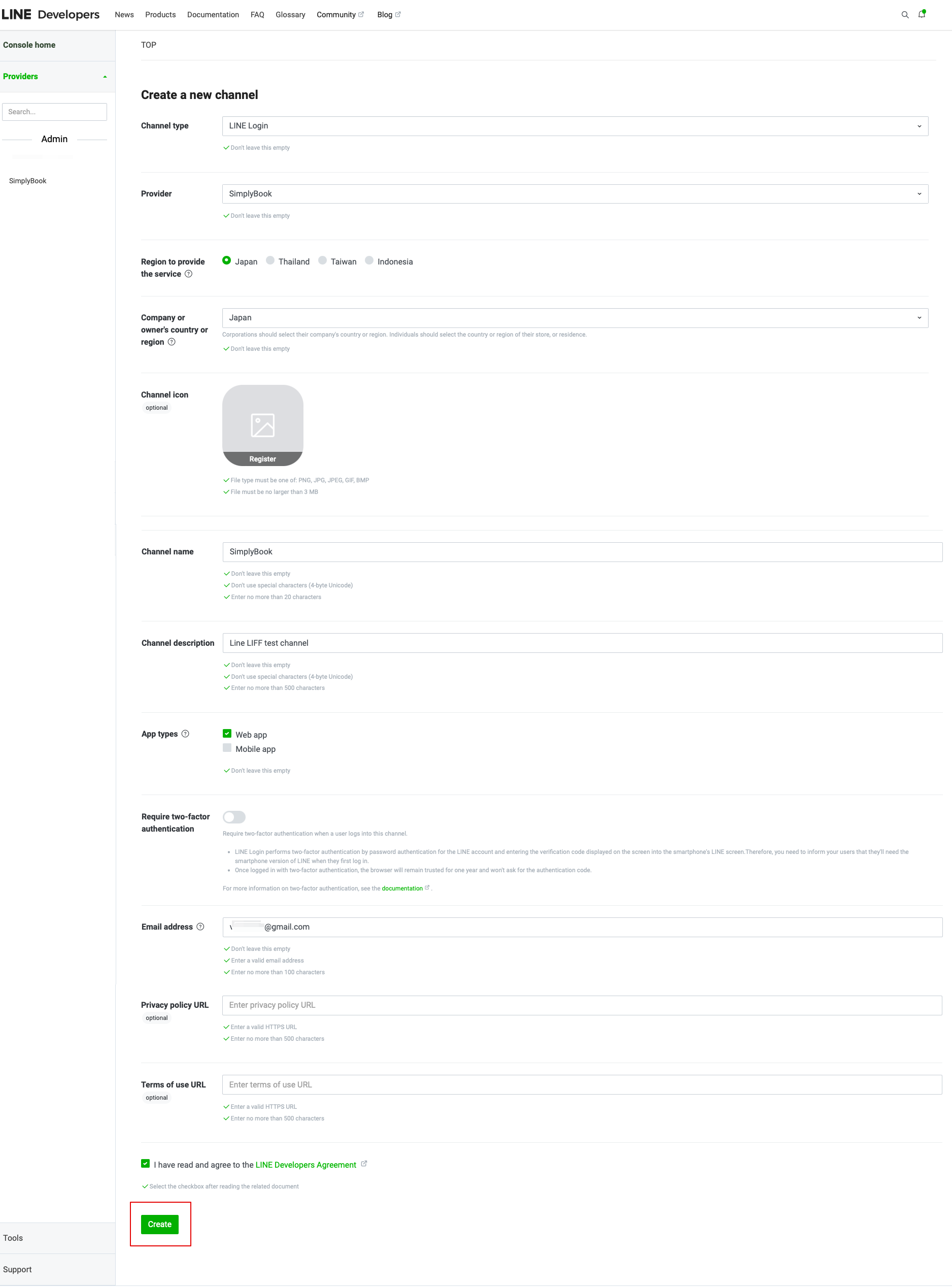
- 5. Indtast oplysningerne i de obligatoriske felter.
- Sørg for at vælge Web-appen i afsnittet "App-typer" og indtast også e-mail-adressen.
- Når du har accepteret "LINE Developers agreement" (LINE-udvikleraftale), skal du klikke på knappen "Create" (Opret) for at afslutte dette trin.
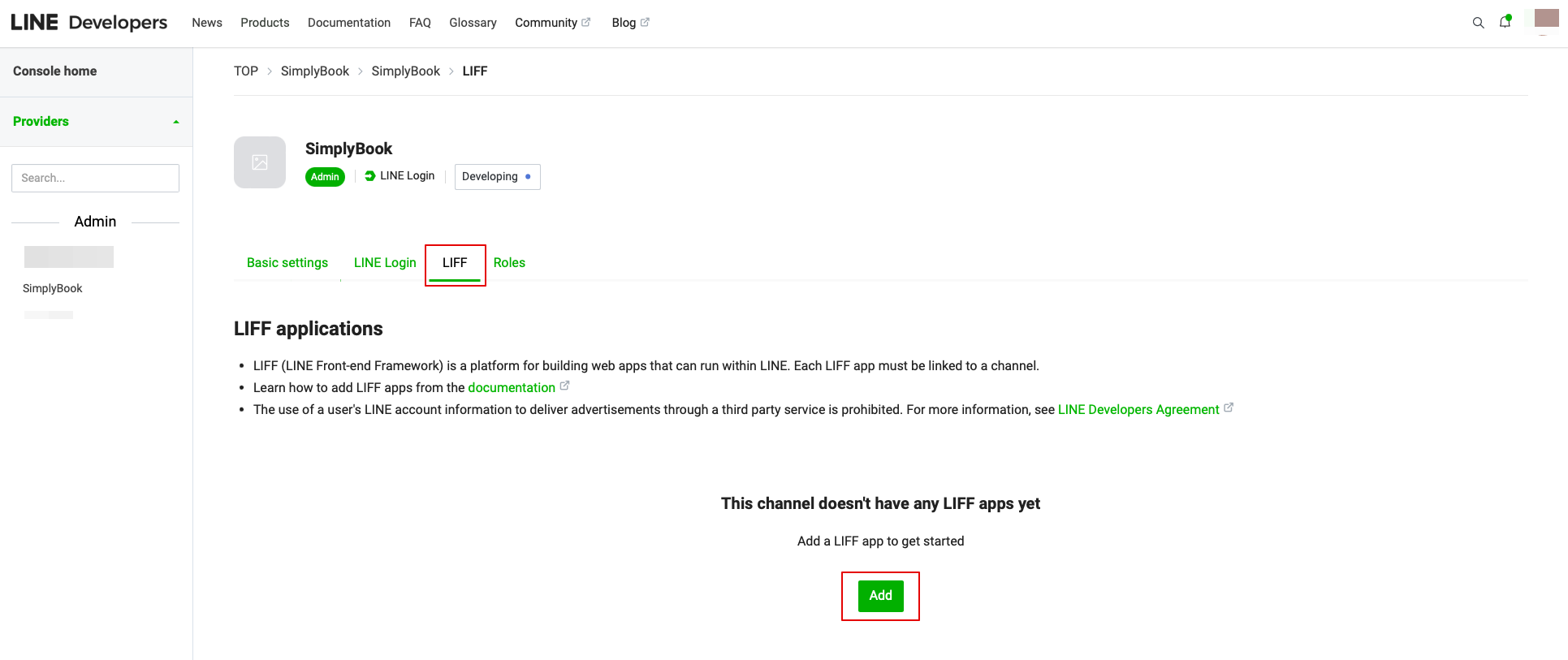
- 6. Når LINE Login er oprettet, skal du klikke på fanen LIFF og tilføje LIFF-appen der.
Du skal indtaste følgende data:
- LIFF-appnavn: dit brand/firmanavn;
- Vælg appstørrelse;
- Endpoint-URL: skal kopieres fra LIFF-URL (Simplybook.me LINE LIFF-indstillinger);
- (obligatorisk) Vælg følgende omfang: openid og profil, ellers fungerer integrationen muligvis ikke eller ikke korrekt;
- Bot Link-funktionen skal være aktiveret.
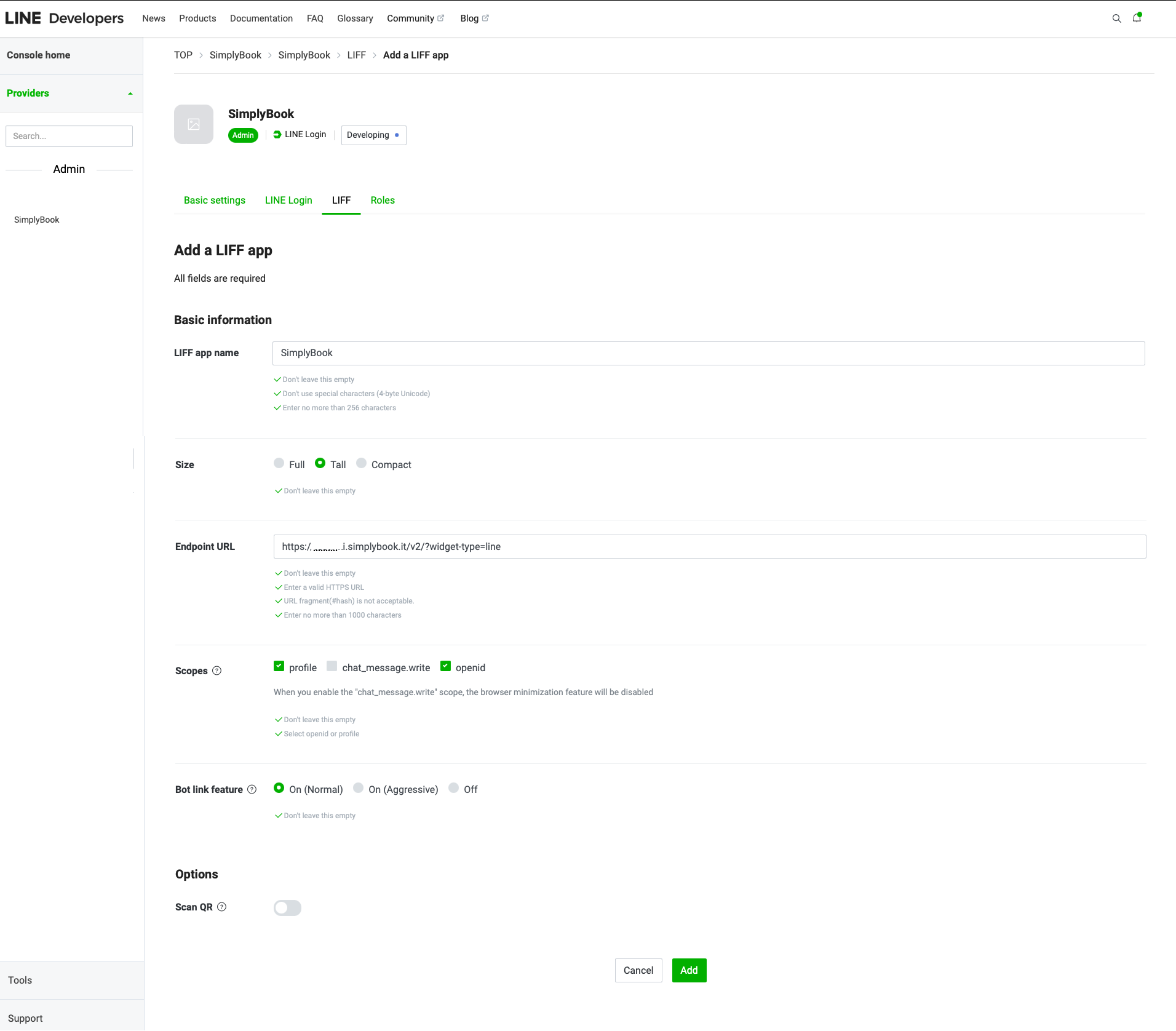
- Når alle ovenstående indstillinger er færdige, skal du klikke på den grønne knap Tilføj for at tilføje LINE LIFF.
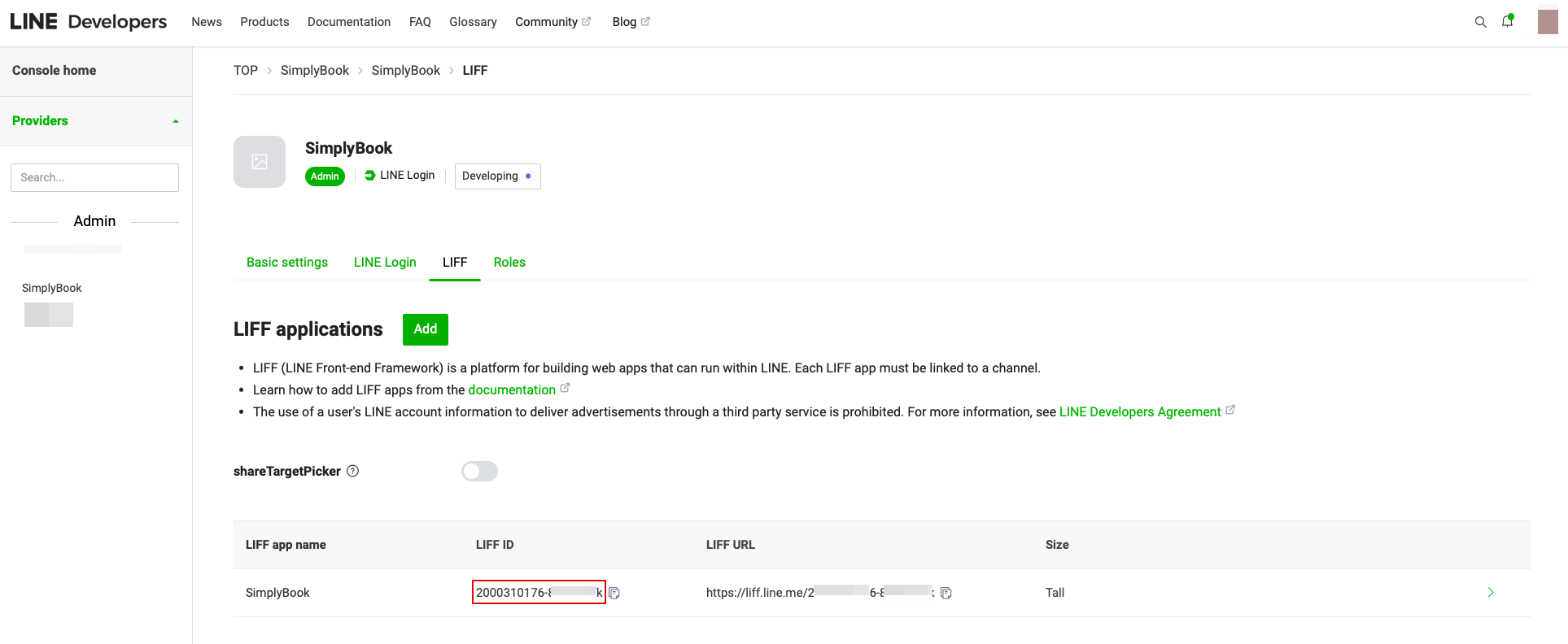
- 7. Derefter bliver du dirigeret til siden, hvor du kan se dit LIFF-id.
- Kopier LIFF-id'et og indtast det i det tilsvarende felt på Simplybook-siden.
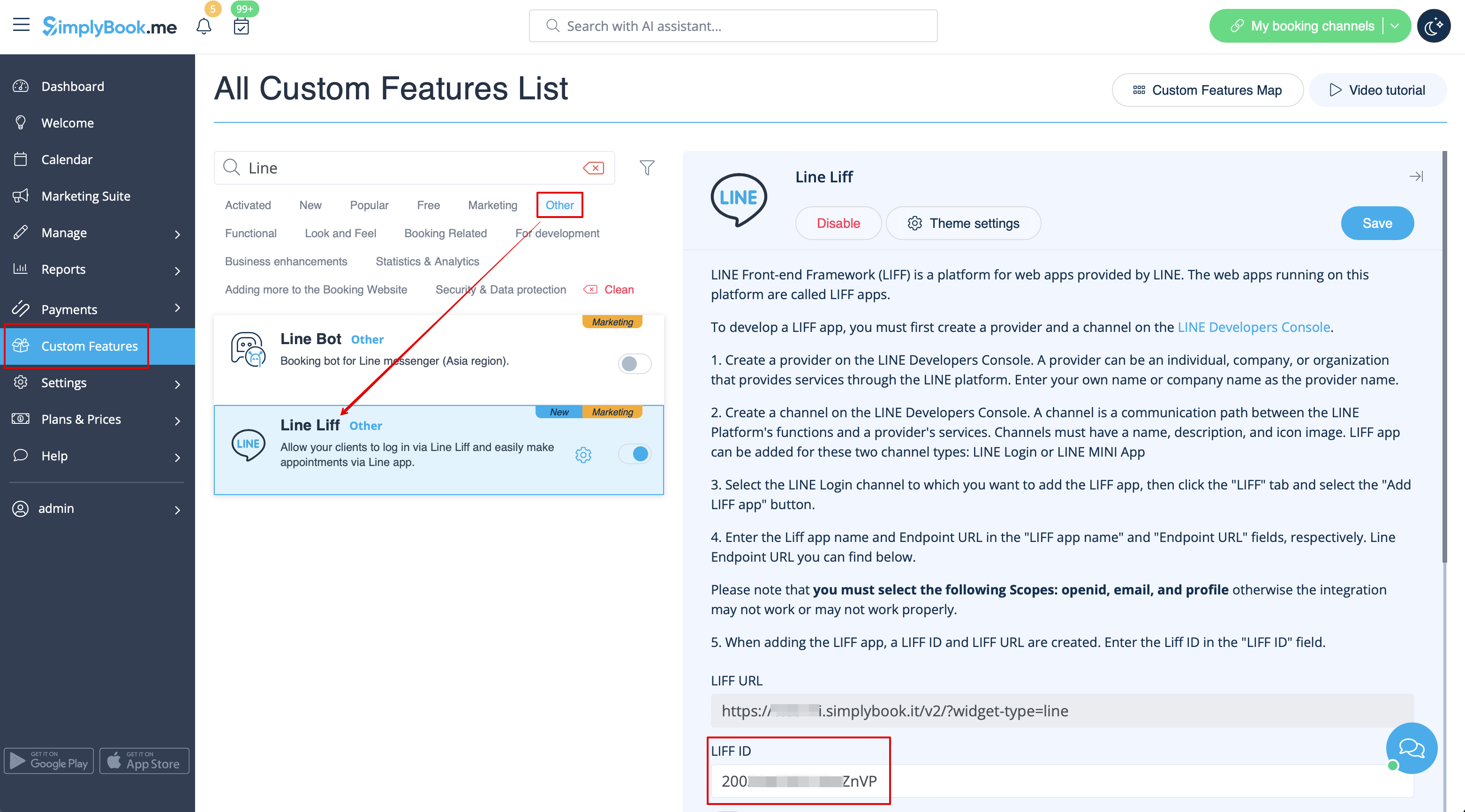
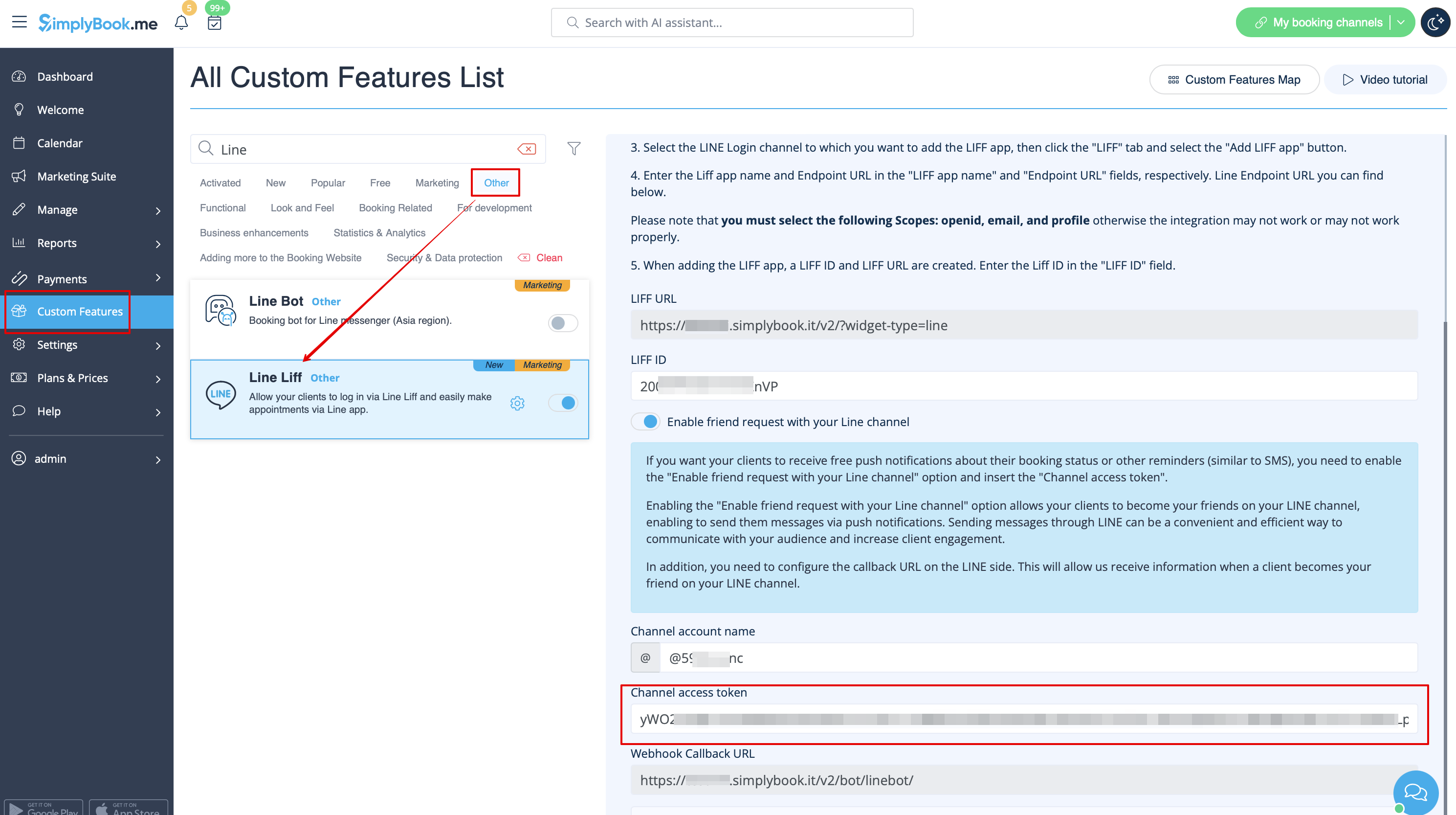
- 8. Hvis du ønsker, at dine kunder skal modtage push-notifikationer om deres reservationsstatus eller andre påmindelser (svarende til SMS), kan du aktivere indstillingen "Aktiver venneanmodning med din LINE-kanal" i Simplybook LINE LIFF Custom Feature og indsætte "Kanaladgangstoken".
- (oplysninger om, hvordan du får Channel access token, findes længere nede i vejledningen)
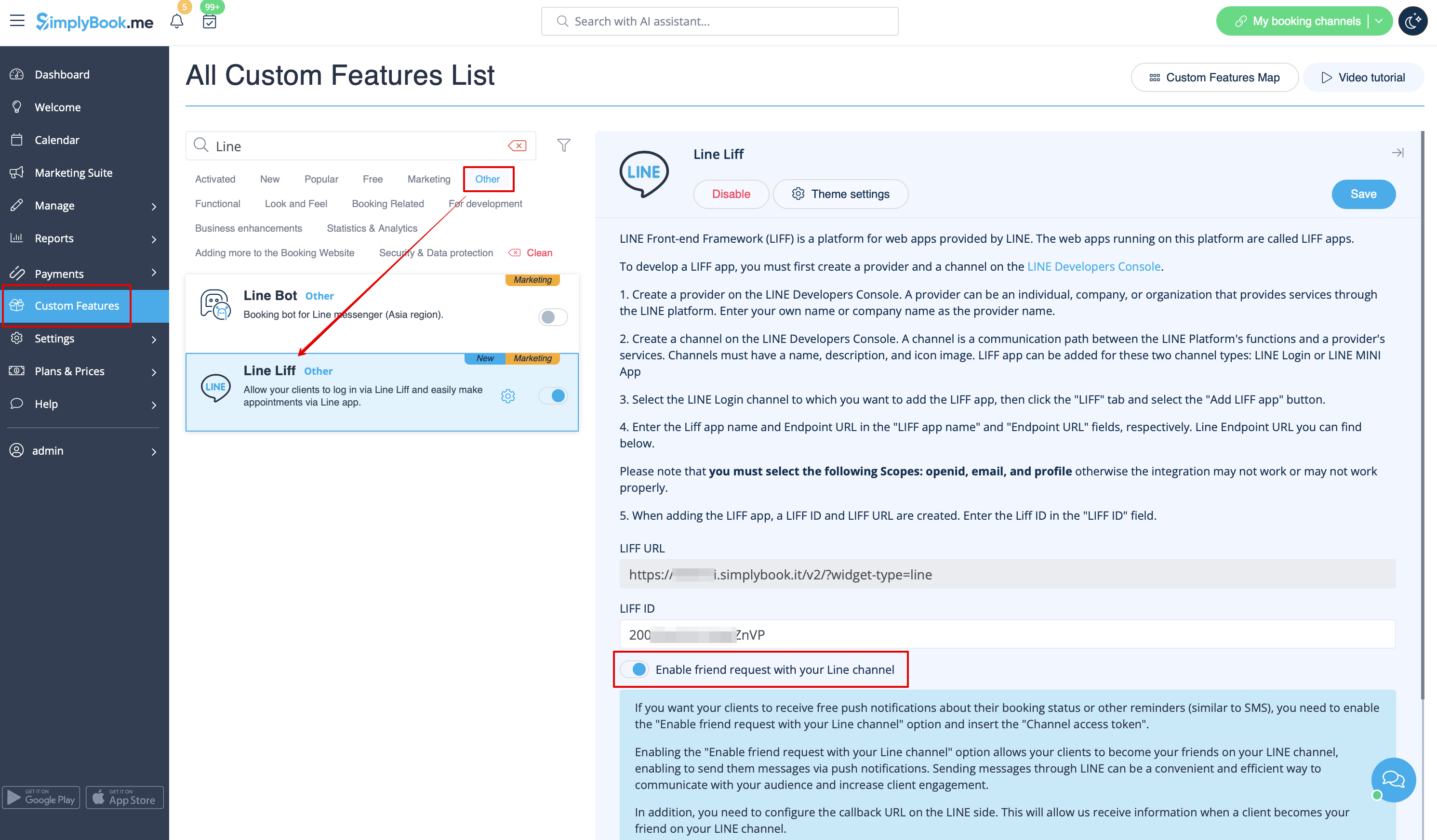
- Derudover skal du konfigurere Callback URL på LINE-siden. Dette giver os mulighed for at modtage oplysninger, når en klient bliver din ven på din LINE-kanal.
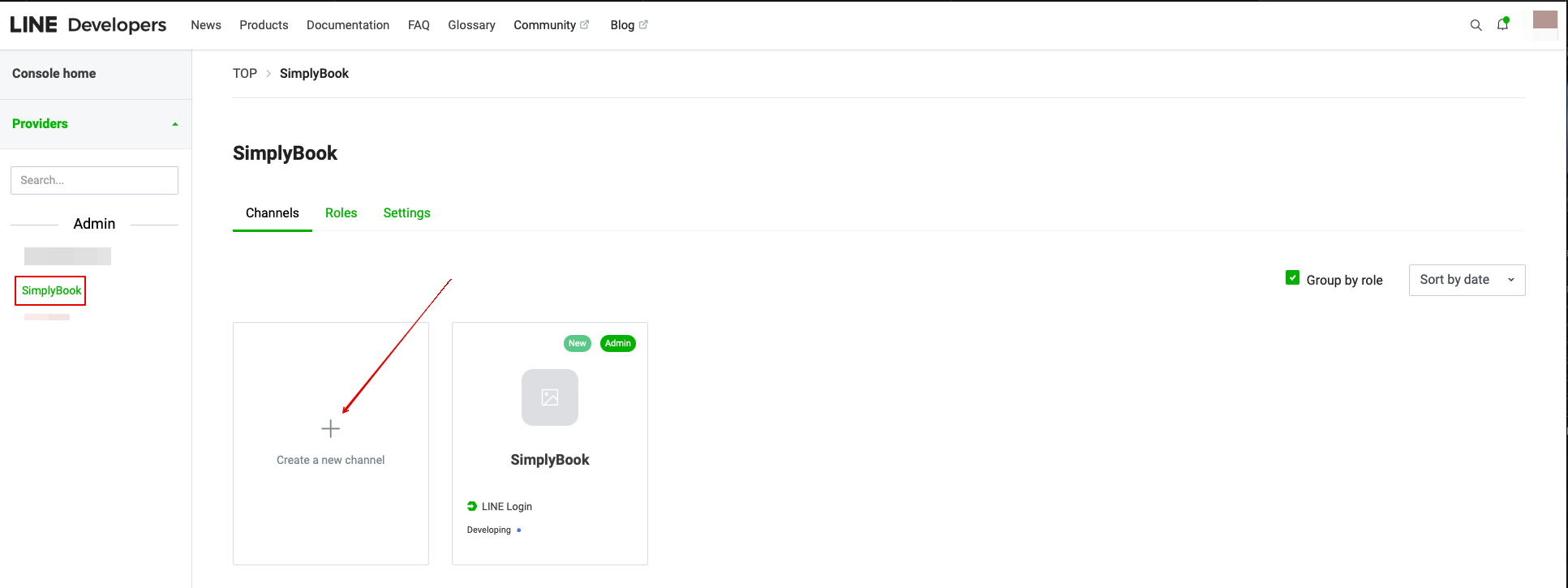
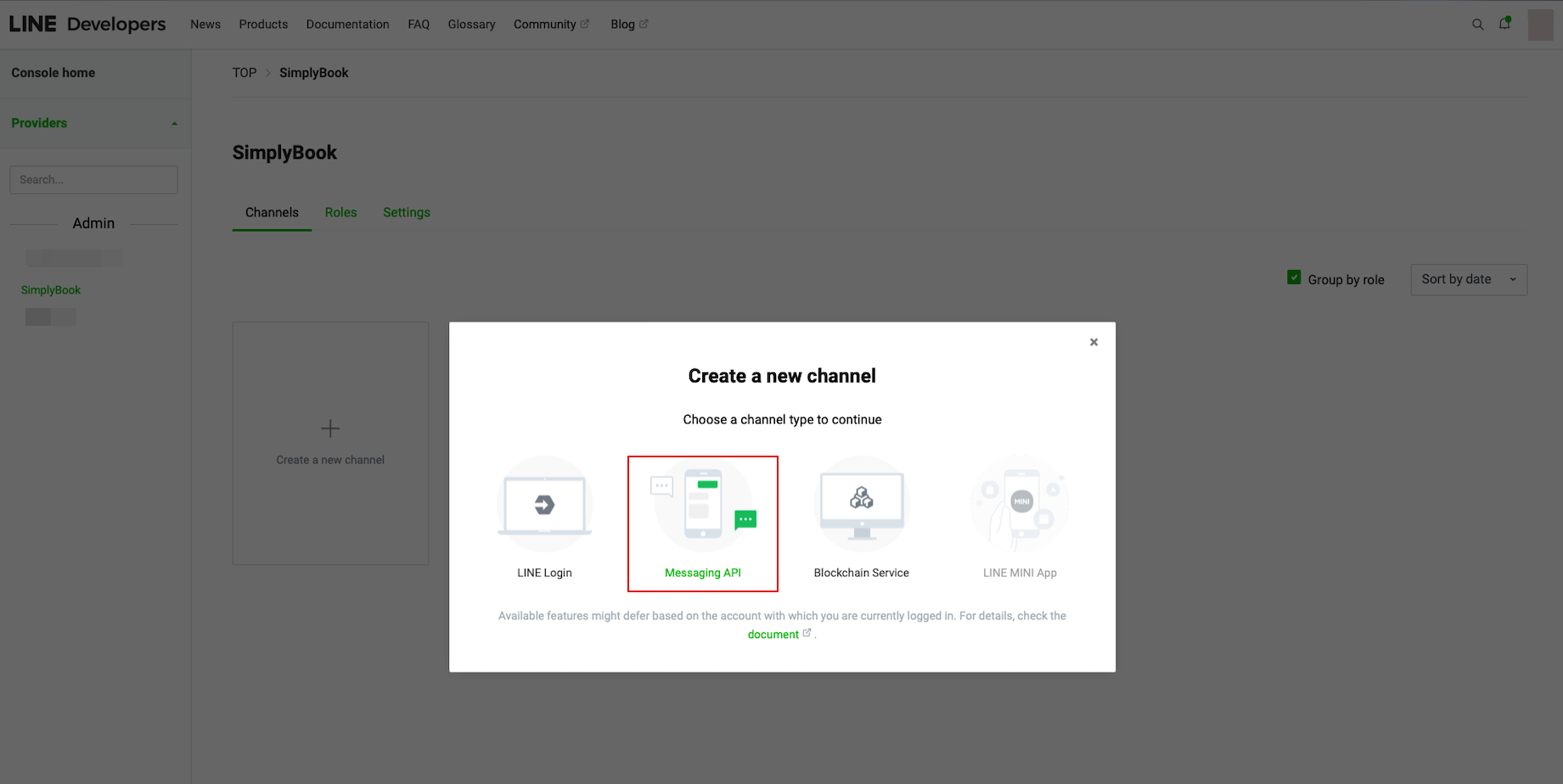
- For at gøre dette skal du gå til din LINE LIFF Developers-konsol, vælge den tidligere tilføjede udbyderkonto og oprette en ny kanal kaldet "Messaging API"
- (begge kanaler skal være under samme udbyder for at alle forbindelser kan fungere)
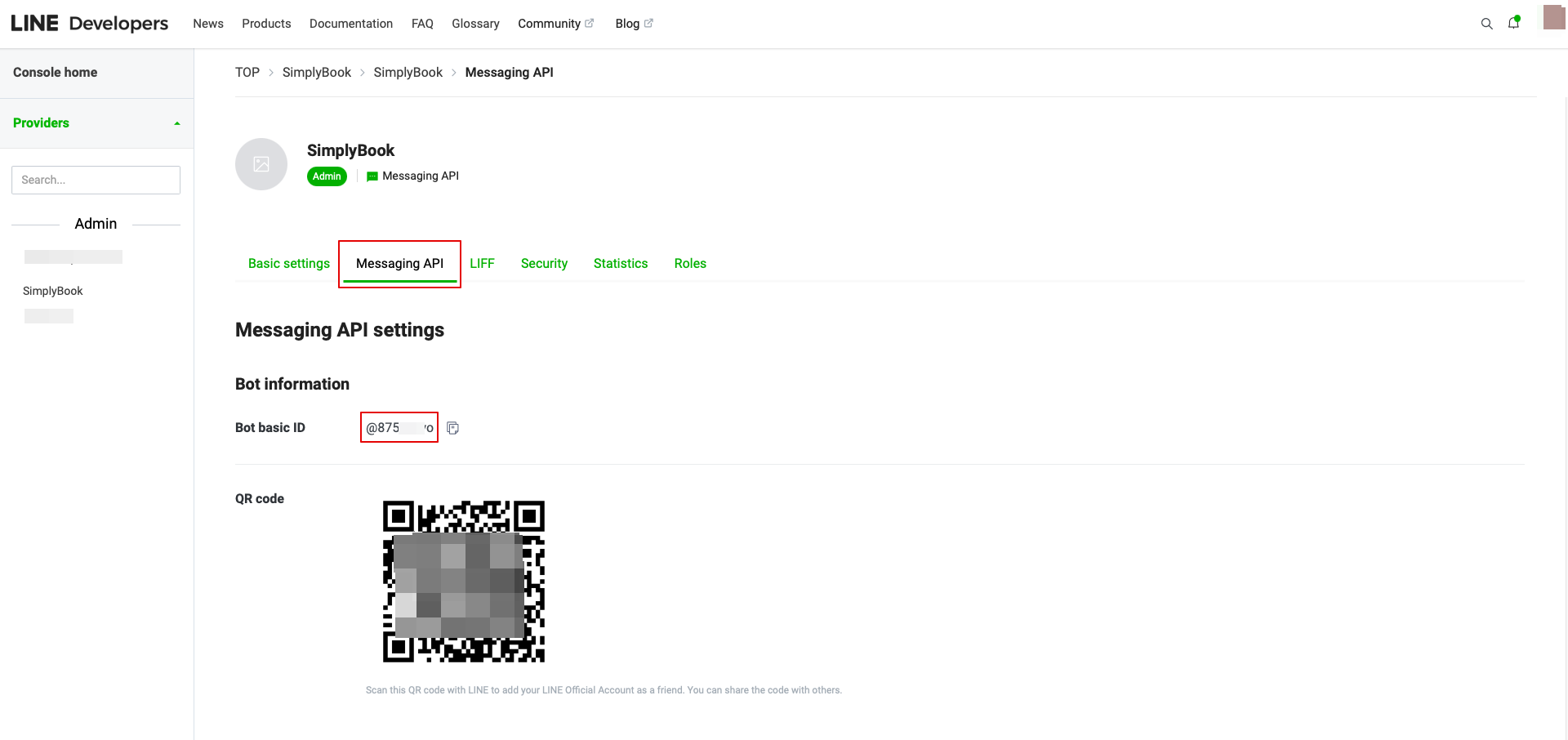
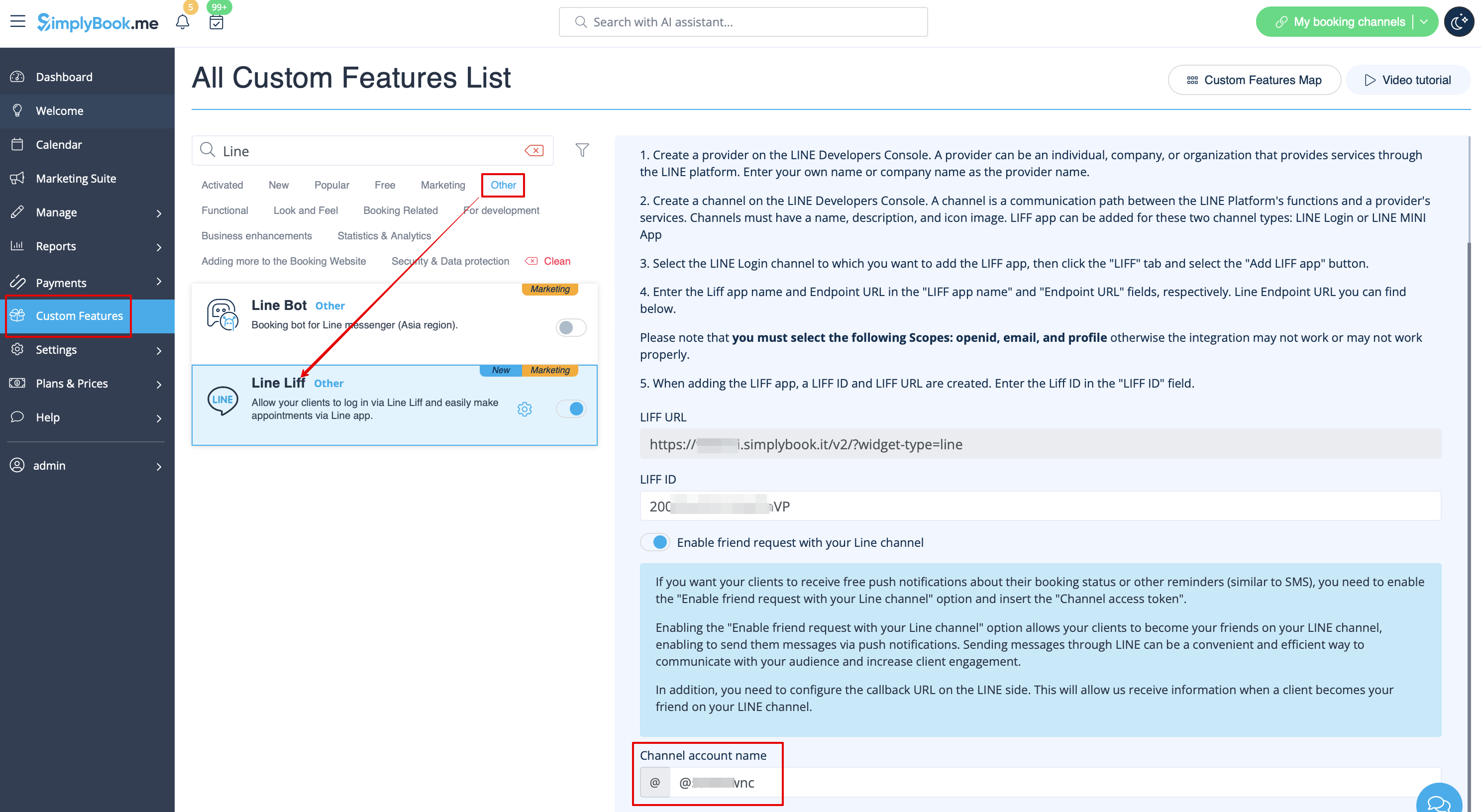
- 9. Når du har foretaget disse indstillinger, skal du vælge fanen Message API for at få Bot Basic ID. Kopier og indsæt Bot ID i feltet Channel account name i SimplyBook.me LINE LIFF Custom Feature.
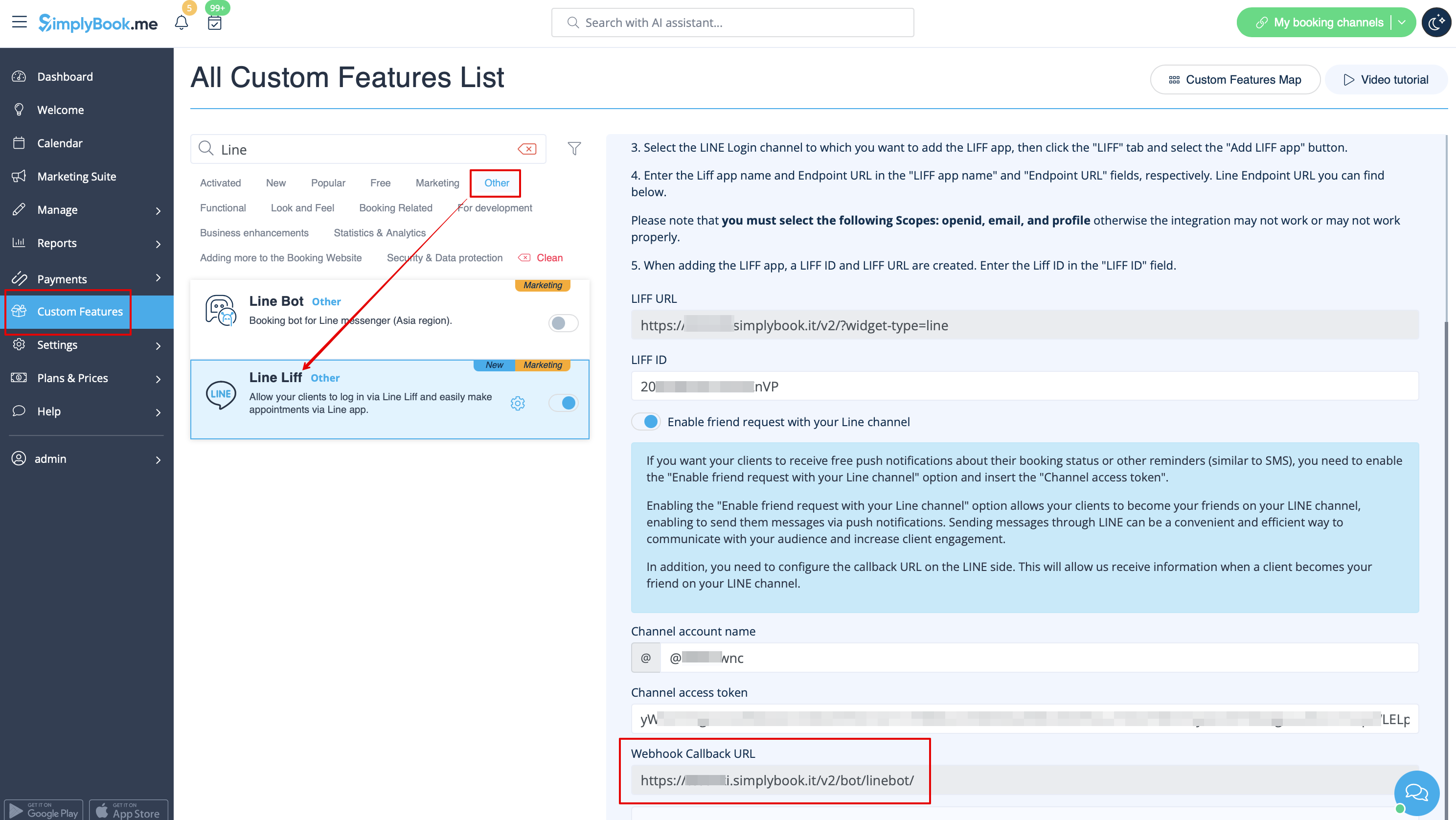
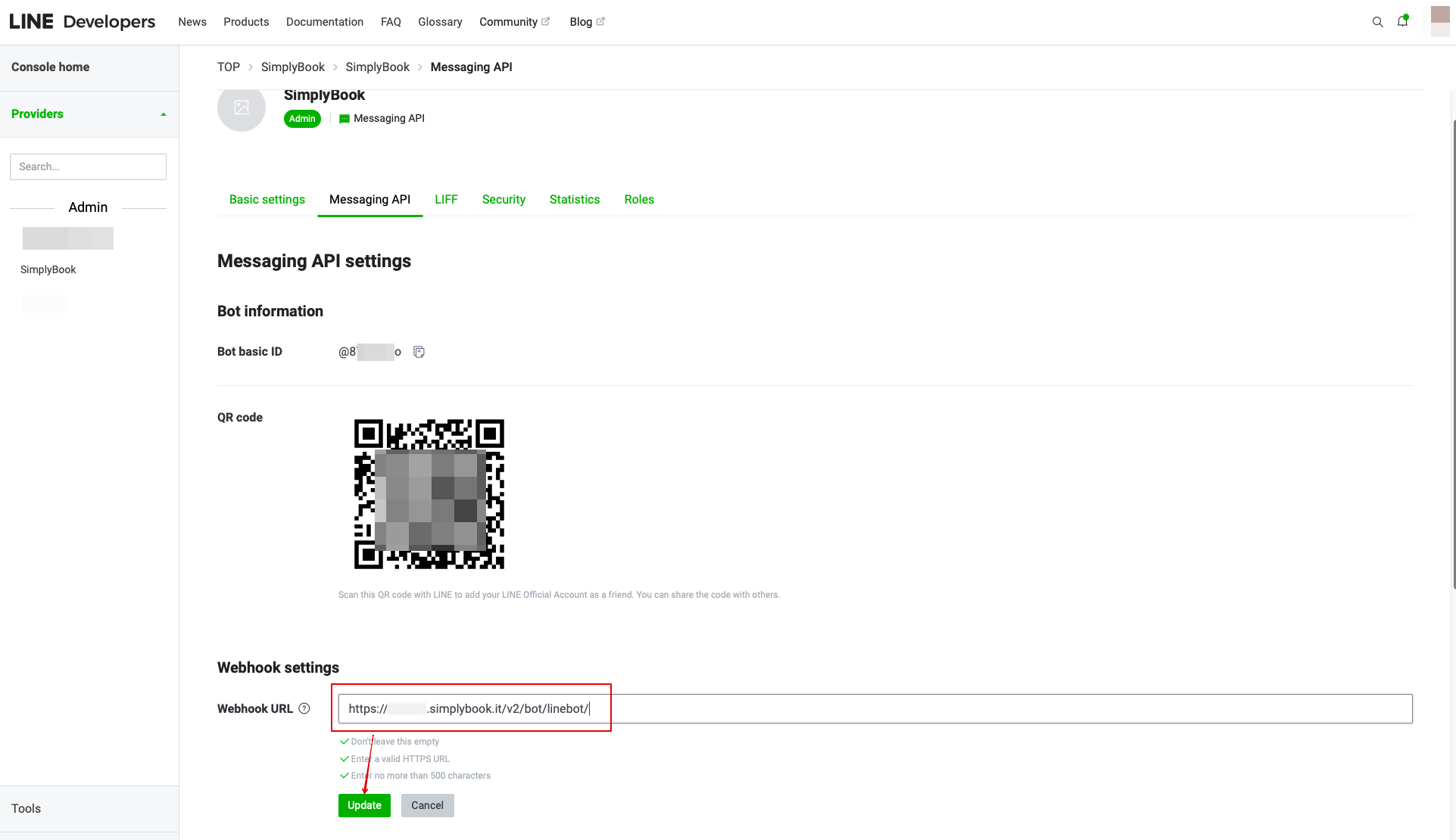
- I indstillingen Brugerdefinerede funktioner kan du også se URL'en til webhook-tilbagekald. Kopier den og indsæt den i feltet Webhook-URL på siden Line//Messaging API.
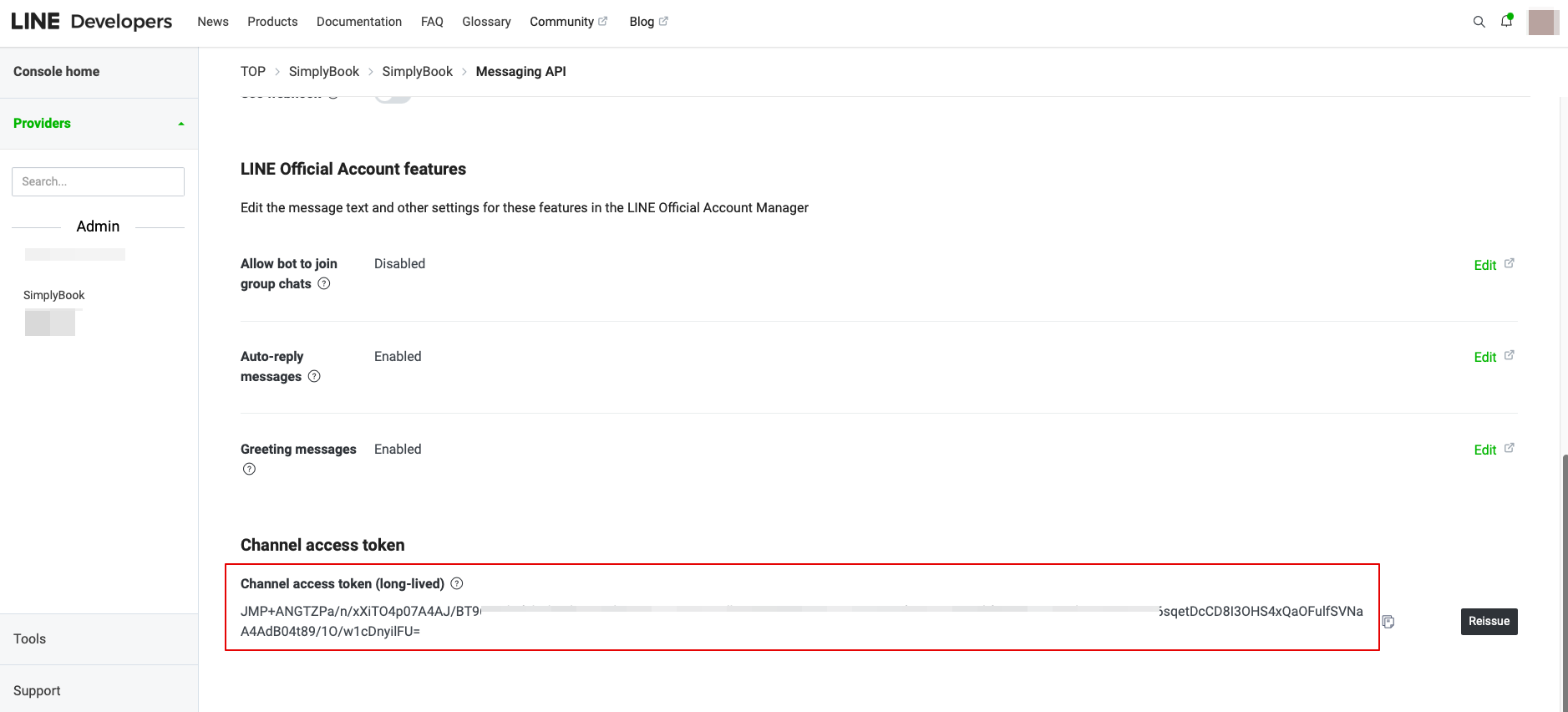
- 10. In the Messaging API on the LINE side you need to scroll down to the Channel access token, issue it, copy the result value and insert it to the Simplybook.me LINE LIFF settings.
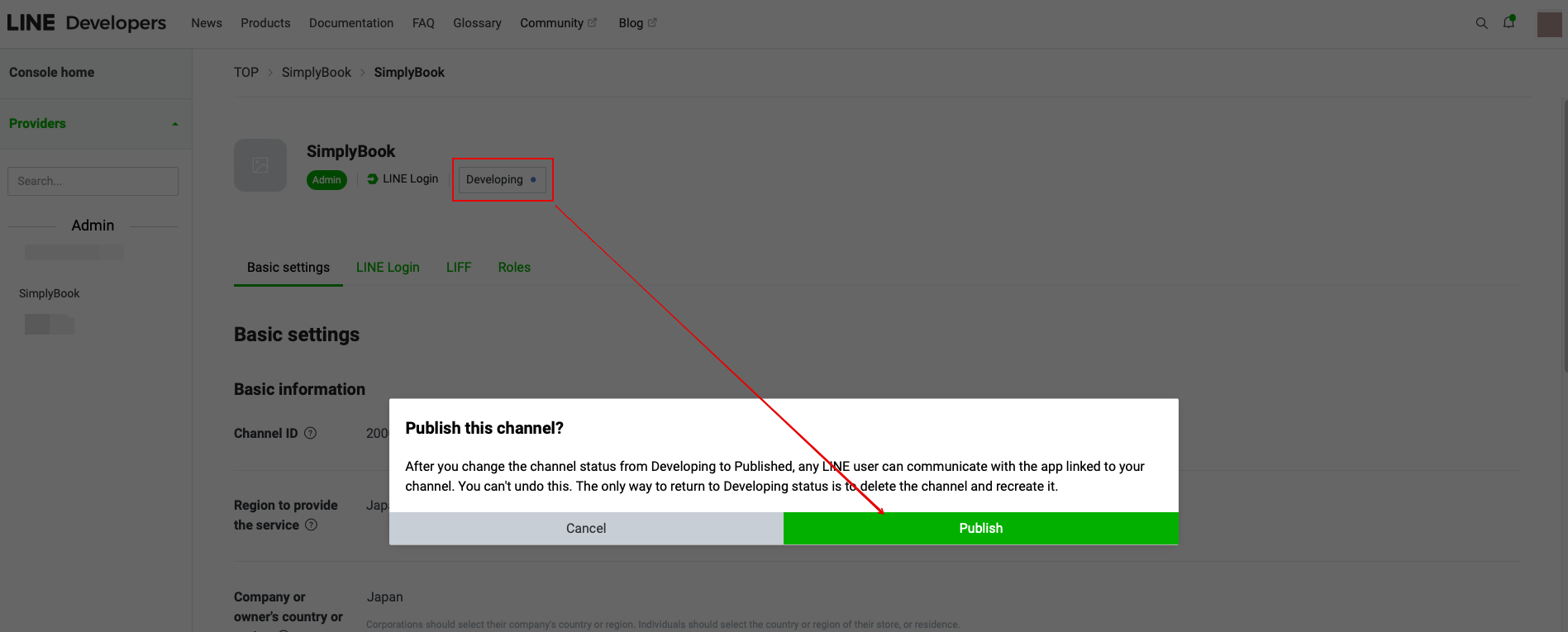
11. Please go back to the LINE Login channel, click the Developing status under the channel name, and change it to Publish.
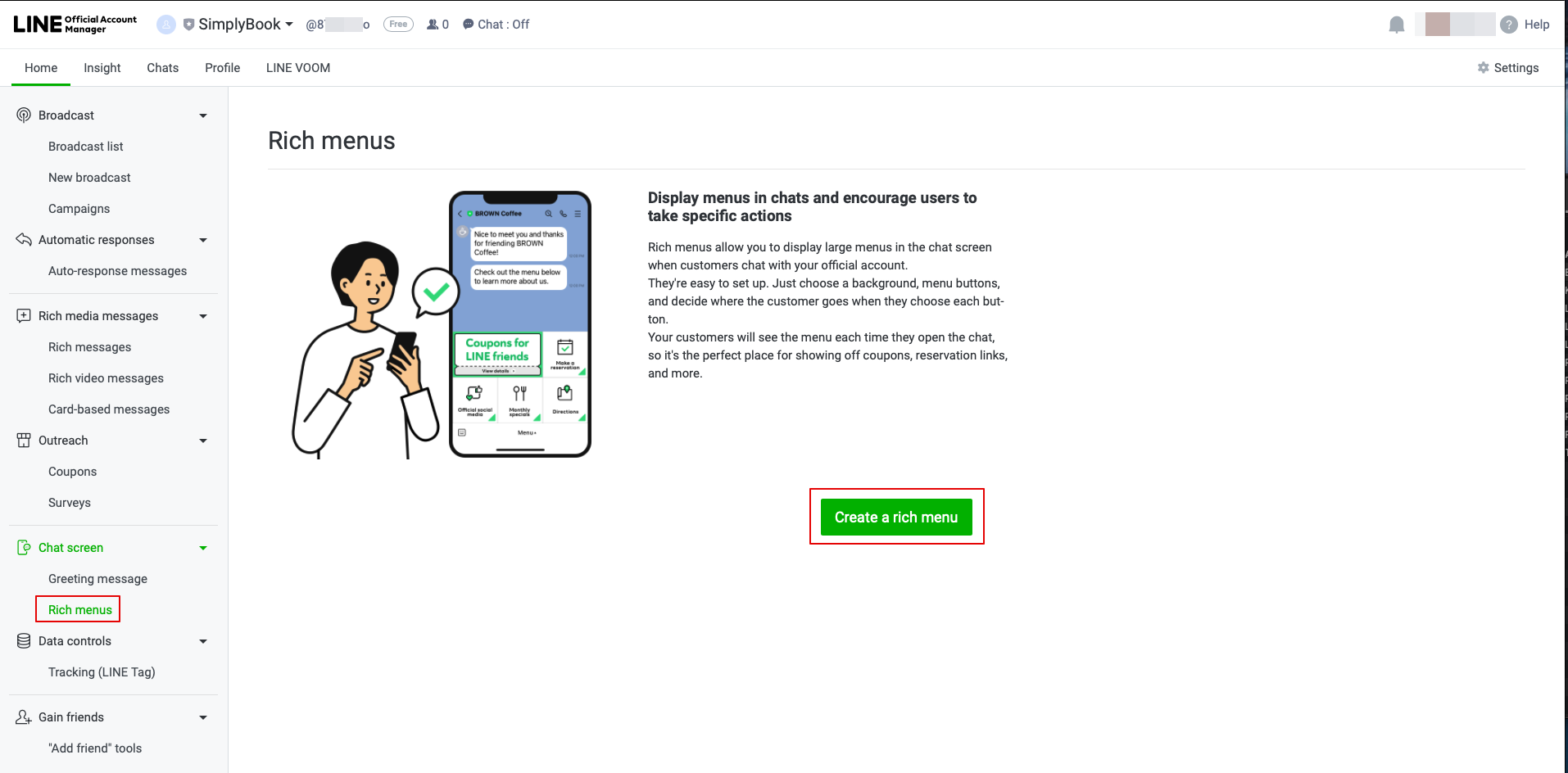
- 12. Once published, you need to log into the Line Official Account under the same LINE account as the Developers Console.
- When you access it, please click on Rich Menu option in the navigation and Create a Rich Menu there.
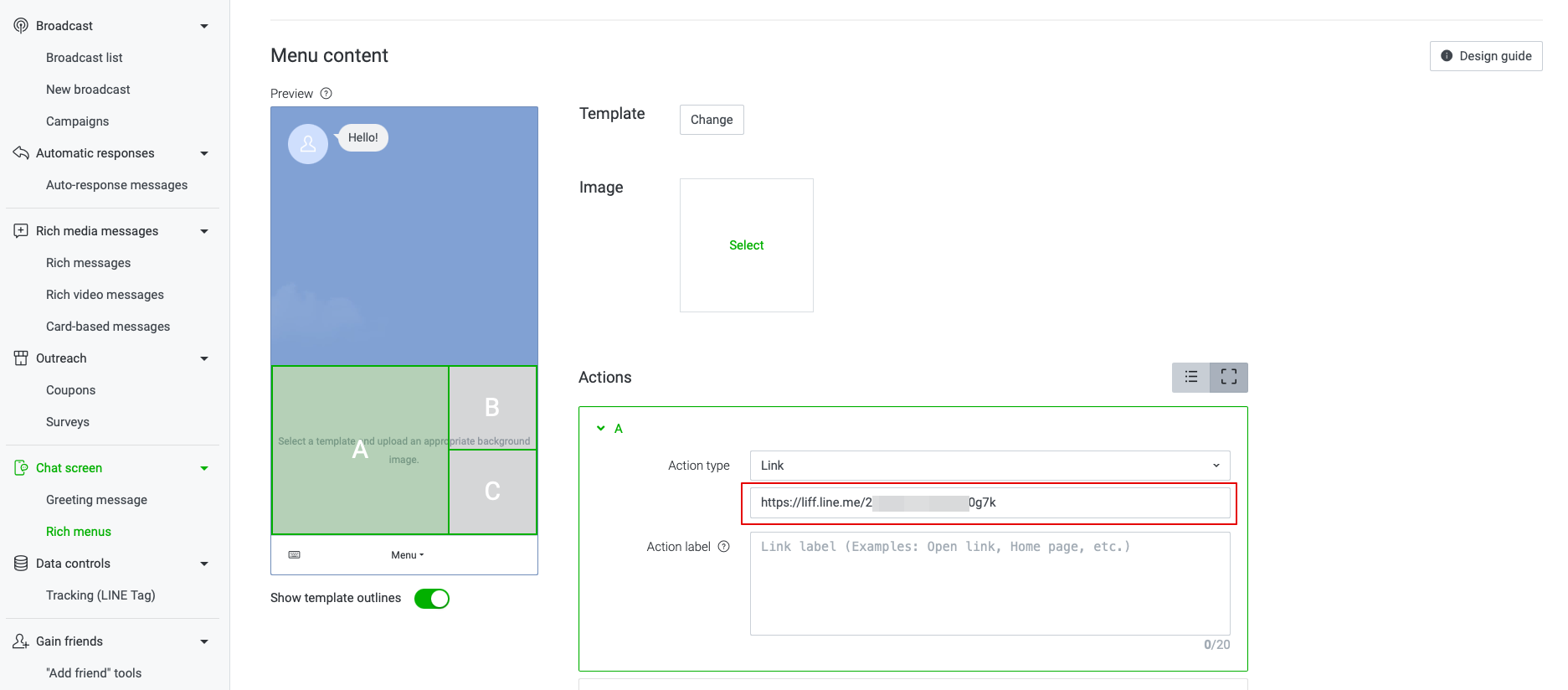
- 13. Fill in the required fields.
- In menu Content please select the template and add the image.
- Choose “Link” type in Actions block and add the LIFF url from the Developer Console//LINE Login channel.
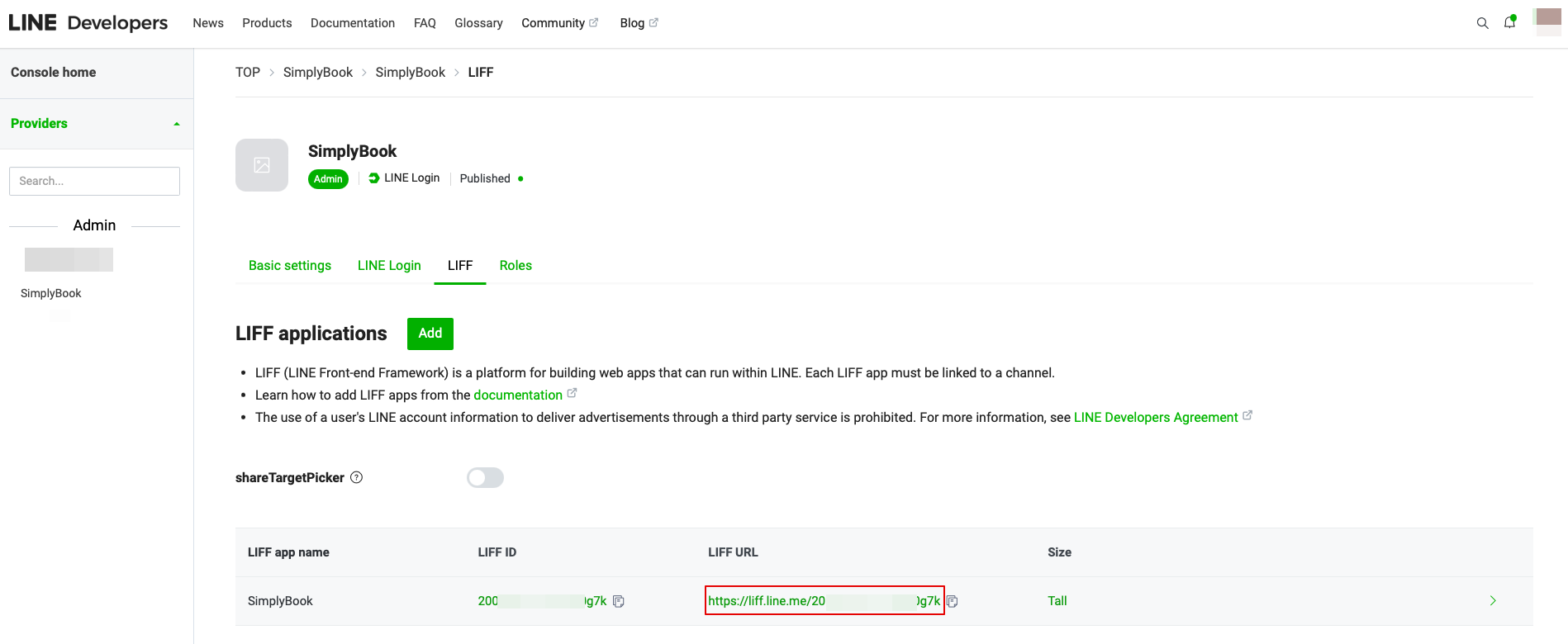
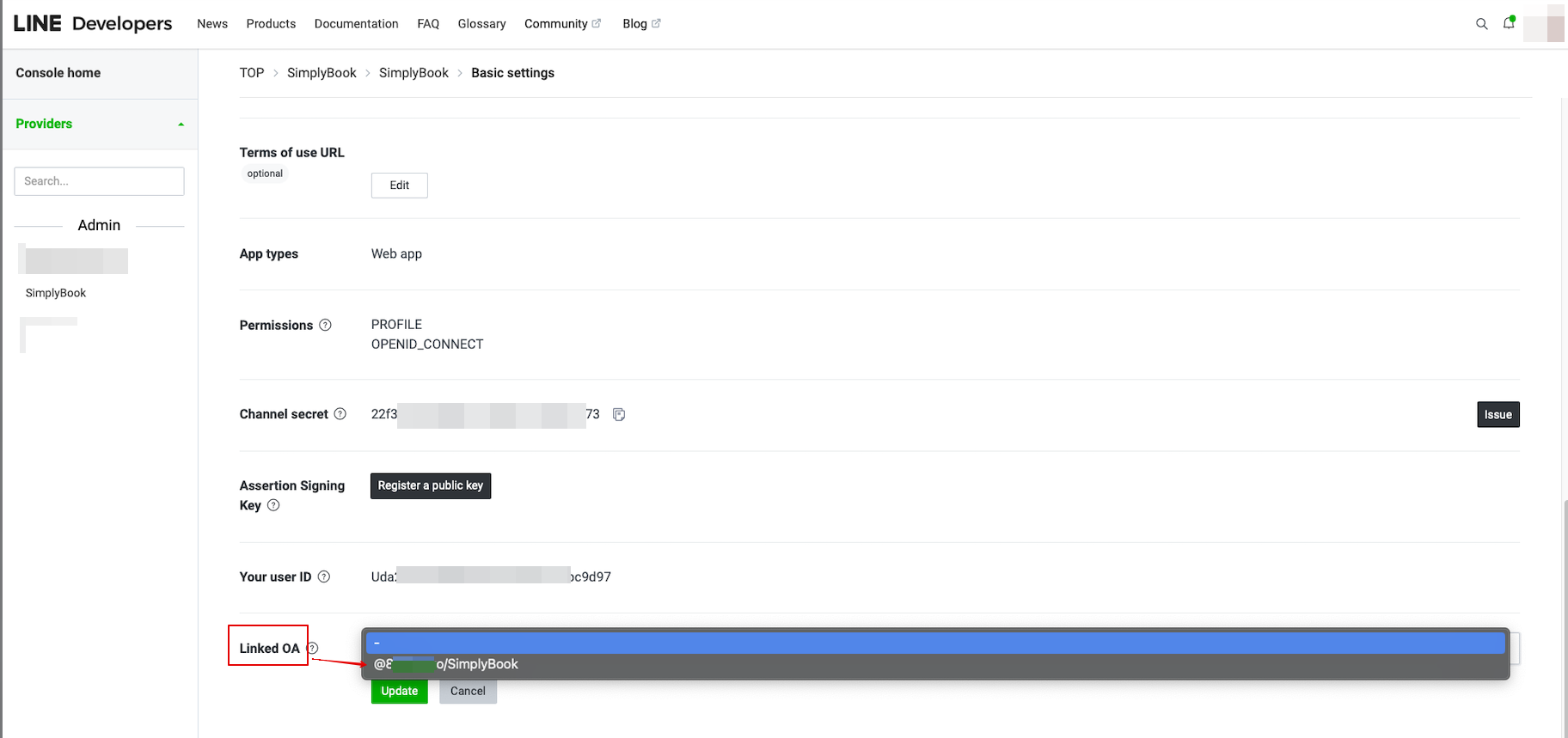
- 14. To link LINE Official account with the LINE Developers account please to to the Developer Console and click on the LINE Login channel. In the Linked OA you need select the Official account to make both parts connected.
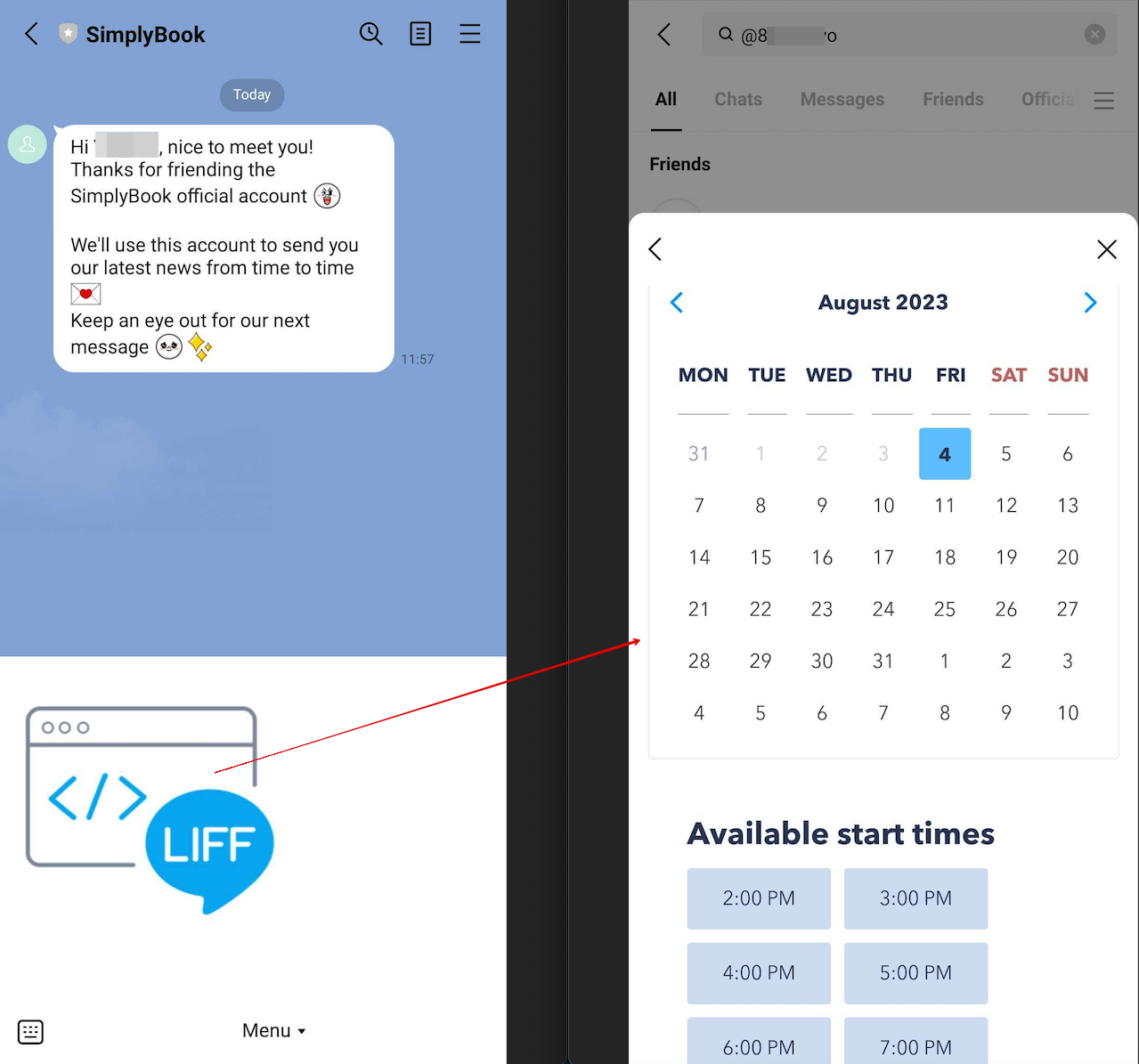
- 15. After opening the Official LINE account page in the LINE app, customers can click on the menu to start the booking process. During the process they can select the services, date and time they want to reserve, login with their LINE account and confirm the reservation.
- The integration also allows the clients to easily see their bookings within this in-app widget.
How to customize LINE Official Account notifications?
Go to the SimplyBook.me admin panel, select Settings → Email and SMS Settings. The LINE booking notifications texts will be consistent with the SMS notification content. If you want to adjust the information included, you can edit the corresponding templates there.
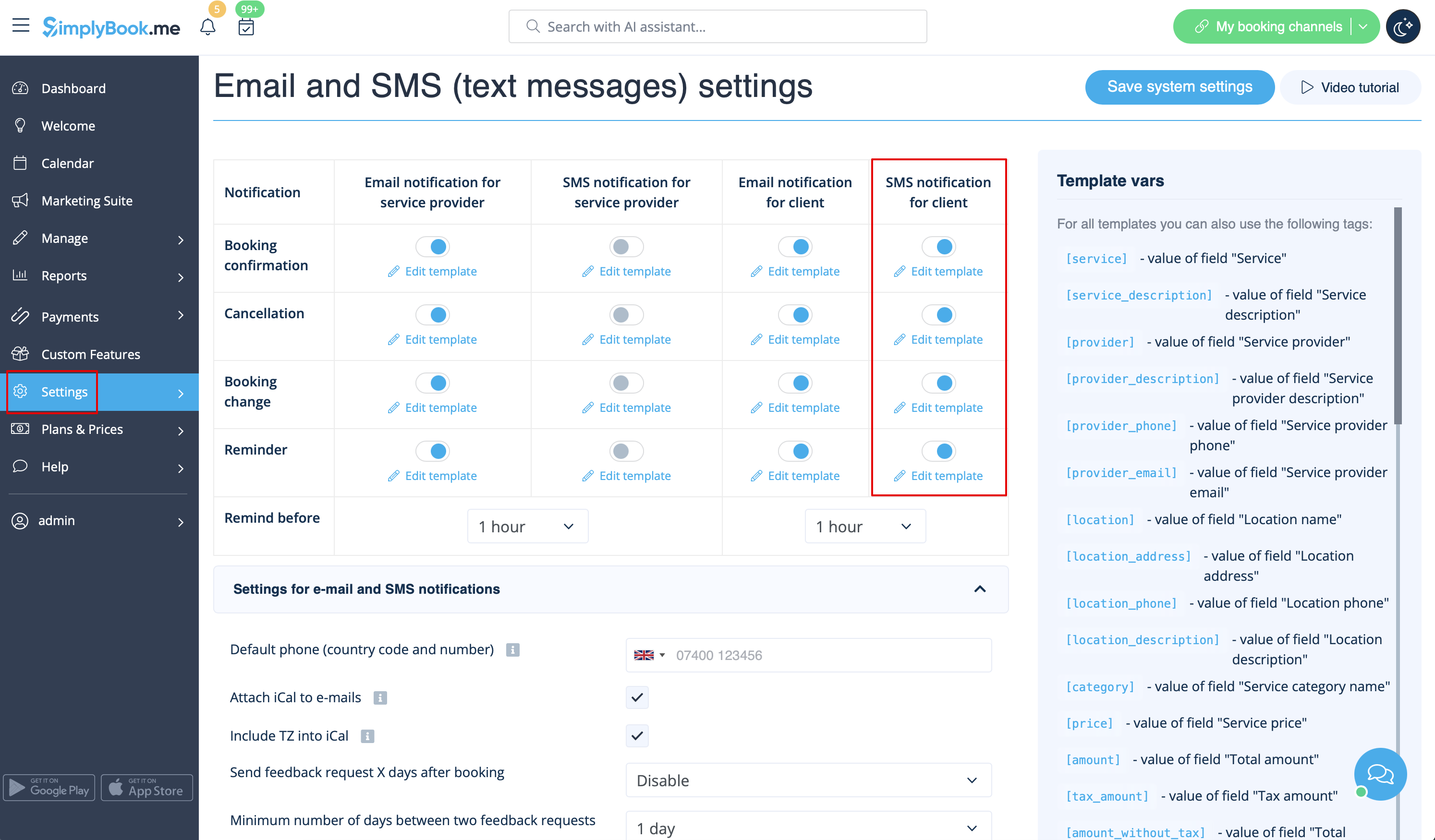
Remark: If you do not check the boxes for client SMS notifications in Settings → Email and SMS Settings, the system will still automatically send appointment reminders and other appointments notifications through LINE.

