Hur ändrar man hur tidsluckor visas?
Videoguide 
Kalenderlayouter
Du kan ändra kalenderlayout via Inställningar -> Designinställningar -> Inställningar för kalenderlayout -> Kalenderlayout i rullgardinsmenyn.
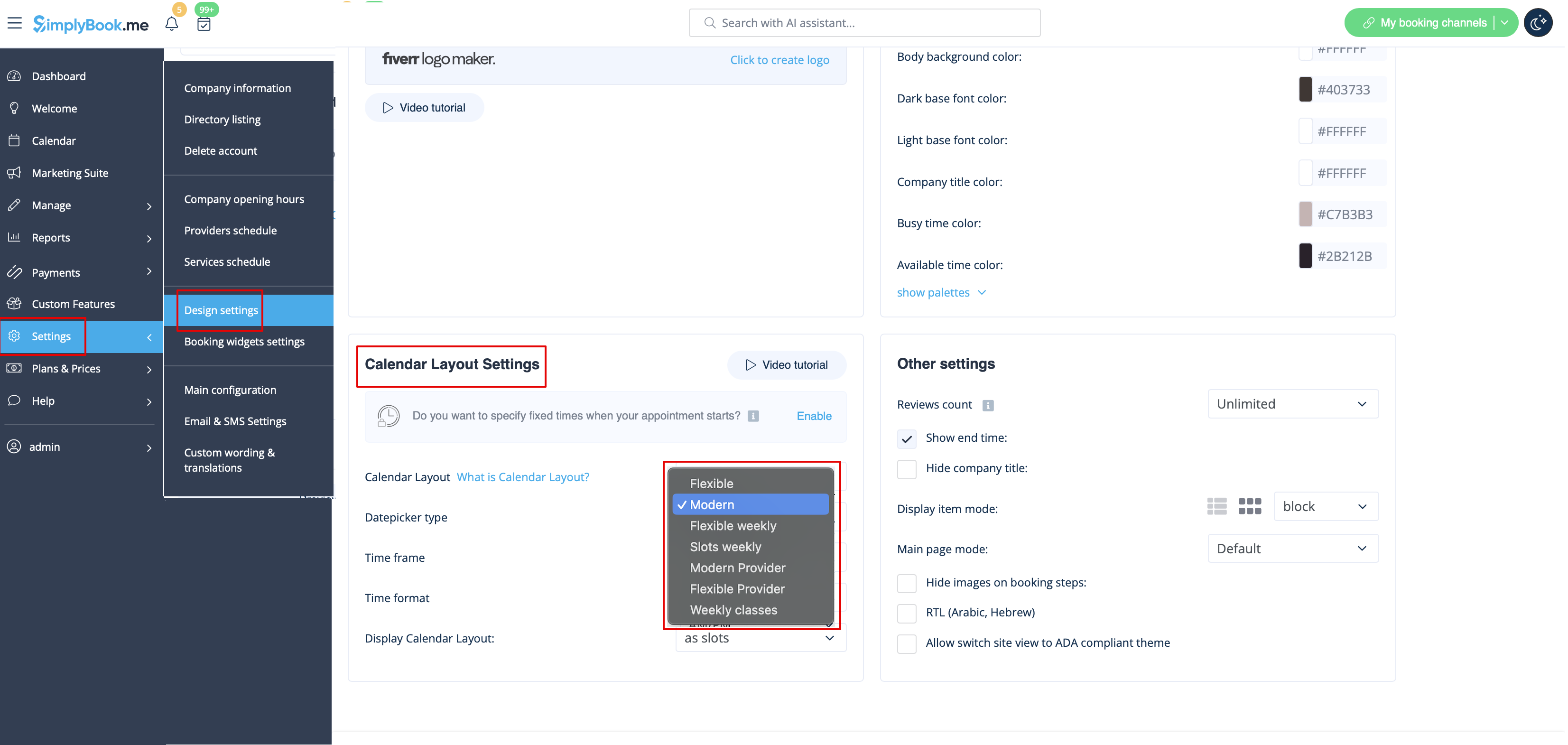
Det finns 8 olika kalenderlayouter:
- Veckoslots – visar tillgängliga tider i intervall som motsvarar tjänstens varaktighet. Börjar räkna från första tillgängliga tid för veckan.
- Både tillgängliga och otillgängliga tider visas.

- Modern – visar endast tillgängliga tider i intervall som motsvarar tjänstens varaktighet. Visar bara tider från dagens första tillgängliga slot.
- Otillgängliga tider visas inte.

- Modern per leverantör – visar tillgängliga tider per leverantör för det valda datumet. Visar bara tillgängliga tider från alla leverantörer.
- Otillgängliga tider visas inte.

- Flexibel veckovis – visar tider enligt den valda tidsintervallen, från första lediga tiden under veckan.
- Både lediga och upptagna tider visas.

- Flexibel – liknande ovan, men visar endast en dag i taget.
- Både lediga och upptagna tider visas.

- Flexibel per leverantör – visar tillgängliga tider per leverantör i intervall enligt tidsinställningen, med start från första lediga tid för det valda datumet.
- Både lediga och upptagna tider visas.

- Dagliga klasser (tillgängligt när Klasser är aktiverat) – visar tillgängliga tider enligt tjänstens/klassens längd för valt datum.
- Endast tillgängliga tider visas.

- Veckovisa klasser – visar tider för klasser i intervaller enligt klassens längd i ett veckoschema. Visar tider från första lediga för varje dag.
- Endast tillgängliga tider visas.

Om du har tjänster med fasta starttider och använder Modern, Veckoslots, Modern per leverantör eller Dagliga klasser, kan du testa funktionen Fast tid för bokning.
Slots Colors
You can also adjust the colors for available and unavailable slots to your taste and your company brand colors. Almost any theme and calendar layout allow such adjustments.
Please navigate to Settings -> Design settings -> Color settings -> Busy time color / Available time color.
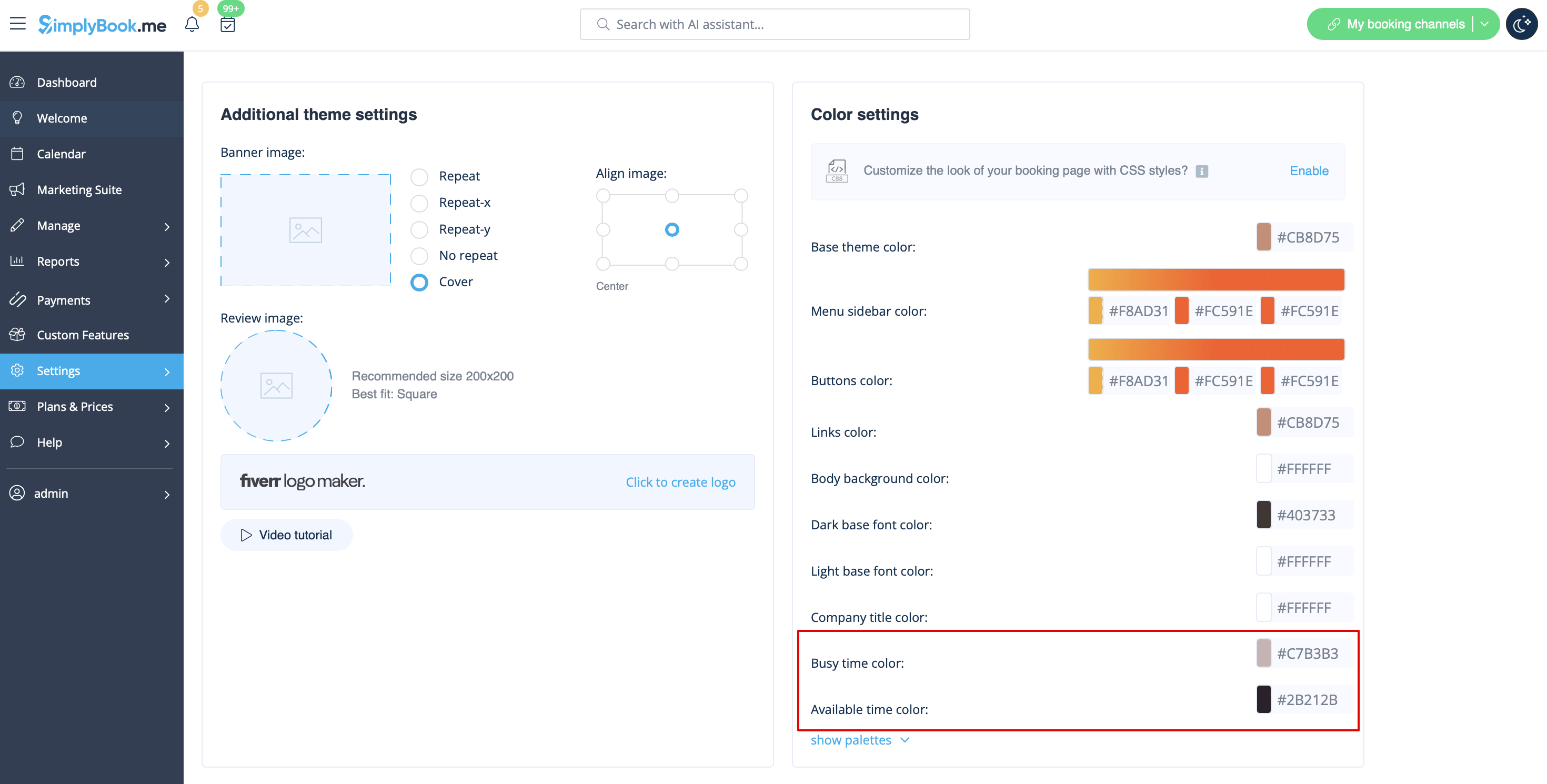
And here is the example of Slots Weekly calendar layout colors and legend on the client side:

End Time Display
Modern and Slots Weekly calenday layouts allow to show end time per timeslot. You can turn this option on in Settings -> Design settings -> Calendar Layout settings -> Show end time option.
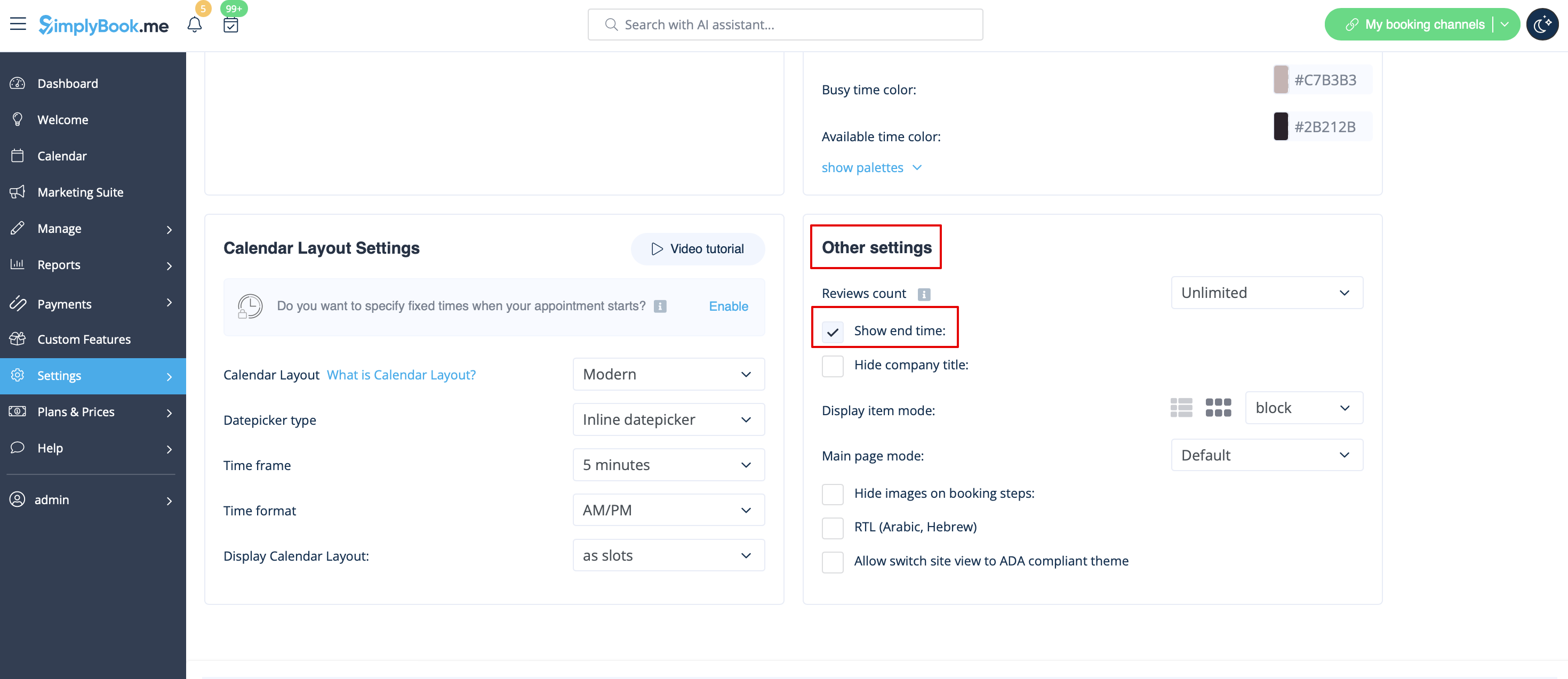
The example of end time display with Modern layout:

Date Pickers
There is also a possibility to adjust how the calendar looks on the client side to make the desired date selection as easy and convenient as possible.
Please go to Settings -> Design settings -> Calendar Layout settings -> Select datepicker type.
There are two types of datepickers:
- Inline datepicker is more compact as the calendar is hidden till the client clicks on the date above the timeslots and gets a pop-up that allows switching between months and dates.

- Top calendar adds two lines calendar at the top of timeslots(4-5 lines calendar on mobile devices) that are shown all the time and allow to switch between dates and months.

Sidebar
You may wish to show service and/or provider information on the time step. It is especially useful if you have only one service and provider and the booking process goes straight to timestep.
Certain themes support showing timeline sidebar.
To enable it please go to Settings -> Design settings -> Other settings -> Display timeline sidebar option.
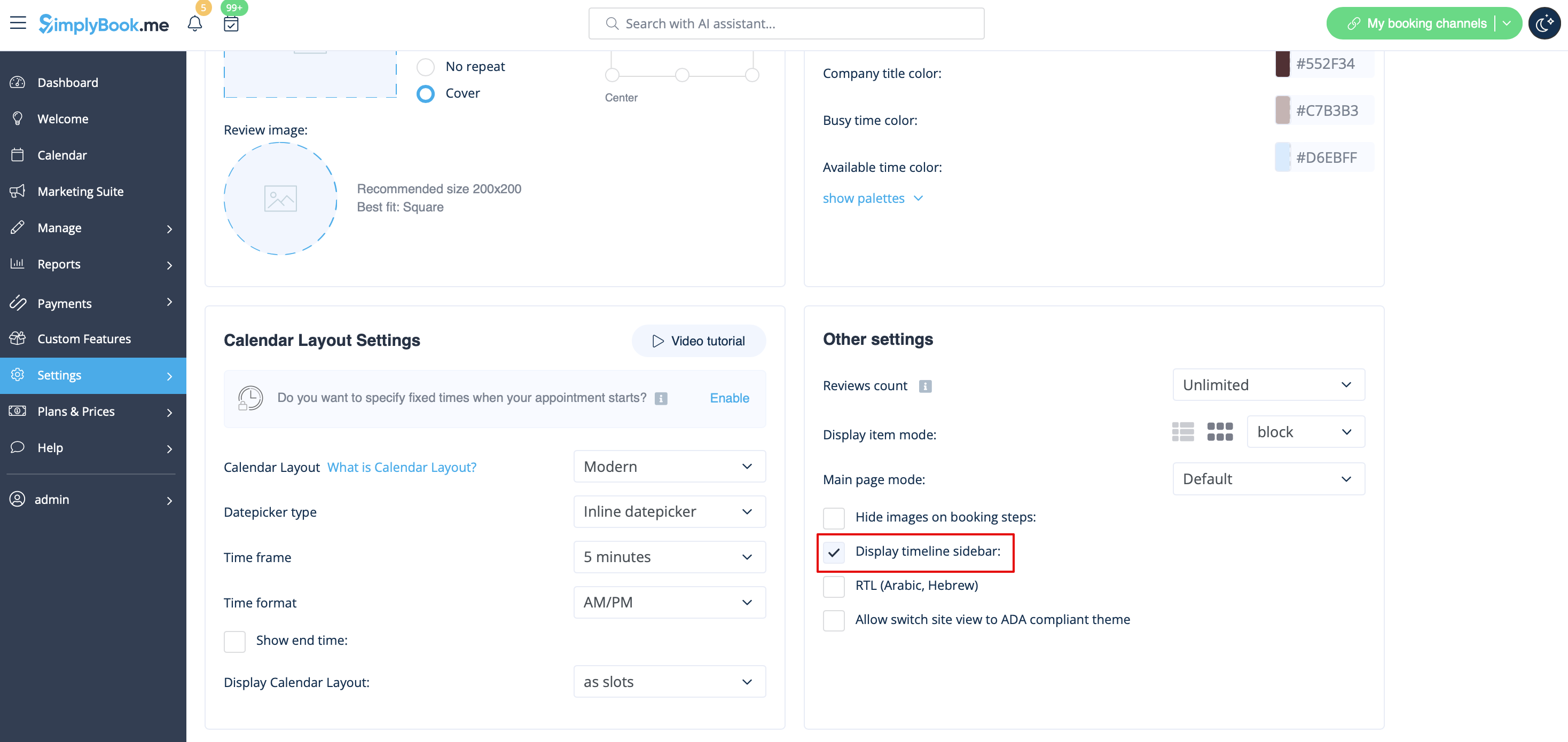
Here is the example from Default theme:

- Please note! This sidebar is automatically hidden on mobile screens or within similar width(may differ or be absent at all depending on the theme).
Seats Left
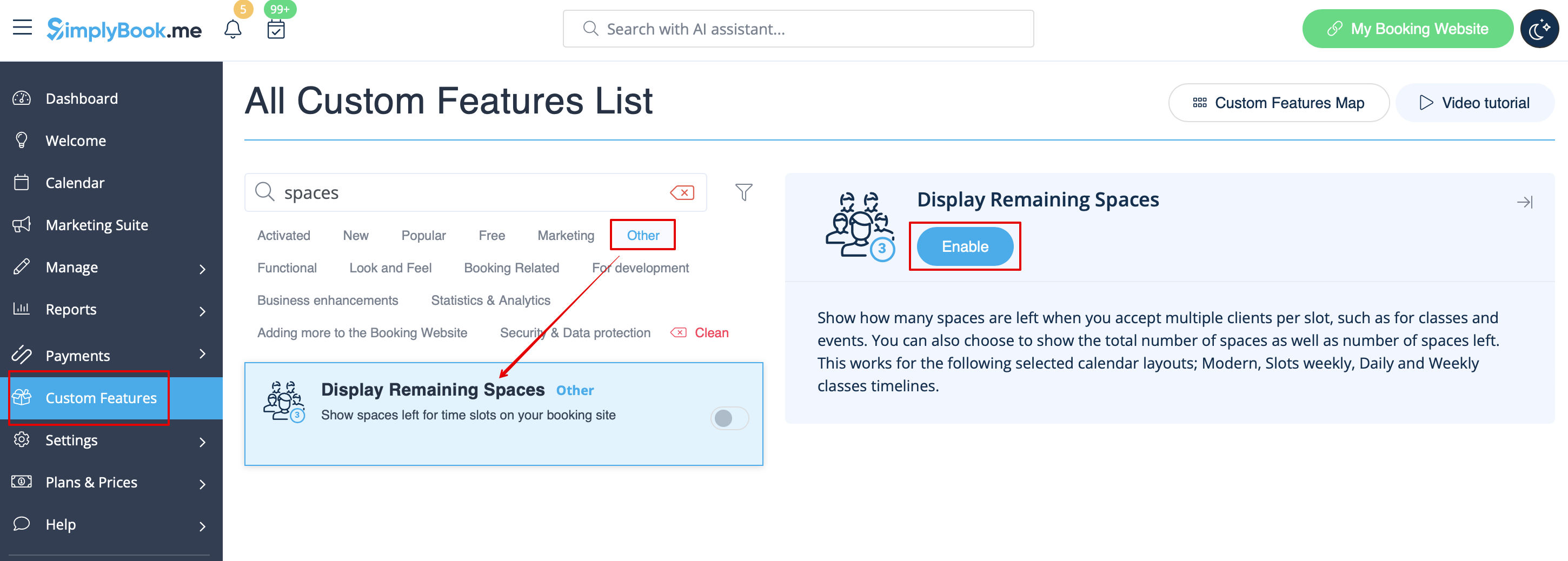
- 1. Enable Display Remaining Spaces in your Custom Features section.
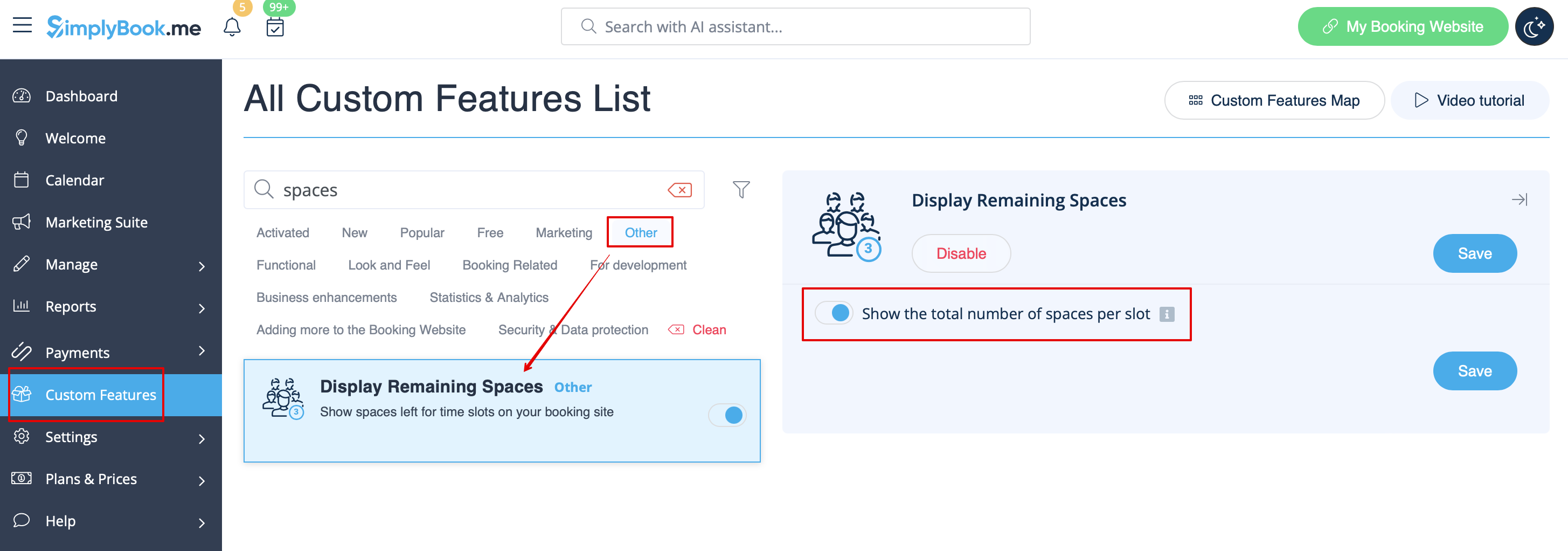
- 2. (optional) Enable the corresponding option to display the total number of spaces along with the remaining ones.
- 3. As the result the clients will be able to see the number of the spaces left per each timeslot(and total if Show the total number of spaces per slot is enabled).

