Wie kann die Anzeige der Zeitfenster geändert werden?
Video-Anleitung 
Kalenderlayouts
Sie können das Kalenderlayout ändern unter Einstellungen → Design-Einstellungen → Kalenderlayout-Einstellungen → Kalenderlayout Dropdown-Menü.
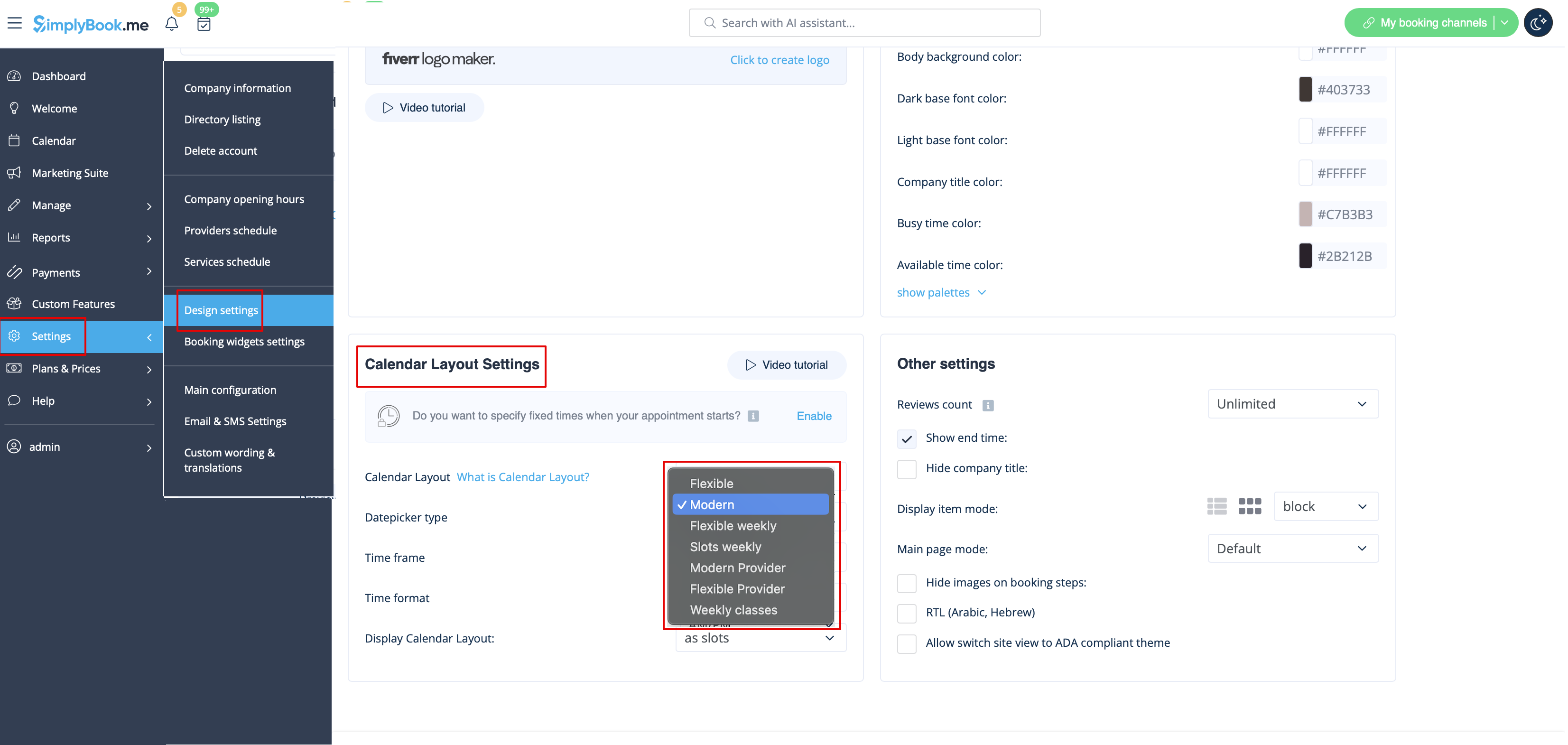
Es gibt 8 Arten von Kalenderlayouts:
- Wöchentliche Slots – zeigt verfügbare Zeitfenster in Intervallen entsprechend der Dauer Ihres Dienstes an. Beginnt mit der ersten verfügbaren Zeit der Woche.
- Verfügbare und nicht verfügbare Slots werden angezeigt.

- Modern – zeigt nur verfügbare Slots in Intervallen entsprechend der Dienstdauer für ein bestimmtes Datum an.
- Nicht verfügbare Slots werden ausgeblendet.

- Modern (Dienstleister) – zeigt die verfügbaren Zeiten für Dienstleister am ausgewählten Datum an. Beginnt mit der frühesten Verfügbarkeit aller Dienstleister.
- Nur verfügbare Slots werden angezeigt.

- Flexibel (wöchentlich) – zeigt Zeiten in Intervallen entsprechend dem eingestellten Zeitintervall an. Beginnt mit der ersten verfügbaren Zeit der Woche.
- Verfügbare und nicht verfügbare Slots werden angezeigt.

- Flexibel – zeigt Slots in Intervallen entsprechend dem eingestellten Zeitintervall für ein einzelnes Datum an.
- Verfügbare und nicht verfügbare Slots werden angezeigt.

- Flexibel (Dienstleister) – zeigt verfügbare Zeiten für Dienstleister in Intervallen gemäß dem eingestellten Intervall für das gewählte Datum an.
- Verfügbare und nicht verfügbare Slots werden angezeigt.

- Tägliche Kurse (verfügbar, wenn das Klassen-Feature aktiviert ist) – zeigt verfügbare Slots entsprechend der Kurs-/Dienstdauer für ein Datum an.
- Nur verfügbare Slots werden angezeigt.

- Wöchentliche Kurse – zeigt verfügbare Slots für Kurse in wöchentlichen Intervallen entsprechend der Kursdauer an.
- Nur verfügbare Slots werden angezeigt.

Wenn Sie Dienste mit festen Startzeiten haben und die Layouts „Modern“, „Wöchentliche Slots“, „Modern (Dienstleister)“ oder „Tägliche Kurse“ verwenden, empfehlen wir das Feature Fester Terminbeginn.
Slots Colors
You can also adjust the colors for available and unavailable slots to your taste and your company brand colors. Almost any theme and calendar layout allow such adjustments.
Please navigate to Settings -> Design settings -> Color settings -> Busy time color / Available time color.
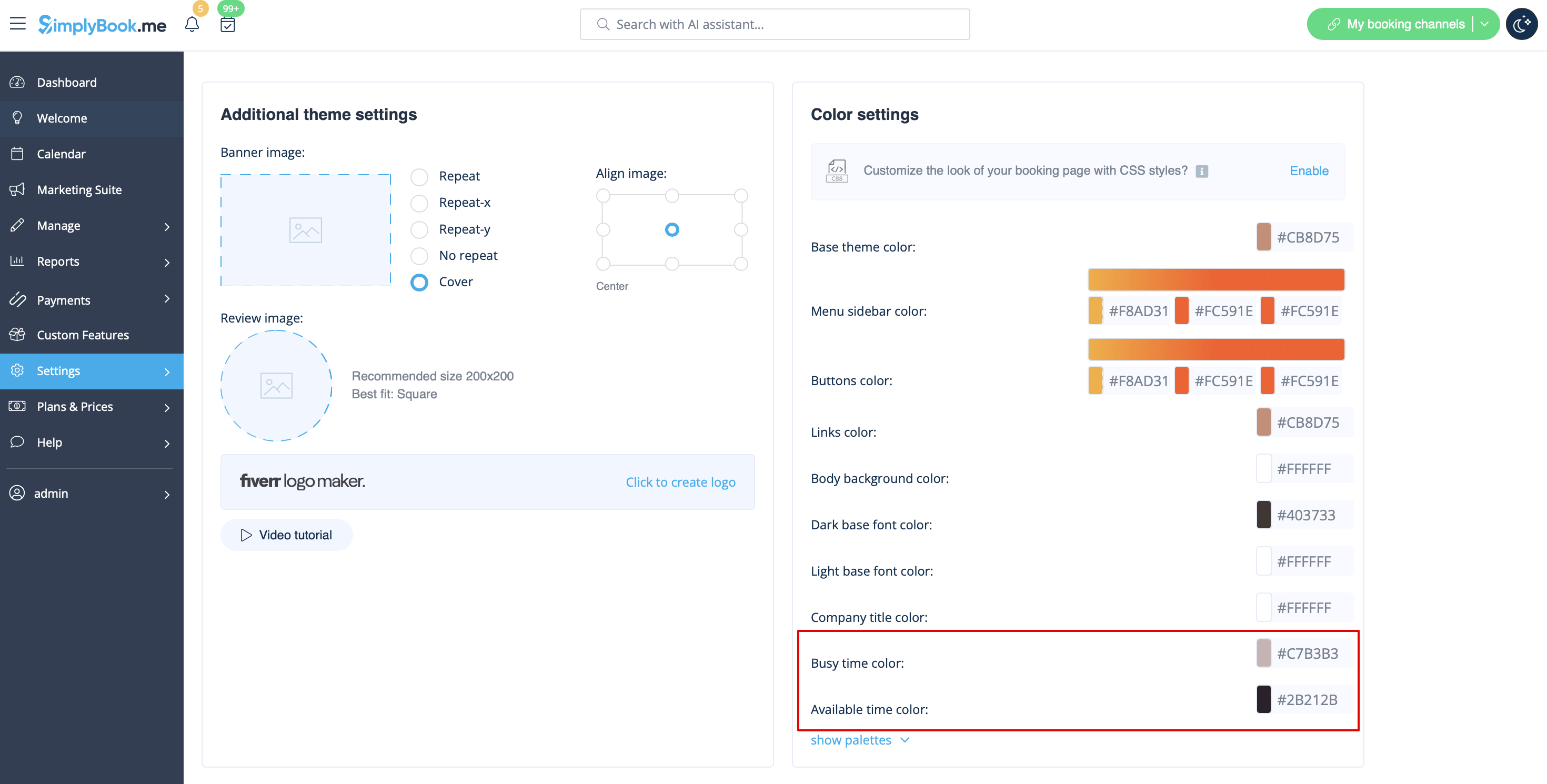
And here is the example of Slots Weekly calendar layout colors and legend on the client side:

End Time Display
Modern and Slots Weekly calenday layouts allow to show end time per timeslot. You can turn this option on in Settings -> Design settings -> Calendar Layout settings -> Show end time option.
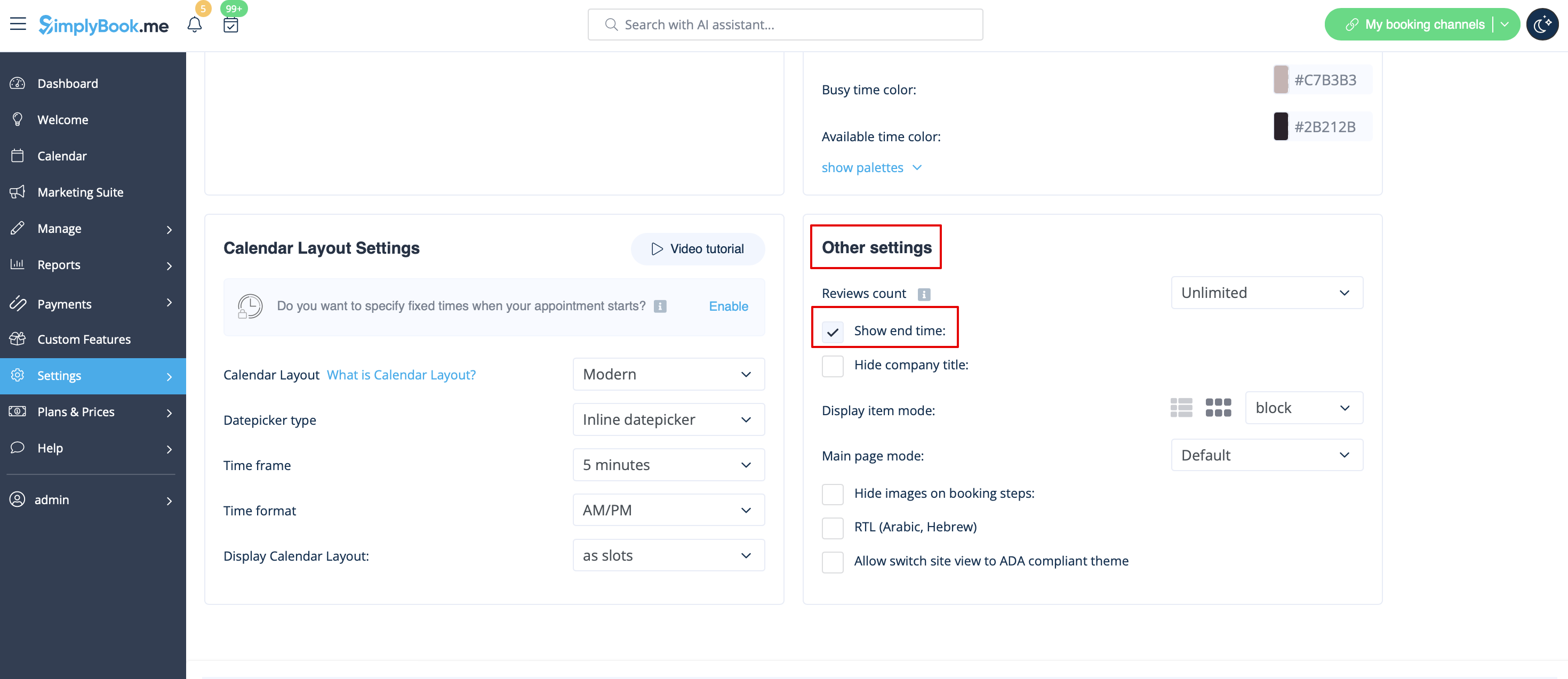
The example of end time display with Modern layout:

Date Pickers
There is also a possibility to adjust how the calendar looks on the client side to make the desired date selection as easy and convenient as possible.
Please go to Settings -> Design settings -> Calendar Layout settings -> Select datepicker type.
There are two types of datepickers:
- Inline datepicker is more compact as the calendar is hidden till the client clicks on the date above the timeslots and gets a pop-up that allows switching between months and dates.

- Top calendar adds two lines calendar at the top of timeslots(4-5 lines calendar on mobile devices) that are shown all the time and allow to switch between dates and months.

Sidebar
You may wish to show service and/or provider information on the time step. It is especially useful if you have only one service and provider and the booking process goes straight to timestep.
Certain themes support showing timeline sidebar.
To enable it please go to Settings -> Design settings -> Other settings -> Display timeline sidebar option.
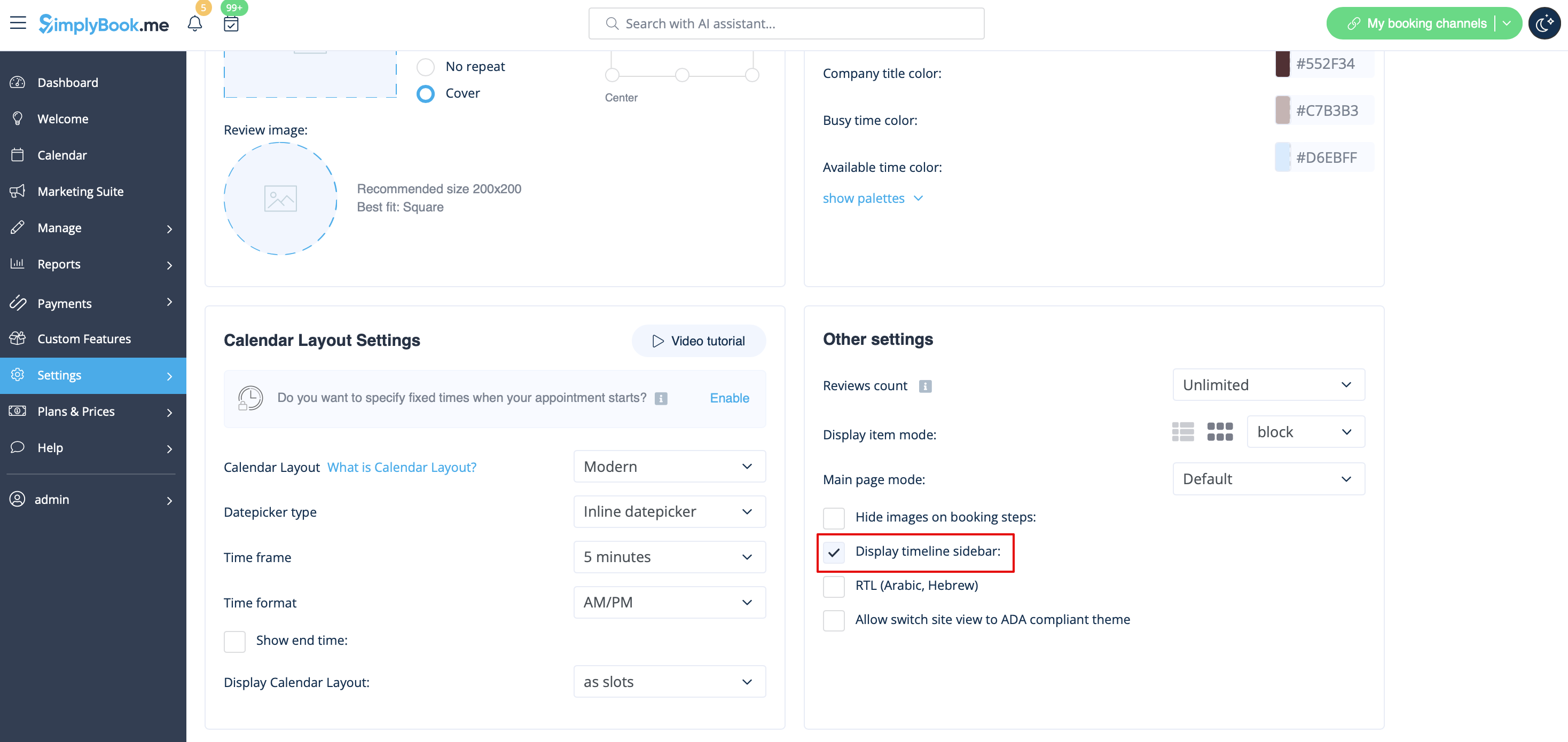
Here is the example from Default theme:

- Please note! This sidebar is automatically hidden on mobile screens or within similar width(may differ or be absent at all depending on the theme).
Seats Left
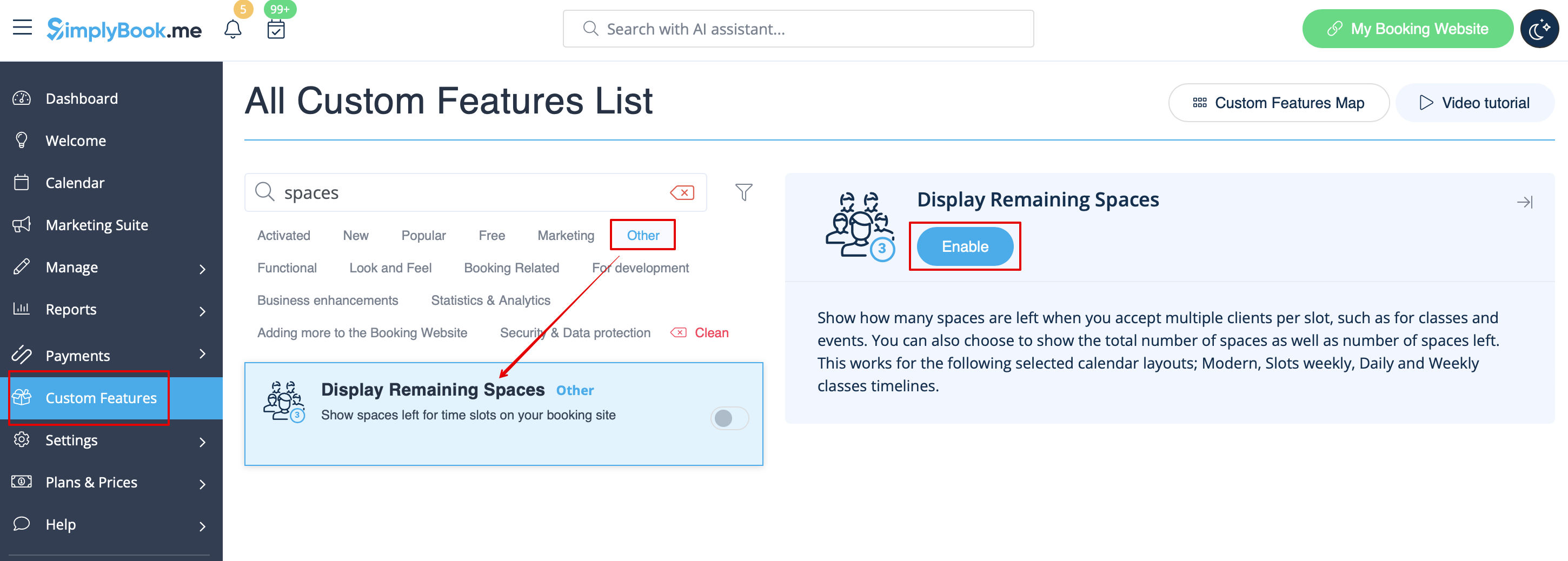
- 1. Enable Display Remaining Spaces in your Custom Features section.
- 2. (optional) Enable the corresponding option to display the total number of spaces along with the remaining ones.
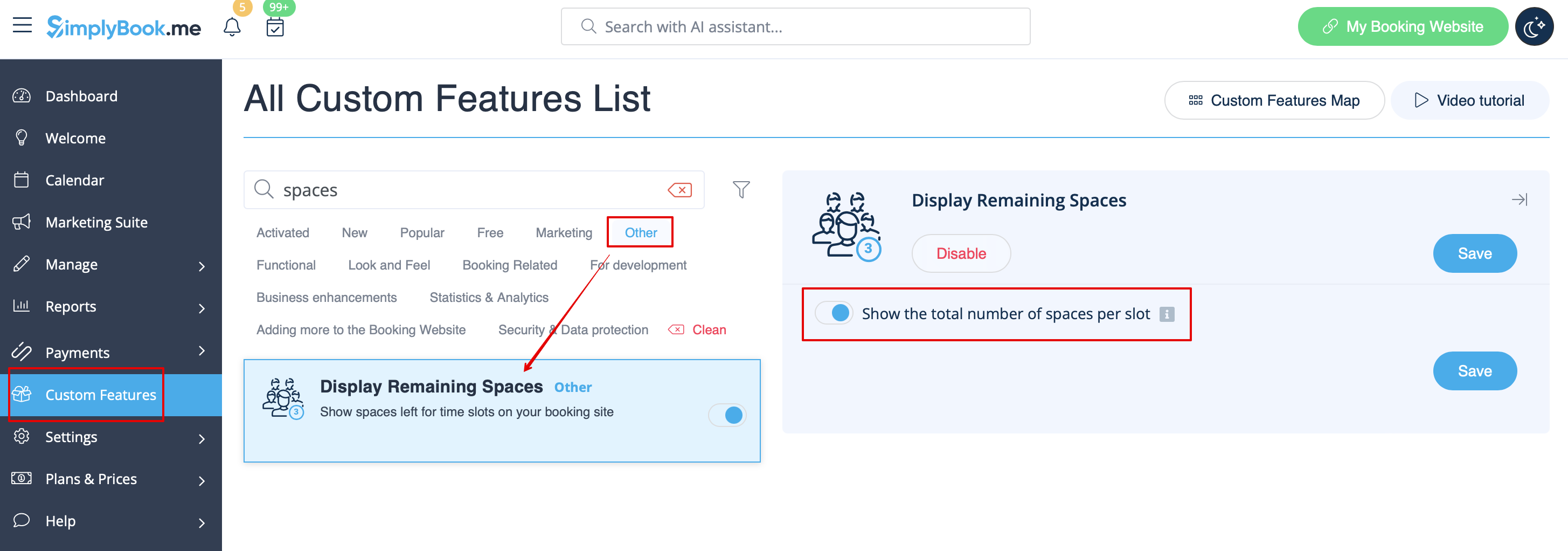
- 3. As the result the clients will be able to see the number of the spaces left per each timeslot(and total if Show the total number of spaces per slot is enabled).
