Begræns bookinger - tilpasset funktion
From SimplyBook.me

Denne brugerdefinerede funktion giver dig mulighed for at begrænse antallet af bookinger, der kan foretages samtidig. Denne funktion er nyttig, hvis dine tjenester kræver ekstra ressourcer såsom en tandlægestol eller et rum i et studie. (En anden måde at begrænse antallet af bookinger på grund af begrænsede ressourcer er at bruge funktionen Relaterede ressourcer i stedet). Når bookinggrænsen er nået, vil det tilsvarende tidsinterval fremstå som pause i bookingkalenderen (og i administrationsinterfacet, hvis du ikke har indstillet undtagelser for administrator). Det er muligt at sætte en generel grænse for samtidige bookinger samt specifikke grænser for hver enkelt tjeneste.
Eksempel: Du har 2 udbydere og 1 lokale, og begge udbydere er tilgængelige kl. 10.00.
Hver udbyder kan betjene én person ad gangen, så i alt kan 2 personer booke kl. 10.00.
Men du vil begrænse dette til 1 person, da der kun er ét lokale til rådighed.
Du skal aktivere den brugerdefinerede funktion "Begræns Bookinger" og sætte grænsen til 1.
Når én person så booker kl. 10.00, vil det tidsrum være lukket for den anden udbyder.
Vigtigt!
- Denne funktion er ikke kompatibel med Vis Tilbageværende Pladser
- How to use
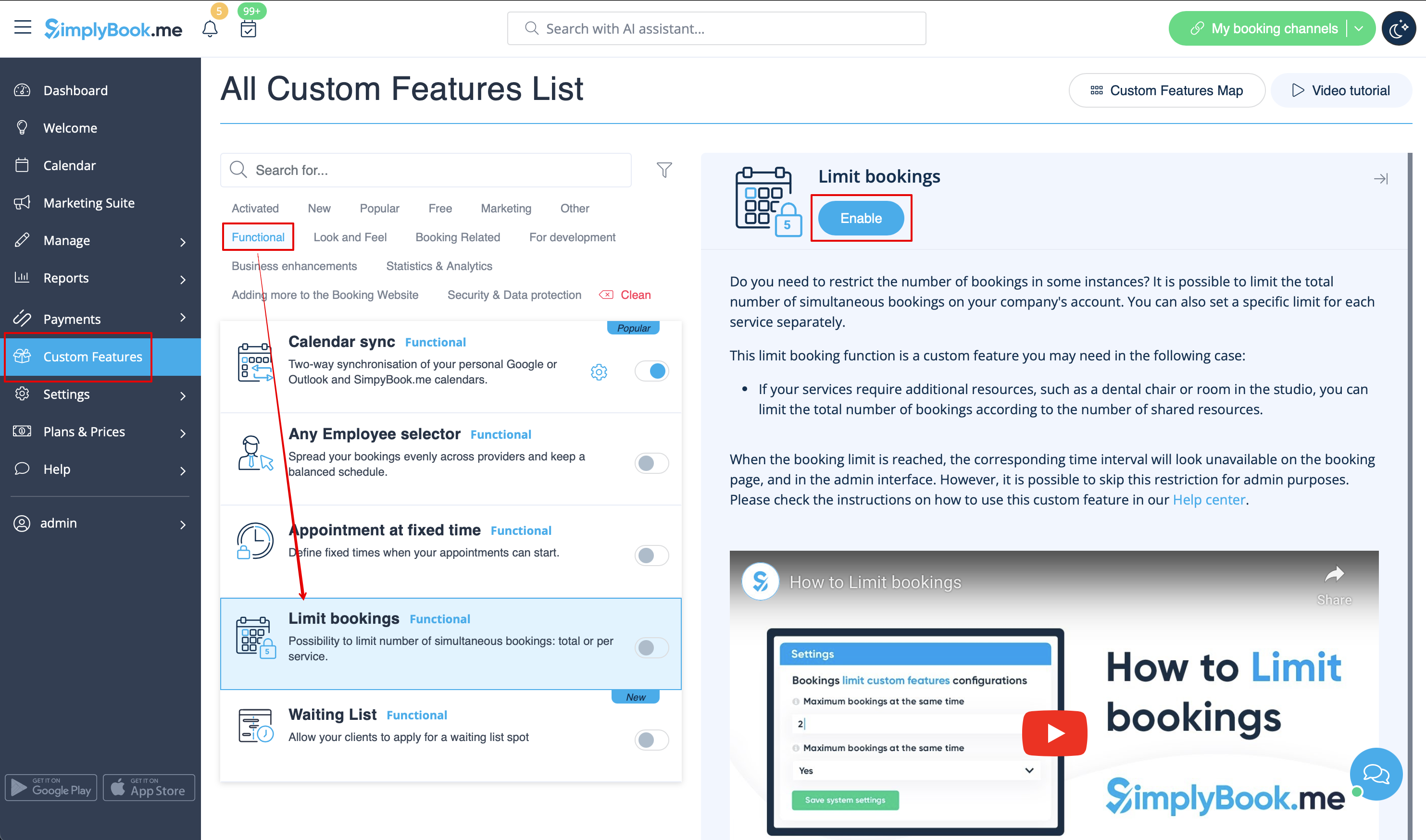
- 1. Enable this custom feature on your Custom Features page.
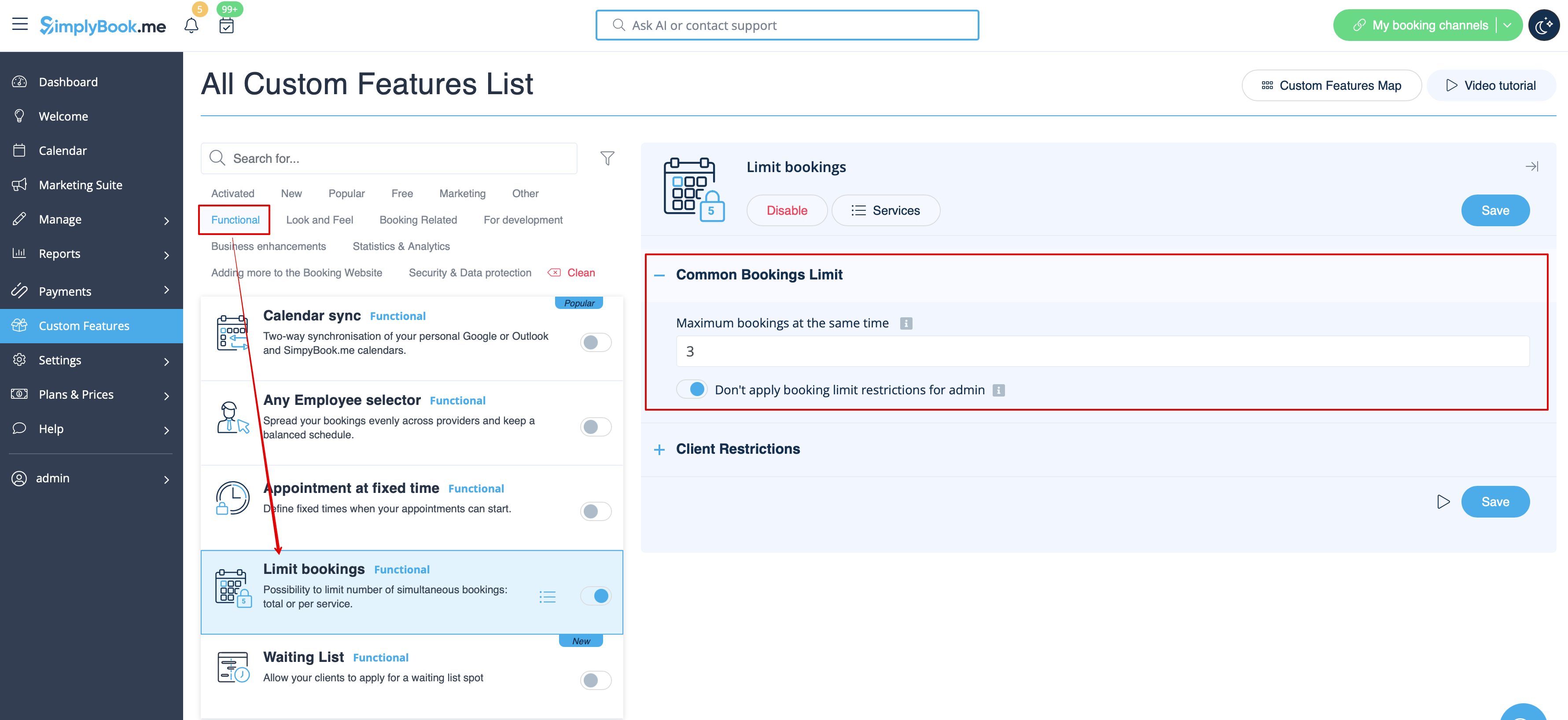
- 2. Go to its settings on the right if you need to limit number of bookings for the whole system.
- 3. If you need to set the limit per timeslot for the whole system please expand the first "Common bookings limit" block and indicate the desired number. As the result the bookings will be limited to this amount for all the services and classes you have.
- 4. In case you would like to add client limitations please use the second block there "Client Restrictions" and set the desired pattern.
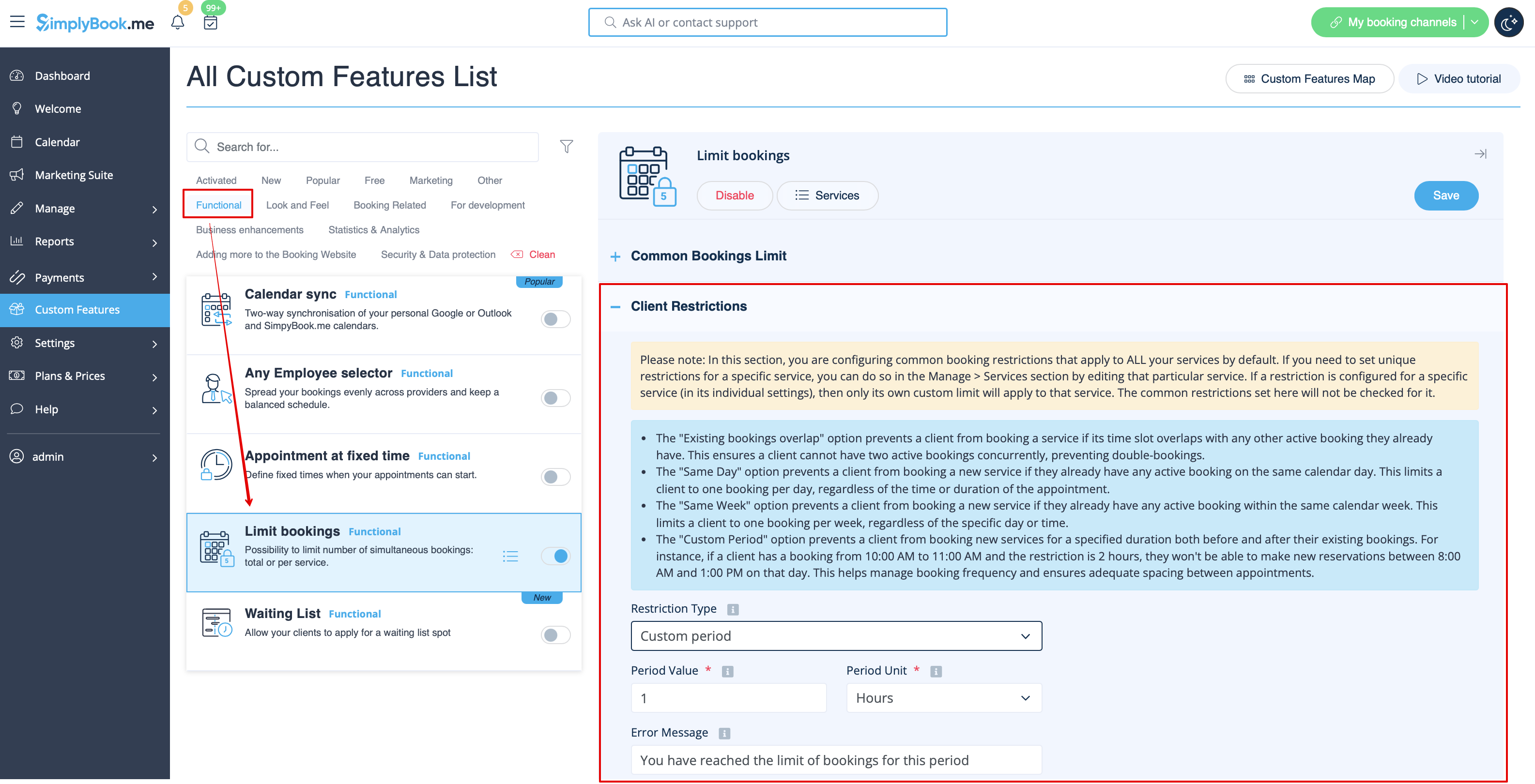
The available options:
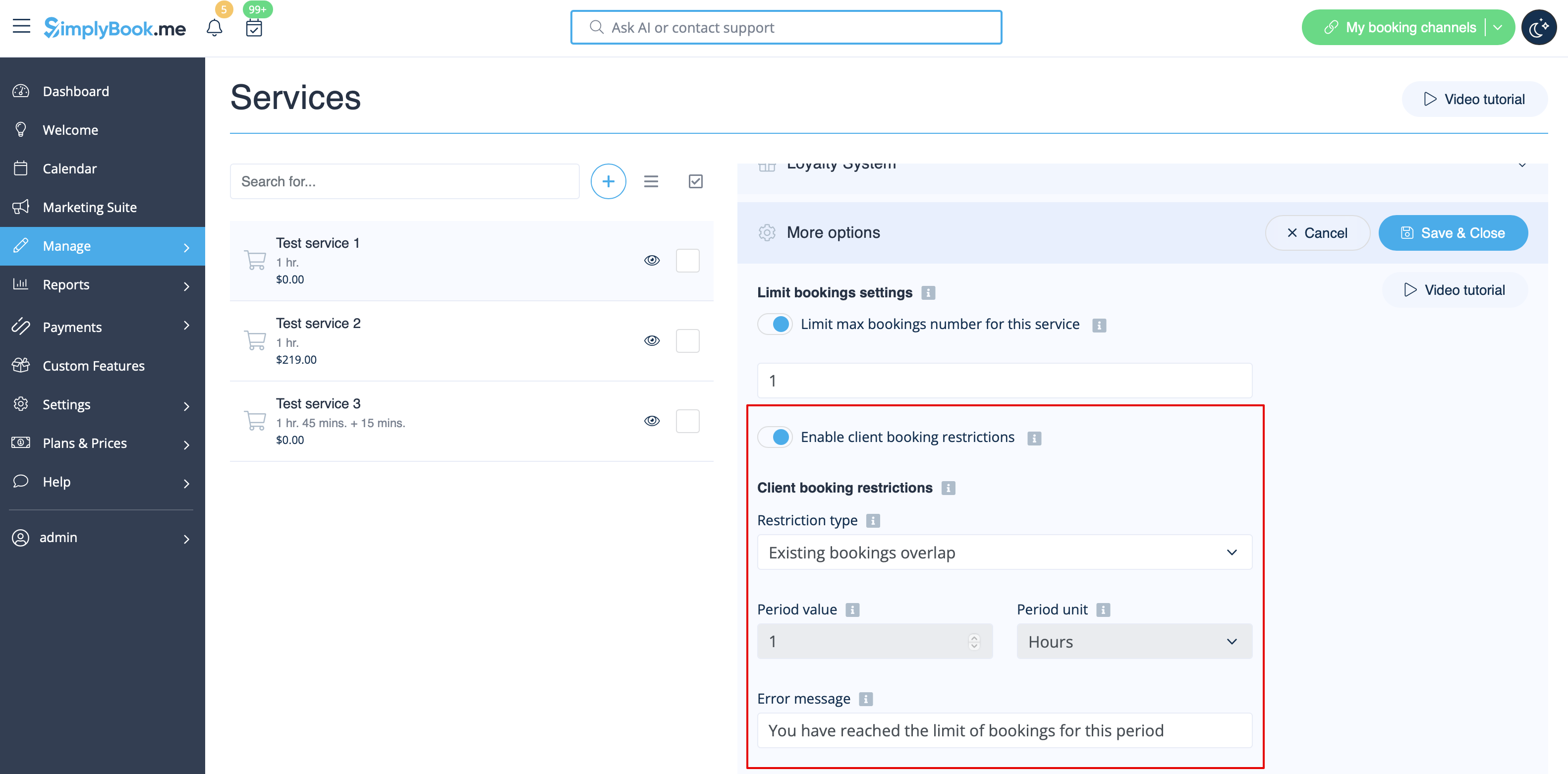
- The Existing bookings overlap option prevents a client from booking a service if its time slot overlaps with any other active booking they already have. This ensures a client cannot have two active bookings concurrently, preventing double-bookings.
- The Same Day option prevents a client from booking a new service if they already have any active booking on the same calendar day. This limits a client to one booking per day, regardless of the time or duration of the appointment.
- The Same Week option prevents a client from booking a new service if they already have any active booking within the same calendar week. This limits a client to one booking per week, regardless of the specific day or time.
- The Custom Period option prevents a client from booking new services for a specified duration both before and after their existing bookings. For instance, if a client has a booking from 10:00 AM to 11:00 AM and the restriction is 2 hours, they won't be able to make new reservations between 8:00 AM and 1:00 PM on that day. This helps manage booking frequency and ensures adequate spacing between appointments.
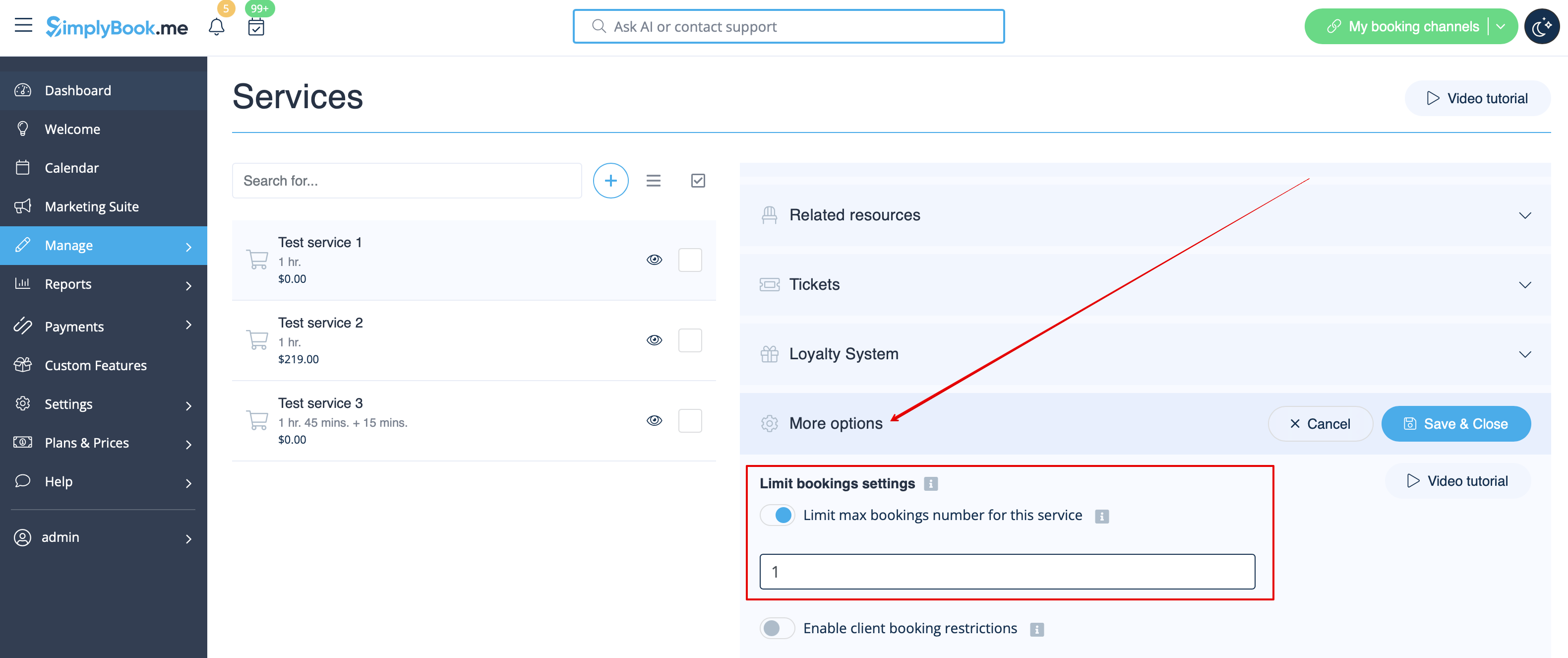
- 5. If you need to set the limit for certain service please navigate to Manage//Services(Classes) page, choose "More options" tab and set the desired number per service/class. You fill find both options there: per timeslot and per client