Categories and Locations
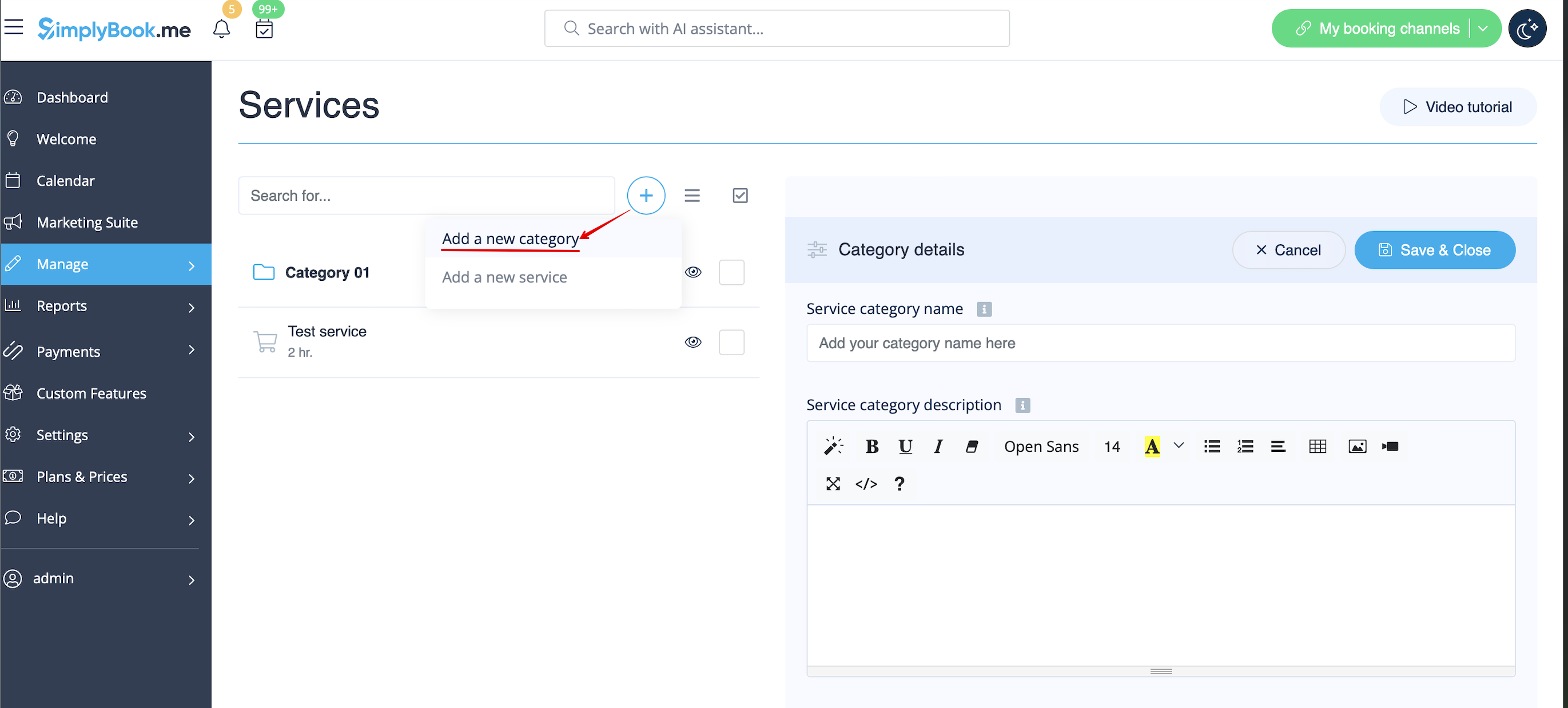
How to add Category
Categories are designed to group services. Can be added with the help of Service Categories Custom Feature.
- How to add
- Enable Service Categories Custom Feature. Then in Manage // Services // "+" - create all necessary categories. Click on "Category services" tab for corresponding category and check the boxes with services to connect with category.
=How to add Location=
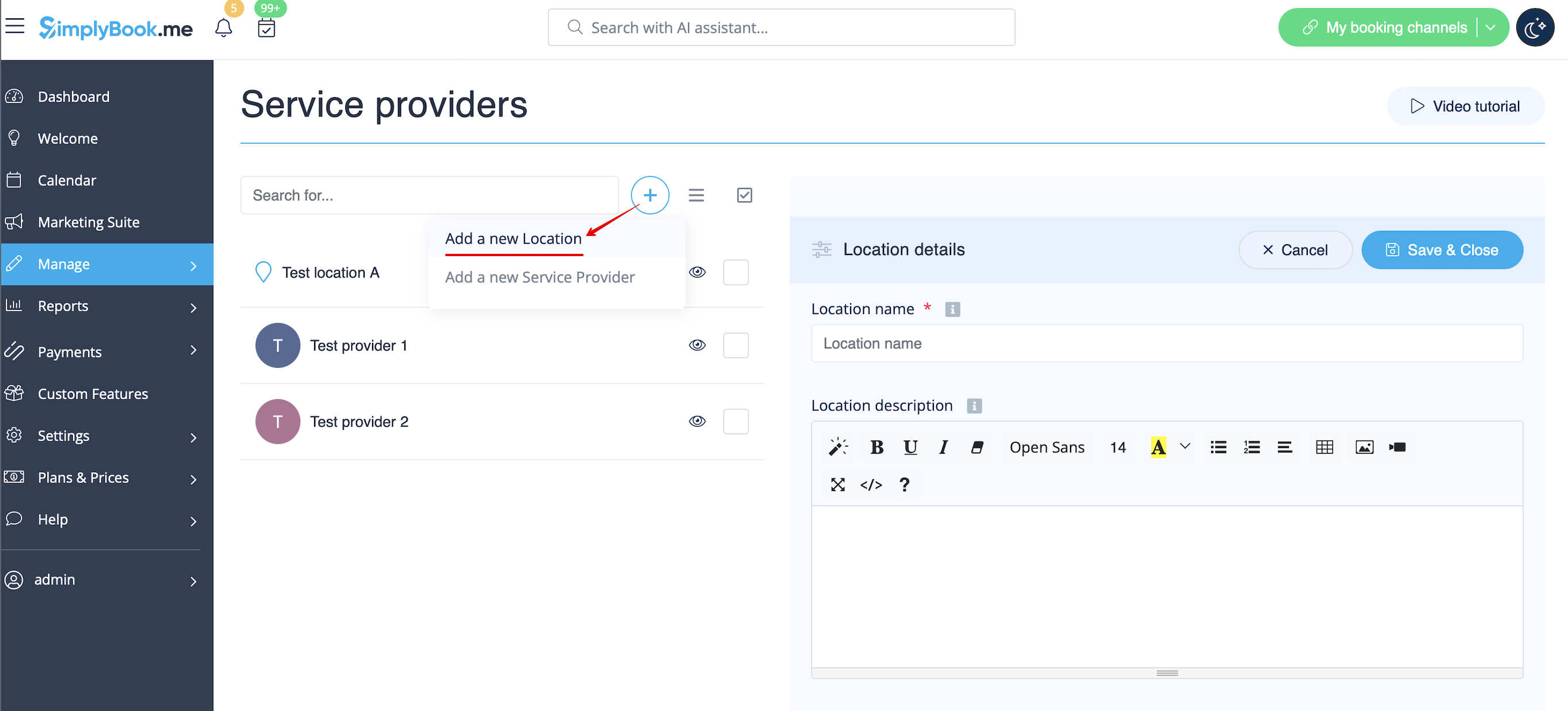
Locations are designed to group providers. Can be added with the help of Multiple Locations Custom Feature.
- How to add
- Enable "Multiple Locations" Custom Feature and add locations either in the settings of the Custom Feature or in Manage // Service Providers // "+" to add a new location. Click on "Location providers" tab for corresponding location and check the boxes with service providers to connect to location.
=How to connect location with service=
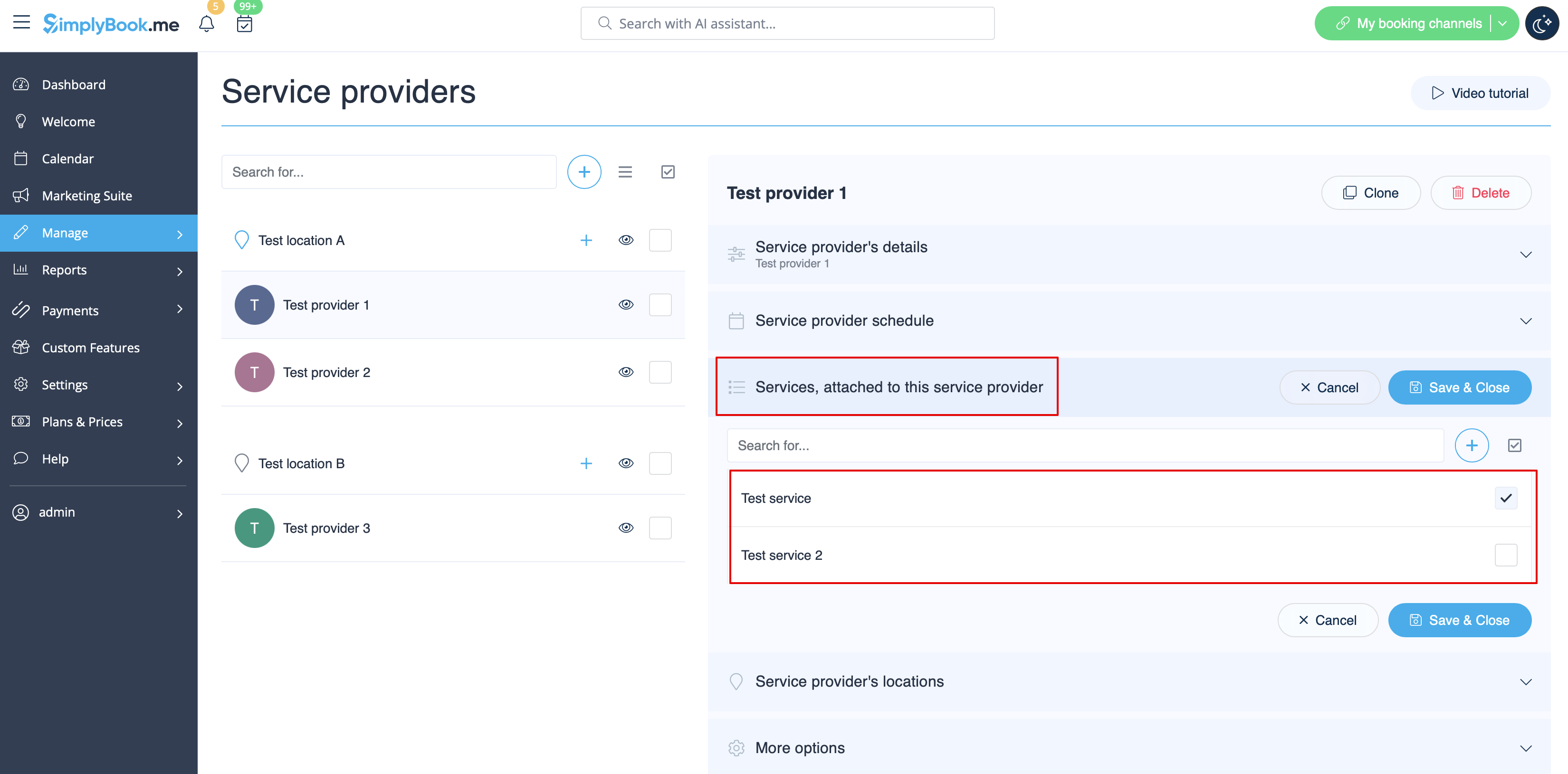
Locations can be related only to service providers, thus if you need to relate service to particular location, you need initially to relate service to service provider:
- 1. In Manage//Service Providers switch to “Services, attached to this service provider” tab for the selected provider and check the boxes with services this provider will perform.
Save settings.
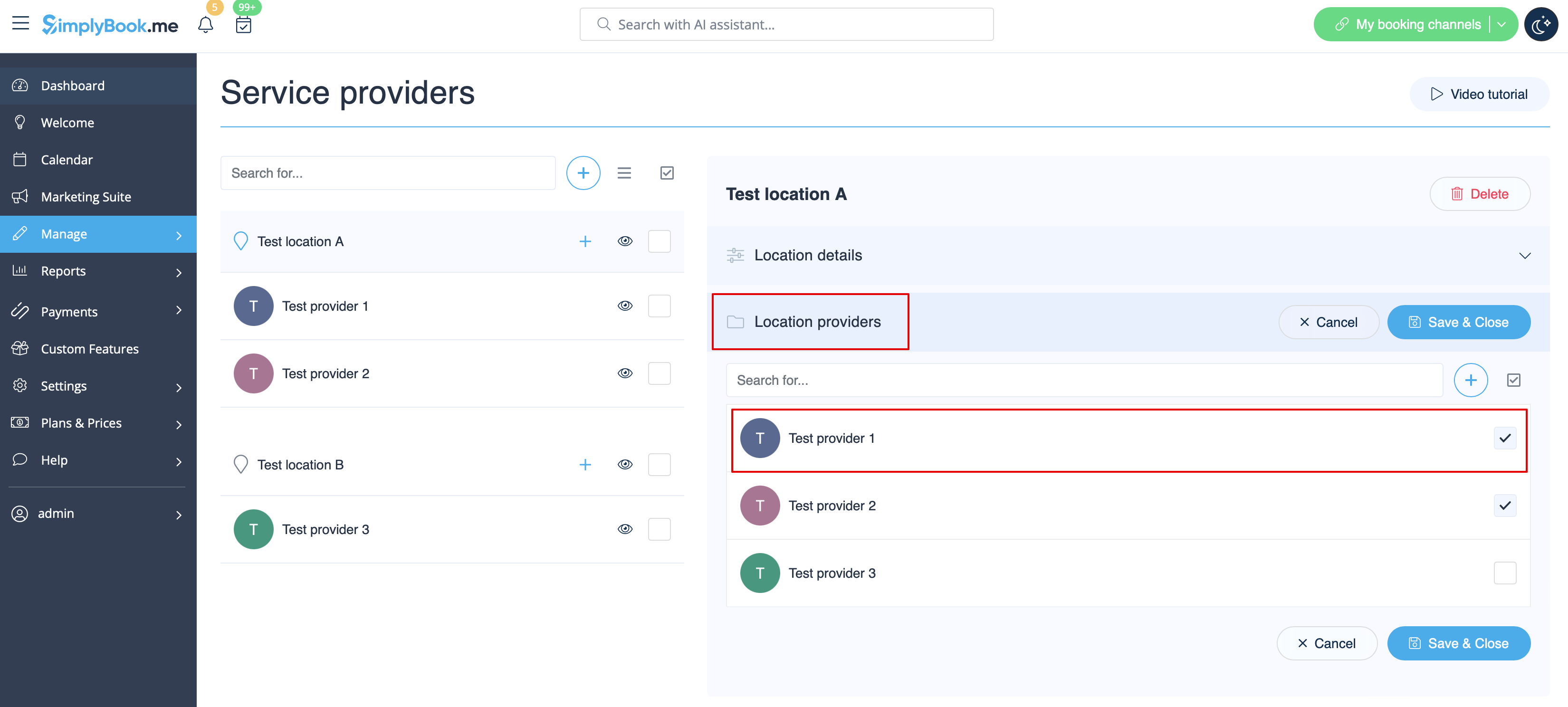
- 2. In Manage//Providers choose location and switch to “Location providers” tab to attach providers to this location by checking the corresponding boxes.
Save settings.
=How to set schedule for location=
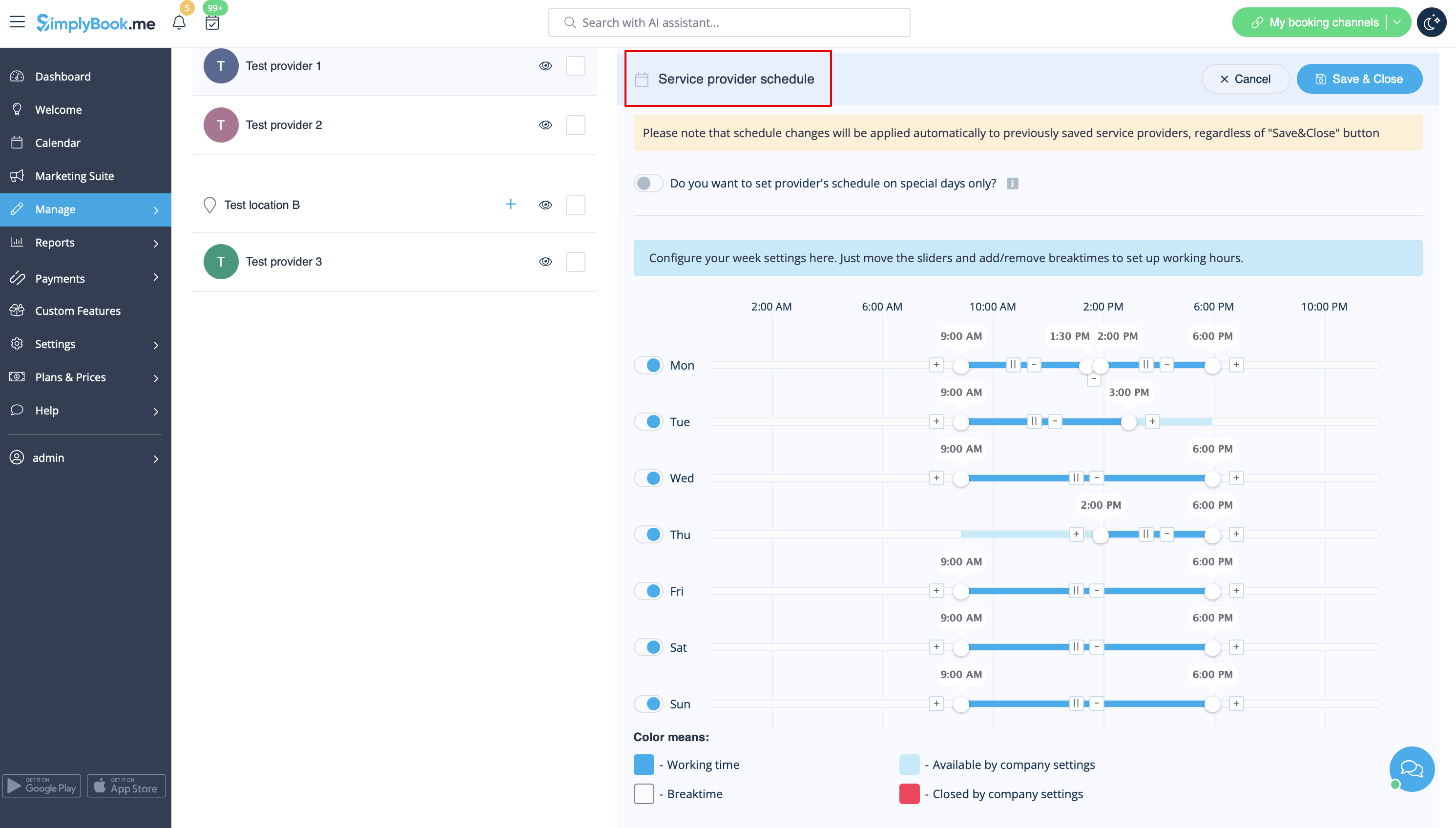
You can set individual schedule for the provider and then relate provider to the location. Thus working hours of the provider related to location will automatically apply to location.
- 1. To set individual schedule for provider please go to Manage//Service Providers, choose necessary provider on the left and switch to “Service provider schedule” tab.
For example, if you work Monday-Friday 9a.m - 5p.m you simply set schedule for those dates by moving the sliders to make time available (bright blue)/not available (light blue).
To make day of the week working/off use switchers near weekday names.
- 2. In Manage//Service Providers choose location and switch to “Location providers” tab to attach provider to location by checking corresponding boxes. Save settings.
=How to add location variables to emails=
In Settings // Email and SMS settings insert the following variables into your email templates:
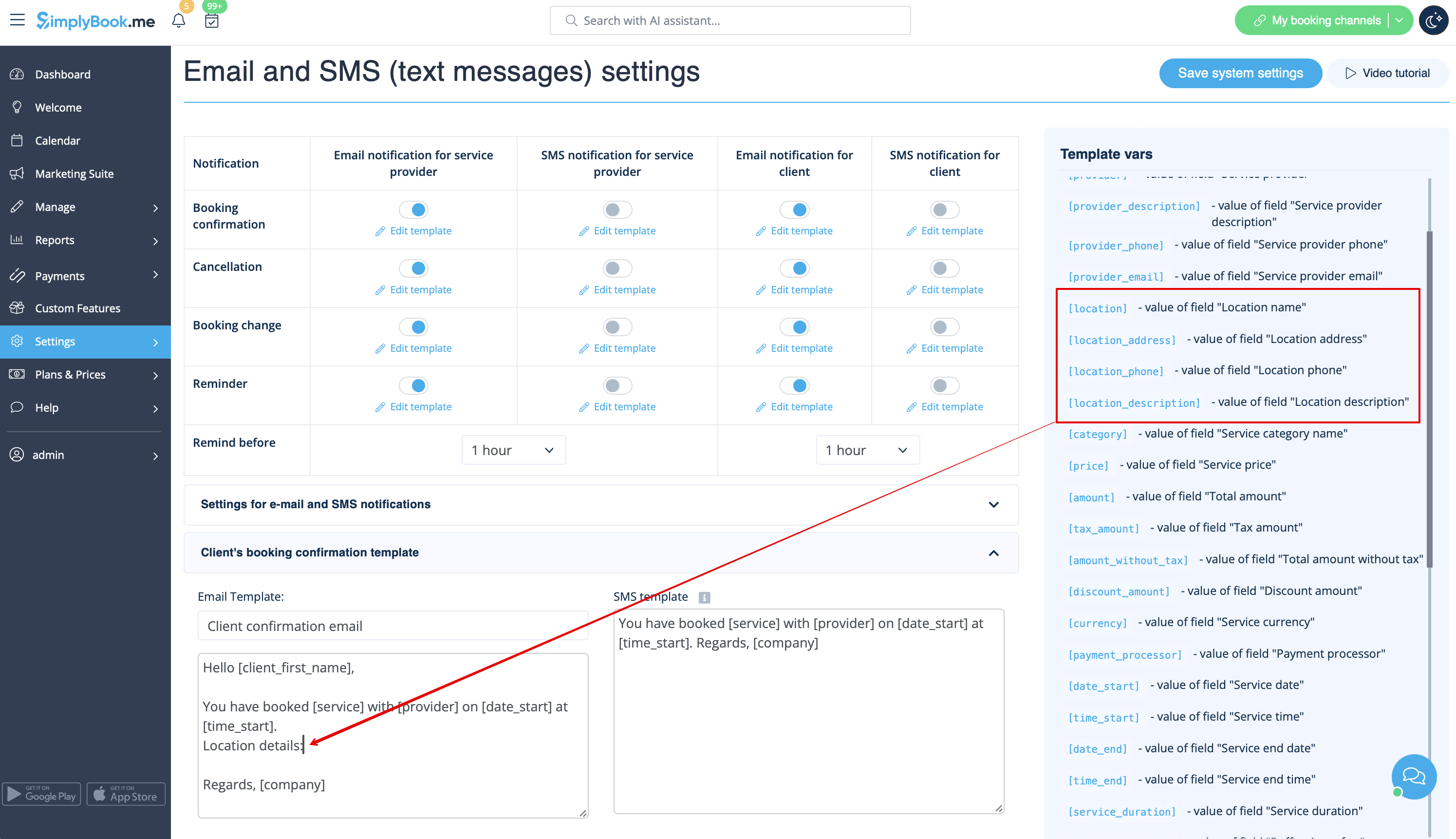
- [location] - value of field "Location name"
- [location_address] - value of field "Location address"
- [location_phone] - value of field "Location phone"
- [location_description] - value of field "Location description"
