Translations:WordPress integration/5/en
From SimplyBook.me
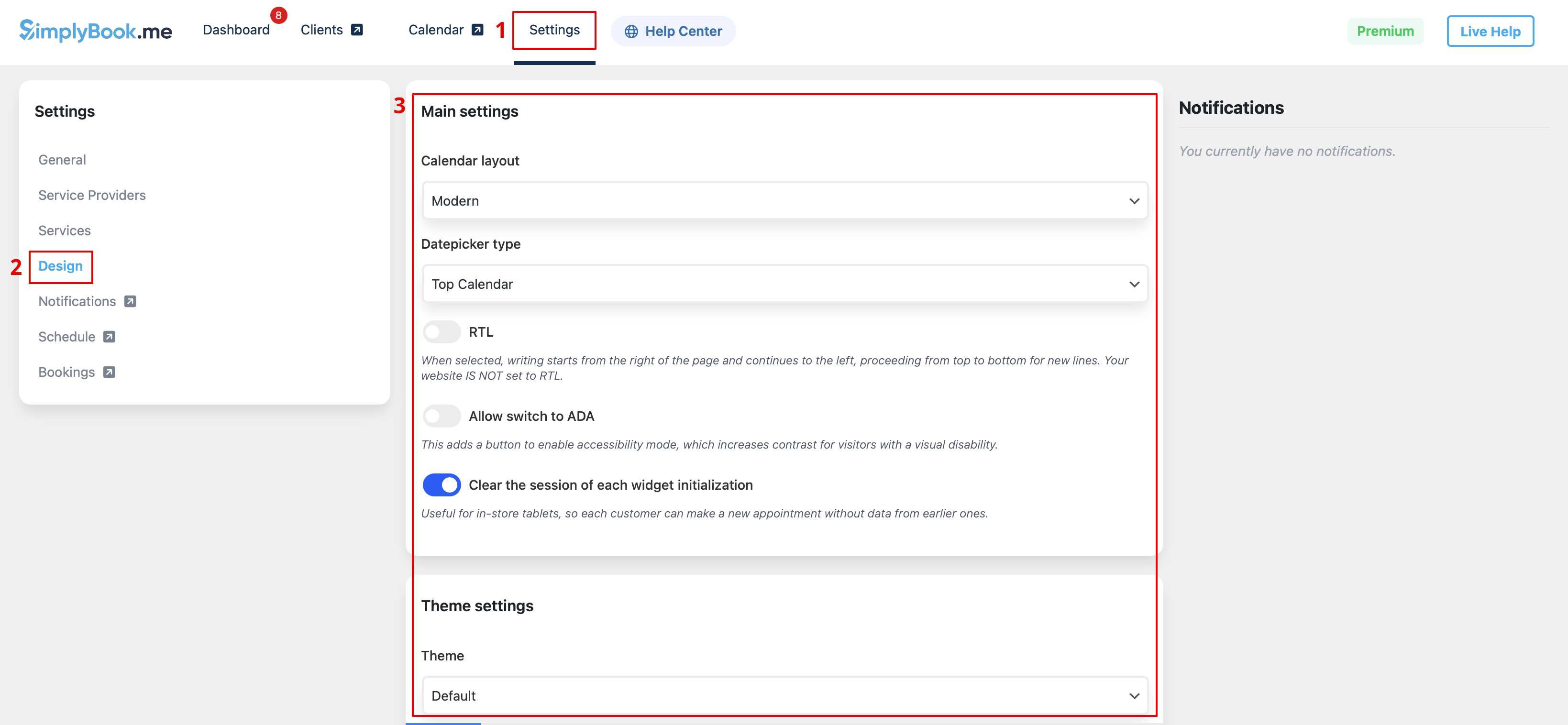
- 6. Switch to Design tab.
- Adjust the look for your widget.
- You can select the preferable calendar layout, adjust the colors and much more.
- 7. Save your settings and navigate to Pages tab of the WordPress interface.
- Open the page you would like to add the booking functionality to or add a new one.
- Click on "+" button there and look for Simplybook option. Click on it to add to the page. Save the page.
- After the website is published the clients will be able to book your services.

