Integration with Mailchimp
From SimplyBook.me
You can now add various functionality to the bookings that you receive in SimplyBook.me through the use of Zapier.com.
Here follows the detailed instruction on how to create a new zap that connects SimplyBook.me bookings to your email list at MailChimp.com.
- 1. First of all, make sure you have an account at MailChimp.com.
- 2. Create an account at Zapier.com, it only takes 1 minute.
- 3. As well make sure you have Zapier Connector custom feature turned on in your SimplyBook.me account.
- 4. After logging into Zapier select to create a new ZAP by clicking on Make a Zap button at the top.
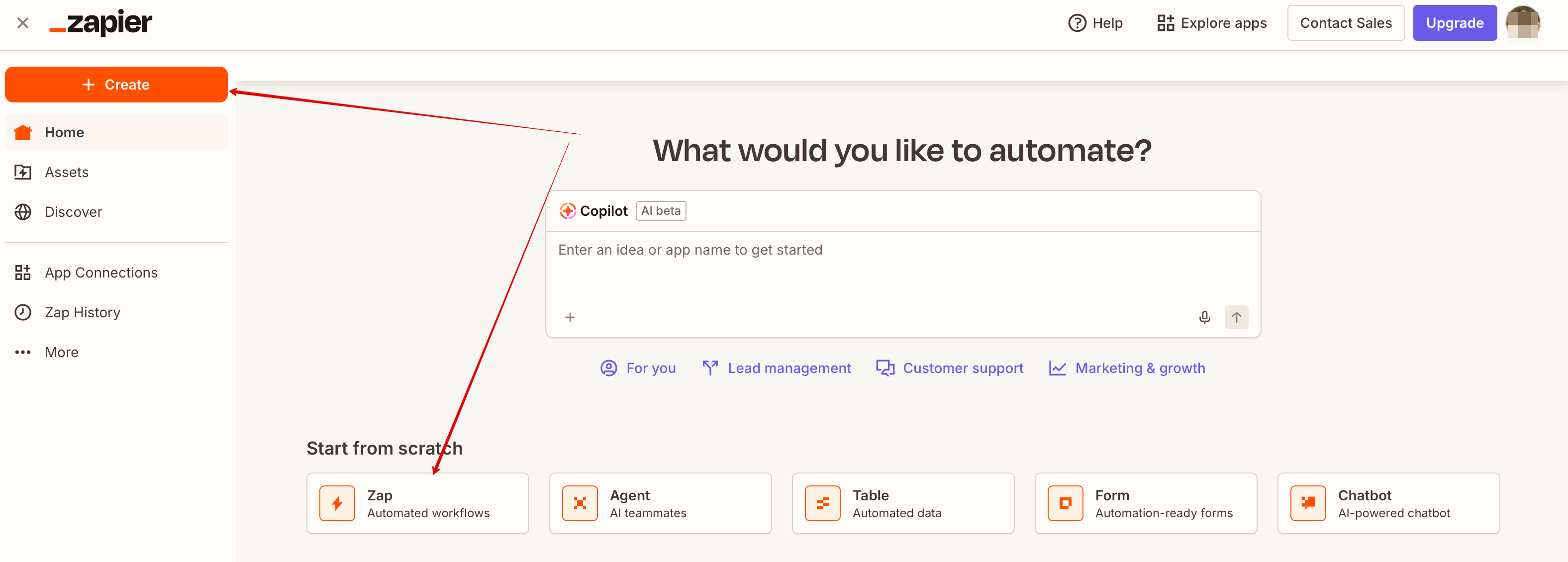
- 5. Next choose a trigger app - put SimplyBook in the searchbox to find and select it.


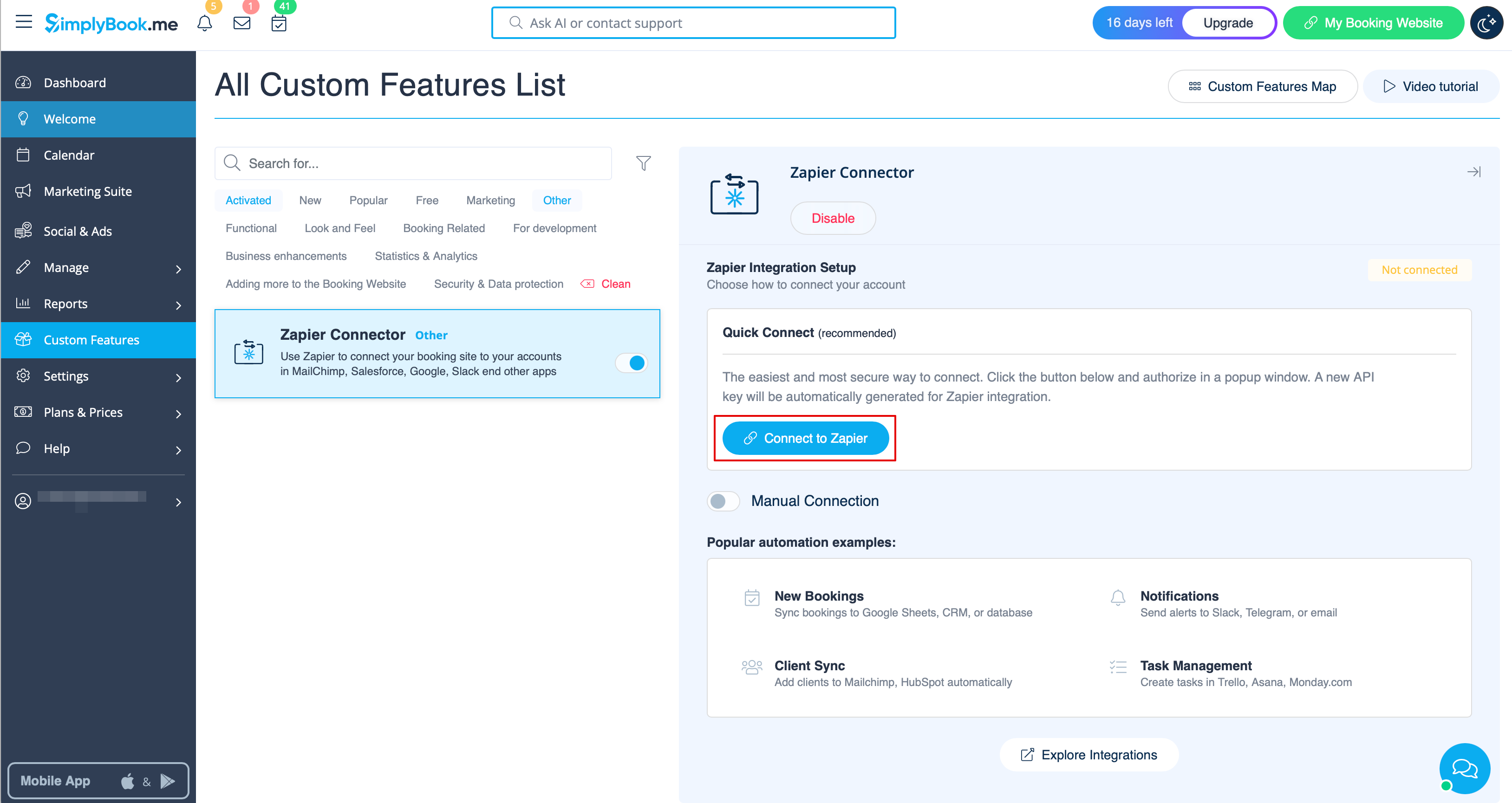
- 6. Enable Zapier Connector custom feature on your custom features page.
Connect to your Zapier account using the ‘’’Quick connect’’’ option there.
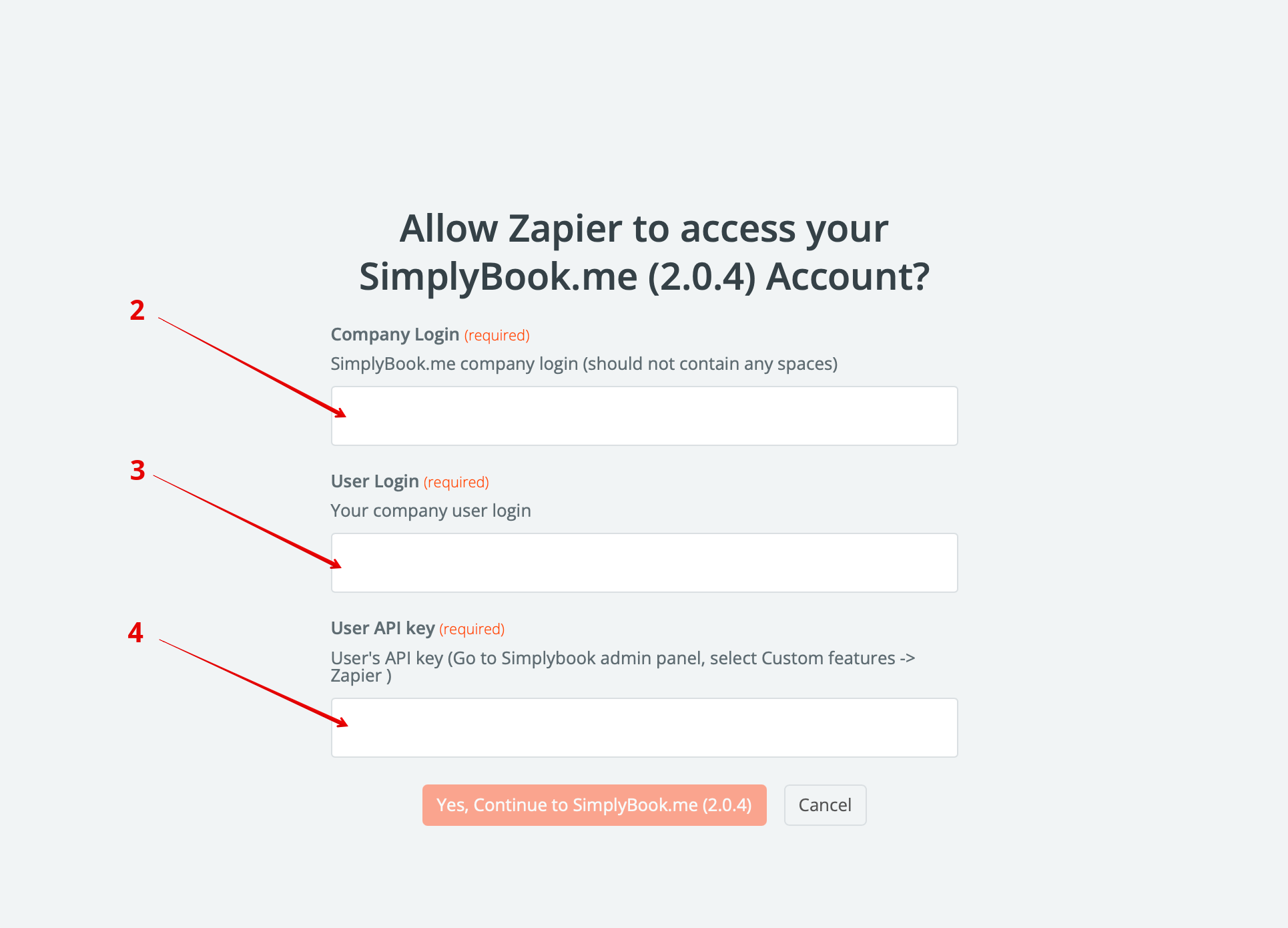
- 7. Or you can choose a manual connection by credentials.
- Go to Zapier.com -> App connections page and click on “Add connection” button
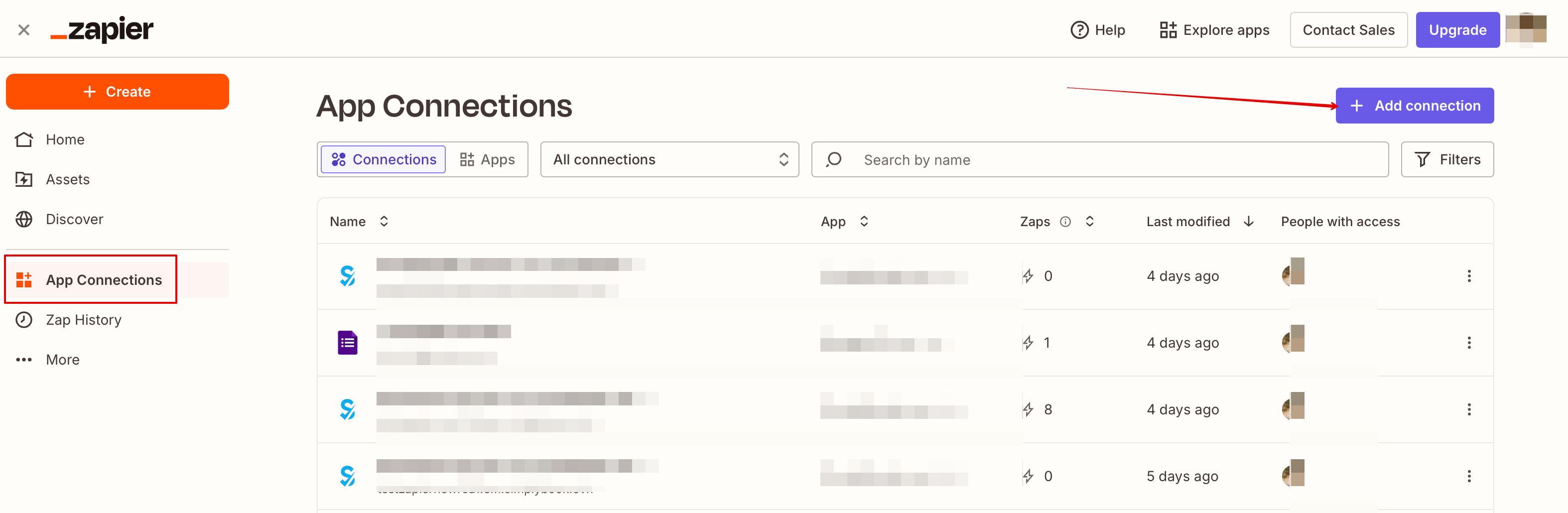
- Select SimplyBook.me
- Copy company login, user login, generate and copy API key from your SimpyBook.me account
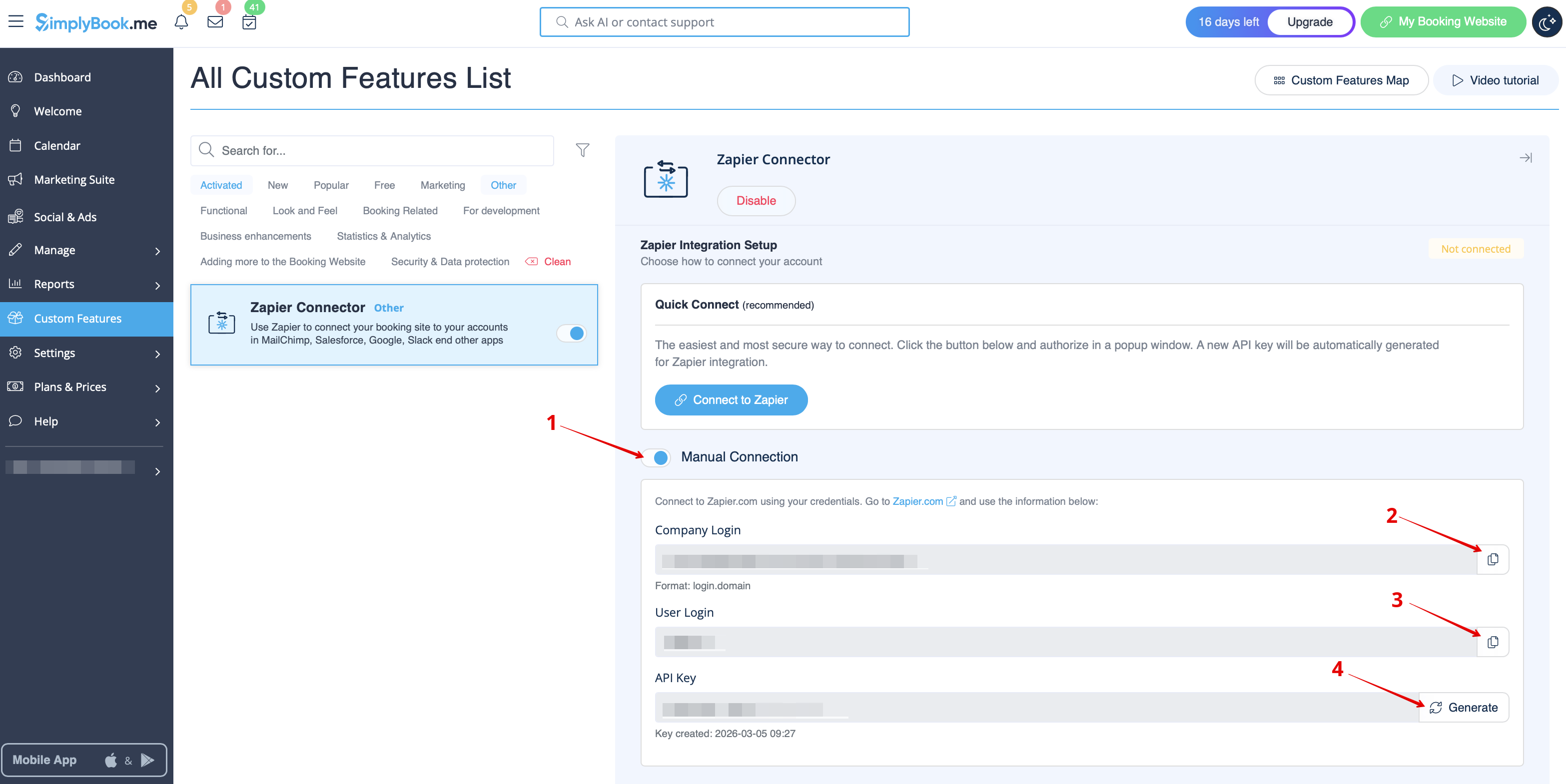
- Paste them to the corresponding fields on Zapier.com side and click on “Continue” option there. The account gets connected.
- 8. Now select MailChimp as an action app and select the action that will take place when the trigger works.


- 9. Connect your MailChimp account.

- 10. Set the required fields depending on the action you have selected.

- 11. Confirm your choices and turn the Zap on.
