Translations:Limit Bookings custom feature/4/en
From SimplyBook.me
- How to use
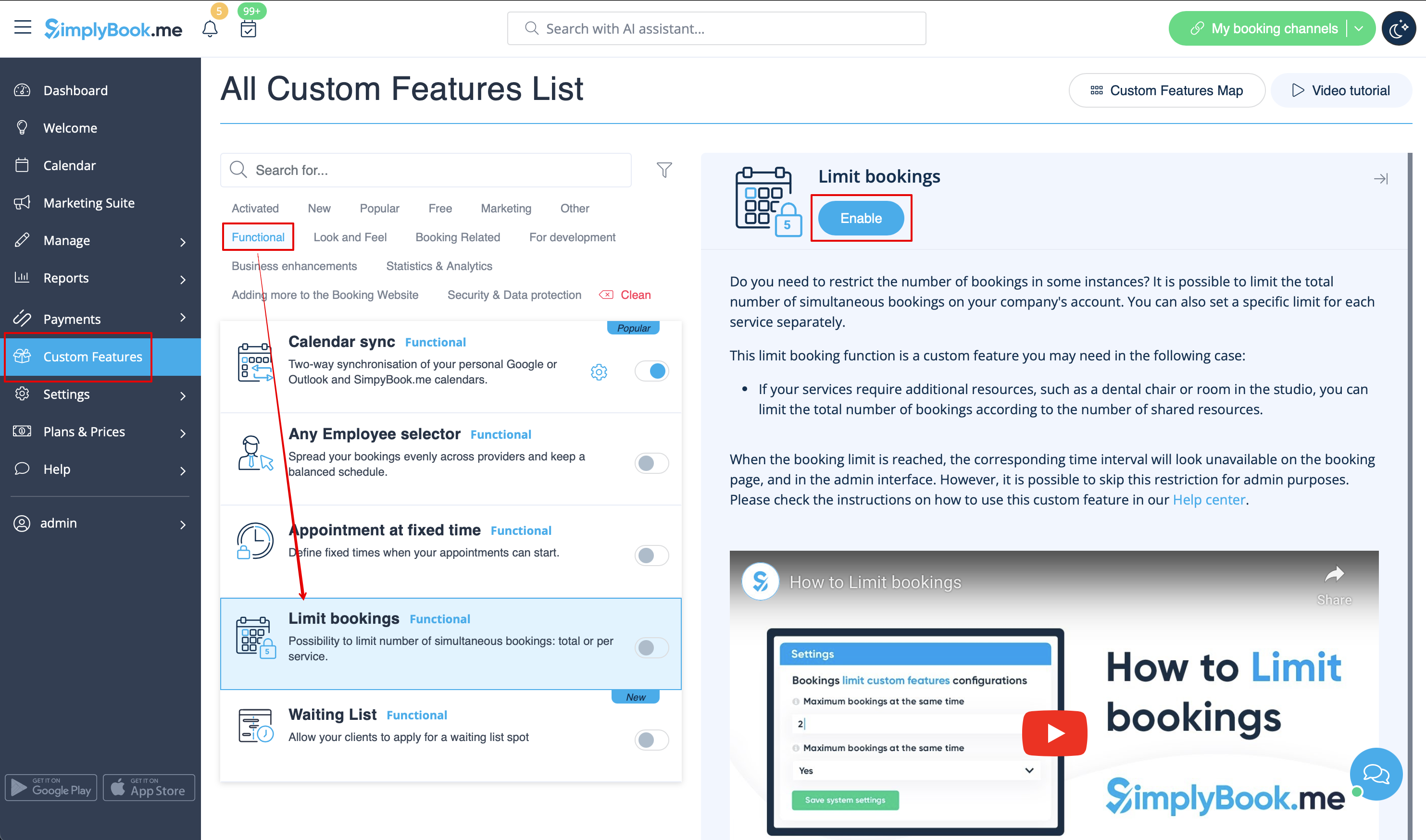
- 1. Enable this custom feature on your Custom Features page.
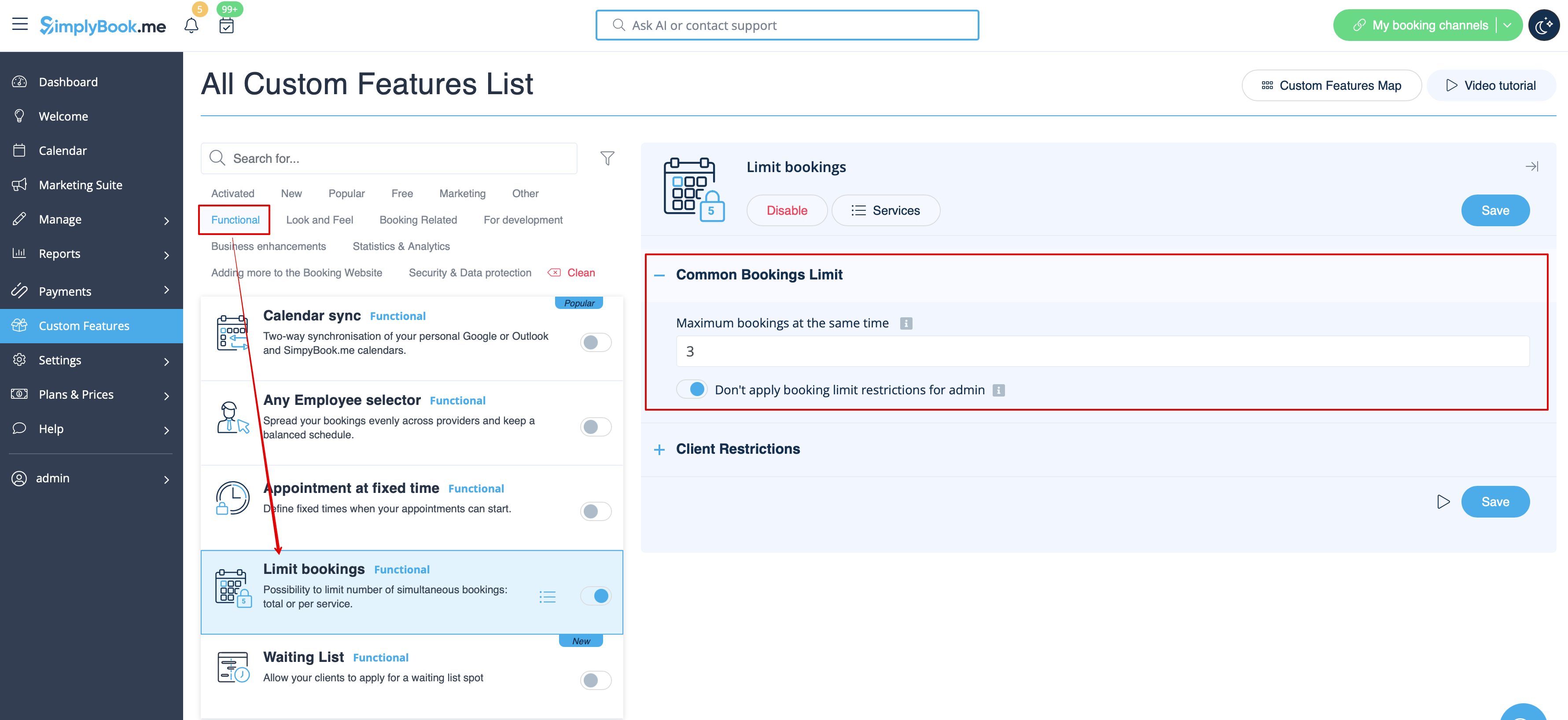
- 2. Go to its settings on the right if you need to limit number of bookings for the whole system.
- 3. If you need to set the limit per timeslot for the whole system please expand the first "Common bookings limit" block and indicate the desired number. As the result the bookings will be limited to this amount for all the services and classes you have.
- 4. In case you would like to add client limitations please use the second block there "Client Restrictions" and set the desired pattern.
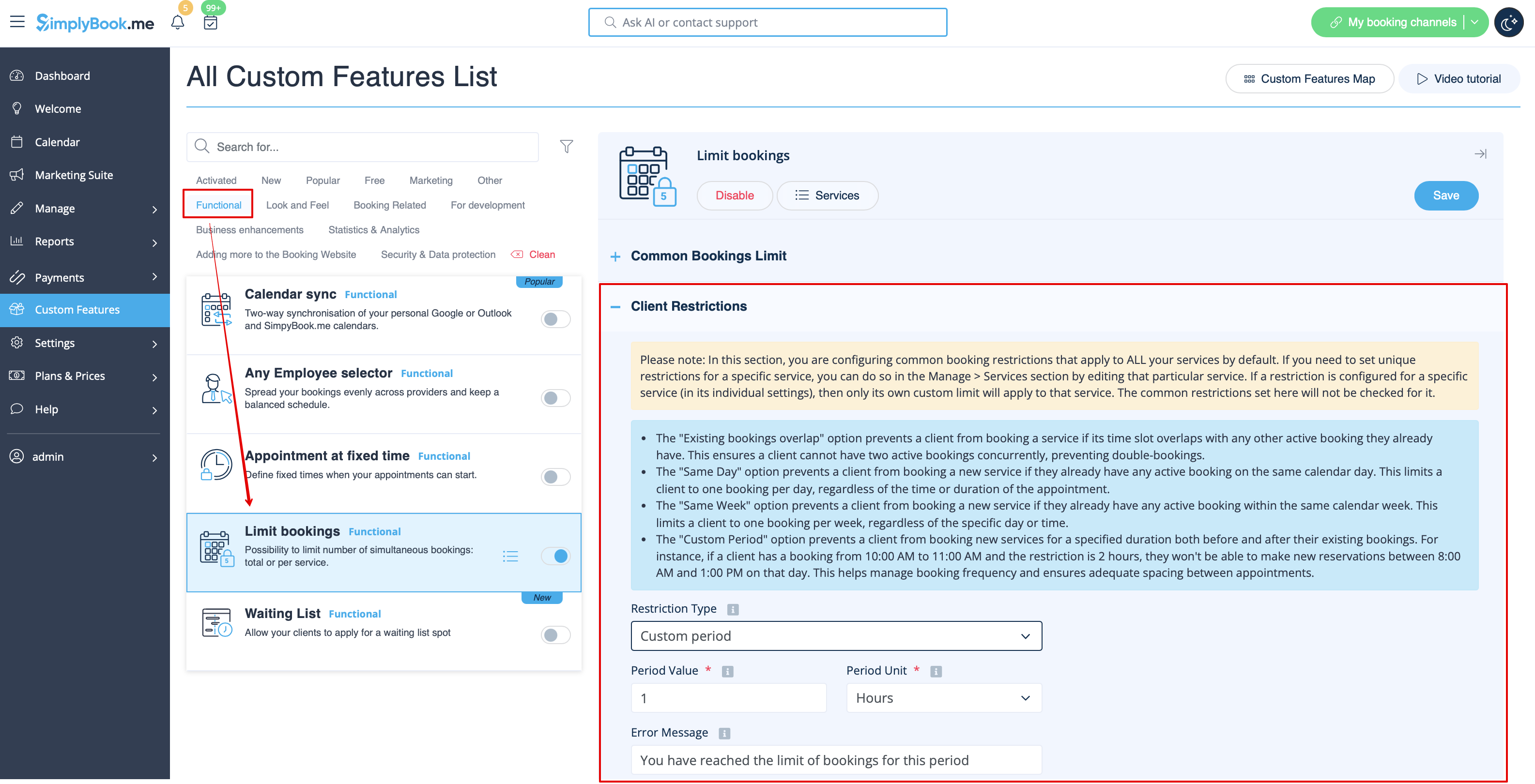
The available options:
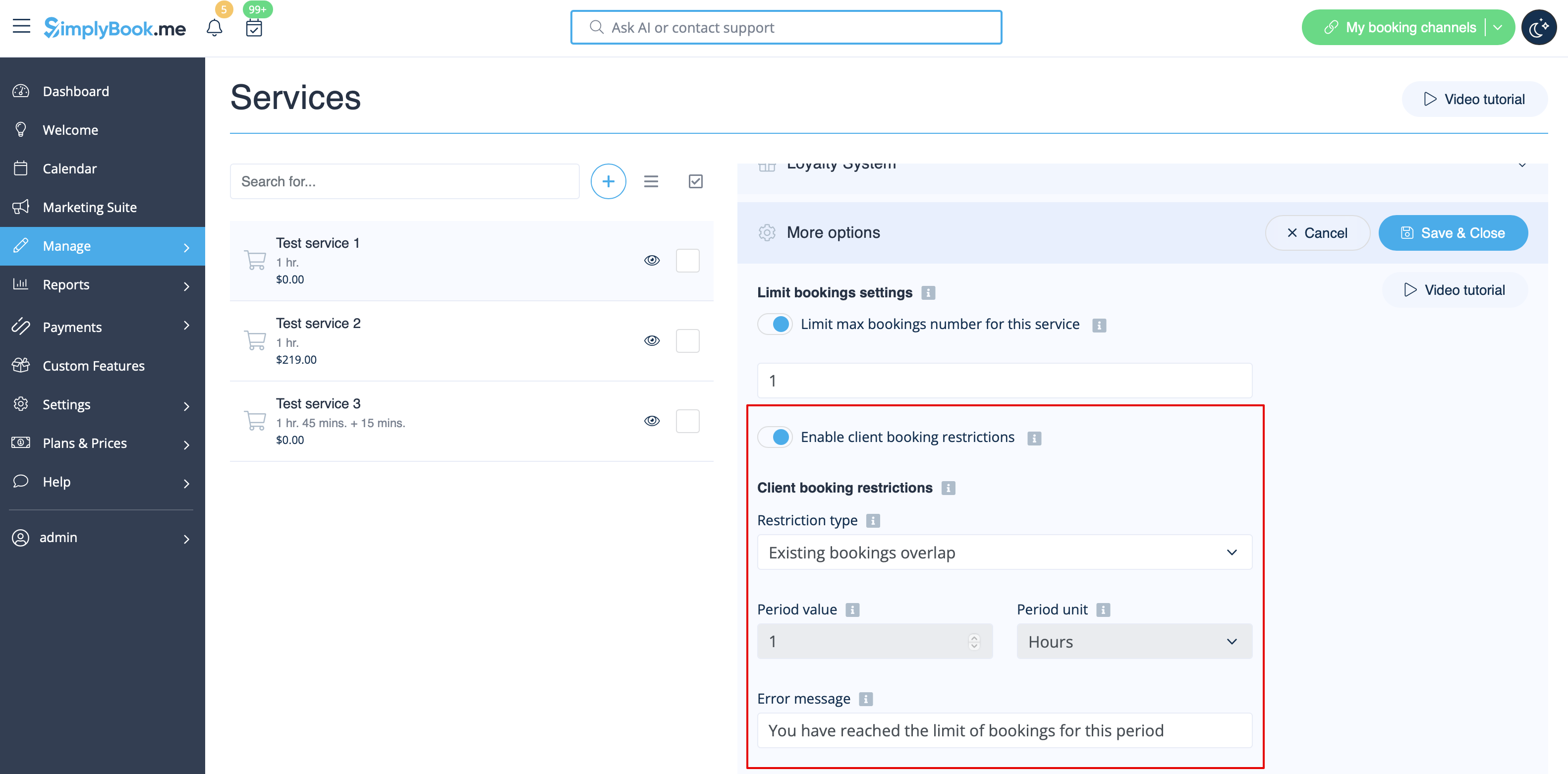
- The Existing bookings overlap option prevents a client from booking a service if its time slot overlaps with any other active booking they already have. This ensures a client cannot have two active bookings concurrently, preventing double-bookings.
- The Same Day option prevents a client from booking a new service if they already have any active booking on the same calendar day. This limits a client to one booking per day, regardless of the time or duration of the appointment.
- The Same Week option prevents a client from booking a new service if they already have any active booking within the same calendar week. This limits a client to one booking per week, regardless of the specific day or time.
- The Custom Period option prevents a client from booking new services for a specified duration both before and after their existing bookings. For instance, if a client has a booking from 10:00 AM to 11:00 AM and the restriction is 2 hours, they won't be able to make new reservations between 8:00 AM and 1:00 PM on that day. This helps manage booking frequency and ensures adequate spacing between appointments.
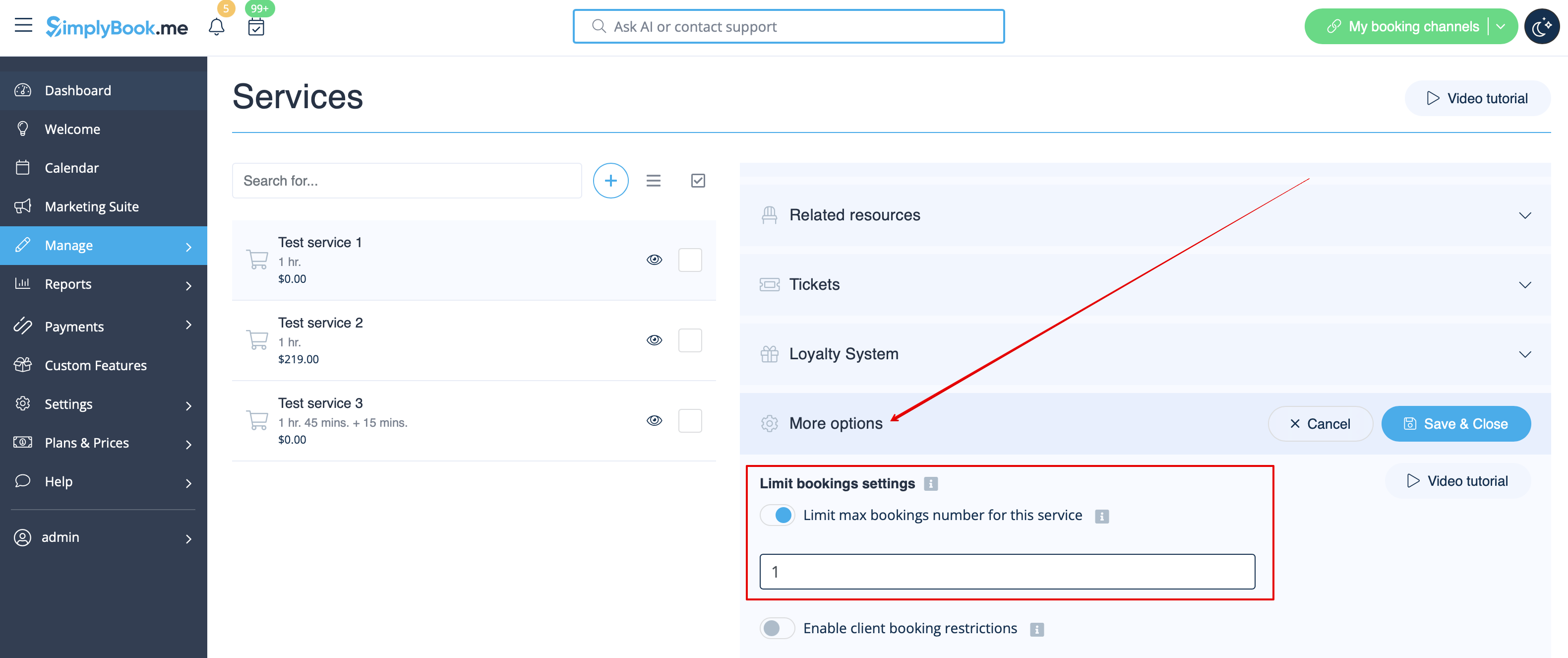
- 5. If you need to set the limit for certain service please navigate to Manage//Services(Classes) page, choose "More options" tab and set the desired number per service/class. You fill find both options there: per timeslot and per client