Translations:SBPay.me integration/17/en
From SimplyBook.me
You can now easily adjust the invoices settings to your needs and send them to your customers after any purchase.
- How to use
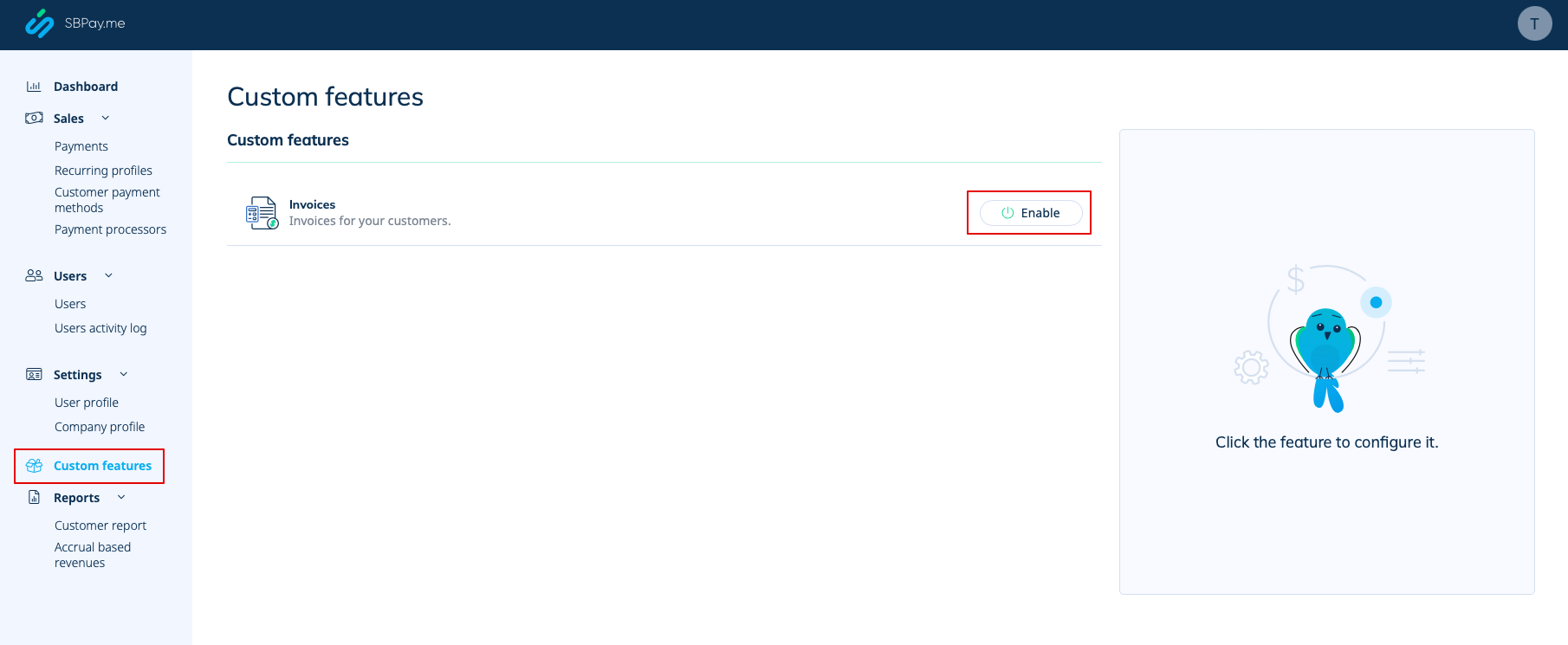
- 1. Enable the corresponding option on your "Custom features" page.
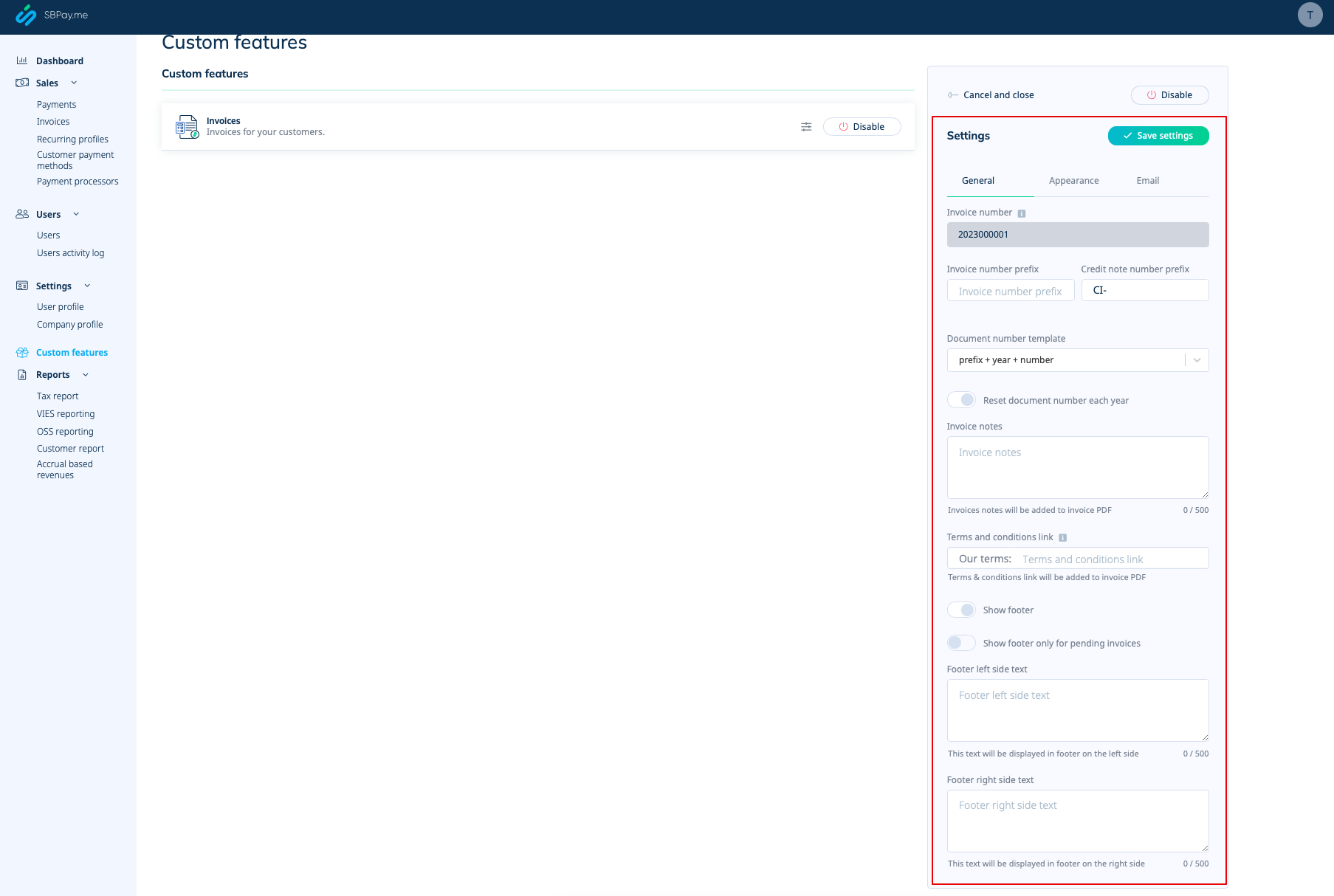
- 2. Adjust the general settings to your needs: the invoice and credit note numbering format, add notes, link to your Terms and Conditions and footer information if necessary.
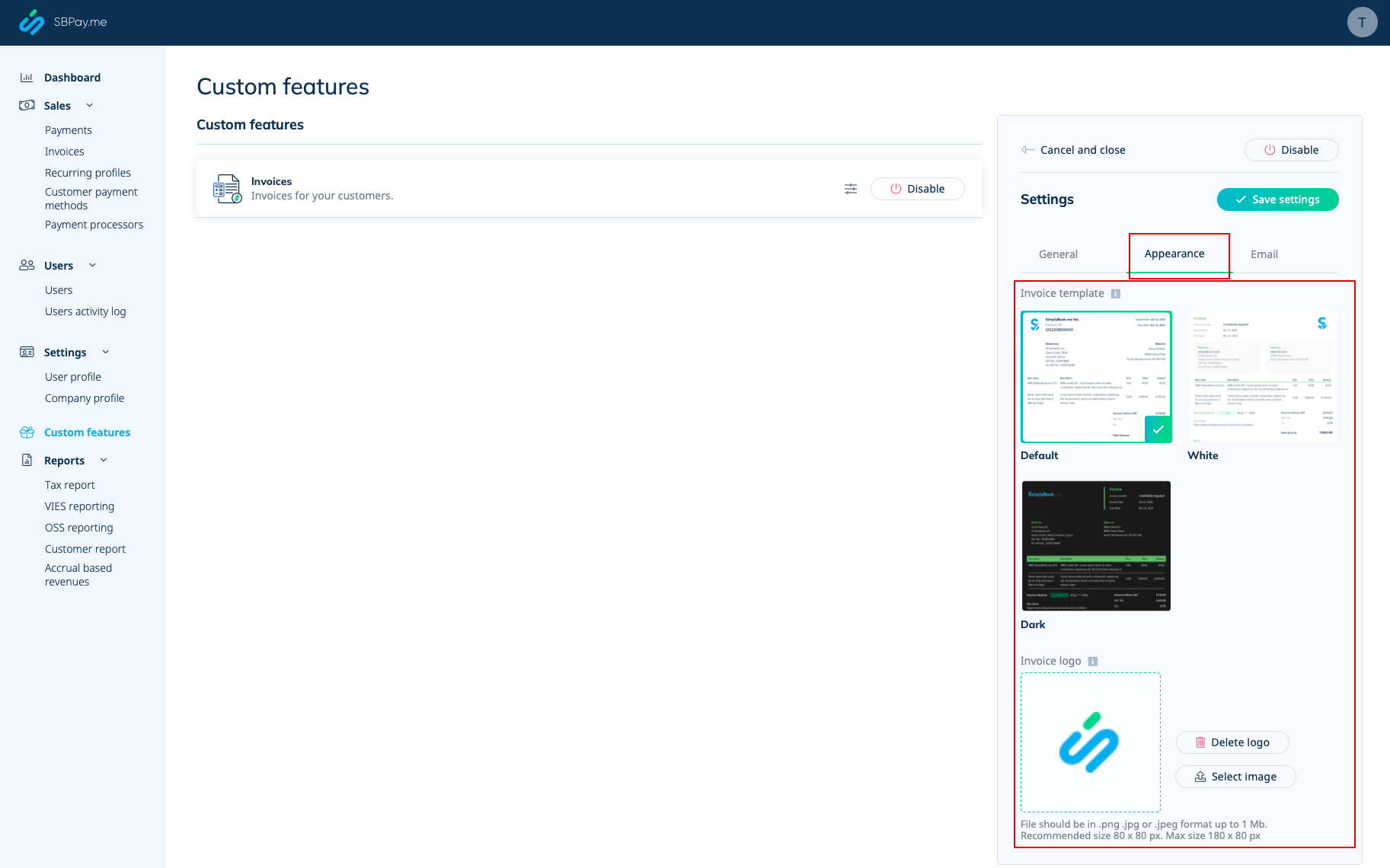
- 3. Set the desired look in "Appearance" tab, upload your company logo.
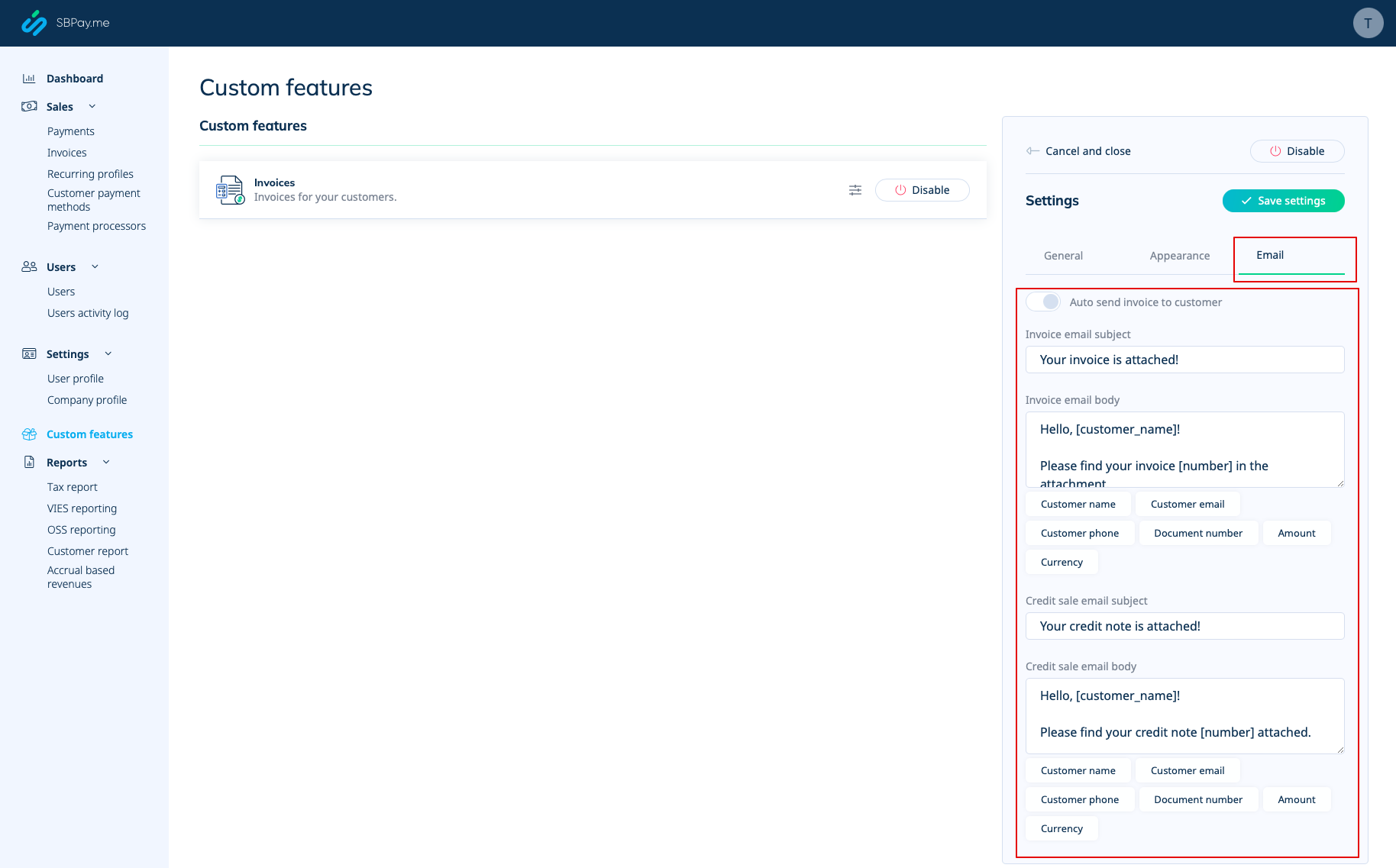
- 4. Switch to the third, "Email", tab and set the notifications templates. You can use several variables mentioned below the form. save your settings.
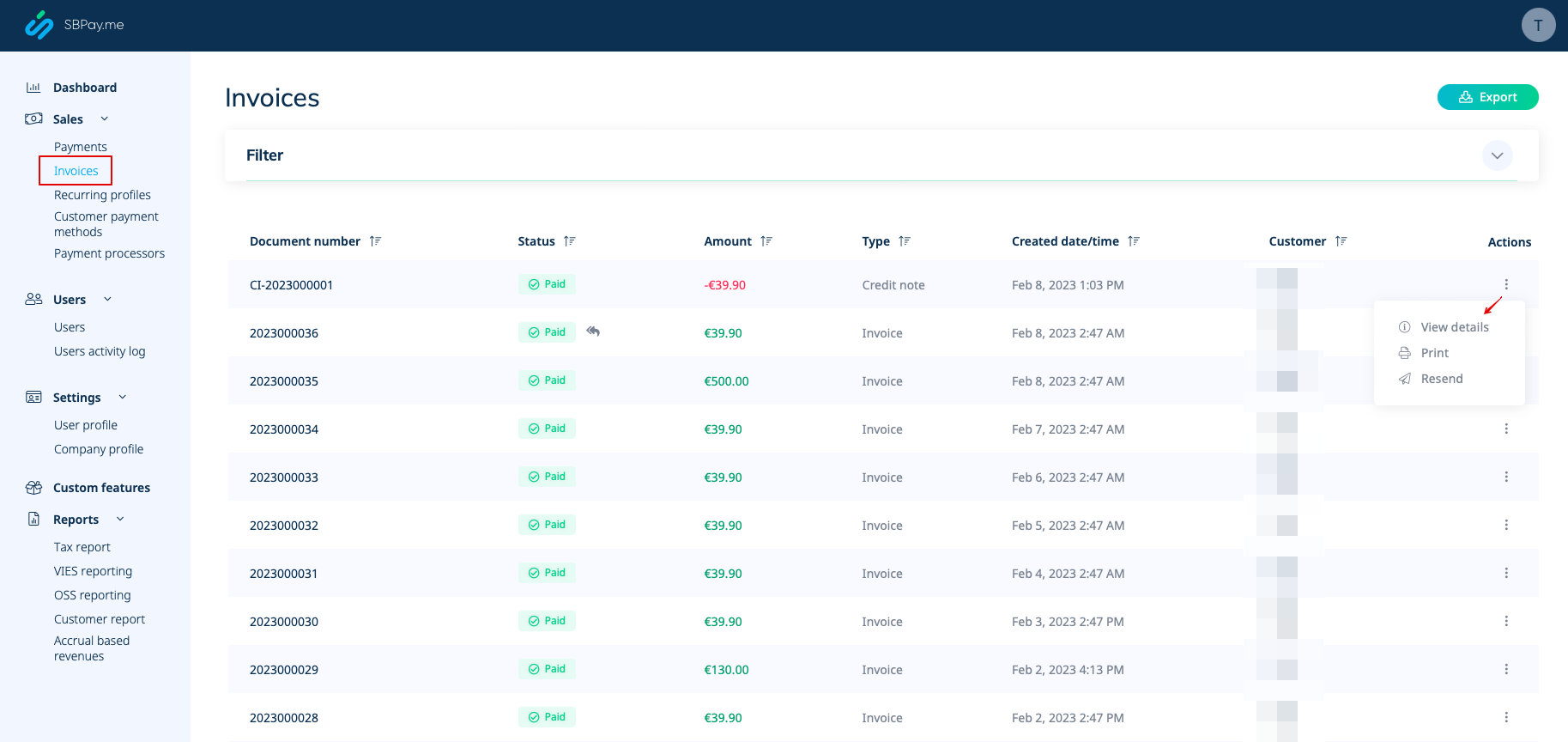
- 5. In the Sales -> Invoices you can see the list of created invoices and credits notes. You can resend them to the clients when needed, issue credit notes, print or simply view the details.
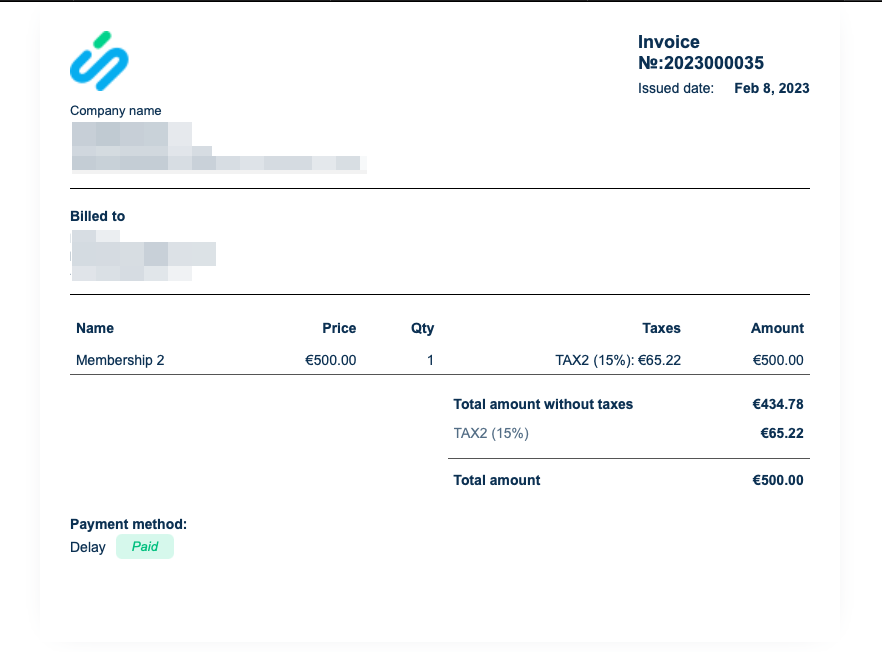
- 6. Here is the example of how print invoice version can look like.
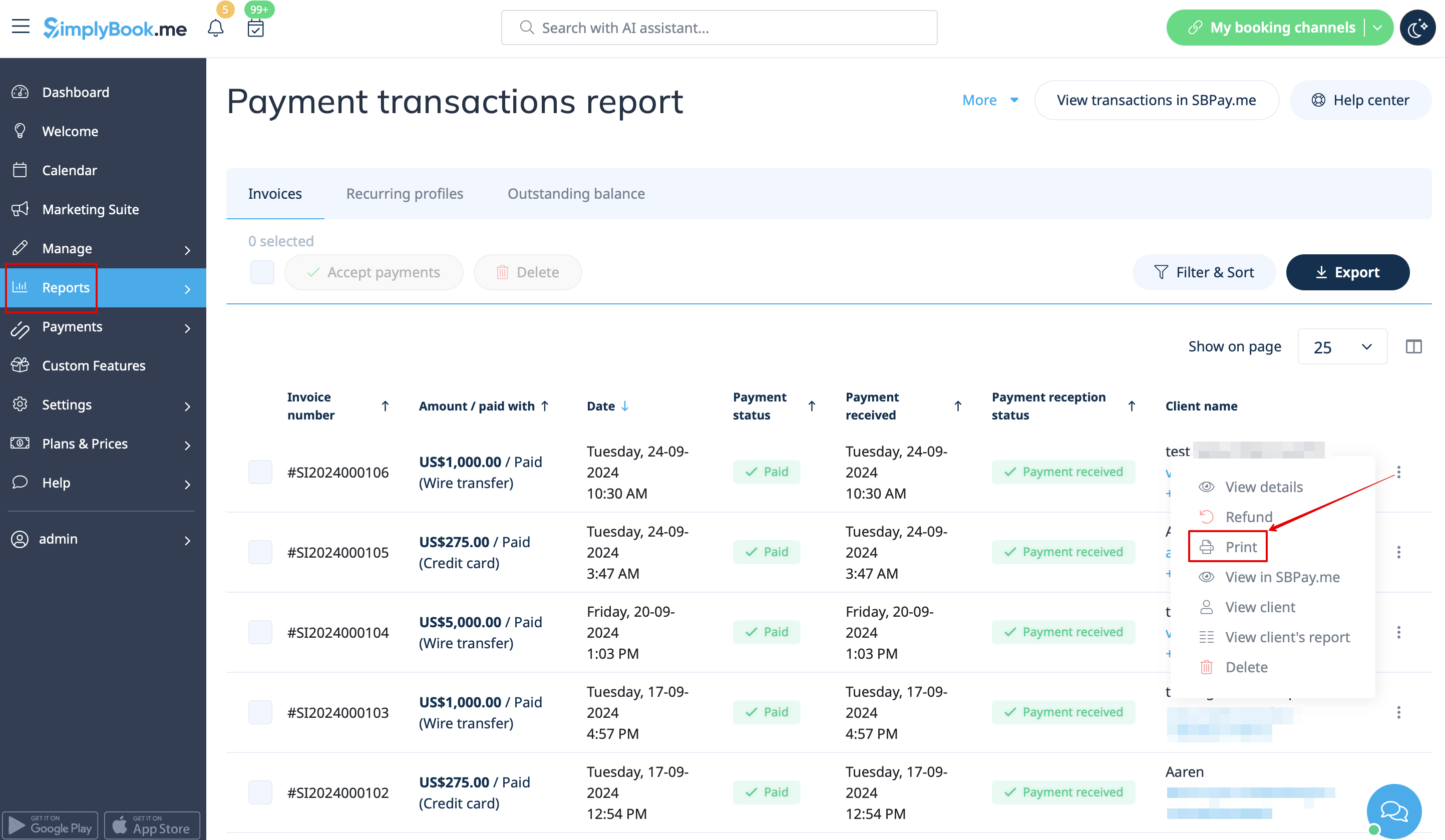
- 7. You can also print the invoices directly from the SimplyBook.me system, Reports -> Payment transactions, by selecting the corresponding action per record.
Please note! Importing invoices from external platforms directly into the system is not supported. However, SimplyBook.me offers integration options with various accounting software, including Xero, QuickBooks, and FreshBooks. You can efficiently manage your invoices within your preferred accounting system.
