From SimplyBook.me
No edit summary |
Marked this version for translation |
||
| (10 intermediate revisions by the same user not shown) | |||
| Line 1: | Line 1: | ||
<languages/> | |||
{{#seo: | |||
|title=Line bot custom feature - SimplyBook.me | |||
<translate> | |||
<!--T:5--> | |||
|description=Integrate LINE bot for automated client interactions. Enhance communication through this powerful feature. Activate now! | |||
</translate> | |||
|titlemode=append | |||
|keywords=faq, frequently asked questions, booking software, appointment system questions, appointments online, calendar software, booking system, booking calendar, scheduling software, online appointment scheduling, online scheduling, plugins, custom features, additional functionality, line bot, line integration, booking with line, line messenger, line | |||
}} | |||
<translate> | |||
<!--T:1--> | |||
[[File:Line bot.png | left]] | |||
<span style="background-color:# | <!--T:2--> | ||
The Line Bot custom feature allows your clients to book your services via Line messenger and it also works in Line mobile app. The booking bot connects with your schedule at <span style="background-color:#cdeffc; padding:5px; border-radius:5px;">[https://simplybook.me/ SimplyBook.me]</span> and guides your client throughout the booking process. | |||
<!--T:3--> | |||
Supports <span style="background-color:#cdeffc; padding:5px; border-radius:5px;">[[Special:MyLanguage/Service_Categories_custom_feature|service categories]]</span>, <span style="background-color:#cdeffc; padding:5px; border-radius:5px;">[[Special:MyLanguage/Multiple_Locations_custom_feature|multiple locations]]</span>, <span style="background-color:#cdeffc; padding:5px; border-radius:5px;">[[Special:MyLanguage/Intake_Forms_custom_feature|intake forms]]</span>, <span style="background-color:#cdeffc; padding:5px; border-radius:5px;">[[Special:MyLanguage/Accept_payments_custom_feature|online payments]]</SPAN>(but taxes are not calculated), <span style="background-color:#cdeffc; padding:5px; border-radius:5px;">[[Special:MyLanguage/Client_Login_custom_feature|client login]]</span>(but without client address). | |||
<br><br> | |||
<br><br> | |||
<span style="background-color:#ffe9e9; padding:5px; border-radius:5px;">Please note:</span> | |||
*<span style="background-color:#ffe9e9; padding:5px; border-radius:5px;">In service/provider/<span style="background-color:#cdeffc; padding:5px; border-radius:5px;">[[Special:MyLanguage/Service_Categories_custom_feature|category]]</span>/<span style="background-color:#cdeffc; padding:5px; border-radius:5px;">[[Special:MyLanguage/Multiple_Locations_custom_feature|location]]</span> descriptions limited number of symbols can be displayed.</span> | |||
*<span style="background-color:#ffe9e9; padding:5px; border-radius:5px;">In <span style="background-color:#cdeffc; padding:5px; border-radius:5px;">[[Special:MyLanguage/Intake_Forms_custom_feature|intake forms]]</span> drop-down options no more than 20 symbols can be displayed.</span> | |||
*<span style="background-color:#ffe9e9; padding:5px; border-radius:5px;">It is not possible to hide images on the booking steps.</span> | |||
<br><br> | |||
<!--T:4--> | |||
;How to use: | |||
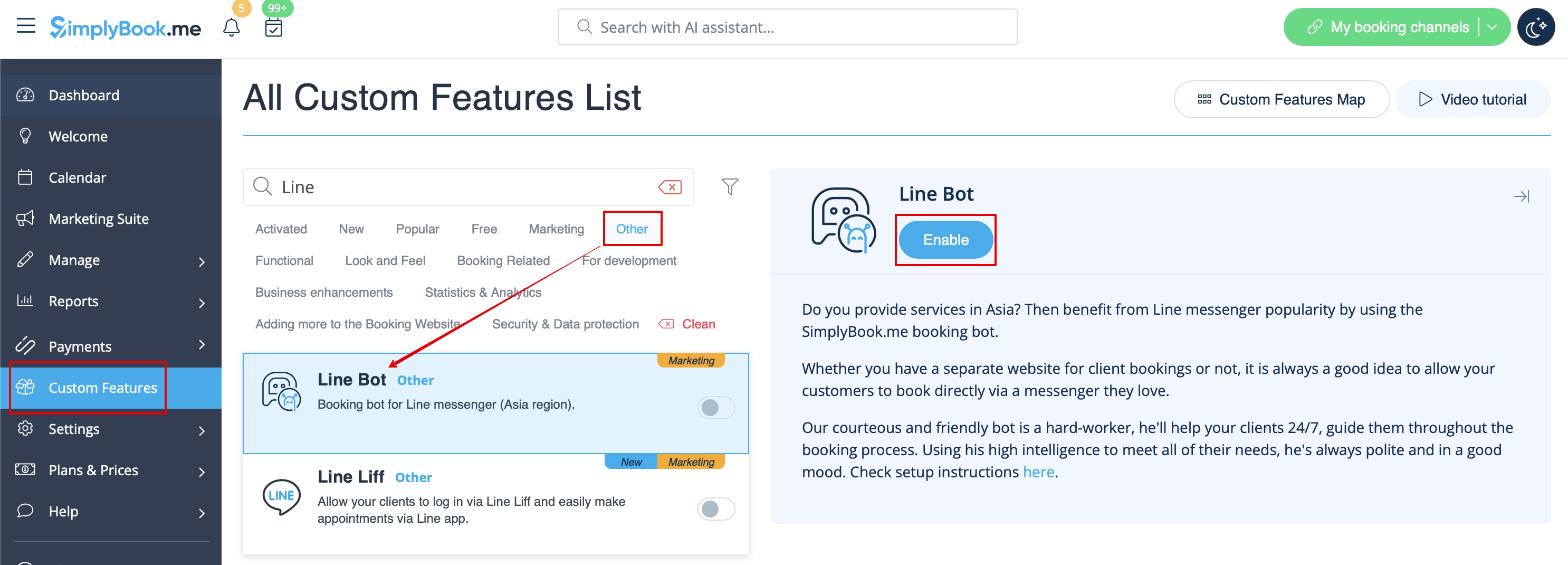
:1. Go to <span style="background-color:#d4f8e5; padding:5px; border-radius:5px;">SimplyBook.me admin side</span>, <span style="background-color:#d4f8e5; padding:5px; border-radius:5px;">custom features</span> page and enable <span style="background-color:#d4f8e5; padding:5px; border-radius:5px;">Line bot</span> custom feature. | |||
[[File:Line bot enable path redesigned.png|1200px| border| center|link=https://help.simplybook.me/images/3/3a/Line_bot_enable_path_redesigned.png]] | |||
<br><br> | |||
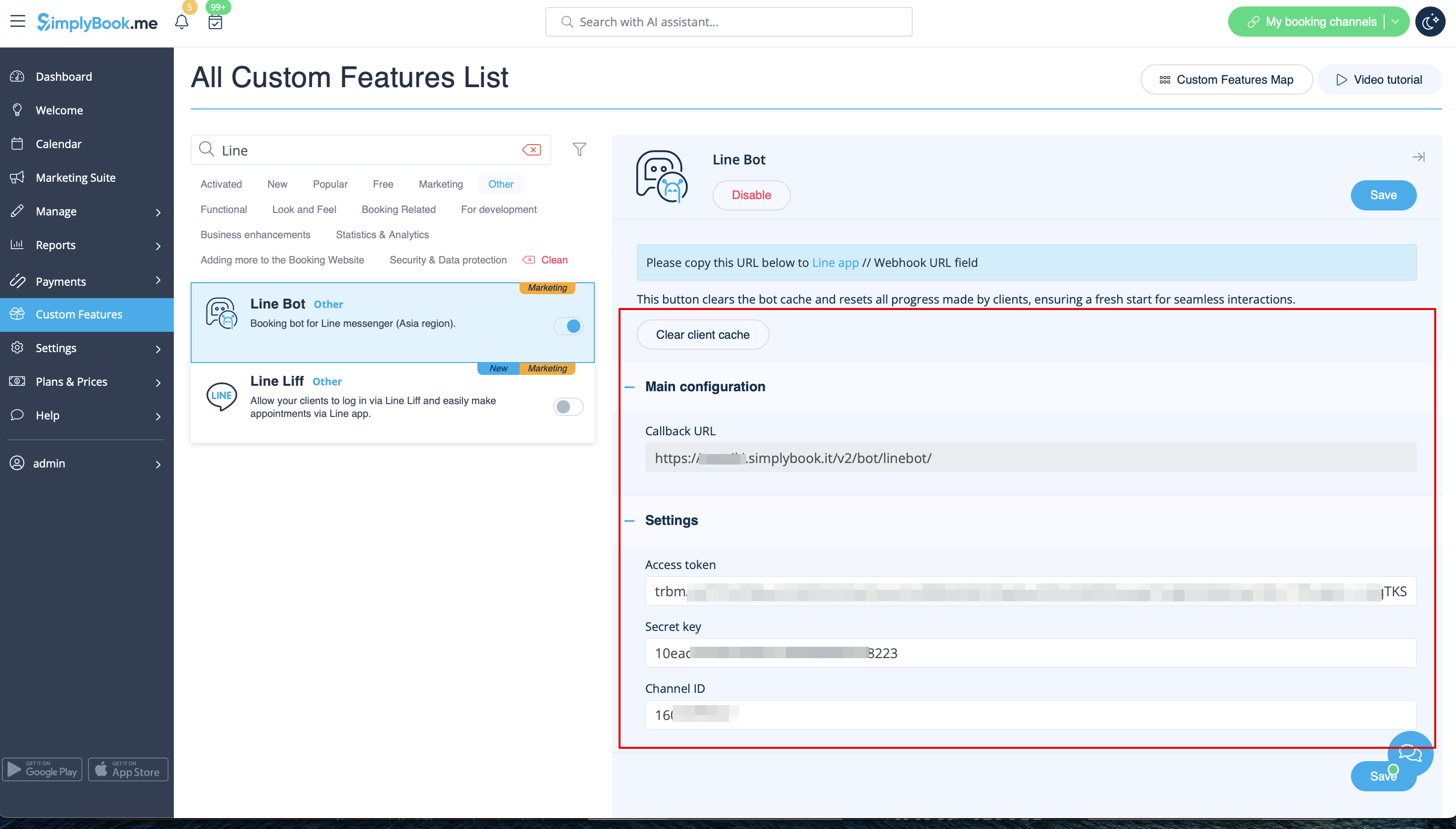
:2. Navigate to its <span style="background-color:#d4f8e5; padding:5px; border-radius:5px;">settings on the right.</span> | |||
[[File:Line bot settings redesigned.png|1200px | border| center|link=https://help.simplybook.me/images/e/e8/Line_bot_settings_redesigned.png]] | |||
<br><br> | |||
:3. Log in to <span style="background-color:#d4f8e5; padding:5px; border-radius:5px;">[https://developers.line.biz/en/ LINE Developers page]</span> and create <span style="background-color:#d4f8e5; padding:5px; border-radius:5px;">Provider</span> following the instructions listed there. | |||
[[File:Line create new provider.png | border | center]] | |||
<br><br> | |||
:4. Then create <span style="background-color:#d4f8e5; padding:5px; border-radius:5px;">new channel</span>, adding the necessary details, confirming them and agreeing to LINE Terms of Service and other required options. | |||
[[File:Line creat new channel.png | border| center]] | |||
<br><br> | |||
[[File:Line create new channel-messaging api.png | border| center]] | |||
<br><br> | |||
:5. An application will be created, please click on it to get to the channel credentials. | |||
<br><br> | |||
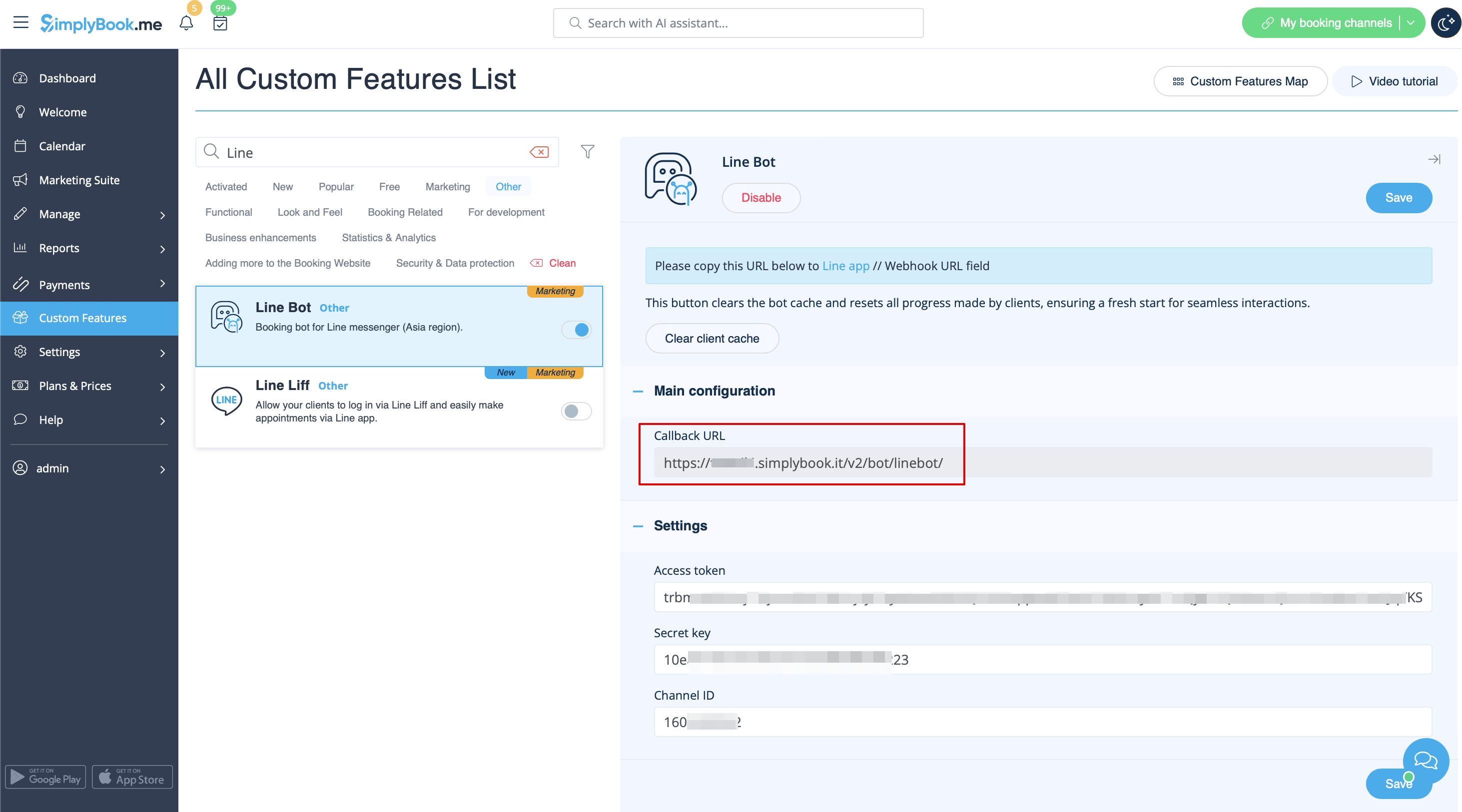
:6. Switch to <span style="background-color:#d4f8e5; padding:5px; border-radius:5px;">SimplyBook.me admin side</span> tab with Line Bot feature settings and copy <span style="background-color:#d4f8e5; padding:5px; border-radius:5px;">Callback URL</span> from there. | |||
[[File:Line bot callback url redesigned.png|1200px | border| center|link=https://help.simplybook.me/images/9/91/Line_bot_callback_url_redesigned.png]] | |||
<br><br> | |||
:7. Add this url to the <span style="background-color:#d4f8e5; padding:5px; border-radius:5px;">Webhook URL</span> box in <span style="background-color:#d4f8e5; padding:5px; border-radius:5px;">Messaging settings</span> section of <span style="background-color:#d4f8e5; padding:5px; border-radius:5px;">LINE Developers channel</span> page. | |||
[[File:Line Add calback url.png | border|center]] | |||
<br><br> | |||
:8. Enable <span style="background-color:#d4f8e5; padding:5px; border-radius:5px;">Use webhooks</span>. | |||
[[File:Line enable webhooks.png |border| center]] | |||
<br><br> | |||
:9. Issue <span style="background-color:#d4f8e5; padding:5px; border-radius:5px;">Channel access token (long-lived)</span> and insert it to <span style="background-color:#d4f8e5; padding:5px; border-radius:5px;">Simplybook.me feature settings</span> to <span style="background-color:#d4f8e5; padding:5px; border-radius:5px;">Access token</span> box. | |||
[[File:Line issue access token.png |border|center]] | |||
<br><br> | |||
:10. Proceed to <span style="background-color:#d4f8e5; padding:5px; border-radius:5px;">Using LINE@ features</span> section and disable <span style="background-color:#d4f8e5; padding:5px; border-radius:5px;">auto-replies</span> according to the following example. | |||
[[File:Line disable automessages.png |border| center]] | |||
<br><br> | |||
[[File:Line autoresponse settings.png | border| center]] | |||
<br><br> | |||
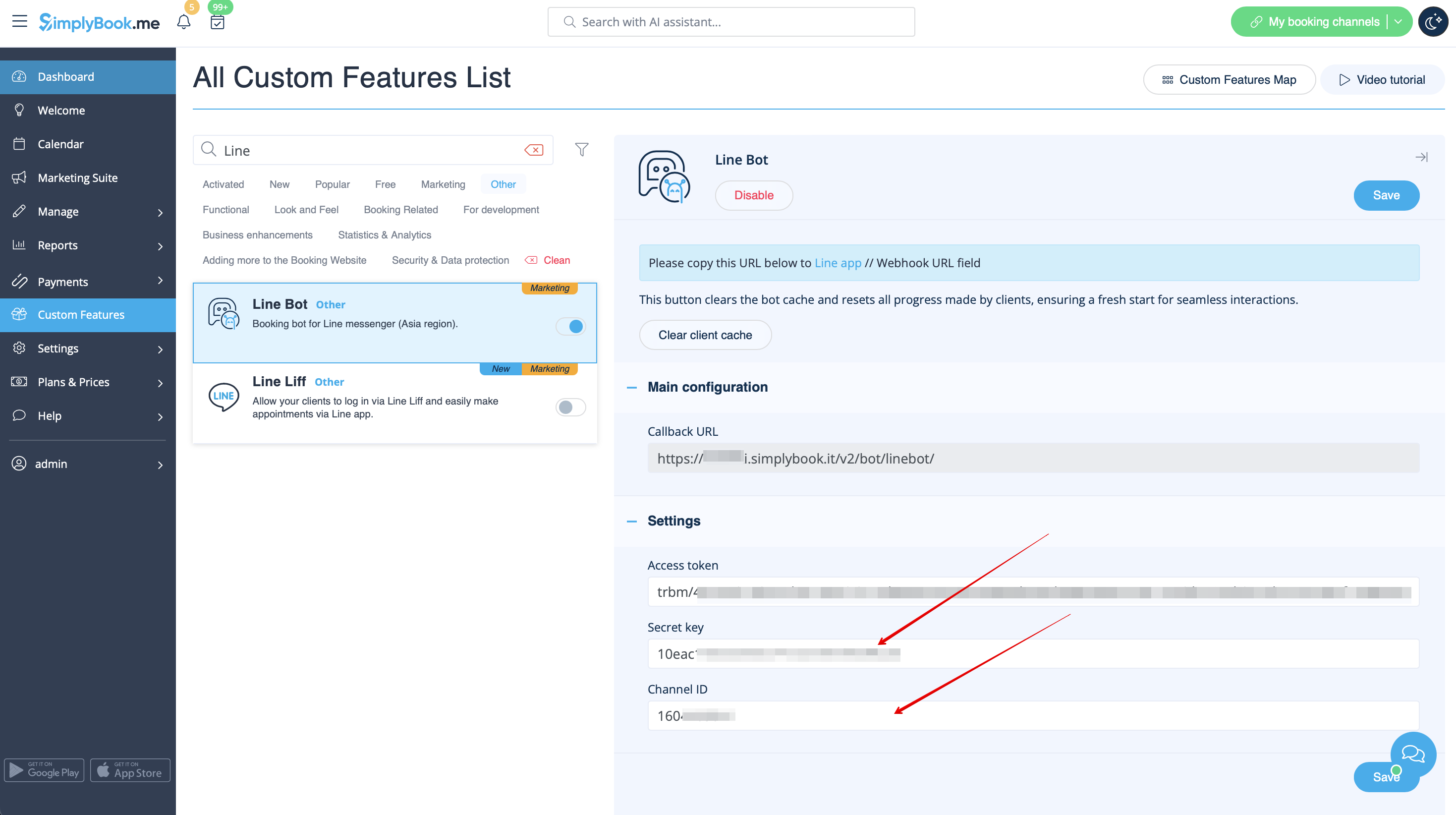
:11. Copy <span style="background-color:#d4f8e5; padding:5px; border-radius:5px;">Channel ID</span> and <span style="background-color:#d4f8e5; padding:5px; border-radius:5px;">Channel secret</span> and insert them to the <span style="background-color:#d4f8e5; padding:5px; border-radius:5px;">corresponding settings boxes on SimplyBook.me side.</span> Save settings. | |||
[[File:Line-channel id and secret.png|border | center]] | |||
<br><br> | |||
[[File:Line bot secret kay and channel id redesigned.png|1200px |border| center|link=https://help.simplybook.me/images/f/f0/Line_bot_secret_kay_and_channel_id_redesigned.png]] | |||
<br><br> | |||
:12. After bot is approved from the LINE side your clients will be able to book using it. In the meanwhile you can add testers or try your bot using LINE mobile app. | |||
<br><br> | |||
<br><br> | |||
</translate> | |||
Latest revision as of 15:35, 15 January 2025

The Line Bot custom feature allows your clients to book your services via Line messenger and it also works in Line mobile app. The booking bot connects with your schedule at SimplyBook.me and guides your client throughout the booking process.
Supports service categories, multiple locations, intake forms, online payments(but taxes are not calculated), client login(but without client address).
Please note:
- In service/provider/category/location descriptions limited number of symbols can be displayed.
- In intake forms drop-down options no more than 20 symbols can be displayed.
- It is not possible to hide images on the booking steps.
- How to use
- 1. Go to SimplyBook.me admin side, custom features page and enable Line bot custom feature.
- 2. Navigate to its settings on the right.
- 3. Log in to LINE Developers page and create Provider following the instructions listed there.

- 4. Then create new channel, adding the necessary details, confirming them and agreeing to LINE Terms of Service and other required options.


- 5. An application will be created, please click on it to get to the channel credentials.
- 6. Switch to SimplyBook.me admin side tab with Line Bot feature settings and copy Callback URL from there.
- 7. Add this url to the Webhook URL box in Messaging settings section of LINE Developers channel page.

- 8. Enable Use webhooks.

- 9. Issue Channel access token (long-lived) and insert it to Simplybook.me feature settings to Access token box.

- 10. Proceed to Using LINE@ features section and disable auto-replies according to the following example.


- 11. Copy Channel ID and Channel secret and insert them to the corresponding settings boxes on SimplyBook.me side. Save settings.

- 12. After bot is approved from the LINE side your clients will be able to book using it. In the meanwhile you can add testers or try your bot using LINE mobile app.
