Translations:Widgets for your own website/4/nl: Difference between revisions

From SimplyBook.me
Created page with "= iFrame-widget = <br><br> :1. Neem de iFrame-code van uw boekingspagina in <span style="background-color:#d4f8e5; padding:5px; border-radius:5px;">Instellingen</span> -> <span style="background-color:#d4f8e5; padding:5px; border-radius:5px;">Instellingen boekingswidgets</span> -> <span style="background-color:#d4f8e5; padding:5px; border-radius:5px;">iFrame-widget</span> -> <span style="background-color:#d4f8e5; padding:5px; border-radius:5px;">Widgetcode ophal..."
(No difference)

Revision as of 12:24, 19 May 2025

Information about message (contribute)
This message has no documentation. If you know where or how this message is used, you can help other translators by adding documentation to this message.
Message definition (Widgets for your own website)
=iFrame Widget=
<br><br>
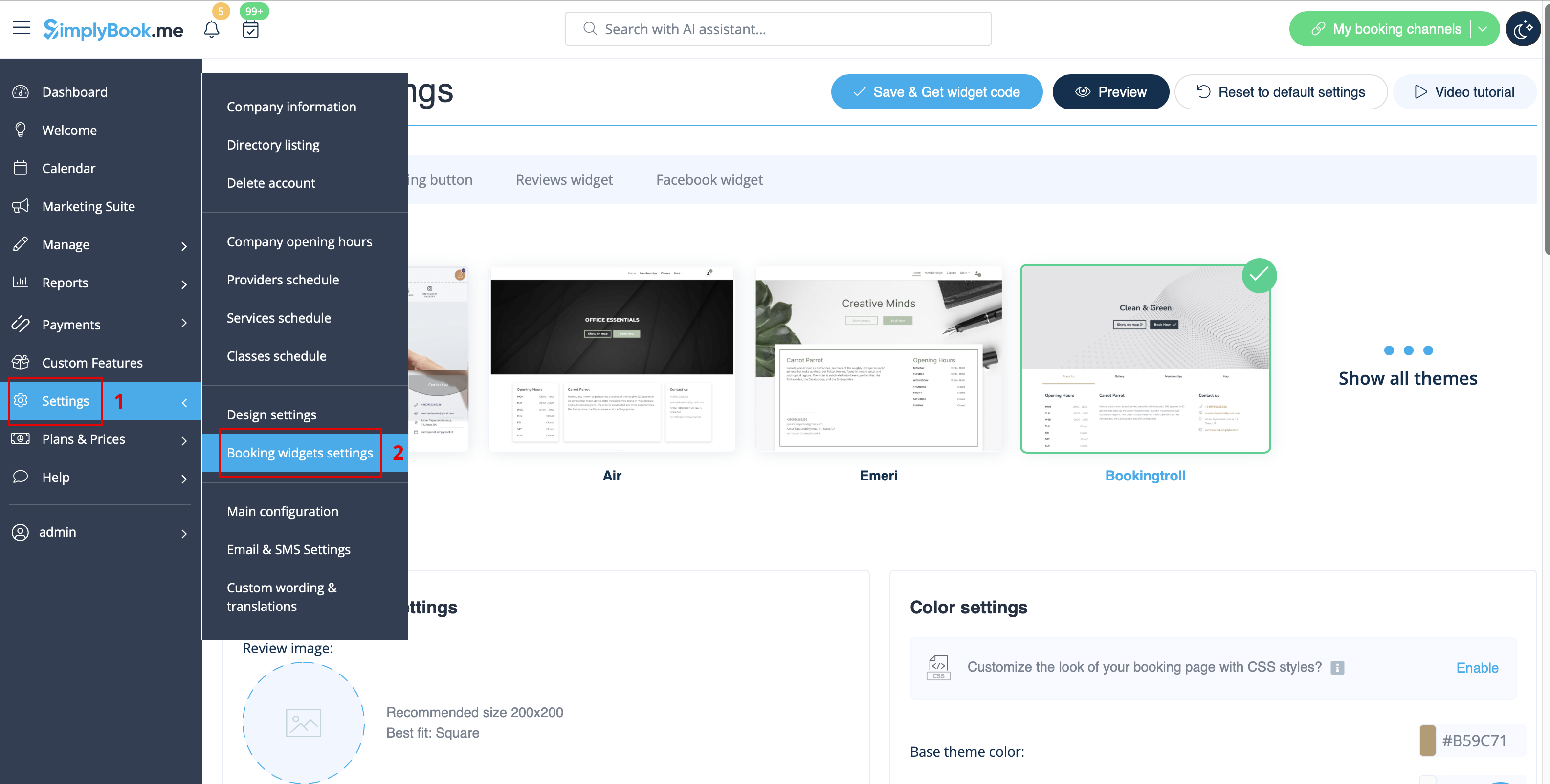
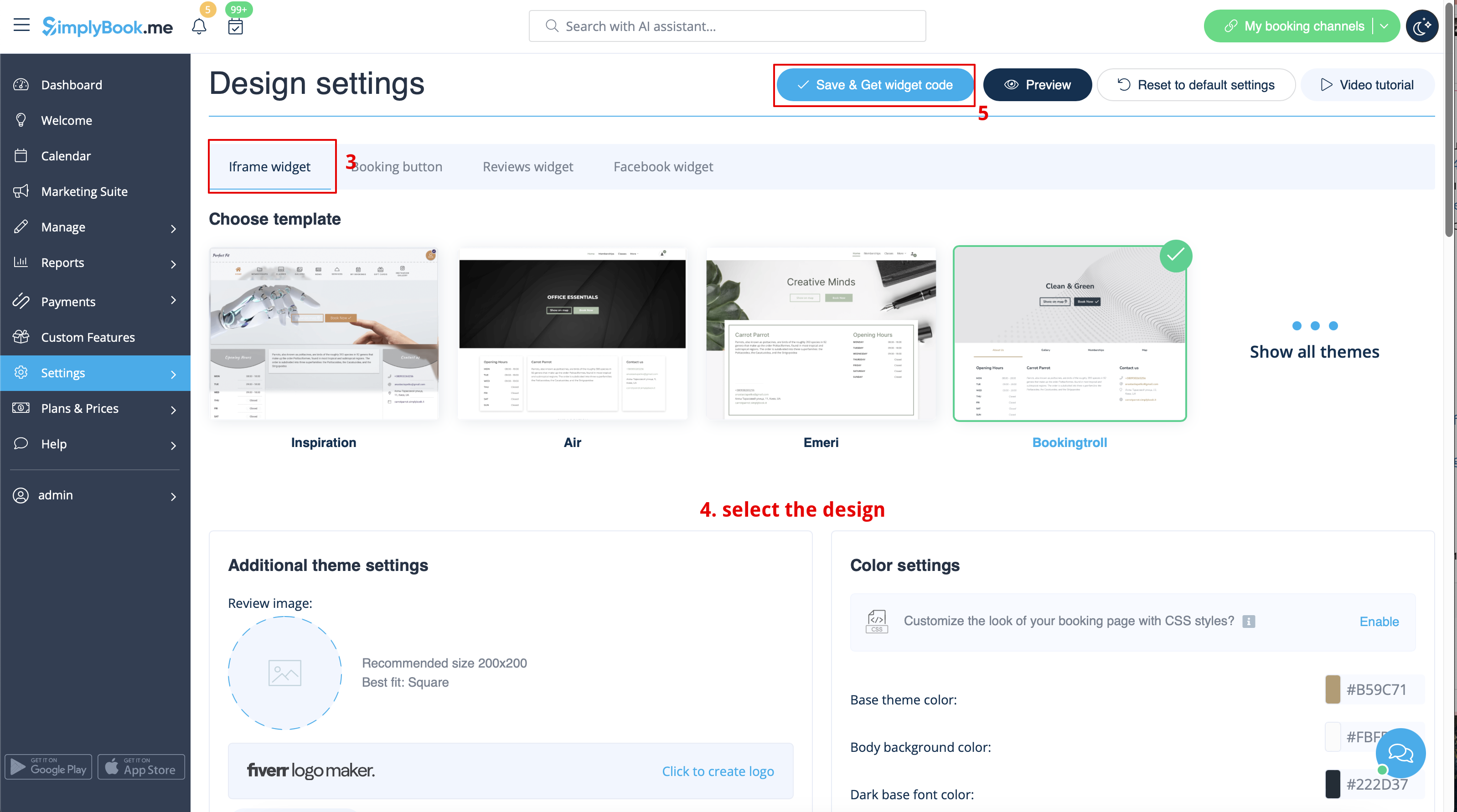
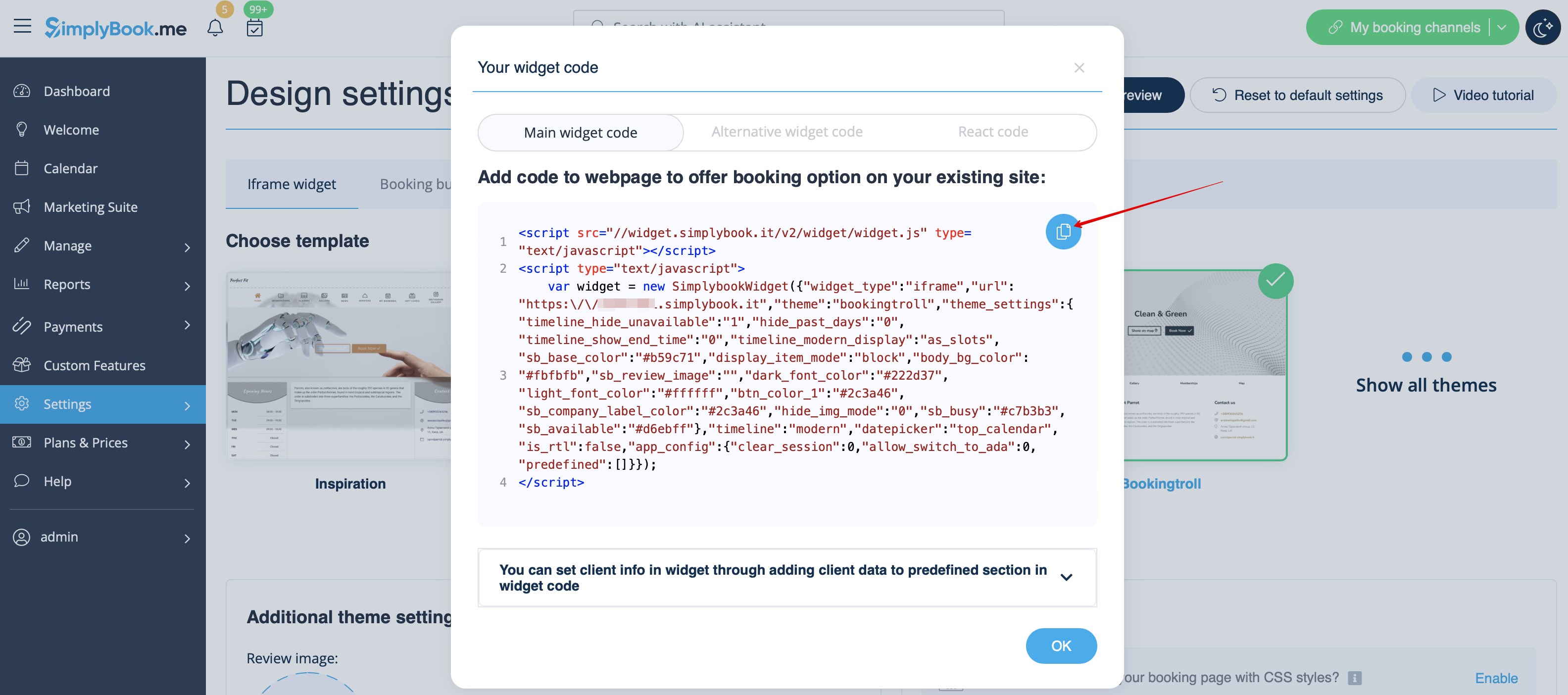
:1. Take the iFrame code of your booking page in <span style="background-color:#d4f8e5; padding:5px; border-radius:5px;">Settings</span> -> <span style="background-color:#d4f8e5; padding:5px; border-radius:5px;">Booking widgets settings</span> -> <span style="background-color:#d4f8e5; padding:5px; border-radius:5px;">iFrame widget</span> -> <span style="background-color:#d4f8e5; padding:5px; border-radius:5px;">Get widget code.</span>
[[File:Booking widget path redesigned.png|1200px | center|link=https://help.simplybook.me/images/6/68/Booking_widget_path_redesigned.png]]
<br><br>
[[File:Booking widget design path redesigned.png|1200px | center|link=https://help.simplybook.me/images/3/37/Booking_widget_design_path_redesigned.png]]
<br><br>
[[File:Copy widget code redesigned.png|1200px | center|link=https://help.simplybook.me/images/b/b4/Copy_widget_code_redesigned.png ]]
<br><br>
:2. Insert it to the HTML code <body> of your website (or any other place in your website platform designed for inserting HTML JavaScript iFrame code). <br>
<span style="background-color:#ffe9e9; padding:5px; border-radius:5px;">'''Please note!''' Different website builders/platforms may have various ways to add HTML code, you should check first whether your website supports inserting HTML JavaScript code.</span>
:'''Here are tutorials for several popular website builders:'''
:::*[[Special:MyLanguage/WordPress_integration |Wordpress]]
:::*[[Special:MyLanguage/Shopify |Shopify]]
:::*[[Special:MyLanguage/Joomla_integration |Joomla]]
:::*[[Special:MyLanguage/Squarespace |Squarespace]]
:::*[[Special:MyLanguage/Weebly |Weebly]]
:::*[[Special:MyLanguage/Go_Daddy |Go Daddy]]
:::*[[Special:MyLanguage/SITE123_integration |SITE123]]

iFrame-widget


1. Neem de iFrame-code van uw boekingspagina in Instellingen -> Instellingen boekingswidgets -> iFrame-widget -> Widgetcode ophalen.


2. Voeg deze toe aan de HTML-code <body> van uw website (of een andere plaats op uw websiteplatform die is ontworpen voor het invoegen van HTML JavaScript iFrame-code).

Let op! Verschillende websitebouwers/platforms kunnen verschillende manieren hebben om HTML-code toe te voegen. Controleer eerst of uw website het invoegen van HTML JavaScript-code ondersteunt.

Hier zijn tutorials voor verschillende populaire websitebouwers:
*Wordpress
*Shopify
*Joomla
*Wix
*Squarespace
*Weebly
*Go Daddy
*SITE123