From SimplyBook.me
No edit summary |
No edit summary |
||
| Line 1: | Line 1: | ||
<languages/> | |||
<translate> | |||
{{#seo: | {{#seo: | ||
|title=Medical test custom feature - SimplyBook.me | |title=Medical test custom feature - SimplyBook.me | ||
| Line 4: | Line 6: | ||
|titlemode=append | |titlemode=append | ||
|keywords=faq, frequently asked questions, booking software, appointment system questions, appointments online, calendar software, booking system, booking calendar, scheduling software, online appointment scheduling, online scheduling, plugins, custom features, additional functionality, medical testing, covid testing, medical test, covid test, test scheduling, | |keywords=faq, frequently asked questions, booking software, appointment system questions, appointments online, calendar software, booking system, booking calendar, scheduling software, online appointment scheduling, online scheduling, plugins, custom features, additional functionality, medical testing, covid testing, medical test, covid test, test scheduling, | ||
}} | }}</translate> | ||
<translate> | |||
| Line 10: | Line 13: | ||
<br><br> | <br><br> | ||
The medical test feature allows you to easily check in persons for testing, and send them access to results after their test results are ready. On arrival, their ticket is scanned and they get an arrived status. This ticket can be printed and put on the persons test tube. When the results are ready, the ticket can be scanned for quick processing of results that will be sent to a person via email and/or SMS. The results can be added in a message, or person can be asked to log in to their account on booking website to get the results and a downloadable PDF form with company branding. | The medical test feature allows you to easily check in persons for testing, and send them access to results after their test results are ready. On arrival, their ticket is scanned and they get an arrived status. This ticket can be printed and put on the persons test tube. When the results are ready, the ticket can be scanned for quick processing of results that will be sent to a person via email and/or SMS. The results can be added in a message, or person can be asked to log in to their account on booking website to get the results and a downloadable PDF form with company branding. | ||
<br><br><br><br> | <br><br><br><br></translate> | ||
<translate> | |||
<span style="background-color:#ffe9e9; padding:5px; border-radius:5px;">'''Please note!'''</span> | <span style="background-color:#ffe9e9; padding:5px; border-radius:5px;">'''Please note!'''</span> | ||
* <span style="background-color:#ffe9e9; padding:5px; border-radius:5px;">When you enable Medical Test custom feature <span style="background-color:#cdeffc; padding:5px; border-radius:5px;">[[Tickets_custom_feature|Tickets]]</span> feature will be enabled as well;</span> | * <span style="background-color:#ffe9e9; padding:5px; border-radius:5px;">When you enable Medical Test custom feature <span style="background-color:#cdeffc; padding:5px; border-radius:5px;">[[Tickets_custom_feature|Tickets]]</span> feature will be enabled as well;</span> | ||
* <span style="background-color:#ffe9e9; padding:5px; border-radius:5px;">This custom feature is available with certain subscriptions only. Please check your plan details in your account <span style="background-color:#d4f8e5; padding:5px; border-radius:5px;">Plans&Prices</span> -> <span style="background-color:#d4f8e5; padding:5px; border-radius:5px;">Subscriptions</span> or contact support to check if it is included.</span> | * <span style="background-color:#ffe9e9; padding:5px; border-radius:5px;">This custom feature is available with certain subscriptions only. Please check your plan details in your account <span style="background-color:#d4f8e5; padding:5px; border-radius:5px;">Plans&Prices</span> -> <span style="background-color:#d4f8e5; padding:5px; border-radius:5px;">Subscriptions</span> or contact support to check if it is included.</span> | ||
<br><br><br><br> | <br><br><br><br></translate> | ||
<translate> | |||
;How to use | ;How to use | ||
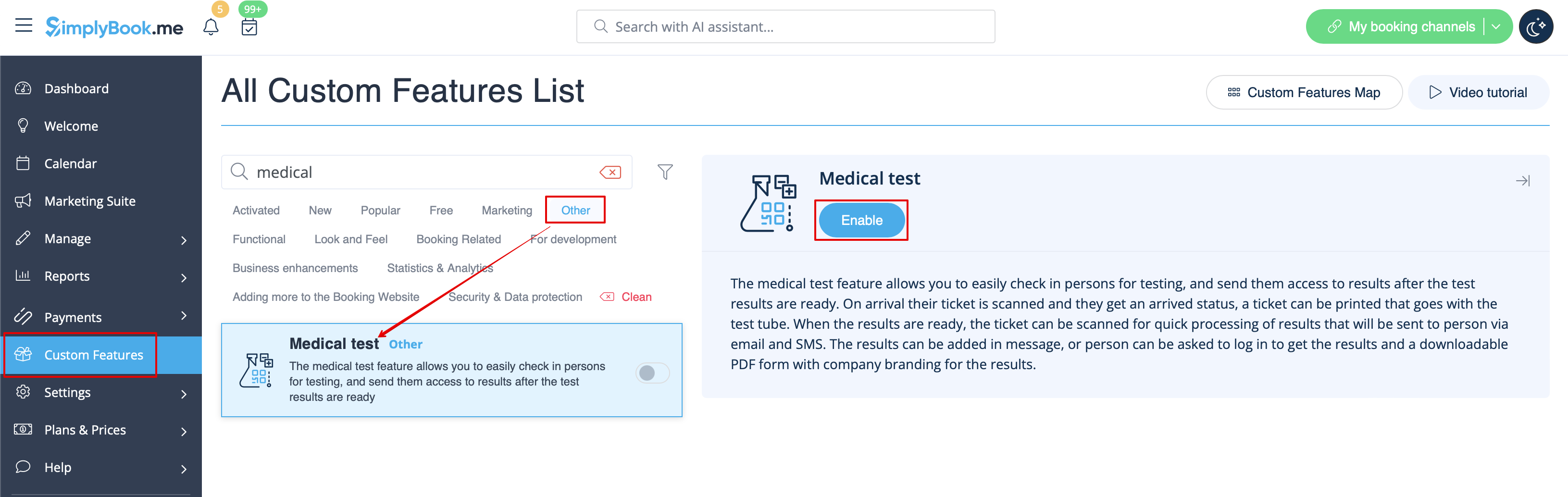
:1. Enable <span style="background-color:#d4f8e5; padding:5px; border-radius:5px;">Medical test</span> custom feature on your <span style="background-color:#d4f8e5; padding:5px; border-radius:5px;">Custom features</span> page, <span style="background-color:#d4f8e5; padding:5px; border-radius:5px;">Other</span> section(or use search there). | :1. Enable <span style="background-color:#d4f8e5; padding:5px; border-radius:5px;">Medical test</span> custom feature on your <span style="background-color:#d4f8e5; padding:5px; border-radius:5px;">Custom features</span> page, <span style="background-color:#d4f8e5; padding:5px; border-radius:5px;">Other</span> section(or use search there). | ||
[[File:Medical test enable path redesigned.png|border|center|1200px|link=https://help.simplybook.me/images/8/8e/Medical_test_enable_path_redesigned.png]] | [[File:Medical test enable path redesigned.png|border|center|1200px|link=https://help.simplybook.me/images/8/8e/Medical_test_enable_path_redesigned.png]] | ||
<br><br> | <br><br></translate> | ||
<translate> | |||
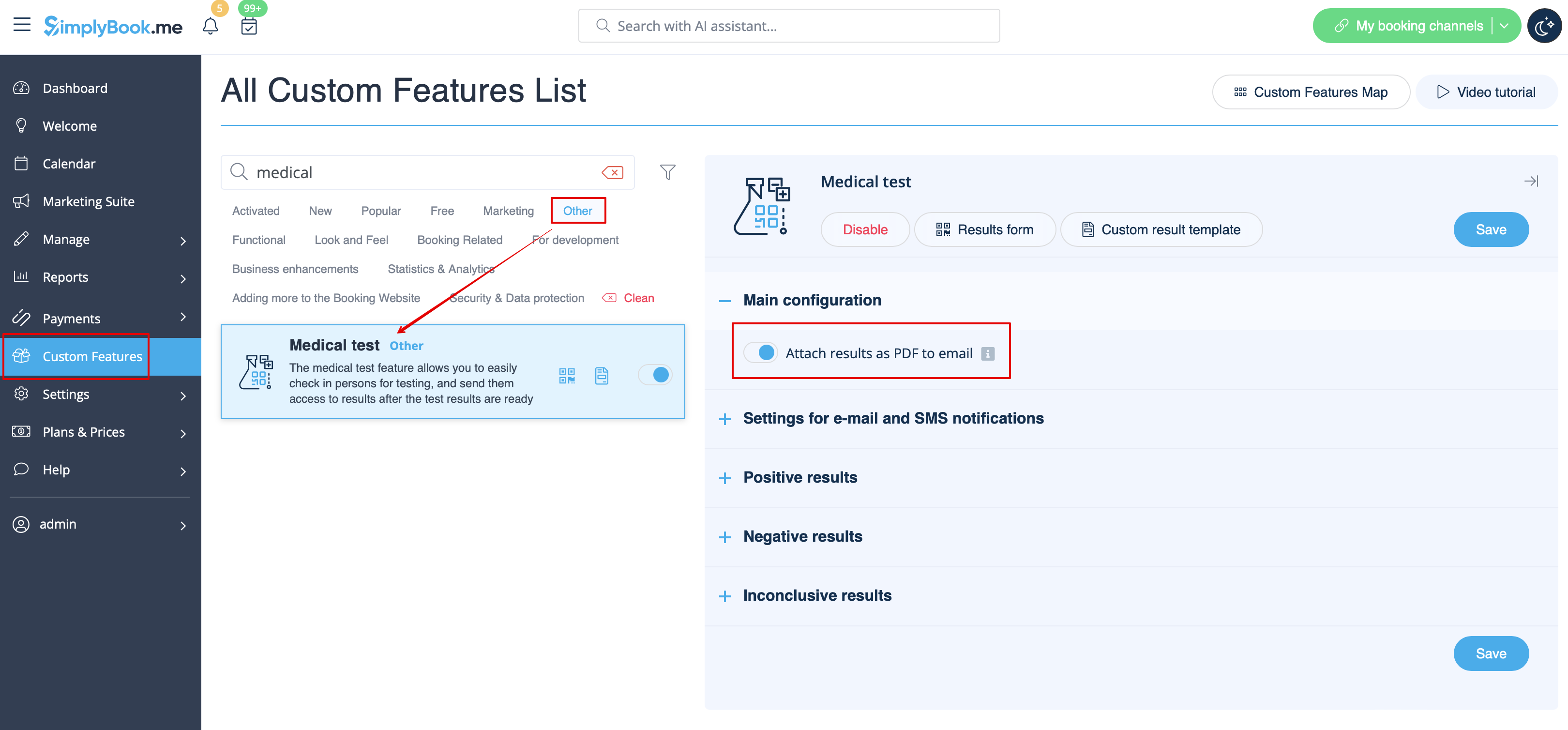
:2. On the right side of the page select your preferences for results display.<br> | :2. On the right side of the page select your preferences for results display.<br> | ||
:It is mandatory to either enable <span style="background-color:#cdeffc; padding:5px; border-radius:5px;">[[Client_Login_custom_feature|Client Login]]</span> custom feature or <span style="background-color:#d4f8e5; padding:5px; border-radius:5px;">Attach results as PDF to email</span> option. Otherwise the feature will not work. | :It is mandatory to either enable <span style="background-color:#cdeffc; padding:5px; border-radius:5px;">[[Client_Login_custom_feature|Client Login]]</span> custom feature or <span style="background-color:#d4f8e5; padding:5px; border-radius:5px;">Attach results as PDF to email</span> option. Otherwise the feature will not work. | ||
[[File:Medical test attach pdf redesigned.png|border|center|1200px|link=https://help.simplybook.me/images/f/fd/Medical_test_attach_pdf_redesigned.png]] | [[File:Medical test attach pdf redesigned.png|border|center|1200px|link=https://help.simplybook.me/images/f/fd/Medical_test_attach_pdf_redesigned.png]] | ||
<br><br> | <br><br></translate> | ||
<translate> | |||
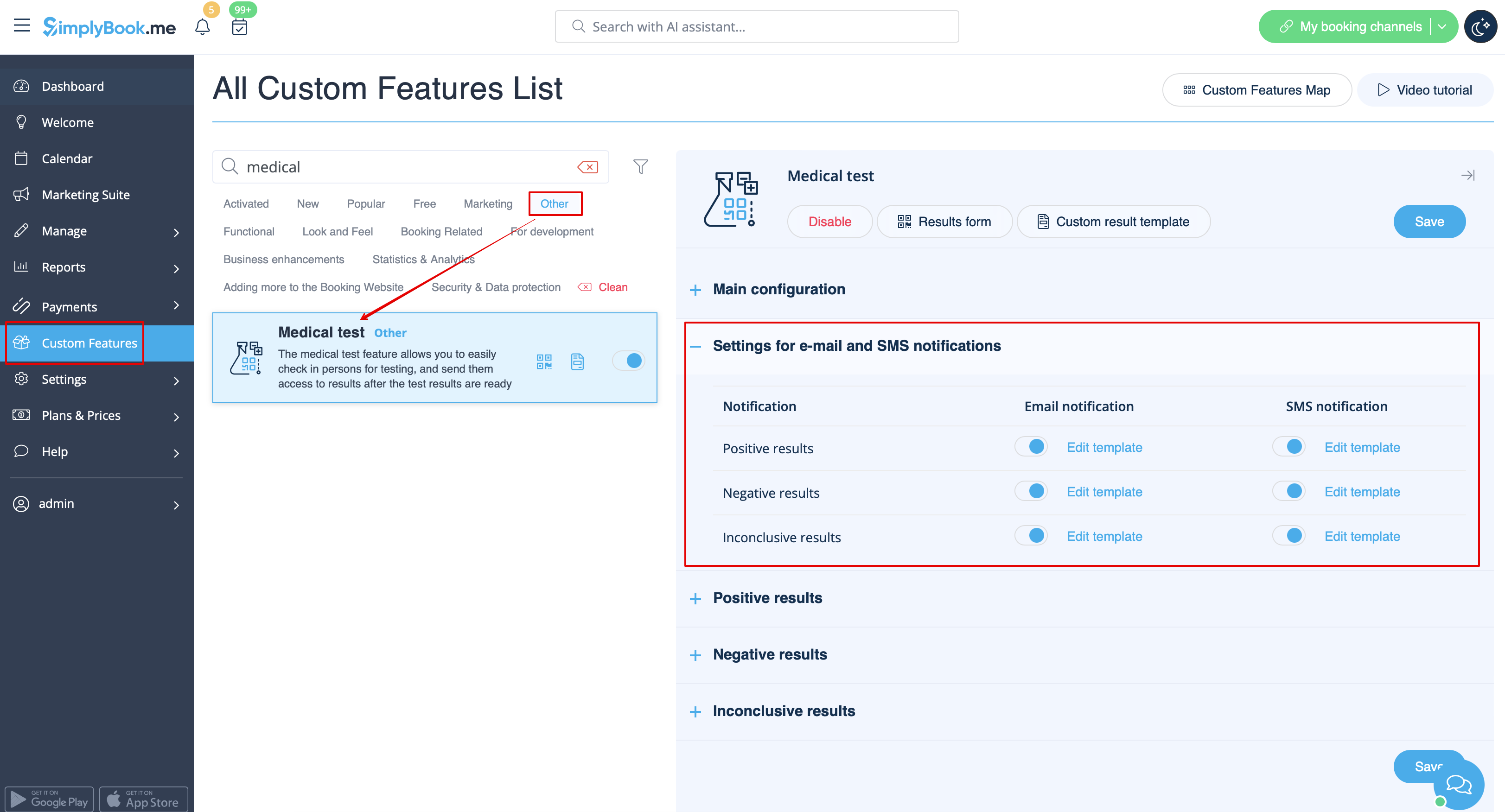
:3. Select whether you would like your clients to be informed about certain <span style="background-color:#d4f8e5; padding:5px; border-radius:5px;">test result</span> and <span style="background-color:#d4f8e5; padding:5px; border-radius:5px;">adjust the templates</span> below. | :3. Select whether you would like your clients to be informed about certain <span style="background-color:#d4f8e5; padding:5px; border-radius:5px;">test result</span> and <span style="background-color:#d4f8e5; padding:5px; border-radius:5px;">adjust the templates</span> below. | ||
[[File:Medical test notifications settings redesigned.png|border|center|1200px|link=https://help.simplybook.me/images/3/34/Medical_test_notifications_settings_redesigned.png]] | [[File:Medical test notifications settings redesigned.png|border|center|1200px|link=https://help.simplybook.me/images/3/34/Medical_test_notifications_settings_redesigned.png]] | ||
| Line 29: | Line 36: | ||
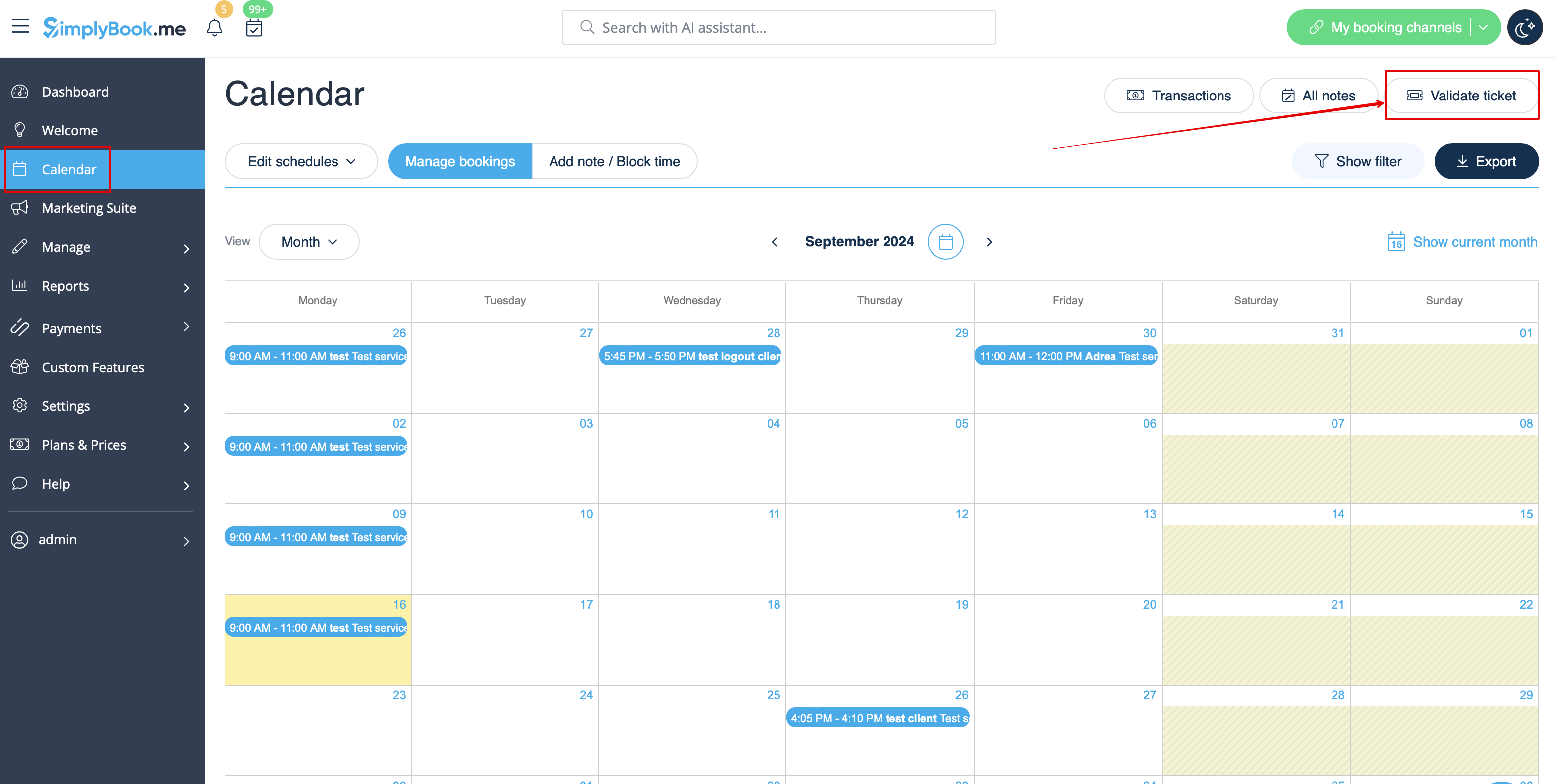
:4. Navigate to <span style="background-color:#d4f8e5; padding:5px; border-radius:5px;">Results form</span> to start working with the testing process by clicking on <span style="background-color:#cdeffc; padding:5px; border-radius:5px;">Validate ticket</span> button on the <span style="background-color:#cdeffc; padding:5px; border-radius:5px;">Calendar</span> page or by selecting <span style="background-color:#cdeffc; padding:5px; border-radius:5px;">Results form</span> near this feature in the <span style="background-color:#cdeffc; padding:5px; border-radius:5px;">Custom features</span> interface.<br> | :4. Navigate to <span style="background-color:#d4f8e5; padding:5px; border-radius:5px;">Results form</span> to start working with the testing process by clicking on <span style="background-color:#cdeffc; padding:5px; border-radius:5px;">Validate ticket</span> button on the <span style="background-color:#cdeffc; padding:5px; border-radius:5px;">Calendar</span> page or by selecting <span style="background-color:#cdeffc; padding:5px; border-radius:5px;">Results form</span> near this feature in the <span style="background-color:#cdeffc; padding:5px; border-radius:5px;">Custom features</span> interface.<br> | ||
[[File:Validate ticket path from calendar redesigned.png|1200px|border|center|link=https://help.simplybook.me/images/2/21/Validate_ticket_path_from_calendar_redesigned.png]] | [[File:Validate ticket path from calendar redesigned.png|1200px|border|center|link=https://help.simplybook.me/images/2/21/Validate_ticket_path_from_calendar_redesigned.png]] | ||
<br><br> | <br><br></translate> | ||
<translate> | |||
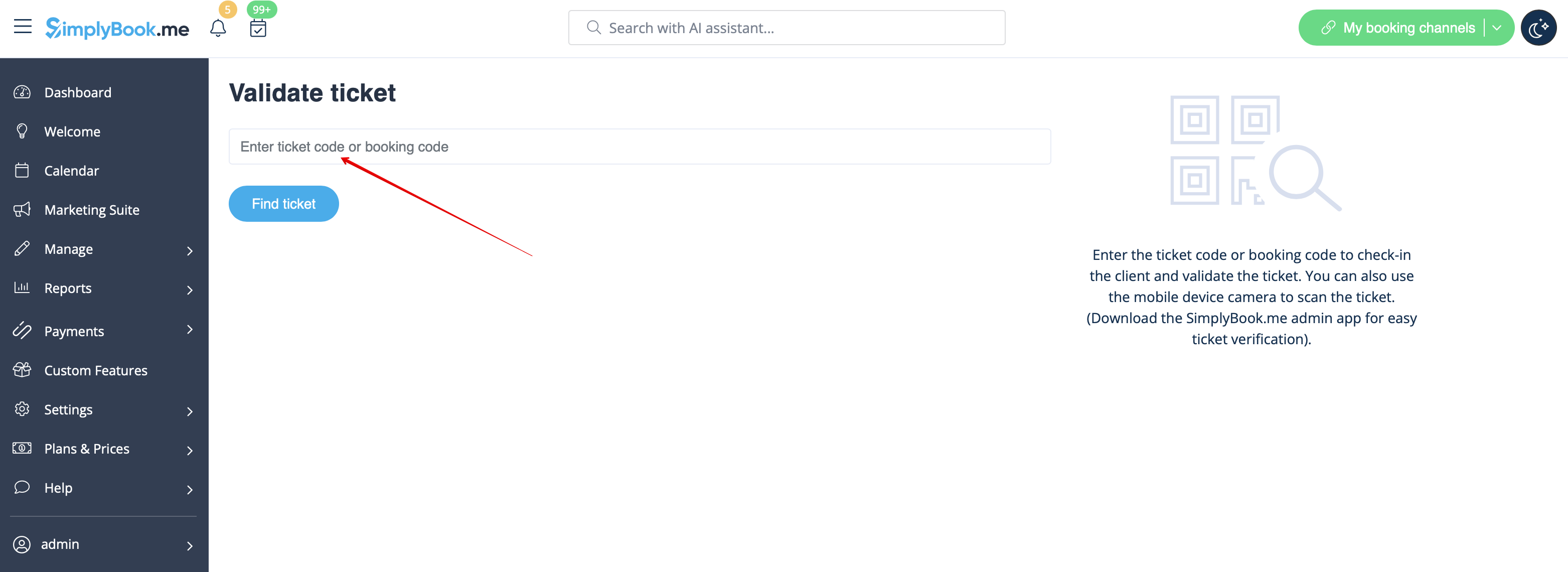
:5. On this page you will see the ticket search form. Please use <span style="background-color:#d4f8e5; padding:5px; border-radius:5px;">ticket or booking code</span> to find the necessary appointment details.<br> | :5. On this page you will see the ticket search form. Please use <span style="background-color:#d4f8e5; padding:5px; border-radius:5px;">ticket or booking code</span> to find the necessary appointment details.<br> | ||
:If you are using mobile browser and have allowed camera access you can also <span style="background-color:#d4f8e5; padding:5px; border-radius:5px;">scan the client's ticket QR code.</span><br> | :If you are using mobile browser and have allowed camera access you can also <span style="background-color:#d4f8e5; padding:5px; border-radius:5px;">scan the client's ticket QR code.</span><br> | ||
:If you have <span style="background-color:#d4f8e5; padding:5px; border-radius:5px;">admin mobile application</span> please use <span style="background-color:#d4f8e5; padding:5px; border-radius:5px;">QR scanning</span> function there. | :If you have <span style="background-color:#d4f8e5; padding:5px; border-radius:5px;">admin mobile application</span> please use <span style="background-color:#d4f8e5; padding:5px; border-radius:5px;">QR scanning</span> function there. | ||
[[File:Validate ticket form redesigned.png|border|center|1200px|link=https://help.simplybook.me/images/2/25/Validate_ticket_form_redesigned.png]] | [[File:Validate ticket form redesigned.png|border|center|1200px|link=https://help.simplybook.me/images/2/25/Validate_ticket_form_redesigned.png]] | ||
<br><br> | <br><br></translate> | ||
<translate> | |||
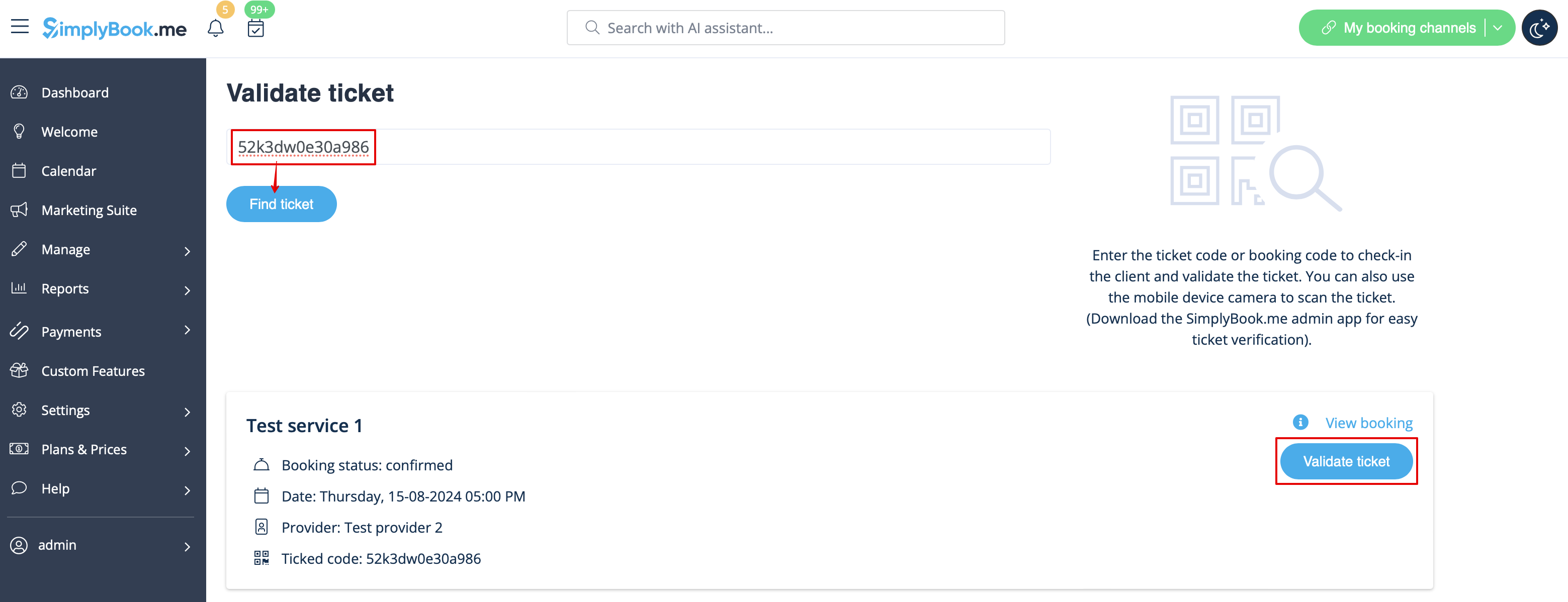
:6. After the client has come for the test, you have scanned his ticket, please <span style="background-color:#d4f8e5; padding:5px; border-radius:5px;">validate it</span> to check in and the next possibilities to appear. | :6. After the client has come for the test, you have scanned his ticket, please <span style="background-color:#d4f8e5; padding:5px; border-radius:5px;">validate it</span> to check in and the next possibilities to appear. | ||
[[File:Validate ticket flow redesigned.png|1200px|border|center|1200px|link=https://help.simplybook.me/images/0/05/Validate_ticket_flow_redesigned.png]] | [[File:Validate ticket flow redesigned.png|1200px|border|center|1200px|link=https://help.simplybook.me/images/0/05/Validate_ticket_flow_redesigned.png]] | ||
| Line 44: | Line 53: | ||
Test tube label example:<br> | Test tube label example:<br> | ||
[[File:Medical test printable label.png|border]] | [[File:Medical test printable label.png|border]] | ||
<br><br> | <br><br></translate> | ||
<translate> | |||
:8. When you receive the results, open this interface again, <span style="background-color:#d4f8e5; padding:5px; border-radius:5px;">scan the QR</span> from the test tube label to find the appointment. | :8. When you receive the results, open this interface again, <span style="background-color:#d4f8e5; padding:5px; border-radius:5px;">scan the QR</span> from the test tube label to find the appointment. | ||
[[File:Medical test select the result redesigned.png|border|center|1200px|link=https://help.simplybook.me/images/3/3c/Medical_test_select_the_result_redesigned.png]] | [[File:Medical test select the result redesigned.png|border|center|1200px|link=https://help.simplybook.me/images/3/3c/Medical_test_select_the_result_redesigned.png]] | ||
| Line 52: | Line 62: | ||
:At this point the client will get the notification that the results are ready if you have it enabled in #3.<br> | :At this point the client will get the notification that the results are ready if you have it enabled in #3.<br> | ||
[[File:Medical test final result redesigned.png|border|center|1200px|link=https://help.simplybook.me/images/3/34/Medical_test_final_result_redesigned.png]] | [[File:Medical test final result redesigned.png|border|center|1200px|link=https://help.simplybook.me/images/3/34/Medical_test_final_result_redesigned.png]] | ||
<br><br> | <br><br></translate> | ||
<translate> | |||
You can also <span style="background-color:#d4f8e5; padding:5px; border-radius:5px;">print the test results</span> if necessary.<br> | You can also <span style="background-color:#d4f8e5; padding:5px; border-radius:5px;">print the test results</span> if necessary.<br> | ||
[[File:Medical test process printable result.png|border|center|350px]] | [[File:Medical test process printable result.png|border|center|350px]] | ||
| Line 58: | Line 69: | ||
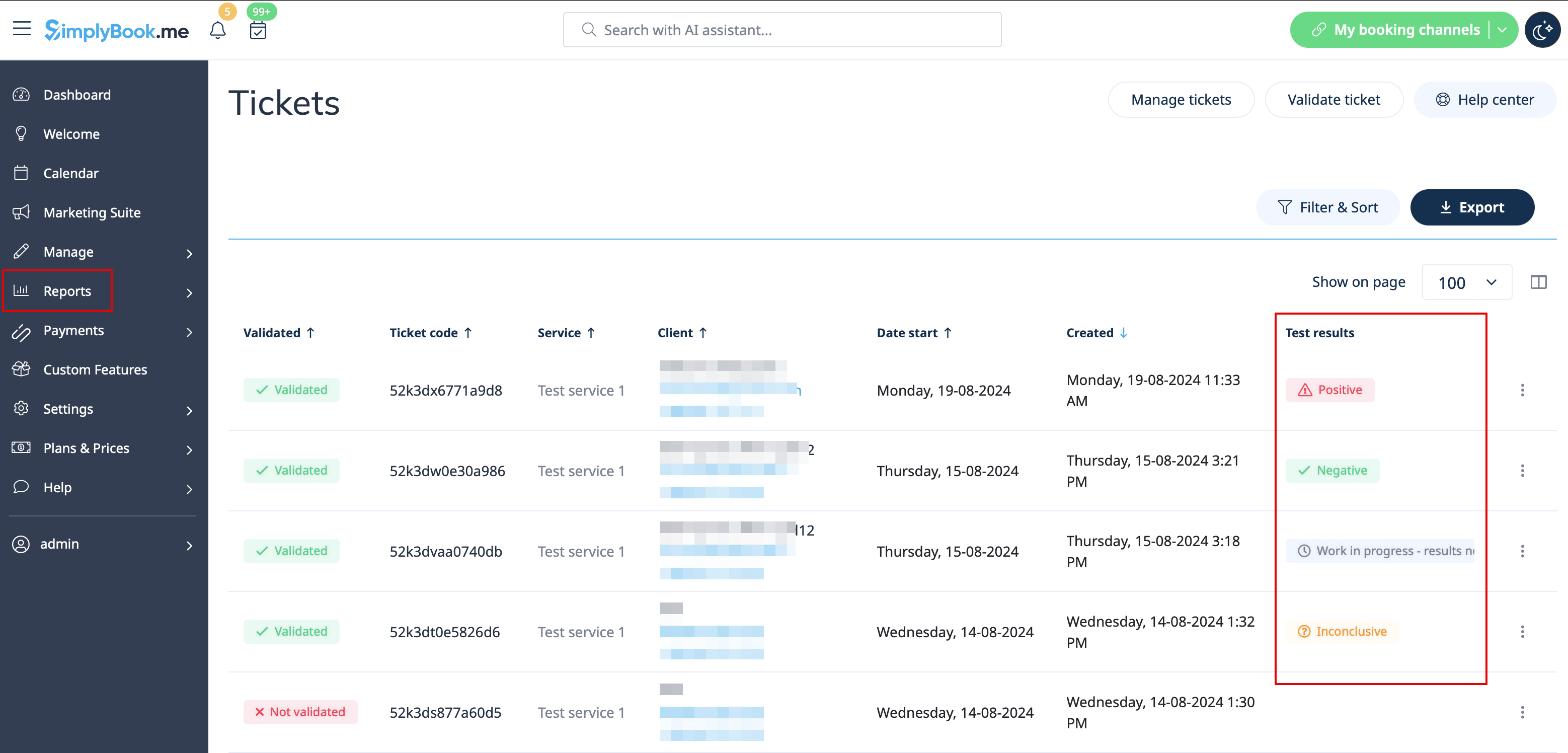
:10. All the tickets with the medical test result statuses are available for viewing and export in <span style="background-color:#d4f8e5; padding:5px; border-radius:5px;">Reports</span> -> <span style="background-color:#d4f8e5; padding:5px; border-radius:5px;">Tickets report.</span> | :10. All the tickets with the medical test result statuses are available for viewing and export in <span style="background-color:#d4f8e5; padding:5px; border-radius:5px;">Reports</span> -> <span style="background-color:#d4f8e5; padding:5px; border-radius:5px;">Tickets report.</span> | ||
[[File:Medical test results statuses redesigned.png|border|center|1200px|link=https://help.simplybook.me/images/0/0d/Medical_test_results_statuses_redesigned.png]] | [[File:Medical test results statuses redesigned.png|border|center|1200px|link=https://help.simplybook.me/images/0/0d/Medical_test_results_statuses_redesigned.png]] | ||
<br><br> | <br><br></translate> | ||
Revision as of 15:19, 19 May 2025

The medical test feature allows you to easily check in persons for testing, and send them access to results after their test results are ready. On arrival, their ticket is scanned and they get an arrived status. This ticket can be printed and put on the persons test tube. When the results are ready, the ticket can be scanned for quick processing of results that will be sent to a person via email and/or SMS. The results can be added in a message, or person can be asked to log in to their account on booking website to get the results and a downloadable PDF form with company branding.
Please note!
- When you enable Medical Test custom feature Tickets feature will be enabled as well;
- This custom feature is available with certain subscriptions only. Please check your plan details in your account Plans&Prices -> Subscriptions or contact support to check if it is included.
- How to use
- 1. Enable Medical test custom feature on your Custom features page, Other section(or use search there).
- 2. On the right side of the page select your preferences for results display.
- It is mandatory to either enable Client Login custom feature or Attach results as PDF to email option. Otherwise the feature will not work.
- 3. Select whether you would like your clients to be informed about certain test result and adjust the templates below.
- 4. Navigate to Results form to start working with the testing process by clicking on Validate ticket button on the Calendar page or by selecting Results form near this feature in the Custom features interface.
- 5. On this page you will see the ticket search form. Please use ticket or booking code to find the necessary appointment details.
- If you are using mobile browser and have allowed camera access you can also scan the client's ticket QR code.
- If you have admin mobile application please use QR scanning function there.
- 6. After the client has come for the test, you have scanned his ticket, please validate it to check in and the next possibilities to appear.
- 7. As soon as the test materials are taken from the client please press on Print label, print it(special printers are recommended) and stick to the test tube.
- The appointment will get "Work in progress - results not ready" status.
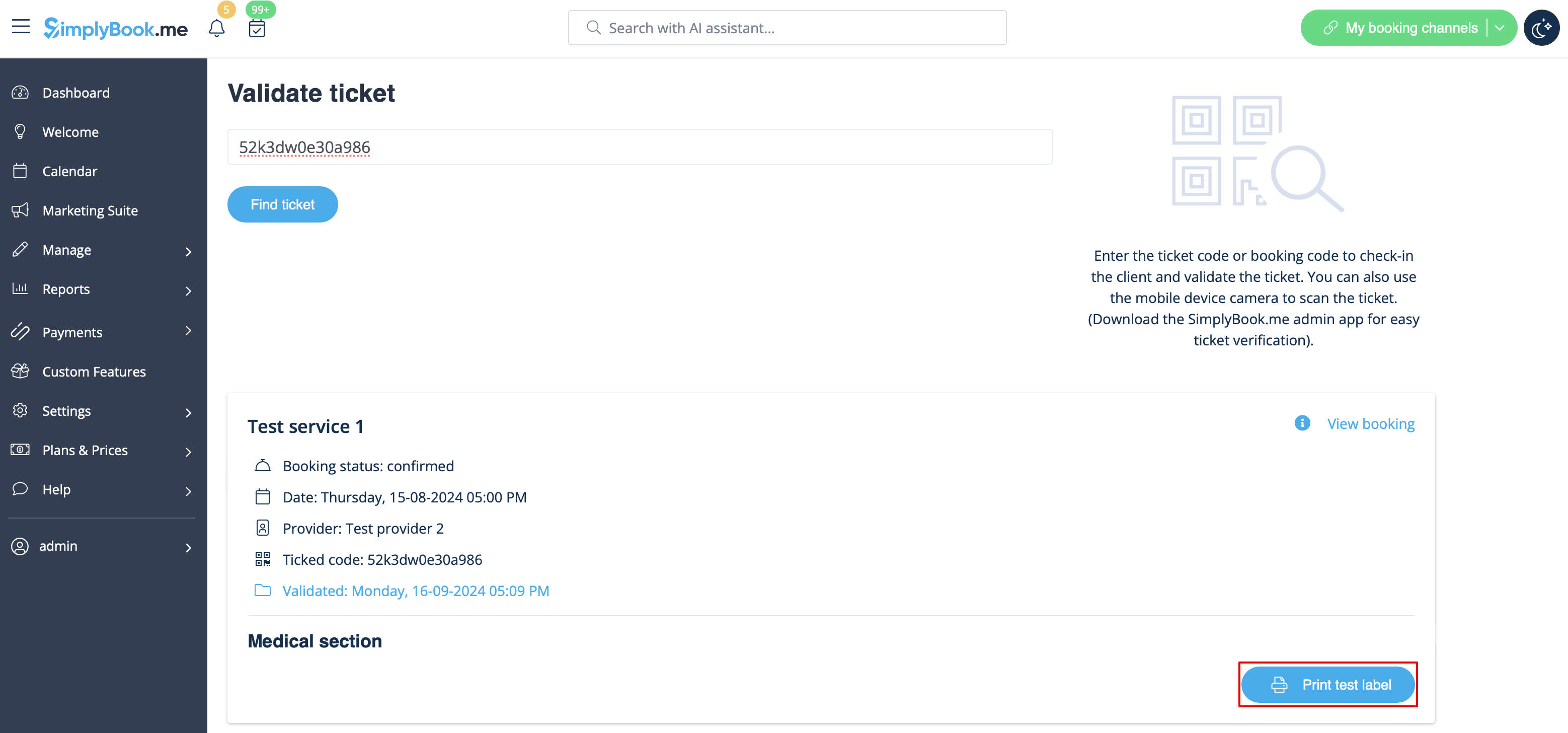
Test tube label example:

- 8. When you receive the results, open this interface again, scan the QR from the test tube label to find the appointment.
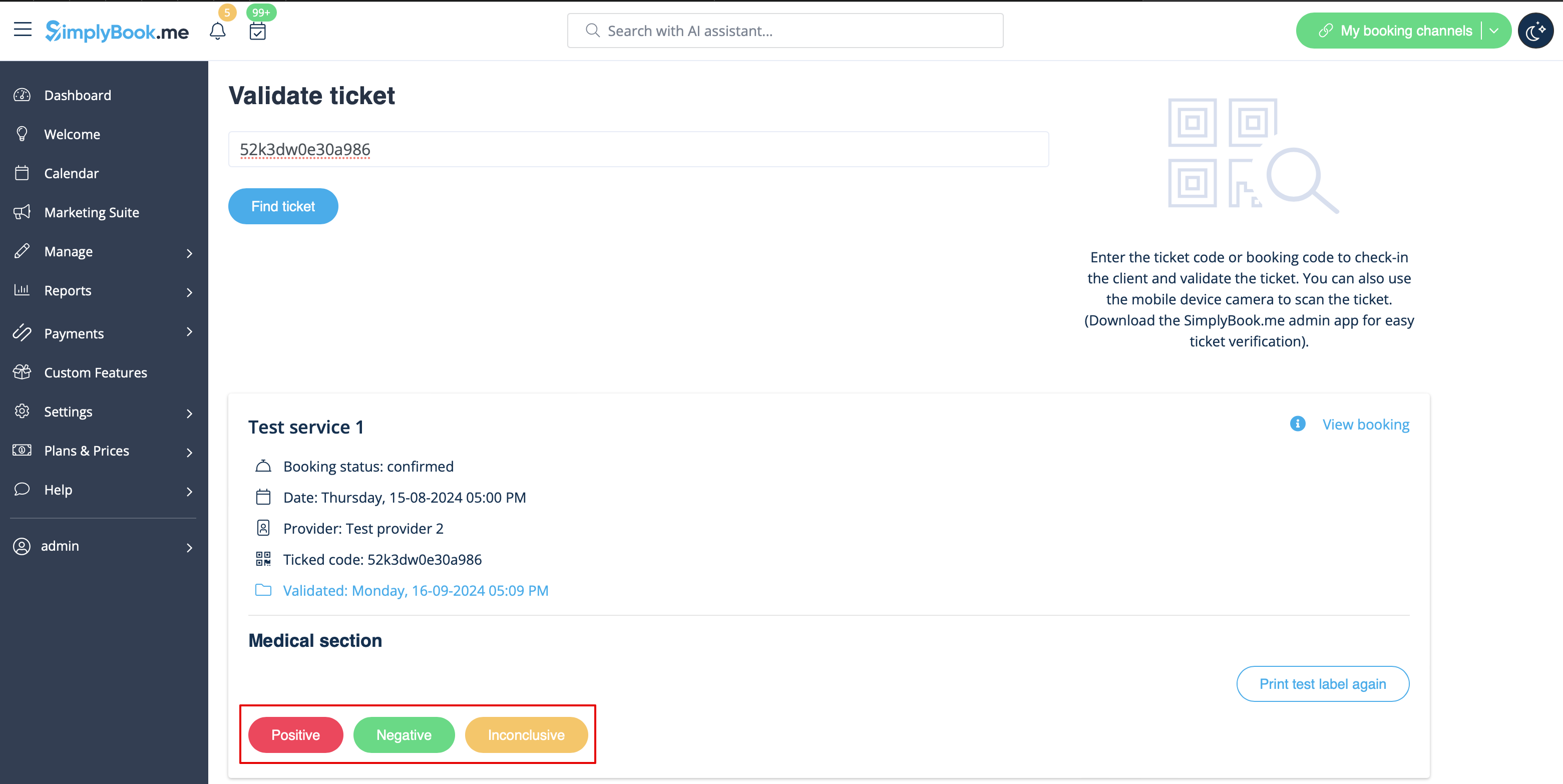
- 9. Select one of the three result options.
- As the result, the appointment status will be updated according to your selection.
- At this point the client will get the notification that the results are ready if you have it enabled in #3.
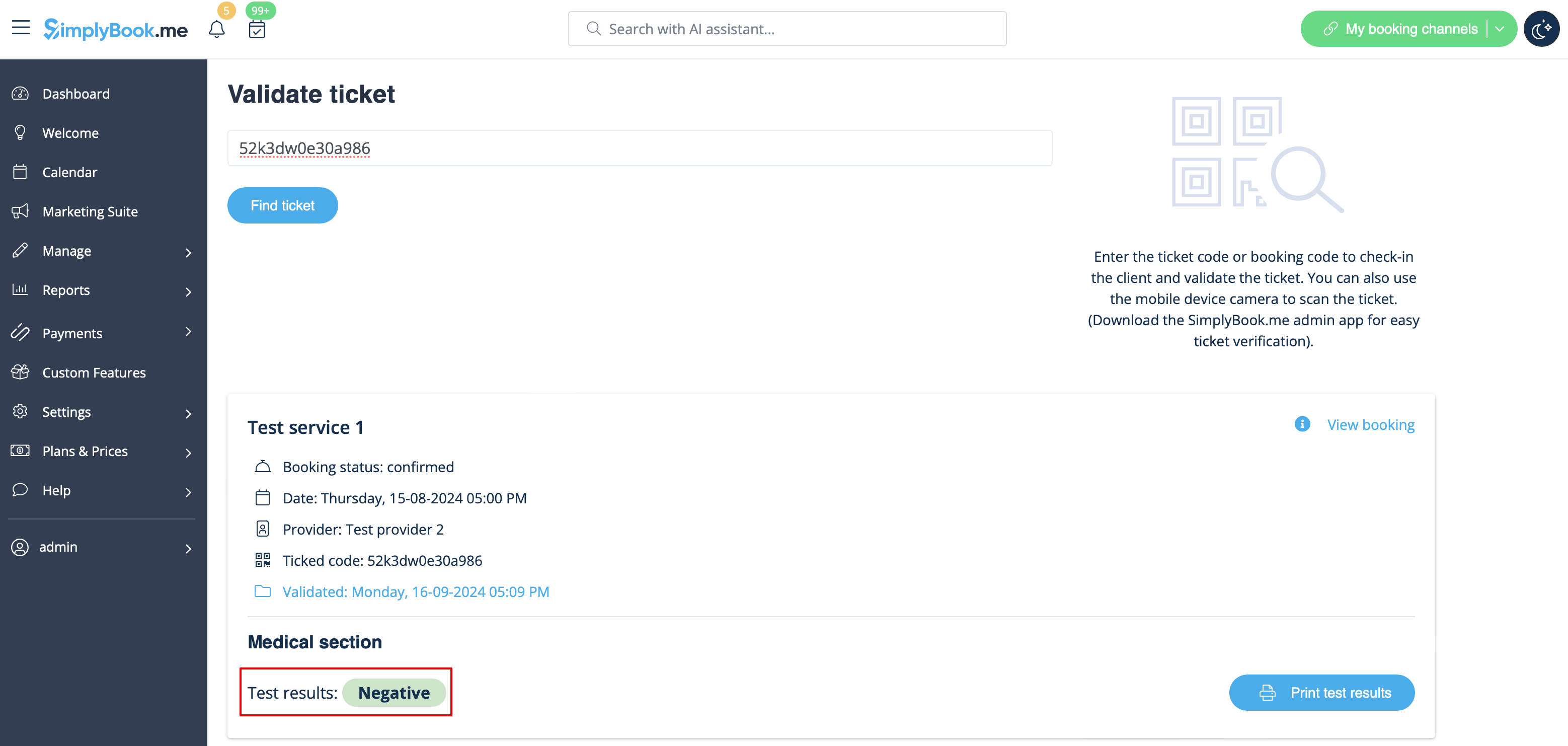
You can also print the test results if necessary.

- 10. All the tickets with the medical test result statuses are available for viewing and export in Reports -> Tickets report.