Created page with ":4. Som resultat kommer kundens uppgifter att fyllas i automatiskt i widgeten och kunden behöver inte ange dem. center <br><br>" |
Created page with "== Widgets med fördefinierade kunduppgifter == <br> Nu kan du också skapa en widget för en viss kund med hans/hennes uppgifter redan ifyllda. :1. Välj bara den widget-typ du behöver i <span style="background-color:#d4f8e5; padding:5px; border-radius:5px;">Inställningar</span> -> <span style="background-color:#d4f8e5; padding:5px; border-radius:5px;">Inställningar för bokningswidgets</span>, ställ in designen och klicka på <span style="background-color:#d4f8e..." |
||
| Line 107: | Line 107: | ||
<br><br> | <br><br> | ||
= Widget för bokning och kontakt = | |||
<br><br> | <br><br> | ||
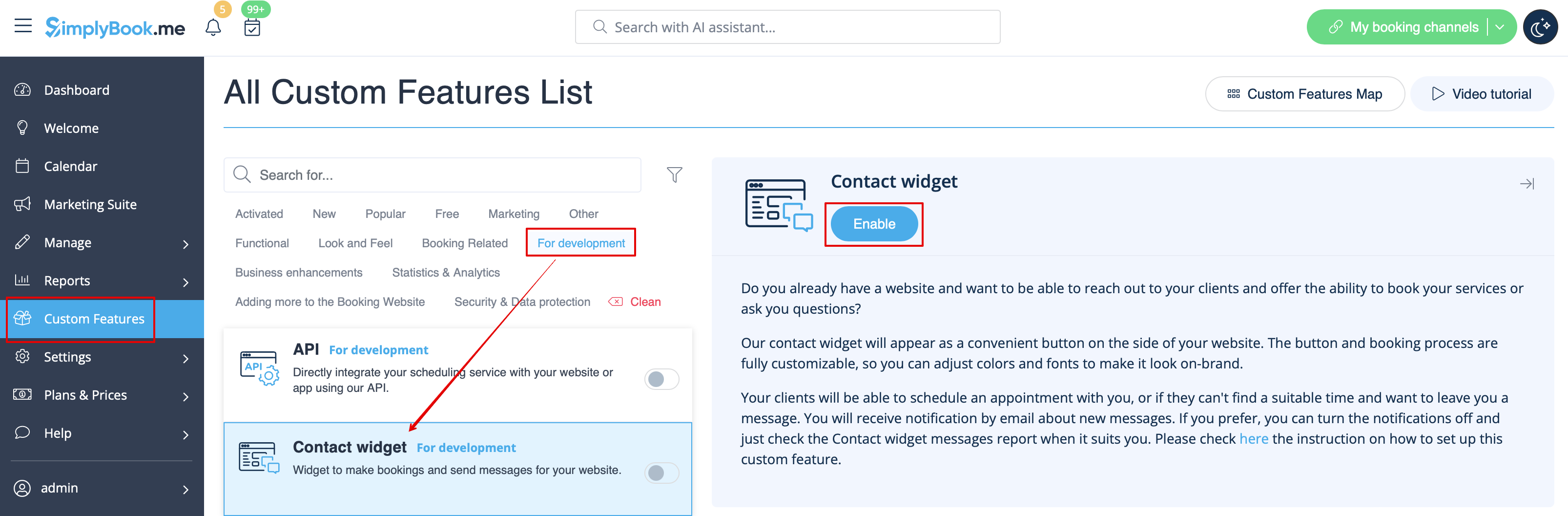
:1. | :1. Aktivera <span style="background-color:#cdeffc; padding:5px; border-radius:5px;">[[Custom_Features#Contact_Widget |kontaktwidget]]</span> i <span style="background-color:#d4f8e5; padding:5px; border-radius:5px;">Anpassade funktioner</span> -> <span style="background-color:#d4f8e5; padding:5px; border-radius:5px;">För utveckling</span>. | ||
[[File:Contact widget enable path redesigned.png|1200px| center|link=https://help.simplybook.me/images/8/8c/Contact_widget_enable_path_redesigned.png]] | [[File:Contact widget enable path redesigned.png|1200px| center|link=https://help.simplybook.me/images/8/8c/Contact_widget_enable_path_redesigned.png]] | ||
<br><br> | <br><br> | ||
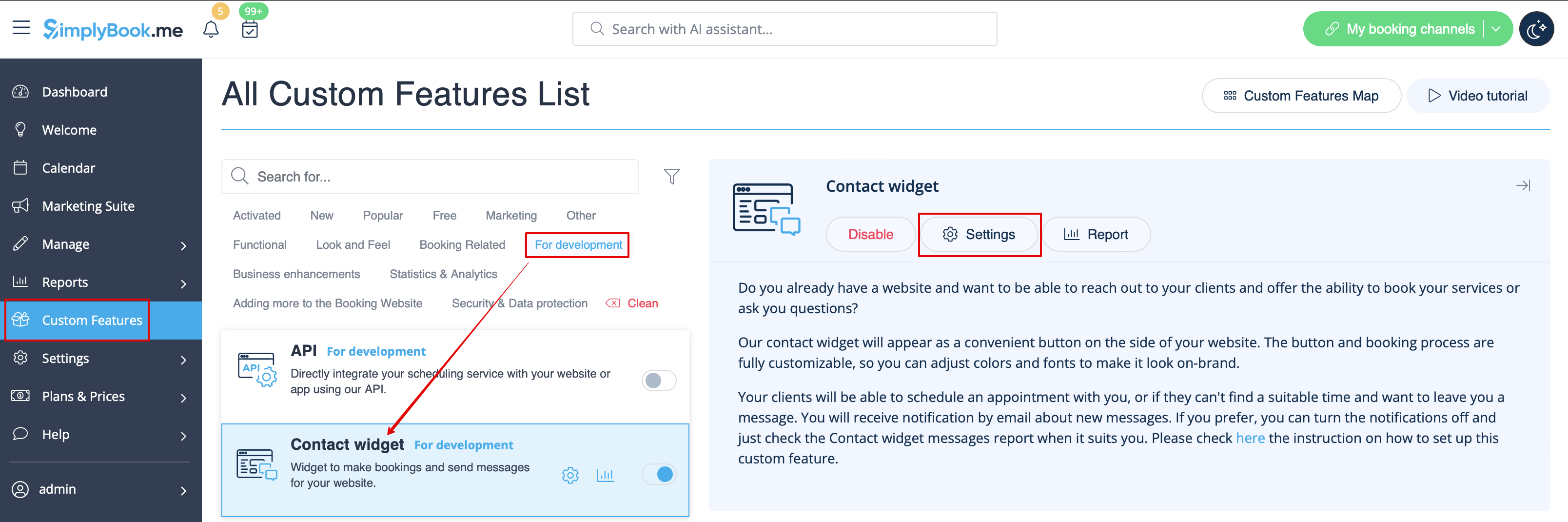
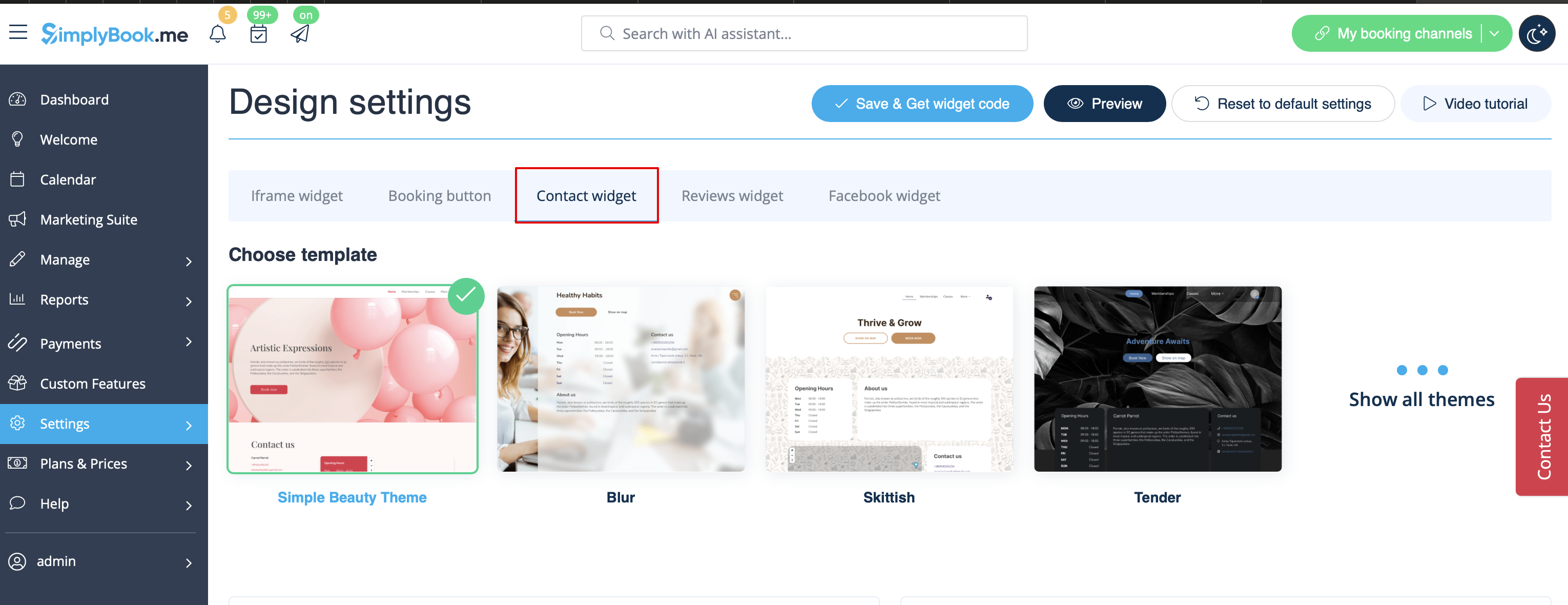
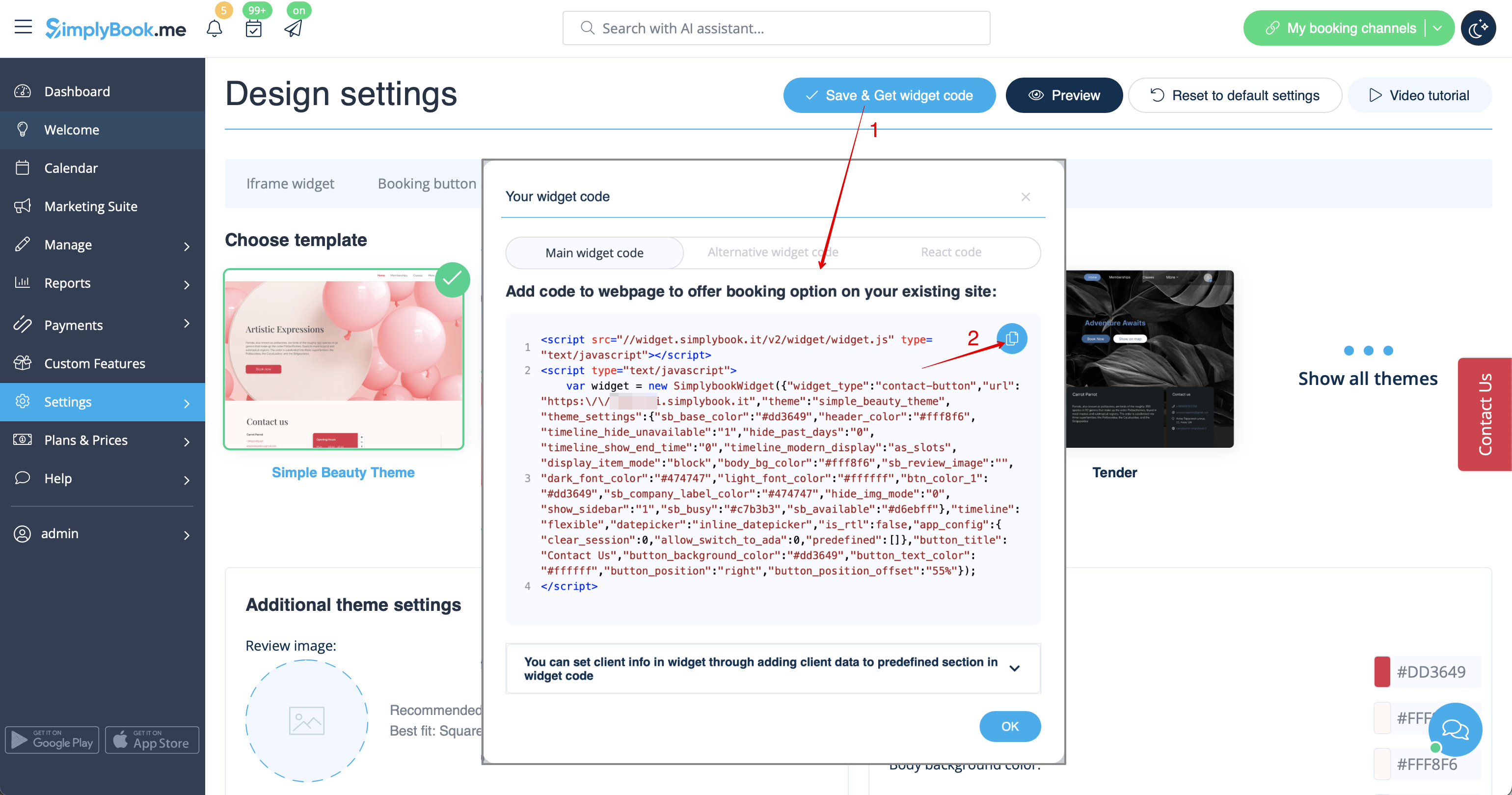
:2. | :2. Hämta bokningsknappens kod från din bokningssida genom att navigera till <span style="background-color:#d4f8e5; padding:5px; border-radius:5px;">Inställningar</span> nära denna anpassade funktion eller i <span style="background-color:#d4f8e5; padding:5px; border-radius:5px;">Inställningar</span> i menyn till vänster -> <span style="background-color:#d4f8e5; padding:5px; border-radius:5px;">Inställningar för bokningswidgets</span> -> <span style="background-color:#d4f8e5; padding:5px; border-radius:5px;">Kontaktwidget</span> -> <span style="background-color:#d4f8e5; padding:5px; border-radius:5px;">Hämta widgetkod.</span> | ||
[[File:Contact widget settings path redesigned.png|1200px|border| center|link=https://help.simplybook.me/images/0/09/Contact_widget_settings_path_redesigned.png]] | [[File:Contact widget settings path redesigned.png|1200px|border| center|link=https://help.simplybook.me/images/0/09/Contact_widget_settings_path_redesigned.png]] | ||
<br><br> | <br><br> | ||
[[File:Contact widget design path redesigned.png|1200px|border|center|link=https://help.simplybook.me/images/7/74/Contact_widget_design_path_redesigned.png]] | [[File:Contact widget design path redesigned.png|1200px|border|center|link=https://help.simplybook.me/images/7/74/Contact_widget_design_path_redesigned.png]] | ||
<br><br> | <br><br> | ||
[[File:Contact widget code redesigned.png|1200px | center|link=https://help.simplybook.me/images/4/49/Contact_widget_code_redesigned.png]] | [[File:Contact widget code redesigned.png|1200px | center|link=https://help.simplybook.me/images/4/49/Contact_widget_code_redesigned.png]] | ||
<br><br> | <br><br> | ||
:3. | :3. Infoga den i HTML-koden <body> på din webbplats (eller någon annan plats på din webbplattform som är avsedd för att infoga HTML JavaScript iFrame-kod). <br> | ||
<span style="background-color:#ffe9e9; padding:5px; border-radius:5px;">''' | <span style="background-color:#ffe9e9; padding:5px; border-radius:5px;">'''Observera!''' Olika webbplatsbyggare/plattformar kan ha olika sätt att lägga till HTML-kod. Kontrollera först om din webbplats stöder infogning av HTML JavaScript-kod.</span> | ||
:''' | :'''Här finns handledningar för flera populära webbplatsbyggare:''' | ||
::: | :::[https://help.simplybook.me/index.php/WordPress_integration *Wordpress] | ||
::: | :::[https://help.simplybook.me/index.php/Shopify *Shopify] | ||
::: | :::[https://help.simplybook.me/index.php/Joomla_integration *Joomla] | ||
::: | :::[https://help.simplybook.me/index.php/Wix_integration *Wix] | ||
::: | :::[https://help.simplybook.me/index.php/Squarespace *Squarespace] | ||
::: | :::[https://help.simplybook.me/index.php/Weebly *Weebly] | ||
::: | :::[https://help.simplybook.me/index.php/Go_Daddy *Go Daddy] | ||
::: | :::[https://help.simplybook.me/index.php/SITE123_integration *SITE123] | ||
;[https://simplydemowidgets.mozello.com/ Kontrollera hur widgets kan se ut på din webbplats] | |||
;[https://simplydemowidgets.mozello.com/ | |||
= Recensionswidget = | |||
<br><br> | <br><br> | ||
Vill du lägga till recensioner som dina kunder lämnar på bokningssidan till din webbplats?<br> | |||
Följ bara dessa instruktioner: | |||
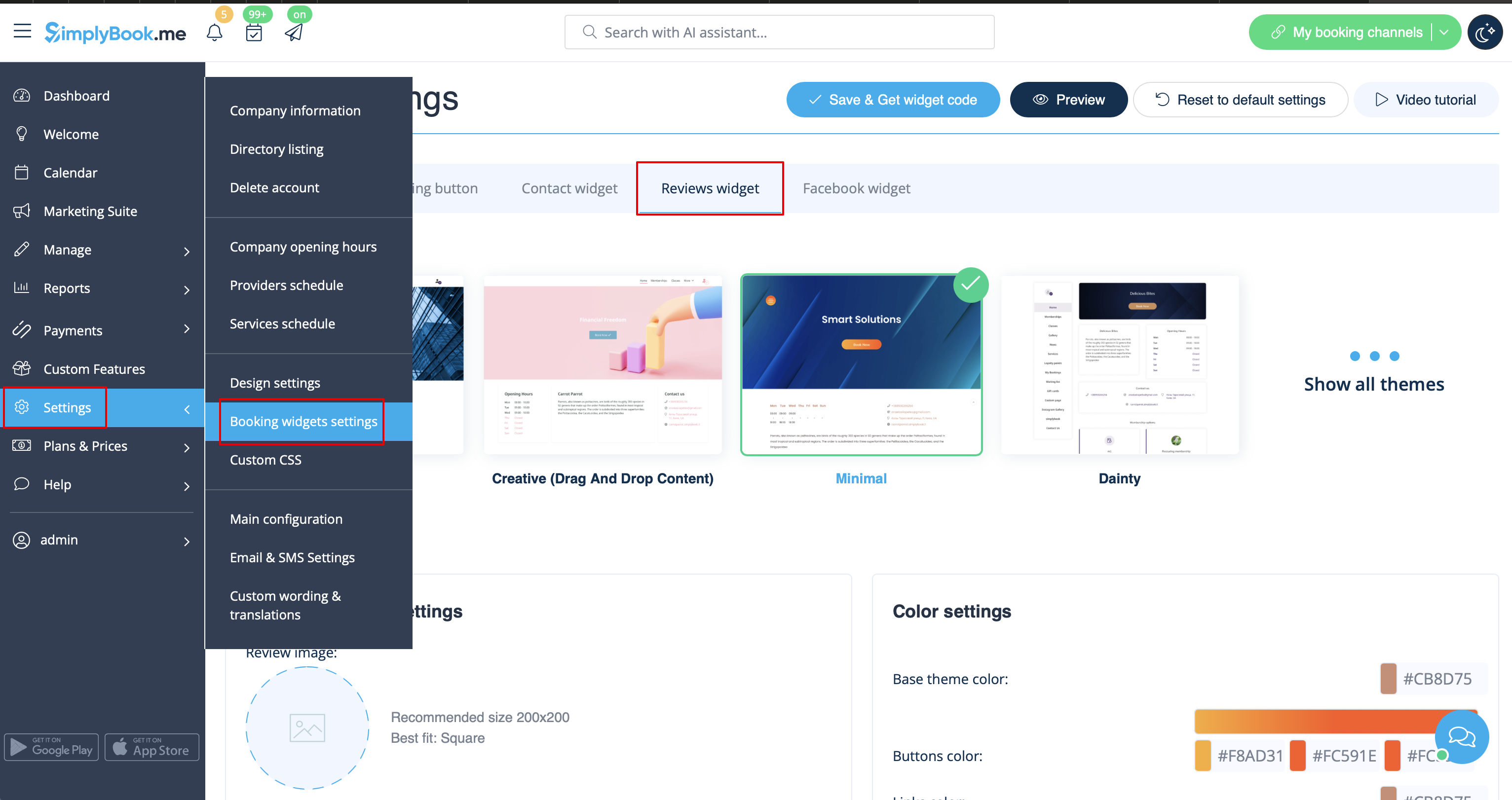
:1. | :1. Gå till <span style="background-color:#d4f8e5; padding:5px; border-radius:5px;">Inställningar</span> -> <span style="background-color:#d4f8e5; padding:5px; border-radius:5px;">Inställningar för bokningswidgets</span> -> <span style="background-color:#d4f8e5; padding:5px; border-radius:5px;">Recensionswidget.</span> | ||
[[File:Reviews widget path redesigned.png|1200px | center|link=https://help.simplybook.me/images/5/5b/Reviews_widget_path_redesigned.png]] | [[File:Reviews widget path redesigned.png|1200px | center|link=https://help.simplybook.me/images/5/5b/Reviews_widget_path_redesigned.png]] | ||
<br><br> | <br><br> | ||
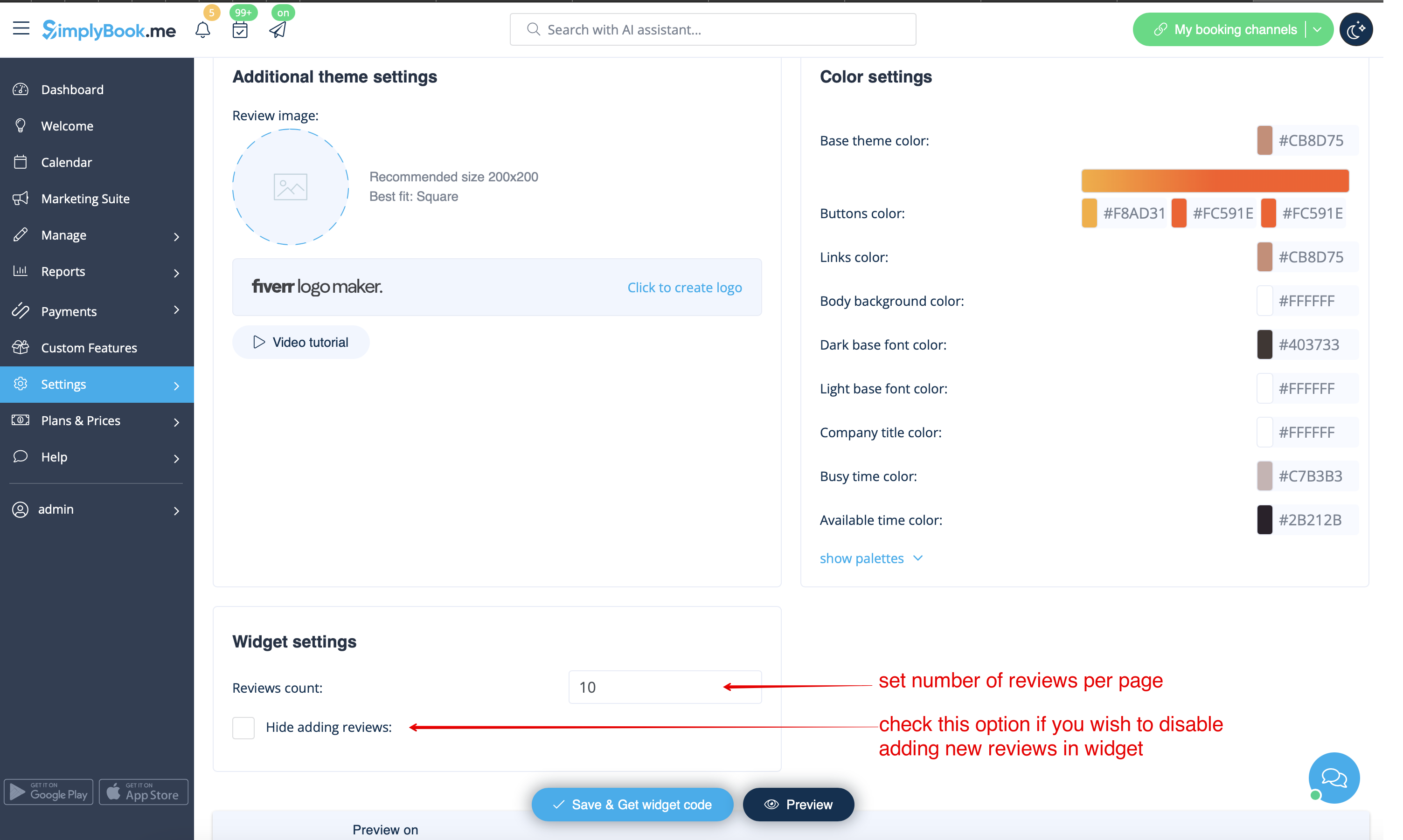
:2. | :2. På sidan kan du välja tema, ställa in färger, bestämma hur många recensioner du vill visa och om du vill att dina kunder ska kunna lägga till recensioner med hjälp av widgeten. | ||
[[File:Reviews widget settings redesigned.png|1200px| center|link=https://help.simplybook.me/images/6/6d/Reviews_widget_settings_redesigned.png]] | [[File:Reviews widget settings redesigned.png|1200px| center|link=https://help.simplybook.me/images/6/6d/Reviews_widget_settings_redesigned.png]] | ||
<br><br> | <br><br> | ||
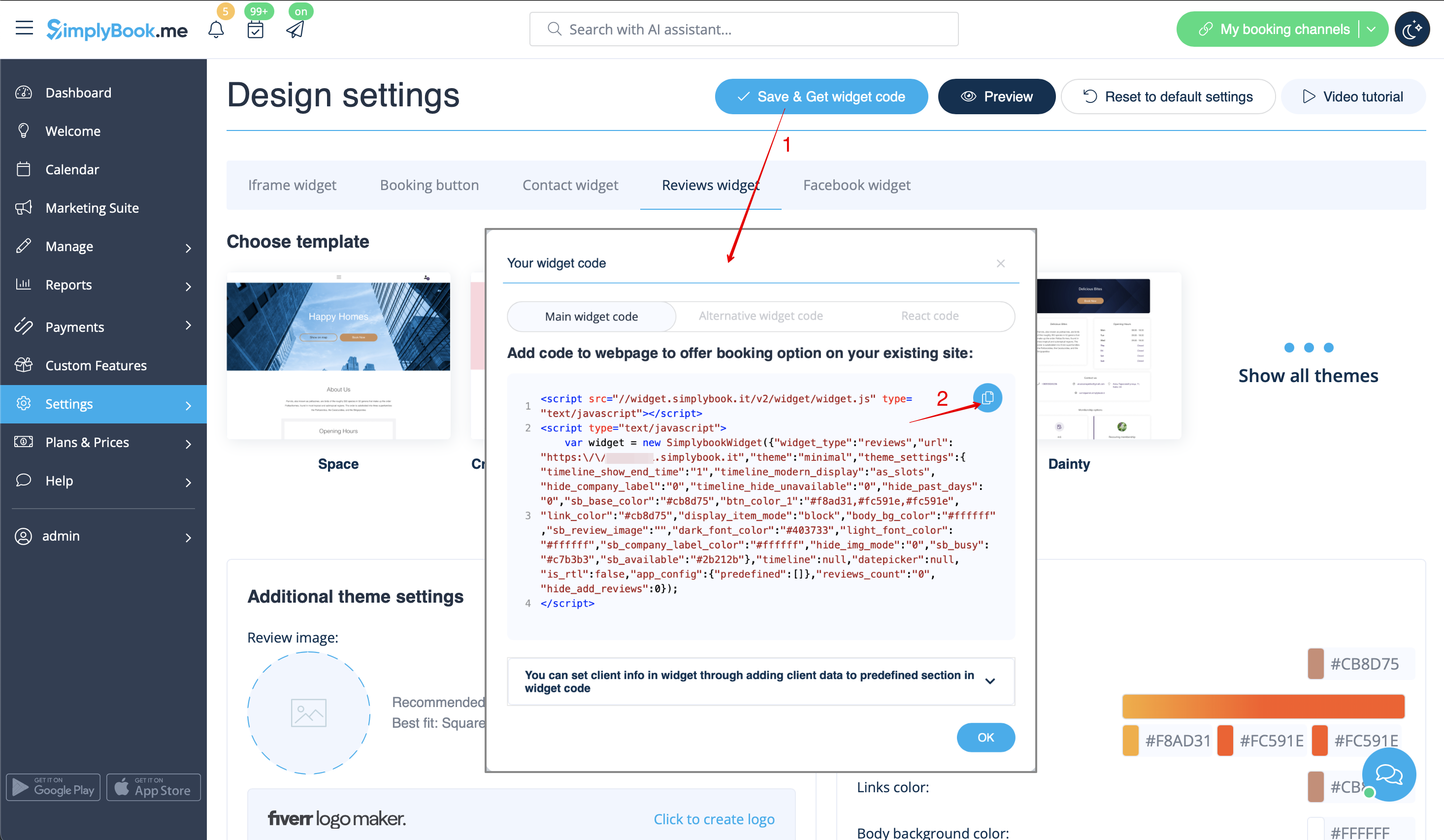
:3. | :3. När designen är klar klickar du bara på knappen <span style="background-color:#d4f8e5; padding:5px; border-radius:5px;">Hämta widgetkod</span>, kopierar koden och klistrar in den på önskad plats på din webbplats. | ||
[[File:Get reviews widget code redesigned.png|1200px | center|link=https://help.simplybook.me/images/f/f8/Get_reviews_widget_code_redesigned.png]] | [[File:Get reviews widget code redesigned.png|1200px | center|link=https://help.simplybook.me/images/f/f8/Get_reviews_widget_code_redesigned.png]] | ||
<br> | <br> | ||
Grattis! Widgeten är nu klar och dina recensioner kommer att publiceras och uppdateras på din webbplats! | |||
<br><br> | <br><br> | ||
Revision as of 12:25, 19 May 2025
- Varför du bör använda våra widgets

- Videohandledning tillgänglig
iFrame-widget
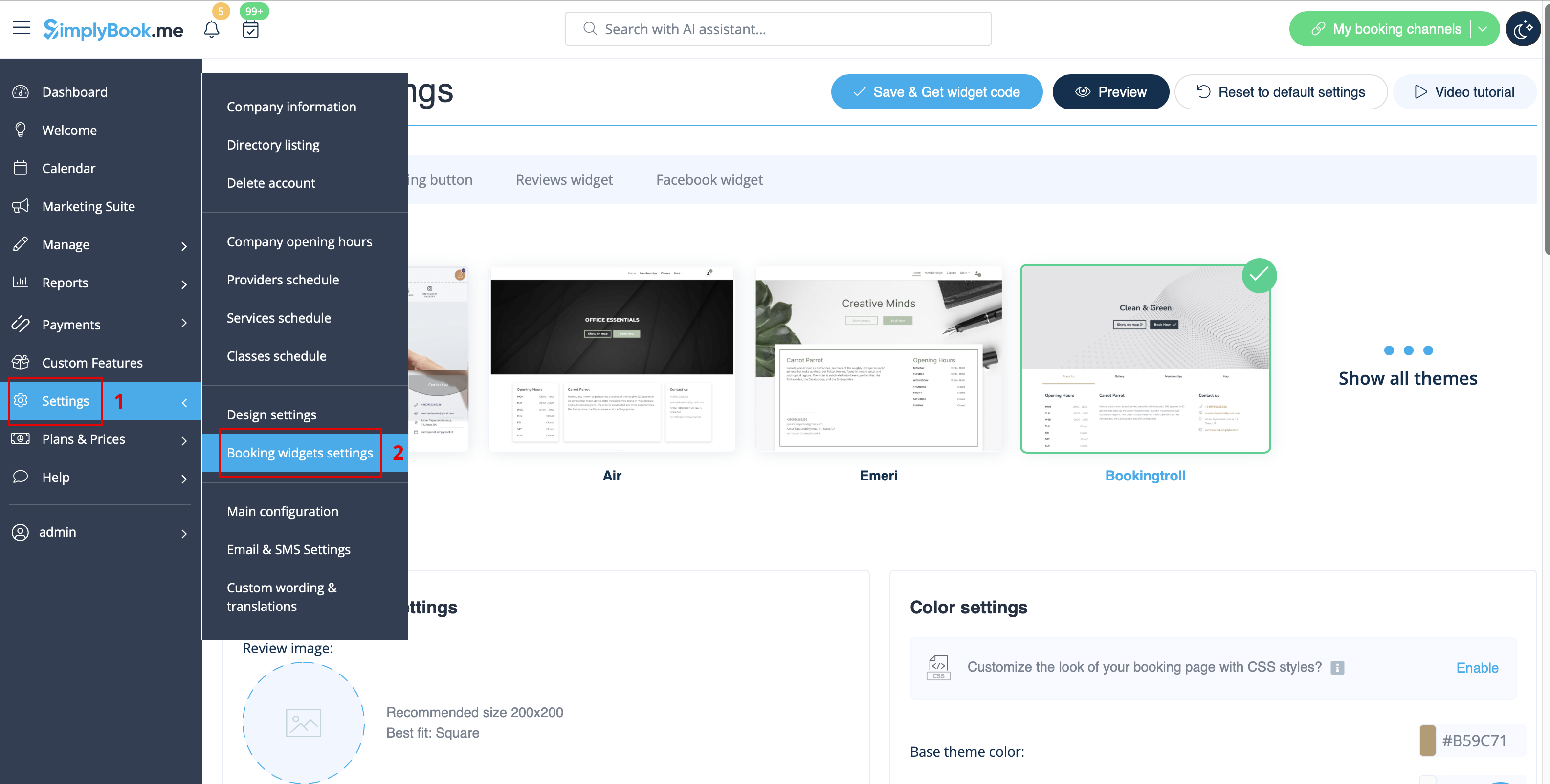
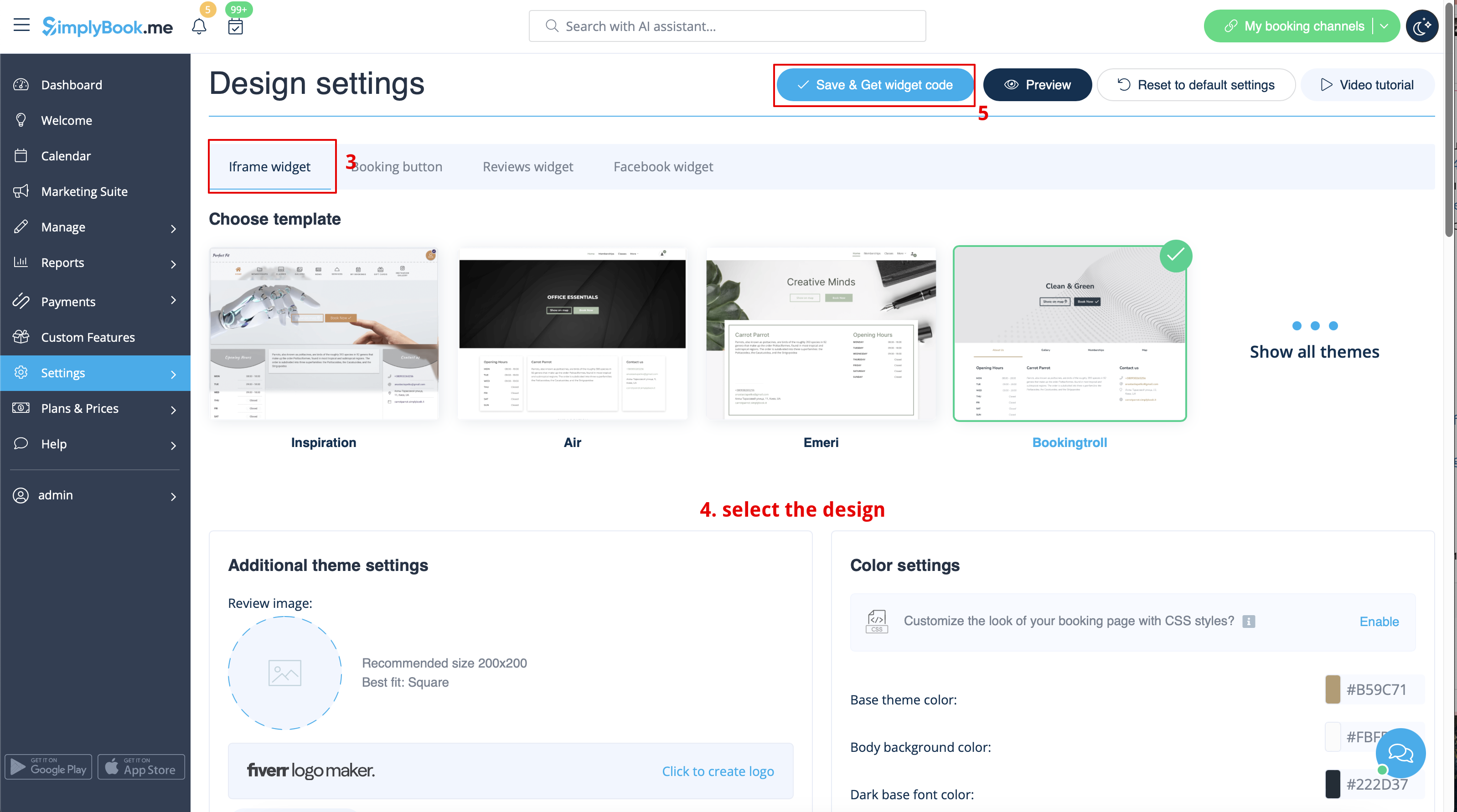
- 1. Hämta iFrame-koden för din bokningssida i Inställningar -> Inställningar för bokningswidget -> iFrame-widget -> Hämta widgetkod.
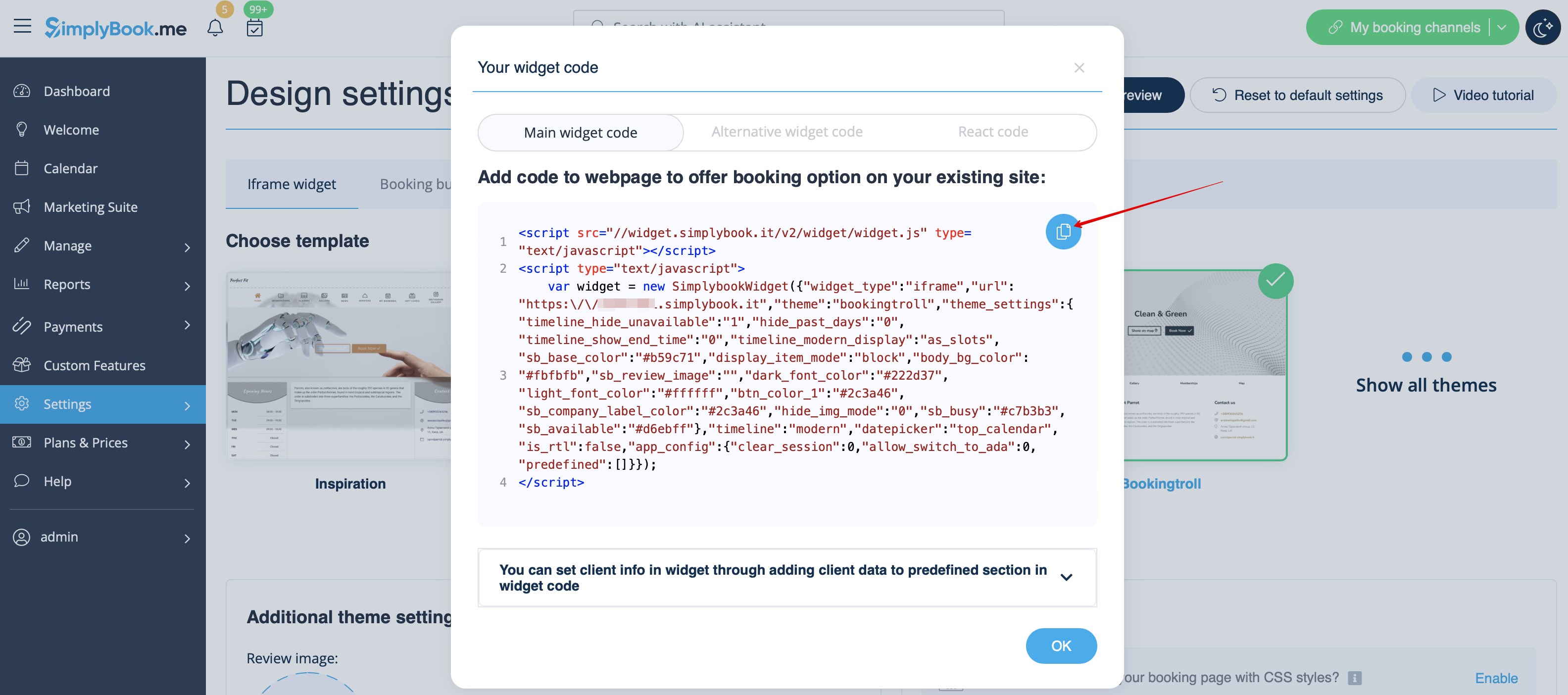
- 2. Infoga den i HTML-koden <body> på din webbplats (eller någon annan plats på din webbplattform som är avsedd för att infoga HTML JavaScript iFrame-kod).
Observera! Olika webbplatsbyggare/plattformar kan ha olika sätt att lägga till HTML-kod. Kontrollera först om din webbplats stöder infogning av HTML JavaScript-kod.
- Här finns handledningar för flera populära webbplatsbyggare:
Widgets med fördefinierad tjänst, leverantör, kategori eller plats
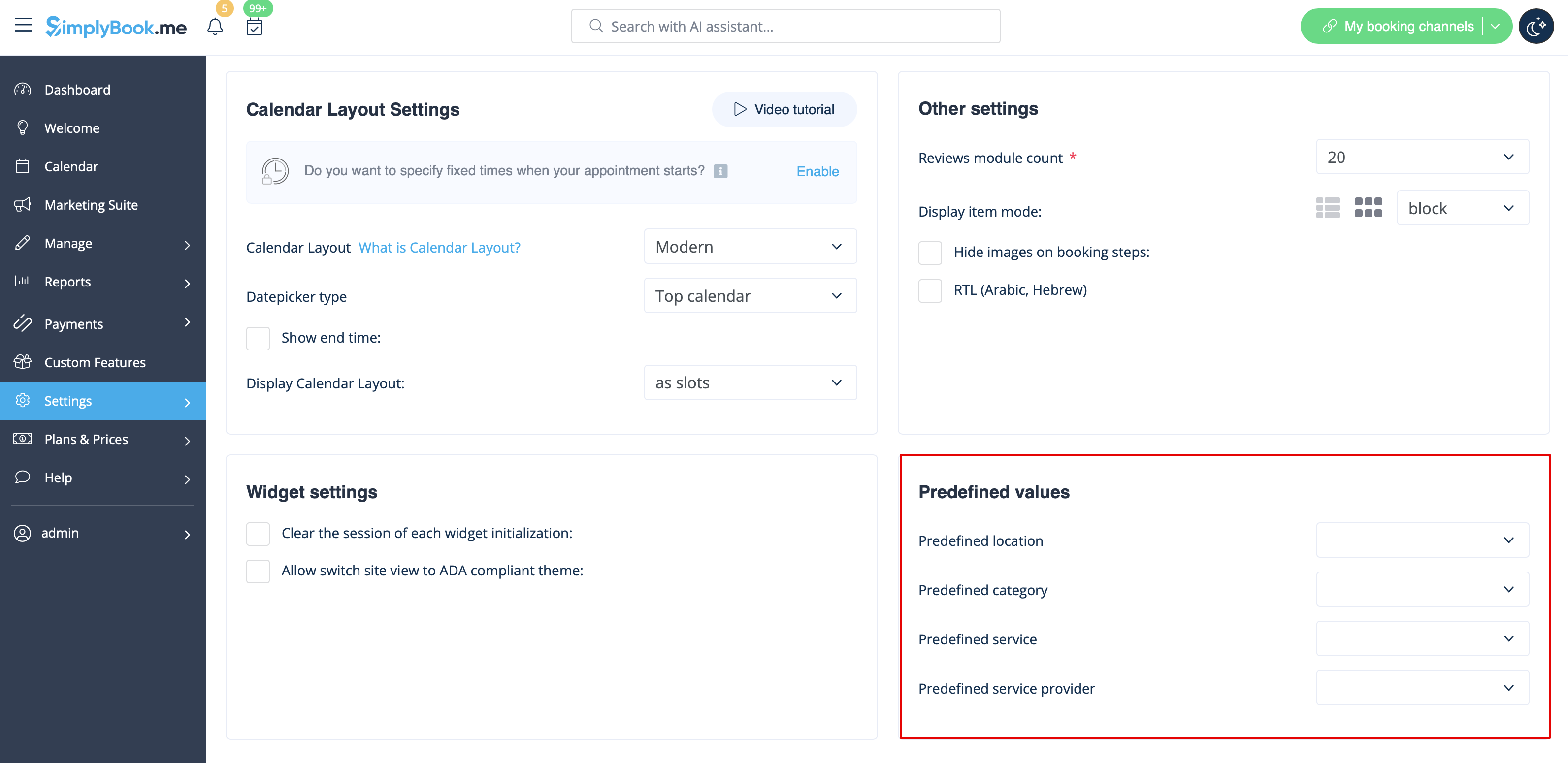
Med den här funktionen kan du generera iframe-kod specifikt för tjänster, leverantörer, kategorier eller platser som du har. Om du till exempel har två tjänster, A och B, och du väljer tjänst A som fördefinierad, öppnas widgeten för den tjänsten och steget där du väljer tjänst hoppas över. Den här funktionen kan vara användbar om du bara vill visa vissa tjänster på en specifik sida på din webbplats. Stegen för att generera koden är desamma som ovan, men i widgetens inställningar väljer du det objekt du vill fördefiniera.
Widgets med fördefinierade kunduppgifter
Nu kan du också skapa en widget för en viss kund med hans/hennes uppgifter redan ifyllda.
- 1. Välj bara den widget-typ du behöver i Inställningar -> Inställningar för bokningswidgets, ställ in designen och klicka på Hämta widget-kod.
- 2. Ett popup-fönster med koden visas. Klicka på den nedre delen för att få information om kundkoden.
- Kopiera huvudkoden, lägg till den nedre delen (i det fördefinierade avsnittet) och ersätt fördefinierat kundnamn, fördefinierad kund-e-postadress och fördefinierad kundtelefon med nödvändiga kunduppgifter.
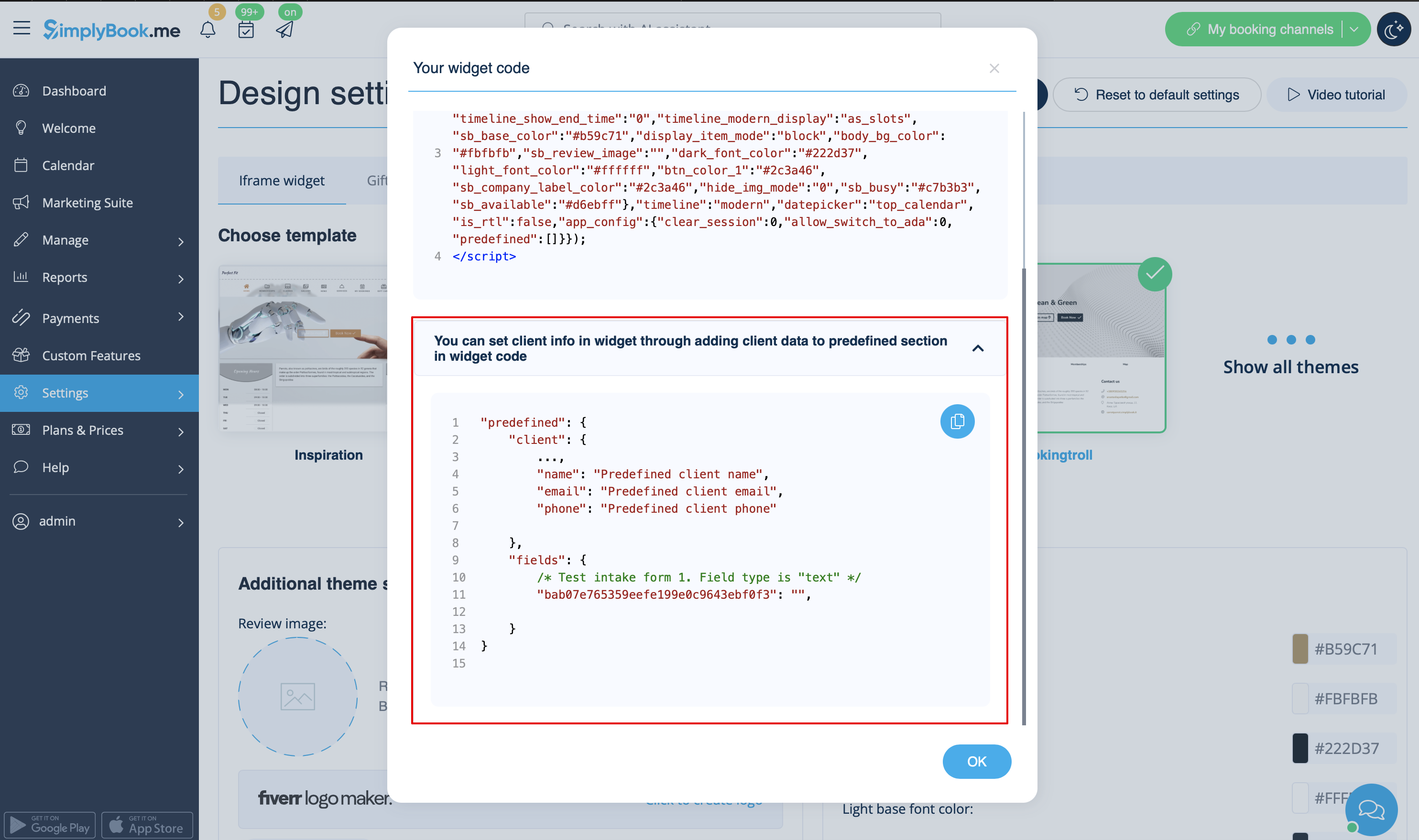
- 3. Du får följande kod:
<script src="//simplybook.me/v2/widget/widget.js"></script>
<script>var widget = new SimplybookWidget({"widget_type":"iframe","url":"https:\/\/companyname.simplybook.me","theme":"belle","theme_settings":{"sb_base_color":"#FF6969","body_bg_color":"#ffffff","dark_font_color":"#494949","light_font_color":"#ffffff","sb_busy":"#dad2ce","sb_available":"#d3e0f1"},"timeline":"flexible","datepicker":"top_calendar","is_rtl":false,"app_config":{"predefined": {"client": {

"name": "Mary",

"email": "mary@gmail.com",

"phone": "+1234567890"

}}
}});</script>
- 4. Som resultat kommer kundens uppgifter att fyllas i automatiskt i widgeten och kunden behöver inte ange dem.

Widgets för kundinloggning, paket, medlemskap, presentkort
Observera! Det fungerar för närvarande endast med iFrame-widgets och fungerar inte med bokningsknappar och kontaktknappar.
Om du använder en eller flera av dessa funktioner kan det vara nödvändigt att lägga till en widget som gör att dina kunder kan använda alternativet på din webbplats.
Det kan göras på ett enkelt sätt genom att lägga till motsvarande "navigera" -element i widgetkoden:
- Kundinloggning - "navigera":"client/sign-in"
- Paket - "navigera":"packages"
- Medlemskap - "navigera":"membership"
- Presentkort - "navigera":"gift-card"
Exempel på widgetkod för presentkort:
<script src="//simplybook.it/v2/widget/widget.js"></script>
<script>var widget = new SimplybookWidget({"widget_type":"iframe","url":"https:\/\/demo.simplybook.it","navigate":"gift-card","theme":"default","theme_settings":{"timeline_show_end_time":"0","timeline_modern_display":"as_slots","sb_base_color":"#0cadef","display_item_mode":"block","booking_nav_bg_color":"#80d0f2","body_bg_color":"#f7f7f7","dark_font_color":"#494949","light_font_color":"#ffffff","btn_color_1":"#5e7da7","sb_company_label_color":"#ffffff","hide_img_mode":"0","show_sidebar":"1","sb_busy":"#dad2ce","sb_available":"#0cadef"},"timeline":"modern","datepicker":"inline_datepicker","is_rtl":false,"app_config":{"predefined":[]}});</script>
Widget för bokningsknapp
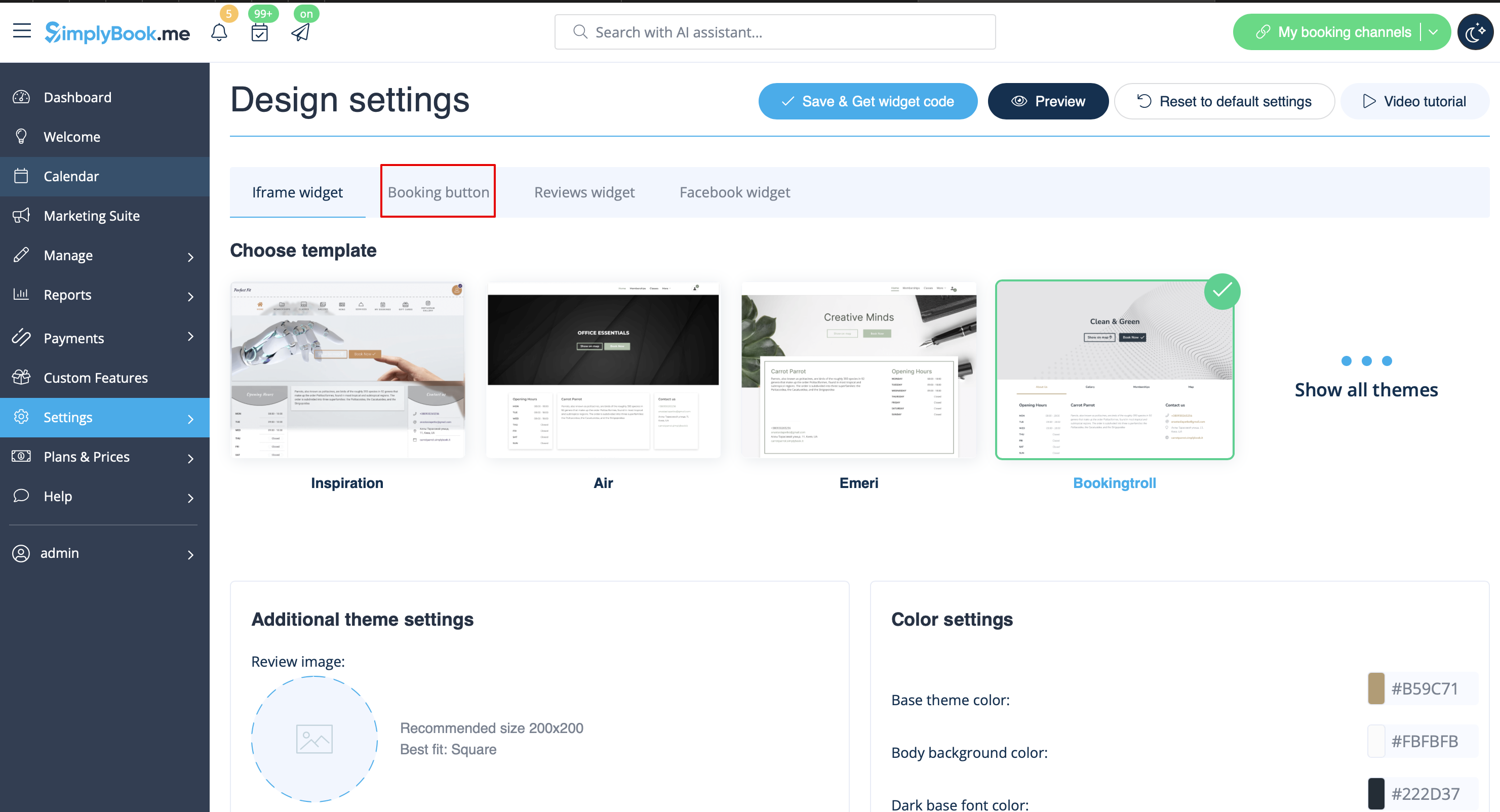
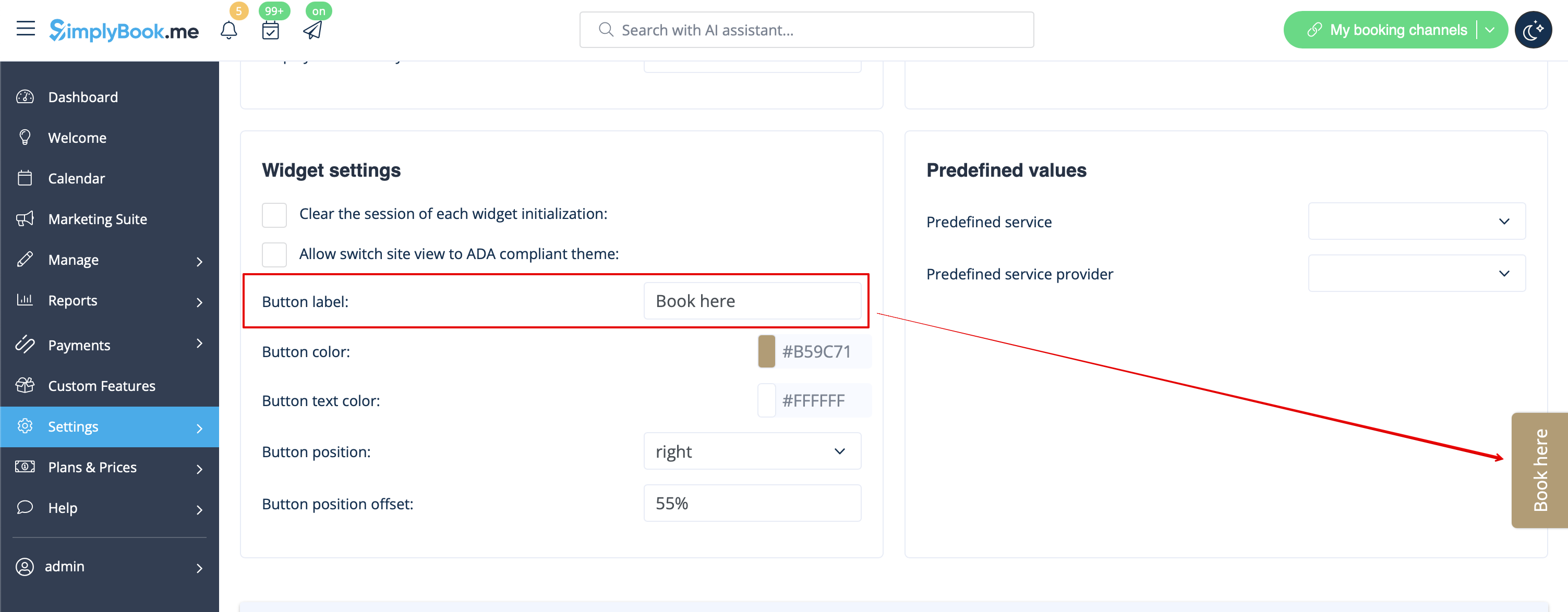
- 1. Hämta bokningsknappens kod från din bokningssida i Inställningar -> Inställningar för bokningswidget -> Bokningsknapp -> Hämta widgetkod.
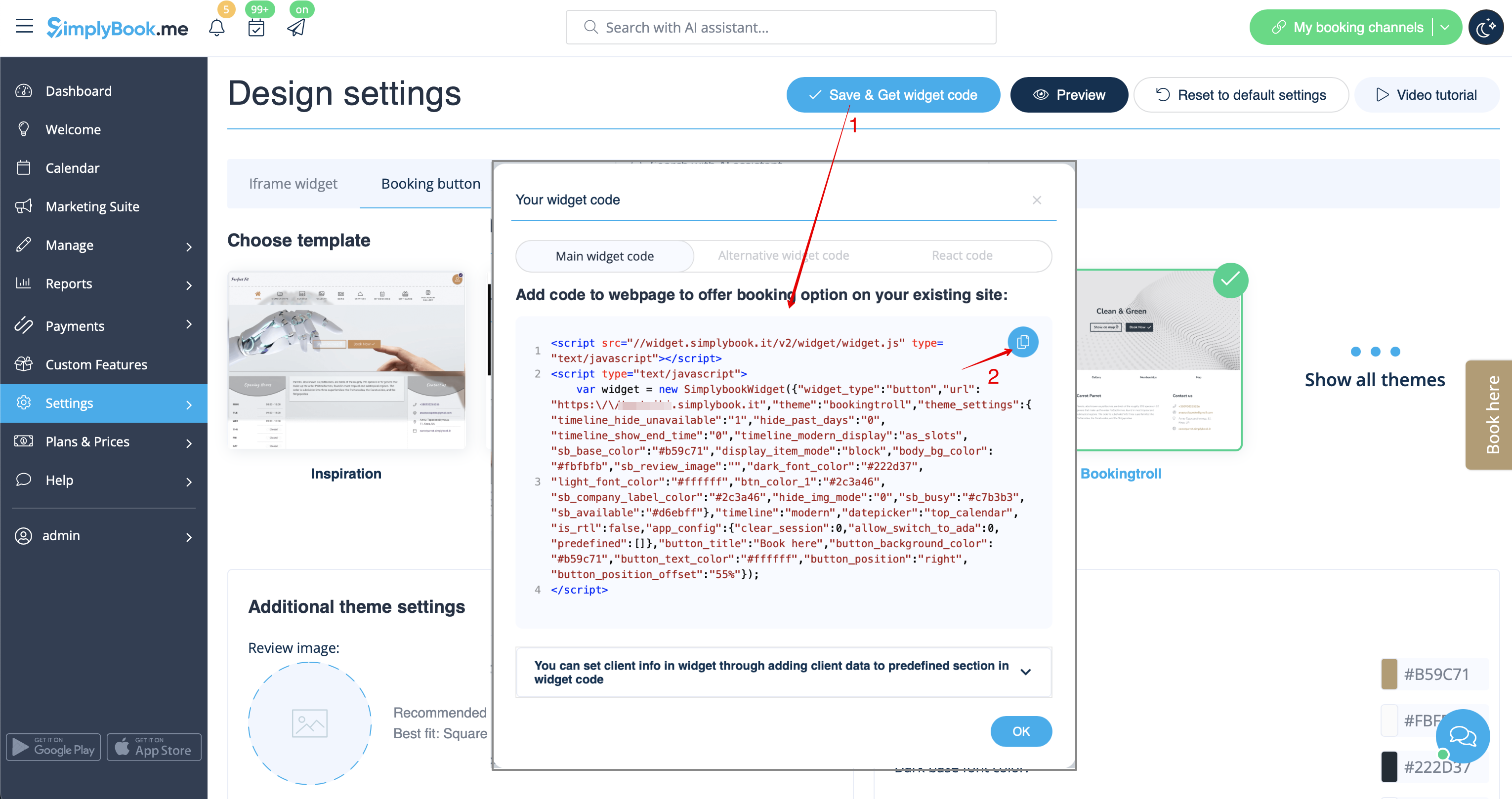
- 2. Infoga den i HTML-koden <body> på din webbplats (eller någon annan plats på din webbplattform som är avsedd för att infoga HTML JavaScript iFrame-kod).
Observera! Olika webbplatsbyggare/plattformar kan ha olika sätt att lägga till HTML-kod. Kontrollera först om din webbplats stöder infogning av HTML JavaScript-kod.
- Här finns handledningar för flera populära webbplatsbyggare:
- Widgets med fördefinierad tjänst, leverantör, kategori eller plats.
Med den här funktionen kan du generera iframe-kod specifikt för tjänster, leverantörer, kategorier eller platser som du har. Om du till exempel har två tjänster, A och B, och du väljer tjänst A som fördefinierad, öppnas widgeten för den tjänsten och steget där du väljer tjänst hoppas över. Denna funktion kan vara användbar om du bara vill visa vissa tjänster på en specifik sida på din webbplats. Stegen för att generera koden är desamma som ovan, men i widgetens inställningar väljer du det objekt du vill fördefiniera.
Widget för bokning och kontakt
- 1. Aktivera kontaktwidget i Anpassade funktioner -> För utveckling.
- 2. Hämta bokningsknappens kod från din bokningssida genom att navigera till Inställningar nära denna anpassade funktion eller i Inställningar i menyn till vänster -> Inställningar för bokningswidgets -> Kontaktwidget -> Hämta widgetkod.
- 3. Infoga den i HTML-koden <body> på din webbplats (eller någon annan plats på din webbplattform som är avsedd för att infoga HTML JavaScript iFrame-kod).
Observera! Olika webbplatsbyggare/plattformar kan ha olika sätt att lägga till HTML-kod. Kontrollera först om din webbplats stöder infogning av HTML JavaScript-kod.
- Här finns handledningar för flera populära webbplatsbyggare:
Recensionswidget
Vill du lägga till recensioner som dina kunder lämnar på bokningssidan till din webbplats?
Följ bara dessa instruktioner:
- 1. Gå till Inställningar -> Inställningar för bokningswidgets -> Recensionswidget.
- 2. På sidan kan du välja tema, ställa in färger, bestämma hur många recensioner du vill visa och om du vill att dina kunder ska kunna lägga till recensioner med hjälp av widgeten.
- 3. När designen är klar klickar du bara på knappen Hämta widgetkod, kopierar koden och klistrar in den på önskad plats på din webbplats.
Grattis! Widgeten är nu klar och dina recensioner kommer att publiceras och uppdateras på din webbplats!
