| Line 85: | Line 85: | ||
<br><br> | <br><br> | ||
:1. Take the booking button code of your booking page in <span style="background-color:#d4f8e5; padding:5px; border-radius:5px;">Settings</span> -> <span style="background-color:#d4f8e5; padding:5px; border-radius:5px;">Booking widget settings</span> -> <span style="background-color:#d4f8e5; padding:5px; border-radius:5px;">Booking button</span> -> <span style="background-color:#d4f8e5; padding:5px; border-radius:5px;">Get widget code.</span> | :1. Take the booking button code of your booking page in <span style="background-color:#d4f8e5; padding:5px; border-radius:5px;">Settings</span> -> <span style="background-color:#d4f8e5; padding:5px; border-radius:5px;">Booking widget settings</span> -> <span style="background-color:#d4f8e5; padding:5px; border-radius:5px;">Booking button</span> -> <span style="background-color:#d4f8e5; padding:5px; border-radius:5px;">Get widget code.</span> | ||
[[File:Booking | [[File:Booking widget path redesigned.png|1200px | center|link=https://help.simplybook.me/images/6/68/Booking_widget_path_redesigned.png]] | ||
<br><br> | <br><br> | ||
[[File:Booking button widget path | [[File:Booking button widget path redesigned.png|1200px | center|link=https://help.simplybook.me/images/b/b3/Booking_button_widget_path_redesigned.png]] | ||
<br><br> | <br><br> | ||
[[File: | [[File:Booking button label redesigned.png|1200px|center|link=https://help.simplybook.me/images/d/dc/Booking_button_label_redesigned.png]] | ||
<br><br> | <br><br> | ||
[[File: | [[File:Get booking button widget code redesigned.png|1200px | center|link=https://help.simplybook.me/images/5/54/Get_booking_button_widget_code_redesigned.png]] | ||
<br><br> | <br><br> | ||
:2. Insert it to the HTML code <body> of your website (or any other place in your website platform designed for inserting HTML JavaScript iFrame code).<br> | :2. Insert it to the HTML code <body> of your website (or any other place in your website platform designed for inserting HTML JavaScript iFrame code).<br> | ||
| Line 111: | Line 111: | ||
This feature allows you to generate iframe code specifically for service, provider, [[Custom_Features#Service_Categories |category]] or [[Custom_Features#Multiple_Locations |location]] you have. For example, if you have 2 services A and B and you choose service A as predefined, the widget will open on that service, skipping the step of choosing the service. This feature may be useful if you need to display only certain services on a specific page on your website. The steps to generate the code are the same as above, only in the settings of the widget, choose the item you need to predefine. | This feature allows you to generate iframe code specifically for service, provider, [[Custom_Features#Service_Categories |category]] or [[Custom_Features#Multiple_Locations |location]] you have. For example, if you have 2 services A and B and you choose service A as predefined, the widget will open on that service, skipping the step of choosing the service. This feature may be useful if you need to display only certain services on a specific page on your website. The steps to generate the code are the same as above, only in the settings of the widget, choose the item you need to predefine. | ||
<br><br> | <br><br> | ||
=Booking and Contact Button Widget= | =Booking and Contact Button Widget= | ||
<br><br> | <br><br> | ||
Revision as of 11:14, 2 January 2025
- Why you should use our Widgets

- Video tutorial available
iFrame Widget
- 1. Take the iFrame code of your booking page in Settings -> Booking widgets settings -> iFrame widget -> Get widget code.
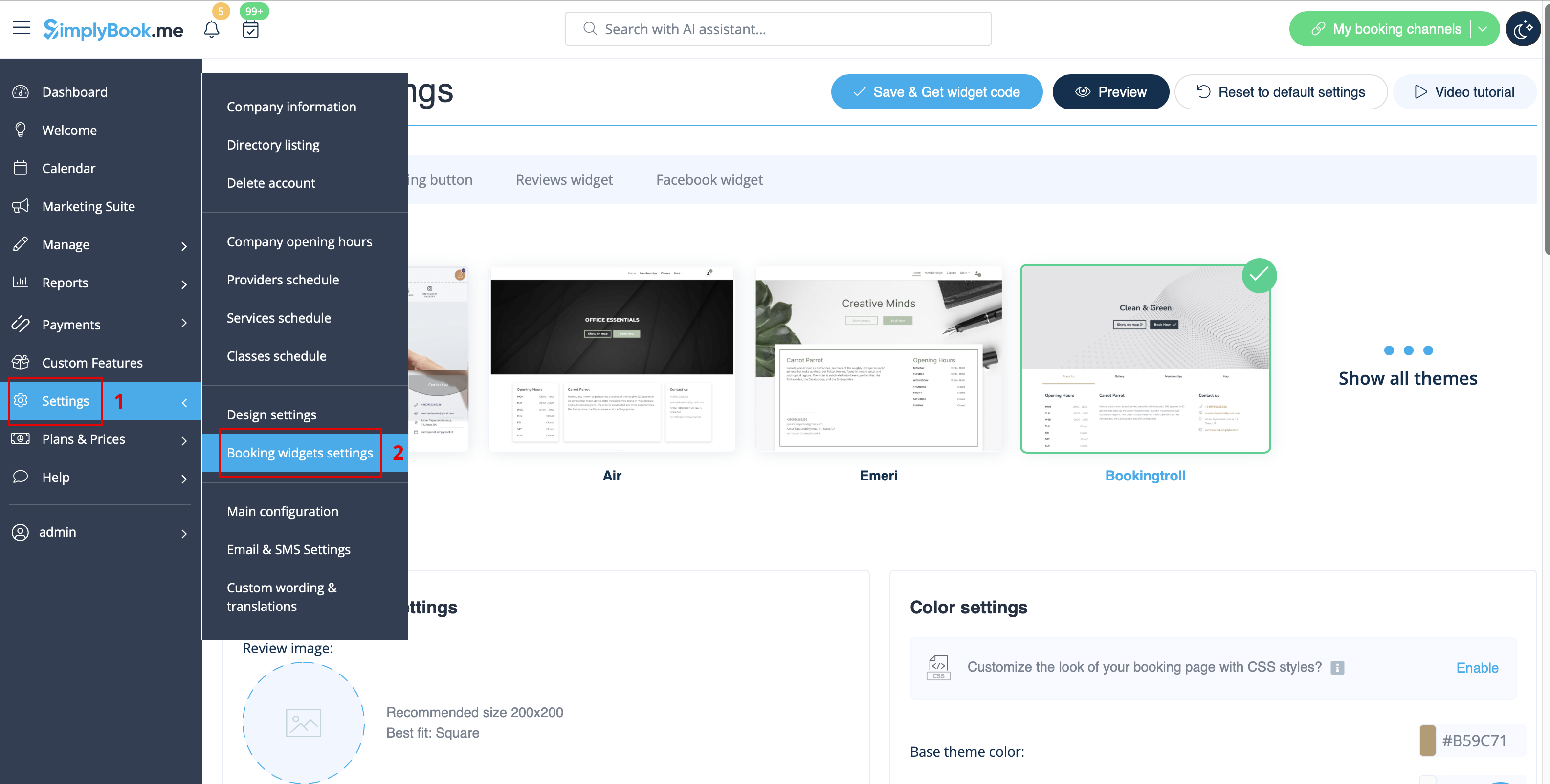
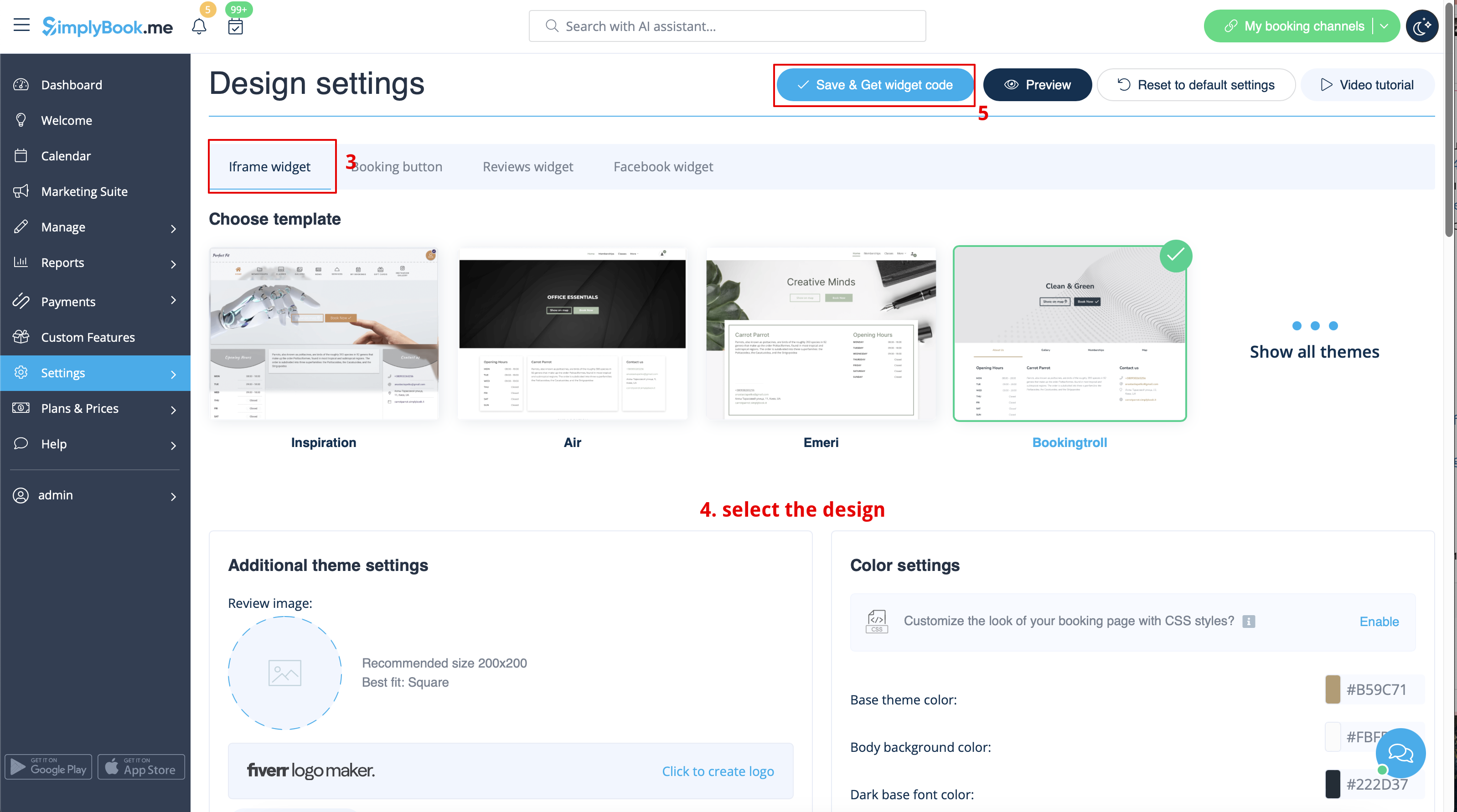
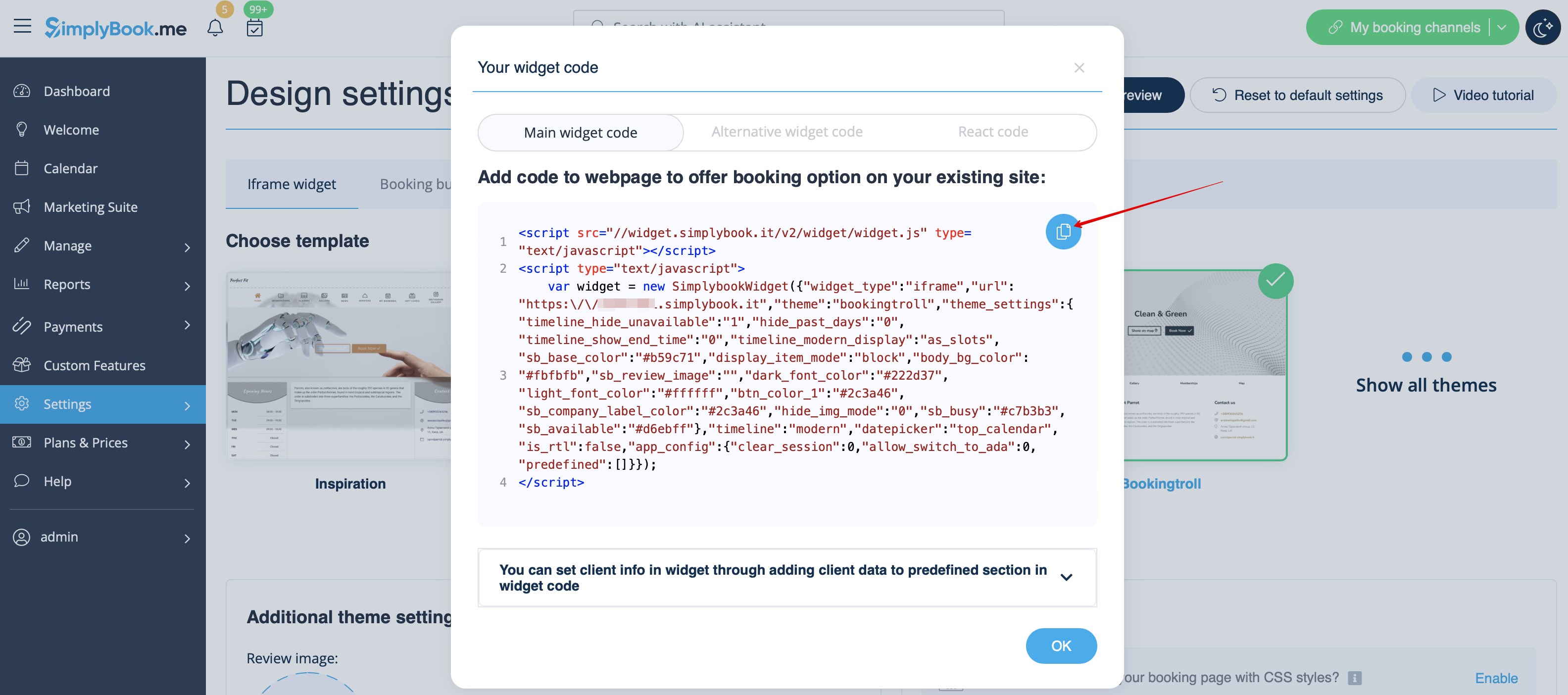
- 2. Insert it to the HTML code <body> of your website (or any other place in your website platform designed for inserting HTML JavaScript iFrame code).
Please note! Different website builders/platforms may have various ways to add HTML code, you should check first whether your website supports inserting HTML JavaScript code.
- Here are tutorials for several popular website builders:
Widgets with predefined service, provider,category or location
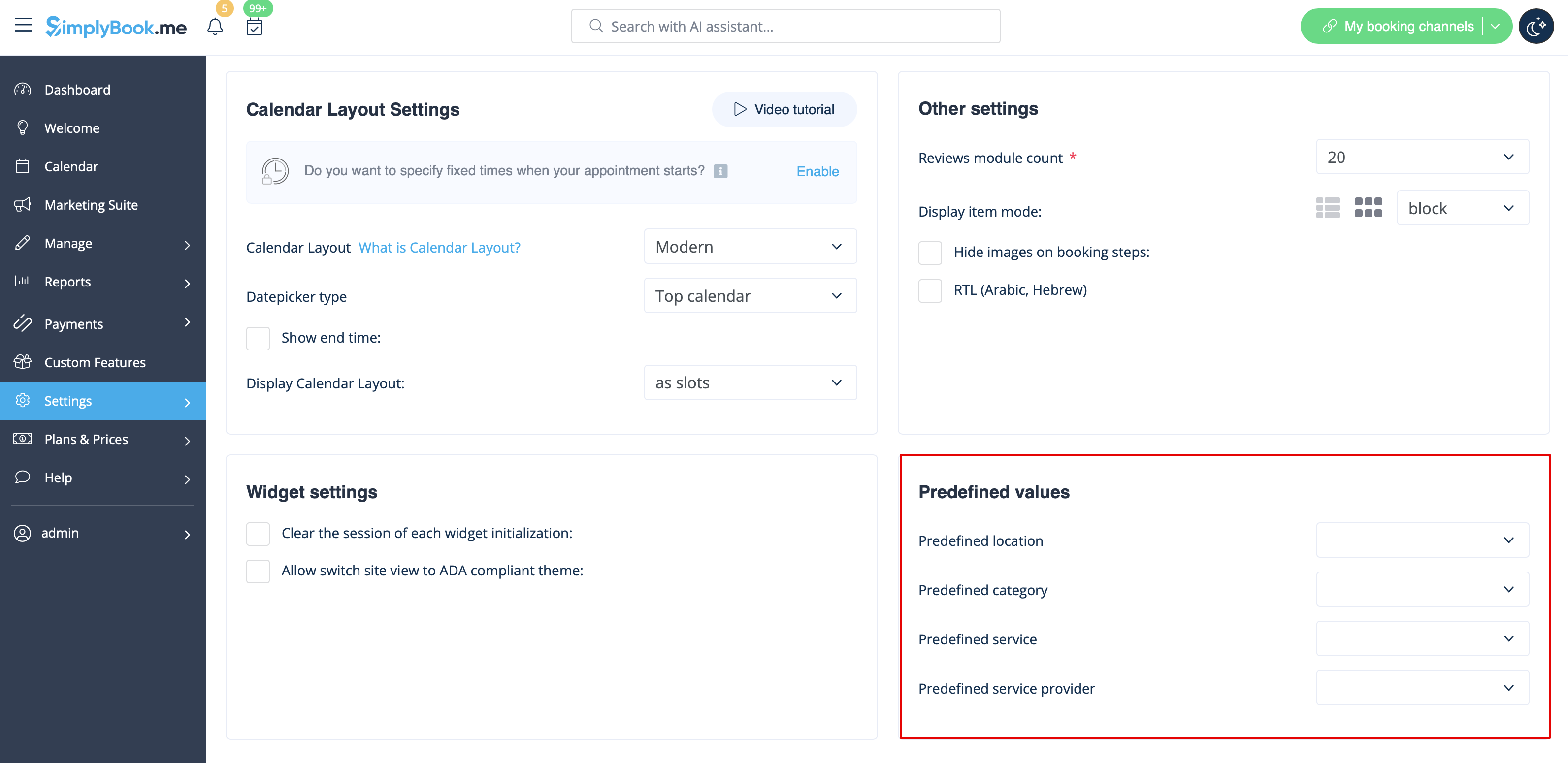
This feature allows you to generate iframe code specifically for service, provider, category or location you have. For example, if you have 2 services A and B and you choose service A as predefined, the widget will open on that service, skipping the step of choosing the service. This feature may be useful if you need to display only certain services on a specific page on your website. The steps to generate the code are the same as above, only in the settings of the widget, choose the item you need to predefine.
Widgets with predefined client details
Now you can also create a widget for some particular client with his/her details already filled in.
- 1. Just select the widget type you need in Settings -> Booking widgets settings, set the design and click on Get widget code.
- 2. You will see a pop-up window with the code, click on the bottom part to get client code details.
- Please copy the main code, add bottom part to it(to predefined section) and replace Predefined client name, Predefined client email, Predefined client phone with the necessary client details.
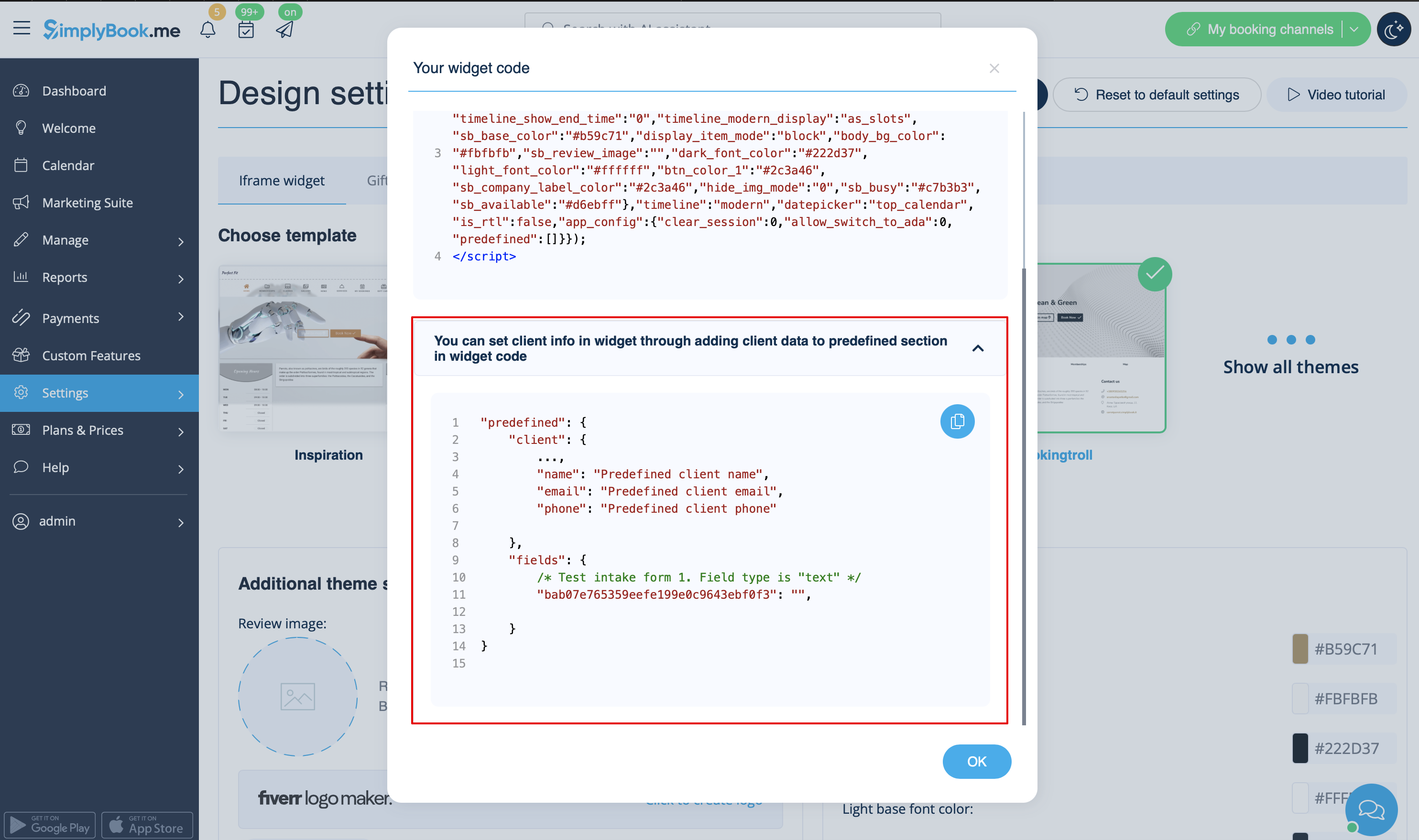
- 3. You will get the code like this:
<script src="//simplybook.me/v2/widget/widget.js"></script>
<script>var widget = new SimplybookWidget({"widget_type":"iframe","url":"https:\/\/companyname.simplybook.me","theme":"belle","theme_settings":{"sb_base_color":"#FF6969","body_bg_color":"#ffffff","dark_font_color":"#494949","light_font_color":"#ffffff","sb_busy":"#dad2ce","sb_available":"#d3e0f1"},"timeline":"flexible","datepicker":"top_calendar","is_rtl":false,"app_config":{"predefined": {"client": {

"name": "Mary",

"email": "mary@gmail.com",

"phone": "+1234567890"

}}
}});</script>
- 4. As a result the details of this client will be pre-filled in the widget and there will be no need for client to provide them.

Widgets for Client Login, Packages, Memberships, Gift Cards
Please note! It currently works with iFrame widgets only and does not work with booking button and contact button widgets.
If you are using one or several of these features it may be necessary to add a widget that will allow your clients to use the option on your website.
It can be done in a simple way by adding of the corresponding "navigate" element to the widget code:
- Client Login - "navigate":"client/sign-in"
- Packages - "navigate":"packages"
- Memberships - "navigate":"membership"
- Gift Cards - "navigate":"gift-card"
Gift Cards widget code example:
<script src="//simplybook.it/v2/widget/widget.js"></script>
<script>var widget = new SimplybookWidget({"widget_type":"iframe","url":"https:\/\/demo.simplybook.it","navigate":"gift-card","theme":"default","theme_settings":{"timeline_show_end_time":"0","timeline_modern_display":"as_slots","sb_base_color":"#0cadef","display_item_mode":"block","booking_nav_bg_color":"#80d0f2","body_bg_color":"#f7f7f7","dark_font_color":"#494949","light_font_color":"#ffffff","btn_color_1":"#5e7da7","sb_company_label_color":"#ffffff","hide_img_mode":"0","show_sidebar":"1","sb_busy":"#dad2ce","sb_available":"#0cadef"},"timeline":"modern","datepicker":"inline_datepicker","is_rtl":false,"app_config":{"predefined":[]}});</script>
Booking Button Widget
- 1. Take the booking button code of your booking page in Settings -> Booking widget settings -> Booking button -> Get widget code.
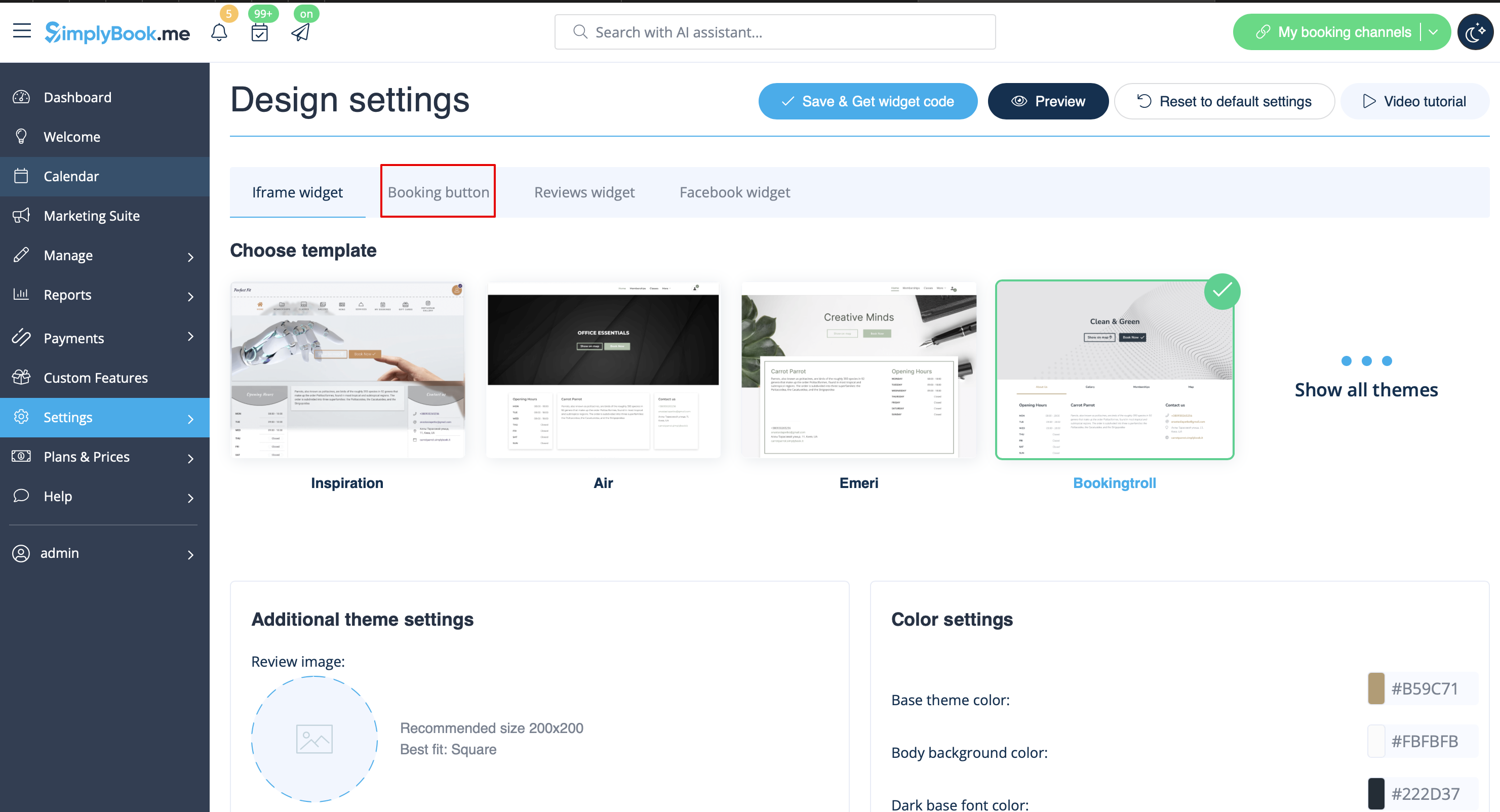
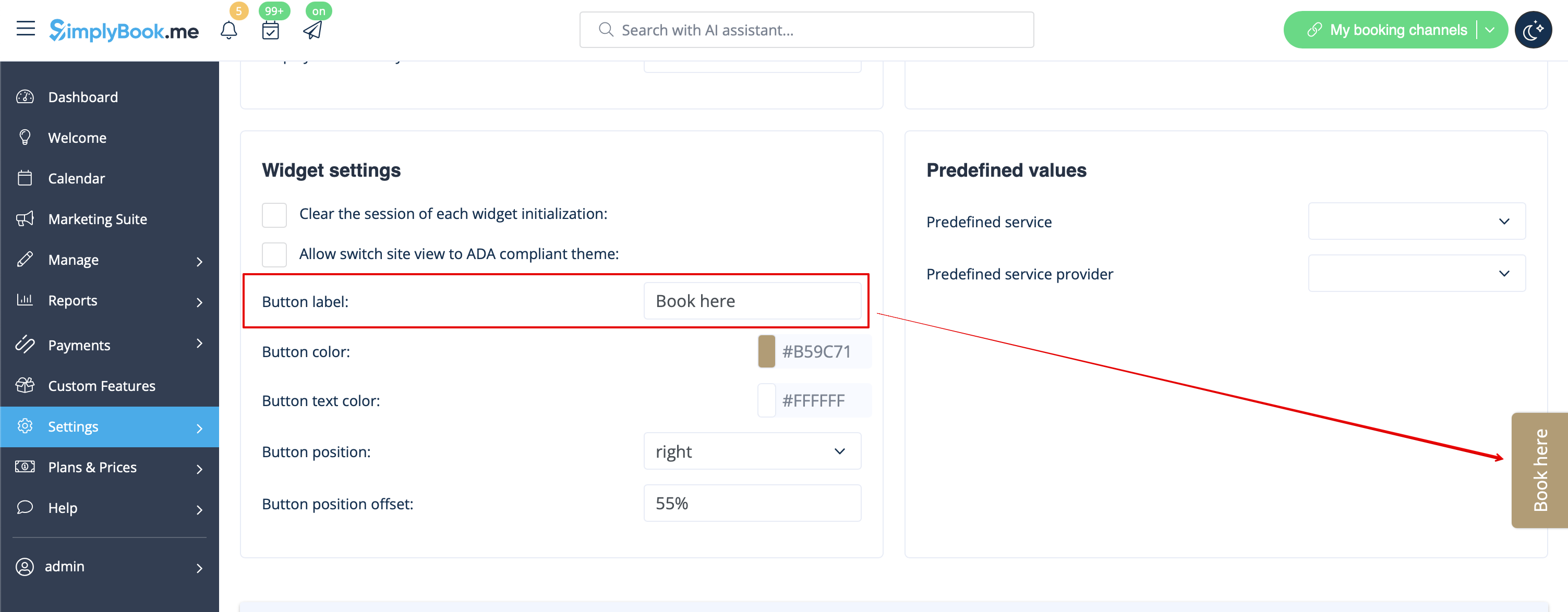
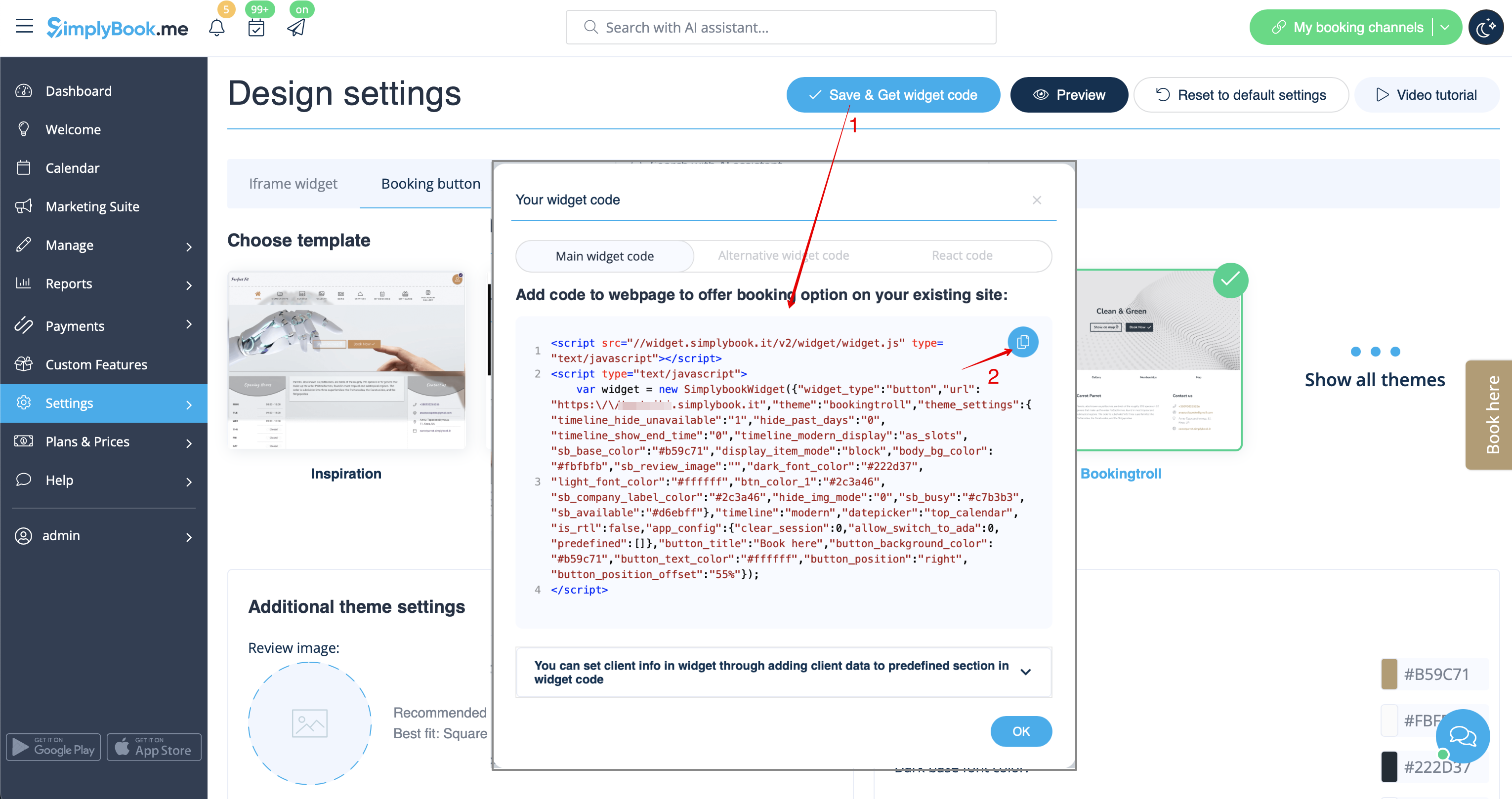
- 2. Insert it to the HTML code <body> of your website (or any other place in your website platform designed for inserting HTML JavaScript iFrame code).
Please note! Different website builders/platforms may have various ways to add HTML code, you should check first whether your website supports inserting HTML JavaScript code.
- Here are tutorials for several popular website builders:
- Widgets with predefined service, provider, category or location.
This feature allows you to generate iframe code specifically for service, provider, category or location you have. For example, if you have 2 services A and B and you choose service A as predefined, the widget will open on that service, skipping the step of choosing the service. This feature may be useful if you need to display only certain services on a specific page on your website. The steps to generate the code are the same as above, only in the settings of the widget, choose the item you need to predefine.
Booking and Contact Button Widget
- 1. Enable Contact Widget in Custom Features -> For Development.

- 2. Take the booking button code of your booking page in Settings -> Booking widgets settings -> Contact widget -> Get widget code.


- 3. Insert it to the HTML code <body> of your website (or any other place in your website platform designed for inserting HTML JavaScript iFrame code).
Please note! Different website builders/platforms may have various ways to add HTML code, you should check first whether your website supports inserting HTML JavaScript code.
- Here are tutorials for several popular website builders:
Reviews Widget
Wish to add reviews your clients leave on the booking page to your website?
Just follow these instructions:
- 1. Please go to Settings -> Booking widgets settings -> Reviews widget.
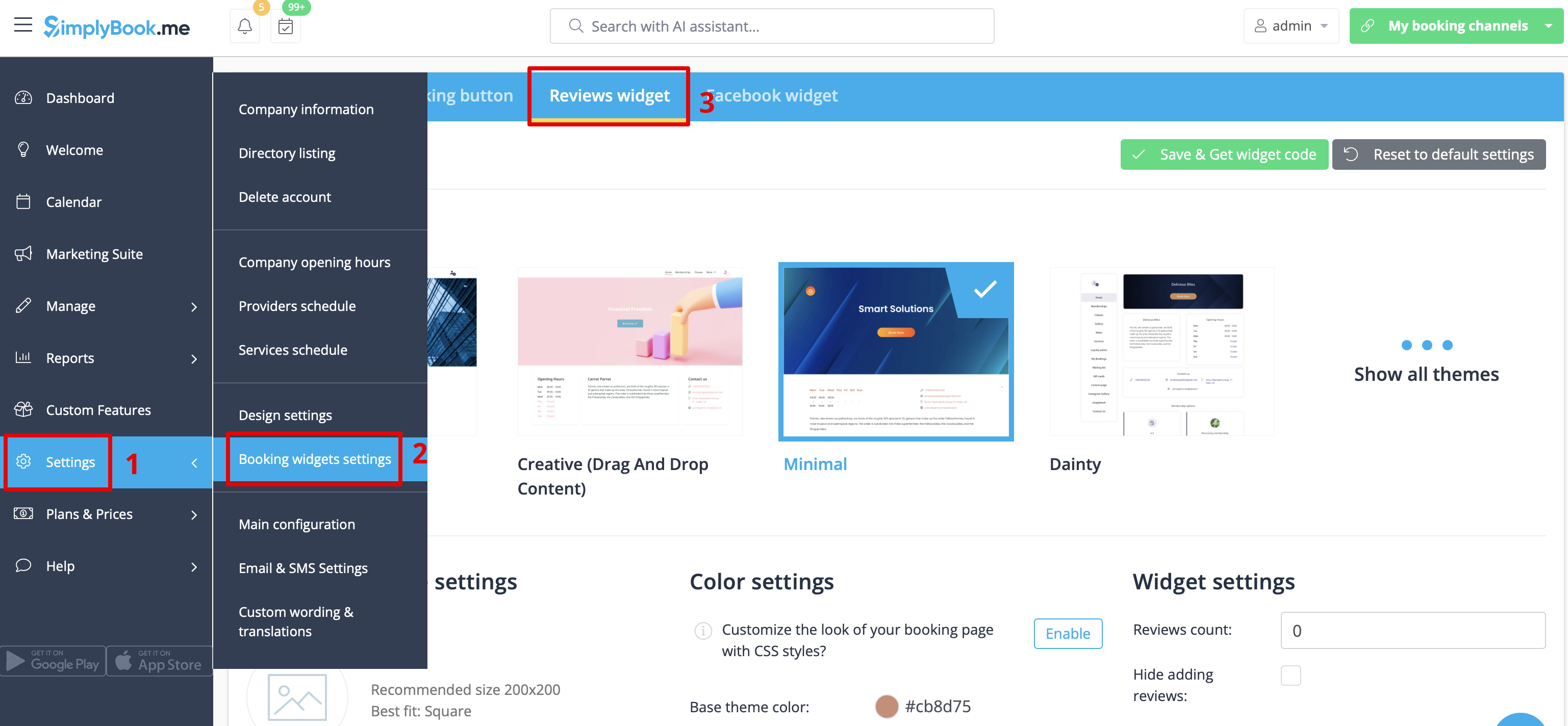
- 2. On the page you will be able to select the theme, set colors, decide on the number of reviews you wish to display and whether you wish your clients to be able to add reviews using the widget.

- 3. And now, when design is set, just click on Get widget code button, copy the code and insert it to your website to the desired place.

Congratulations! Widget is now ready, your reviews will be published and updated on your website!
