Updating to match new version of source page |
Updating to match new version of source page |
||
| Line 23: | Line 23: | ||
<div class="plugin">[[Custom_Features#Accept_Deposits| Accept Deposits]]</div> | <div class="plugin">[[Custom_Features#Accept_Deposits| Accept Deposits]]</div> | ||
<div class="plugin">[[Custom_Features#Accept_Payments| Accept Payments]]</div> | <div class="plugin">[[Custom_Features#Accept_Payments| Accept Payments]]</div> | ||
<div class="plugin">[[Custom_Features#Anti-Fraud/Spam Protection Custom Feature| Anti-Fraud/Spam Protection Custom Feature]]</div> | |||
<div class="plugin">[[Custom_Features#Any_Employee_Selector| Any Employee Selector]]</div> | <div class="plugin">[[Custom_Features#Any_Employee_Selector| Any Employee Selector]]</div> | ||
<div class="plugin">[[Custom_Features#API| API]]</div> | <div class="plugin">[[Custom_Features#API| API]]</div> | ||
| Line 54: | Line 55: | ||
<div class="plugin">[[Custom_Features#Google_Business| Google Business]]</div> | <div class="plugin">[[Custom_Features#Google_Business| Google Business]]</div> | ||
::<div class="plugin-item">[[Custom_Features#Reserve_with_Google| Reserve with Google]]</div> | ::<div class="plugin-item">[[Custom_Features#Reserve_with_Google| Reserve with Google]]</div> | ||
<div class="plugin">[[Google_Reviews_custom_feature |Google Reviews]]</div> | |||
<div class="plugin">[[Custom_Features#Google_Tag_Manager| Google Tag Manager]]</div> | <div class="plugin">[[Custom_Features#Google_Tag_Manager| Google Tag Manager]]</div> | ||
<div class="plugin">[[Custom_Features#Google_Translate| Google Translate]]</div> | <div class="plugin">[[Custom_Features#Google_Translate| Google Translate]]</div> | ||
| Line 261: | Line 263: | ||
<br><br><br><br> | <br><br><br><br> | ||
----------- | |||
=Anti-Fraud/Spam Protection Custom Feature= | |||
[[File:Booking restriction plugin icon.png|left]] | |||
This is an Anti-Fraud/Spam Protection feature. It enables administrators to limit the number of bookings that can be made from the same email, phone, and IP address. The feature provides various options, such as setting the maximum number of bookings, defining the time period in which these bookings can be made, and the ability to block or flag suspected fraudulent activities. This feature helps to prevent fraudulent or spammy bookings and protects the system's integrity, ensuring a smooth and trustworthy booking experience for legitimate customers. | |||
;How to use | |||
1. Enable <span style="background-color:#d4f8e5; padding:5px; border-radius:5px;">Anti-Fraud/Spam Protection</span> on your <span style="background-color:#d4f8e5; padding:5px; border-radius:5px;">Custom features</span> page -> <span style="background-color:#d4f8e5; padding:5px; border-radius:5px;">Security & Data protection</span> section. | |||
[[File:Booking_restriction_plugin_enable_path.png|1200px|border|center|link=https://help.simplybook.me/images/5/53/Booking_restriction_plugin_enable_path.png]] | |||
<br><br> | |||
2. In the first <span style="background-color:#d4f8e5; padding:5px; border-radius:5px;">Main configuration</span> section you can decide on the error message text that will be shown on the client side if the limit is reached, enable <span style="background-color:#d4f8e5; padding:5px; border-radius:5px;">Disallow disposable emails</span> option if you would like to prohibit the use of such emails, add IP addresses</span> that should be always allowed to book from(in case you plan to use limits by IP). | |||
[[File:Booking restriction plugin settings 1.png|1200px|border|center|link=https://help.simplybook.me/images/f/f2/Booking_restriction_plugin_settings_1.png]] | |||
<br><br> | |||
3. The next section <span style="background-color:#d4f8e5; padding:5px; border-radius:5px;">Limits</span> allows you to set the specific limits by <span style="background-color:#d4f8e5; padding:5px; border-radius:5px;">client</span>(available with <span style="background-color:#cdeffc; padding:5px; border-radius:5px;">[[Special:MyLanguage/Client_Login_custom_feature|Client Login]]</span> custom feature enabled only), by <span style="background-color:#d4f8e5; padding:5px; border-radius:5px;">IP address</span>, by <span style="background-color:#d4f8e5; padding:5px; border-radius:5px;">email address</span> or <span style="background-color:#d4f8e5; padding:5px; border-radius:5px;">phone number.</span> You can use any option or several of them at the same time.<br> | |||
<span style="background-color:#ffe9e9; padding:5px; border-radius:5px;">'''Please note!''' If you have some IP addresses as whitelisted, the other limitations(by email, phone or client if they are set) will still apply for such client.</span> | |||
[[File:Booking restriction plugin settings 2.png|1200px|border|center|link=https://help.simplybook.me/images/f/fd/Booking_restriction_plugin_settings_2.png]] | |||
<br><br> | |||
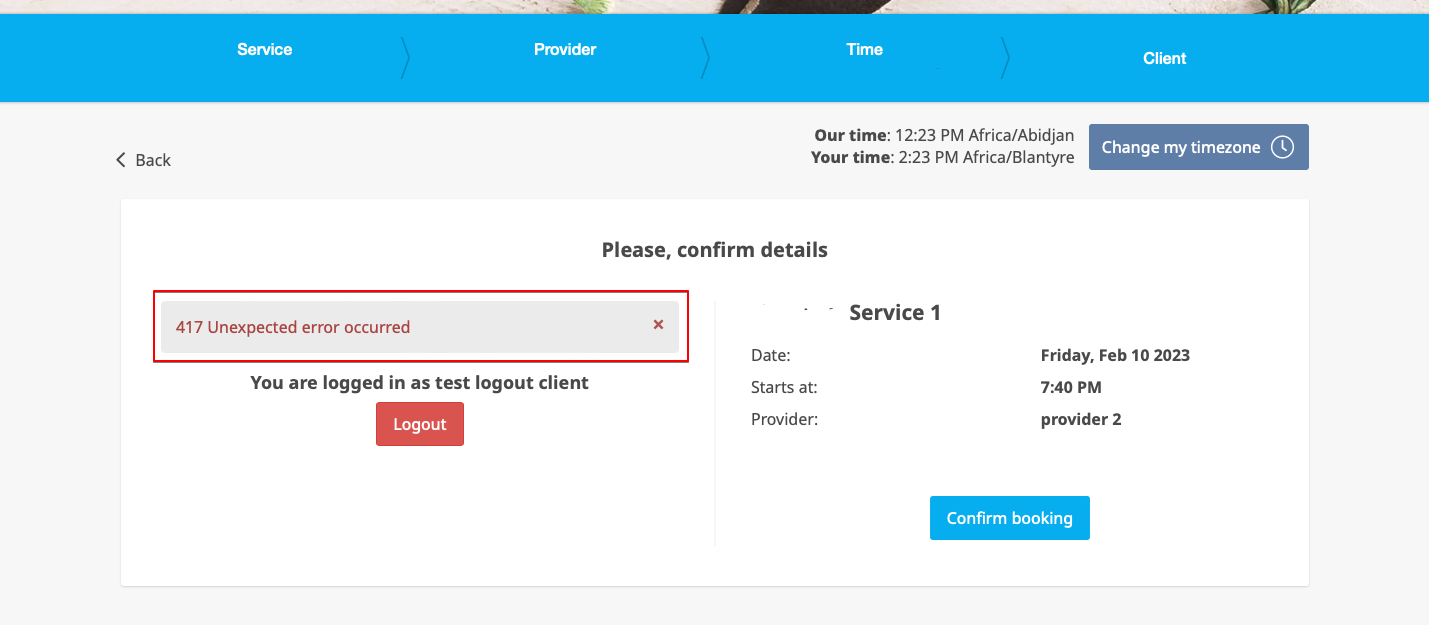
4. When the limit is reached there will be the error message shown on the client side. | |||
(default text used in the example below) | |||
[[File:Booking restriction client side.png|1200px|border|center|link=https://help.simplybook.me/images/b/b2/Booking_restriction_client_side.png]] | |||
<br><br> | |||
<br><br> | |||
----------- | ----------- | ||
| Line 718: | Line 748: | ||
:See the instructions [[Widgets_for_your_own_website#Booking_and_Contact_Button_Widget| how to add booking widget to your website]] | :See the instructions [[Widgets_for_your_own_website#Booking_and_Contact_Button_Widget| how to add booking widget to your website]] | ||
<br><br> | <br><br> | ||
:3. To check received messages from your customers please go to Reports -> SMS(text messages) -> Contact | :3. To check received messages from your customers please go to Reports -> SMS(text messages) -> Contact widget | ||
[[File:Contact widget report path new navigation.png|1200px| center]] | [[File:Contact widget report path new navigation.png|1200px| center]] | ||
<br><br> | <br><br> | ||
------- | ------- | ||
=[[Coupons and Gift Cards custom feature | Coupons & Gift Cards]]= | =[[Coupons and Gift Cards custom feature | Coupons & Gift Cards]]= | ||
<br> | <br> | ||
| Line 1,182: | Line 1,213: | ||
<br><br> | <br><br> | ||
And, for sure, you will be able to manually upload the files during the new booking or client record creation/editing from admin side if necessary. | And, for sure, you will be able to manually upload the files during the new booking or client record creation/editing from admin side if necessary. | ||
<br><br> | |||
7. If you are also using <span style="background-color:#cdeffc; padding:5px; border-radius:5px;">[[SOAP_with_Encryption_custom_feature| SOAP with Encryption]]</span> custom feature you can also enable attaching the file in the SOAP feature settings on your Custom Features page. | |||
[[File:File upload for soap enable.png|1200px|border|center|link=https://help.simplybook.me/images/9/98/File_upload_for_soap_enable.png]] | |||
<br><br> | |||
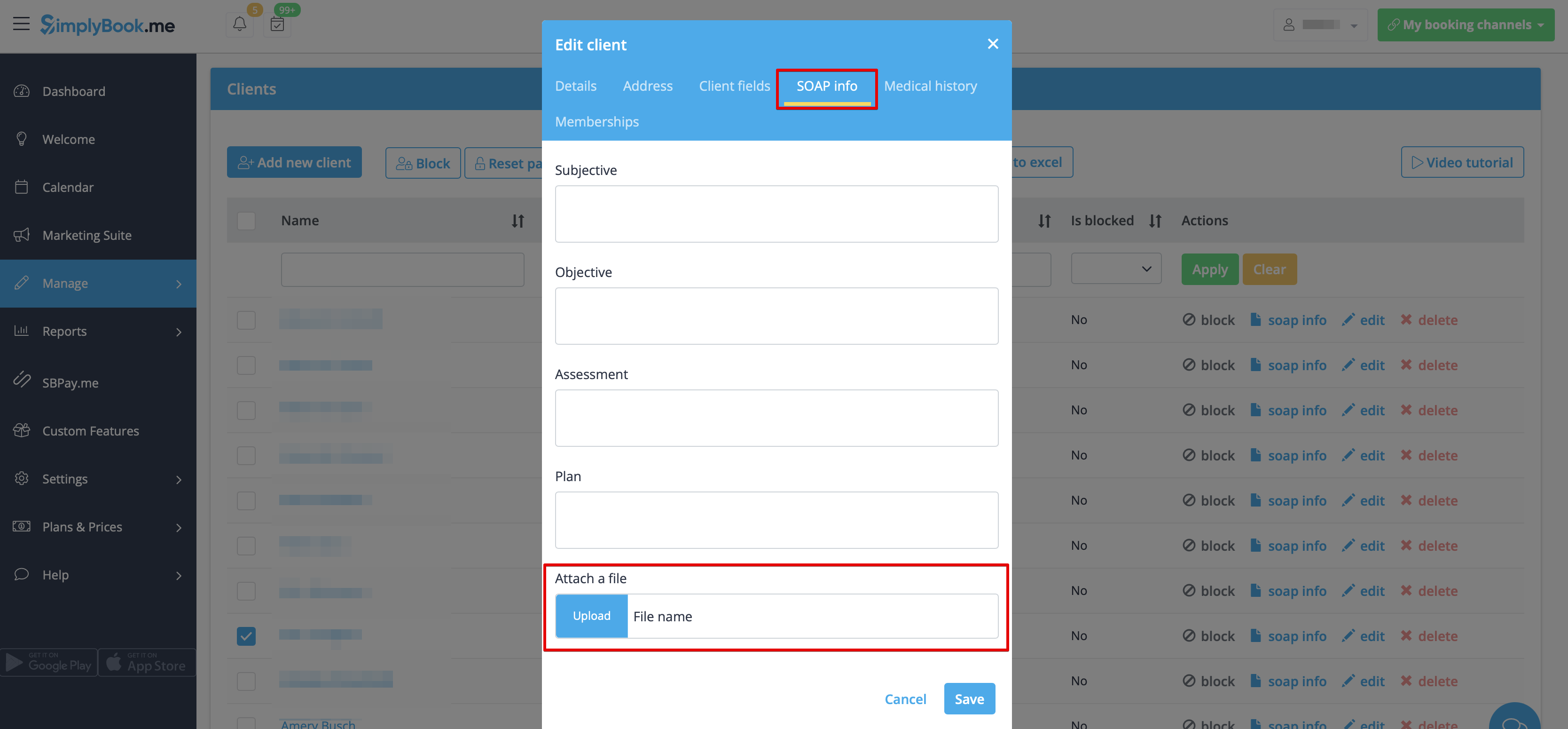
As the result you will have the corresponding form in <span style="background-color:#d4f8e5; padding:5px; border-radius:5px;">Manage</span> -> <span style="background-color:#d4f8e5; padding:5px; border-radius:5px;">Clients</span> -> <span style="background-color:#d4f8e5; padding:5px; border-radius:5px;">SOAP info</span> -> <span style="background-color:#d4f8e5; padding:5px; border-radius:5px;">Attach a file.</span> | |||
[[File:File upload for soap upload form.png|1200px|border|center|link=https://help.simplybook.me/images/c/cf/File_upload_for_soap_upload_form.png]] | |||
<br><br><br><br> | <br><br><br><br> | ||
------- | ------- | ||
=Flexible Notifications= | =Flexible Notifications= | ||
<br> | <br> | ||
| Line 2,521: | Line 2,559: | ||
<br><br> | <br><br> | ||
:5. You can also make add-on to be selected by default on the booking page<br> | :5. You can also make add-on to be selected by default on the booking page<br> | ||
:'''Please note!''' The clients will be able | :'''Please note!''' The clients will be able to uncheck this item if they wish to on the booking page. | ||
[[File: Selected add-on.png | center]] | [[File: Selected add-on.png | center]] | ||
<br><br> | <br><br> | ||
| Line 2,543: | Line 2,581: | ||
<br><br> | <br><br> | ||
-------- | -------- | ||
=Service Categories= | =Service Categories= | ||
<br> | <br> | ||
Revision as of 14:57, 10 February 2023
Custom Features are additional functionalities of the system that will help you to improve your business. Please check the list of Custom Features below along with their descriptions and instructions how to use.
Video overview 
You may also need:
- TOP 10 Custom Features per Business Category
- Custom Features dependent on other Custom Features
- What Custom Features do not work with each other
- Custom Features by Functionality Category
Contents
Accept Deposits

Use deposits to increase the likelihood of clients coming for the service and make sure that in case they do not show up that you can keep the deposit. Remark that some clients may contact their bank directly to get refund of deposits in which case there is little that can be done but such cases should be rare.
Please note:
- When you enable Accept deposits feature Accept Payments will be enabled as well.
- Deposit amounts can only be set per services and/or classes.
- This feature is not compatible with Tickets and Ticket's QR Code.
- If the client wants to apply a promocode or a previously purchased package during purchase he/she needs to pay full price only as these items cannot be applied with deposits.
- How to use
- 1. To enable this feature please navigate to Custom Features page, Business enhancements section, click on Accept deposits and either move the switcher to the On position or hit Enable button on the right side of the page.

- 2. You can set the system to allow the clients to pay deposits only via booking site by disabling Allow clients to pay full price option on the right side of the page.
- In this case if deposit amount is indicated per service/class the client will pay that amount to confirm their booking.
- If only full amount is set per service/class then the clients will pay full price.
- In case Allow clients to pay full price is enabled(default state) and deposit amount is indicated per service/class the clients will have a choice to pay either full price or deposit at checkout.

- 3. To set deposit amounts per your services please either go to Manage -> Services(Classes) or use Manage button near this custom feature title.

- 4. Click on the service/class name for the desired item to open Service/Class details tab and move Enable deposit switcher to the active position.

- 5. Indicate the amount you would like to receive as a deposit for this item in the corresponding box(it should be less than actual price, but more than 0) and save settings.

- 6. After you save all the settings the services will have two prices displayed on the booking site: full amount and deposit.

- 7. When the clients pay the deposit amount online to confirm their booking two orders/invoices will be created in the system: one for the deposit and the second for the rest amount
- (it will be shown as pending till the client pays at the place of appointment and you manually approve it).
- You can manage them in Reports -> Payment transactions.

- Or via Point of Sale interface:

Accept Payments

Accept Payments Custom Feature allows you to accept payments from your clients online. You can set the price for your service and when your clients make a booking, they will be redirected to the payment page.
You can accept payments via a variety of payment processors. All the online payments are processed by the payment gateway of your choice and if there is a need to issue a refund to a client it can only be done from the admin account of your payment processor manually as Simplybook does not process any payments at the first place.
To check gateways available by country please follow this link.
Video tutorial
SBPay.me PRO integration video tutorial
How to use
- 1. Enable Accept Payments custom feature in Custom Features section.

- 2. To add your payment processor details please go to Settings for this feature.

- 3. On the right side you will see the list of processors available. Please find the desired one and add your credentials.

- 3.1 (Optional) Set your Payment timeout in the left-side section of this feature, we recommend not less than 20-30 minutes.
- 4. In Manage -> Services -> (select the service to edit) -> Service details -> Price set the price of your service.

- 5. Add invoice information to the corresponding block and your clients will receive invoices about any purchase made within your system. You can also disable sending invoices to your clients if necessary.

How Accept Payments custom feature works
- 1. A client goes through the booking process and presses Book Now at the end.
- 2. He is directed to payment system and unconfirmed booking appears in the admin calendar marked red as not paid to reserve this time so that no other person can accidentally book the same slot and there will be no double-bookings.

- 3. After that, the client has 2 options:
- 3.1. pay and the payment processor will send us confirmation that client has paid and we will automatically approve it on our side (booking will be marked with green color).
- 3.1. pay and the payment processor will send us confirmation that client has paid and we will automatically approve it on our side (booking will be marked with green color).

- 3.2. do not finish paying: the client is directed to the payment system, but then he closes the page, closes the browser, or simply leaves it open without any actions for a long period of time. In this case, the system will wait until timeout you set up in the settings of Accept payments custom feature will end and will cancel the non-paid booking because it was never finished. You can set the emails to be sent to client and/or you to be notified about the timed out bookings.
- Same happens if the client paid, but paid later than timeout. In this case, if you receive a notification from PayPal/Stripe/etc. that client paid for the booking but as it was too late you can go to Reports -> Payment transactions and approve this booking manually.
- 3.2. do not finish paying: the client is directed to the payment system, but then he closes the page, closes the browser, or simply leaves it open without any actions for a long period of time. In this case, the system will wait until timeout you set up in the settings of Accept payments custom feature will end and will cancel the non-paid booking because it was never finished. You can set the emails to be sent to client and/or you to be notified about the timed out bookings.

What is "Allow delay payment" option

When your clients are transferred to the payment page after Details tab, they usually have several options: your payment processor (one or several) and Pay Later. Pay Later means that client will pay right on the place when he/she arrives to the appointment. In your Dashboard, when you click on the appointment, such booking in the service price field will have a note "Pay Later". If you want to disable Pay later option, set the switcher to Off position for Allow delay payment in the settings of Accept payments custom feature.
How to change the currency for payments
You can change the currency in the settings of Accept payments custom feature.
Please note! Some payment processors do not support all currencies. Before setting the currency, check if the selected payment processor supports it.

How to add tax to services
- 1. Add the necessary taxes options in Manage -> Taxes -> +
- Choose the default one if necessary - it will be automatically set for each new sale item that you will create in the system.

- 2. Navigate to Manage -> Services and select the tax option per each service.
- If you have other items like Classes, Packages, Memberships, Products for sale, Service add-ons, Gift cards and need taxes to be applied there as well please go to the corresponding management page and select from the pre-created taxes for each item.

- 3. In Custom features -> Accept payments -> Settings choose whether the tax amount should be added to the price that you have set per service(or other item) or it is already included by using the switcher Prices include tax.
- If you enable the switcher it will mean that the amount that you have set per service is already with taxes.
- In case you disable the switcher the system will automatically add the selected tax percentage to the items prices

Can I use another payment processor that is not listed in the Accept payments custom feature
In that case please contact support and we will gladly check the possibilities of adding it to our system. Support may ask you to provide technical documentation related to this payment processor to check if there is a possibility of such an integration.
How to customize the client invoices
It may be necessary to show or hide some data or change the look for the invoices that the system sends to clients after they make a purchase on your booking website.
You can adjust the following items:
1. Company address.
If it is added in Settings -> Company information and set to be displayed on the booking website it will also be shown in the invoices.


If you need to hide it simply check Don't show email on booking website there, save settings and it will not appear neither on the website nor in the invoices.
2. Company VAT number.
If it is added in Settings -> Company information it will also be present in the invoices.


3. Client address.
For the client address to be displayed please enable Client Login custom feature, enable both Display address on the booking page and Make address mandatory registration field in Accessibility section. Save settings.


4. Intake forms and Client Fields
You can add certain forms to be displayed in the client information block.
If it is an intake form please go to Manage -> Intake forms -> click on the necessary form to select -> enable Add field to invoice, save settings.

Or if you wish to add a client form then navigate to Manage -> Client fields -> click on the desired field to edit it -> enable Add field to invoice, save.

As the result both the form title and the client response will be reflected in the invoice.

5. Invoice design.
You can select one of the three invoice designs we have available.
Please choose default, white or dark template in Custom features -> Accept payments -> Settings -> Select invoice template -> choose the desired look and save settings.

Anti-Fraud/Spam Protection Custom Feature

This is an Anti-Fraud/Spam Protection feature. It enables administrators to limit the number of bookings that can be made from the same email, phone, and IP address. The feature provides various options, such as setting the maximum number of bookings, defining the time period in which these bookings can be made, and the ability to block or flag suspected fraudulent activities. This feature helps to prevent fraudulent or spammy bookings and protects the system's integrity, ensuring a smooth and trustworthy booking experience for legitimate customers.
- How to use
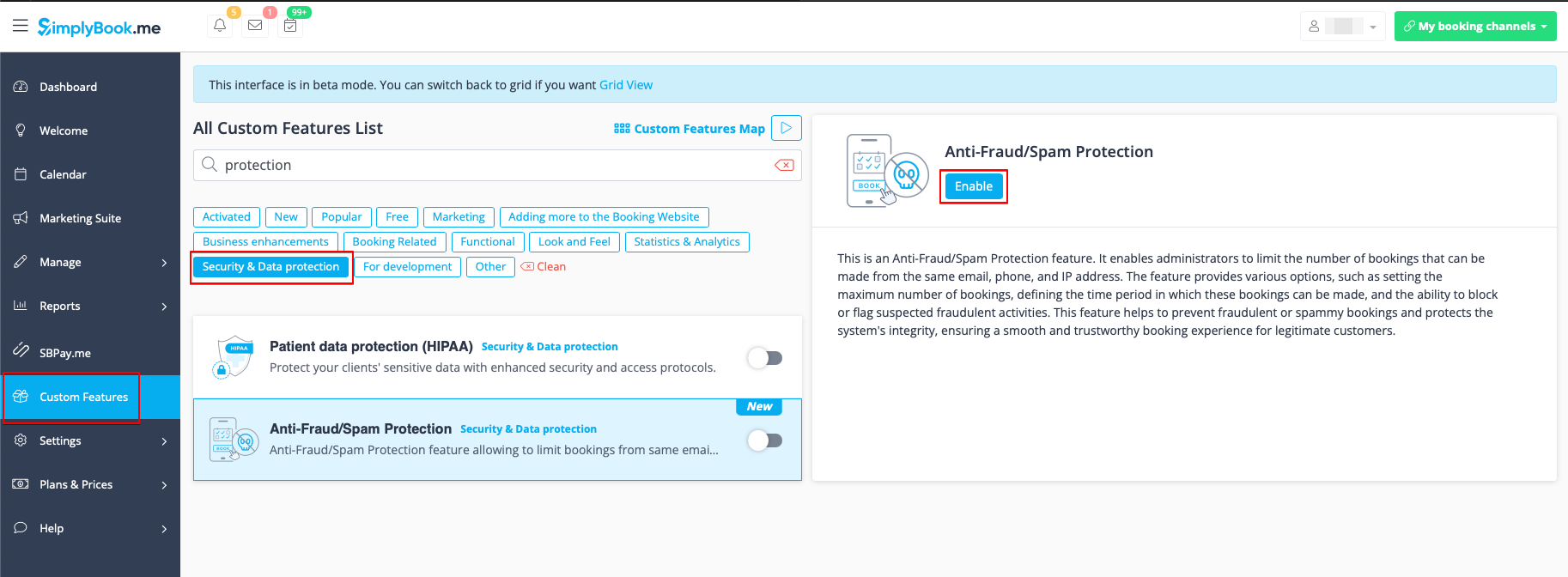
1. Enable Anti-Fraud/Spam Protection on your Custom features page -> Security & Data protection section.
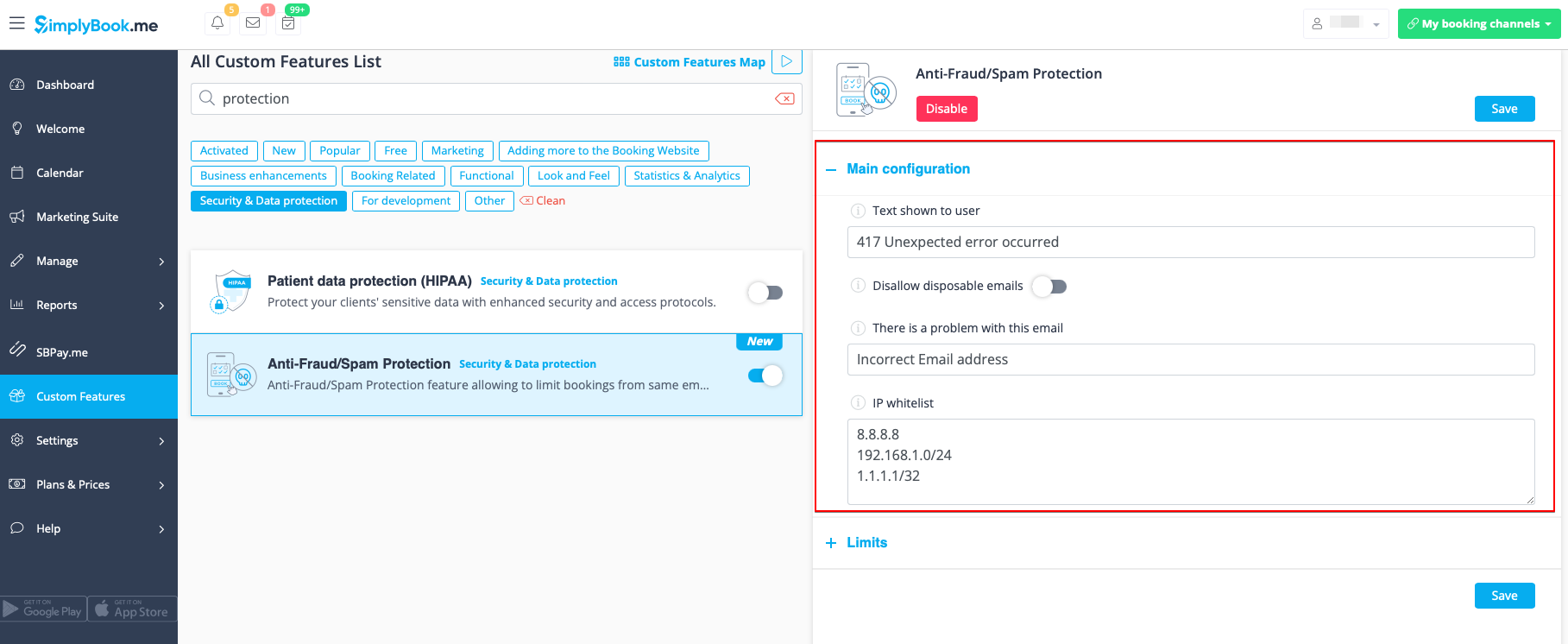
2. In the first Main configuration section you can decide on the error message text that will be shown on the client side if the limit is reached, enable Disallow disposable emails option if you would like to prohibit the use of such emails, add IP addresses that should be always allowed to book from(in case you plan to use limits by IP).
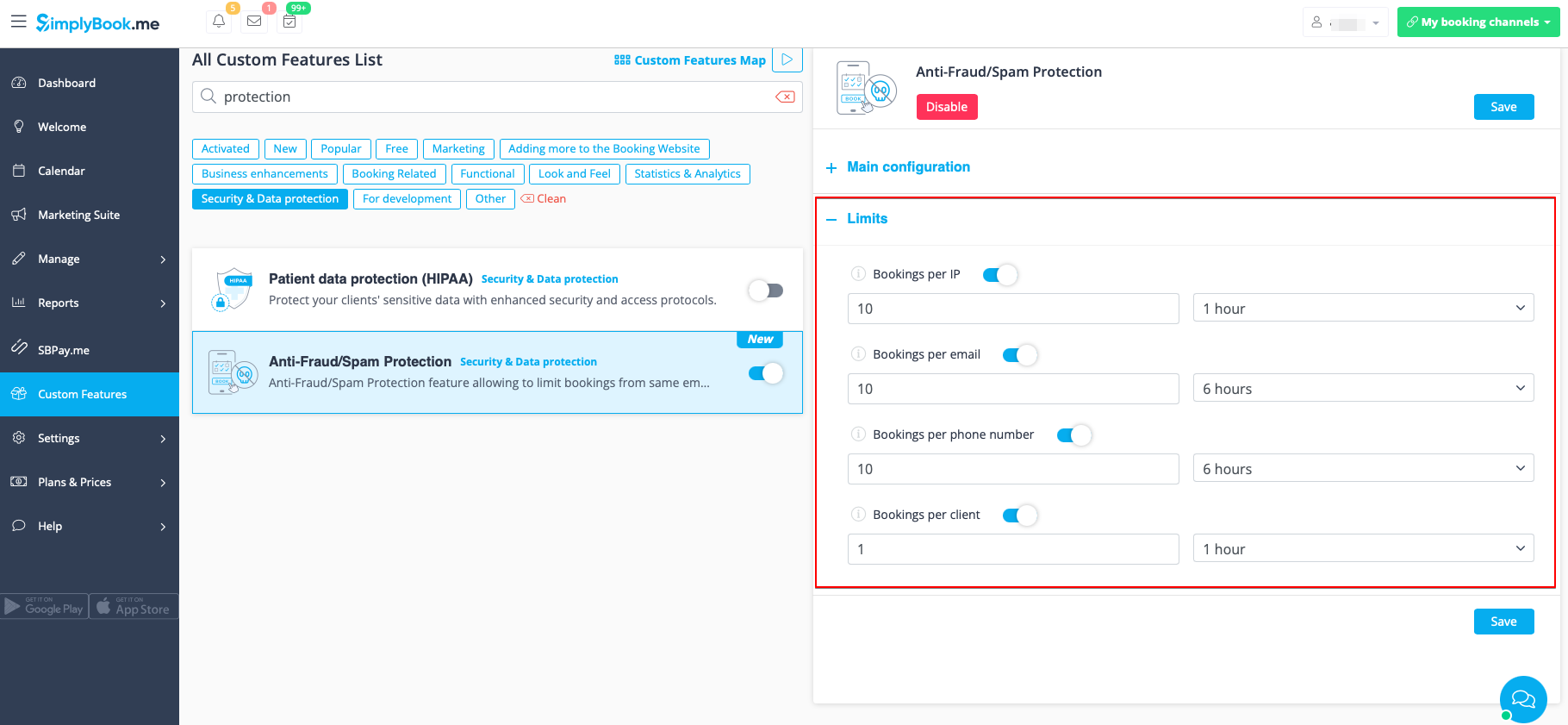
3. The next section Limits allows you to set the specific limits by client(available with Client Login custom feature enabled only), by IP address, by email address or phone number. You can use any option or several of them at the same time.
Please note! If you have some IP addresses as whitelisted, the other limitations(by email, phone or client if they are set) will still apply for such client.
4. When the limit is reached there will be the error message shown on the client side.
(default text used in the example below)
Any Employee Selector

You can use this Custom Feature to add a service provider called "Any provider" to the booking page, and if the client chooses this provider, all times of available providers will show.

You can also use this Custom Feature to:
- Hide employee step on the booking page.
- Auto allocate any available provider for selected service randomly.
This way the client only chooses the service and the time so it simplifies the booking process.
- How to use
- 1. Enable "Any Employee selector" custom feature in Custom features section.

- 2. Go to the settings on the right to adjust "Any employee" option title and description to your needs.

- 3. If you need to hide providers from the booking site and/or assign them randomly please check the corresponding boxes there.
API

With the help of this custom feature you can design your own solutions varying from simple widgets to multi-functional applications.
Use it to authorize in Simplybook API with API key.
- How to use
- 1. Navigate to Custom features section using the left-side menu of your admin interface,
- find the corresponding feature and enable it.

- 2. Go to Settings on the right to access the API keys.

- 3. (optional) Use Callback URL and other available options for your own development.
Appointment at Fixed Time

This Custom Feature allows advanced flexibility to your appointment start times for all services at once or per each service. Custom Feature can be used to define exact hour and/or minutes in an hour where your services are available (e.g. 10.00, 14.30, 16.25). It can be used to set the start hour and then choose fixed or multiple interval in minutes when your services are available (e.g. multiple of 15 min 10.00, 10.15, 10.30, 10.45).
- Please note! This feature works with "slots" timelines: slots weekly or modern; and does not work with any flexible timeline type.
- How to use
- 1. Open Custom features page in your account and click on "Enable" near Appointment at fixed time option.

- 2. To set times go to "Settings" next to it.

- 3. On the page you see please select the service you wish to edit start times for or select "All services" if all times will be the same.
- And choose the desired times using the corresponding boxes.

Approve Bookings

Approve Bookings Custom Feature is essential if you need to look at customers details before you can approve their booking. It allows you to check information given by clients before you accept their bookings. When your clients book an appointment, at the end they will see a notice that confirmation email will be sent when their booking is approved.
Please note!
- If you have Accept Payments custom feature enabled, paid bookings will be approved automatically, only free services and bookings with "Pay Later" option can be approved/rejected.
- If the client booked using Multiple bookings custom feature(or other batch bookings) all appointments from multiple bookings pack are approved if one session is approved. The way around is to edit reservations you want to reschedule and cancel reservations you want to decline first, and then approve the pack.
- How to use
- 1. Enable Approve bookings custom feature in your Custom features section.

- 2. Navigate to Calendar//Pending bookings to check the bookings waiting for approval and accept or decline them.
- The client will receive the confirmation email only after your approval.
- If you decline the booking there will be no notification to the client.


Book Soon Notification System

Make sure your clients come again! This Custom Feature will remind your clients to come back as you can send them a message x-number of days after their appointment. For example, you can compose your own message and send a reminder always 30 days after an appointment.
Please note!
- This custom feature is available with paid subscriptions only.
- The clients should be subscribed to your marketing materials to be able to receive such notifications.
- How to use
- 1. Enable this custom feature on your Custom features page.

- 2. Go to "Settings" near this option.

- 3. In the settings press "Add new".

- 4. Configure email and /or sms notifications by writing the subject and the text.
- You can use the following variables in your message: [client_name], [client_phone], [client_email], [event](for the service name), [unit](for the provider name), [code], [date_start], [time_start].

- 5. In the field "Book soon notifications" name this notification to distinguish it from other notifications you may want to create in future.
- 6. Set notification delay days (number of days after the appointment when notification should be sent)
- 7. Select service and provider for which the notification will be applied to (optional).
Calendar Sync

Calendar Sync Custom Feature is used for 2-way synchronization with Google and Outlook calendars. You can export bookings from SimplyBook to Google or Outlook calendars and also block times occupied by Google/Outlook Calendar event in your SimplyBook dashboard.
Please note that this feature works with web calendars only - it may not work with Microsoft Exchange calendars.
- Video tutorial available
How to use
- 1. Enable Calendar Sync feature in the Custom Feature section.

- 2. Go to "Settings" near this option.

- 3. Click on "Connect new calendar" and connect Google or Outlook account.

- 4. Select the desired calendar and connect necessary providers to it.
- 5. Press "export" to export your old bookings to Google or Outlook calendar for sync process to start.
- 6. Check the box "sync busy time" if you want to block times in the simplybook dashboard occupied by Google/Outlook Calendar events.
- (Google calendar only) Enable "create google meet link" if you wish the system to generate Google Meet conferencing for appointments and send invitations to your clients.

Please note that if "sync busy time" is checked and you have set your provider to accept more than 1 client at a time it will not be possible to make more than 1 booking as the booking will be exported to Google/Oultook as "busy time" and will block that time from booking.
If you need to accept more than one booking at a time for your provider please uncheck "sync busy time" box.
- 7. You will be able to see Google/Outlook calendar events that block time in SimplyBook only in Service Provider view in calendar (because you connect calendar to provider). Nothing will be visible in Day and Week view because those views are for all providers (if you have several providers, it would be impossible to show all Google/Outlook events in 1 calendar).

Please note During sync process no events details are imported from your external calendar. The events are represented by blue blocks on Calendar page only.
Simplybook doesn’t sync with Google/Outlook calendar
Possible reasons:
- 1. please, note that synchronization can take up to 10 mins;
- 2. if Google/Outlook updates calendar app, press “Export” button again to sync;
- 3. wrong calendar was chosen (in Custom Features//Calendar Sync//Settings//Please select calendar) or you are using Microsoft Exchange server calendar;
- 4. timezones in your Google/Outlook calendar and SimplyBook.me account do not coincide.
- 5. Google calendar events should be marked as “busy” for 2-way synchronization, Outlook calendar events should not be marked as "free" to block times on the booking page.
Example from Google calendar:

Example from Outlook calendar:

SimplyBook.me event is listed twice in Google calendar
It can be because of the Google calendar setting to automatically add events from your emails. Therefore, if you receive confirmation emails with booking details, Google automatically adds them to your calendar. To turn off this option: click Settings icon in the top right corner of Google calendar//Settings and uncheck the box near "Automatically add events from Gmail to my calendar" option.
Cancellation Policy

You can restrict time when clients can cancel appointments with the help of Cancellation Policy Custom Feature. Simply set the number of hours before appointment when cancellation is possible or prohibit cancellations at all. If client tries to cancel an appointment beyond the limit, he/she will see a warning notice that the booking cannot be cancelled.
Free custom feature!
- How to use
- 1. Enable Cancellation policy fature on your Custom Features page.

- 2. Go to its settings on the right.

- 3. Add your text to the corresponding field and select the period when bookings can be canceled
- (you can use HTML tags there to format the text to your needs).
- 4. You can also ask your clients about the cancellation reason and make this option obligatory or not.
Classes

Now SimplyBook.me allows new option for classes and events scheduling whatever kind of business you have. Brand new feature allows you to have all your classes/events in separate section so that you will never mix them up with simple services. Or you can use classes/events interface only. Moreover, this custom feature allows to have almost all settings necessary for class/event scheduling on one page, which makes the setup process easy and fast.
Video tutorial available
To enable this option please go to Custom features page, select “Booking Related” section and click on “Enable” near “Classes” feature.

Please check more detailed instructions how to create classes here.
And video tutorial how to sell membership related classes here
Clean History

Use this Custom Feature to clean all old bookings from the system. You can set when the bookings should be deleted and then the Custom Feature will take care of never having older bookings on record than according to your definition. Please use with care as we can not get deleted bookings back for you! It works and deletes selected bookings till you turn this feature off.
Free custom feature!
Please note!:
- This custom feature is not compatible with: Coupons & Gift Cards, Packages and Membership
- It starts working on the next day after it is enabled and removes the bookings once a day on everyday basis till you disable it.
- If you have clients with no bookings in the future their records will be removed as well together with their last booking.
- How to use
- 1. Enable this feature in your Custom features section.

- 2. Navigate to settings on the right to set your preferences and select the time when the bookings should be deleted.

Client Fields

Get information from clients upon sign up that relates to the client. An example of such information could be, "Name of spouse", or "Date of Birth" since this is fixed information and would generally not change between bookings.
Please note! When you enable Client Fields custom feature Client Login will be enabled as well.
- How to use
- 1. Enable Client Fields Custom Feature on the Custom Features page.

- 2. Go to its settings by clicking on Manage link.

- 3. Here you will see default client login registration fields. You can click on any of them to rename if needed.
- Press + button to create a new form.

- 4. In the field Question title write the question you want your clients to answer.
- 5. Choose the field type:
- digits only - allows entering only numbers. Useful when you need to know the age, height or any other information that will require only digits.
- single line - usually used for short answers
- multiple lines - use this type of filed if you expect lengthy explanations from your clients
- checkbox - creates a checkbox that clients should either check or leave unchecked.
- dropdown selection - creates a drop-down list with the ability to choose only 1 option. In order to create this field, you will need to create a list of values in the section "Dropdown options and default option". Also you can select the Default value that will be assigned if nothing is chosen from the list.
- date - creates date selection option with calendar.
- custom HTML - allows to add visual dividers or additional text near the client field. Cannot be used for client input.

- 6. Make it rather obligatory or not with the help of Should this field be optional switcher.
- Include to invoices if you would like its title and client response to be reflected there.
- Save the form when you are done.
- 7. You can also re-order all the forms to your taste by using the arrows on the left-side block or by setting the position in the form editing mode on the right side.

- 8. If you want to include client form information to email templates, find the client forms variables and add them to templates in Settings -> Email and SMS settings.
- (Or use Flexible Notifications feature for customized templates per service and/or provider)

- 9. The clients will then be able to fill in their replies during sign up on the booking site and edit their data in client profiles.


- 10. From your admin page you will be able to view and edit the clients' replies in Manage -> Clients -> Edit for the corresponding client.

- and export answers to Excel file in Reports -> Clients -> Export to excel.

- Or in Manage -> Clients -> Export to Excel.
- Or together with booking information in Reports -> Booking details -> Export to Excel.
Client Login

Use this Custom Feature to allow clients to register online, quickly make bookings and see their booking history. You can block and unblock clients from making bookings on your booking page and also turn off or on the ability for clients to register an account. If you close for client registrations, only clients you have registered and granted access can make bookings.
- How to use
- 1. Enable this option on your Custom Features page.

- 2. Go to settings on the right to:
- enable/disable sign up on the booking page,
- ask your clients for their address on the booking page,
- make phone feld mandatory or not,
- hide "Personal data report" from client profile
- set notification templates about creating new user, password reset and change.

To have bookings only from clients that already exist in the system please uncheck the box “Allow clients to sign up on site”
If it is checked anyone will be able to sign up and make a booking.

To block/unblock some clients from booking please go to Manage//Clients and click on “Block” or “Unblock” buttons there.

Please note! If you block the client he/she will not receive information about your promotions as well.
If you have several profiles for one and the same client and need to merge clients please follow these instructions:
- 1) Go to Manage//Clients, and click on "Merge clients" at the top.

- 2) Then check the boxes with necessary clients and click on "Merge"

Please note! If you have unmerged clients they will not be able to sign in/sign up on your booking site to make and see bookings.
Client Mobile App

Let your clients download your own personalised client app. With the app on their mobile they can easily book, reschedule, purchase packages, memberships and gift cards as well as access your business directly from their phones.
The Client app is available for all paying SimplyBook.me users who use Client Login, and if you have a premium subscription you can personalise it with your own logo and brand color. Ask your clients to go to your booking website on a mobile device, and from there they will be invited to download the app on their mobile.
It's as simple as that!
- Please note!
- It is Beta version;
- When you turn this feature on Client Login custom feature will be enabled as well;
- It currently works with weekly classes, modern and flexible calendar layouts only;
- The following functionality is not currently present in the client application: News, Photo gallery,, Reviews, Custom page, Google translate, main page mode change, end time display, hiding images on booking steps, RTL orientation, Contact widget, busy and available slots color adjustments.
- Video tutorials available
- How to set up the Client mobile app
- How to use the Client mobile app
- How to set up the Client mobile app
- How to use
- 1. Enable Client mobile app feature on your Custom features page in Business enhancements section.

- 2. And it is ready to use. Some reports options become available to you.

- 3.(available for Premium subscriptions only) Add own application name, set brand color, select the preferable calendar layout, upload the logo and banner images.
- It is important to use square image for the logo, different dimensions will not be saved.
- As well we recommend using brighter and/or darker colors for background for better customer experience.

- 4. Send your booking website URL(banner is not shown on widgets) to your clients so that they will be able to install the application on their phones by clicking on the corresponding banner.
- (Invitation installation banner may not be displayed in built-in mobile browsers, it is recommended to use Chrome instead)
- Please note! IOS devices users will need to open your booking website in full Safari version to have the installation invitation banner and then simply use Add to home screen option.

- 5. As the result they will be able to book online, see their appointments(this option is available even in offline mode), reschedule or cancel them, buy gift cards, memberships and packages, view invoices and update own details if necessary.

- Push notifications
- Android phones users can also get push notifications about new bookings or cancellations on their devices.
- For that it will only be necessary to enable notifications in the application after sign up/sign in and in a standard system dialogue.

- In case the notifications are turned on, but the push messages do not come it is necessary to check if Chrome system notifications are enabled inside the device settings.

- IOS devices do not currently allow push notifications inside browsers and that is why it will not be possible to get them on such phones, unfortunately.
- From admin side it is possible to see all push notifications sent to customers in Reports -> Client app -> Notifications as well as whether they were received and clicked by client.

Client Rescheduling

The Client rescheduling custom feature allows you to include reschedule links in notification messages to your clients and rescheduling button to the booking site. The clients can use these options to find a new time for their booking if within allowed rescheduling period.
- Please note!:
- The clients can only change date and/or time of the appointment;
- In case you have enabled Any Employee custom feature and it was used during the booking process, the provider will not be changed during the rescheduling from the client side. If the provider change(or random selection) is needed please ask the clients to cancel and re-book.
- This feature is not compatible with Approve Bookings custom feature;
- It is not possible to reschedule recurring and group batch appointments;
- If gift card, coupon or membership were applied during initial booking process it is not possible to reschedule by client;
- Some calendar layouts change on rescheduling page (flexible provider becomes flexible; modern provider becomes modern; weekly classes becomes slots weekly; daily classes is replaced by modern).
- How to use
- 1. Enable Client Rescheduling on your Custom Features page.

- 2. Select the preferred rescheduling restriction period in its settings.

- 3. (optional) Add [reschedule_link] variable to client notifications in Settings -> Email and SMS Settings(or Flexible Notifications settings if you have custom templates per service/provider).

- 4. As the result the clients will be able to use Reschedule button on the booking site My Bookings page or using the link from email notifications.


Contact Widget

Enable this Custom Feature if you need to add Book and Contact widget to your own website or simply add a contact form to the booking website. With this Custom Feature, your clients will be able to book directly from your website and also send you a contact with detailed information.
- How to use
- 1. To switch this option on please click on "Enable" near the corresponding option on your Custom features page.

- 2. Please choose "Settings" to set up the look of the widget and generate the necessary code.

- See the instructions how to add booking widget to your website
- 3. To check received messages from your customers please go to Reports -> SMS(text messages) -> Contact widget

Coupons & Gift Cards

Create and sell gift cards, and send coupons to your clients with the Coupons & Gift Cards custom feature! You can make % and fixed amount discounts and sell gift certificates. Use this amazing feature to promote your business. Customize your promotions with defined dates, messages and codes.
- Please check our video tutorial on how to use this feature here.
Please note!
- This Custom feature cannot be used together with Clean History.
- When you enable this feature Accept Payments will be enabled as well.
- Fixed amount discounts can be used for several purchases till the full discount amount is used.
- The clients should be subscribed to your marketing materials to be able to receive such notifications.
- If you are using this feature with Multiple Bookings, Group Bookings or recurring services the discount will be applied to the whole purchase(all the sessions selected).
- How to use
- 1. Enable this custom feature in Business Enhancements section of your Custom Features page.

- 2. Navigate to "Manage" on the right or go to Manage//Coupons and Gift Cards.

- 3. Click on "+" icon to create a promotion or a gift card.

- 4. Fill in main details in the menu that appears on the right side.

- 5. Add details that your clients will see.

- 6. Set the period when promotion or gift card will be valid.

- 7. As well you can connect your promotion/gift card to specific service(s), membership(s), product(s) for sale and/or service add-on(s).

- 8. Save your settings. If necessary you can now issue the gift cards and/or send promotion messages to your existing customers by clicking on the "Issue gift card"/"Send coupon message" button near the desired item.
- Or create a batch of non-personalized gift cards there.

- 9. You can also set templates for clients to receive email and/or SMS notifications when they purchase a gift-card themselves on the booking site.
- To do that please navigate to Custom features//Coupons and Gift Cards, right side of the page.

Custom CSS

Make your own booking interface with this CSS Custom Feature. It allows to change the styles of different elements, hide them, change fonts, colors, font-sizes, etc. If you know CSS coding, please use tools of browser to find identifiers of elements and write rules in the settings of Custom Feature, if you have no deep knowledge of CSS, please contact support and they will try to find the best solution for you.
Free custom feature!
- How to use
- 1. Enable this option on your Custom Features page.

- 2. Click on "Settings" for this feature.

- 3. Add the code(s) to adjust the styles to "Booking pages CSS" tab if you wish to edit the booking page
- or "Widget CSS" if you are editing widget on your website.

Custom Domain

This option allows to set your own sitelink (URL) for your booking page with connection done through secure layer. If you own your own domain name, you can now simply use the booking site with this name or a sub domain of this name (/v2/ part of the booking site URL cannot be changed).
Please note! This feature is not compatible with Facebook Client Info custom feature.
- How to use
- 1. Enable this feature per one-time payment(you will see the exact price in your account) on your Custom features page.

- 2. Go to its "Settings" by selecting the corresponding option on the right side of the page.

- 3. Then in your Domain controller, you need to find where you set the DNS records and set A-record to IP mentioned in this feature settings.
- Please note! AAAA (IPv6) record must not be set, otherwise SSL certificate cannot be issued.

- After A-records are set enter domain name you wish to use in its settings and save.
- Then we will automatically receive the request and apply the settings on our side(it may take some time - usually around 24-48h). As soon as they are applied your domain name starts working for the booking site.
- If you wish to change Custom Domain name to different one from the one set before it can be done for additional price as new SSL certificates need to be created. For additional information please contact support.
Custom Email

Would you like to send your clients and staff attractive email notifications with own customizable branding, links, buttons, and many other options? Enabling this custom feature gives you access to the HTML editor where you can easily drag and drop various content blocks, add images, text, contact details, etc. Please just mind that the booking or purchase related content, as well as adding of the corresponding variables is to be edited either in Settings -> Email and SMS settings if you are using common appointent notification templates, or in the specific custom feature settings in case you have customized notifications.
Please note! This custom feature is available with paid subscriptions only.
Video tutorial available
Please note!
Currently available customization is present for the following email templates:
- Main booking-related notifications from Settings -> Email and SMS Settings;
- Invoices emails from Accept payments custom feature;
- Group bookings custom feature notifications;
- Multiple bookings custom feature notifications;
- Client login custom feature notifications;
- Membership custom feature notifications;
- Packages custom feature notifications;
- Tickets custom feature notifications;
- Coupons & Gift Cards custom feature notifications(both: client side purchase on Custom features page and admin side manual issuing in coupons and gift cards management);
- Medical test custom feature notifications;
- Book Soon custom feature notifications.
- How to use
- 1. Enable Custom Email feature on your Custom features page, Look and Feel section.

- 2. Click on Create template link to get to the editor and be able to setup your first template.

- 3. Please select either Create from templates if you would like to select one of our beautiful premade options or Create new empty to start adding all the elements from scratch.
- Add template name for the empty template type (pre-made templates can be renamed during editing) and hit Create button to get to the editing mode.


- 4. Add/Edit text blocks, add images, links, menus, columns, upload your company logo, use brand colors, and many more with the integrated editor.
- Please use the tools on the right side of the page and visualization in the center, drag and drop, adjust the desired elements to get the necessary look.


- 5. You can also switch to Mobile mode to adjust email look for mobile phones.

- 6. It is important to add {{content}} tag to the desired place in the template as in real emails it will be replaced with the booking/purchase related information.
- Without this tag the customization will not be applied to the notification and it will be sent as plain text.
- Please note! All variables that are related to appointments or purchases data should only be used either in Settings -> Email and SMS Settings or in the corresponding custom feature options.

- (optional) You can also use {{name}} and {{email}} tags here in case you need to reflect recipient's name and/or email separately from main notification content.
- Please note! The templates are regularly automatically saved so you do not need to manually save them.

- 7. Use the Preview option at the bottom to check the look.

- 8. (optional) In case you need similar designs with some small changes only or with different content please use Clone option to make a copy of the previously saved template.

- 9. Once all the necessary templates are ready please go back to Custom features -> Look and Feel -> Custom email.

- 10. In the very first block you will see your company email address by default. You can leave it like that or set another one for testing.

- 11. In the next block(s) please select the template for each notification type.
- 12. Send test emails to check the look with sample content.

- 13. If you would like to set same template for all the notifications types within one block please use right-side drop-down menu options.

- 14. In case you have various custom features with own notification types enabled you will be able to see the corresponding blocks in Custom Email settings.
- Please open each block and set the templates for the notifications you wish to have the customized look.
- Save settings once done.

- 15. It is also possible to use customized emails when you need to manually send some email from Reports -> Bookings details or Reports -> Clients.
- Just check the desired boxes there, click on Send E-mail button and choose the template to be applied in the first drop-down in the popup. Add subject and content. Send the message.

Custom Page

This custom feature allows you to add your own custom static pages to your booking website, re-order all booking site pages in the main menu, hide menu items, and add custom links to the main menu.
How to use page creation option
- 1. Enable “Custom page” feature on your Custom features page -> Adding more to the Booking site section.

- 2. Go to "Manage" to setup the desired pages.

- 3. On the next page you will be able to see system booking page tabs.
- (The ones that are disabled currently are grayed out.)
- System pages cannot be edited in this interface. You will need to navigate to the corresponding section using the links provided.

- 4. You can use arrows to re-order the tabs and “Eye” icons to hide and show pages.
- Please note, that if you hide the page it still will be possible to access it using direct link.

- 5. If you wish to add new custom page, please click on “+” icon at the top and choose “Add custom page” option.

- 6. On the right side the page-building menu will appear. Please add title and desired page content.
- You may use built-in HTML editor to add elements or if you have HTML coding knowledge you can switch to code mode using “</>” icon.
- Please note, it is necessary to switch coding mode off before saving the page for the code to be saved correctly.

How to use adding links
It may happen that you need to redirect your clients to some other page(ex. your website, etc.).
In this case “Add link to menu bar” will help you.
- 1. Click on “+” icon at the top and choose “Add link to menu bar” option.

- 2. Add the title you wish to show in the booking page header to “Custom link text to display” field and indicate the link itself in the corresponding field.

- 3. You can also choose whether the link should be opened in the new browser tab or in the same one.
- For this please choose “self” if you wish the page to be opened in the same tab or “blank” if you wish to be opened in the separate tab in the “Choose how link will be opened” setting.

Daily Report

Every day this Custom Feature will send you an updated status of all bookings for the day. You will also receive a list with your active bookings for the upcoming week.
In the settings of this Custom Feature you can decide whether you want to include today's new bookings, today's canceled bookings, decide the period for upcoming bookings like 1 day, 3, 7, 14, 21, 30 days and set notification time.
- How to use
- 1. Enable this feature on your Custom Features page.

- 2. Go to the settings on the right to manage the available options.

- 3. Adjust the preferences and save.
- The system will send the corresponding report to your company email address that you have indicated in Settings//Company information//Basic information.

Display Remaining Spaces

Show how many spaces are left when you accept multiple clients per slot, such as for classes and events. You can also choose to show the total number of spaces as well as the number of spaces left.
Please note!
- This feature is not compatible with Limit Bookings;
- Works for the following calendar layouts only: slots weekly, modern, weekly and daily classes, modern provider.
- The time blocked by Calendar sync does not influence the number of timeslots.
- Video tutorial available
- How to use
- 1. Enable Display Remaining Spaces in your Custom Features section.

- 2. (optional) Enable the corresponding option to display the total number of spaces along with the remaining ones.

- 3. As the result the clients will be able to see the number of the spaces left per each timeslot(and total if "Show the total number of spaces per slot" is enabled).

External Booking Validator

You can validate bookings through the use of an external script. The script can check variables from the booking, and only if conditions fulfilled, the booking is processed. Additionally the validation script can bring back information that can be injected into intake form variables.
Please note!
- Development skills are needed for this feature use.
- Intake Forms custom feature will be enabled together with this one.
- How to use
- 1. Enable External Booking Validator custom feature on your Custom Features page, Other section.

- 2. Create your own validation script with your own desired conditions.
- For example, you may require certain client answers to one or several intake forms for the booking to be submitted to your system.
- 3. Insert your script to this feature settings on the Custom Features page and save.

- Script example is available here.
Facebook and Instagram Bookings

Connect your SimplyBook.me booking system to your Facebook Business page and Instagram profile. That way you can book even more clients by having a “Book” button both on your Facebook Business page and your Instagram profile - all seamlessly integrated with your SimplyBook booking system.
Please note!
- It is possible to connect booking option to Facebook Business and Instagram Business pages. This functionality cannot be added to a personal page.
- The booking option is not shown on desktop Instagram version and can be used via mobile apps only.
- Bookingtroll theme is used for the booking widget by default. If you wish to change the styling please upgrade to Premium to select the desired theme and be able to use Custom CSS adjustments.
- The widget look may differ depending on Facebook preferences for different devices and applications
- This feature is not compatible with Facebook Pixel custom feature.
- Video tutorial available
How to add and use booking option to Facebook/Instagram business page
- 1. Enable Facebook & Instagram Bookings custom feature on your Custom Features page.

- 2. Login to your Facebook/Instagram business account(s) in another browser tab.
- 3. Go back to SimplyBook.me interface and click on Settings near Facebook & Instagram Bookings.

- 4. Click on Connect with Facebook button on the page you see.

- 5. You will be redirected to Facebook interface to manage the permissions and connection to SimplyBook.me.
- Please follow the steps 1-5 displayed below.
- (If you have Instagram business profile connected to your Facebook business page you will be able to connect it there as well
- and Book button will automatically appear there)

- 6. Now you will have your services shown on your Facebook page with Book buttons next to them or Book now button under the page banner that will redirect your clients to your booking site.
- (the representation options depend on your Facebook business page)

- 7. You can also add booking option to your Facebook page posts so that the customers will be able to quickly book your services.

How to remove Book button from Facebook/Instagram pages
- 1. Navigate to Custom Features -> Facebook & Instagram Bookings -> Settings on SimplyBook.me side.
- 2. Click on Logout at the top of the page.

How to add and use booking option on Instagram only
- 1. Open your Instagram mobile application and login to your business page.
- 2. Navigate to your profile and select to edit it.
- 3. Follow the steps 1-10 below to add Book button that will lead the customers to your booking site:

How to remove Book option from Instagram business page
- 1. Open your Instagram mobile application and navigate to editing your profile.
- Follow the steps 1-4 below to remove Book button:

Facebook Client Info

The Facebook Custom Feature will simplify your life and your customer's life. They can log in and make appointments with their Facebook profile. You can thereby also see their Facebook profile photo in the dashboard, allowing you to recognise them when they walk through the door. Please note, that services may be visible on his/her timeline.
Please note! This feature is not compatible with Custom Domain.
- How to use
- 1. Enable this option on your Custom features page.

- 2. And the clients will be able to log in with their Facebook profiles on the booking site.


Facebook Pixel

Manage analytics for your booking website with Facebook Pixel
Please Note! This custom feature is not compatible with Facebook and Instagram Bookings
- How to use
- 1. Enable Facebook Pixel on your Custom Features page, Statistics and Analytics section.

- 2. Navigate to Data Sources on your Facebook business page and either select the previously selected pixel or create a new one by clicking on Connect data sources button.
- 3. Copy 16-digit pixel code.

- 4. Paste it to the Pixel ID field on SimplyBook.me side. Save settings.

- 5. (optional) You can test events using the corresponding tab on your Facebook business page.
- Simply paste your booking website url there, navigate to it and go through the pages to create the activity.
- View the urls, events and their parameters. It is possible to see simple pageviews, schedule and purchase events.


- 6. In the Overview Facebook tab you will be able to see the real events with the details in parameters.

File Uploader - Google Drive

Enable this custom feature to allow your clients to upload signed documents or other information directly to your Google drive account.
Please note!
- This functionality is not fully supported in the admin application. If you are using it and need to create bookings from there please make file fields as optional as it is not currently possible to upload files in the application. However you will be able to see files names in already made appointments.
- The uploaded file should be less than 5Mb size and cannot be archive or executable one.
- How to use
1. Enable this option on your Custom features page -> Adding more to the Booking Website category.

2. On the right side of the page you will see it settings. Click on Authorize to connect to your Google Drive and give the requested permissions.

3. After successful connection you will be able to see its status and use the link to the files folder on your Google Drive from the same Custom Features page.

4. Navigate to Manage -> Intake forms or Manage -> Client fields (or enable one or both features if needed) and create File Uploader - Google Drive form.
Make it obligatory or not depending on your needs.

5. After you have created the desired forms the clients will be able to upload their files during the booking process (Intake forms)

or sign up (Client fields)

6. From admin side you will be able to see and download the files either in the booking popup on the Calendar page if it is an intake form

or from Manage -> Clients -> edit the client record if you have it as a client field.

And, for sure, you will be able to manually upload the files during the new booking or client record creation/editing from admin side if necessary.
7. If you are also using SOAP with Encryption custom feature you can also enable attaching the file in the SOAP feature settings on your Custom Features page.

As the result you will have the corresponding form in Manage -> Clients -> SOAP info -> Attach a file.
Flexible Notifications

The Flexible Notifications Custom Feature allows you to customize messages per service, per provider or using a combination of services and providers. It means that certain service can have a message different from the general outgoing reminder message for other services. A certain provider may also want to include different instructions for clients who book a certain service. The Flexible Notifications Custom Feature gives you all the flexibility that you may need in such instances!
Please note! This custom feature is available with paid subscriptions only.
- How to use
- 1. Go to Custom Features//Booking related section, find Flexible Notifications Custom Feature and press "Enable".

- 2. Click on "Manage" near this feature.

- 3. On the page you see press "New flexible template settings".

- 4. In the new template select services and/or select providers that the customized templates will be applied to. Then select the notification type to add/change template and edit the text. Please use variables on the right to include to your templates if necessary.

Google Adwords and Analytics

Use the Google Analytics Custom Feature to see how many customers visit your site both on an everyday basis and during promotion campaigns. Use the adwords analytics to count how many actually book after clicking an adwords advertisement.
- How to use
- 1. Enable "Google Adwords and Analytics" feature on your Custom Features page.

- 2. Navigate to the settings on the right.

- 3. Fill in the boxes with the corresponding information.
- Where to find the details
- 1. The Google analytics id can be found in your Google analytics accounts.
- Go to Analytics home, and click on "All Web Site data" in the top left corner.

- 2. In the pop-up you will see your Analytics ID

- It should be in the format: UA-XXXXXXXX-X Where XXXXXXX-X is some number.
- An example of this id would be: UA-70295750-1
- To start tracking visitors, you only need to set your analytics account id.
However to track results of an adwords campaign you need to set up an adwords campaign conversion id and insert this id into the SimplyBook.me Custom Feature.
- 1. Sign in to your Ads account at https://ads.google.com
- 2. Click Tools and select Conversions

- 3. Click + to create conversions and select Website conversions.

- 4. Set up the options.

Google conversion value is the conversion value that you give to a client that hits your target. It can, for example, be set as 20 for $20 per conversion if the average price of your service is $20. We set it default to 1, which could mean $1 value per conversion but you should change this to the right value for you.
- 5. Select to insert the Tag yourself.

- 6. Then you will see a code like this:

<!- Event snippet for Testing conversion page ->

<script>

gtag('event', 'conversion', {'send_to': 'AW-XXXXXXXXX/YYYYYYYY-YYYYYYYYYYY'});

</script>
where XXXXXXXXX is your conversion id(google_conversion_id value) and
YYYYYYYY-YYYYYYYYYYY is conversion label(google_conversion_label value)
- 7. Use these details to add to the corresponding fields of this custom feature settings.
Google Authenticator

Add security to your account. You can use a 2-step authentication when logging into your account preventing unauthorized access. Upon entering password, you'll be asked to insert 6-digit login code from your Google authenticator or a 3rd party app.
You can use this custom feature with or without HIPAA feature depending on your needs and business requirements.
- Please note! In case you have this feature enabled our support agents will not be able to access your account settings.
- As well it will not be possible to connect the account to Zapier.
How to use it as admin user
- 1. Open “Custom features” page using left-side menu of your admin interface and find “Security & Data Protection” section. Just click on “Enable” near “Google authenticator”

- 2. To set 2-step authentication please go to Manage//Users using left-side menu or click on ”Set up 2-step authentication” near this custom feature.

- 3. On Manage//Users page click on “+” and create all desired system users to be able to connect each to 2-step authentication.

- 4. Download “Google Authenticator” application from Google Play or App Store. You can just scan QR-code in Manage//Users//select the user//Google Authenticator and immediately get to application page.

- 5. In the same section scan QR-code with Google Authenticator application on your smartphone, enter the code you see in the app and click on "Connect" button.

- 6. All done! This user can now log in in more secure way!
- Login process will look like as follows:
- - open Simplybook.me site or direct link as companyname.simplybook.me
- - fill in all necessary details and password
- - enter 6-digits code from Google Authenticator feature

If you plan to allow your employees to be able to connect themselves please create them as users beforehand and allow them to login without 2-step authentication in Custom features//Google authenticator//Settings//Settings.

How to connect Google Authenticator if you are a user
- 1. Google Authenticator custom feature should be previously enabled by admin as described above.
- 2. Open “Welcome” page using left-side menu and scan the code to download the application if you have not done this before.

- 3. Click on “Connect/Change” link, scan the code, enter the code you get and save settings.

- 4. From now you will login in more secure way!
- Login process will look like as follows:
- - open Simplybook.me site or direct link as https://companyname.simplybook.me
- - fill in all necessary details and password
- - enter 6-digits code from Google Authenticator feature
Google Business

Easily increase your business visibility on the Internet via the Google My Business feature. It does not cost anything but increases visibility in search as well as makes your business visible on Google maps.
Free custom feature!
Video tutorial
Google Business
- How to use
- 1. Enable this custom feature on your Custom Features page.

- 2. Navigate to Settings to create Google Business account if you do not have one yet, or connect already existing Google Business account.


- 3. Give the necessary permissions so that it will be possible to see and edit your location(s) in SimplyBook.me.
- 4. If you already have some locations in Google Business you will be able to see them on the left side of the page.

- 5. Just click on one of them if you need to make some edits and enable the option Update address in the profile, make the necessary changes and re-save the location for the information to be updated on Google side

- or choose + option to add a new business address.

- 6. After you have added the address, click on Save and Close and you will have the possibility to proceed to the business location verification on Google side(it may take some time).
- You can also close the pop-up and get back to the verification step later(there will be Verify now button for each saved and synced business location).
- As soon as your location is verified by Google(you will see the verification process steps while following Google instuctions) your business will appear in search and on Google Maps.

- 7. When you save the location the following information is passed to Google about your company:
- business location title;
- company working hours;
- company phone number;
- booking site link;
- business category(as Google categories differ the best matching one will be found).

- Please note, if you have changed some of these details in your SimplyBook.me account you will need to re-save the business location in Google Business feature settings for the details to be updated on Google side.
- 8. You can also edit your business location details on Google side if necessary. Simply click on Edit on GMB button at the top(appears for saved and synced locations).

- 9. If some location(s) become not relevant for your business anymore you can easily delete them in this feature settings. Just click on Delete on GMB option.

Reserve with Google
Add a Book online button to your Google Business listing. Allow your clients to find you easily on Google and book your services right there via Google Search, Google Maps or Google Assistant, powered by the SimplyBook.me booking system.
- Please note!:
- Reserve with Google is currently available only for supported countries listed here;
- Currently it is not possible to use this option for the following business categories: medical center, educational institution, government office, engineer, medical clinic, dentist, medical office, education center, event management company, city administration, embassy, general practice attorney, child care agency, university, college, school, library, financial institution.
- It is required to have Accept Payments custom feature enabled (Pay later (Allow delay payment) option should always be On) and prices should be added for all the services/classes you wish to be displayed and bookable through Google Maps;
- All the services/classes should have descriptions to be displayed on the Google side;
- If you are using Intake forms feature there should be no mandatory forms added to the services you wish to be available for booking;
- If a service is recurring or connected to Membership it will not be displayed in Reserve with Google;
- If you are using outdated Google Calendar Sync custom feature it will not be possible to use Reserve with Google.
- How to use
- 1. Add and verify your Google Business location(s) either via SimplyBook.me platform(previous part of this tutorial) or using your Google Business interface and re-save it(them) in Google Business custom feature settings.

- 2. Navigate to Reserve on google maps tab and move the switcher Synchronization with Reserve with Google to an active position.

- 2. (optional) If you use Multiple Locations custom feature, connect your Google Businesses to desired SimplyBook.me locations.
- Please note! It is possible to connect one SimplyBook.me location to one Google Business.
- If you do not use Multiple Locations your main company location can be connected to one Google Business.

- 3. Save settings. Now the sync takes place and after you reload the page it will be possible to see the list of services that will be passed to Reserve with Google for booking.
- By default we gather all the information and pass the update to Google once a day, but you can use Update info button to prepare the information for transfer manually if any settings changes in your account(for example, if you have created new service) were made.

Google Tag Manager

This feature allows to manage tracking and marketing optimization JavaScript tags on your site. You can add and update AdWords, Google Analytics, Floodlight, and non-Google tags.
- How to use
- 1. Enable Google Tag Manager custom feature in your Custom features section.

- 2. Sign up for a Google tag manager site
- 3. Create a new container and set it up.
- 4. Insert the container ID on the SimplyBook.me admin page -> Custom features -> Google Tag Manager -> on the right side.

Google Translate

Need to show your booking website in several languages for your clients' convenience? Now we have Google Translate custom feature that makes is possible. It allows you to add Google Translate’s automatic translation to your booking website and each client will be able to choose the language convenient for them.
- How to use
- 1. To enable this option navigate to Custom Features//Adding more to the Booking Website.

- 2. To access available options for this functionality click on "Settings" button.

- 3. Check the boxes with languages you wish your clients to be able to choose on the booking website.

- 4. Select the view mode to your taste.

- 5. Save settings. Everything is ready to use! Here is how it can look like on your booking page using one of the themes.

One more translation possibility using third-party service here
Group Bookings

Group bookings is useful when you need your customers to be able to book appointment or reservation for many individuals at the same time. This Custom Feature creates a selection menu with the number of participants in the group. With this Custom Feature you can also use payment custom feature at the same time so that the total payment for all participants will be paid in one payment at time of check-out even though only the group leader/organizer is registered. If you are using Products for Sale or Service Add-Ons features, number of items will also be multiplied to the number of participants selected.
- How to use
- 1. Make sure that the Service provider is set able to accept X many clients at same time(or more depending on your needs). For this go Manage//Service Providers//select necessary provider//Service provider details//How many clients can this provider serve at same time? and set the X number of clients.

- 2. Activate Group Bookings custom feature on your Custom features page

- 3. Go to its settings on the right.

- 4. Here you can specify how many people can be booked in same booking, by same client and edit notification templates related to this feature.

- (optional) You can additionally indicate minimum number of allowed group bookings if it is required for your services and as the result the clients will not be able to select the lower number of sessions on the service step of the booking process.<br<
- It is possible to set this minimum number for all the services you have. Then please do that in Custom features -> Group bookings -> right side of the page -> Min allowed bookings at a time

- Or you can define some number per service/class in Manage -> Services/Classes -> select the service/class -> More options -> Min allowed bookings at a time

How will it look like on the booking page:
- The clients will be able to use the arrows to choose the number of participants(the look may differ depending on the theme you have).

HIPAA

Available with Standard and Premium(former Gold and Platinum) subscriptions.
The personal information custom feature is designed to help SimplyBook.me users to protect their client's and patient's data. It does not replace user's own security procedures but enhances SimplyBook.me data security by using double authentication during login process for all users who access the system (users need to register their mobile phone number to receive authentication code SMS(you need SMS credits for this) or connect Google Authenticator using corresponding custom feature). This custom feature includes a “Timeout” setting which automatically logs user out to reduce the risk of unauthorized users accessing the system.
The system blocks all access for SimplyBook support personnel further reducing access by unrelated people to the system. It is possible to further reduce exposure of personal information to unauthorized people by using the Clean History custom feature. This way old data gets deleted and is therefore not accessible.
Please note!
- This custom feature does NOT replace the SimplyBook.me user's own security controls which also need to be in place for client and patient data protection. Please refer to relevant documentation in your country and get assistance from qualified advisors in the field of client/patient data protection.
- [service] and [client] variables in notification templates do not work when this Custom Feature is enabled due to security reasons.
- It is not possible to connect the account to Zapier if you are using HIPAA feature.
- This custom feature cannot be enabled without Google Authenticator custom feature.
- How to use
- 1. Enable HIPAA features on your Custom Features page.
- When you enable this feature SSL custom feature and Google Authenticator will be enabled as well to add security to client side.

- 2. Go to its settings on the right to set timeout period and email address to be notified about new log ins.

- 3. Add phone numbers for your users in Manage//Users//select the user//User details.

- 4. Set up and validate main admin Google Authenticator in Manage//Users//select the user//Google Authenticator.
- (download the app to your phone from Google Play or App Store if you do not have it yet,
- scan QR-code with Google Authenticator application on your smartphone, enter the code you see in the app and click on "Connect" button.)
- 5. Validate main admin phone number to have a backup tw-step authentication method.
- How to validate phone number
- 1. Please navigate to Manage//Users//main admin user//User details.
- Click on "Generate a check-code to validate phone" button under the phone number field.

- 2. You will receive sms with the code, enter the code into the "Validation code" field and press "Confirm the check-code".

- 3. Get a success message that the code is confirmed.

- As a one more backup method you can download the file with one-time codes for two-step authentication in "Google Authenticator" tab on Manage//Users page.

HTML Description Field for Events

Allows inserting HTML formatting (background and font color, bold, italic, underline, alignment and other HTML elements) for Service, Service Providers, Locations and Categories description fields.
Free custom feature!
- How to use
- 1. Enable this functionalitty on your Custom Features page.

- 2. Go to Manage section using left-side menu and select Services/Providers/Classes/Memberships/Products for sale depending on which item do you wish to add/edit description to.
- Select the item and the first tab with name and details.
- Edit the description and save settings

Import Clients

Use this feature if you need to add the list of clients to your system with just several clicks. Simply upload a CSV file containing your clients data, then select headers for corresponding columns, and you will have an updated list of clients in your client register.
Free custom feature!
- Attention! It is forbidden to import a client list with emails and client information where the clients have not specifically granted you the right to do so.
- Please note that this feature is available with Standard and Premium subscriptions only(former Advanced, Gold and Platinum).
- It is only possible to import 500 clients by default. If you need to import more please contact support for details.
How to use this option:
- 1. Enable "Import Clients" custom feature on your Custom features page:

- 2. Prepare your Excel file.
- - No text above the list of clients should be written
- - Make sure all cells are correctly displayed
- - Save file in .csv format with comma separation.
- 3. Go to Manage//Clients//Import from CSV or simply click on "Settings" near this custom feature.

- 4. Press "Choose file" and select the prepared file.

- 5. Assign values to the columns from drop-down lists in the upper bar (above each column, marked with black arrows). Assign "name", "email" and "phone".

- 6. Press "Confirm clients import".
- Please note that only 10 clients will be shown in preview, but after you import, all clients will be shown.
- If you can't import clients, please check the possible reasons
- 1. Format of .csv file is incorrect. It should be saved in .csv with comma or tab separation.
- 2. There is some text above the data or unnecessary columns that prevent successful import. Please delete the text.
- 3. Values are not assigned. Use drop-down menus above the columns to assign values "name", "email", "phone", etc.
Insights

This Custom Feature creates a variety of charts with key performance indicators in your new financial dashboard.
Providers availability, total bookings, payment per provider etc
- How to use
- 1. Enable Insights on your Custom features page.

- 2. Navigate to Dashboard to check the graphs and charts.

Instagram Photo Sharing

Enable the Instagram photo sharing feature and show automatically your photos on the booking site to make it more a live and fun for your visitors. Take photos with your Instagram app and show the results on your booking page.
How to use:
- 1. To enable this custom feature please go to Custom features page and click on “Enable” near “Instagram photo sharing” option.

- 2. Then please choose “Settings” near this custom feature

- 3. You will get to the page where you will be able to connect your Instagram account.
- Just click on “Authorization”, fill in your Instagram username and password.


- 4. If you have many posts within your Instagram account you can set how many images to display per page.

You have it set now and your Instagram images will be displayed on separate tab on the booking site.

Please note!
- When you add images to your Instagram they will be updated on the booking page within an hour.
If you wish it to happen sooner please click on “Refresh now” on this custom feature “Settings” page.

- If Instagram post consists of several images/photos only first one will be displayed on the booking site.
Intake Forms

Intake Forms Custom Feature allows you to request more information from your clients during the booking process. You can ask several questions and they can be answered in many types of fields, such as text lines, drop-downs, text boxes etc.
- How to use
- 1. Enable Intake Forms Custom Feature in the Custom Feature//Adding more to the booking page.

- 2. Go to its management or to Manage//Intake forms page.

- 3. Press "+" button in the settings of Custom Feature to create a new form.

- 4. In the field "Question title" write the question you want your clients to answer. For example: Age, preferences, Do you have any health problems?, etc.
- 5. Choose the field type:
- digits only - allows entering only numbers. Useful when you need to know the age, height or any other information that will require only digits.
- single line - usually used for short answers
- multiple lines - use this type of filed if you expect lengthy explanations from your clients
- checkbox - creates a checkbox that clients should either check or leave unchecked. Useful for questions that require binary answer, for example "I will need additional services".
- dropdown selection - creates a drop-down list with the ability to choose only 1 option. In order to create this field, you will need to create a list of values in the section "Dropdown options and default option". Also you can select the Default value that will be assigned if nothing is chosen from the list.
- date - creates date selection option with calendar.
- barcode - allows to scan barcodes via admin mobile application and get the values from scanning. Also allows simple text input like in single line intake forms.
- custom HTML - allows to add visual dividers or additional text near the intake form. Cannot be used for client input.

- 6. Make it rather obligatory or not with the help of "optional" switcher.
- Include the field (both title and response will be included) to client invoices if you need and if you use Accept payments custom feature.
- 7. If you wish to relate form with certain services, choose "Services, attached to this field" tab and check the boxes near corresponding services.

- 8. If you want to include intake form information to email templates, find the intake forms variables and add them to templates in Settings//Email and SMS settings.

Kiosk

The Kiosk Custom Feature allows you to accept bookings on your client booking site so in between bookings, data gets cleared. This makes privacy issues less of a concern.
You can set the time when the customer will be redirected to home page of the booking site or to the beginning of the services booking steps in case you use widget after he/she completes the booking or if the page is left inactive.
Please note! This feature is not compatible with Take me Back Home, Telegram Notifications and Online Video Meetings custom features.
- How to use
- 1. Enable this feature on your Custom features page, Other section.

- 2. Select if you wish to clear client data with each new booking, set redirect time for after booking completion and in case of inactivity on the booking site on the settings side of the page.

Save your preferences and you are done!
Limit Bookings

This Custom Feature allows you to restrict booking quantity which can be booked at the same time. This Custom Feature is useful when your services require additional things like dental chair or room in the studio etc. (Another way to restrict the number of bookings due to the limted resources is to use Related Resources feature instead). When the booking limit is reached the corresponding time interval will looks like breaktime at the booking page (and in the admin interface if you haven't set to skip this restrictions for admin). It is possible to limit booking number at the same time generally, and also you can set certain limit for each service separately.
For example, you have 2 providers and 1 room and both of your providers are available at 10.00.
Each of providers is set up to serve 1 person at a time and totally, 2 people can book service at 10.00.
But you need to limit that number to 1 person, because only 1 room is available.
You need to enable Limit Bookings Custom Feature and set it to 1.
In such way, when someone books 10.00, this time will be closed for another provider.
Please note! This feature is not compatible with Display Remaining Spaces
- How to use
- 1. Enable this custom feature on your Custom Features page.

- 2. Go to its settings on the right if you need to limit number of bookings at a time for the whole system.

- 3. Indicate the necessary amount in the corresponding box.
- 4. If you need to set the limit for certain service please navigate to Manage//Services(Classes) page, choose More options tab and set the desired number per service/class.

Line Bot

The Line Bot custom feature allows your clients to book your services via Line messenger and it also works in Line mobile app. The booking bot connects with your schedule at SimplyBook.me and guides your client throughout the booking process.
Supports service categories, multiple locations, intake forms, online payments(but taxes are not calculated), client login(but without client address).
Please note:
- In service/provider/category/location descriptions limited number of symbols can be displayed.
- In intake forms drop-down options no more than 20 symbols can be displayed.
- It is not possible to hide images on the booking steps.
- How to use
- 1. Go to SimplyBook.me admin side, custom features page and enable Line bot custom feature.

- 2. Navigate to its settings on the right.

- 3. Log in to LINE Developers page and create Provider following the instructions listed there.

- 4. Then create new channel, adding the necessary details, confirming them and agreeing to LINE Terms of Service and other required options.


- 5. An application will be created, please click on it to get to the channel credentials.
- 6. Switch to SimplyBook.me admin side tab with Line Bot feature settings and copy Callback URL from there.

- 7. Add this url to the Webhook URL box in Messaging settings section of LINE Developers channel page.

- 8. Enable Use webhooks.

- 9. Issue Channel access token (long-lived) and insert it to Simplybook.me feature settings to Access token box.

- 10. Proceed to Using LINE@ features section and disable auto-replies according to the following example.


- 11. Copy Channel ID and Channel secret and insert them to the corresponding settings boxes on SimplyBook.me side. Save settings.


- 12. After bot is approved from the LINE side your clients will be able to book using it. In the meanwhile you can add testers or try your bot using LINE mobile app.
Loyalty System

Let clients earn points for services/classes booking and allow them to redeem for gift cards. You can set different amount of points per each service/class and 3-4 hours after the meeting takes place the bonuses will be automatically added to the client's balance. As soon as the client gathers the necessary amount of points he/she will be able to exchange them for a gift card, which can be later used for another purchases on your booking website or as a present to someone.
Video tutorial
Please note!
- When you enable Loyalty System the following custom features will be enabled as well: Accept Payments, Client Login, Coupons & Gift Cards.
- The clients should be subscribed to your marketing materials to be able to receive such notifications.
- How to use
1. To enable Loyalty System please navigate to your Custom Features page, select Business enhancements section and click on Enable or use the switcher near the respective feature.

2. After it is enabled you can edit the related notifications templates right away, on the right side of the page. Please use the suggested variables if needed.
Two notifications types are available: for automated points addition and manual client balance update.

3. To set the points amounts please go to Manage -> Services (or use Services link near the custom feature) or Manage -> Classes (if you are using them and wish to be a part of the loyalty program).
4. Create new service/class if necessary or click on the existing one to edit, select Loyalty System tab.

5. Enable the switcher to connect the service/class to the loyalty system and indicate the amount of points the client will earn per this service/class booking in the box that appears. Save settings.

6. Then please go to Manage -> Coupons & Gift Cards page using the left-side menu, create a new gift card or click on the existing one to edit and choose Loyalty System tab.

7. Enable the switcher to allow the clients to buy this gift card for bonuses. Set the necessary amount to be earned in the box that appears. Save settings.

8. From the client side they can see the amount of the points earned as well as the bonuses usage history inside the client profile or go to the specific tab of the booking website.


9. As soon as the client has enough points the button Select by points becomes active on the Gift cards page on the booking website and such gift card can be purchased in exchange of these points.
As the result the client will get the gift card to his/her email or can copy its code in Gift cards tab -> Your gift cards and use as usual gift card for another purchases or make someone a present.

10. From the admin side you can also view all the points earning and spending in Reports -> Loyalty points report. Please use the filter if necessary to see some selected results, export the data to Excel or .csv.


11. With the help of this report you can also manually manage the points amounts per client.
Please click on the Add points button at the top, use the search box in the popup that appears to find the desired client, indicate the amountto be added or deducted in the Reward points amount box (to deduct please simply add "-" before the amount), add some description (it will also be reflected on the client side) and hit Add. The client will receive the notification about the balance update.

As well you can use the option Add more bonus to client in Actions per the specific report line for faster balance update as the client will be already preselected in this case,

12. In case you need to view the point history per the particular client please use Reports -> Clients and click on the highlighted bonuses amount in the table to get to the bonuses history popup.

Make me Look Busy

This feature will make slots look occupied when clients visit your site while still making availabilites so they will be able to find something to book. You can decide how many slots should be available every day.
Please note!
- This feature is not compatible with the following calendar layout types: flexible, flexible weekly and flexible provider.
- If you have enabled to show the booking website in client timezone and it is different from company timezone, it could cause more slots displayed per day than set in this custom feature settings.
- How to use
- 1. Enable this feature on your Custom Features page -> Booking Related section.
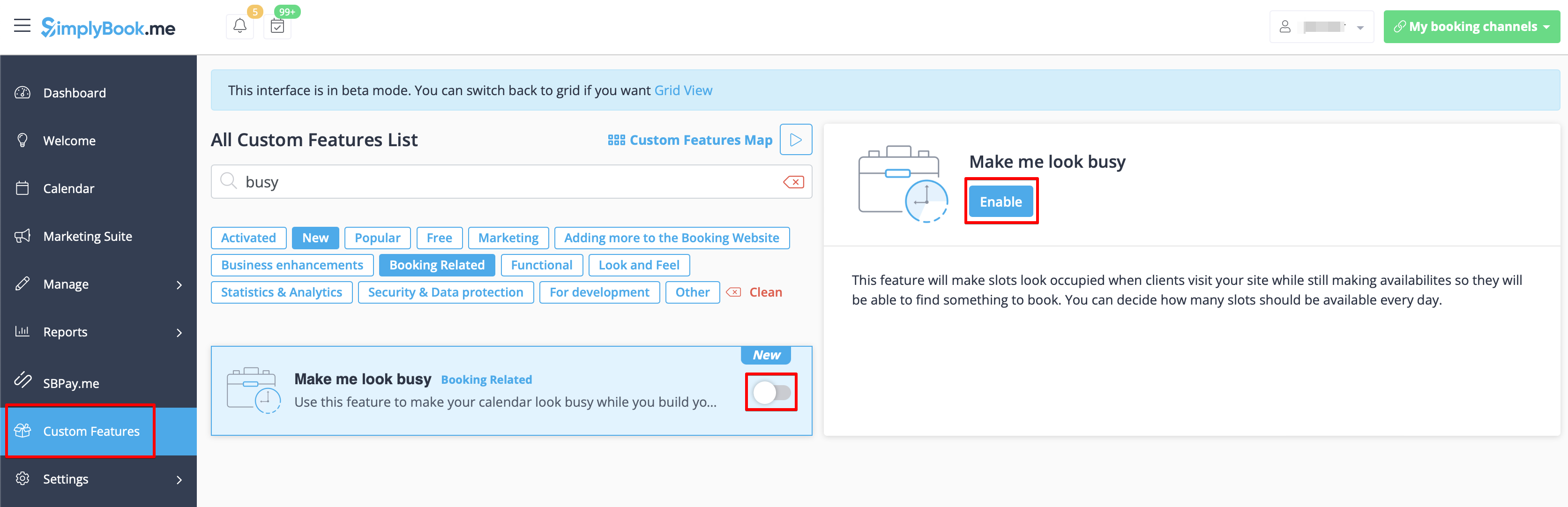
- 2. Indicate the number of timeslots you would like to show as available on your booking website per day.
- It is the number of timeslots to be shown per date per each service + provider pair.
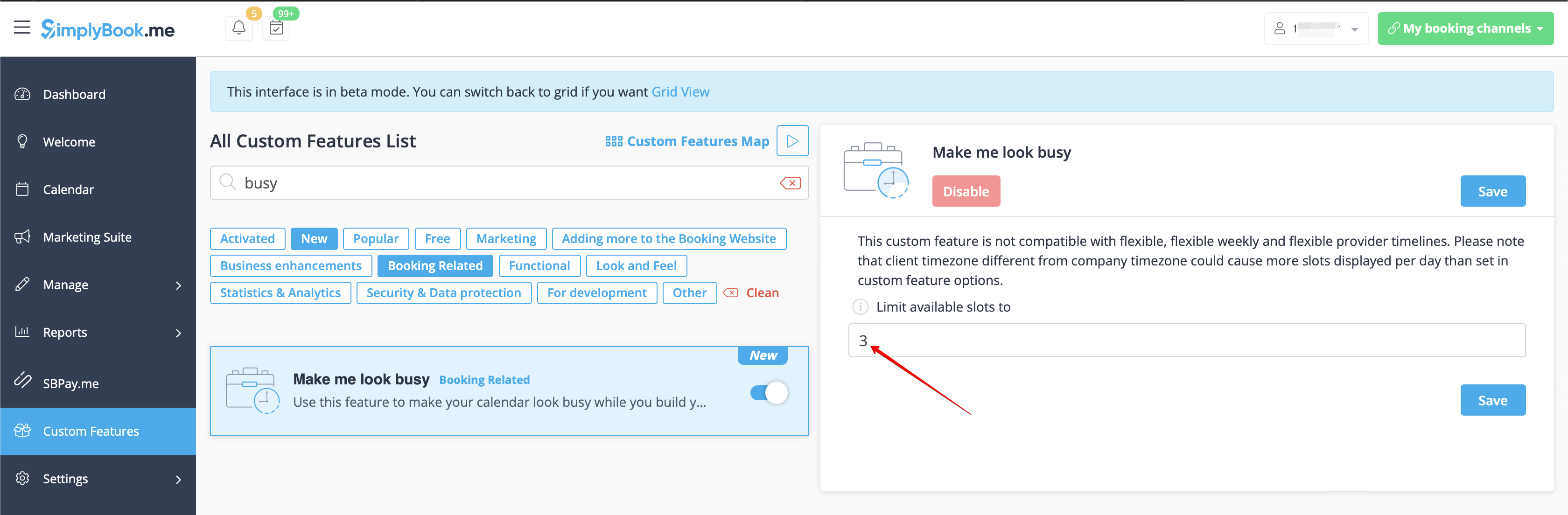
- 3. Here are some examples of how it may look on the client side.
- When some timeslot is booked the system will automatically open the next one depending on the scheduled that you have set in your account.
- modern calendar layout:
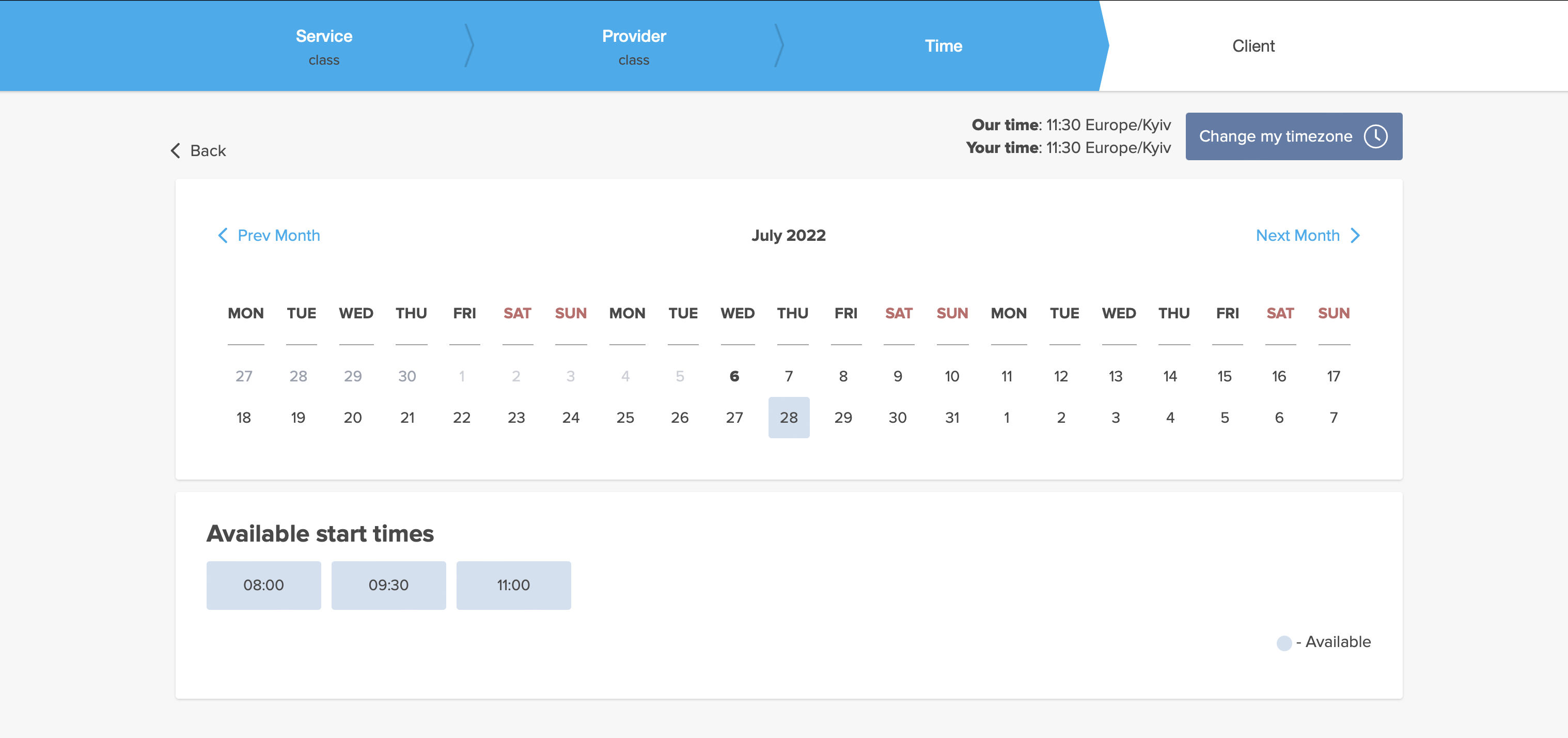
- slots weekly calendar layout:
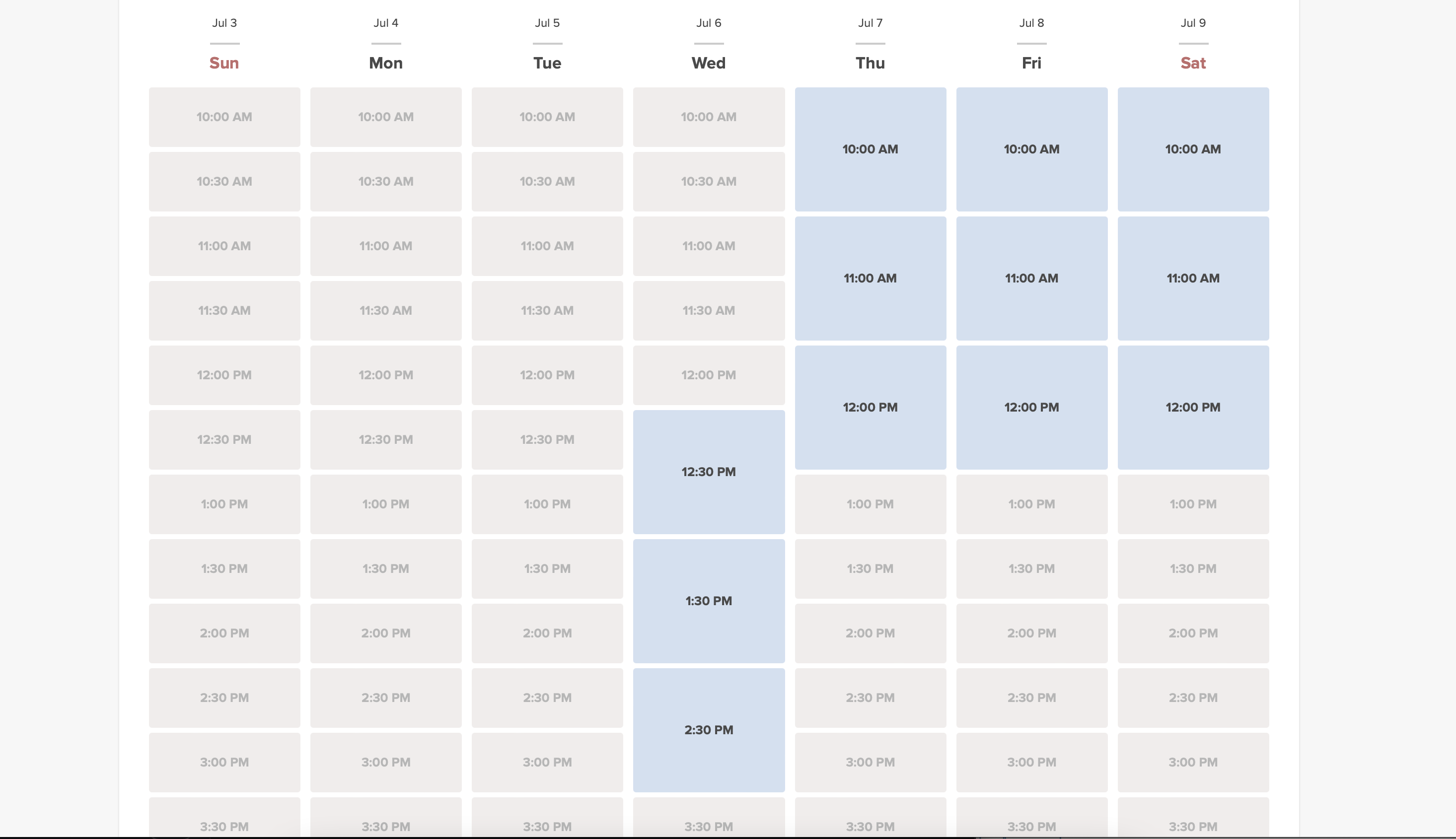
Medical Test

The medical test feature allows you to easily check in persons for testing, and send them access to results after their test results are ready. On arrival, their ticket is scanned and they get an arrived status. This ticket can be printed and put on the persons test tube. When the results are ready, the ticket can be scanned for quick processing of results that will be sent to a person via email and/or SMS. The results can be added in a message, or person can be asked to log in to their account on booking website to get the results and a downloadable PDF form with company branding.
Please note!
- When you enable Medical Test custom feature Tickets feature will be enabled as well;
- This custom feature is available with certain subscriptions only. Please check your plan details in your account Plans&Prices -> Subscriptions or contact support to check if it is included.
- How to use
- 1. Enable Medical test custom feature on your Custom features page, Other section(or use search there).

- 2. On the right side of the page select your preferences for results display.
- It is mandatory to either enable Client Login custom feature or Attach results as PDF to email option. Otherwise the feature will not work.

- 3. Select whether you would like your clients to be informed about certain test result and adjust the templates below.

- 4. Navigate to Results form to start working with the testing process by clicking on Validate ticket button on the Calendar page or by selecting Results form near this feature in the Custom features interface.

- 5. On this page you will see the ticket search form. Please use ticket or booking code to find the necessary appointment details.
- If you are using mobile browser and have allowed camera access you can also scan the client's ticket QR code.
- If you have admin mobile application please use QR scanning function there.

- 6. After the client has come for the test, you have scanned his ticket, please validate it to check in and the next possibilities to appear.

- 7. As soon as the test materials are taken from the client please press on Print label, print it(special printers are recommended) and stick to the test tube.
- The appointment will get "Work in progress - results not ready" status.

Test tube label example:

- 8. When you receive the results, open this interface again, scan the QR from the test tube label to find the appointment.

- 9. Select one of the three result options.
- As the result, the appointment status will be updated according to your selection.
- At this point the client will get the notification that the results are ready if you have it enabled in #3.

You can also print the test results if necessary.

- 10. All the tickets with the medical test result statuses are available for viewing and export in Reports -> Tickets report.

Membership

This Custom feature allows you to have services that only members can book provided they have an active paid membership. This can be applied to a selection or all services, only classes or similar.
Here you can check more cases when Membership can be useful.
Check video tutorial how to set it up.
Demo page with Membership-related classes is available here.
Please note!
- This feature is not compatible with Clean History.
- Client login and Accept payments custom features will be automatically enabled as well.
- How to use
- 1. To enable this feature please go to Custom Features section using left-side menu of your admin interface, find Membership and click on Enable button or use the switcher.

- 2. Navigate to Manage -> Memberships or use Manage button on Custom features page near this feature to add new Membership to your system.
- Click on + on the page you see.
- Add membership title, set description, upload an image, select the desired duration and decide on the sessions limit included.
- If necessary define the fixed date when the membership should start, otherwise it either will begin at the day the client makes the purchase(default) or it will also be possible to select the start date from the client side.
- Restrict how many future bookings can the client make within the membership to reduce the risk that same client books all the slots if you wish.
- Set the membership price if needed.
- If you would like to allow the membership to repeat please enable Is recurring option there and set the recurring price (it can be the same or different from the first price).
- If necessary define the fixed date when the membership should start, otherwise it either will begin at the day the client makes the purchase(default) or it will also be possible to select the start date from the client side.
- Please note! Automatic membership renewal can work from client side via Stripe(previous integration) and Adyen payment processors only.

- 3. Don't forget to attach the membership to services/classes to restrict booking to the members only.

- 4. For sure, you will need to notify your clients about the membership purchase or send the information related to its renewal.
- To adjust your templates please navigate to Custom features -> Membership -> click on its name on the left to open right-side options and see the list of available notifications:

- You can use the variables to automatically add the corresponding information to each email/SMS notification.

- 5. (optional) You may need to issue membership to some clients from admin side if they have already paid or you have given them some free period.
- You can do that from the same Manage -> Memberships page by clicking on Issue membership button either near the membership name or in the top right corner of membership editing window.

- 6. (optional) There are several issuing options to choose from:
- - you can set membership start date(current date is set by default);
- - you can generate an invoice if you need it for accounting purposes;
- - you can issue membership without an invoice;
- - if you select issuing with the invoice and the membership is recurring it is possible to set manual or automatic recurring mode and set the number of times to repeat for the automatic one,
- so that the new invoice will be generated each time the membership is prolonged if auto-prolonging is enabled.
- Otherwise, an offer will be created in Reports//Payment transactions and the membership will be prolonged when you approve it or you can prolong it manually in Reports//Payment transactions//Recurring profiles.;
- Please note! There will be no charges made by us in relation to your clients' accounts, this option only prolongs the clients' memberships for the new periods.
- If you need to charge your clients please do it on your payment processor side.
- - as well you can choose several clients at once to issue the membership to.

- 7. When the memberships are purchased or issued there are several places to check the information related:
- - Reports -> Membership payments - contains the information of each membership period present in the system(each recurring period will be displayed as a separate row).
- You can cancel the specific client's membership here if necessary.

- - Reports -> Payment transactions -> Invoices - contains all the invoices present in the system, memberships included.
- Please note! If you delete the invoice related to some membership purchase the corresponding membership will be canceled.
- - Reports -> Payment transactions -> Recurring profiles - shows all membership recurring profiles created either by clients or from admin side.
- It allows to cancel recurring profiles(both made by clients and admin) or prolong the recurring memberships issued from admin side only.
- Please note! If one and the same client already has the recurring profile for some membership it is not possible to create new recurring profile for the same membership for this client.
- You can either cancel current recurring profile and create a new one or issue another membership to this client.


- 8. From the client side the clients will see memberships tab on the booking site
- with the list of all options you have set as available and the services related will have clickable "Subscription required" labels
- that lead to the corresponding membership purchase.

- 9. (optional) As well you can add custom membership widget to your website if necessary following these instructions.
Multiple Bookings

Allows clients to book more than one service before they check-out and pay for all booking with one payment. This Custom Feature adds "Add another service" button to the "Details" step on the booking page. This functionality allows clients to book several services/classes on different time or day of the week.
- Please note!
- "Add another service" button will not be shown if several participants are selected with group booking or if the service is recurring.
- This feature cannot be enabled together with Waiting List
- How to use
- 1. Enable Multiple bookings custom feature on your custom features page.

- 2. You can edit notification templates related on the right side of the page.

- 3. Here is how it will look like on the client side in one of the themes.

Multiple Locations

Allows creating multiple service locations and relating them with different service providers (staff members). Locations will be shown as the first step on the booking site.
How to use
1. Enable Multiple Locations custom feature in Custom Feature section//Adding more to booking website.

2. Add locations either in the settings of the Custom Feature or in Manage//Service Providers//Add location.

3. Click on "Location providers" tab for corresponding location and check necessary boxes to connect service providers with location.

4. (Optional) In Settings // General settings // Email and SMS settings insert the following variables into your email templates:

- [location] - value of field "Location name"
- [location_address] - value of field "Location address"
- [location_phone] - value of field "Location phone"
How to set schedule for location
You can set individual schedule for the provider and then relate provider to the location. Thus working hours of the provider related to location will automatically apply to location.
- 1. To set individual schedule for provider go to Settings//Service providers//Working hours, or to Manage//Service Providers//Service providers schedule and you can set opening hours, break times, and special days for this specific employees. Just take care that opening hours of employees must be within opening hours of company.
- 2. To relate provider and location go to Manage//Service Providers//Service provider's locations and check the boxes with location(s) provider should be related to.
'How can I relate service to location
Locations can be related only to service providers, thus if you need to relate service to the particular location, you need initially to relate this service to the service provider:
- 1. In Manage//Service Providers//Services, attached to this service provider check the boxes with services related to this provider.
- 2. In Manage//Service Providers//Service provider's locations and check the boxes with location(s) provider should be related to.
The example of client view

News

Give your website a fresh life by managing news on your main page in our booking system.
You can publish news or blog on your booking website to keep your customers up to date with what’s happening in the business.
- How to use
- 1. Enable this custom feature on your Custom Features page, Adding more to the Booking Website section.

- 2. Click on "Manage" near this option.

- 3. Create the posts on the page you see by clicking on "+" button.

Online Video Meetings

Use this feature to easily create meeting links for your clients and meet them online using video or phone
We also recommend enabling Client Login feature for the smooth client experience in joining the meetings as there may be errors if they try to join within a separate browser session.
Please note! This feature is not compatible with Kiosk custom feature.
Video tutorial available
How to set
- 1. Enable Online meetings custom feature in your SimplyBook.me account.

- 2. Login to Microsoft Azure portal and your Microsoft Teams account with the user that is a member of your organization in MS Azure.
- (Or create the accounts there)
- Please note! It is not possible to connect personal/private Microsoft Teams account to the system, it should be related to an organization via Microsoft Azure.
- 3. Add Microsoft Teams in MS Azure -> Azure Active Directory -> Enterprise applications.

- And add your user(or the desired one that you need to connect to SimplyBook.me) in Enterprise applications -> Microsoft Teams -> Users and Groups on MS Azure side.

- 4. On SimplyBook.me side please click on Meeting services block and choose Authorization near Microsoft Teams”.
- Connect your Microsoft account.

- 5. For the services/classes you wish to conduct online meetings switch the option Enable as online meeting service/class on in Manage -> Services -> click on service name -> More options
(in Manage -> Classes -> click on class name -> More options if you are using Classes feature)


- 6. When the clients book such a service/class there will be online meeting link on My bookings page for the associated booking. When the appointment time comes the clients will be able to follow it to access the meeting.
- For admin side it will be possible to follow the link from booking info popup form in Calendar or in Reports -> Booking details.


- 7. (optonal) You can add online meetings link to provider and client notification templates so that both sides receive them with the booking details.
To do that please navigate to Settings -> Email and sms settings (or Custom features -> Flexible notifications -> Manage if you have customized notifications per service and/or provider).

Additional steps for case when you need to allow your Providers to have own MS Teams account connection
- 8. By default your MS Teams account that you have connected in Step#6 will be used to generate meetings links and conduct meetings, but if you have several employees in your company, they are added to SimplyBook.me side as providers and users and you wish them to use own MS Teams accounts for their online services/classes please make sure that you have them added as users in MS Azure with access to this application as well as members on MS Teams side.
- (you can add users in MS Azure interface with internal domain or invite using existing email addresses)
- 9. Then they need to log in to SimplyBook.me system under their credentials and connect their accounts in Manage -> Online video meetings.

- 10. Once they have connected own accounts you will be able to see this information in Custom features -> Online meetings -> Meeting providers&Meeting services.
- Please note! It is only possible to manually start a meetings for the users that have admin, senior employee or junior employee(connected to specific provider) rights.

How the meeting process works
- 1. After everything is set up and the client books the online meetings related service/class both the client and the provider (or company, depending on your settings) will get the links to the meeting.
- Either from email notifications if you have added the corresponding variables to the templates.

- Or the provider can get to the meeting page right from the booking on Calendar while the client from "My bookings" tab of the booking site.


- 2. By default the meeting starts automatically for the both sides when the booked time comes.

- 3. As well the provider can manually start the meeting if necessary using the corresponding button.

- 4. After this the redirect to Microsoft Teams sofware takes place and all the participants can join.
- (It is not mandatory for the customers to have MS Teams account. To join they will only need to fill in their name after opening the meeting url in their browser)

Packages

With the Packages custom feature you can create a package of multiple services, or, if you also sell additional items, combine services with products, add-ons, and classes. Clients can buy packages on your booking page or with Simplybook.me’s POS feature. Each package can be defined with some general items limit and any number of services and products, and you can set the validity to any period available. Once clients have purchased a package, they can book a service at any time paying with their package credits. They can always check how many occurrences are left within each package.
- Please note:
- as soon as you turn this custom feature on, Client login and Accept Payments features will be enabled as well.
- if the appointment that was purchased with the package credits is then cancelled the credits are not returned to the client's balance.
Video tutorial available
How to use
- 1. To switch this custom feature on, please navigate to your Custom Features page, go to “Booking related” section and click on “Enable”

- 2. Then choose “Manage” option either near the custom feature or navigate to Packages in Manage section of the left-side menu.

- 3. Just click on “+” button to create a new package. The form will appear on the right side of the page.


- 4. Insert package name, add a description (you can even use HTML formatting for a better look) and image.
- At this point you can also set the package price: you can specify the defined pack cost (if you want to make a discount, for example) or
- skip price box to later calculate the total amount of all the elements included into the package.
- Please note, it is not possible to create a package without a price.


- 5. Define the validity period of the package,
- enable and set the general limit for the included items(optional, will be applied to services, add-ons and products connected to the package)
- and set the number of sets available for sale (unlimited by default).


- 6. Proceed to adding services, products and add-ons to the package
- (you still need to set them in addition to the general limit if you use it to include the desired items into the pack, otherwise it will not be possible to use the package during the service/class booking process).
- You will see three corresponding sections below.


- 7. Please select “Services” section, check the boxes with the necessary items and set the quantity that will be available for booking within the package.


- 8. If you are using Products for sale and/or Service Add-ons features simply select the corresponding tabs and add elements the same way.


- 9. After you have added all the options and if you have not set a package price yet, get back to the “Details” tab and use “Calculate price” button to make the system automatically sum up all the elements prices for you.


- 10. Now you can click on “Save and issue package” to issue it to certain customers or simply save everything and allow your clients to buy this package on your booking site.

- If you assign a package from admin side or the client buys a package on the booking site he/she will receive package activation notification
- The invoice will be sent only in the case of the purchase and payment made from the client side.
- 11. Go to Reports//Issued packages to check packages order history, customer data, as well as the number of remaining items.
- Use filters for more extensive analysis.
- Here you can also cancel the package for the specific client if needed.


The use of Packages within the POS feature
- 1. Make sure you have enabled POS custom feature.

- 2. Go to POS interface, click on “New sale” button.


- 3. Select the client on the right side of the page to make the "Package" button active.


- 4. Pick the item and define the start date. End date will be automatically set based on the package duration after you save the selection.


- Please note, if the package is hidden from the booking page it will be still available within POS interface as it is part of admin side visible to POS user.
- 5. Proceed to checkout after you have added all the necessary services/products/add-ons/memberships/gift cards to the cart.


- 6. You may have a client who has already purchased a package before and wants to use it.
- You will be able to see if there is an applicable package after the necessary services are already added to cart.
- Then you will be able to click on “Use packages” button so that the items selected will be fully or partially paid with this set during the checkout.

Booking site operation
- 1. The clients will be able to navigate to the “Packages” tab on your booking site.
- Please note, the client must be logged in to see his/her purchases.


- 2. They will find a suitable set, choose a start date and buy the package.


- (if they select “pay later” option during checkout you will need to approve their purchase from admin side first. Then they will be able to book/buy the items included)
- 3. When the client has already the purchased package and books the separate services/products/add-ons, he/she will be able to cover those items with his packages’ credits (if included in packages) or pay for them in a regular way.


Password Security Settings

The Password security settings Custom Feature allows to define password requirements for system users and clients. This can further harden the system for possible intrusion. Just in few steps you can make your system more secure!
Free custom feature!
- How to use
- 1. Enable Password Security Settings option on your Custom Features page.

- 2. Go to its settings on the right side of the page.

- 3. Now you can set requirements for password for your system users in the left-side block.

- 4. (is skipped if you are already using Client Login Custom Feature) If you wish your clients to be able to log in securely please enable Client Login option there.

- 5. Set up password requirements for your clients in the right-side block and save settings.

Photo Gallery

With Photo Gallery custom feature you can upload the photos of your services to attract more clients. Simply browse photos and they will appear on your booking page.
- How to use
- 1. Enable Photo gallery option on your Custom Features page.

- 2. Click on "Settings" near it.

- 3. Upload the images on the page you see, add descriptions if necessary and they will appear in the separate tab on the booking site.

Point of Sale

Point of Sale Custom Feature allows system users to create and track sales of bookings, and to sell memberships, products and gift certificates to existing or new clients. You can check client's history of purchases, approve pending transactions and print invoices. All in the neat mobile friendly interface!
Please note! Accept Payments Custom Feature will be enabled as well when you switch PoS feature on.
Why you should use The Point Of Sale System
Video tutorial
- How to use
- 1. Enable Point of Sale Custom Feature on your Custom Features page, “Other” section.

- 2. Click on “Go to POS” near this feature or in top right corner of your admin interface under "My booking channels".

- 3. You will see sale start page. (If you need to return here at some point please use “Home” icon in the top left corner.)

- 4. By default guest client is selected, but you can select a client from already existing ones in your system.

- 5. Or add new client directly from POS interface.

- 6. Select “New Sale” option to sell service/membership/package/product/add-on.


- 7. If you have selected service option new booking will be created. Please choose which service/class, provider, date and time do you wish to book. Add product(s), add-on(s) if necessary and click on “Save”.

- 8. On the next step you can add more options to the cart(left side of the page) or confirm all the selections by clicking on the “Checkout button”(right side of the page).

- 9. Select payment method to confirm the order.

- 10. If you have chosen “Credit card/Wire transfer/Cash” the order will be automatically confirmed meaning that you have received the money using the options mentioned.
- If you have selected “Pay later” the order will be displayed as “pending”. You will be able to click on “Checkout” once more and select another payment method to confirm the sale.


- 11. You can go to “Home” page and use filters to see today/upcoming/expired/non-booking/pending/paid, etc. orders. It is possible to click on the order to see the details/print the invoice.

Products for Sale

When your clients are booking the services they will be offered to add relevant products to their purchase. Someone buying a haircut could for example be offered to buy hair gel at the same time.
Use this to your advantage to sell more!
- Please note! This custom feature cannot be used without Accept Payments custom feature, that is why this option will be automatically enabled as soon as you switch on "Products for sale".
How to use:
- 1. To enable this option please go to your Custom Features page and click on “Enable” near “Products for sale” option.

- 2. Click on “Manage” button that will appear there or select "Manage// Products for sale" section and you will get to a page where you will be able to create all necessary products.

- 3. Click on “+” icon to create new product, set its name, image, description if necessary and price.
- Please note! It is not possible to create free products, each of them needs to have some price added.

- 4. To relate the product with particular service(s) please use “Connected services” tab and check the boxes with desired services/classes.

- 5. You can also make product to be selected by default on the booking page and set default amount that will be displayed to clients.
- Please note! The clients will be able to adjust amount to their needs on the booking site or uncheck this product.

Here you can see how the products can look like on the booking page:

Correlation with other custom features:
1- Group Bookings. Number of items is multiplied to number of participants selected.
2- Multiple bookings. Products are selected separately for each booking.
Can I add the items that clients has selected to notification templates?
Sure, just add [products] variable to all necessary templates in Settings//Email and SMS settings and the list of products will be included to corresponding notifications

Provider's Color Coding

Some users like to simplify the dashboard view by having providers with certain colors. With this Custom Feature, you can give each of your providers their own color so when you quickly glance over the dashboard, it can be easily seen what bookings belong to each provider.
- How to use
- 1. Enable this option on your Custom Features page.

- 2. In Manage//Providers//More options//assign color to each provider to make them easily distinguished in the calendar.

- 3. As the result you will see bookings in corresponding colors on your Calendar page.

- If you are also using Status custom feature that also influences appointments color on the calendar page,
- the providers' colors will be represented by colored circles in the top right corner of the booking block.

Related Resources

Connect equipment, rooms or anything else that is limited in quantity to a service. Different resources can be connected to the same service when needed.
- How to use
- 1. Enable Related Resources feature on your custom features page.

- 2. Select Manage option or navigate to Manage -> Related resources using left-side menu

- 3. Create resources group(s) depending on your needs using + icon there.
- You can select between:
- Same number as clients type - with this group all the resources you attach to a service will be required for each booking. If the number of resources is not enough for a certain timeslot, it will not be displayed on the booking site. This type may be useful when some limited equipment is required to perform the service.
- Only one type - with this group it is possible to accept multiple bookings per timeslot(it will depend on the number of clients set per provider and/or limit bookings feature settings). It can be used for a room reservation for classes as if, for example, you have one room but two classes so that one class should become unavailable if another one gets a booking. In this case, the clients will continue making bookings for this another class according to the number of spaces you have indicated for it.
- Please note! It is recommended to use Appointmet at fixed time feature with this resource type so that the timeslot will always correspond to the reserved room/resource, etc.
- Same number as clients type - with this group all the resources you attach to a service will be required for each booking. If the number of resources is not enough for a certain timeslot, it will not be displayed on the booking site. This type may be useful when some limited equipment is required to perform the service.

- 4. It is important to attach resources to services/classes so that they will influence the booking process. Otherwise, the resources will not add any restrictions and will not be used.

- 5. If you got more resources of a certain type you can add items to the particular resource group.

- 6. In case you have less items in your inventory than it was created initially you can remove unnecessary ones from the group using mass actions.
- If certain service was connected to resource that was deleted such service may become unavailable on the booking site.
- In this case you need to update its relations towards other resources present in the system.

- 7. The clients do not select the resource during the booking process, it is allocated by the system automatically depending on the service and provider selection.
- You can view the resource used for the appointment from the admin side in each booking or in exported .xls file from Reports -> Booking details.

Service Add-ons

You can create add-ons for selected services. These add-ons can be set to influence service duration or not, but the service anyway becomes more expensive.
An example may be a massage, whereas the client could choose to add the luxury oil that costs more during massage.
Use this to your advantage to sell more!
- Please note! This custom feature cannot be used without Accept Payments custom feature, that is why this option will be automatically enabled as soon as you enable "Service Add-ons".
- Video tutorial available
How to use:
- 1. To enable this option please go to your Custom Features page and click on “Enable” near “Service Add-ons” option.

- 2. Click on “Manage” button that will appear there or go to Manage -> Service Add-ons section and you will get to a page where you will be able to create all necessary items.

- 3. Click on “+” icon to create new add-on, set its name and price.
- Please note! It is not possible to create free add-ons, each of them needs to have price added.
- Add the desired duration if you need it to influence the overall appointment time.
- Upload the image and set description is necessary.

- 4. To relate the add-on with particular service(s) please use “Connected services” tab and check the boxes with desired services/classes.

- 5. You can also make add-on to be selected by default on the booking page
- Please note! The clients will be able to uncheck this item if they wish to on the booking page.

- Here you can see how the add-ons can look like on the booking page:
- Please note! We recommend using the following timelines in case you set service add-ons with duration: modern, slots weekly, flexible, flexible weekly or flexible provider.
- In this case add-ons step will be shown before time step and the timeslots displayed should suit the items selected in most cases.

- With other timelines such as: daily classes, weekly classes и modern provider this step will be shown after time selection step and
- if all the selections do not fit the choices the clients will get an error that the service cannot be booked.

Correlation with other custom features:
1- Group Bookings. Number of items is multiplied to number of participants selected.
2- Multiple bookings. Add-ons are selected separately for each booking.
Can I add the items that clients has selected to notification templates?
Sure, just add [attributes] variable to all necessary templates in Settings//Email and SMS settings and the list of products will be included to corresponding notifications

Service Categories

With the help of this Custom Feature you can create categories and group your services to make it easier and faster for your clients to find the necessary service.
- How to use
- 1. Enable Service Categories custom feature in the Custom Feature section//Adding more to booking page.

- 2. In Manage//Services click on "+" and choose "Add category" to create all necessary categories. Insert title, picture, description and assign services to category.

- 3. Click on "Category details" tab of the category to edit any information. To connect services please choose "Category services" tab and check corresponding boxes.

- 4. Here you can see how categories can look like on the booking page using one of the themes avilable.

SMS Gateway

Use the SMS Gateway custom feature to use your own SMS gateway (Twilio, Vonage(Nexmo), BulkSMS, HISMS, Websms, Infobip available only) and use your own phone number as sender number. If you use this feature, you pay the gateway directly saving around 20% to 30% compared to when you buy SimplyBook.me credits.
IMPORTANT! Setting this up requires some technical knowledge and the SimplyBook.me team can not help with account creation at the SMS gateway providers.
How to use
- 1. Enable Sms Gateway Custom feature in Custom features//Other section at one-time activation fee.

- 2. Create an account with one of available sms gateways: Vonage(Nexmo), Twilio, BulkSMS, HISMS, Websms or Infobip if you do not have one yet.
- 3. Go to settings on the right side of the SimplyBook.me Custom Features page for “SMS Gateway” custom feature.
- 4. Choose the sms provider from “SMS Gateway” drop down and add corresponding credentials for the selected gateway below.

- 5. Save settings and it is all done!
- Please note! If this custom feature is enabled and set correctly you do not need to purchase sms credits from our side.
- You will be able to see sms being sent from the system in Reports//Sms report with 0 as credits amount in this case.
- Troubleshooting:
- Sms credits are charged from my account:
- SMS Gateway Custom Feature is not enabled
- SMS Gateway processor settings are not added.
- Sms are not sent from the system
- SMS Gateway settings are not added correctly.
- There is no sms credits on your balance.
SMTP

It allows you to use your own SMTP server so all emails sent from the SimplyBook.me system on your behalf, come from your own email address.
- How to use.
- 1. You can enable this Custom Feature in your Custom Feature section

- 2. Go to its settings on the right.

- 3. And add your SMTP server details there. Save settings.
- Remark that if you have a gmail address or g-suite email, you can send up to 1.000 emails per day through that address.
- If you send more than 1.000 notifications/promotions per day, you can look at other smtp services like sendinblue.com, sendgrid.com, mailjet.com, or authsmtp.com.
- Please check video tutorial here.
- For added security, you can setup double authentication for the email that you plan to use.
- Here you can check instructions how to use application password for double-step authentication.
How to store a copy of outgoing emails in your Gmail:
- 1. You need to log into your Gmail or Google Apps email Settings and Click on the Forwarding/IMAP tab and scroll down to the IMAP Access section.
- 2. Please set the IMAP as enabled in order for emails to be properly copied to your sent folder.
SOAP with Encryption

Need patient information to be more securely stored? SOAP (subjective, objective, assessment and plan) with data encryption feature allows to insert time-stamped record with 4 encrypted text fields that stay with client data. Sensitive medical data of your clients will be secured with RSA 4096.
How to use
- 1. Make sure that you have simple SOAP custom feature disabled(as they are not compatible)
- 2. Then please go to Custom features page using the left-side menu of your admin interface, use searchbox at the top or choose “Other” category.
- And click on “Enable” near “SOAP with data encryption” option.

- 3. Please choose “Settings” near it to generate the keys and setup encryption.


SSL

Make all client's connections with the server through a secure layer.
It is important to have it enabled for some payment processors and widgets.
Free custom feature!
- How to use
- Just enable it on your Custom features page and you are done!

SSO: SAML

This custom feature allows to setup Single Sign-On process for you as the system admin and your account users thus enabling login to SimplyBook.me system from MS Azure applications panel. You can create users in MS Azure within the desired access level groups and the corresponding user types will be added in your SimplyBook.me system on the first login.
- How to use
- 1. Create account at Microsoft Azure if you do not have one yet.
- 2. Enable SSO: SAML Custom feature on your Custom features page .

- 3. Navigate to Manage to edit the connection settings.

- 4. Click on Microsoft Azure Configuration on the left and log in to your MS Azure account there to start connection setup.
- Please note! You need to have administrator access in MS Azure as well to be able to connect applications.

- 5. After successful login you will see the first block with basic options on SimplyBook.me side.

- 6. In MS Azure please navigate to Active Directory.

- 7. Select Enterprise applications in the left-side menu and add new application.
- (you may need paid MS Azure or Premium trial subscription there to add applications)


- 8. Choose non-gallery type. Add its name and save.
- 9. On the next page click on Set up single sign on and select SAML.


- 10. Use Pen icon in Basic SAML Configuration block to edit.

- 11. Copy the urls from SimplyBook.me SSO: SAML feature to the corresponding boxes on MS Azure side. Save.

- 12. On MS Azure side scroll to SAML Signing Certificate part and download Certificate(Base64). Open it with notepad or similar text editor, copy the certificate code and paste it to the corresponding box into SSO: SAML Custom Feature.


- 13. Scroll MS Azure side page to Set up For tutorial block and find Login URL, Azure AD Identifier and Logout URL options, Copy each of them and paste to the corresponding boxes on SimplyBook.me side.

- 14. Go to User attributes and claims block on MS Azure side and click on Pen icon to edit it.

- 15. For Unique User Identifier(click on it to edit) please set user.mail variable as Source Attribute. It is the parameter that will allow us to differentiate between different user logins.


- 16. For additional claims please add Groups option using Add group claim and Email and Name with Add new claim buttons correspondingly.
- You can also add phone and last name if you need. See claims setup example below.

- 17. Copy the claims titles to the corresponding boxes on SimplyBook.me side.

- 18. Navigate to Azure Active Directory homepage and go to Users section, create all users that you would like to access the system if they are not created yet.

- 19. In Groups create groups that will correspond to SimplyBook.me user types. For example, Admins for admin level users, Senior Employees for Senior Employee access, etc.
- You can create only one group if all your users have admin access, for example.

- 20. Add users to the corresponding groups.

- 21. Make sure each group contains the corresponding memberships.

- 22. Copy each group Object ID to the corresponding box in User Group matching settings on SimplyBook.me side.
- (If you have only one group for admins insert same object ID everywhere in that block). Save settings.

- 23. Once the users are given the access to Applications dashboard they can log in to SimplyBook.me with their access level by a click on the SimplyBook.me application icon.

- The corresponding user types will be added automatically to your SimplyBook.me account with the data passed according to your settings.
- Please note!
- It is not possible to connect existing SimplyBook.me side users to MS Azure users.
- For such users it is not possible to reset SimplyBook.me passwords, edit access level, username, access personal data report.
- They need to contact MS Azure administrator if they loose access to applications page or contact SimplyBook.me default admin to request personal data report.
- If you need to restrict access for such users you can remove or block them on MS Azure side.
- If you change the group the user is included to on MS Azure side or remove the user there the access level will be updated on SimplyBook.me side within several minutes or the user will be logged out.
Status

If you have a company with many providers, and a service desk accepting clients you can add status possibility to events to see the status. This is for example used to mark appointment with one status as "client has arrived", and then another as "Client has left and paid" whatever suits your needs.
- How to use
- 1. Activate this custom feature in the Custom Features section//Booking related.

- 2. Go to the settings of this custom feature by click on "Manage".

- 3. Press "+" to add new status.
- Insert "Name", "Description" and assign the color to this status. If you leave the switcher "Status by default" on, such status will automatically apply to all new bookings.

Take Me Back Home

The Take Me Back Home Custom Feature, allows you to bring clients back to your home page or selected URL after a booking has been performed on the booking page. Clients can press a link or they will be brought back to your homepage after 10 seconds by a redirect script.
Please note! This feature is not compatible with Kiosk custom feature.

- How to use
- 1. Enable Take Me Back Home in the Custom Features section//Look and Feel.

- 2. Go to its settings on the right.

- 3. Insert the link where you want your clients to be redirected, write a text for this link.
- Also add the link where you want your clients to be redirected for mobile version and add its text.
- 4. Enable or leave disabled "Enable auto redirect to your site". If enabled, it will redirect your clients automatically to the page you indicated in the "link to your website" filed in 10 seconds.
- 5. Write auto redirect text that will be displayed in case the option "Enable auto redirect to your site" is enabled(please note! do not change "%s" part for correct timer work).
Telegram Notifications

This custom feature allows you to create your own notifications bot in a few simple steps. As the result each customer will have an option to subscribe to your bot notifications and get messages about the appointments, invoice details, tickets and much more.
Video tutorial available
Please note!
- This functionality supports only booking related notifications.
- This custom feature is not compatible with Kiosk
- How to use
1. Enable Telegram Notifications on your Custom features page -> Other section.

2. Navigate to helper bot BotFather using the link in the instructions on the right side of the SimplyBook.me page.

3. Start the setup process in the BotFather bot and select /newbot option, follow the hints there: add the desirable name and username.

4. Copy the token from the result message.

5. Paste the token to the corresponding field in your SimplyBook.me account -> Custom features -> Telegram notifications. Save settings.
The page will show that the bot is connected to your account.


6. To enable the notifications for you as a user please use top left notifications bar, click on the Telegram icon and follow the steps from the popup:
you will need to navigate to the bot, choose "Subscribe" option from the menu and insert the security code.

7. The clients will see the invitation to subscribe to the notifications on the booking confirmation or payment page and will be able to follow the similar steps.

With the help of this notification bot it is also possible to see the information about the company and the list of upcoming bookings(their number is limited to 21).

The booking notifications texts depend on the templates you set for SMS notifications either in Settings -> Email and SMS settings or in the specific custom feature settings (i.e. Multiple Bookings, Group Bookings, Flexible Notifications).
There you can select the desirable variables to be used and adjust the wording if necessary.

In case you are using Accept payments, Tickets and/or Online video meetings it will also be possible to get the links to the corresponding attachments per respective appointment.
Here is the example of how appointment details may look like depending on other features used in the system

Terms and Conditions

If you want your business to be bulletproof then this Custom Feature is a MUST. Use it to create and manage terms & conditions for your company towards your clients.
The text inserted in the Custom Feature will be displayed on the "Details" page above the "Book Now" button or on sign up step if you are using Client login feature as a checkbox with text "I agree with -your company name- Terms & Conditions" and the clients will need to agree to it to be able to book your services
Free custom feature!
- How to use
- 1. Enable this feature on your Custom Features page.

- 2. Go to its settings on the right to manage your Terms and Conditions.
- 3. Add the text. You can use HTML formatting there to adjust the look.

- 4. (optional) Make it required to agree to your terms with each booking if you need a consent even if the same client books the services from time to time.
Ticket's QR Code

Create customized QR codes for your tickets consisting of one or more additional fields variables, with or without a delimiter. This QR code can be added to your tickets to facilitate further information reading into external systems after ticket validation.
Please note!:
- When you enable this custom feature Tickets will be enabled as well.
- With this feature you will need to edit custom ticket template with is available with premium subscriptions only.
- How to use
- 1. Enable Ticket's QR Code feature on your Custom features page -> Other section.

- 2. Select QR code correction capability if necessary.

- 3. Navigate to Edit template page.

- 4. Adjust the template to your needs using the Editor and the available variables on the right.

- 5. Add QR template url variable to the ticket template in Custom features -> Tickets -> Custom ticket.
- (please also make sure that you have custom ticket attached to necessary services in Manage -> Services -> select the necessary service -> Tickets)

Tickets

Issue tickets for services, classes and events. The tickets can be printed or shown from mobile screen by clients and then be scanned using the SimplyBook.me admin app, or manually inserted in the Validate tickets section of SimplyBook.me. If you have HTML/CSS knowledge and Premium plan, you can customize the look of your tickets.
Video tutorial
Please note:
- this feature is not compatible with Accept Deposits;
- the tickets are attached in PDF format to client confirmation email;
- if Pay Later is enabled within Accept Payments feature, the client selects it during booking,
- the tickets will be sent within the separate email template after admin accepts the payment in Payment transactions report.
- It can be edited in Custom features -> Tickets.

- the tickets are limited: every subscription has a definite amount of tickets per month included(140 in trial period). To check the number of tickets you have please go to Plans&Prices -> Subscriptions and scroll to the bottom of the page. To buy more tickets please navigate to Plans&Prices -> Additional items.

- How to use
- 1. Enable this feature on your Custom Features page.

- 2. Navigate to Manage using the link near the enabled feature or go to Manage -> Services section.

- 3. Select the service you would like to sell the tickets for with a click and go to Tickets tab.
- 4. Enable tickets issuing and connect the template by clicking on it. Save settings.
- (There is one default template, but with Premium plan you can create your own one).

- 5. When the event time comes and you need to validate tickets please go to Custom Features -> Tickets -> Validate ticket.
(or access it from Calendar page)

- 6. Look for the ticket by its unique number(can be used on desktop and mobile) or scan the QR code(open that page from mobile device).
- Check the booking information if necessary and click on Validate ticket


- 7. If you have SimplyBook.me admin application you can easily scan and check-in tickets there from Dashboard.

- 8. Ticket codes can be found in the related bookings on Calendar page or in Booking details report.
- You can also print tickets from there.


- 9. (optional) If you have Premium plan and know HTML/CSS or have someone who can help with it you can create a custom ticket template in Custom features -> Tickets -> Custom ticket.

- 10. From the client side they can get tickets on the appointment/payment confirmation page when the booking process is completed.
- Or they can go to My bookings tab and use the corresponding button there to download ticket PDF and print.


Vaccination report

Vaccination custom feature gives a quick overview of the booked and available slots in your system thus allowing to see the load generally per day/week/month or some date range(up to 90 days) as well as per certain provider or service. You can easily see the overloaded and most free ones to manage them accordingly. Another option that helps you in successful vaccination process planning is "Second appointment" tab: it shows whether a certain patient has already made an appointment for a second vaccine dose as well as his/her contact details, date and time of the appointments enabling you to quickly contact the ones who still need another appointment organization. Both report tabs give a great way to manage and organize the time resources and vaccination teams in most effective way to have as many people vaccinated as possible.
- How to use
- 1. Enable the corresponding item on your Custom Features page.

- 2. Select the criterion for grouping the appointments. By default they will be grouped by client record(id), but you can also select to group by email or phone number. And, for sure, you can change these preferences at any time.
- (optional) In case you are using Intake forms and/or Client fields features you can choose to group the bookings by the answer to one of those fields.

- 3. After you navigate to Slots report you can see total, currently free and booked slots as well as time occupation percentage per provider or service.
- Please use the switchers to view the data per day/week/month or a date range.
- Please note:
- Maximum period that can be selected for the date range is 90 days. If you choose the larger period it will be automatically autocorrected.
- In day view the number of slots per provider is based on your timeframe setting(i.e. if timeframe is 5 mins and time open in schedule is 9:00-10:00, then you will see 12 timeslots per provider if he/she serves one client at a time),
- while per service it depends on the selected service duration (i.e. if service duration is 30 mins and time open in schedule is 9:00-10:00 you will see 2 slots).
- The number of slots displayed is generally influenced by
- the amount of providers added in the system;
- their schedules;
- number of clients they can serve at a time.
- The following features do not influence the statistics
- Limit bookings;
- Related resources;
- Calendar sync;
- Classes are not displayed in the report

- 4. When you navigate to Second appointment tab you can see the clients who have already booked at least one non-cancelled appointment in the system.
- The lines will be grouped according to the settings from #2.
- In case the specific client has more than one appointment such records will be marked as having second appointment in place and the second column will contain the date of his/her last booking.
- By using View option you can access each client contact details as well as the list of his/her appointments.

- Video tutorial on setting up an account for vaccination
Visitor Counter

Use Visitor Counter Custom Feature to get up-to-date information about visits to your booking website or to the page with your booking widget. This Custom Feature will help you to evaluate the visits and bookings and can help you to decide if you should do promotions to get more visitors and potential clients. You will see all this information in the main Dashboard of the SImplyBook.me system. Shows data for the previous calendar week.
- How to use
- 1. Enable this option on your custom Features page.

- 2. Check the chart on Dashboard page for updates.

Waiting List

Allow your clients to sign up for a spot on your waiting list. This custom feature gives your customers the possibility to register for a waiting list on fully booked days. If someone cancels an appointment, applicants registered on this day will receive an email invitation to book the recently opened slot. Define in the settings how often each notification is sent and when you don’t want to fill the spot, i.e. if there is a short time until the session starts.
- Video tutorial available
Please note!
- Only the following calendar layout types are supported: modern, slots weekly, flexible weekly, flexible, flexible provider and daily classes.
- If you have a non-supported one set it will be automatically changed when this custom feature is enabled.
- The waiting list booking does not have time attached and is related to date.
- When some timeslot becomes available all the client who have applied for this date waiting list receive the email notification and the one who is the first will be able to occupy the spot.
- Client can have only one active waiting list booking for the specific service and provider for the specific date.
- During the process of the applying to the waiting list the clients fill in only the basic information or register/log in. All the rest(payments, products purchase, etc. will be provided when the usual booking will be made)
- This feature cannot be enabled together with Multiple bookings
- Waiting List feature does not work for recurring services and/or classes booking.
- How to set
- 1. Enable "Waiting list" custom feature on your "Custom features" page, "Functional" section.
- 2. In its settings on the right side of the page, "Main configuration" block, please select the number of email notification attempts about the free time slot appearance.
- Choose the desired time interval between these attempts in "Notifications interval".
- Set the time period when the waiting list bookings should be automatically cancelled in case the free spaces do not appear using "Waiting list slot auto cancellation" setting.
- 3. Adjust the email templates for the free slot notification and no free slots email to your needs. Use the variables if needed.
- Save settings.
- 4. You will be able to see all the waiting list applications in the corresponding report.
- You can use the link near this custom feature to access it or navigate to Reports // Waiting list report using the left-side menu.
- It is possible to filter the booking and manually cancel if necessary.
- 5. The clients can see own waiting list appointments in the specific tab on the booking website and can also cancel them there if they wish to.
Zapier Connector

Connect SimplyBook.me with hundreds of other solutions using this feature. It contains a variety of triggers that can be used to send information to other solutions by simply using one of the available zaps or by creating a new zap. Zapier allows to integrate 2 or more web-applications via their APIs through “triggers” and “actions”. SimplyBook.me is available in Zapier as Trigger app, it means only information from SimplyBook.me is sent to Zapier (1-way integration) and via Zapier to any app that has actions.
Please note!
- Available data depends on custom features enabled;
- It doesn't work if 2-step authentication is enabled (HIPAA or Google Authenticator);
- New client trigger doesn't work with Import clients feature, but works correctly if 1 client is added manually in admin interface;
- Information about membership/promotion/package/product used is not included as it relates to invoice and not to booking;
- Comment change doesn't launch any trigger;
- To be able to use Booking change/Booking cancellation triggers in order to change existing records in Action app you need to use paid Zapier account(please check current pricing with them and if it includes multi-step zaps), as Search step is needed to find the record in action app;
- If more items are added to admin interface after ZAP was created, you need to press "Get more samples" button at "Trigger step" -> "Test this step" in Zapier to fetch new available fields and data (zap template should be changed);
- Invoice data can be sent with New Invoice trigger;
- SOAP data is not sent;
- Tax information is not sent, service price is shown without taxes added;
- It doesn't work if both Accept payments and Approve bookings are enabled, and batch bookings are partially approved.
6 triggers are now available:
• New booking - launches when new booking is created in SimplyBook.me account;
• Booking change - launches when booking is changed (change of date/time/service/provider/status/intake forms answers);
• Booking cancellation - launches upon booking cancellation;
• New client - launches when new client is added, either upon a new booking, or when admin manually adds client in SimplyBook.me admin interface.
• New Offer - launches when any new offer is created on SimplyBook.me side (can be used when Accept payments custom feature is enabled).
• New Invoice - launches when new invoice is created and paid on SimplyBook.me side (can be used when Accept payments custom feature is enabled).
- Available data:
For booking-related triggers(New booking, Booking change, Booking cancellation):
Basic functionality (no custom features enabled):
- Company (login, name, email, phone),
- Service (name, description, duration, buffer time),
- Provider (name, description, email, phone),
- Client information (name, email, phone, address, timezone),
- Booking code (if booking is confirmed, start/end date/time).
Custom features related data:
- Accept payments (service price, currency);
- Status (name, description, color);
- Approve bookings (approval status: approved, canceled);
- Multiple Locations (location name, location address (with coordinates), location phone, location description);
- Service Categories (category name, category description);
- Service Add-ons (add-on name, add-on price);
- Intake Forms (answers).
For New client trigger:
- Client ID;
- Client name;
- Client email;
- Client phone;
- Client address;
- If client is blocked to login (if Client login custom feature is enabled);
- Client registration date.
For New Offer/Invoice triggers:
- Order ID;
- Client name / email / phone;
- Offer/Invoice description (list of items ordered, information about discount: gift card/coupon/package used);
- Order amount and currency;
- Discount amount;
- Order date and time;
- Offer/Invoice number in SimplyBook.me system (O-XXXXXX or I-XXXXXX);
- Payment processor (delay, cash, credit card, wire transfer);
- Payment status (paid, pending) and if payment is received.
- How to use
- 1. Enable Zapier connector custom feature on your Custom features page on SimplyBook.me side.

- 2. Create new Zap by clicking on Make a Zap button in Zapier interface.
- 3. Look for Simplybook in Trigger step.
- 4. Select the desirable trigger.
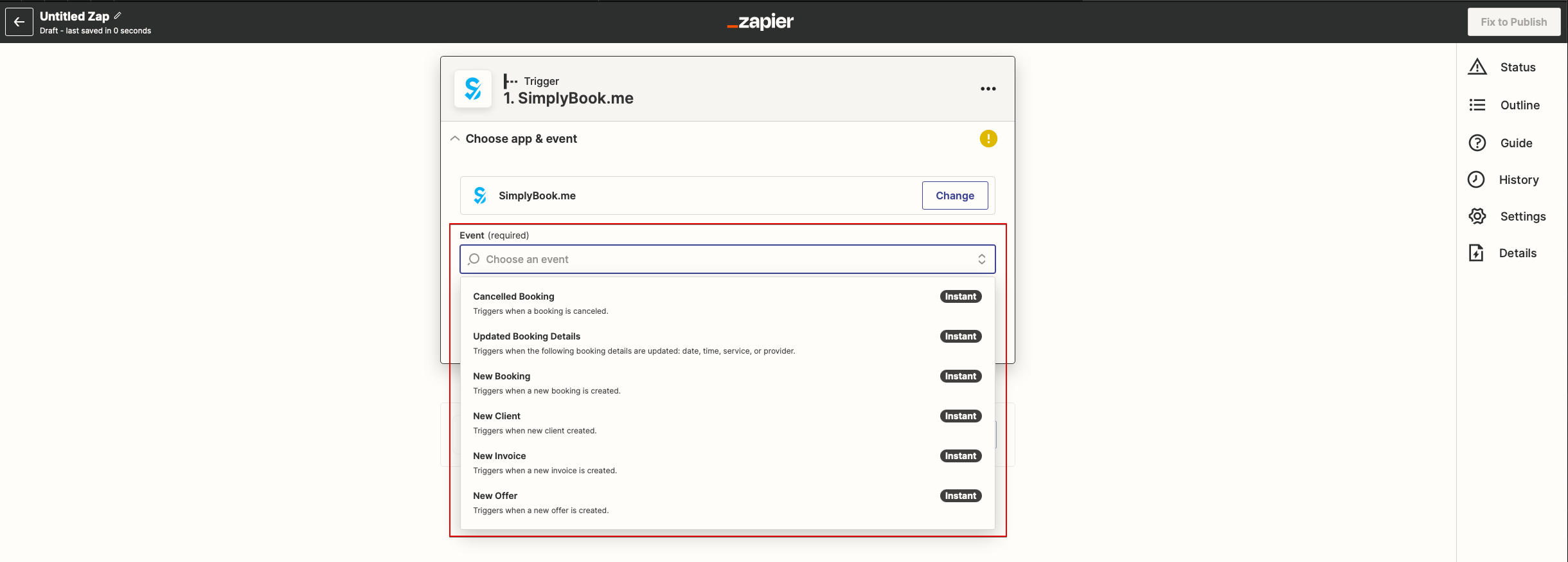
- 5. Connect SimplyBook.me account.
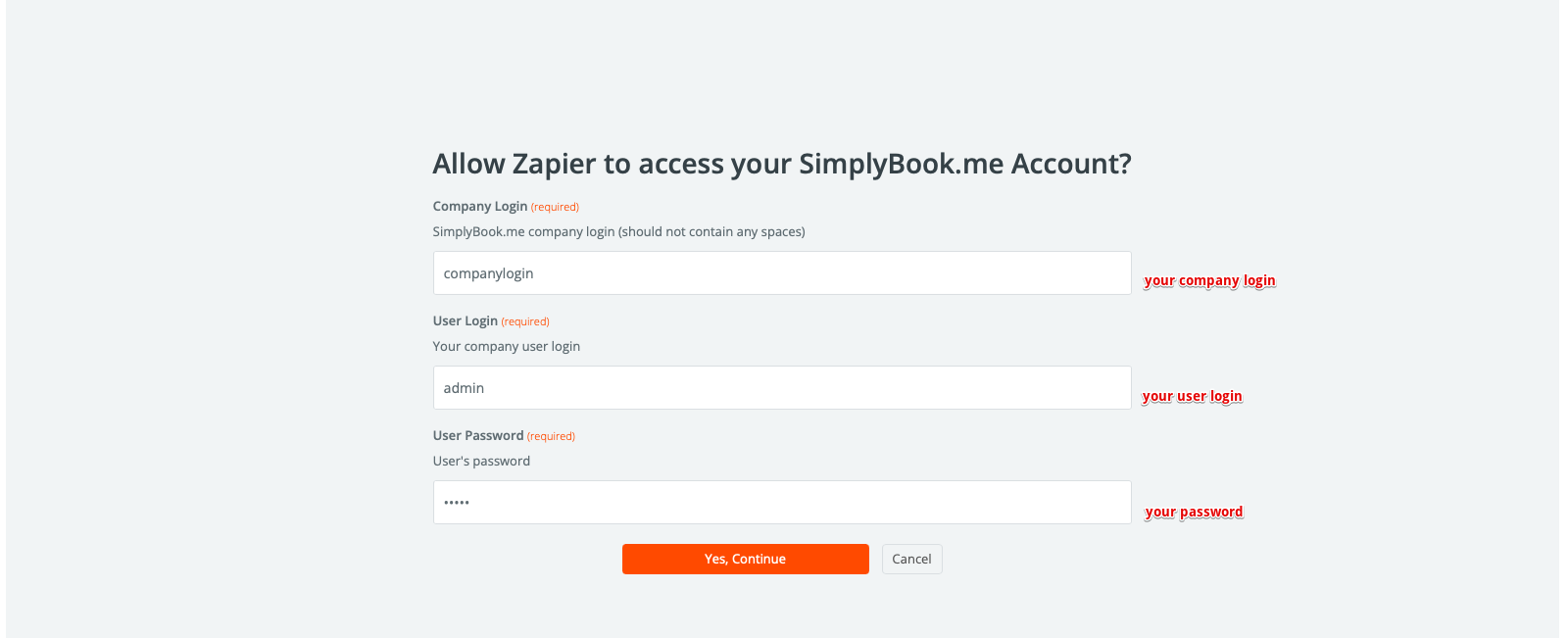
- 6. Click Continue to test this step.
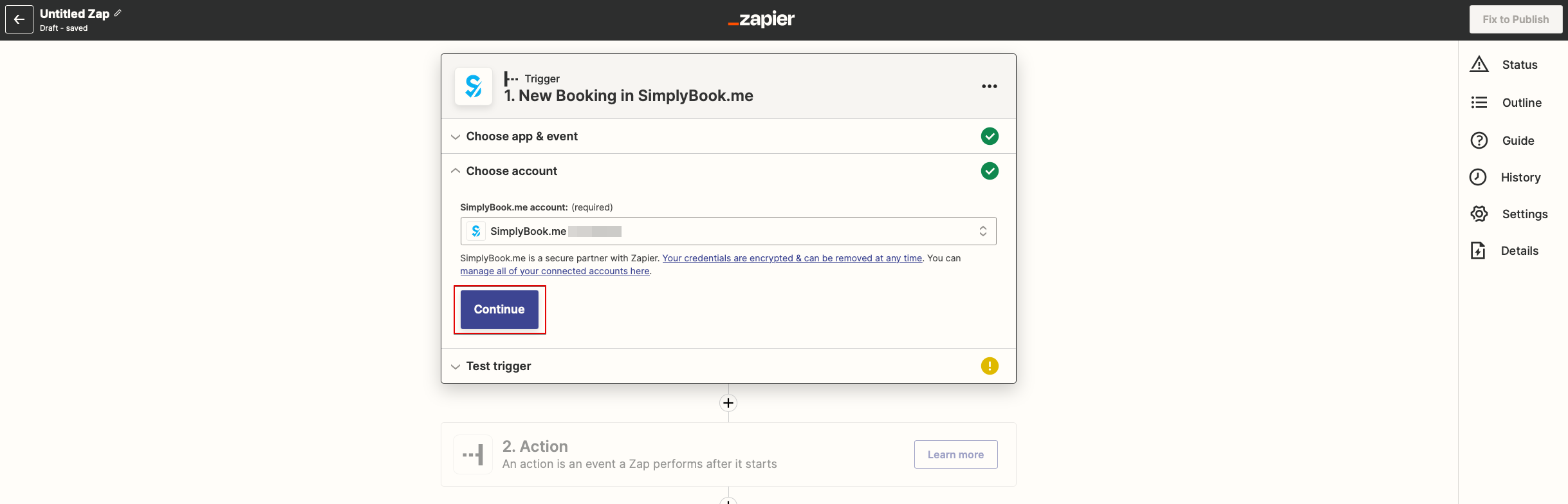
- 7. Proceed to adding the Action step and search for the app you wish to connect SimplyBook.me to.
- 8. Connect this application account and setup the template using the available data mentioned above.
- 9. You can test this step operation as well if necessary or skip it.
- 10. Finish the setup, add Zap name and turn it on.