No edit summary |
Marked this version for translation |
||
| (3 intermediate revisions by the same user not shown) | |||
| Line 3: | Line 3: | ||
|title=Group Bookings custom feature - SimplyBook.me | |title=Group Bookings custom feature - SimplyBook.me | ||
<translate> | <translate> | ||
<!--T:16--> | |||
|description=Allow group bookings for classes or events. Manage multiple attendees with ease. Activate this feature today! | |description=Allow group bookings for classes or events. Manage multiple attendees with ease. Activate this feature today! | ||
</translate> | </translate> | ||
| Line 18: | Line 19: | ||
<!--T:2--> | <!--T:2--> | ||
Group bookings is useful when you need your customers to be able to book appointment or reservation for many individuals at the same time. This Custom Feature creates a selection menu with the number of participants in the group. With this Custom Feature you can also use [[Special:MyLanguage/ | Group bookings is useful when you need your customers to be able to book appointment or reservation for many individuals at the same time. This Custom Feature creates a selection menu with the number of participants in the group. With this Custom Feature you can also use [[Special:MyLanguage/Accept payments custom feature | payment custom feature]] at the same time so that the total payment for all participants will be paid in one payment at time of check-out even though only the group leader/organizer is registered. If you are using [[Special:MyLanguage/Service Add-Ons custom feature| Service Add-Ons]] feature, number of items will also be multiplied to the number of participants selected. | ||
<br><br> | <br><br> | ||
<!--T:3--> | <!--T:3--> | ||
Video tutorial | Video tutorial <p><youtube>IZvnQ79WBG8</youtube></p> | ||
<!--T:4--> | <!--T:4--> | ||
| Line 31: | Line 32: | ||
<!--T:5--> | |||
__FORCETOC__ | __FORCETOC__ | ||
=How to use= | =How to use= | ||
:1. Make sure that the Service provider is set able to accept X many clients at same time(or more depending on your needs). For this go Manage//Service Providers//select necessary provider//Service provider details//How many clients can this provider serve at same time? and set the X number of clients. | :1. Make sure that the Service provider is set able to accept X many clients at same time(or more depending on your needs). For this go Manage//Service Providers//select necessary provider//Service provider details//How many clients can this provider serve at same time? and set the X number of clients. | ||
[[File:Number of clients per provider redesigned.png|1200px | center|link=https://help.simplybook.me/images/a/a6/Number_of_clients_per_provider_redesigned.png]] | [[File:Number of clients per provider redesigned.png|1200px | center|link=https://help.simplybook.me/images/a/a6/Number_of_clients_per_provider_redesigned.png]] | ||
| Line 57: | Line 59: | ||
<br><br> | <br><br> | ||
<!--T:6--> | |||
=FAQ= | |||
<div class="mw-collapsible mw-collapsed" data-expandtext="Show" data-collapsetext="Hide" style="width:800px; min-height:54px;"> | <div class="mw-collapsible mw-collapsed" data-expandtext="Show" data-collapsetext="Hide" style="width:800px; min-height:54px;"> | ||
<span class="qa" style="min-height:54px; display:block; align-items: center; padding: 6px 0 6px 20px;"> | <span class="qa" style="min-height:54px; display:block; align-items: center; padding: 6px 0 6px 20px;"> | ||
Revision as of 11:48, 23 September 2025

Group bookings is useful when you need your customers to be able to book appointment or reservation for many individuals at the same time. This Custom Feature creates a selection menu with the number of participants in the group. With this Custom Feature you can also use payment custom feature at the same time so that the total payment for all participants will be paid in one payment at time of check-out even though only the group leader/organizer is registered. If you are using Service Add-Ons feature, number of items will also be multiplied to the number of participants selected.
Video tutorial
Please note!
- Number of participants drop-down isn't displayed for recurring services.
- It is not possible to reschedule group bookings with Client rescheduling feature.
How to use
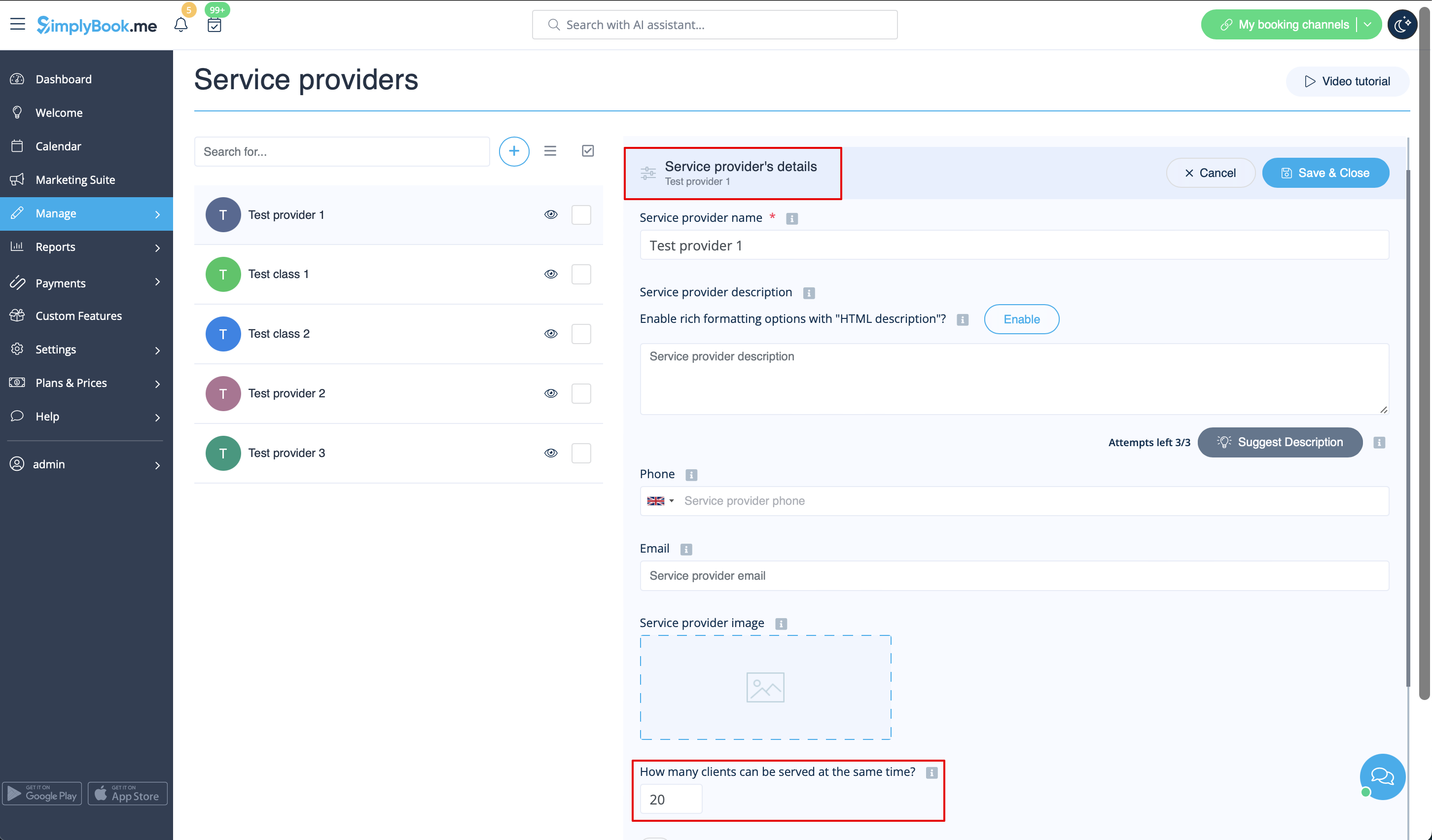
- 1. Make sure that the Service provider is set able to accept X many clients at same time(or more depending on your needs). For this go Manage//Service Providers//select necessary provider//Service provider details//How many clients can this provider serve at same time? and set the X number of clients.
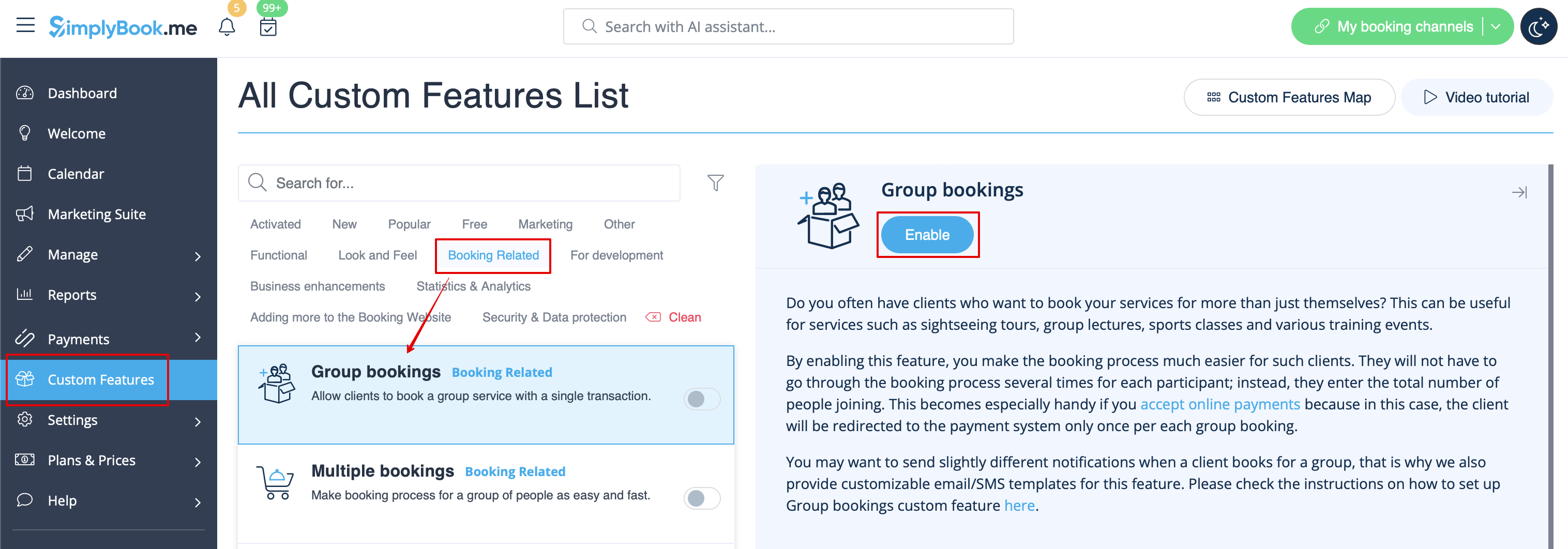
- 2. Activate Group Bookings custom feature on your Custom features page
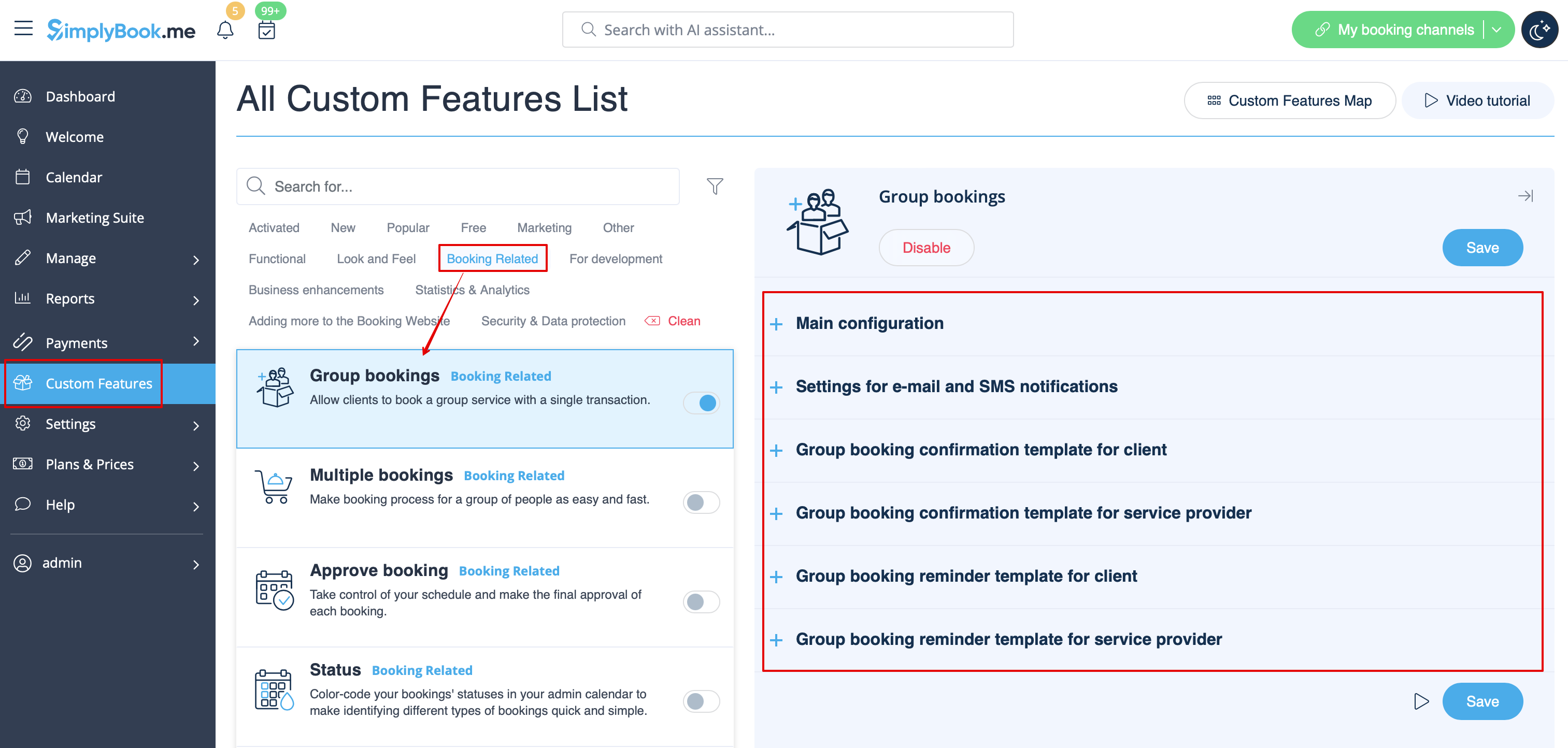
- 3. Go to its settings on the right.
- 4. Here you can specify how many people can be booked in same booking, by same client and edit notification templates related to this feature below.
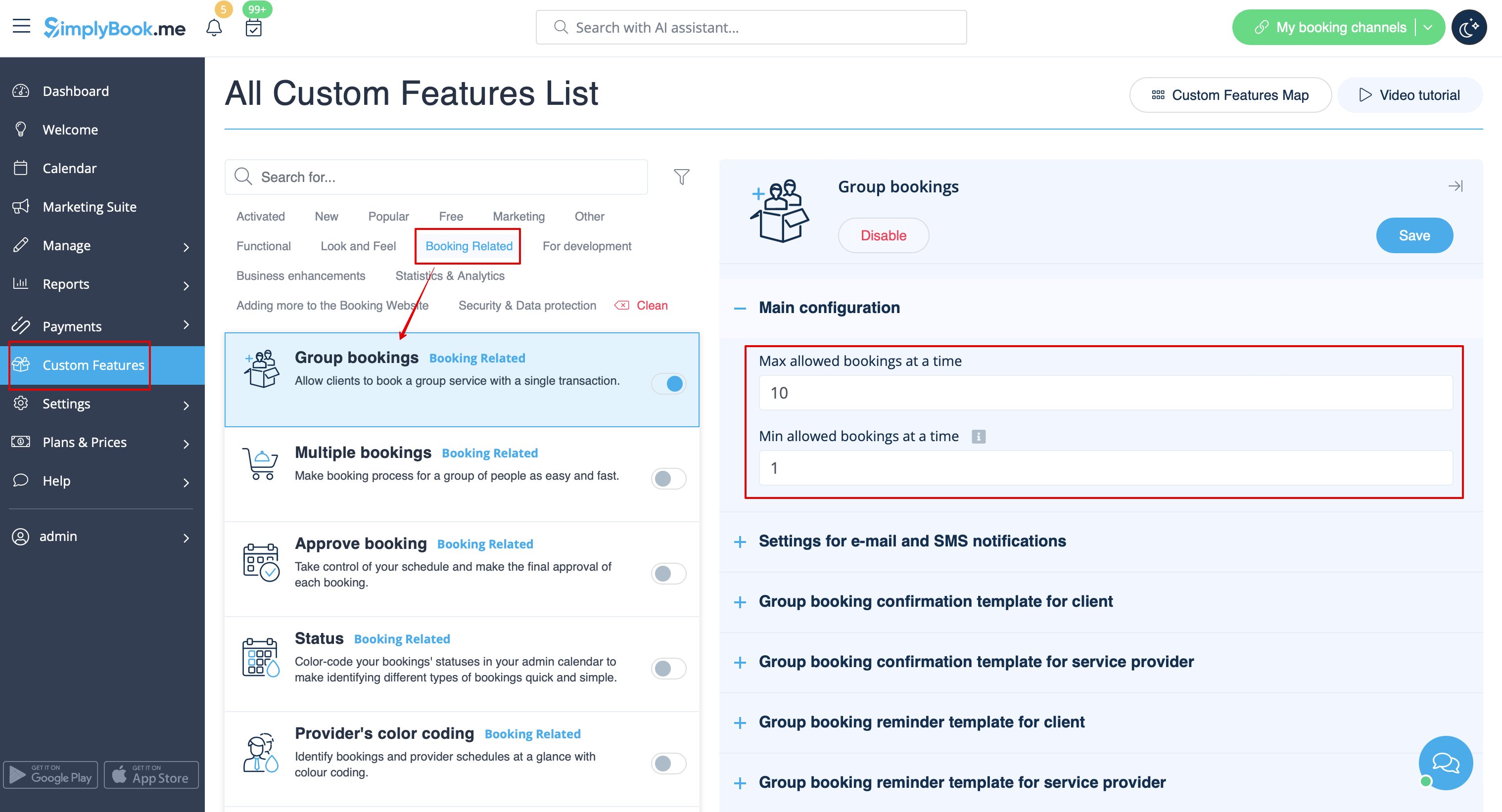
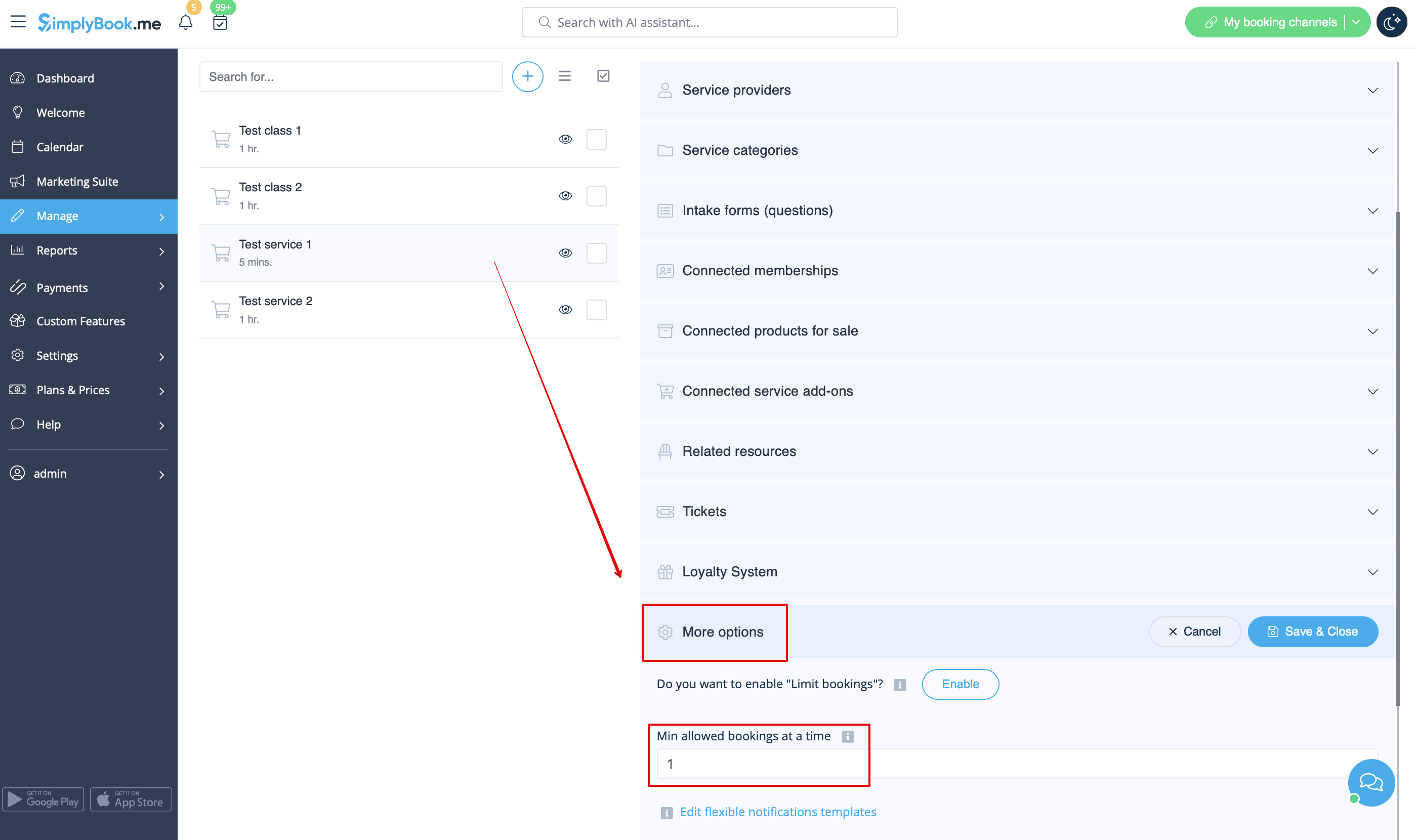
- (optional) You can additionally indicate minimum number of allowed group bookings if it is required for your services and as the result the clients will not be able to select the lower number of sessions on the service step of the booking process.<br<
- It is possible to set this minimum number for all the services you have. Then please do that in Custom features -> Group bookings -> right side of the page -> Min allowed bookings at a time
- Or you can define some number per service/class in Manage -> Services/Classes -> select the service/class -> More options -> Min allowed bookings at a time
How will it look like on the booking page:
- The clients will be able to use the arrows to choose the number of participants(the look may differ depending on the theme you have).

FAQ
Q1: Why am I unable to select the number of participants on the booking website after activating the feature?
A1: Please ensure that you have not restricted bookings for your service/s and/or provider/s to 1. Check the booking limit per timeslot for the service in Manage -> Services -> More Options. Verify the limit of bookings per service provider in Manage -> Service Providers -> How many clients can be served at the same time. If the Limit Bookings Custom feature is enabled, ensure you haven't set the limit to 1 for all services simultaneously in the feature's settings.
Q2: My availability stopped showing on the booking website after activating the Group Bookings feature.
A2: Check the Min allowed bookings at a time set in Group Bookings custom feature -> Main Configuration. For example, if you set Min allowed bookings at a time to 2, and the service has a limit of bookings set to 1 with the Limit Bookings feature or the associated Service Provider has a limit set to 1 in Manage -> Service Providers -> How many clients can be served at the same time, adjustments are needed to make the system work.
Q3: How can I set a fixed price for the service regardless of the number of participants in a group booking?
A3: Unfortunately, it's not possible. The service price is set per 1 booking (1 participant = 1 booking). The system adjusts the price dynamically based on the selected quantity of the participants.For example, If the service price is set to $10 and the client selects 3 participants in group booking, the price will automatically adjust to $30. To gather information about the number of participants without charging more, consider using the Intake Forms custom feature. If needed, you can quickly block time from your calendar after such booking using Calendar Note.
Q4: Can I customize the notifications for group bookings?
A4: Yes, you can adjust the templates in the Custom Features -> Group Bookings custom feature. There you can modify Group booking confirmation template for client, Group booking confirmation template for service provider, Group booking reminder template for client, Group booking reminder template for service provider. You can aso create Custom Email with the help of Custom Email custom feature.
Q5: Can clients cancel one appointment from the group booking?
A5: Yes. If you allow booking cancellations, clients can use the cancellation link from the group booking confirmation email or log into the account if the Client Login custom feature is enabled to cancel a specific booking or choose to cancel all batch appointments.
